
DreamCut Docs
Guides and tutorials for everything in DreamCut: recording your screen, camera and voice on a Mac, editing with captions, zooms and the transcript, adding titles, B-roll and AI media, and exporting and sharing the result.
Start here
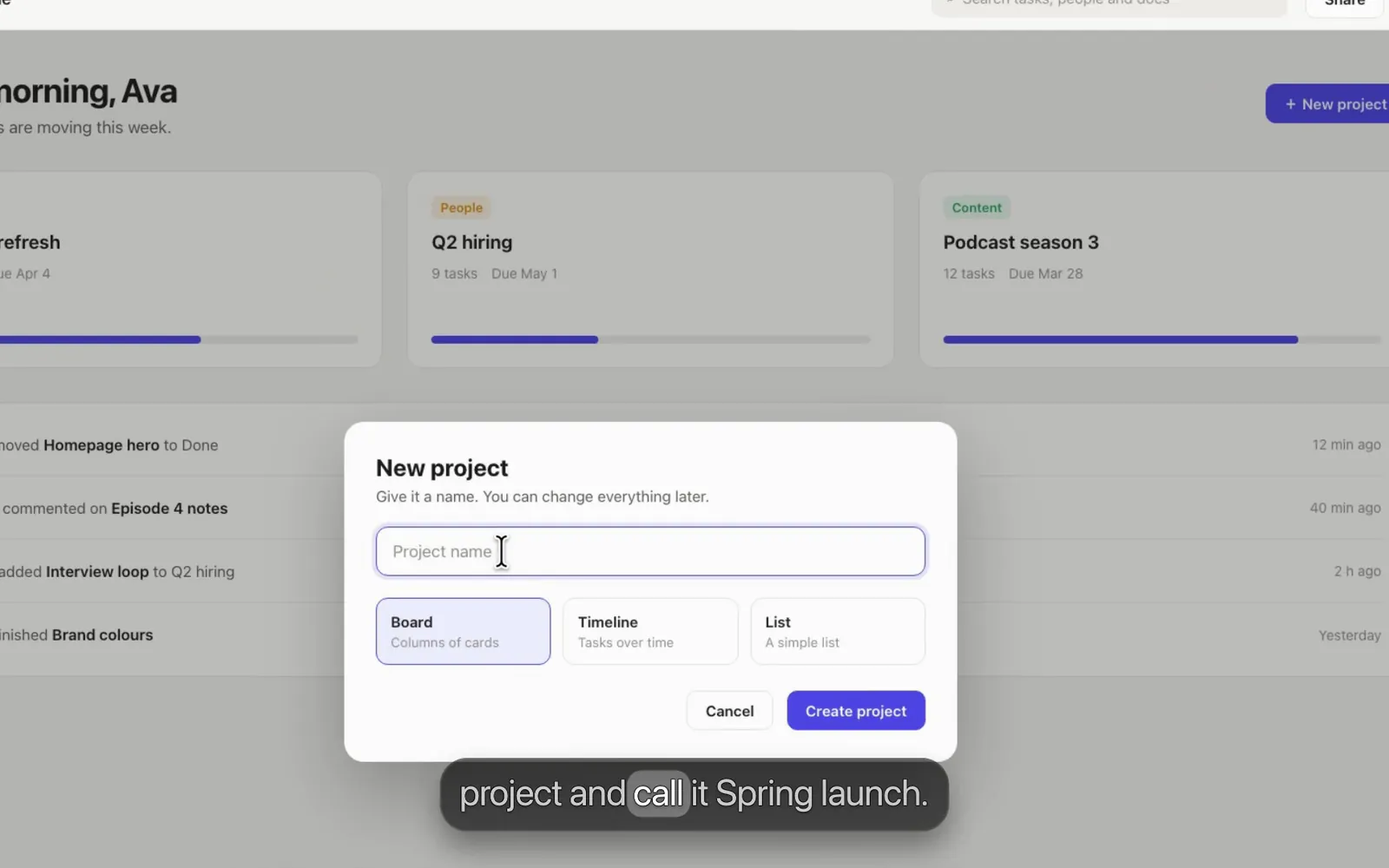 QuickstartGo from the menu bar to a finished video in a few minutes. Record your screen and voice, cut a pause, check the zooms, add captions and export.
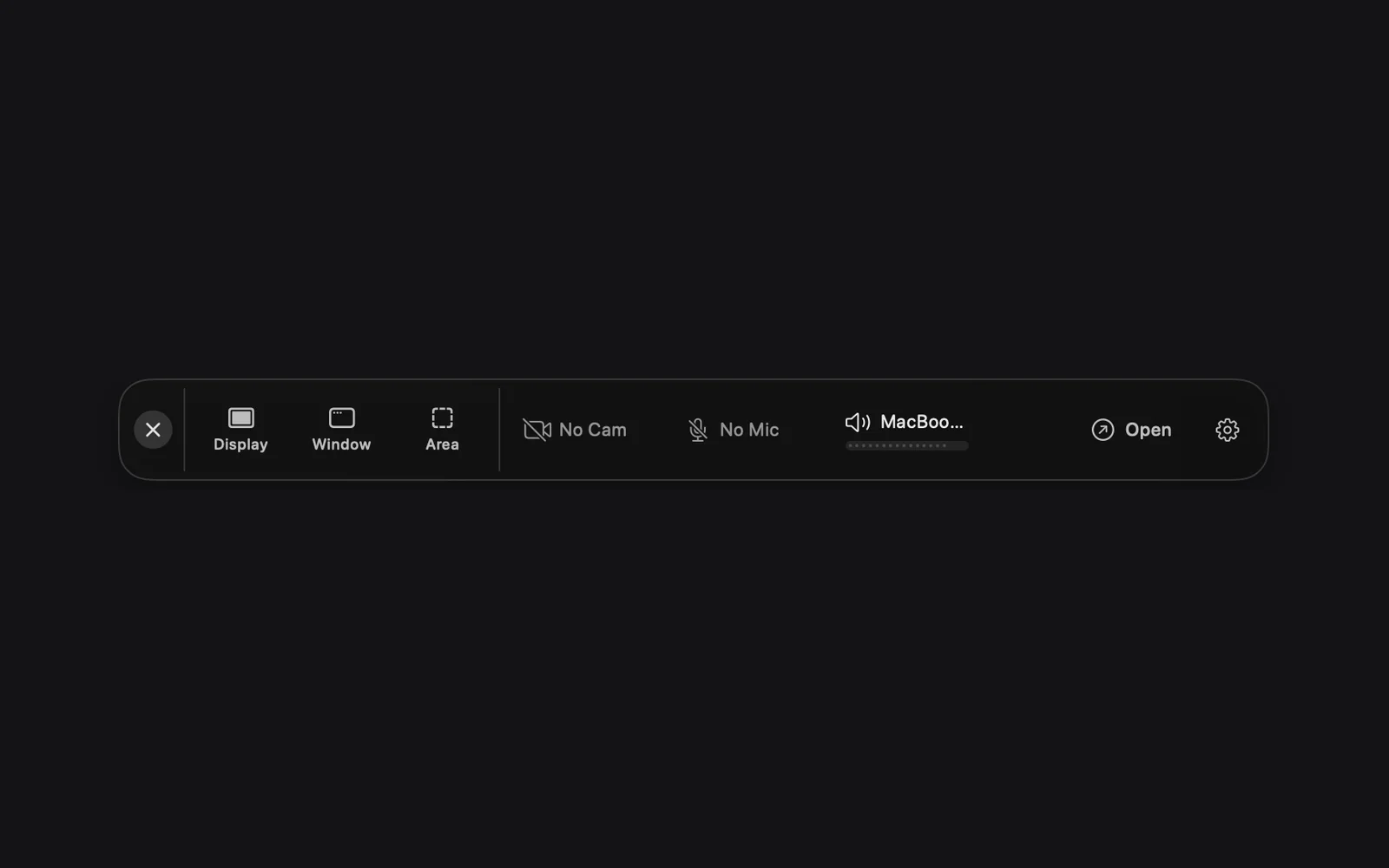 Record your screenRecord a whole display, one window or an area from DreamCut's capture bar, with a countdown, pause and restart, then open it in the editor.
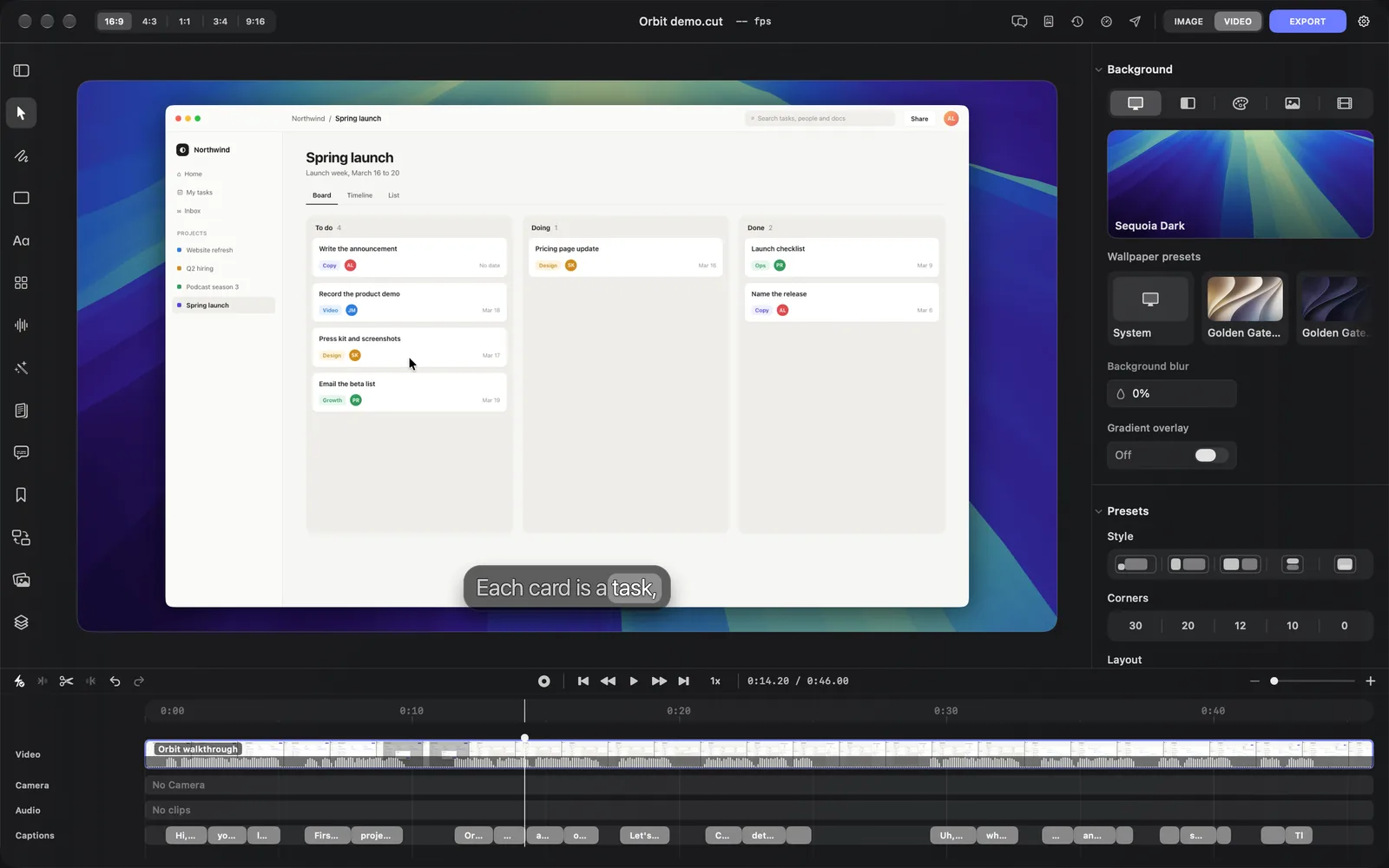 Editor tourA map of DreamCut's editor window: the top bar, the tool rail, the canvas and its layer toolbar, the inspector and the timeline, and what each is for.
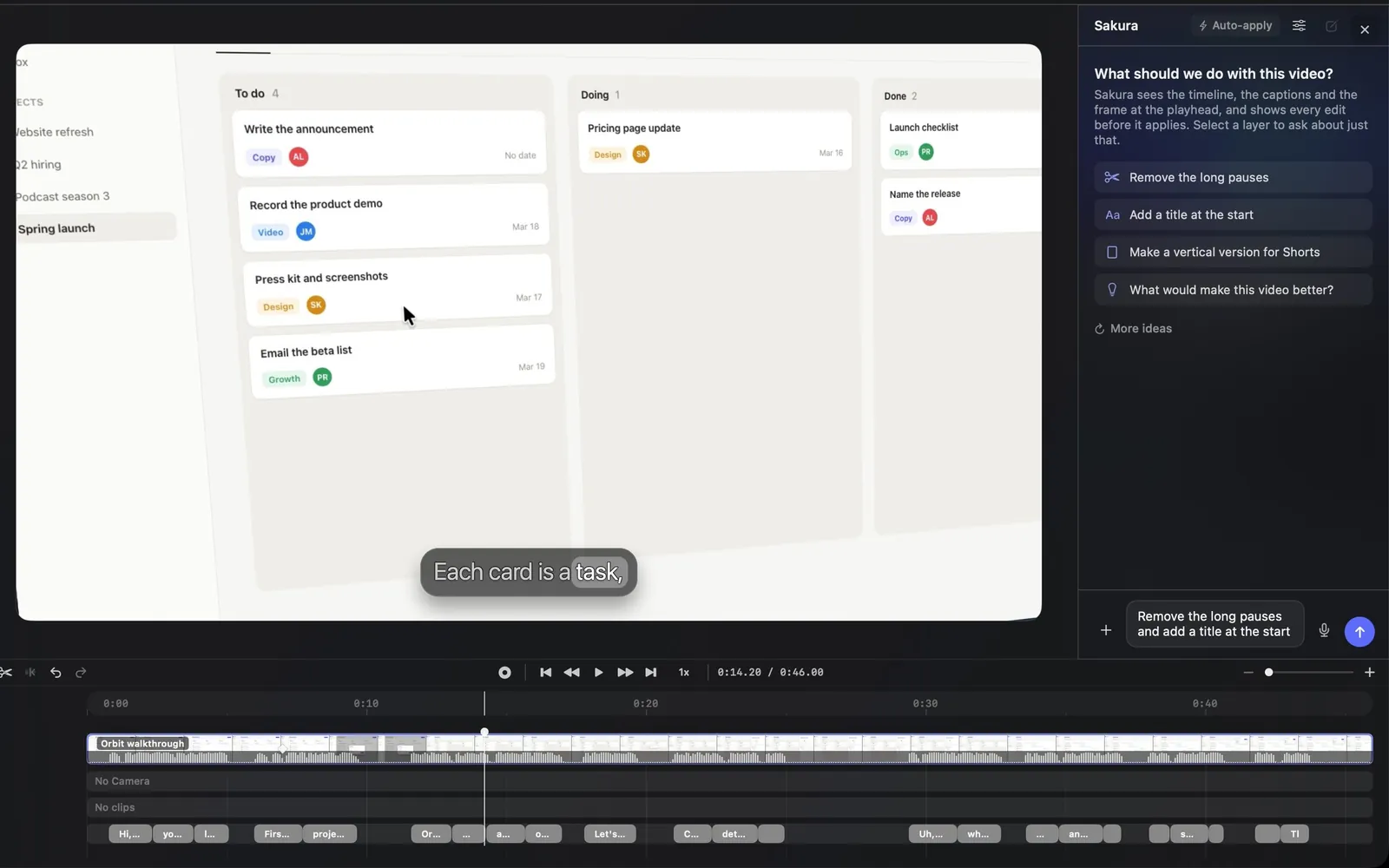 SakuraAsk Sakura, the AI in DreamCut's editor, to cut pauses, add zooms, titles and captions, or make voiceovers, then preview, apply or undo each edit.
Get started
IntroductionDreamCut records your screen, camera and voice on a Mac, then edits them into a polished video with zooms, captions, titles and AI help.Install and permissionsInstall DreamCut on your Mac, allow Screen Recording and Accessibility, sign in, start your Pro trial, and fix a permission that doesn't take.QuickstartGo from the menu bar to a finished video in a few minutes. Record your screen and voice, cut a pause, check the zooms, add captions and export.Capture bar and projectsUse DreamCut's capture bar to start captures and open recent projects, then learn where projects are saved and how to rename, restore and delete them.Keyboard shortcutsDreamCut's keyboard shortcuts: capture keys that work in any app, quick captures, dictation, the editor, transcript, Sakura, Shorts and Article Studio.
Record
Record your screenRecord a whole display, one window or an area from DreamCut's capture bar, with a countdown, pause and restart, then open it in the editor.Camera and microphoneTurn on your camera and microphone from the capture bar, pick the devices, check your mic level, and find your camera on a layer of its own in the editor.System audioRecord the sound your Mac plays, such as a video, a call or an app's alerts, along with your screen, then turn it down or mute it in the editor.Quick capturesPress Control twice to copy part of the screen, Option twice to copy the front window, or Command twice to record it, from any app on your Mac.Speaker notesKeep your script on screen while you record: write speaker notes in DreamCut, scroll them like a teleprompter, and keep them out of the video.
Edit
Editor tourA map of DreamCut's editor window: the top bar, the tool rail, the canvas and its layer toolbar, the inspector and the timeline, and what each is for.TimelineSplit, trim and delete parts of a recording on DreamCut's timeline, and learn its lanes, toolbar buttons, right-click menus and keys.Transcript editingCut ums, uhs and long pauses by editing the transcript in DreamCut, delete single words, search and replace, and fix typos in your captions.CaptionsGenerate captions from what you say, fix their words in the transcript, and style them with presets in DreamCut's editor on the Mac.ChaptersMark where each section of your video starts, name the chapters, and copy them for YouTube or export them with the video, in DreamCut's editor.Zooms and the cursorZoom in where your mouse works, add and tune zooms by hand, tilt the view in 3D, and resize, animate or restyle the cursor in your screen recording.Layout and cameraPlace your recording and camera with one-click presets for split screens, corners and size, then fine-tune each layer's frame, crop and effects.Background and canvasPut a wallpaper, gradient, color, image or video behind your recording, and switch the canvas between 16:9, 4:3, 1:1, 3:4 and 9:16.Crop and rotateCrop the recording, the camera or any overlay by dragging its edges, turn it to any angle, and resize it from its corners in DreamCut's editor.
Layers
Text and titlesAdd plain text or one of 27 animated titles at the playhead, type your words right on the canvas, and style them in DreamCut's editor on the Mac.DrawAdd arrows, circles, lines and boxes that draw themselves on at the playhead, or draw your own line on the canvas, in DreamCut's editor on the Mac.OverlaysDraw a box over your recording in DreamCut to frame or highlight an area, blur or cover private details, or show a picture or video on the canvas.Stickers and cut-outsAdd animated Subscribe buttons, badges, callouts and emoji to your video, drop in pictures with a clear background, or have DreamCut AI make a new one.B-rollPick a photo under B-roll in DreamCut's Overlay panel, say what it should show, and DreamCut AI makes a new image in its style, full-frame at the playhead.Layout cards and HTMLAdd ready-made pricing cards, quotes, stats, buttons and illustrations to your video, type your own words in them, or write a card in HTML and CSS.Media galleryKeep your pictures, videos and sounds in DreamCut's media gallery, find them with filters and search, and add them as a scene, camera, overlay or audio.
Transitions and effects
TransitionsAdd a transition at a cut or anywhere in your video, pick one of 28 looks such as Fade, Zoom Blur or Page Curl, and set its In, Out, color and direction.Effects and camera movesLay film grain, a vignette, VHS or a color grade over part of your video, or film it with a virtual camera that pushes in, orbits or shakes, with keyframes.
Audio
Volume and fadesSet the volume of a recording, camera or audio clip, mute it, fade layers in and out, and choose how much sound your export keeps in DreamCut.Clean audioRemove background noise, even out levels and give your voice a studio sound with Cleanvoice in DreamCut, on one clip or every new recording.AI voiceoverWrite a script or pull in your captions, pick a HeyGen or ElevenLabs voice, and add a spoken voiceover at the playhead in DreamCut's editor.AI sound effectsDescribe a sound or pick a preset such as Mouse click or Soft whoosh, set its length and volume, and add it at the playhead in DreamCut.Background musicGenerate background music from a description or a mood, or upload your own track, then choose where it plays, whether it loops and how loud.Clone your voiceRecord a 20-second sample, upload a recording or use a clip on the timeline to clone your voice in DreamCut, then use it for voiceovers and re-voicing.
AI
SakuraAsk Sakura, the AI in DreamCut's editor, to cut pauses, add zooms, titles and captions, or make voiceovers, then preview, apply or undo each edit.Generate mediaMake AI pictures and video clips in DreamCut's editor from a prompt and a layer or frame, pick a model, and see the cost in credits before you generate.AI avatarsTurn a script into a talking presenter with HeyGen in DreamCut: pick or make an avatar from a photo, your camera or a digital twin, then choose a voice.Video templatesAdd a UGC, Slides, Movie, Promo or Long Form template as draft scenes, describe your video, and Generate writes the scenes, pictures and voiceovers.
Export and share
Export your videoExport your edit as an MP4 or MOV up to 4K at 60 fps, or the current frame as an image, and see the file size and export time before you start.Web qualityPick Web, High or Max when you export a video in DreamCut, with the bitrate each one writes at every size and frame rate and how big the file gets.Share linksUpload an export to dreamcut.ai and copy a private link that plays for 24 hours and 20 views, with an optional password, from DreamCut's Export Settings.PublishMake a cover, title, description, keywords and an X post with DreamCut AI, then upload your export to YouTube or post it to X from the Publish pane.
Article Studio and dictation
Article StudioTurn a recording into an article, YouTube and X companions, covers and short videos with Article Studio, then edit the writing and export it.DictationHold fn in any app, talk and let go: DreamCut writes down what you said, tidies it with AI and pastes it where you're typing, with a history.
Agents
Account
Plans and creditsCompare DreamCut's Pro and Max plans, start the 3-day trial, buy extra AI credits at cost, and check what you've used in the AI Usage window.SettingsChange DreamCut's recording quality, zoom and cursor defaults, export folder, camera, microphone, sound effects and keyboard shortcuts on your Mac.