
Edit on the timeline
Split, trim and delete parts of a recording on DreamCut's timeline, and learn its lanes, toolbar buttons, right-click menus and keys.
The timeline sits under the canvas in the editor. It lays out your project in time, one lane per kind of layer, and its toolbar splits, trims and plays it. Use it to cut out a pause or a mistake, move a layer to the right moment, or work on one scene at a time.
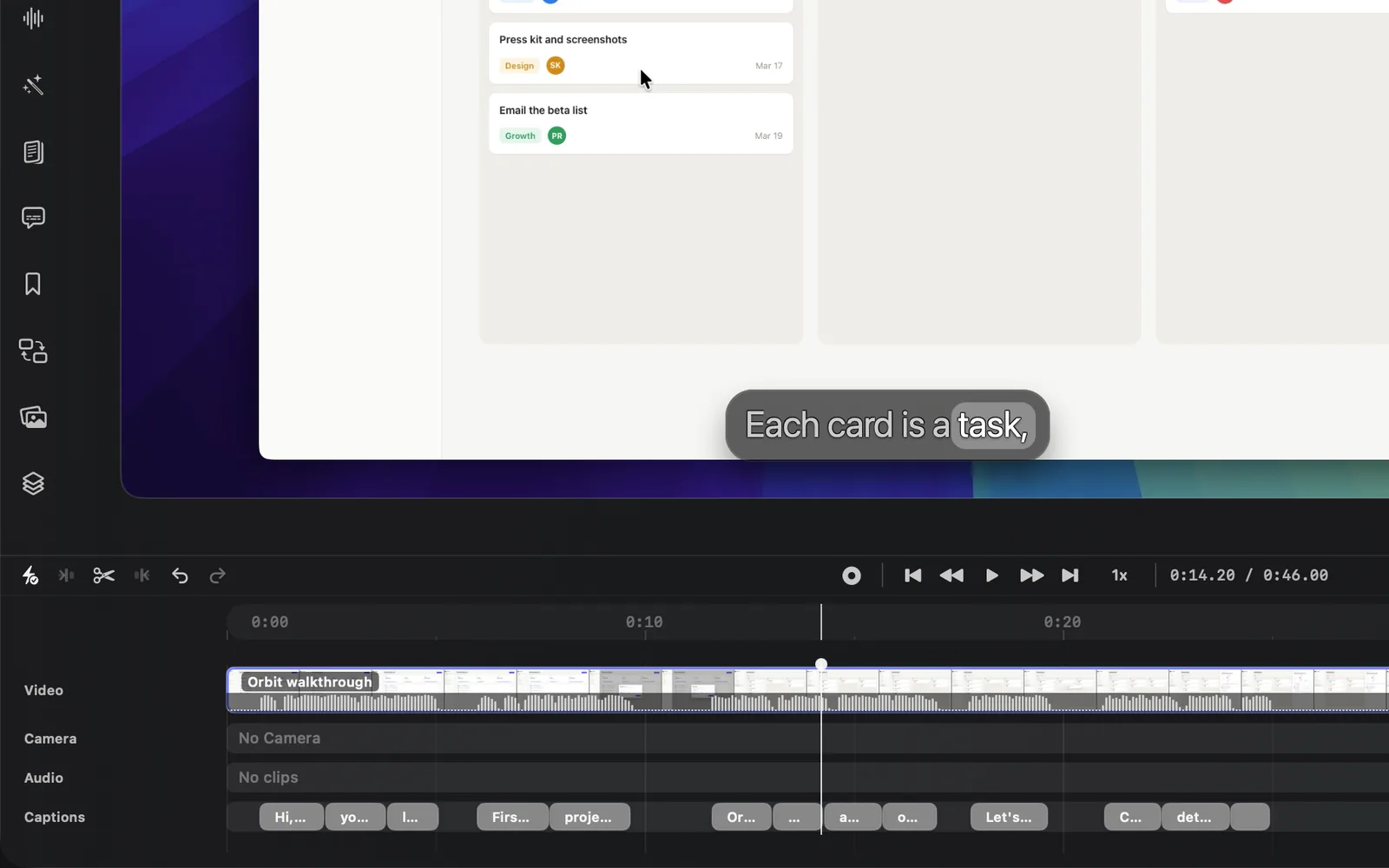
Cut a pause out of a recording
To remove a stretch of your recording, split it where the stretch starts and where it ends, then delete the piece in between. Everything after it moves up to close the gap.
- Click or drag along the time ruler above the lanes to move the playhead to where the pause starts. The readout to the right of the playback buttons shows where you are, such as 0:25.20.
- Click Split (the scissors) in the toolbar, or press C. Every clip and layer the playhead crosses is cut there.
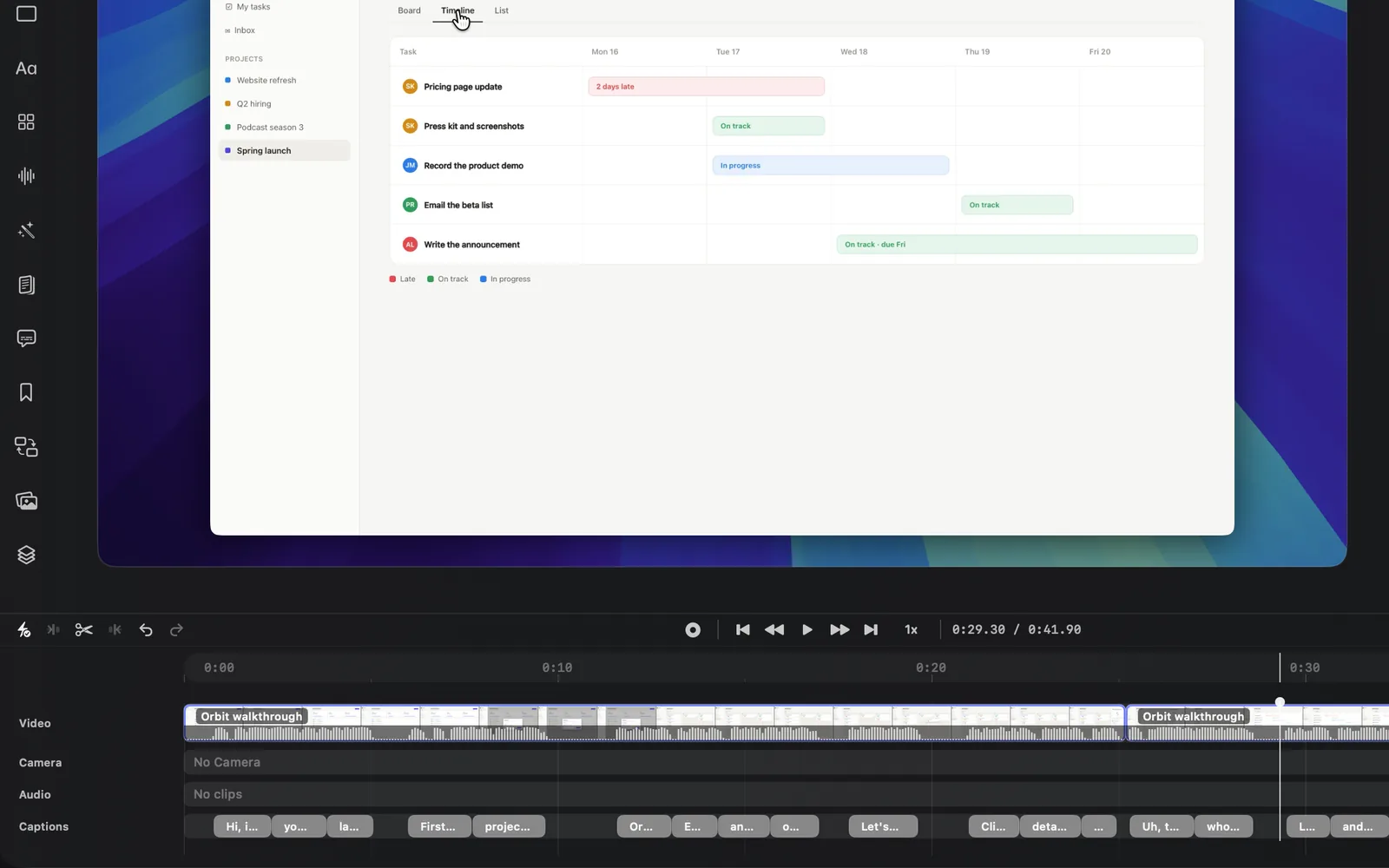
- Move the playhead to where the pause ends, such as 0:29.30, and split again.
- Click the piece between the two cuts on the Video lane to select it, then click Delete (the trash icon) in the toolbar, or press ⌫. DreamCut asks what to delete.
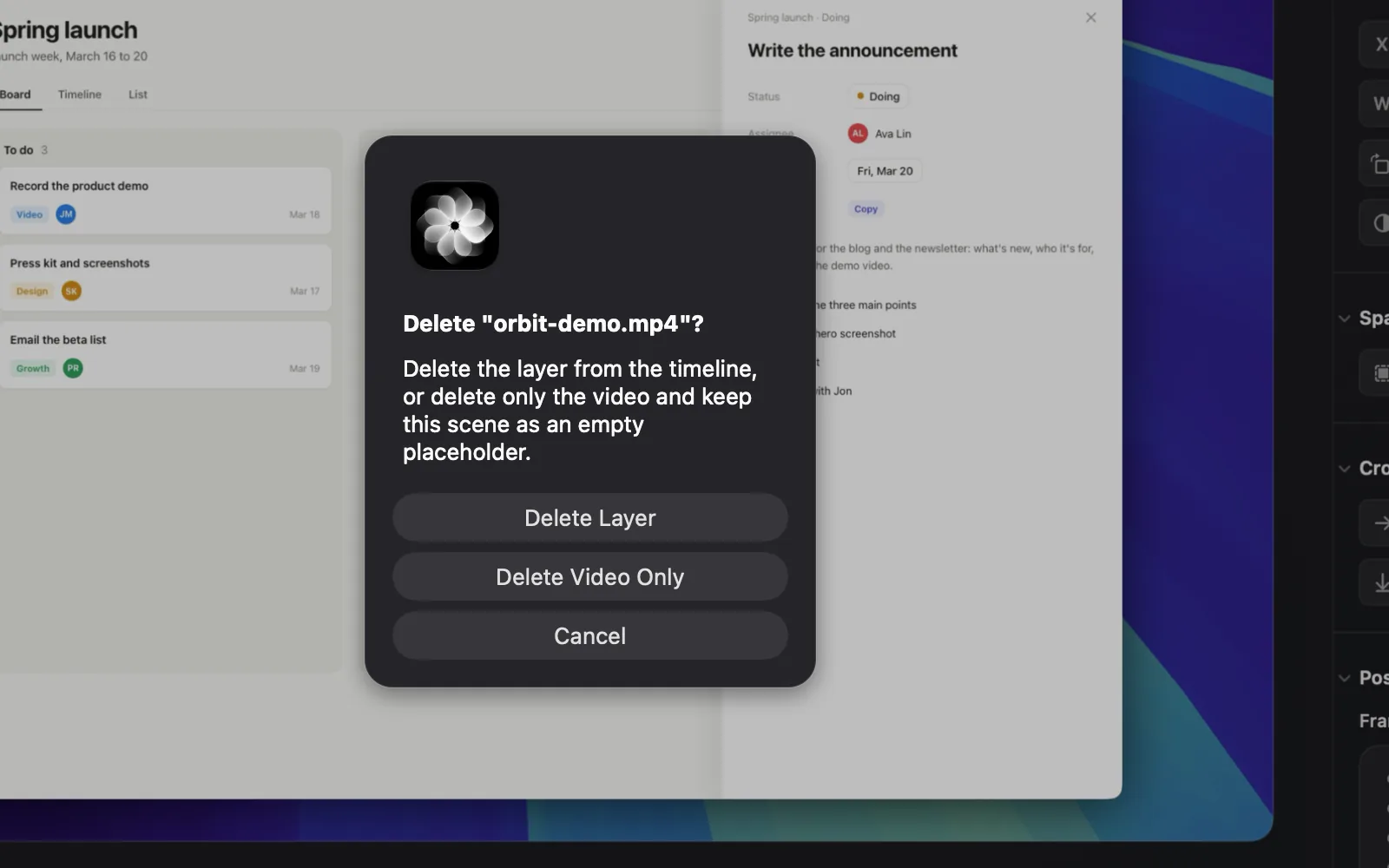
- Click Delete Layer, or press Return.
The pause is gone. In the recording above, the total in the readout drops from 0:46.00 to 0:41.90, and the captions after the cut move up with the video. A camera or audio clip would move up too.
What the Delete dialog asks
Deleting a piece of the Video lane opens a dialog titled Delete "<name>"?, where the name is the file the piece comes from.
| Button | What it does |
|---|---|
| Delete Layer | Removes the piece. The scenes after it move up, so the video gets shorter |
| Delete Video Only | Removes the video but keeps the scene as an empty placeholder of the same length, named Empty Scene. For a picture it reads Delete Image Only |
| Cancel | Changes nothing |
When the scene has its own camera layer, captions, text or overlays, the first button reads Delete All Layers instead, and the dialog says how many camera layers and annotations go with the scene. Delete Video Only keeps them.
When you delete several scenes at once and they have camera layers, captions, text or overlays of their own, the dialog reads Delete 2 image/video layers? (with your number) and offers only Delete All Layers and Cancel. Without such layers they go with no dialog. An empty scene is deleted with no dialog too, unless it has layers of its own: then it asks Delete All Layers or Cancel. Pieces on the other lanes are deleted without a dialog.
The lanes
Each lane holds one kind of layer. The first four are always there; the rest appear once you use them.
| Lane | What it holds |
|---|---|
| Video | Your scenes: the recording and any pictures or videos you add, played one after another |
| Camera | Your camera recording. It reads No Camera when there's none |
| Audio | Sound you add, such as voice recordings, voiceovers and sound effects |
| Captions | The captions made from what you said |
| Transitions | Transitions, effects and camera moves |
| Music | The project's background music |
| Text | Text layers and Text Animations |
| Overlay | Shapes, pictures, drawings and the other layers you place on the canvas |
When layers on a lane overlap in time, a small arrow appears beside the lane's name. Click it to open the lane into as many rows as keep the overlapping layers apart, and click it again to fold them back into one row. DreamCut remembers which lanes you opened.
Drag the top edge of the timeline to make it taller or shorter.
Select, move and trim
- To select, click a piece. Shift-click adds more pieces, and dragging from an empty spot draws a box around several.
- To move a piece, drag it along its lane. On the Video lane, dragging a scene changes the order of the scenes.
- To trim, drag either end of a piece, or put the playhead where it should start or end and click Trim left Q or Trim right W.
- With Snapping On, pieces you drag or trim snap to the playhead, the start and end of the video, and the edges of other pieces. Click it to switch to Snapping Off.
- To clear the selection, press Esc.
Only the Video lane closes up: trim or delete a scene and the scenes after it move up. On the other lanes, a trimmed or deleted piece leaves empty space.
The toolbar
Hover over a button to see its name and key.
| Button | Key | What it does |
|---|---|---|
| Snapping On / Snapping Off | Turns snapping on or off | |
| Trim left | Q | Removes the part of the selected piece before the playhead |
| Split | C | Cuts every clip and layer the playhead crosses, whatever is selected |
| Trim right | W | Removes the part of the selected piece after the playhead |
| Undo / Redo | ⌘Z / ⇧⌘Z | Steps back or forward through your edits |
| Record | Opens a recorder for your camera and microphone, so you can add a take without leaving the editor. While it records, it reads Show Recorder | |
| Back to beginning / Go to end | ⌘← / ⌘→ | Moves the playhead to the start or the end |
| Backwards / Forwards | ← / → | Moves the playhead 1 second |
| Play / Pause | Space | Plays or pauses the preview |
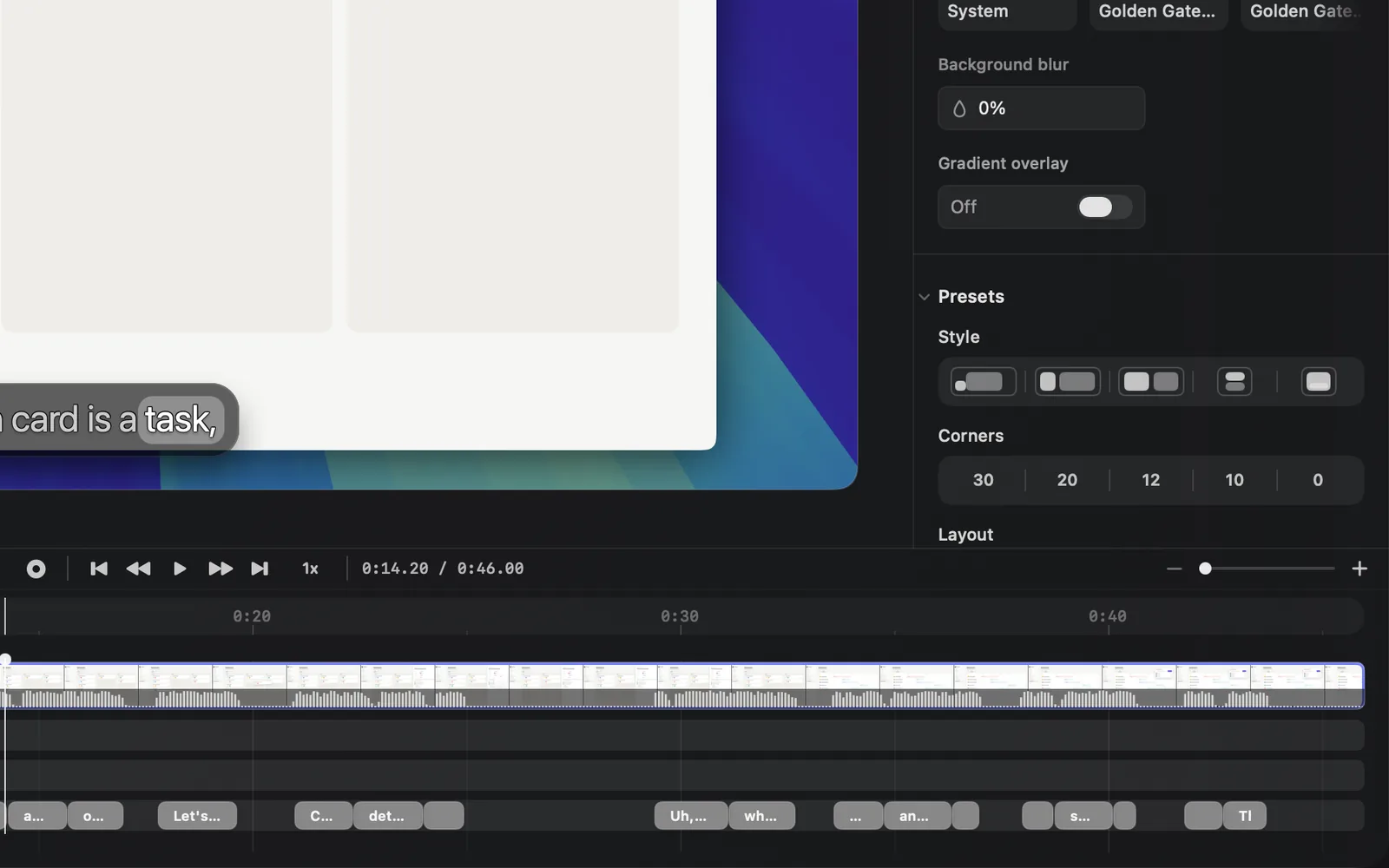
| Playback speed (1x) | Plays the preview at 0.5x, 0.75x, 1x, 1.25x, 1.5x, 2x or 3x. It doesn't change the exported video | |
| Timeline zoom: Zoom out (−), Zoom in (+) and the slider at the right end | ⌘- / ⌘= | Zooms the timeline out or in. Zoom in shows ⌘+ on hover: press ⌘=, the same key without Shift |
The readout beside the speed shows the playhead's time and the total length, such as 0:14.20 / 0:46.00.
Buttons for what you select
When you select a piece, more buttons appear after Redo. Which ones depends on the lane.
| You select | Buttons |
|---|---|
| A scene on the Video lane | Edit this scene, Zoom In, Zoom Out, Generate Video, Mute, Hide, Delete |
| A camera piece | Fade In, Fade Out, Generate Video, Generate Captions, Mute, Hide, Delete |
| An audio or music piece | Generate Captions, Mute, Delete |
| A caption, text or overlay | Fade In, Fade Out, Generate Video, Hide, Delete |
| A transition or effect | Fade In, Fade Out, Hide, Delete |
- Zoom In and Zoom Out add a zoom-in or a zoom-out to the scene at the playhead. Zoom and cursor covers zooms.
- Fade In and Fade Out add a keyframe at the playhead that fades the layer in to full or out to nothing.
- Generate Video opens the video generator with the selected layer as its starting point, and uses credits. See Generate media.
- Generate Captions makes captions from the piece's speech. See Captions.
- Mute silences the piece and reads Unmute once it's muted. A scene or camera piece shows it only when it has sound.
- Hide takes the layer out of the picture without deleting it, and reads Show once it's hidden.
Work on one scene
Every piece on the Video lane is a scene. A recording starts as one scene, and each split makes another. A scene keeps its own layout, zooms, captions and layers, and they move with it.
- Select a scene and click Edit this scene (the pencil), or press ⌘↩.
- The timeline shows only that scene, its times count from the scene's start, and playback stops at its end.
- Use Prev and Next to move to the scene before or after. The toolbar shows which scene you're on, such as Scene 2.
- Click Exit to see the whole video again.
To add a blank scene at the end of the video, right-click the Video lane where there's no scene and choose Add Empty Scene.
Copy, paste and duplicate
| Keys | What they do |
|---|---|
| ⌘C / ⌘X | Copy or cut the selected piece or pieces |
| ⌘V | Paste. A scene goes in after the scene under the playhead; other layers go at the playhead |
| ⌘D | Duplicate. Text, an overlay or a transition is copied right after itself, and a zoom 1 second later |
⌘V also takes things copied in other apps: a picture or video you copied, in Finder or elsewhere, is added as a new scene at the end of the Video lane, and copied text becomes a text layer.
Right-click menus
Right-click a piece for what you can do with it, or right-click a lane where there's no piece to add something there.
| Right-click | Menu |
|---|---|
| An empty part of Video | Add Empty Scene, Record Video, Generate Video |
| An empty part of Camera | Record Camera, Generate Video |
| An empty part of Audio | Record Voice, Generate Voice, Generate Sound Effects, Generate Music |
| An empty part of Transitions | Add Transition, Add Effect and Add Camera, each a list of looks added at the playhead |
| An empty part of Text | Add Text |
| An empty part of an opened Overlay row that holds one shape or picture | Add Overlay, Generate Image, Generate Video |
| An empty part of an opened Overlay row that holds one drawing | Add Drawing |
| A zoom marker on a scene | Delete, Edit Zoom, Select All Zooms in Scene, Select All Zooms in All Scenes, Delete All Zooms in Scene |
The Overlay lane has no menu of its own while it's closed.
While a recording you started from one of these menus is running, its item reads Show Screen Recorder, Show Camera Recorder or Show Audio Recorder.
A piece's menu has the same actions as the More menu on its canvas toolbar:
| Piece | Menu |
|---|---|
| A scene | Crop, stack order, Mute, Hide, Delete |
| A camera piece | Crop, stack order, Mute, Hide, Delete |
| A caption, text or overlay | Crop, stack order, Duplicate (not for captions), Hide, Delete |
| An audio or music piece | Mute, Hide, Delete |
| A transition or effect | In at the Start, Out at the End, Duplicate, Hide, Delete |
- Stack order is Bring to Front, Bring Forward, Send Backward and Send to Back.
- Reset Crop appears once a layer is cropped, and Reset Rotation once it's rotated.
- Mute appears on a scene or camera piece only when it has sound, and reads Unmute once it's muted.
- Delete All appears when the same scene has several camera pieces, audio pieces or text layers, and deletes all of them.
- With several pieces selected, Hide reads Hide Selected.
Keyboard shortcuts
The keys work while you're not typing in a field.
| Key | What it does |
|---|---|
| Space | Play or pause |
| ← / → | Move the playhead 1 second back or forward |
| ⌘← / ⌘→ | Go to the beginning or the end |
| C | Split everything the playhead crosses |
| Q / W | Trim the selected piece left or right to the playhead |
| ⌫ | Delete the selection |
| ⌘Z / ⇧⌘Z | Undo or redo |
| ⌘C / ⌘X / ⌘V / ⌘D | Copy, cut, paste or duplicate |
| ⌘↩ | Edit the selected scene |
| ⌘- / ⌘= | Zoom the timeline out or in |
| M | Add a chapter at the playhead (see Chapters) |
| ⌥← / ⌥→ | Go to the previous or next chapter |
| Esc | Clear the selection |
| ⌘S | Save the project |
Keyboard shortcuts lists the keys for the rest of DreamCut.
Tips and limits
- Split cuts everything the playhead crosses at once: the scene, camera, audio, music, text, overlays and transitions. A caption under the playhead is cut in two as well. To shorten one piece only, use Trim left or Trim right on it.
- Edit this scene only appears while you see the whole video. In a scene, use Prev, Next and Exit.
- The playback speed is for watching the preview. It isn't saved and doesn't speed up the video you export.
- Deleting a scene with Delete All Layers also removes its camera layer and any camera audio linked to it. Press ⌘Z if you meant Delete Video Only.
What's next
- Transcript editing: cut words, pauses and filler words from the transcript.
- Editor tour: the rest of the editor around the timeline.
- Transitions: add transitions on the Transitions lane.
- Export settings: save the finished video.