
Zooms and the cursor
Zoom in where your mouse works, add and tune zooms by hand, tilt the view in 3D, and resize, animate or restyle the cursor in your screen recording.
DreamCut zooms in on your screen recording where your mouse moves and clicks, so viewers see what you're doing. You can change any zoom, add your own at the playhead, give a zoom a 3D tilt or a blur, and change how the cursor looks and moves.
How zooms are made while you record
Every new recording saves the path of your mouse. When the recording opens in the editor, DreamCut turns that path into zooms: it zooms in where the mouse works and clicks, follows it while you keep working, and zooms back out once the mouse has rested for about 5 seconds.
Three settings shape these zooms. Find them in two places: click the gear on the capture bar and open the Zoom tab of Capture Options, or click the DreamCut icon in the menu bar, choose Show settings and open Recording. Both change the same settings.
| Setting | What it does |
|---|---|
| Zoom Frequency | How often new zoom points are added while you work, from 0.5s to 5.0s. The default is 5.0s. Zoom points are never closer than 2 seconds, so settings under 2.0s work the same as 2.0s |
| Follow Frequency | How closely the view follows the mouse between zoom points: Auto, Significant, Balanced, Smooth or Real time. Auto uses Smooth |
| Follow mouse | Follows the recorded cursor between each zoom point. On by default; with it off, Follow Frequency is greyed out |
Settings > Recording writes the first two in lower case (Zoom frequency, Follow frequency). They apply to the recordings you make after changing them.
Add a zoom
- Move the playhead to the moment the view should be zoomed in.
- Click your recording on the canvas or on the Video lane of the timeline.
- In the inspector on the right, click Zoom.
- Next to Zooms, click Add.
- A chip such as "Zoom 1 0:07.00" appears, and the zoom's settings open under Zoom.
- A diamond marks the zoom on the recording in the Video lane.
- Move the playhead a little before the zoom and click Play, or press Space. The view moves in during the Animation duration and arrives at the zoom's time.
A new zoom takes its settings from the zoom shown in the Zoom section, the one selected or the one in effect at the playhead: its Animation duration, Timing and Presentation. Its level is the Default zoom (150% unless you change it), or that zoom's level if it's higher. On a recording with no zooms yet, a new zoom starts at the Default zoom with Animation duration 0:00.80 and Timing Ease In Out. Follow mouse is on when the recording has a mouse track, with Follow speed Smooth, so the zoom frames the cursor.
A zoom holds until the next one. To come back out, add another zoom where the view should be wide again and set its Zoom to 100%, or use Zoom Out on the timeline toolbar.
Other ways to add a zoom
With the recording selected:
| Where | What it adds |
|---|---|
| Zoom In on the timeline toolbar (the plus in a circle) | A zoom at the playhead, at the default level |
| Zoom Out on the timeline toolbar (the minus in a circle) | A zoom at 100% at the playhead, which brings the view back out |
| The diamond on the layer toolbar above the canvas | A zoom at the playhead, the same as Add |
Change a zoom
Click a zoom's chip under Zooms, or its diamond on the Video lane, to select it. Its settings show under Zoom. With no zoom selected, the section reads "Select a zoom above or on the timeline, or add one."
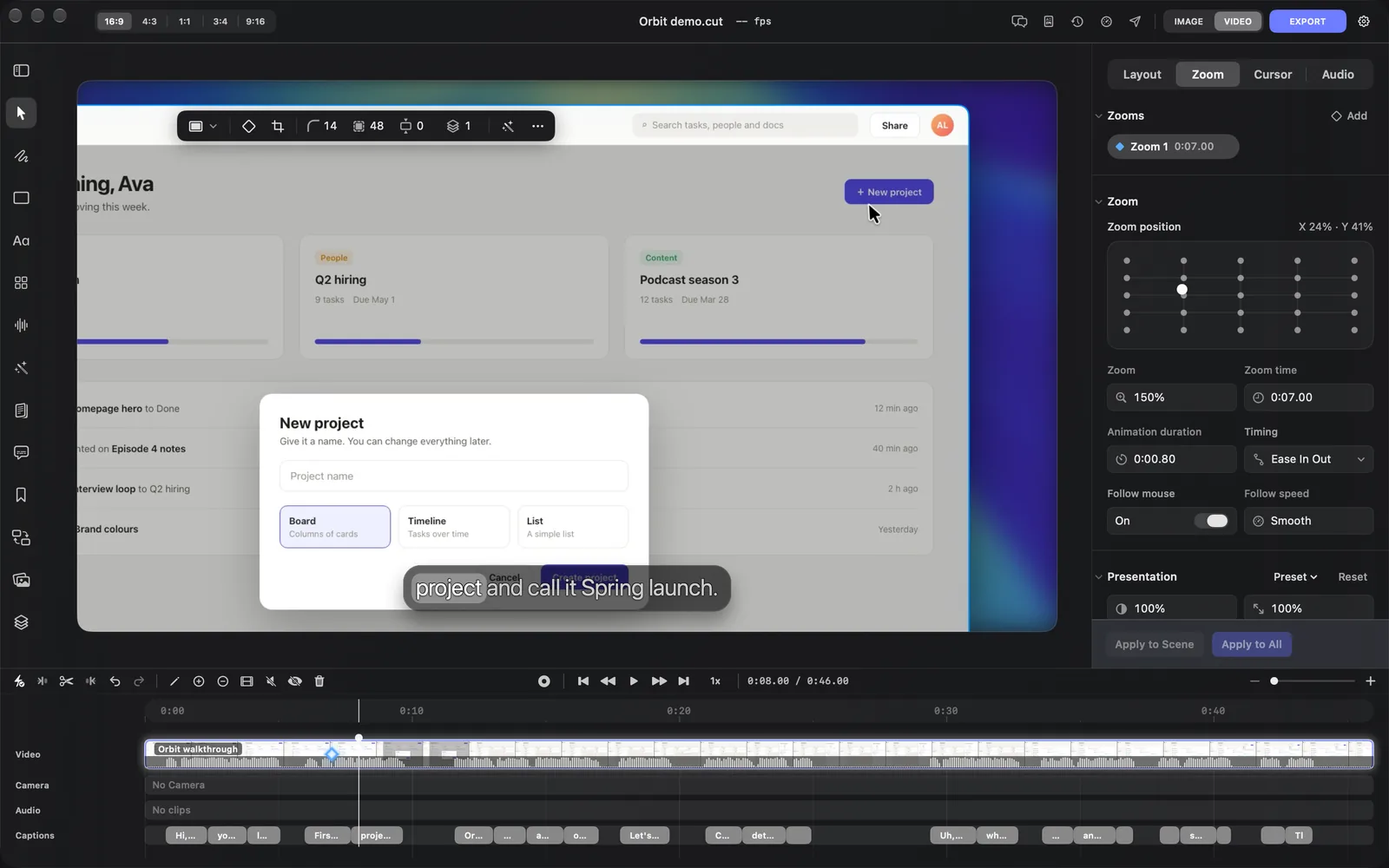
| Field | What it does |
|---|---|
| Zoom position | Where the view zooms in. Click a dot on the grid, or drag for spots in between; the readout shows X and Y as percentages. Picking a spot turns Follow mouse off |
| Zoom | How far in, from 100% (no zoom) to 300% |
| Zoom time | When the view arrives at this zoom, counted from the start of the scene's own clip, not from the ruler. It matches the ruler only in a scene that starts at 0:00; in any later scene, and on a trimmed or sped-up clip, it differs |
| Animation duration | How long the move takes. It starts this long before the zoom time |
| Timing | The move's easing: Linear, Ease In, Ease Out, Ease In Out, Smooth, Bounce or Spring |
| Follow mouse | Follows the recorded mouse between this zoom and the next one. It needs a recording with a mouse track |
| Follow speed | Shows while Follow mouse is on: Significant, Balanced, Smooth or Real time. Lower settings wait for bigger cursor moves |
Select, move and delete zooms
- Select: click a chip or a diamond. ⇧-click to add more to the selection.
- Move: drag a diamond along the Video lane, or type a new Zoom time.
- Duplicate: press ⌘D to copy the selected zoom 1 second later.
- Delete: press ⌫, or hover a chip and click its ×.
Right-click a diamond on the timeline, or a chip under Zooms, for these:
| Menu item | What it does |
|---|---|
| Delete | Deletes this zoom. With several selected it reads Delete Selected Zooms |
| Edit Zoom | Selects the zoom and opens the Zoom tab |
| Select All Zooms in Scene | Selects every zoom on this recording |
| Select All Zooms in All Scenes | Selects every zoom in the project |
| Delete All Zooms in Scene | Deletes every zoom on this recording |
Tilt, move and blur a zoom
The Presentation section changes how the picture looks while it's zoomed: turned in 3D, moved, faded or blurred. Its values belong to the selected zoom and animate in with it. If you change one with no zoom selected, DreamCut picks the nearest zoom or adds one at the playhead.
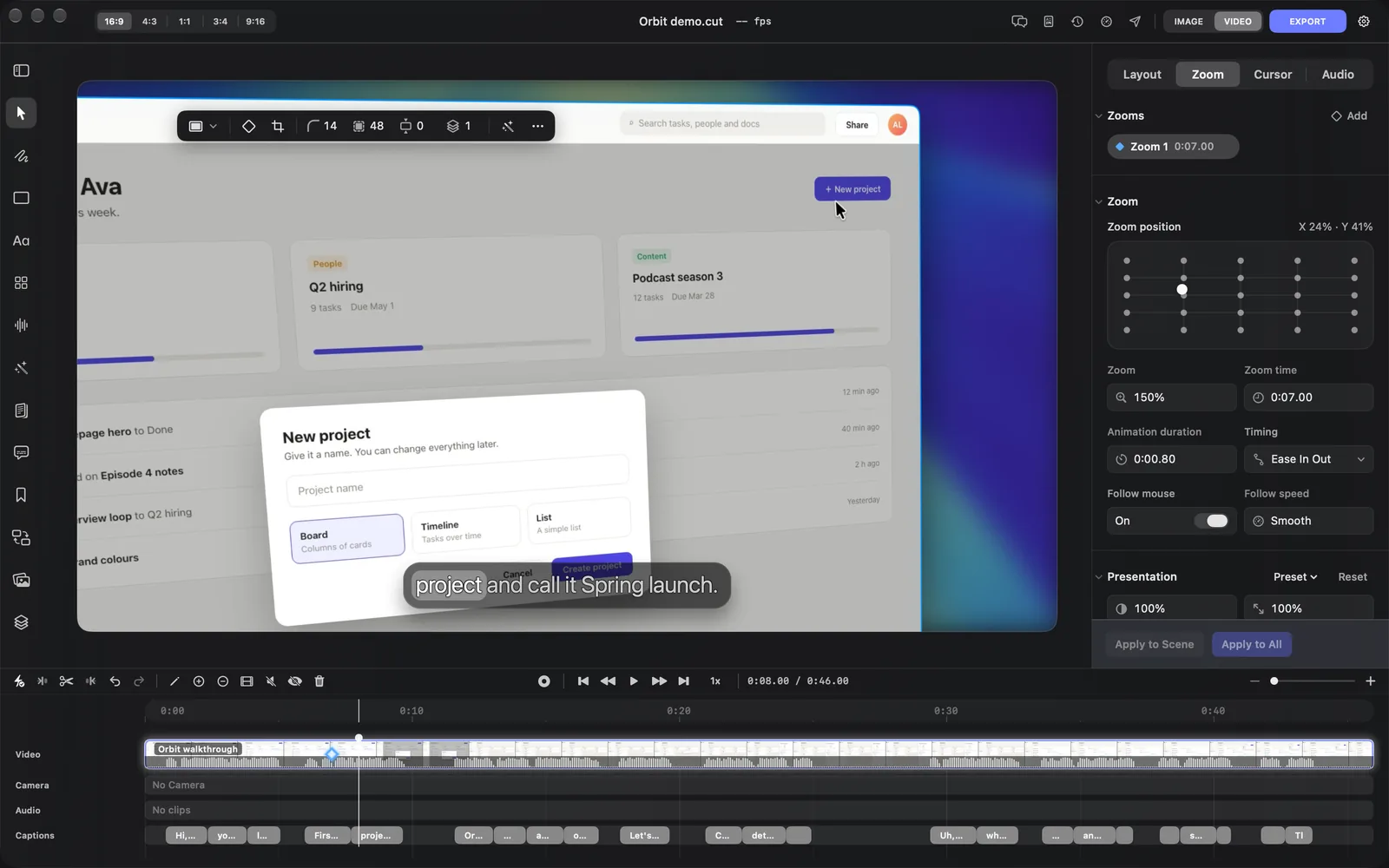
| Field | What it does |
|---|---|
| Preset | Sets the tilt in one go: Flat, Subtle Left, Subtle Right, Float Up, Hero Left, Hero Right, Iso Left or Iso Right |
| Opacity | How see-through the recording is, 0–100% |
| Scale | The recording's size, 0–200%, on top of the zoom |
| X and Y | Move it right and down (negative values move left and up) |
| Tilt | Tips the top toward or away from you, −70° to 70° |
| Turn | Turns a side toward you, −70° to 70° |
| Roll | Rolls it clockwise, −45° to 45° |
| Perspective | How deep the 3D looks, 0–100%. The default is 50% |
| Blur | Blurs the whole picture, 0–40 |
| Ramp | A blur that ramps up across the frame, 0–40 |
| Angle | The direction of that ramp, 0–360° |
| Mirror | Ramps the blur from both sides, 0–100% |
| Blur position | Where the ramp is sharpest, 0–100%. You can set it when Blur follows mouse is off |
| Blur follows mouse | Keeps the sharpest part of the ramp on the recorded mouse |
Reset, next to Preset, sets X, Y, Tilt, Turn and Roll back to 0 and Perspective to 50%.
Rebuild zooms from a mouse trace
The Mouse trace section has Import trace…. Choose a recorded mouse trace (a JSON file) and DreamCut builds new zooms from it, replacing that recording's zooms.
Copy zooms to every scene
When the project has more than one video layer, Apply to All at the bottom of the inspector copies this recording's zoom settings to all of them.
Zoom defaults for every scene
With nothing selected, the inspector shows Background and Presets. The bottom of Presets holds the zoom defaults:
| Setting | What it does |
|---|---|
| Default zoom | The level new zooms start at, 100–300%. The default is 150%. Zooms still at the old default change with it |
| Scale camera on zoom | Shrinks your camera while the screen is zoomed in. On by default |
| Blur on zoom | Blurs the background while the screen is zoomed in. On by default |
Apply to all layers under Presets copies these, with the other presets, to every scene. See Background and canvas for the rest of the section.
Make zooms from your clicks again
There is no auto zoom button in the editor. To rebuild zooms from the mouse track after you've edited or removed them, ask Sakura, or use the dreamcut command.
- Sakura: open the chat at the top of the editor and ask "Zoom in where I click". When a project has no zooms and its recording has a mouse track, Sakura offers this prompt itself.
- The dreamcut command: run
auto_zoom. It replaces the zooms on every scene with a mouse track, or only the scene at the time you give.
dreamcut auto_zoom
dreamcut auto_zoom --at 0:30 --zoom 180--zoom sets the level, 100–300 (150 if you leave it out). Both ways are one step you can undo with ⌘Z. MCP and the dreamcut command shows how to set the command up.
Change the cursor
DreamCut draws the cursor from the recorded mouse track, so you can resize it, animate it or swap its look after recording. Select the recording and click Cursor in the inspector.
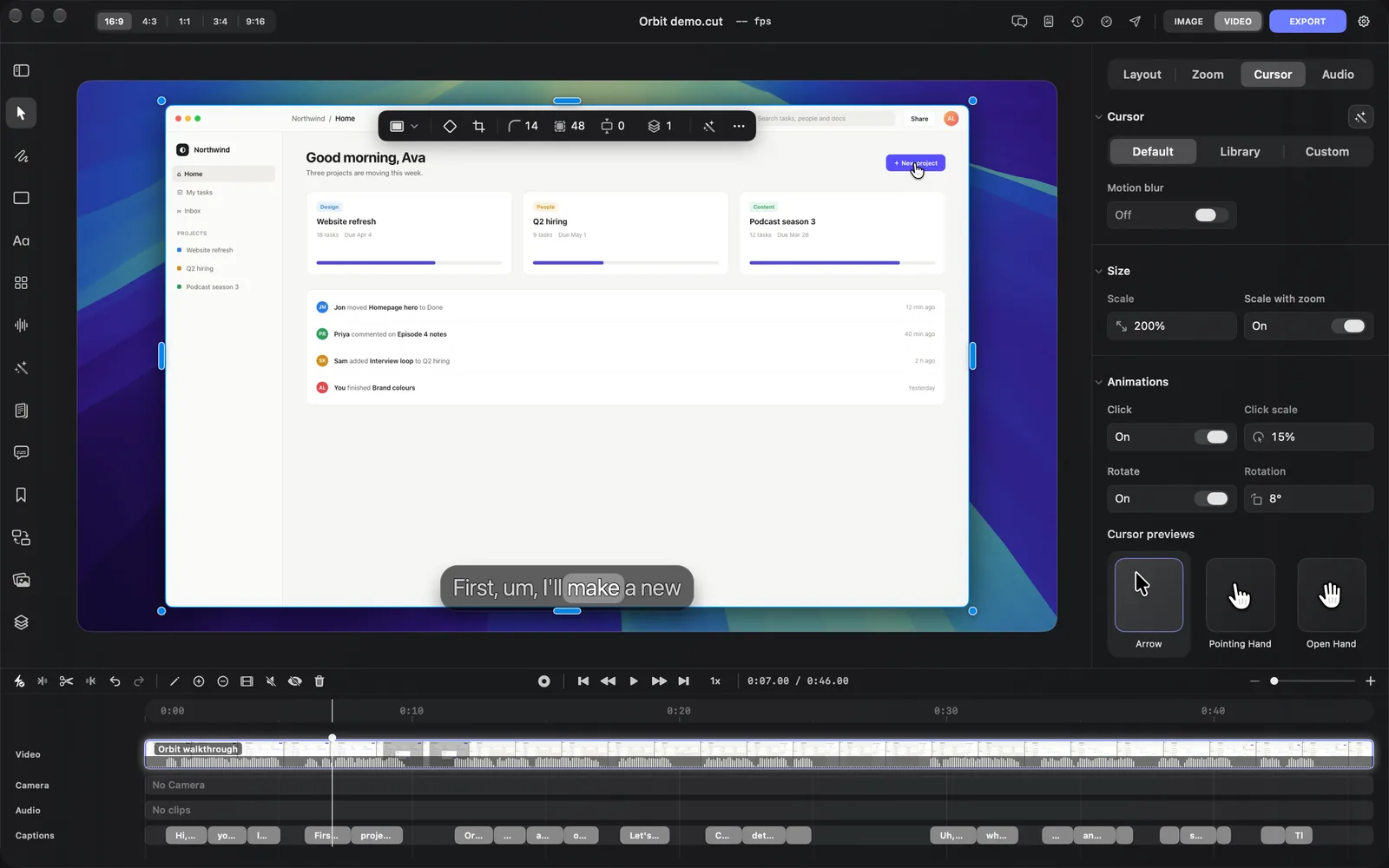
| Setting | What it does |
|---|---|
| Default, Library, Custom | The cursor's look. See Cursor styles |
| Motion blur | Blurs fast movement, such as a quick cursor move or a zoom, the way a camera would |
| Scale | The cursor's size, 100–800% |
| Scale with zoom | Makes the cursor grow with the zoom. Off keeps it the same size |
| Click and Click scale | The cursor shrinks a little on each click and springs back. Click scale sets by how much, 0–50% (15% by default) |
| Rotate and Rotation | The cursor leans as it moves sideways. Rotation sets how far, 0–50° (8° by default) |
| Cursor previews | Tiles for each kind of cursor, from Arrow and Pointing Hand to Not Allowed, in the current style |
Once you change anything, Reset to Recording Defaults appears at the bottom. It brings back the cursor the recording was made with and turns Click and Rotate back on at 15% and 8°.
Cursor styles
- Default: the macOS cursors.
- Library: opens Cursor Sets, with a macOS 26 set and any sets you've generated or added before. Search, then click a set to use it. While Library is on, up to three sets also show as tiles under the tabs.
- Custom: choose your own sprite sheet: one PNG up to 10 MB with nine cursors in a 3 × 3 grid (2304 × 2304 px recommended), in this order: Arrow, Pointing Hand, Open Hand, Closed Hand, I-Beam, Drag Link, Drag Copy, Crosshair, Not Allowed.
To replace a single cursor, drop a PNG on its tile under Cursor previews. With Custom on, the selected tile also gets Upload PNG and Library buttons. A single cursor can be up to 10 MB; 128 × 128 or 256 × 256 px works best, with the pointer's tip in the top-left corner, because that pixel is where the click lands.
Generate a cursor set with AI
Click the wand next to Cursor (Generate cursors), describe the cursors you want in Prompt, and click Generate. DreamCut makes a 3 × 3 sheet, removes its background, cuts it into nine PNG cursors and puts them on the recording as a Custom set.
When there's no cursor track
A video without saved cursor data, such as one you import, has no cursor track. The Cursor tab then offers only Motion blur and reads "No recorded cursor track is available for this layer. New recordings save cursor data automatically." Follow mouse on a zoom is greyed out for the same reason.
Tips and limits
- Zoom settings belong to one scene. Use Apply to All or Select All Zooms in All Scenes to change every scene at once.
- If a zoom feels late, lower its Zoom time: the move always arrives at the zoom time. A longer Animation duration starts the move earlier and makes it slower.
- Zoom position and Follow mouse don't mix. Turn Follow mouse back on to frame the cursor again.
- Cursor settings apply to the selected recording. Apply to All on the Cursor tab copies them to every video layer.
What's next
- Layout and camera: size and place the recording and your camera.
- Sakura: ask for zooms and other edits in plain words.
- Record your screen: set up the capture bar before you record.
- Export settings: choose the format and quality of the finished video.