
Effects and camera moves
Lay film grain, a vignette, VHS or a color grade over part of your video, or film it with a virtual camera that pushes in, orbits or shakes, with keyframes.
Effects lay a look over a stretch of your video, such as film grain, a vignette or a worn VHS tape. Camera moves film the whole frame with a virtual camera that pushes in, orbits, shakes or pulls focus. Both are layers on the Transitions row of the timeline, and you add them from the same panel as transitions.
How effects and camera moves work
Like a transition, each layer starts and ends on the untouched picture.
- An effect eases in over its In, covers the frame in full, and eases out over its Out. Most effects fade in. Aberration, Ripple and Fish-eye grow in strength instead, and CRT Monitor does both.
- A camera move eases from a still camera into its move over the In, moves over the layer's length, and settles back over its Out. It goes last, so it films the frame with every transition and effect already applied.
- A new one starts at the playhead and lasts 2 seconds (less if the video ends sooner), with its In and Out at 0.5 seconds each, so the full look holds for 1 second in between.
Add an effect or a camera move
- Move the playhead to where the effect or camera move should start.
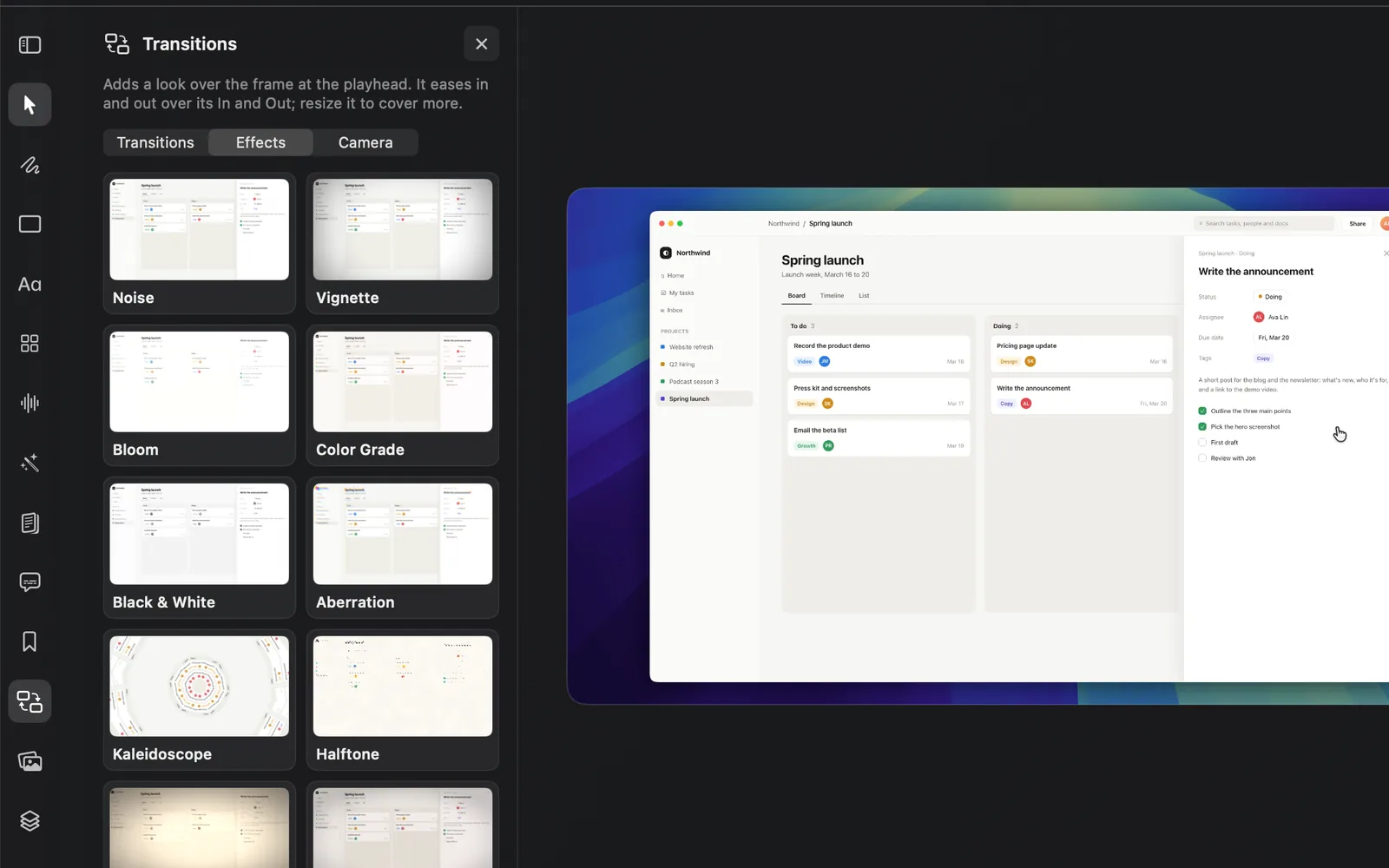
- Click Transitions in the tool rail on the left (two rectangles swapping places). It's greyed out, with the tooltip "Requires a timeline.", until the project has something on its timeline.
- At the top of the panel, click Effects or Camera.
- Effects reads: "Adds a look over the frame at the playhead. It eases in and out over its In and Out; resize it to cover more."
- Camera reads: "Adds a camera at the playhead that films the whole frame: it moves over the layer's length and settles back over its Out."
- Hover a card to watch it play on a frame of your own recording, then click the one you want.
- The layer lands on the Transitions row, starting at the playhead and selected, with its settings in the inspector on the right.
- Press Space to play it.
Add one from the timeline
Once the Transitions row is on the timeline, right-click an empty part of it, point to Add Effect or Add Camera, and choose a name. The layer lands at the playhead.
Move, resize and copy
| To | Do this |
|---|---|
| Cover more or less of the video | Drag either end of the layer, or type a time in Duration under Timing in the inspector |
| Move it | Drag the layer along the Transitions row |
| Copy or cut it | Press ⌘C or ⌘X, then ⌘V to paste it starting at the playhead |
| Duplicate it | Press ⌘D to place a copy right after it |
| Delete it | Press ⌫, or click Delete at the bottom of the inspector |
Change an effect or a camera move
Click the layer on the Transitions row. The inspector shows its settings, from top to bottom:
- Effect or Camera: the menu under this heading shows the layer's look. Click it and choose another to switch. The menu lists every transition, effect and camera move. Switching puts the settings back to the new look's defaults and removes its keyframes.
- In & Out: an In and an Out switch, each with a Duration (0.05 to 5 seconds, 0.50s to start, never longer than the layer) and a Timing curve: Ease In Out, Ease In, Ease Out, Linear, Bounce or Spring. When the layer is longer than the two together, a note says how long the full effect holds, for example "The full effect holds for 1.00s between the In and the Out."
- Keyframes: Add, then a chip for Base and one for each keyframe. See Keyframe a camera move or effect.
- Settings: the look itself, described below.
- Timing: Duration, the layer's whole length.
- Hide turns the layer off without deleting it, Reset all puts the settings, keyframes, In and Out back to a new layer's, and Delete removes it.
Turn the In or the Out off and the look starts or ends in full, with no easing. Right-click the layer for the same switches: In at the Start and Out at the End.
An effect's settings
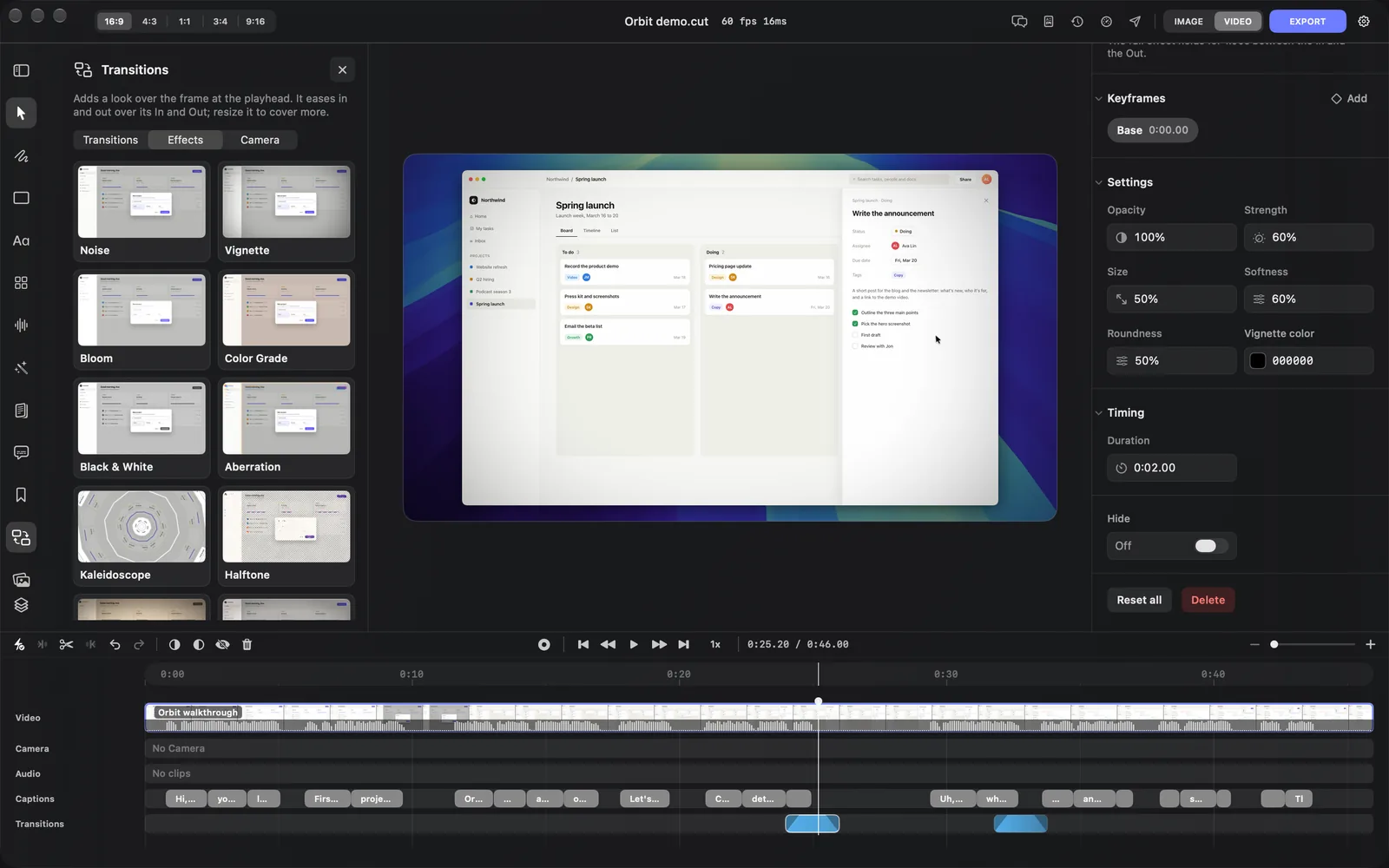
Every effect's Settings start with two fields:
- Opacity: how much of the look shows over the picture.
- Strength: how strong the look is.
Its own settings follow, then its color for the effects that have one, such as Vignette color. Every effect lists them.
A camera move's settings
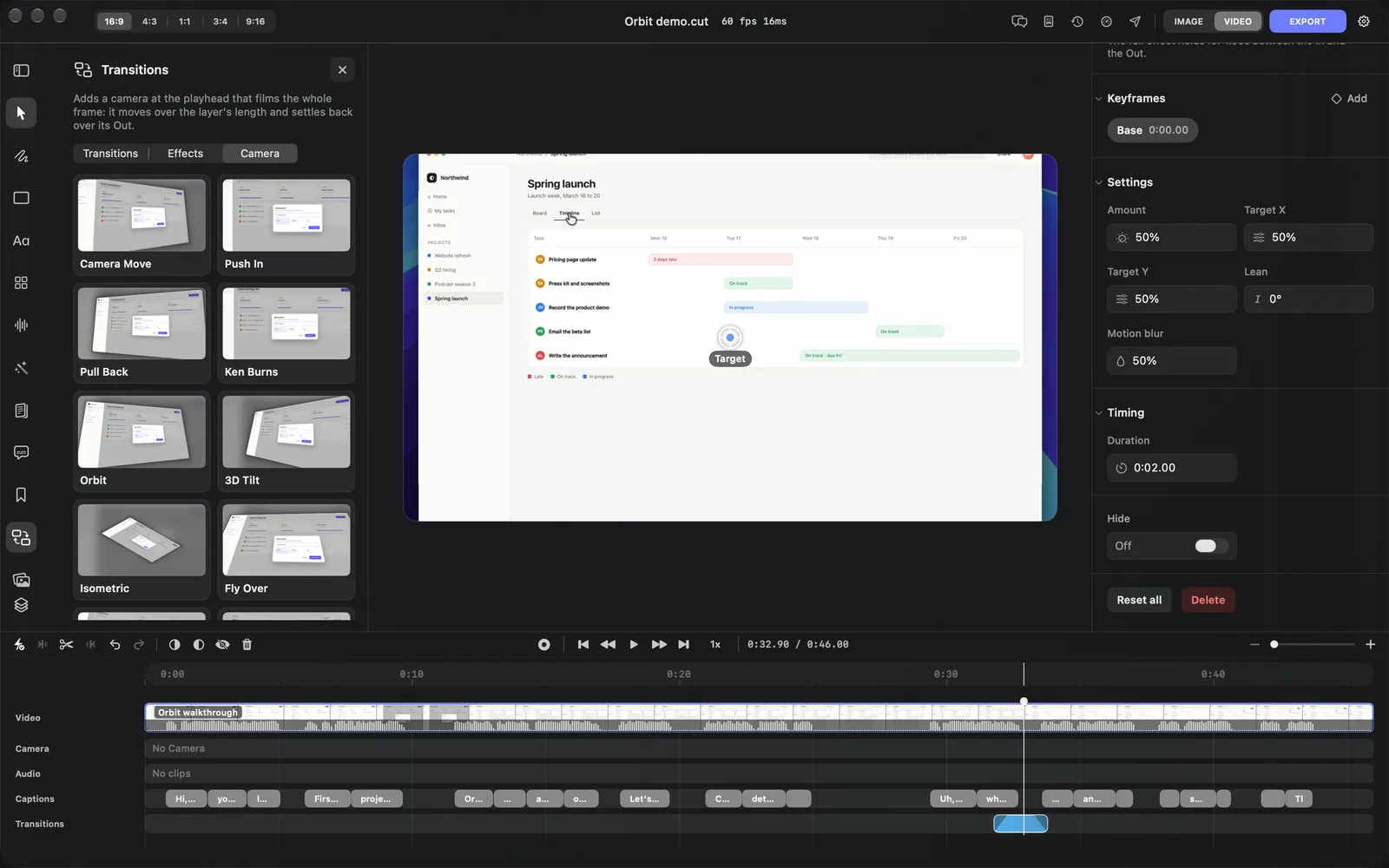
Camera moves have no Opacity or Strength, because they ease in and out by moving. Their Settings hold only the move's own settings, such as Push In's Amount, Target X, Target Y, Lean and Motion blur. Every camera move lists them.
Drag it on the canvas
While the playhead is inside the selected layer, some looks put handles on the canvas, such as Push In's Target in the picture above. They change the same settings as the inspector, and when a keyframe is selected they change that keyframe.
| Layer | Handle on the canvas |
|---|---|
| Push In, Crash Zoom | A Target point to drag |
| Aberration, Ripple, Fish-eye | A Center point to drag |
| Kaleidoscope | An Aim dial |
| Tilt-Shift | A Focus band: drag it to move, widen or turn the sharp band |
| Rack Focus | From and To lines, where the focus starts and ends |
| Progressive Blur | A Blur line where sharp turns to blurred, and the edge it blurs toward |
| Camera Move | Pan: drag the picture to pan the camera. With Focus blur above 0%, a Focus band too |
Keyframe a camera move or effect
Keyframes change a layer's settings over time: a Camera Move that drifts across the frame, a Push In whose target moves, or a vignette that tightens. Their times count from the start of the layer.
- Select the layer. Under Keyframes, Base is selected: Settings edits the values the layer starts with.
- Move the playhead to a later moment inside the layer.
- Click Add next to Keyframes. A chip such as Key 1 appears, selected, holding the layer's look at the playhead.
- Change the settings. They now sit under Keyframe settings and belong to Key 1.
- Set how it moves there:
- Keyframe time: when the layer reaches this keyframe's values.
- Animation duration: how long the move toward them takes, ending at the keyframe time. 0.5 seconds to start, or the layer's length if that's shorter.
- Timing: the move's easing.
- Press Space to play it. Add more keyframes the same way.
Click Base to go back to the starting values. To delete a keyframe, hover its chip and click its ×; right-click a keyframe chip and choose Delete All to remove every one.
Every effect
What it does is each card's tooltip in the app, which then ends with "Click to add it at the playhead." Each effect also has Opacity and Strength.
| Effect | What it does | Its own settings |
|---|---|---|
| Noise | Cinematic film grain, strongest in the mid-tones | Grain size, Color grain, Speed |
| Vignette | A clean cinematic vignette toward black or any colour | Size, Softness, Roundness, Vignette color |
| Bloom | A dreamy glow: bright areas bleed soft light, with an optional anamorphic streak | Threshold, Radius, Streak, Glow tint |
| Color Grade | A cinematic grade: filmic contrast with highlights and shadows split-toned | Contrast, Saturation, Split tone, Warmth, Highlight tone |
| Black & White | A rich black-and-white film look, with optional toning and grain | Contrast, Toning, Grain, Tone color |
| Aberration | A lens-style colour split that grows toward the edges | Spread, Center X, Center Y |
| Kaleidoscope | Mirrored wedges around the centre that slowly turn | Segments, Spin, Zoom, Aim |
| Halftone | Your footage printed as a comic-book dot screen, in one ink or CMYK | Dot size, Angle, Color, Paper, Ink color |
| Old Film | A worn silent-era print: toning, grain, flicker, scratches and dust | Toning, Scratches, Dust, Flicker, Tone color |
| VHS | Played back off a worn tape: colour bleed, tracking noise and jitter | Tracking, Color bleed, Noise, Wobble |
| CRT Monitor | Your shot on a curved tube up close: phosphor grille, scanlines and glow | Curvature, Scanlines, Glow, Noise, Phosphor tint |
| Matrix | The picture rebuilt as falling green code | Glyph size, Speed, Rain, Picture, Code color |
| Jitter | A punchy digital jitter: tears, RGB split and stutter in bursts | Speed, Tears, Color split, Accent |
| Ripple | Water rings spread from a point, refracting the picture | Rings, Speed, Center X, Center Y, Highlight |
| Embers | Glowing cinders rise and swirl, with an optional blaze from the bottom edge | Density, Size, Speed, Blaze, Ember color |
Every camera move
The ones that pull back far enough to show the scene around the frame (Camera Move, Pull Back, Orbit, 3D Tilt, Isometric and Fly Over) also have Surround blur, Surround color and Surround opacity, written "surround" below. They set what shows around the frame: the blurred scene under black at 40% to start.
| Camera move | What it does | Its own settings |
|---|---|---|
| Camera Move | A virtual camera filming the whole frame: pan, zoom, roll, spin and turn it in perspective, with lens bend, focus blur, motion blur and shake. Keyframes animate it | See Camera Move settings |
| Push In | A slow dolly toward a point, the frame growing steadily | Amount, Target X, Target Y, Lean, Motion blur |
| Pull Back | The camera pulls back and turns, revealing the frame floating over the blurred scene | Amount, Tilt, Swing, Lens, Corners, Motion blur, surround |
| Ken Burns | A slow documentary drift: the picture pans and zooms gently across | Amount, Direction, Zoom |
| Orbit | The camera swings round the frame in 3D, from one side to the other | Angle, Tilt, Distance, Lens, Corners, Motion blur, surround |
| 3D Tilt | The frame floats at a keynote-style 3D angle with rounded corners, drifting gently | Swing, Tilt, Zoom, Float, Lens, Corners, surround |
| Isometric | The frame laid flat in an isometric view, gliding slowly | Angle, Height, Zoom, Drift, Corners, surround |
| Fly Over | Like a drone: the camera flies in low over the frame and rises to face it | Height, Distance, Swing, Lens, Motion blur, surround |
| Dutch Angle | A tense, tilted horizon that creeps a little further | Angle, Drift, Extra zoom |
| Dolly Zoom | The vertigo shot: the middle holds while the edges stretch away | Amount, Direction, Motion blur |
| Crash Zoom | A fast punch-in on a point with motion blur and a jolt as it lands | Zoom, Target X, Target Y, Impact, Motion blur |
| Zoom Pulse | Zoom punches on the beat, like a music edit | Amount, Beats per minute, Snap, Motion blur |
| Handheld | A natural handheld camera: gentle wander, sway and breathing | Amount, Speed, Motion blur |
| Earthquake | A violent shake with motion blur | Amount, Speed, Motion blur |
| Tilt-Shift | A tilt-shift miniature: one sharp band, the rest melting into lens blur | Blur, Focus position, Focus width, Focus angle, Vignette |
| Progressive Blur | Blur that grows toward one edge, like a frosted header | Blur, Edge, Reach |
| Rack Focus | Focus pulls across the frame from one band to another | Blur, From, To, Focus width, Focus angle |
| Fish-eye | A wide-angle to fish-eye lens, filling the frame or showing the round lens | Opacity, Strength, Fill, Center X, Center Y, Fringe |
Lens is a focal length from 14 to 300 mm: lower is wider, with stronger perspective.
Camera Move settings
Camera Move is the one camera you set entirely by hand.
| Setting | What it does |
|---|---|
| Pan X, Pan Y | Moves the camera across the frame, from −1 to 1. You can also drag the picture on the canvas |
| Zoom | 0.50× to 3.00×. 1.20× to start |
| Roll | Turns the picture about the lens, −45° to 45° |
| Tilt | Leans the frame back or forward in perspective, −60° to 60° |
| Swing | Turns the frame to one side in perspective, −60° to 60° |
| Frame spin | Turns the frame about its own middle, −180° to 180° |
| Lens | The focal length, 14 to 300 mm. 24 mm to start |
| Lens distortion | Bends the picture, from −1 (the edges stretch) to 1 (barrel) |
| Focus blur, Focus position, Focus width, Focus angle, Focus falloff | A sharp band with the rest blurred: how blurred, where the band is, how wide, its angle and how softly it fades |
| Motion blur | Blur while the camera moves |
| Shake, Shake speed | A handheld wander and how fast it moves |
| Corners | Rounds the frame's corners, seen when the camera pulls back |
| Vignette | Darkens the edges of the picture |
| Surround blur, Surround color, Surround opacity | What shows around the frame when the camera pulls back |
Tips and limits
- Layers on the Transitions row that overlap apply in timeline order, and camera moves always go last.
- Choosing another look from the menu under Effect or Camera resets its settings and removes its keyframes. Pick the look first, then tune it.
- When you resize a layer, its In and Out keep their seconds. If it gets shorter than both together, they shrink to fit and the inspector says so, for example "Shortened to 0.40s to fit the layer."
- Splitting at the playhead with C splits an effect or camera move under it too. The look carries straight across the split: the left piece keeps the In and the right piece the Out.
- If a card is greyed out with an orange warning, or a menu item ends in "(Unsupported)", DreamCut couldn't load the library that draws these looks. The inspector shows the reason in red.
What's next
- Transitions: take the picture out and bring it back across a cut.
- Zooms and the cursor: zoom in on your recording where your mouse works.
- Text and titles: add titles over your video.
- Export settings: export the video with its effects.