
Clean up your audio
Remove background noise, even out levels and give your voice a studio sound with Cleanvoice in DreamCut, on one clip or every new recording.
Cleanvoice sends a clip's sound through AI cleanup and puts the cleaned sound back in its place on the timeline. Use it when your microphone picked up hum, room noise or uneven levels. It works on your recording, your camera and clips on the Audio lane, and it can clean every new recording for you.
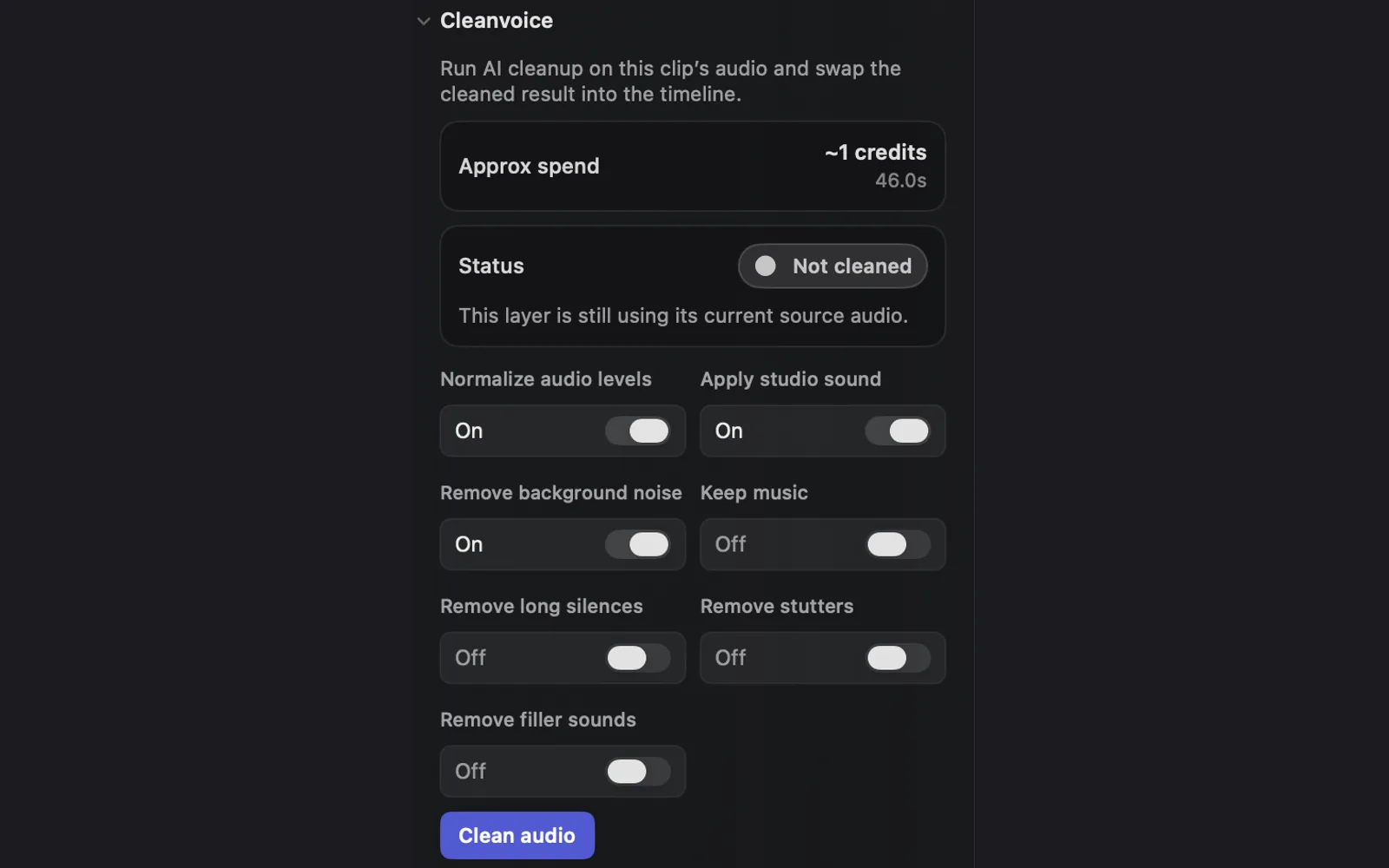
Clean a clip's audio
- On the timeline, click your recording on the Video lane, your camera on the Camera lane, or a clip on the Audio lane.
- For a recording or camera clip, open the Audio tab in the inspector. A clip on the Audio lane shows its settings without tabs.
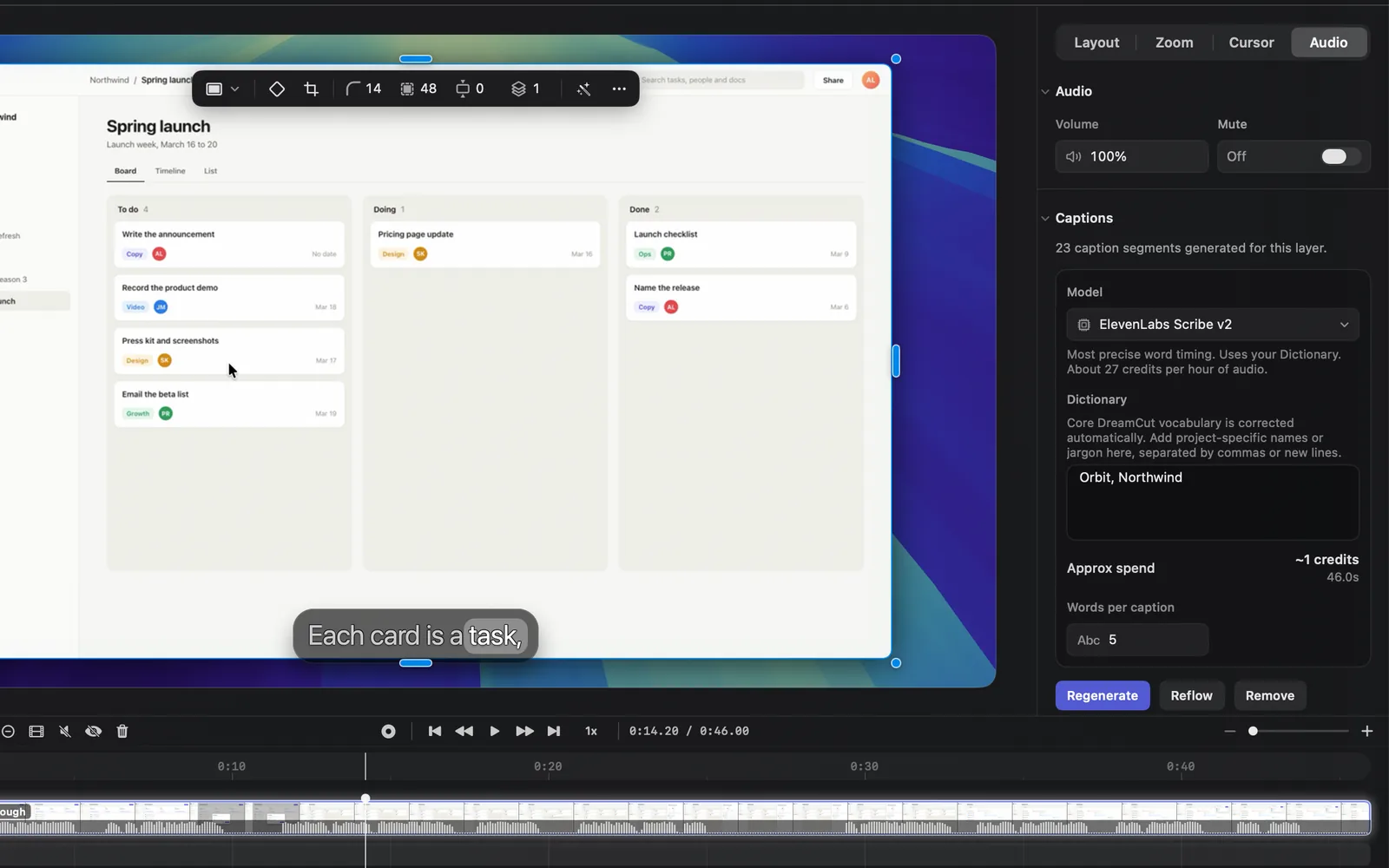
- Scroll down to Cleanvoice, under Captions. It reads "Run AI cleanup on this clip’s audio and swap the cleaned result into the timeline."
- Turn on what you want fixed. Each option has an On / Off switch. On a recording or camera clip, leave Remove long silences, Remove stutters and Remove filler sounds off: see The options.
- Check Approx spend: the credits it will cost, with the clip's length under it, such as "~1 credits" and "46.0s".
- Press Clean audio.
While it works, the button reads Cleaning audio, a spinner under it reads "Cleaning audio...", and Status reads Cleaning. The spinner doesn't show steps or a percentage, so a long clip can sit on "Cleaning audio..." for a while. When it's done, the line under the button reads "Cleaned audio with DreamCut AI", Status turns to Cleaned, and the sound wave on the timeline shows the new sound.
The clip stays where it is and keeps its volume and its captions. Only the sound it plays changes.
The options
DreamCut remembers your choices: they apply to every clip you clean and to automatic cleanup. The first three are on to start with.
| Option | What it does | Works on |
|---|---|---|
| Normalize audio levels | Evens out how loud the sound is | Every clip |
| Apply studio sound | Gives the voice a studio sound | Every clip |
| Remove background noise | Takes out noise behind your voice | Every clip |
| Keep music | Keeps music while the noise is removed. It works only while Remove background noise is on | Every clip |
| Remove long silences | Cuts long pauses out of the sound | Clips on the Audio lane |
| Remove stutters | Cuts repeated starts of words | Clips on the Audio lane |
| Remove filler sounds | Cuts sounds such as "um" and "uh" | Clips on the Audio lane |
The last three make the sound shorter, so they can't be used on your recording or camera, whose sound has to stay in step with the picture. If one of them is on when you clean a recording or camera clip, DreamCut stops and says "Turn off long-silence, stutter, and filler removal for video-linked audio. Those edits change duration and would move the audio out of sync with the video." To cut pauses and fillers out of a recording, picture and sound together, use the transcript instead.
What the status means
Status shows which sound the clip is playing now.
| Status | What it says |
|---|---|
| Not cleaned | "This layer is still using its current source audio." |
| Cleaning | "DreamCut AI is processing this clip's audio and will swap in the cleaned result automatically." |
| Cleaned | "DreamCut AI cleaned audio is currently applied to this layer." |
| Unavailable | "DreamCut could not find an editable audio source for this clip yet." Clean audio stays greyed out |
Unavailable means DreamCut can't find the sound file the clip plays, usually because the file was moved, renamed or deleted outside DreamCut. Put the file back where it was, then click the clip again. For a clip on the Audio lane you can also point it at the file again: open File under Source and choose Replace from Computer….
A recording or camera clip with no sound at all has no Audio tab, so there's no Cleanvoice to press. That's a take made with No Mic and No Audio on the capture bar, or a camera recorded without the microphone: there's nothing to clean. With the camera on, your voice is in the camera clip, so clean that one rather than the screen recording.
Clean several clips
DreamCut cleans one clip at a time. While a clip is being cleaned, Clean audio on any other clip reads Queue Clean Audio. Press it and it reads Queued Clean Audio: that clip is cleaned when the current one finishes.
Undo a cleanup
Press ⌘Z to undo a cleanup and put the original sound back. There's no button to switch back later, but you can restore a version of the project saved before the cleanup with Versions in the top bar. See The top bar.
If you trim, move or change the clip while it's being cleaned, DreamCut keeps your edit and says "This clip changed during audio cleanup. Your existing audio has been kept. Clean it again to use the latest edit."
Clean new recordings automatically
- Click the DreamCut icon in the menu bar and choose Show settings (⌘,).
- Open Recording and scroll to the bottom, to Clean audio automatically.
- Turn it on.
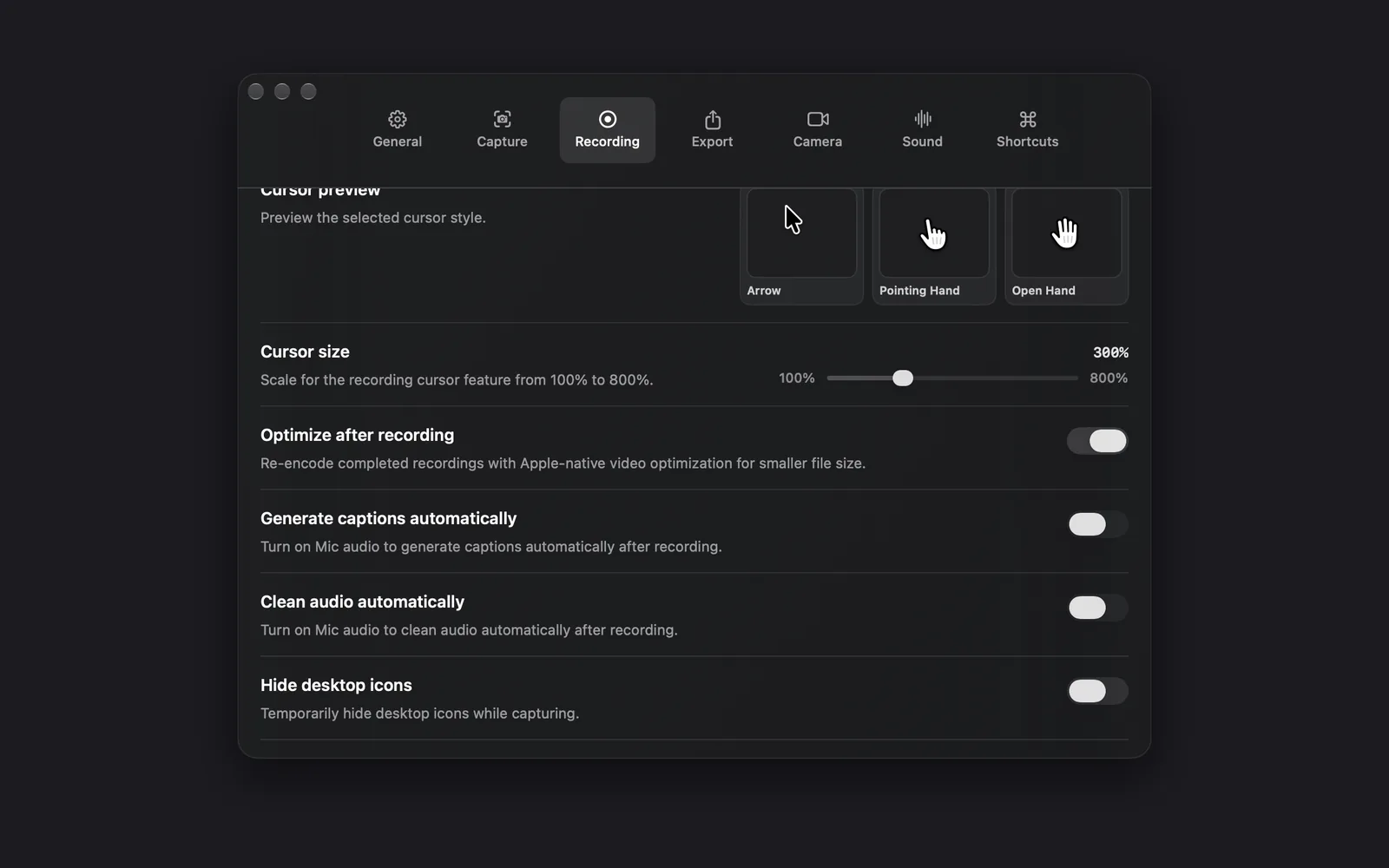
The switch needs your microphone on. With the microphone off, as in the picture, it can't be switched on, and the line under it reads "Turn on Mic audio to clean audio automatically after recording." With the microphone on, the line reads "Clean microphone audio when opening a new recording in the editor." If you turned the switch on and later turned the microphone off, it does nothing until the microphone is on again. The same choice is in Capture Options, under the gear on the capture bar.
When a new recording opens in the editor, DreamCut cleans its microphone sound with your Cleanvoice choices and spends credits as Clean audio does. If Generate captions automatically is on too, the captions wait until the cleanup is done, so they're made from the clean sound.
Recordings made by an agent
When an AI agent records your screen through the dreamcut command or MCP with the microphone on, the same setting decides whether its sound is cleaned before the file is handed back. The agent can ask for it either way:
dreamcut record --app Safari --seconds 20 --include-microphone true --clean-audio true--clean-audio truecleans the sound and writes it back into the recording before the command replies.--clean-audio falsekeeps it as recorded.- Only quiet recordings, the agent default, are cleaned this way, and only with the options that keep the length the same. A GIF has no sound, so it isn't cleaned.
MCP and the dreamcut command covers agent recordings.
Credits and sign-in
The cost depends on the length of the clip and the options you turn on:
| Options on | About |
|---|---|
| The three that are on to start with | Half a credit a minute, 31 credits an hour |
| All seven | 0.7 credits a minute, 43 credits an hour |
Approx spend rounds up to whole credits, so a short clip shows "~1 credits". If you don't have enough left this month, DreamCut says so before it starts and tells you what the cleanup would use. Plans and credits explains your allowance and how to buy more.
Tips and limits
- Cleaning doesn't change Volume or Mute. Set those in the same tab: see Volume, mute and fades.
- Keep music is greyed out until Remove background noise is on.
- You can keep editing while a clip is cleaned. Leave that clip as it is until it's done, or DreamCut keeps its old sound.
- Captions you already made stay as they are. To make them again from the clean sound, press Regenerate in the Captions section. See Captions.
What's next
- Volume, mute and fades: set how loud each clip is.
- Transcript editing: cut filler words and long pauses from a recording.
- Captions: turn the clean sound into captions.
- AI voice: replace your narration with a generated voiceover.