
Generate images and videos
Make AI pictures and video clips in DreamCut's editor from a prompt and a layer or frame, pick a model, and see the cost in credits before you generate.
The Generate media panel makes a picture or a short video clip with AI and adds it to your project. You start from a source, such as the recording under the playhead, describe what you want, and the panel shows what it will cost in credits before you generate.
Open Generate media
Click Generate media (the wand) on the tool rail on the left of the editor. You can also start from the layer or lane you're working on, and the panel opens with it as the source.
| Where | What it opens |
|---|---|
| Generate media on the tool rail | The panel, starting from the selected layer, or from the scene at the playhead |
| The wand on a selected layer's toolbar (Generate with this layer) | Generate Image or Generate Video, starting from that layer. Its Generate Voice, Generate Sound FX and Generate Music open the AI Audio panel instead (see AI voice) |
| Generate Video on the timeline toolbar | The VIDEO tab, starting from the selected layer |
| The wand at the left of the Video or Camera lane (hover the lane) | The panel. From the Camera lane, the result goes on the Camera lane |
| Right-click an empty part of the Video, Camera or Overlay lane | Generate Video, and Generate Image on the Overlay lane |
| Right-click the empty canvas | Generate Image or Generate Video for the background. See Background and canvas |
The panel has two tabs at the top: IMAGE for a picture and VIDEO for a clip. Click the × at the top right to close it.
Make an image
- Click Generate media on the tool rail, then click IMAGE.
- Look at the chip at the top of the prompt: it's the source the picture starts from: the selected layer, or the scene at the playhead, named as on the timeline (in the pictures, "Orbit walkthrough", the recording). Click it to start from something else, or click its × to work from your words alone.
- Describe the picture in the box that reads "Describe the image to create or change". For example: "A launch-week banner: a paper rocket made of sticky notes, flat illustration, soft purple".
- Under the prompt, pick a template, a skill, a model, a size and a shape. See Image settings.
- Read the cost to the left of the button, such as "7 credits", and click Generate Image.
- While it works, a progress bar and a timer take the place of the cost.
- The picture is added as a new 2-second scene at the end of the Video lane, and the playhead jumps to it.
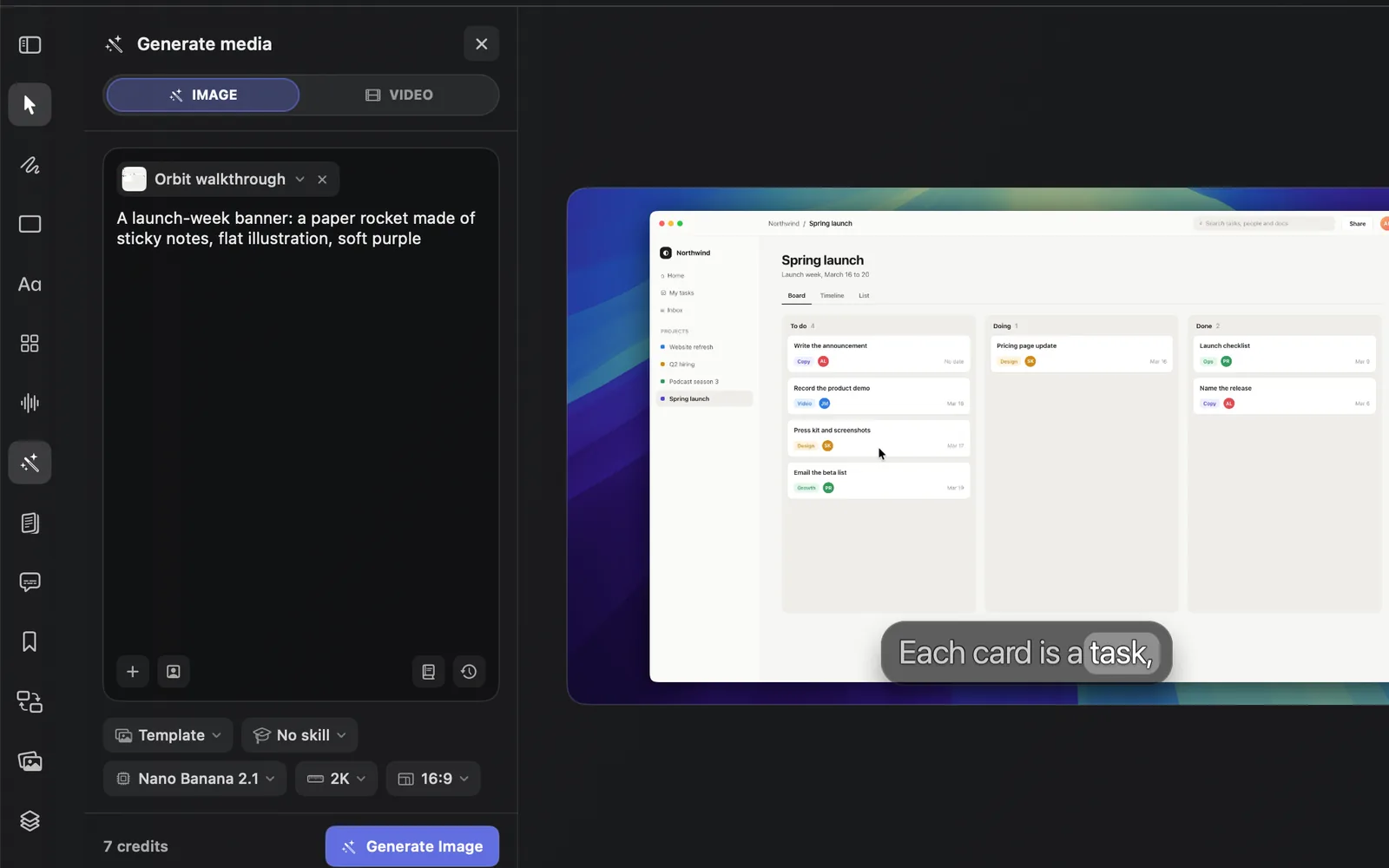
Every picture and clip you generate is also saved to the Media gallery, so you can add it again later.
Choose a source
Click + at the bottom left of the prompt (Add a source or files) to choose what the picture starts from. The source chip's own menu switches between the same choices. You can also drop pictures on the prompt.
| Source | What the AI gets |
|---|---|
| Selected element | The title, sticker, overlay or drawing you selected, on its own. It's listed while one is selected |
| Current layer | The layer under the playhead, such as your recording |
| Current frame | The whole frame at the playhead, as the canvas shows it |
| Camera frame | Your camera at the playhead |
| Background image | The current wallpaper or background picture |
| Images or text files… | Your own pictures, or text files with notes for the prompt: up to 5 files, 10 MB in all |
The prompt has three more buttons:
- Use a HeyGen avatar (a person) adds one of your avatars to the references, so the picture can show that person. See AI avatars and presenters.
- Show system prompt (a book) opens a SYSTEM PROMPT box with the instructions DreamCut adds for your template, skill and sources. You can edit them.
- Prompt history (a clock) lists your last 12 prompts. Click one to use it again.
Image settings
Each setting under the prompt is a small menu that shows its current value.
| Setting | What it shows at first | Choices |
|---|---|---|
| Template | Template | No template, Transparent PNG, and templates in three groups (below) |
| Skill | No skill | Taste skill, Redesign skill, Stitch skill |
| Model | Nano Banana 2.1 | Six image models (below) |
| Size | 2K | 1K, 2K or 4K, as the model allows |
| Quality | Standard | Low, Standard, High. Only for GPT image 2.5 |
| Aspect ratio | 16:9 | 16:9, 4:3, 1:1, 3:4, 9:16 |
Templates shape the picture for a job:
- Transparent PNG makes one object, icon, sticker or logo on a clear background. It switches the model to GPT image 2.5, the only model that draws clear backgrounds, and puts the picture over the scene at the playhead instead of adding a scene.
- Video has 14 frames for the parts of a video, from Storyboard and Title card to Lower third, B-roll and Callout.
- Perspective has five cinematic shots of an interface, such as Premium UI reveal and Floating interface showcase.
- Others has formats such as Article cover, YouTube cover, Slide deck, Landing page, Infographic and 3D, and closing frames such as CTA (call to action), End card and Credits.
Skills add a design guide to the prompt: Taste skill for restrained, premium design, Redesign skill to improve a design you start from while keeping its structure, and Stitch skill for a consistent design system. A skill makes the prompt longer, so the cost can go up by a few credits.
Image models
| Model | Sizes | A 2K picture costs about |
|---|---|---|
| Nano Banana 2.1 (default) | 1K, 2K, 4K | 7 credits (5 at 1K, 13 at 4K) |
| Nano Banana Pro | 1K, 2K, 4K | 16 credits (26 at 4K) |
| GPT image 2.5 | 1K, 2K, 4K | 2 or 3 credits at Standard, 6 at High |
| Seedream 5.0 | 2K, 4K | 4 credits at either size |
| Seedream 5.0 Pro | 1K, 2K | 9 credits (5 at 1K) |
| Seedream 5.0 Flash | 1K, 2K | 2 credits |
These are for a 16:9 picture from one source with a short prompt. The panel works out the exact cost from your prompt, sources, skill and settings.
Make a video
- Click Generate media on the tool rail, then click VIDEO.
- The model menu shows Grok Imagine Video, the default. Open it to pick another. See Video models.
- Check the source chip: the picture the clip starts from. When a model needs a picture and there's none, a chip reads Add source image. Click it to choose one.
- Describe the motion in the box that reads "Describe motion, camera movement, text, or action". For a ready-made move, click Camera presets (the arrows) at the bottom right of the prompt.
- Set the quality, length, shape and where the clip goes, such as 720p, 15s, 16:9 and As layer.
- Read the cost to the left of the button and click Generate Video.
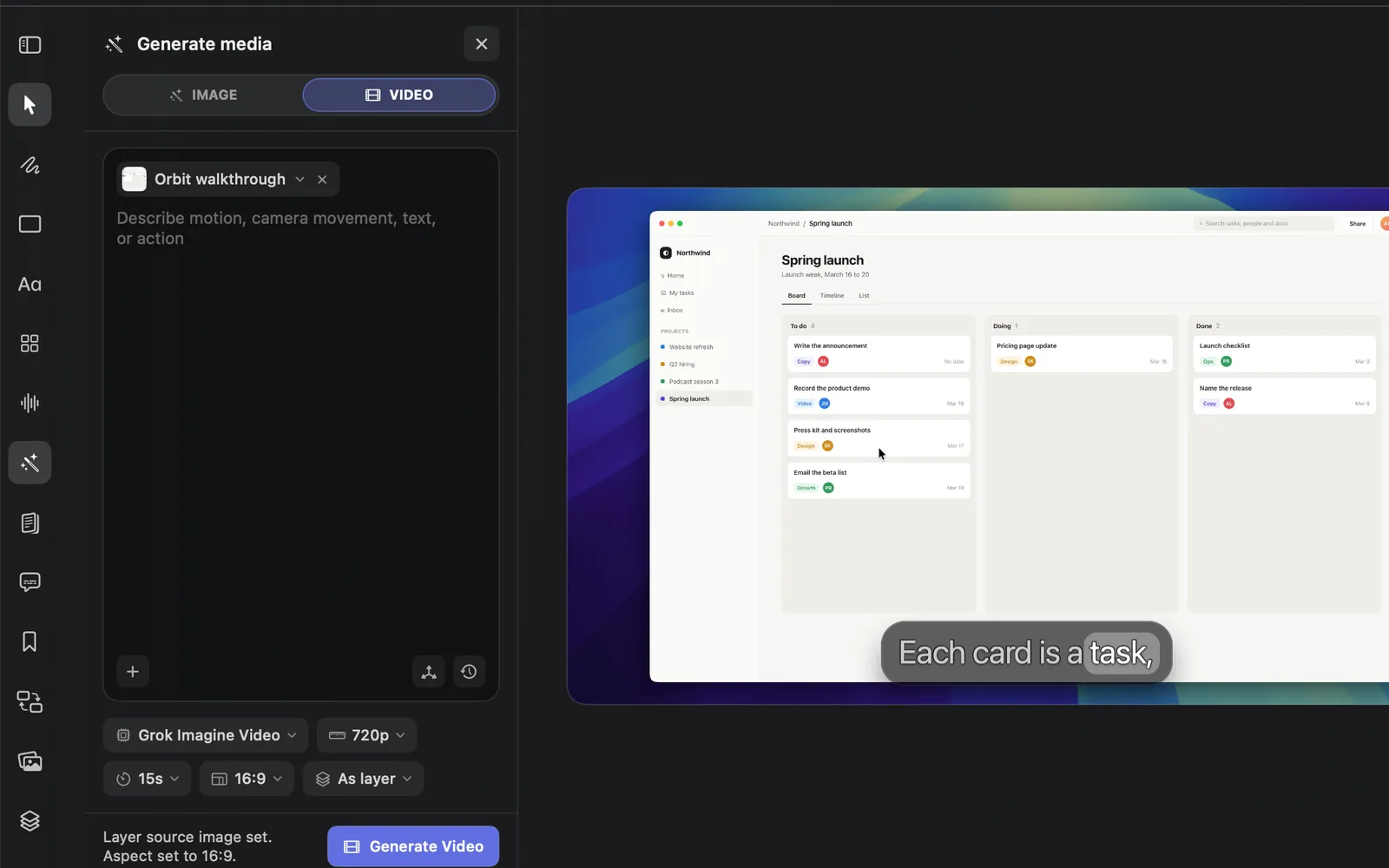
When you pick a source, DreamCut matches the aspect ratio to it and says so for about 4 seconds where the cost shows, such as "Layer source image set. Aspect set to 16:9." Then the cost comes back.
Video sources and presets
A video can start from the same sources as a picture. Some models take more:
- Camera video: the camera clip at the playhead, for models that take a video.
- Image file…: a picture from your Mac to start from.
- Images, videos or text files…: several files at once, for Grok Imagine Video, the Seedance models and the HeyGen Video Agent and Lip Sync models. These can also start from a prompt alone.
- Sound, for the Seedance models, OmniHuman 1.5, HeyGen Video Agent and HeyGen Lip Sync: click the waveform button at the bottom of the prompt and choose Timeline audio or Audio file…, or drop a sound file on the button.
Camera presets has 21 moves, such as Zoom In, Dolly Shot, Orbit Left, Pan Right, Crane Rise, Rack Focus and UI Tour. Picking one replaces the prompt with a description of that move, which you can then edit.
Video settings
| Setting | Choices |
|---|---|
| Model | 15 video models (below) |
| Quality | The model's resolutions or tiers, such as 480p, 720p, 1080p or 4K. Hidden when a model has one |
| Duration | The lengths the model allows, such as 15s. When the clip starts from a video, it follows that video's length |
| Aspect ratio | 16:9, 4:3, 1:1, 3:4 or 9:16. The Veo models, HeyGen Video Agent and HeyGen Photo Avatar make 16:9 or 9:16 |
| Output | Where the clip goes. See Where the result goes |
Video models
| Model | Starts from | Lengths | Credits a second |
|---|---|---|---|
| Grok Imagine Video (default) | A prompt, pictures, videos or text files | 1–15 s | 5 at 480p, 7 at 720p |
| Grok Imagine Video 1.5 | A picture | 1–15 s | 8 at 480p, 14 at 720p |
| Runway Gen 4.5 | A picture | 2–10 s | 12 at 720p |
| Google Veo 3.1 | A picture | 4, 6 or 8 s (8 s at 1080p and 4K) | 40 at 720p or 1080p, 60 at 4K |
| Google Veo 3.1 Fast | A picture | 4, 6 or 8 s (8 s at 1080p and 4K) | 10 at 720p, 12 at 1080p, 30 at 4K |
| Google Veo 3.1 Lite | A picture | 4, 6 or 8 s (8 s at 1080p) | 5 at 720p, 8 at 1080p |
| Kling 3 Motion Control | A picture, or your camera video for the motion | 3–10 s | 12.6 |
| Seedance 2.0 | A prompt, pictures, videos, text files and sound | 4–15 s | About 7 at 480p, 15 at 720p, 37 at 1080p |
| Seedance 2.0 Fast | A prompt, pictures, videos, text files and sound | 4–15 s | About 5.6 at 480p, 12 at 720p |
| Seedance 2.5 | A prompt, pictures, videos, text files and sound | 4–30 s | About 10 at 480p, 23 at 720p, 57 at 1080p |
| HeyGen Video Agent | A prompt, files, sound and a HeyGen voice | 4–15 s | 9.7 at 1080p |
| HeyGen Lip Sync Speed | A video, with sound or a voice and script | The video's length | 1.4 |
| HeyGen Lip Sync Precision | A video, with sound or a voice and script | The video's length | 2.9 |
| HeyGen Photo Avatar | An avatar or photo, and a script | As long as the script, 2–180 s | 3.85 or more, see AI avatars |
| OmniHuman 1.5 | A picture of a person, and sound | 4–15 s | 12 |
The last five make talking presenters. AI avatars and presenters covers them.
When something is missing, the button says what to add instead of Generate Video:
| Button | What to do |
|---|---|
| Add image first | Choose a source picture |
| Add prompt or media | Write a prompt, or add a source or files |
| Add video first | Lip sync needs a video: choose Camera video or add a video file |
| Add audio or voice | Lip sync needs sound, or a HeyGen voice to read a script |
| Add script first | Write what the avatar or voice should say |
Where the result goes
A picture goes in one of three places:
- Most pictures: a new 2-second scene at the end of the Video lane.
- A Transparent PNG: an overlay over the scene at the playhead.
- From Generate Image on the empty canvas: it replaces the background.
A video goes where Output says:
| Output | Where the clip goes |
|---|---|
| As layer | A new scene at the end of the Video lane, as long as the clip. The playhead jumps to it |
| As camera | The Camera lane, starting at the playhead |
| Replace layer or Replace camera | In place of the selected scene's or camera clip's media. Offered as Replace selected layer or Replace selected camera while one is selected |
| Replace background | The background, as a moving video. Set for you when you start from the background |
Ask Sakura or an agent
Sakura, the editor's AI, can add a picture or a clip for you, full frame or in a box: ask for "a 3-second image of a clean desk with a laptop at 0:12". Unless a model is named, pictures use the model picked in this panel's IMAGE tab (GPT image 2.5 for a cut-out on a clear background), and clips use Grok Imagine Video. A clip with no frame to start from gets a starting picture made first, which adds that picture's cost. The card shows "uses AI credits" and waits for Apply. An agent can do the same over MCP and the dreamcut command.