
Dictation: hold fn to type with your voice
Hold fn in any app, talk and let go: DreamCut writes down what you said, tidies it with AI and pastes it where you're typing, with a history.
Dictation turns your voice into text anywhere on your Mac. Hold fn, talk, and let go: DreamCut writes down what you said, tidies it up and pastes it where you're typing. Every dictation is kept with its audio in the Dictation window, so you can copy it again or retry it.
Before you start
- DreamCut is running. Dictation works whenever DreamCut is open, even with no windows showing. Quit DreamCut and holding fn no longer dictates.
- Accessibility is allowed, so DreamCut can hear fn in other apps and paste. Until it is, dictations are only copied, and the Dictation window shows Open Settings to fix it. Install and permissions walks through it.
- The microphone is allowed. macOS asks the first time you hold fn, and that first try doesn't record: allow it, then dictate again. Dictation listens with the Microphone source in DreamCut's settings, under Sound.
- You're signed in on a Pro trial or plan with credits left, and online. Dictation uses a little of your AI credits.
Dictate with fn
- Click in the text field where you want the words, in any app.
- Hold fn and talk. A pill at the bottom of the screen shows a red dot, the level of your voice and the time.
- Let go of fn. The pill reads "Transcribing", or "Formatting" while the words are laid out, and the text is pasted where you were typing. The pill says "Pasted".
"Pasted" means DreamCut pressed ⌘V for you in the app in front. If no text field had the cursor, nothing appears, so click into the field first. The words also stay on your clipboard, so you can paste them again.
A quick tap of fn on its own does nothing, and fn still works with other keys: pressing fn with an arrow, ⌫ or another modifier cancels the dictation.
Talk hands-free
- Tap fn twice quickly. The pill stays on with two buttons: an × to cancel and a stop button to finish. With Sounds on, a tone tells you hands-free is on.
- Talk as long as you need. You can type in between without stopping it.
- Press fn again, or click the stop button, to finish.
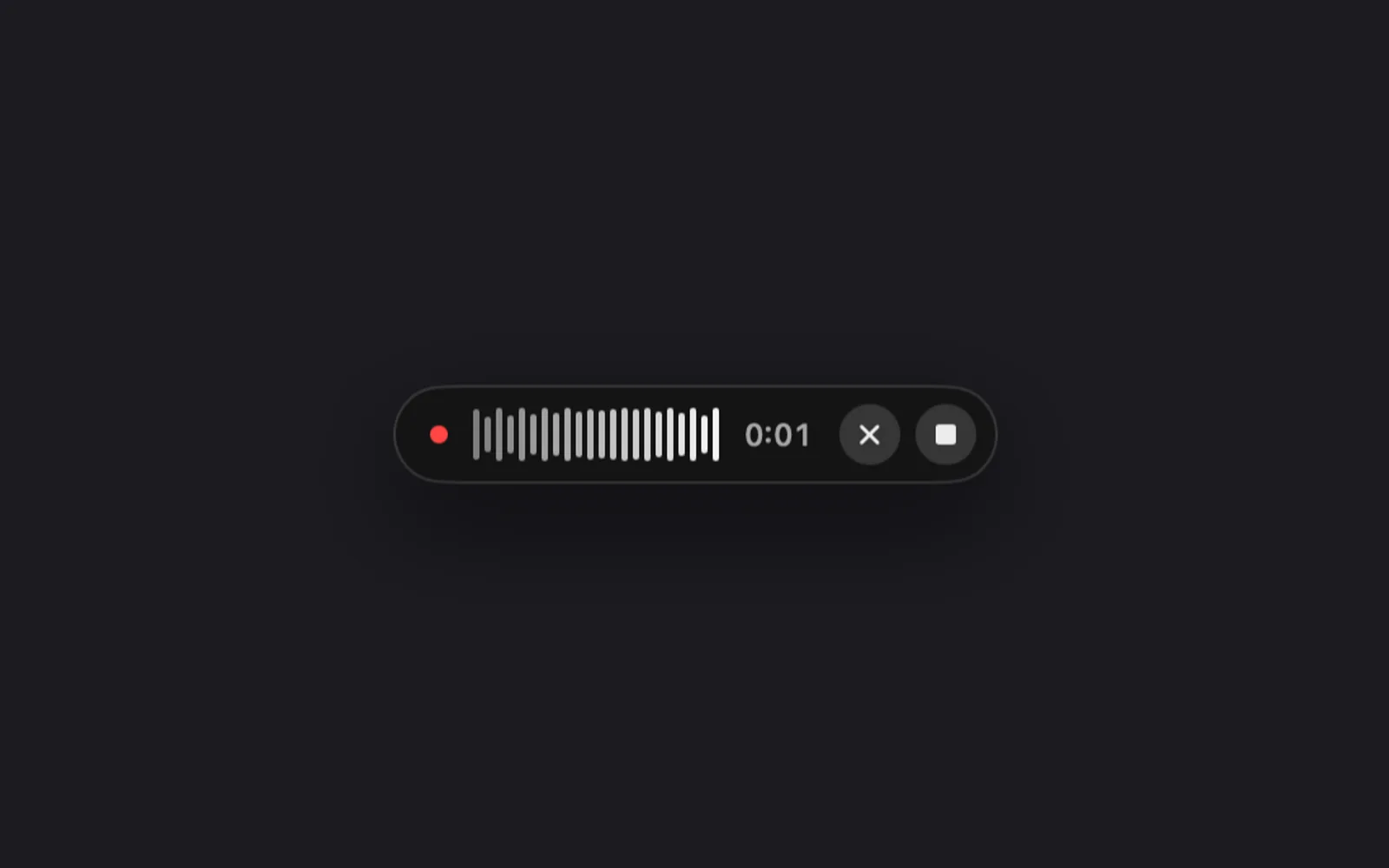
Press Esc to throw a dictation away. A dictation stops on its own after 10 minutes.
Fix a misheard name
When Double-check names thinks a word was misheard, the pill asks after the paste.
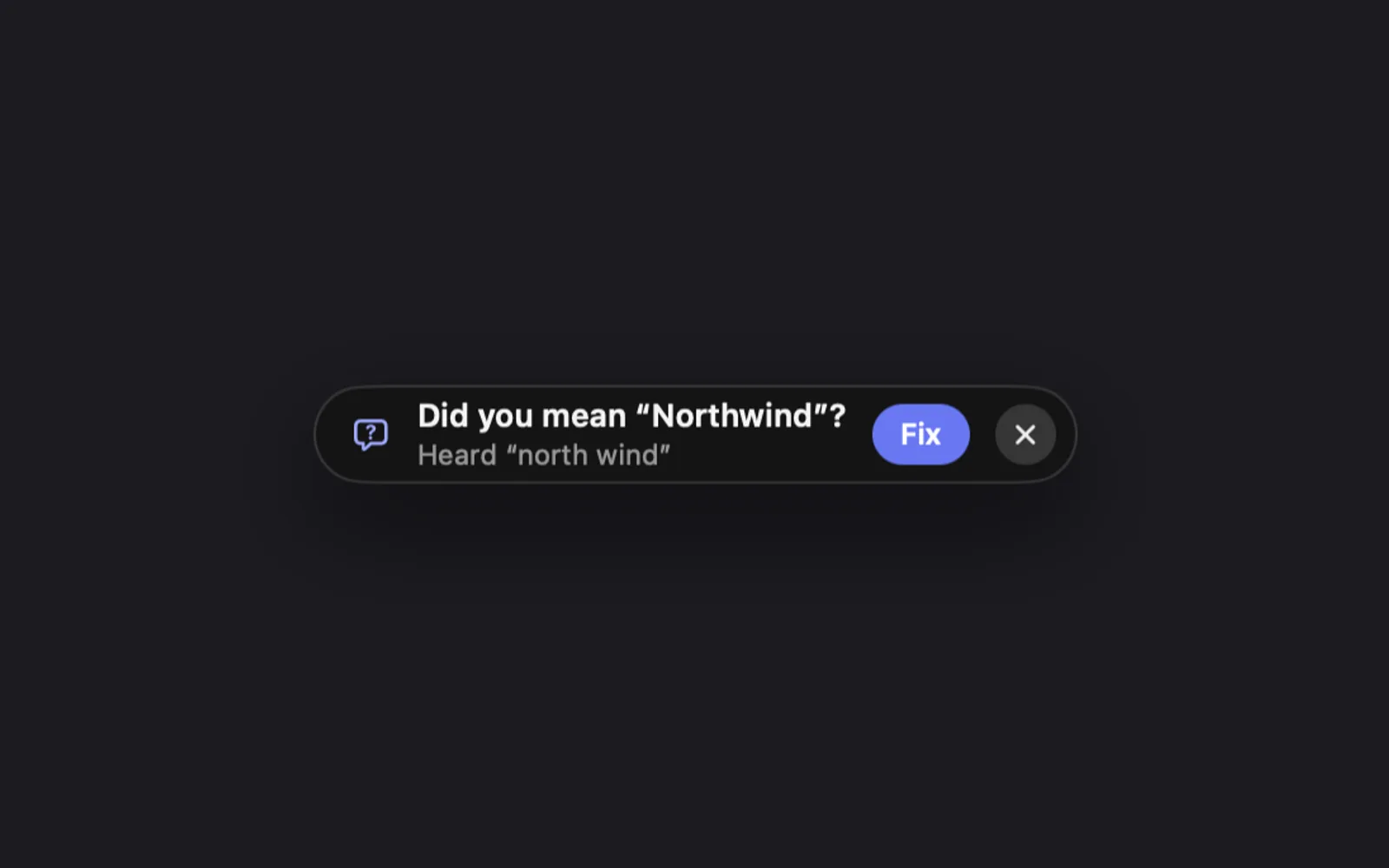
- Click Fix to change the word in your text and add the right spelling to your Dictionary. The pill says "Fixed". If DreamCut can't change the text in place, it says "Copied the fixed text": paste it over the old text.
- Click the × to keep it as it is.
When you fix a name by hand instead, Learn from my edits saves it: the pill says "Added “…” to your Dictionary", with Undo.
What the pill says
| The pill says | What it means |
|---|---|
| "Pasted" | DreamCut pressed ⌘V in the app in front. If the words didn't appear, click into a text field and press ⌘V |
| "Copied" | The words are on the clipboard only: DreamCut was in front with no text field to type in |
| "Copied. Allow Accessibility to paste" | DreamCut needs Accessibility access to paste. Paste with ⌘V for now |
| "Didn't hear anything" | The recording had no words in it |
| "No sound from the microphone" | Nothing came in. Check that your mic is on and not muted, or pick another in DreamCut's settings |
| "Microphone access is off" | DreamCut isn't allowed to use the microphone. Allow it in System Settings › Privacy & Security › Microphone |
| "No connection" | DreamCut couldn't reach the internet. The recording is saved in the History: retry it there |
| "Sign in to dictate" | Open DreamCut and sign in |
| "Dictation needs DreamCut Pro" | Start a Pro trial or a plan |
| "Out of AI credits" | Add credits, or wait for your monthly reset |
| "Update DreamCut to dictate" | This version of DreamCut can't use its AI any more. Update it |
| "The recording didn't come through" | Something interrupted the microphone. Try again; the recording is in the History if you want to retry it |
| "DreamCut is still starting" | DreamCut has only just opened. Try again in a moment |
| "Couldn't transcribe that" | Something else went wrong, and the line under it says what. The recording is in the History: retry it there |
Each dictation also gets a card in the bottom-right corner, like a quick capture, with its words and a Copy button.
The Dictation window
To open it, click the DreamCut icon in the menu bar and choose Dictation History, or Dictionary... to land on the Dictionary. Show All Dictations, under More in the capture bar's Open menu, opens it too.
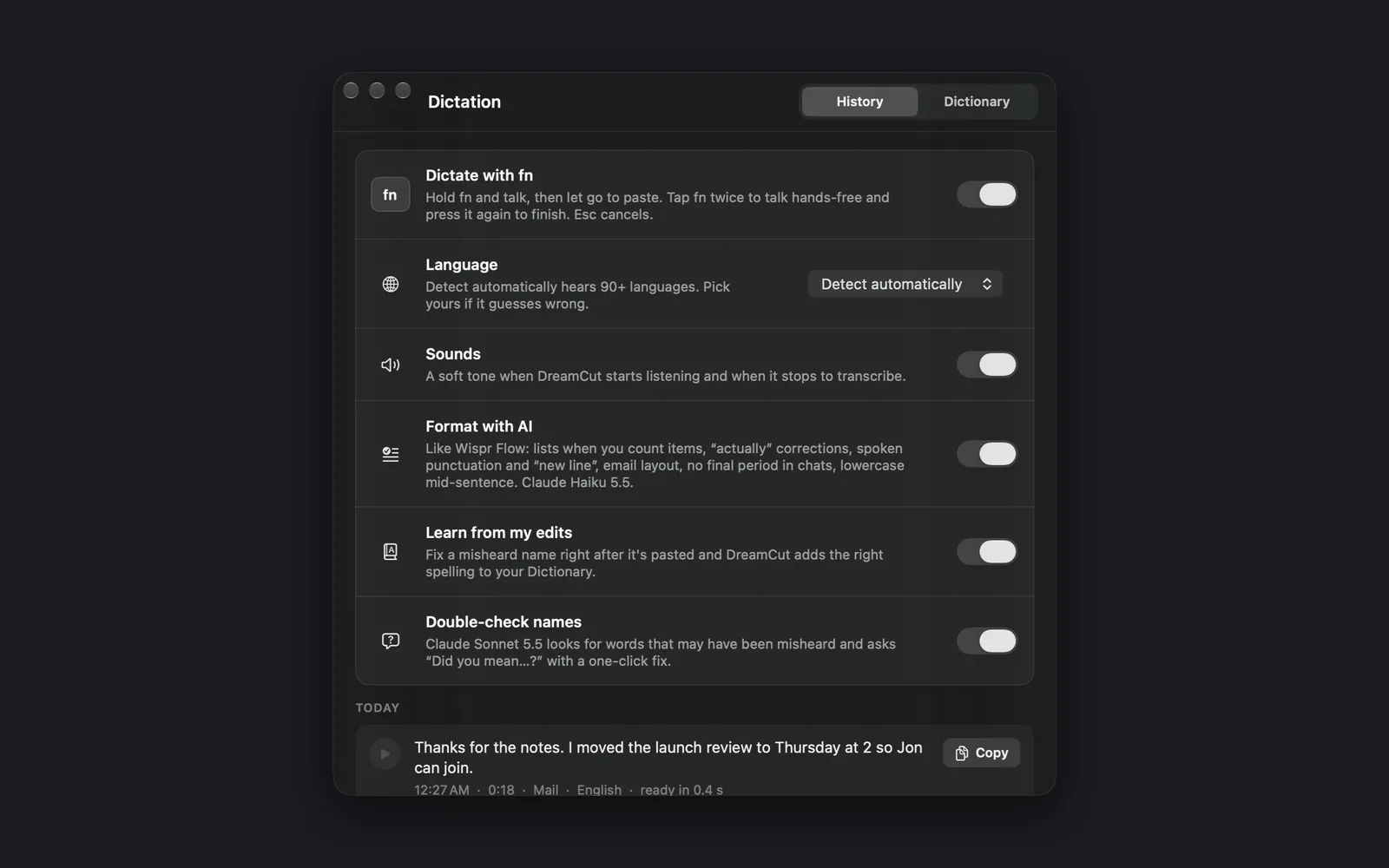
The window starts with your dictation settings, followed by your dictations or your Dictionary. Switch between the two with the History and Dictionary buttons at the top right.
Settings
| Setting | What it does |
|---|---|
| Dictate with fn | A switch that turns fn dictation on or off. When it's off, the other switches are greyed out |
| Language | A menu. Detect automatically hears 90+ languages. Pick yours if it guesses wrong |
| Sounds | A switch for the soft tones when DreamCut starts listening and when it stops to transcribe. The tones come from the sound style in Settings > Sound |
| Format with AI | A switch. Lays out the text the way you meant it: lists when you count items, "actually" corrections, spoken punctuation and "new line", email layout, no final period in chats, and lowercase mid-sentence. Uses Claude Haiku 5.5 |
| Learn from my edits | A switch. When you fix a misheard name in the pasted text within a minute, DreamCut adds the right spelling to your Dictionary |
| Double-check names | A switch. Claude Sonnet 5.5 looks for words that may have been misheard and asks "Did you mean…?" with a one-click fix |
Every switch is on until you turn it off, and Language starts on Detect automatically.
How the AI steps work:
- DreamCut sends your voice to ElevenLabs Scribe v2 as you talk, so the words are ready soon after you let go.
- Format with AI only calls Claude when there's something to lay out, such as a list, a correction, a filler word, a message in an email app or a language other than English. A reply of one or two words is pasted as you said it.
- If formatting takes longer than 4 seconds, DreamCut pastes the plain transcript instead.
- Double-check names looks only at dictations with a name or an unfamiliar word in them, and suggests at most three fixes each.
History
The History tab lists your dictations by day, newest first. Each row has:
- A play button to hear the recording.
- The words, which you can select.
- A line with the time, the length, the app you were in, the language and how long the words took, such as "12:27 AM · 0:18 · Mail · English · ready in 0.4 s".
- Copy, which copies the words again.
- Retry, on a dictation that failed, such as one you made offline. It transcribes the saved audio again.
- A trash button when you point at the row, which deletes the dictation and its audio.
A "Did you mean…?" suggestion you haven't answered also shows in its row, with Use it. Clear History at the bottom deletes every dictation's text and audio after you confirm. The history is kept on this Mac only, up to your 300 newest dictations.
Dictionary
The Dictionary holds names and words DreamCut should spell your way, like people, products and jargon. Dictation and captions both use it, so a name you add here is spelled right in both. DreamCut's own words are built in.
- Click Dictionary at the top right of the Dictation window.
- Below the settings, type into Add a name or word.
- Press Add, or Return.
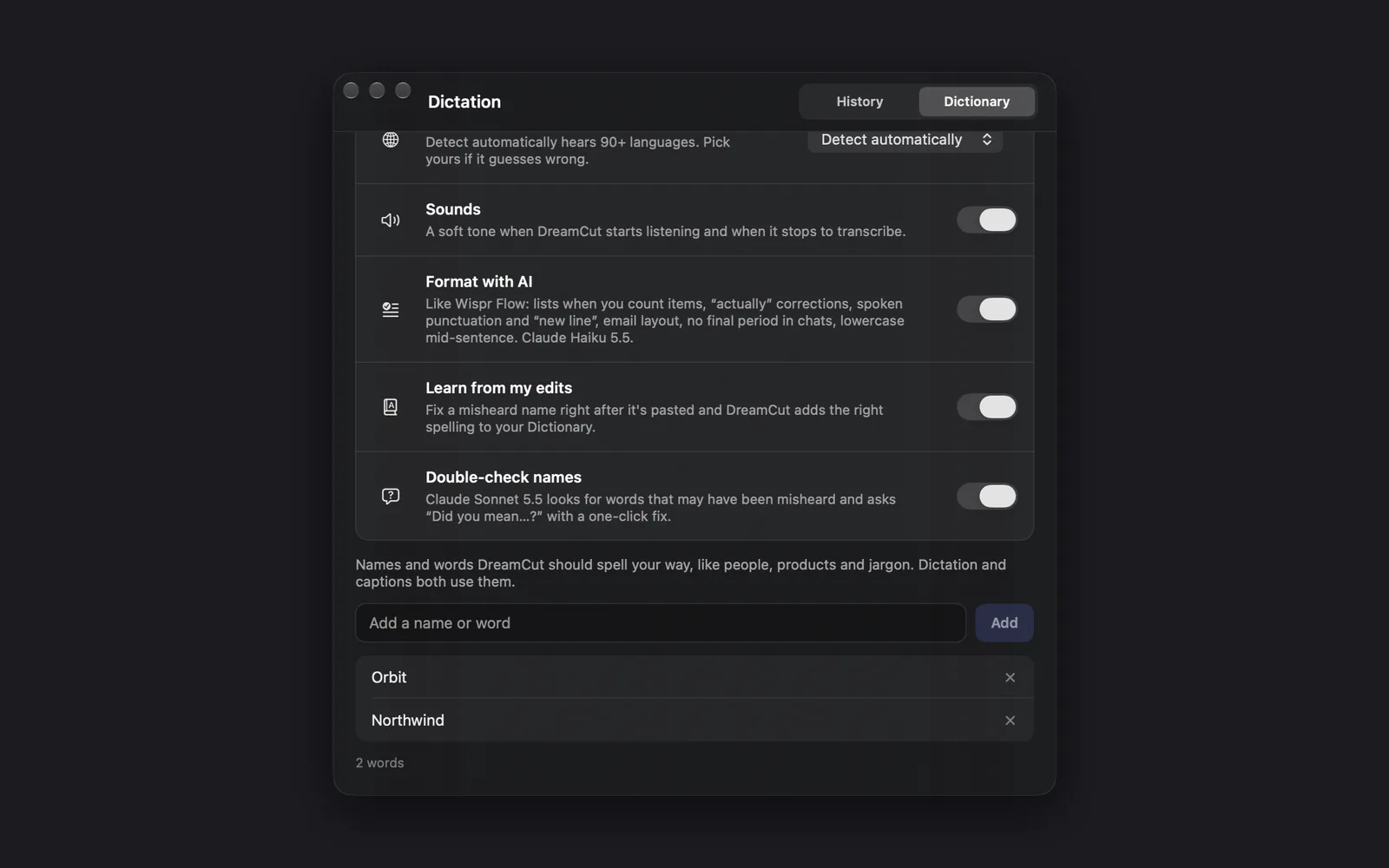
Add stays dimmed until you type something. Your words are listed under the box, with a count such as "2 words"; until you add one, it reads "Your Dictionary is empty". To remove a word, click the × at the end of its row.
Choose a language
Detect automatically works for most people. If DreamCut guesses wrong, pick your language in one of two places; both change the same setting:
- In the Dictation window, from the Language menu.
- In the menu bar: click the DreamCut icon and choose Dictation Language.
The list has 35 languages, from Arabic to Vietnamese, including English, Spanish, French, German, Chinese, Japanese and Hindi.
Turn dictation on or off
Use the Dictate with fn switch in the Dictation window, or in DreamCut's settings: click the DreamCut icon in the menu bar, choose Show settings, open Shortcuts and find Dictate with fn. Its Open Dictation button opens the Dictation window.
Tips and limits
- Wispr Flow: if it's running, the Dictation window warns "Wispr Flow is running and also listens to fn. Quit it or give it another shortcut." Both apps would dictate at once otherwise.
- The 🌐 key: if your fn key also changes the input source, shows Emoji & Symbols or starts Apple Dictation, the Dictation window asks you to set "Press 🌐 key to" to Do Nothing. Keyboard Settings next to the warning opens the Keyboard pane of System Settings.
- In Sakura's chat: the microphone icon in Sakura's chat box (hover it to read Dictate) dictates straight into it, with no fn and no Accessibility access needed.
- Hear it again: when a name came out wrong, the play button in its History row lets you check what you said, then add the right spelling to your Dictionary for next time.
- Quiet tones: Sounds in the Dictation window turns off only dictation's tones. Setting Sound style to Off in Settings > Sound silences them along with DreamCut's other sounds.
What's next
- Quick captures: copy or record a window with a double tap of a key.
- Article Studio: turn a video into an article, a thread or a newsletter.
- Keyboard shortcuts: every shortcut in DreamCut.
- Settings: your microphone, DreamCut's sounds and the Dictate with fn switch.