
Clone your voice
Record a 20-second sample, upload a recording or use a clip on the timeline to clone your voice in DreamCut, then use it for voiceovers and re-voicing.
Clone your voice once and DreamCut can speak any script in it. You read a short passage for 20 seconds, or give it a recording of yourself, and the voice joins MY VOICES in the AI Audio panel, ready for voiceovers and for re-voicing narration with Sakura.
Record a 20-second sample
- In the editor, click AI Audio (a waveform) in the left rail and open the VOICE tab.
- Choose the engine in the first menu under the script box: HeyGen or ElevenLabs. See HeyGen or ElevenLabs. If you'll read in a language other than English, pick it in the language menu beside Search first: the clone is saved in that language, and in English with All.
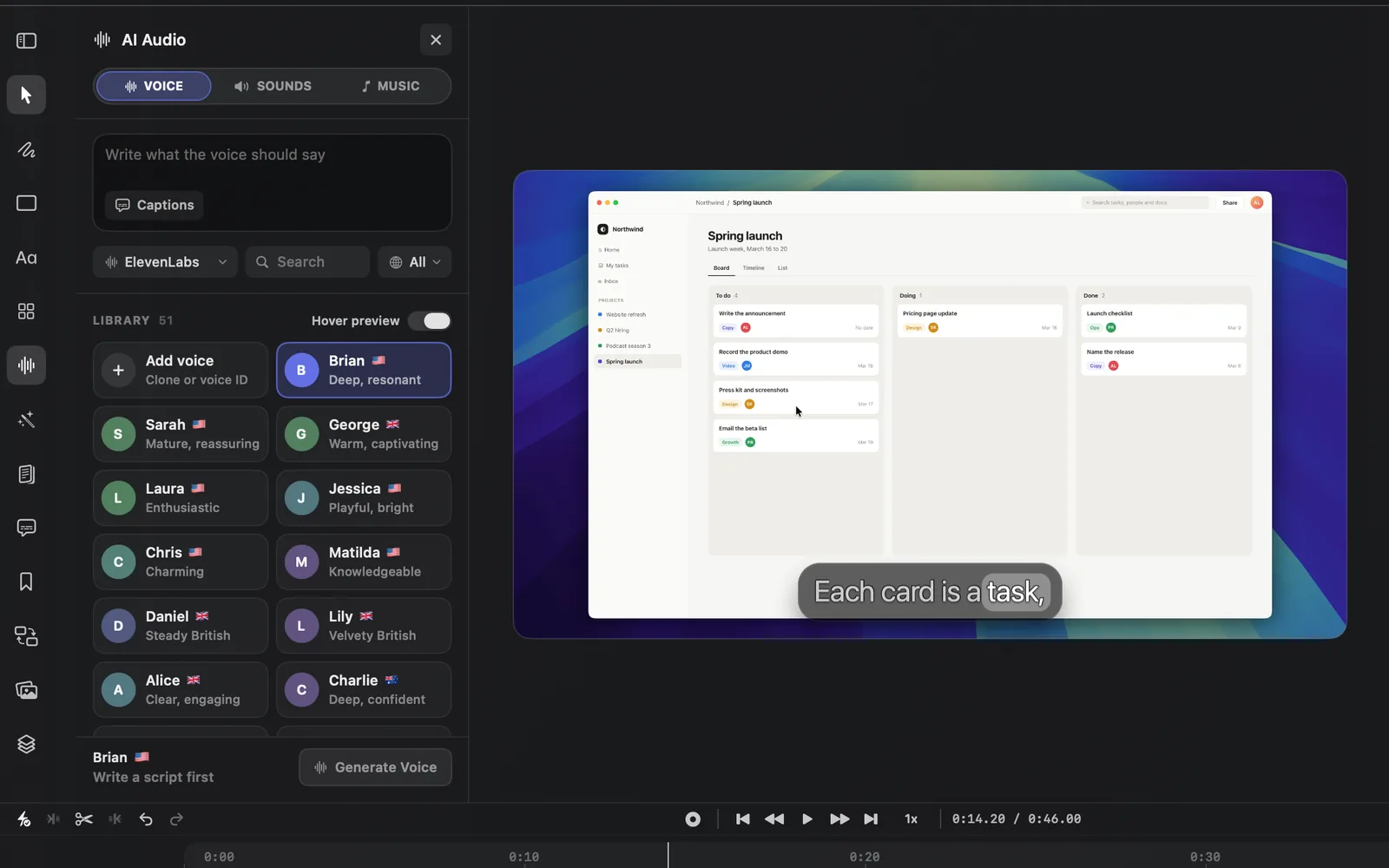
- Click the first tile in the voice list: Clone voice ("Record or upload") with HeyGen, or Add voice ("Clone or voice ID") with ElevenLabs. It leads MY VOICES once you have a voice of your own, and whichever list comes first until then.
- The panel turns into Clone a voice (Add a voice with ElevenLabs) with RECORD chosen. The line under the title names the engine and says the voice is saved to your account. The arrow beside the title (Back to voices) returns to the voice list.
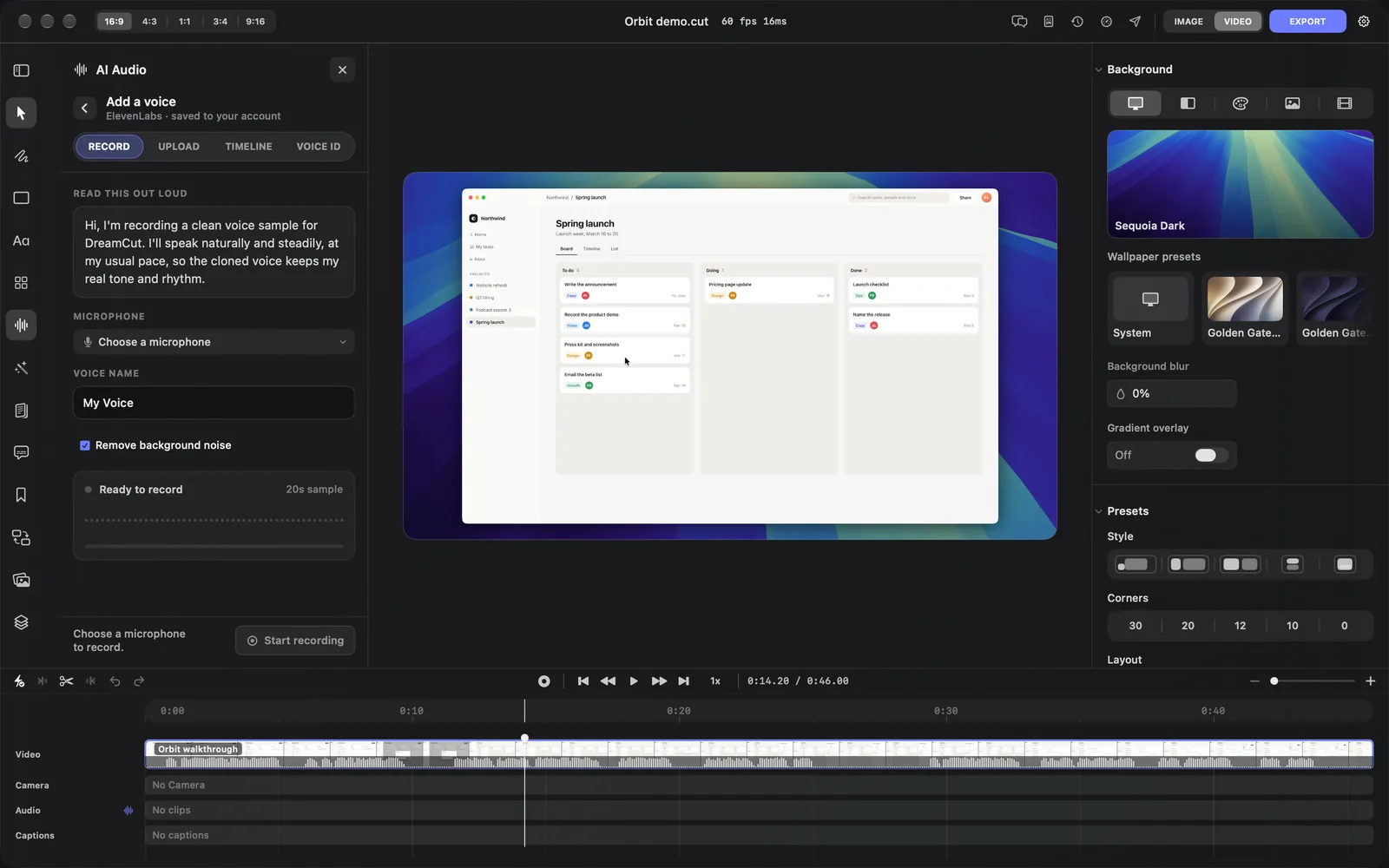
- Pick your microphone in the MICROPHONE menu and type a name under VOICE NAME; it starts as "My Voice". Leave Remove background noise ticked to have noise taken out of the sample, or click it to send the sample as it is.
- Until you pick a microphone, Start recording stays grey and the footer reads "Choose a microphone to record." With no microphone connected, the menu reads "No microphone found" and the footer "Connect a microphone to record."
- Click Start recording. The button reads "Checking mic…" and then "Opening mic…", then counts down the 20 seconds while the bar in the card fills.
- Read the passage under READ THIS OUT LOUD at your usual pace. It takes about 10 seconds, so read it twice, or keep talking in your normal voice, until the timer ends.
The recording stops by itself after 20 seconds and the button reads "Cloning…". To stop before then, click Cancel: the sample is thrown away and nothing is sent. Closing the AI Audio panel cancels it too. When the clone is made, the panel goes back to the voice list, with your voice under MY VOICES.
- ElevenLabs voices are usually ready at once: "Cloned My Voice. It's selected and ready to speak."
- HeyGen needs a few minutes before a new voice can speak: "My Voice is creating in HeyGen. Please wait a few minutes." See When a HeyGen voice is ready.
When nothing else needs saying, the footer reads "Only clone voices you have permission to use." Clone your own voice, or one you have permission to use.
When a HeyGen voice is ready
A new HeyGen voice shows under MY VOICES straight away, with a spinner and "Creating…" under its name. You can't pick it yet. Hover it to read "My Voice is still creating in HeyGen. Please wait a few minutes while DreamCut keeps checking."
- DreamCut asks HeyGen every 10 seconds. When the voice is ready, the line above the footer reads "My Voice is ready to use." and you can click it.
- If it still isn't ready after about 30 minutes, DreamCut stops asking: "My Voice is still creating in HeyGen. Use Refresh Voices to check again." The AI Audio panel has no refresh button: close the panel and open it again, and DreamCut reloads your voices and starts checking again.
- If HeyGen can't make the voice, the tile reads "Clone failed" in red and the line reads "My Voice failed in HeyGen. Try uploading it again." Delete it from its right-click menu (see Manage your voices) and make a new clone, from a clearer sample if you can.
Clone from a file or the timeline
The tabs at the top of Clone a voice give you other ways to make the same clone. Each uses the VOICE NAME and Remove background noise set on that tab.
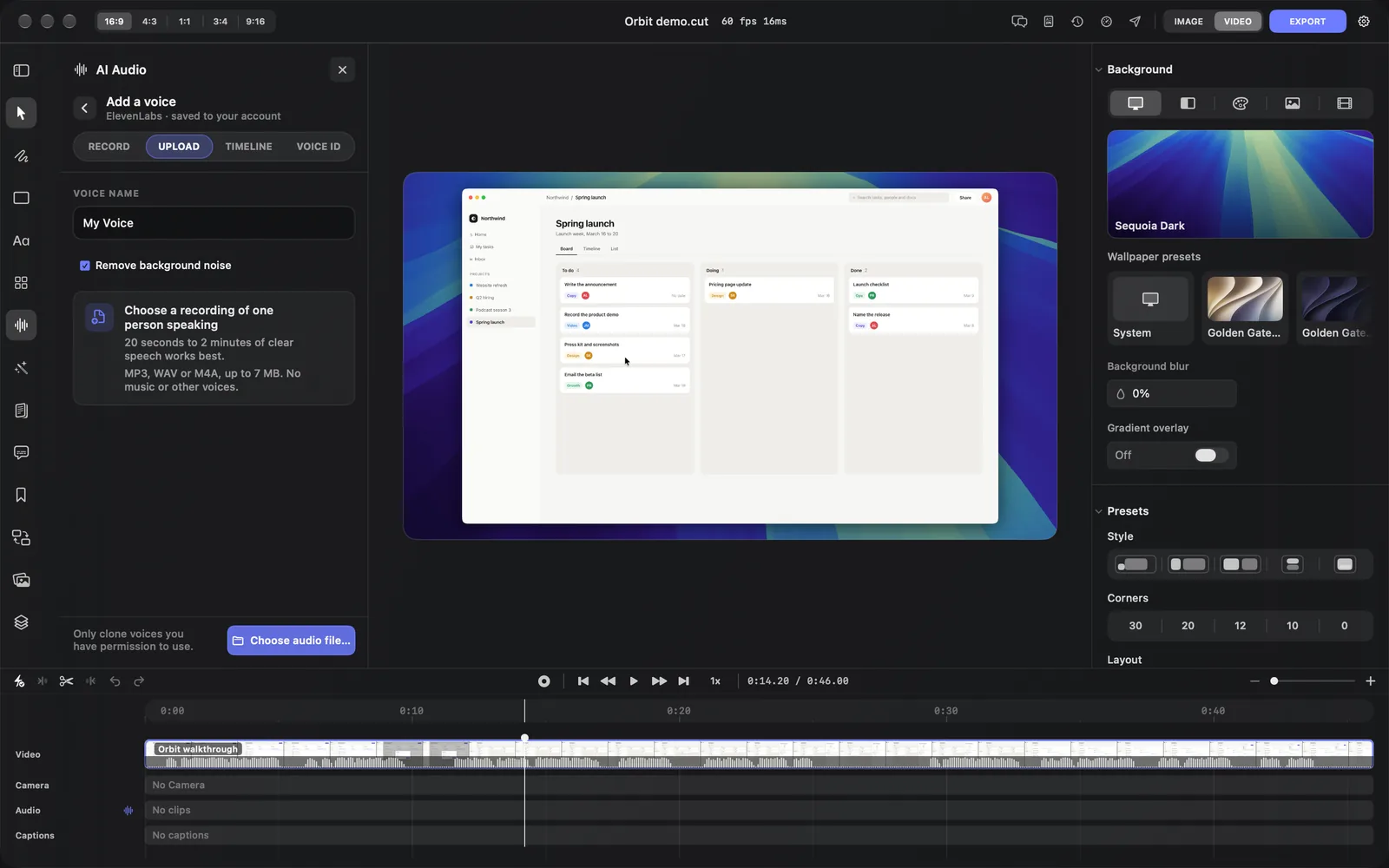
To clone from a recording on your Mac:
- Click UPLOAD.
- Check the name under VOICE NAME and the Remove background noise setting.
- Click Choose audio file…, pick the recording and click Open. The button reads "Cloning…" until the voice is made.
| Tab | What you give it | Button |
|---|---|---|
| RECORD | 20 seconds read from the passage | Start recording |
| UPLOAD | A recording of one person speaking: "20 seconds to 2 minutes of clear speech works best." MP3, WAV or M4A, up to 7 MB, with no music or other voices | Choose audio file… |
| TIMELINE | A clip on the Audio lane: the one you selected, else the one under the playhead, else the first clip on the lane. The card on the tab names it. DreamCut sends up to 60 seconds of it | Clone from timeline |
| VOICE ID | ElevenLabs only. Adds a voice from the ElevenLabs Voice Library by its ID or link. It isn't a clone of your voice | Add voice |
TIMELINE uses clips on the Audio lane, such as a voice recording you made in the editor. With none there, its card reads "Select an audio clip first". It can't use the sound of your screen recording or camera. To clone from those, click Export Audio Only in Export Settings, then upload the M4A it saves, as long as it's under 7 MB. See Volume, mute and fades.
HeyGen or ElevenLabs
Your clone belongs to the engine that was chosen when you made it, and shows under MY VOICES only while that engine is chosen.
| HeyGen | ElevenLabs | |
|---|---|---|
| The first tile in the voice list | Clone voice | Add voice |
| The page it opens | Clone a voice | Add a voice |
| Ways to add a voice | RECORD, UPLOAD, TIMELINE | The same, plus VOICE ID |
| Ready to speak | After a few minutes | Usually at once |
If HeyGen can't take another clone, DreamCut says "HeyGen's voice clone slots for DreamCut are full, so HeyGen can't clone right now. Clone with ElevenLabs instead." and a Use ElevenLabs button appears. It switches the engine and keeps your tab and name, so you can try again there.
Use your cloned voice
For a voiceover:
- In AI Audio, open VOICE and click your voice under MY VOICES.
- Write the script. If the video has captions, you can click Captions in the box to use them instead.
- Click Generate Voice. The voiceover lands on the Audio lane.
AI voiceover covers scripts, voices and voiceover settings.
To re-voice narration: select a voiceover on the Audio lane, open Chat in the top bar and ask Sakura to "Re-voice it with another voice", or name yours: "Re-voice it with My Voice". Sakura reads each voiceover, says it again word for word in that voice and swaps it in place, as one step you can undo. Re-voicing works on voiceovers on the Audio lane, not on the sound of your screen recording or camera.
Sakura can also make a HeyGen clone from a clip on the Audio lane. If you don't give the voice a name, it first asks for one in Create HeyGen Voice Clone, which reads "Only clone a voice you own or have permission to use." Click Create Voice to go ahead.
Manage your voices
Right-click a voice under MY VOICES for:
- Play Preview (Stop Preview while it plays)
- Add to Favorites or Remove from Favorites. Your own voices stay under MY VOICES either way.
- Copy Voice ID
- Delete and the voice's name, such as Delete My Voice…. DreamCut asks first, naming the engine that made the clone: "This deletes your cloned voice from HeyGen. It can't be used for generated audio again." (or "from ElevenLabs"). Click Delete Voice to confirm.
- Remove and the voice's name, for a voice you added by its ID. It leaves the voice in the ElevenLabs Voice Library, so you can add it again later. Click Remove Voice to confirm.
Plans, permission and credits
- Cloning needs you signed in on a Pro or Max plan, or the Pro trial. Otherwise DreamCut says "Sign in to DreamCut to clone voices." or "Start a DreamCut Pro trial to clone voices."
- RECORD needs microphone permission ("Microphone permission is required to record a voice clone."), and it can't run while you're recording your screen: "Finish the current recording before recording a voice clone."
- DreamCut shows no credit estimate for making a clone. Speaking with it costs credits like any AI voice, and AI Audio shows the estimate before you click Generate Voice. Plans and credits explains your allowance.
Tips
- Record with the microphone you normally use, in a quiet room, and speak the way you do in your videos.
- To make a better clone later, make a new one and delete the old one from its right-click menu.
What's next
- AI voiceover: make voiceovers with your cloned voice.
- Clean up your audio: remove noise from the recordings you clone from.
- Volume, mute and fades: balance a voiceover against your recording.
- Transcript editing: cut words and pauses from your narration.