
The capture bar and your projects
Use DreamCut's capture bar to start captures and open recent projects, then learn where projects are saved and how to rename, restore and delete them.
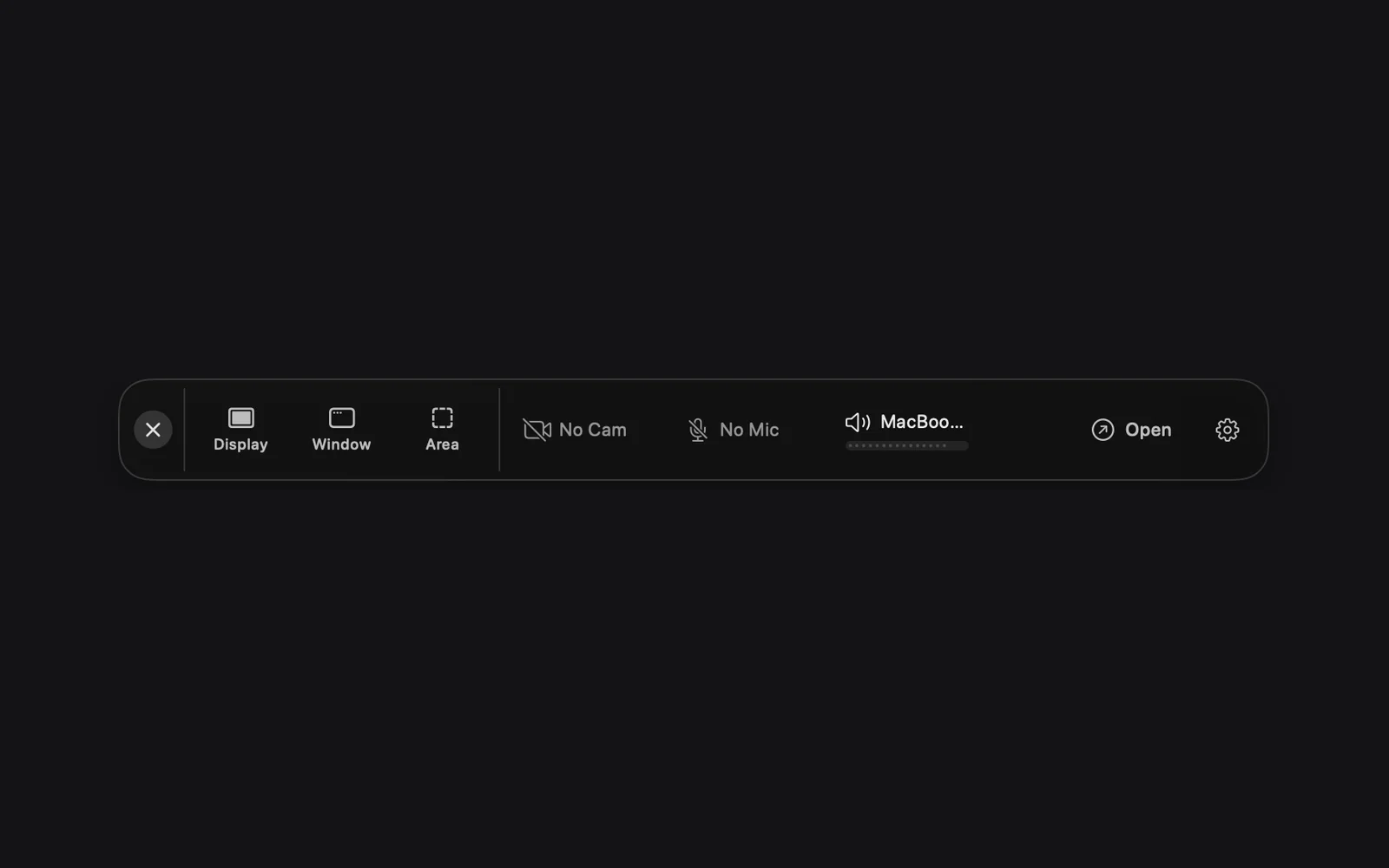
DreamCut has no home window. The capture bar, a small bar that floats over your screen, is where you start a recording or a screenshot, choose your camera and microphone, and open your projects. This page goes through the bar from left to right, its Open menu and Capture Options, then how DreamCut saves, names and restores your projects.
Show, move and hide the capture bar
The capture bar appears once both permissions are on and you're signed in with a Pro trial or plan (see Install and permissions), at the bottom of your screen to start. Drag it anywhere; DreamCut remembers where you put it.
- Hide it: click the × at its left end (on the small bar, expand it first).
- Bring it back from the menu bar: click the DreamCut icon in the menu bar at the top right of your screen and choose Show Recording Bar or New recording.... New recording... shows the shortcut ⌃⌘Return, which works only while that menu is open.
- Bring it back from the Dock: right-click DreamCut in the Dock and choose Show Recording Bar, at the bottom of a menu that also lists your recent projects and captures. This works unless you've hidden DreamCut's Dock icon in Settings.
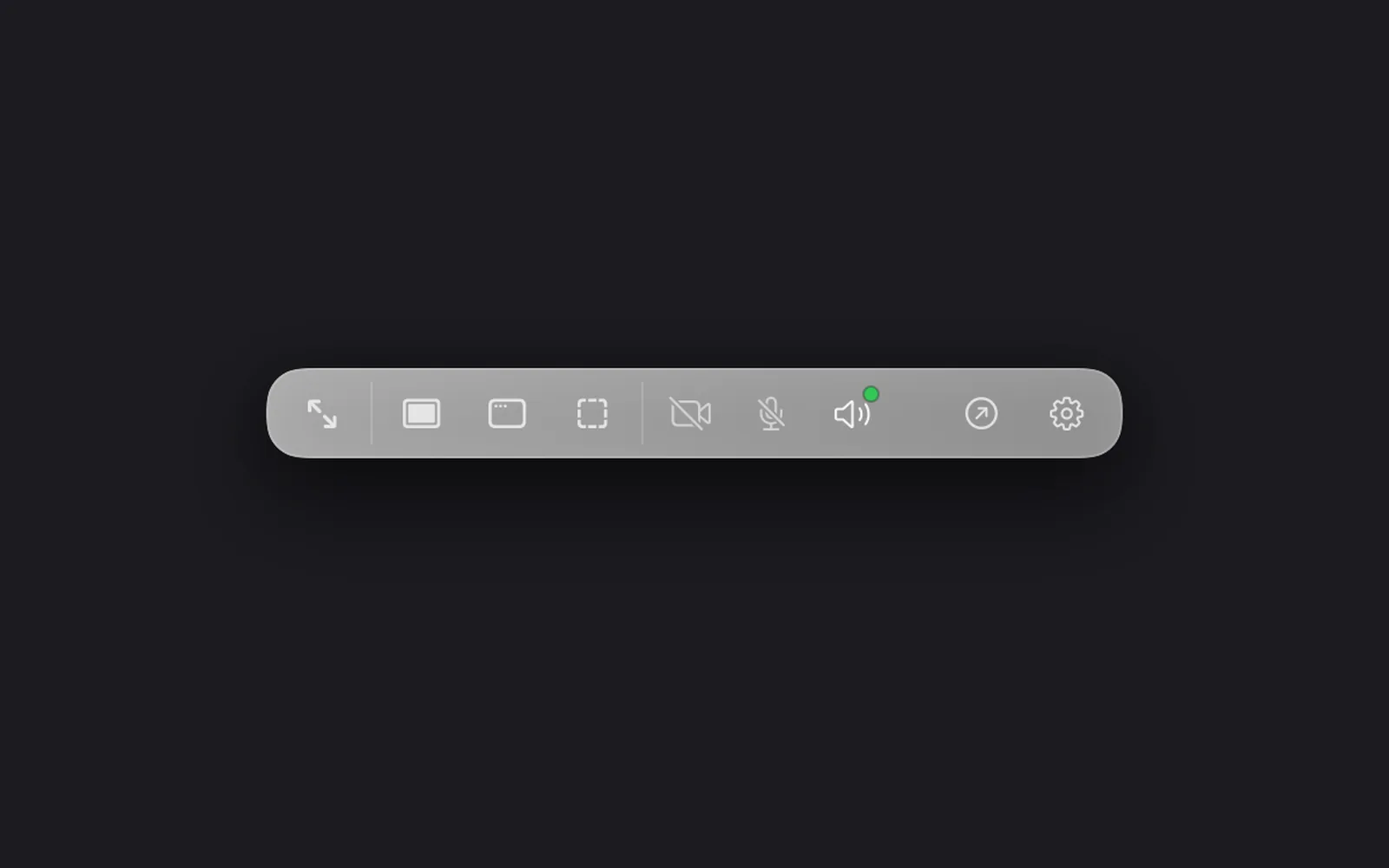
- Make it smaller: hover the bar and click the minimize button that appears to the left of Open. The bar shrinks to icons, the × becomes the expand button, and a green dot marks each source that's on.
- Make it full size again: click the expand button at the left end of the small bar.
- Open a file: drag a video, a picture or a project onto the bar to open it in the editor.
The bar, left to right
| Control | What it does |
|---|---|
| × | Hides the bar. While you record, it stops the recording instead |
| Display | Record or capture a whole display |
| Window | Record or capture one window |
| Area | Record or capture a part of the screen you drag out |
| The camera chip | Reads No Cam when the camera is off. Click it, pick a camera in Select Camera and click Enable: the chip shows the camera's name, and a live preview appears at the bottom right of your screen. Drag the preview where you like. Click the chip again to turn the camera off |
| The microphone chip | Reads No Mic when it's off. Click it, pick a microphone in Select Microphone and click Enable: the chip shows its name with a level meter. Click again to turn it off. It reads No Signal, in orange, when the microphone is on but sends no sound |
| The system audio chip | Reads No Audio when it's off. Click it, pick an output in Select System Audio Output and click Enable, and the sound your Mac plays goes into the recording. The chip shows the output's name, such as your Mac's speakers |
| Open | New projects, recent projects, captures and dictations. See The Open menu |
| The gear | Opens Capture Options. See Capture Options |
Hover Display, Window or Area to see its shortcut under its name. By default they're ⇧⌘`, ⇧⌘1 and ⇧⌘2, and they work from any app. While you record, the same three keys restart, pause and stop the recording. Change them in Settings, under Shortcuts, with Record New Keys. Record your screen walks through each kind of capture.
No Signal and no-sound warnings
When the microphone chip reads No Signal, hover it to see why:
- "DreamCut isn't receiving any audio from" the microphone: it may be disconnected, or another app has taken it over.
- It "is completely silent": it's usually muted, or a hardware mute switch is on.
When you start a recording, the bar warns you before it begins:
- "Your microphone isn't picking up any sound" when the microphone is on but silent. Click Without Mic to record without it, Record Anyway or Cancel.
- "This recording won't have any audio" when the microphone and system audio are both off, with Record Anyway and Cancel. It shows once each time DreamCut opens.
- When the bar is minimized or hidden, the same warning comes up as a dialog instead, with Record Anyway and Cancel. For the silent-microphone warning it also has Record Without Mic.
The Open menu
Open on the capture bar starts new projects and brings back recent ones. Clicking it drops down a menu: New Project and New Shorts from Video… at the top, then Recent Projects, Recent Video Captures, Recent Image Captures and Recent Dictations, each with More or Browse in Finder under it.
Start a new project
- Click Open on the capture bar.
- Click New Project ⌘N, the first item. An empty 16:9 project called Untitled opens in the editor, with its name ready to type.
To cut a long video into short clips instead, click New Shorts from Video… ⌥⌘N, right below it.
Reopen a recent project, capture or dictation
- Click Open on the capture bar.
- Find the section you need. From top to bottom:
| Section | What it shows | Clicking an item | Before you have any |
|---|---|---|---|
| Recent Projects | Your nine newest projects as thumbnails, three across | Opens it | "No recent projects" |
| Recent Video Captures | Your three newest screen recordings | Opens it in a new project | "No recent video captures" |
| Recent Image Captures | Your three newest screenshots | Opens it in a new project | "No recent image captures" |
| Recent Dictations | Your three newest dictations, with when you said them | Copies its words | "Hold fn anywhere to dictate" |
- Click the item.
Find older ones
- In the Open menu, hover More under a section.
- Click an older item. More lists up to 26 more projects after the nine in the grid, and up to 21 more captures after the three in each capture section.
- Or click Browse in Finder at the bottom of More to open the folder they're kept in.
When a section has nothing older, Browse in Finder sits right under it instead. Under the dictations, More ends with Show All Dictations, which opens your dictation history. See Dictation.
Capture Options
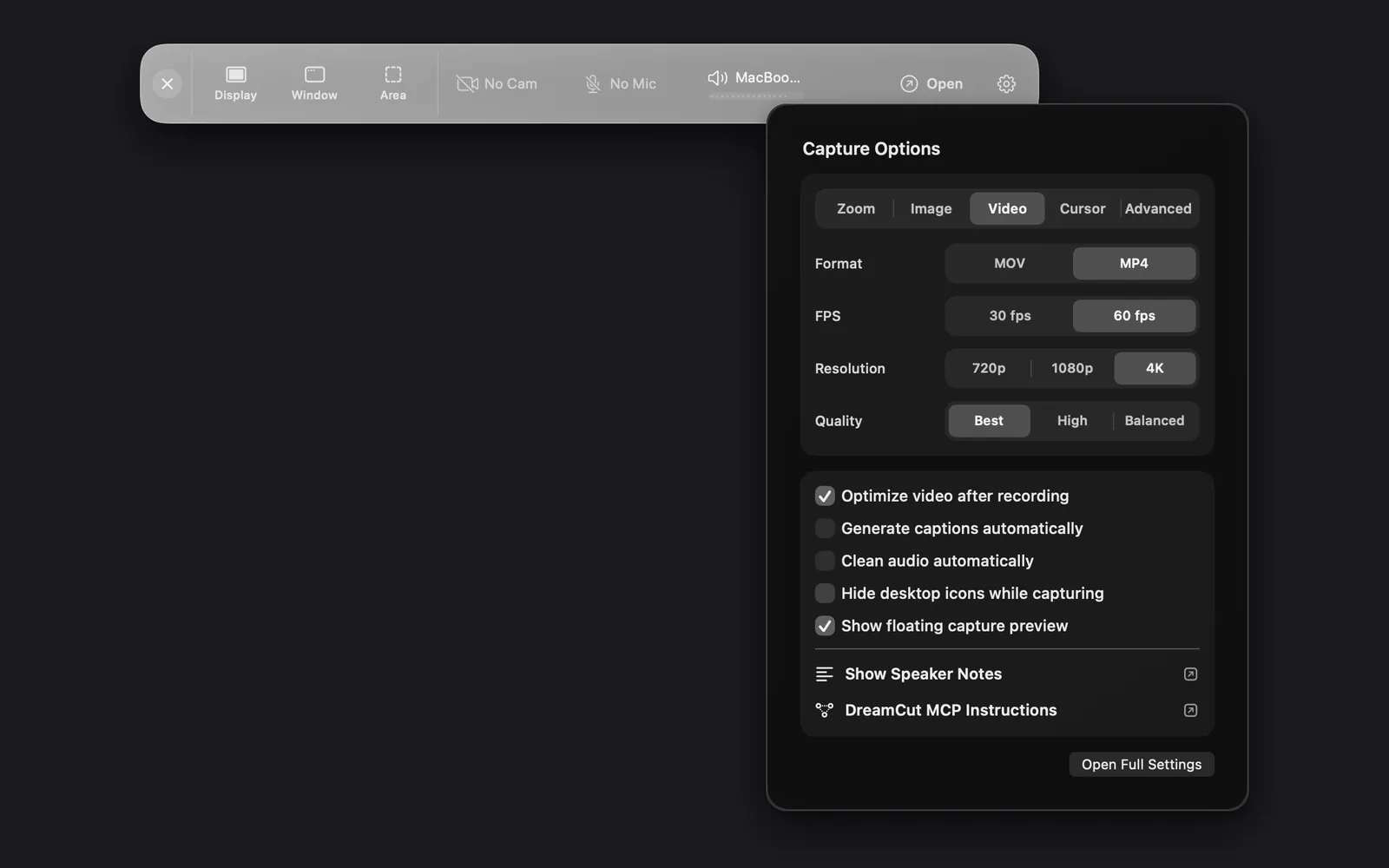
Click the gear at the right end of the capture bar. Capture Options has five tabs, Zoom first, then switches for what happens around each capture. Changes apply to the next capture you make, and most are also in Settings (menu bar icon › Show settings), on the Recording and Export tabs.
| Tab | What it sets | Default |
|---|---|---|
| Zoom | Zoom Frequency (0.5s to 5.0s), Follow Frequency (five steps from Auto to Real time) and Follow mouse: how the automatic zooms follow your pointer | 5.0s, Auto, on |
| Image | Screenshots: Format (PNG, JPG, TIFF or HEIC) and Quality (Best, High or Balanced) | PNG, Best |
| Video | Recordings: Format (MOV or MP4), FPS (30 fps or 60 fps), Resolution (720p, 1080p or 4K) and Quality (Best, High or Balanced) | MP4, 60 fps, 4K, Best |
| Cursor | The pointer in your recordings: Style (Default, Library or Custom) and Size (100% to 800%) | Default, 300% |
| Advanced | Visibility: whether DreamCut's own windows, the speaker notes, the recording bar, the recording controls and the floating capture preview can show up in a recording | Only DreamCut's windows |
Record your screen explains the Video, Zoom, Cursor and Advanced tabs in detail, with a picture of each. As it starts out, the Advanced tab lets DreamCut's own windows show up in a recording and keeps the speaker notes, the bar, the recording controls and the floating capture preview out:
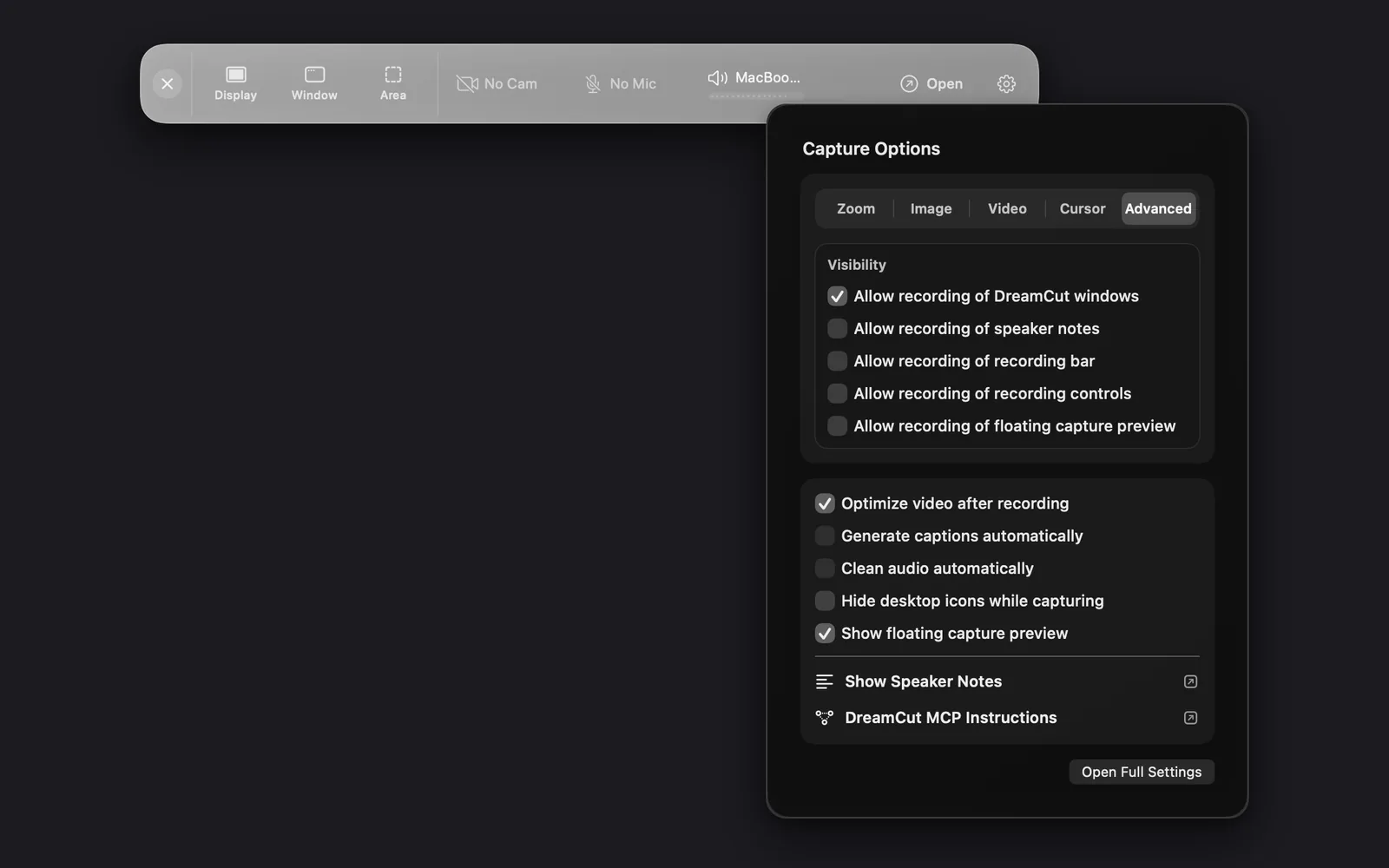
The switches under the tabs:
| Switch | Default | What it does |
|---|---|---|
| Optimize video after recording | On | Re-encodes each finished recording in the background so the file is smaller |
| Generate captions automatically | Off | Makes captions from your microphone audio when a new recording opens in the editor. It uses credits. See Captions |
| Clean audio automatically | Off | Cleans your microphone audio when a new recording opens in the editor. It uses credits. See Clean up your audio |
| Hide desktop icons while capturing | Off | Hides the icons on your desktop while you record or take a screenshot |
| Show floating capture preview | On | After a recording, shows the Recording ready card in the bottom-right corner with Open in Editor, Save to Desktop and, when an editor is open, Add to Existing. The card stays until you choose. With it off, recordings are saved to your Desktop |
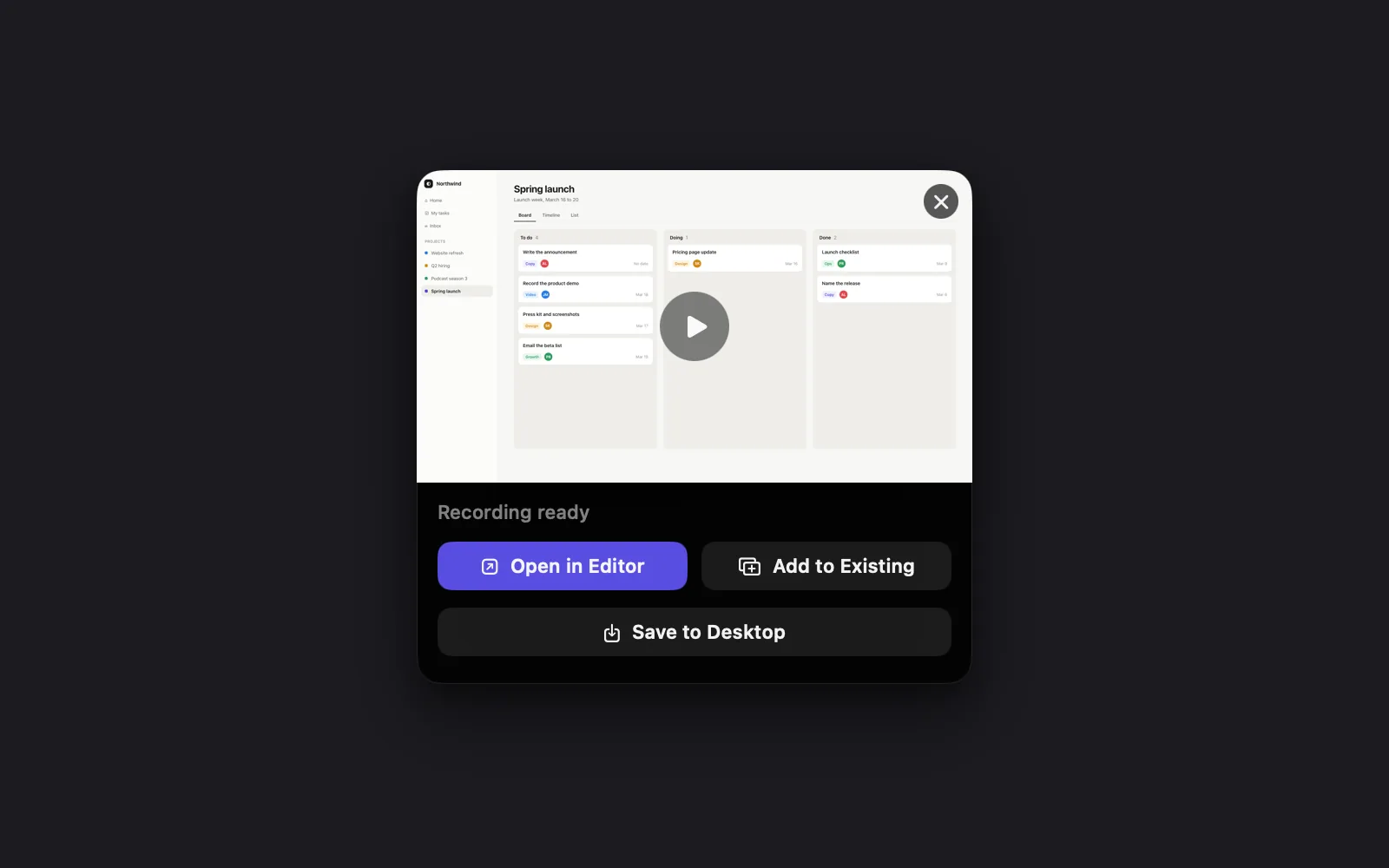
The × on the card deletes the take and its files. To keep a take without editing it now, click Save to Desktop.
The two automatic switches can't be ticked until your microphone is on in the capture bar. With No Mic showing, as in the pictures, hovering them reads "Turn on Mic audio to use automatic captions." or "Turn on Mic audio to use automatic audio cleanup."
At the bottom, Show Speaker Notes opens a teleprompter for your script (see Speaker notes teleprompter), DreamCut MCP Instructions shows how to connect an AI agent (see MCP and the dreamcut command), and Open Full Settings ⌘, opens DreamCut's Settings (see Settings).
Your projects
A project is one edit: your recordings, the layers on top and their settings. The rest of this page covers where projects are saved and how to open, rename, copy, restore and delete them.
Where projects are saved
Each project is one file ending in .cut. DreamCut keeps them in your Documents folder, in DreamCut, and saves your work as you edit. Press ⌘S to save at any moment.
A project file holds your edit, not your media: it points to your recordings, pictures and sounds where they're stored. Leave those files where they are, or the project can't find them.
If a file has moved or been deleted, the project opens without the clips that use it, and DreamCut doesn't warn you. Put the file back where it was and open the project again. If the clips still don't come back, the project was saved without them: load a version from before (see Restore an earlier version).
Beside the projects, a Media folder holds your recordings, screenshots and the media you add, in Videos, Images, Sounds and JSON. Show previous projects, in the menu bar icon's menu, opens that Media folder, not your projects.
Open a project
- Click it under Recent Projects in the capture bar's Open menu.
- In the editor, choose File > Open Project... ⌘O, which starts in your projects folder, or File > Open Recent for your last ten.
- From the menu bar icon, choose Open project... or Open last project. Their shortcuts, ⌘O and ⌥⌘Z, work while that menu is open.
- Double-click a .cut file in Finder.
Rename or copy a project
To rename a project, click its name at the top of the editor, type the new name and press Return. Esc cancels. The file in your Documents folder takes the new name too.
To copy a project, choose File > Duplicate Project. The editor's File menu holds every project action:
| Item | What it does |
|---|---|
| New Project ⌘N | Opens an empty project in a new editor window |
| New Shorts from Video… ⌥⌘N | Opens Shorts |
| Open Project... ⌘O | Opens a project. It also opens a video, a picture or a PDF in the editor |
| Open Recent | Your last ten projects. It reads No Recent Projects until you have one |
| Save to Version History | Saves a version of the project now, the same as Save version below |
| Duplicate Project | Saves a copy next to the project, such as "Orbit demo copy", and opens it in a new window with its name ready to change |
| Delete Project... | Deletes the project. See Delete a project |
Restore an earlier version
DreamCut keeps restore points for each project in the Versions pane. It saves a project's first version as soon as the project is saved, then a new one about five minutes after you change it. To save one yourself, click Save version in the pane or choose File > Save to Version History. Reveal shows the version files in Finder, in a Versions folder beside your projects.
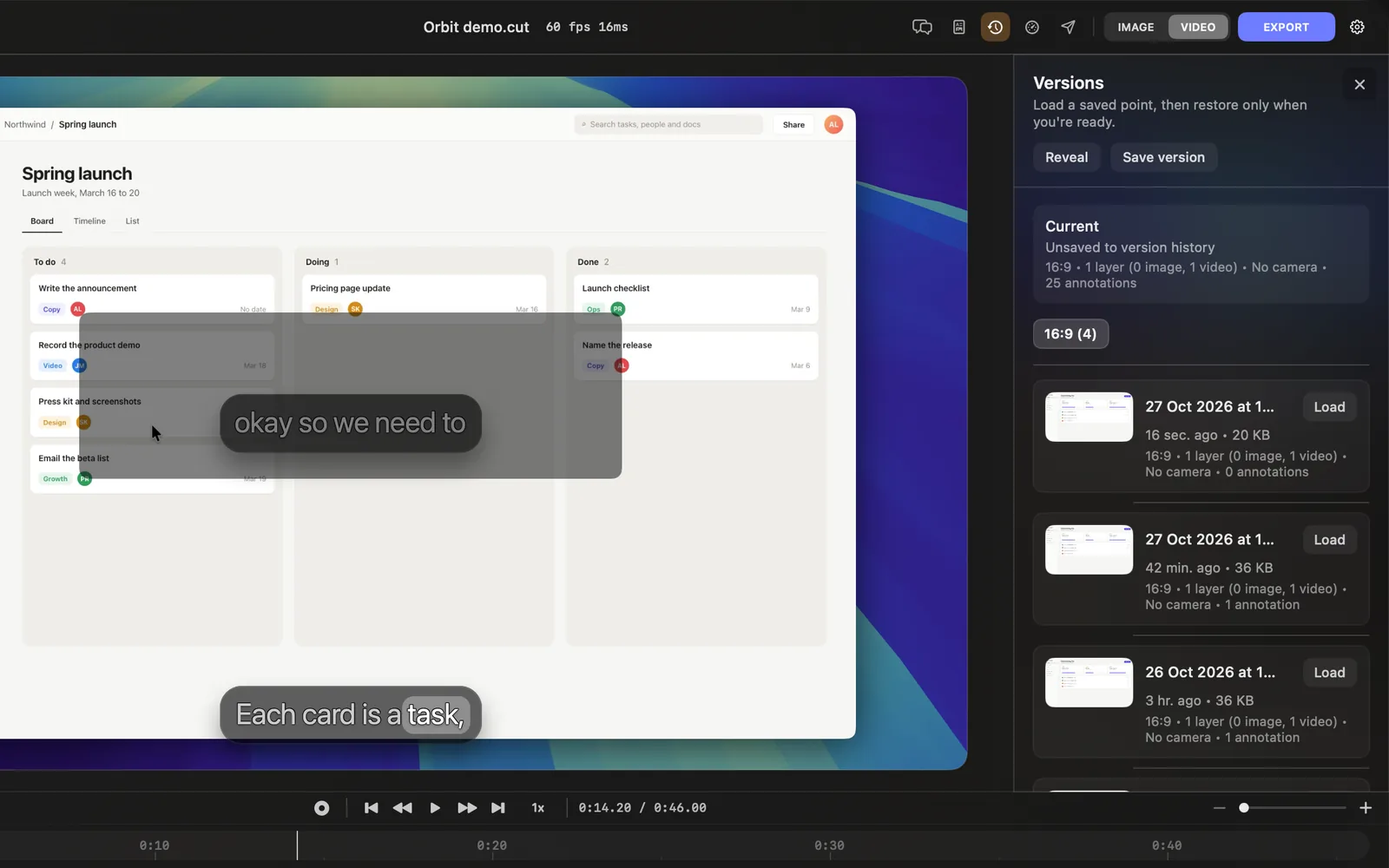
To go back to an earlier version:
- Click Versions, the clock in the editor's top bar. The pane opens on the right and reads "Load a saved point, then restore only when you're ready."
- The Current card at the top describes your project as it is now. It reads Unsaved to version history when you've made changes since the last version.
- Under it, versions are grouped in tabs by the video's shape, such as 16:9 (4) for four 16:9 versions. Pick a tab. Each version shows when it was saved, its size, its shape, how many recordings and pictures it's made of, whether it has a camera, and how many annotations it has: the captions, text, shapes and other layers on top, each counted once.
- Click Load on a version, or anywhere on its row. DreamCut first saves your project as it is now as a new version, so the tab now reads 16:9 (5) and you can always get back to it.
- The editor shows the version you loaded. The card at the top reads Loaded, that version's Load button reads Loaded, and the bottom of the pane reads "Reviewing" with its date and time, then "Restore it to make this the current project." Play it and look around; nothing is changed yet.
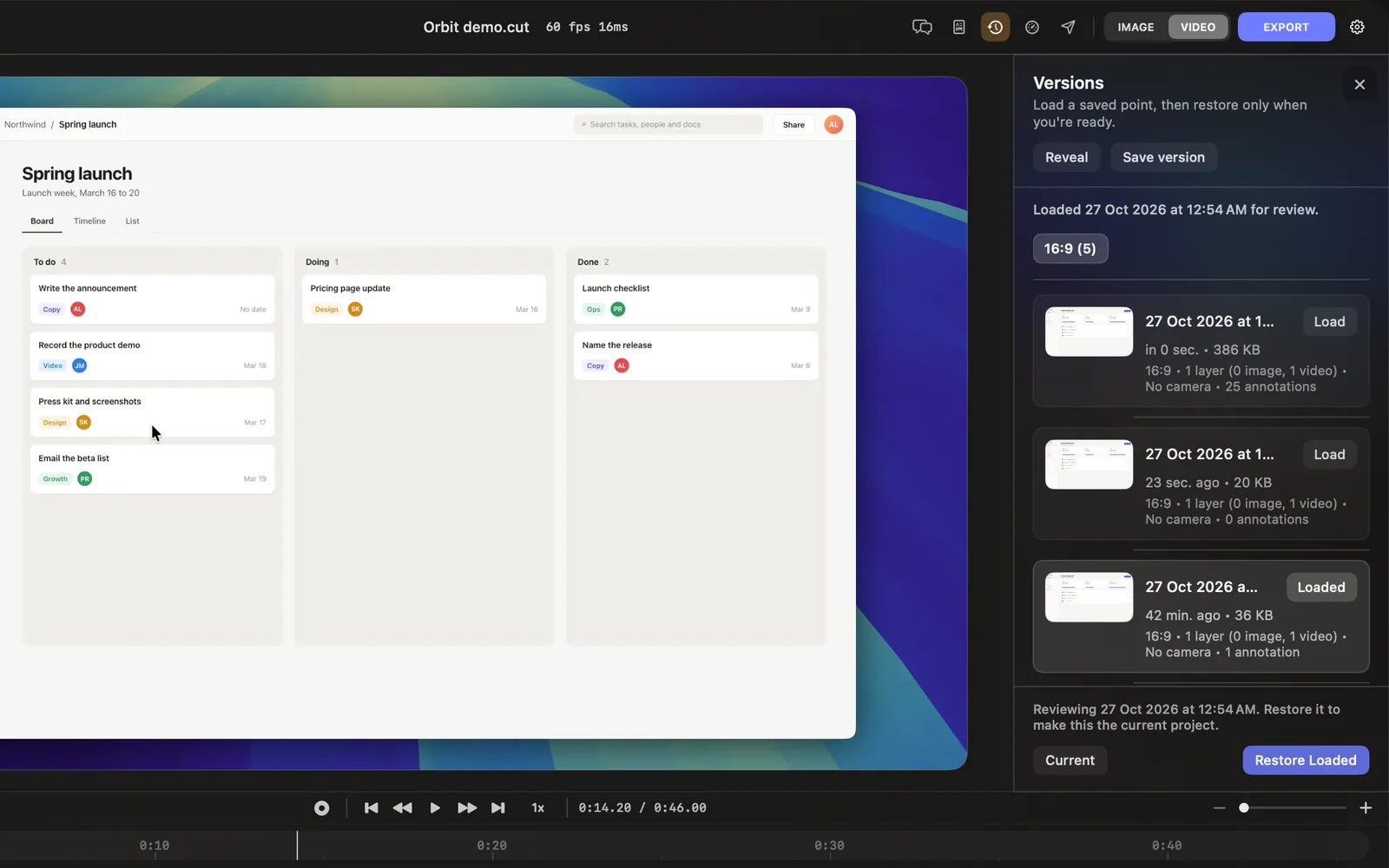
- Click Restore Loaded to make it your project. The card reads Current again and the pane reads "Restored" with the version's date and time. To leave it instead, click Current: you're back to your project as you left it, and the pane reads "Returned to the current project."
While a version is loaded, you can't save, save a new version, duplicate the project or delete it: DreamCut asks you to restore the loaded version or return to the current project first.
Delete a project
- Open the project and choose File > Delete Project....
- A dialog titled with the project's name, such as "Delete Orbit demo.cut?", asks whether to delete it: "The project file will be deleted. You can also delete the media files referenced by this project." It lists the project file, its Project data (such as its Version history, which is deleted with the project) and its Related files.
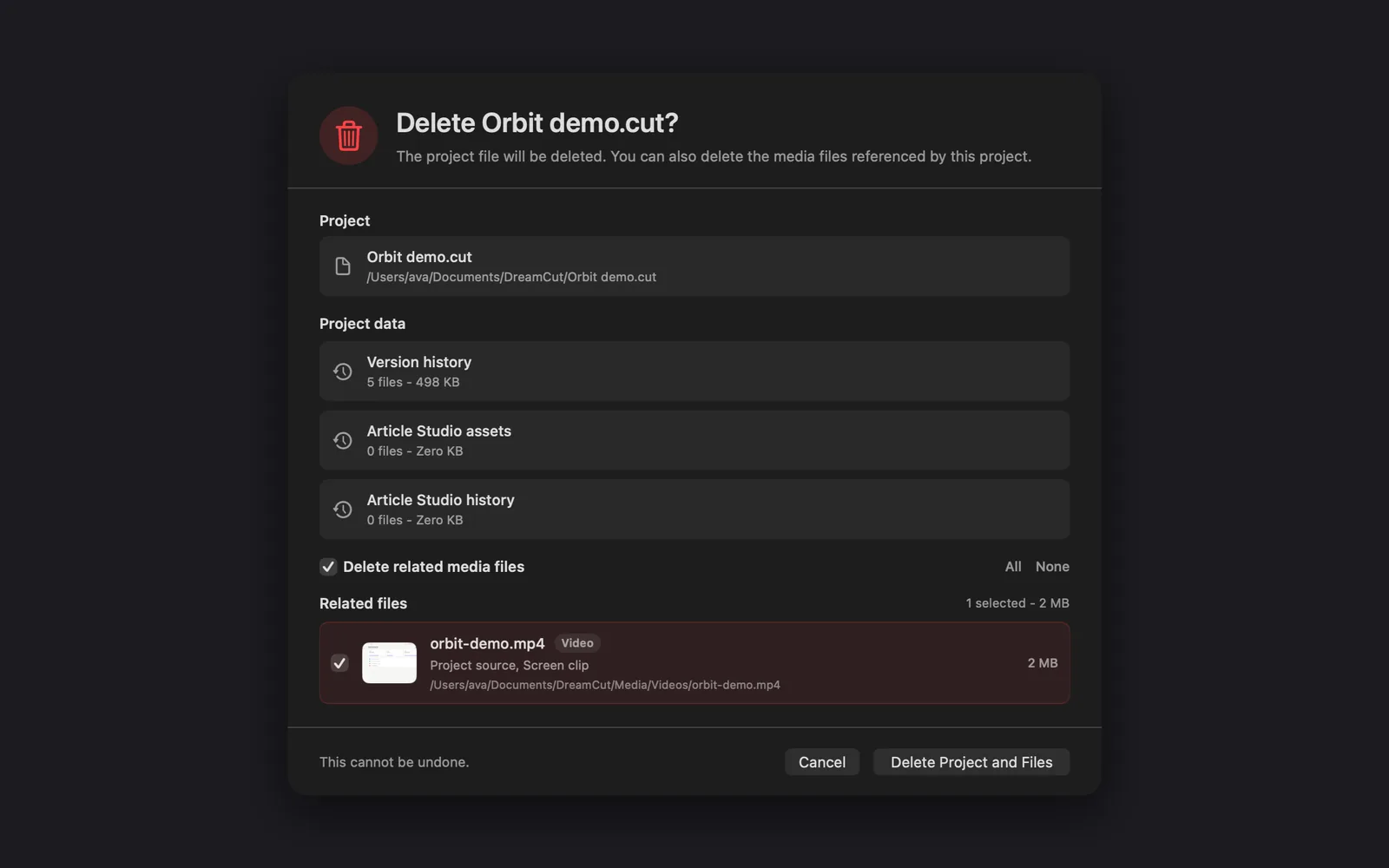
- Delete related media files is ticked when the project has media. Untick it to keep them all, or tick and untick single files. All and None select every file or none.
- Click Delete Project and Files, or Delete Project when no files are ticked. Cancel keeps everything.
You can't delete a project while it's exporting: DreamCut asks you to wait for the export to finish.
What's next
- Quickstart: record, edit and export your first video.
- Record your screen: record a display, a window or an area, with your camera and microphone.
- Editor tour: find your way around the editor a project opens in.