
Sakura: edit by asking
Ask Sakura, the AI in DreamCut's editor, to cut pauses, add zooms, titles and captions, or make voiceovers, then preview, apply or undo each edit.
Sakura is the AI in DreamCut's editor. You ask for an edit in plain words, such as "remove the long pauses", and Sakura reads your project, shows the changes it plans, and makes them when you press Apply. Every edit it makes is one step you can undo.
Ask Sakura for an edit
- Open a project in the editor.
- Click Chat in the top bar: the speech-bubbles button, first of the five icons to the left of IMAGE and VIDEO. The Sakura pane takes the inspector's place on the right, with the message box ready to type in.
- Type what you want, such as "Remove the long pauses and add a title at the start", and press Return. You can also click one of the suggestions.
- Sakura lists its steps as it works, such as "Reading the project" and "Finding pauses in the audio", then shows a card with each change it plans.
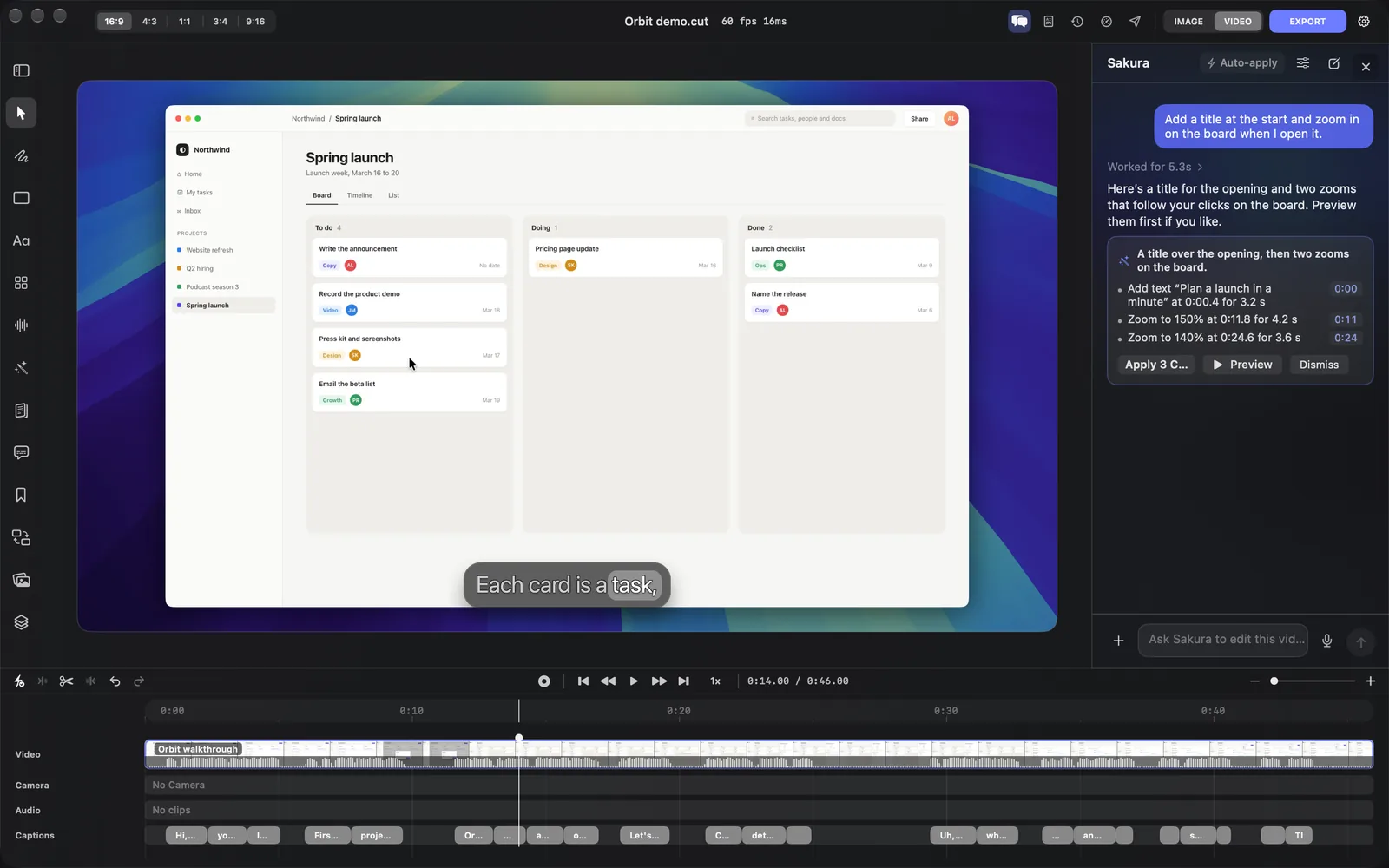
- Press Apply (or ⌘Return). The changes land on the timeline as one step, and the card reads "Undo with ⌘Z."
To close the pane, click × at its top right or click Chat again. The inspector comes back.
What Sakura sees
Sakura sees the timeline, the captions and the frame at the playhead. For a question about the whole video, such as "What would make this video better?" or a request for chapters, it watches the whole video first.
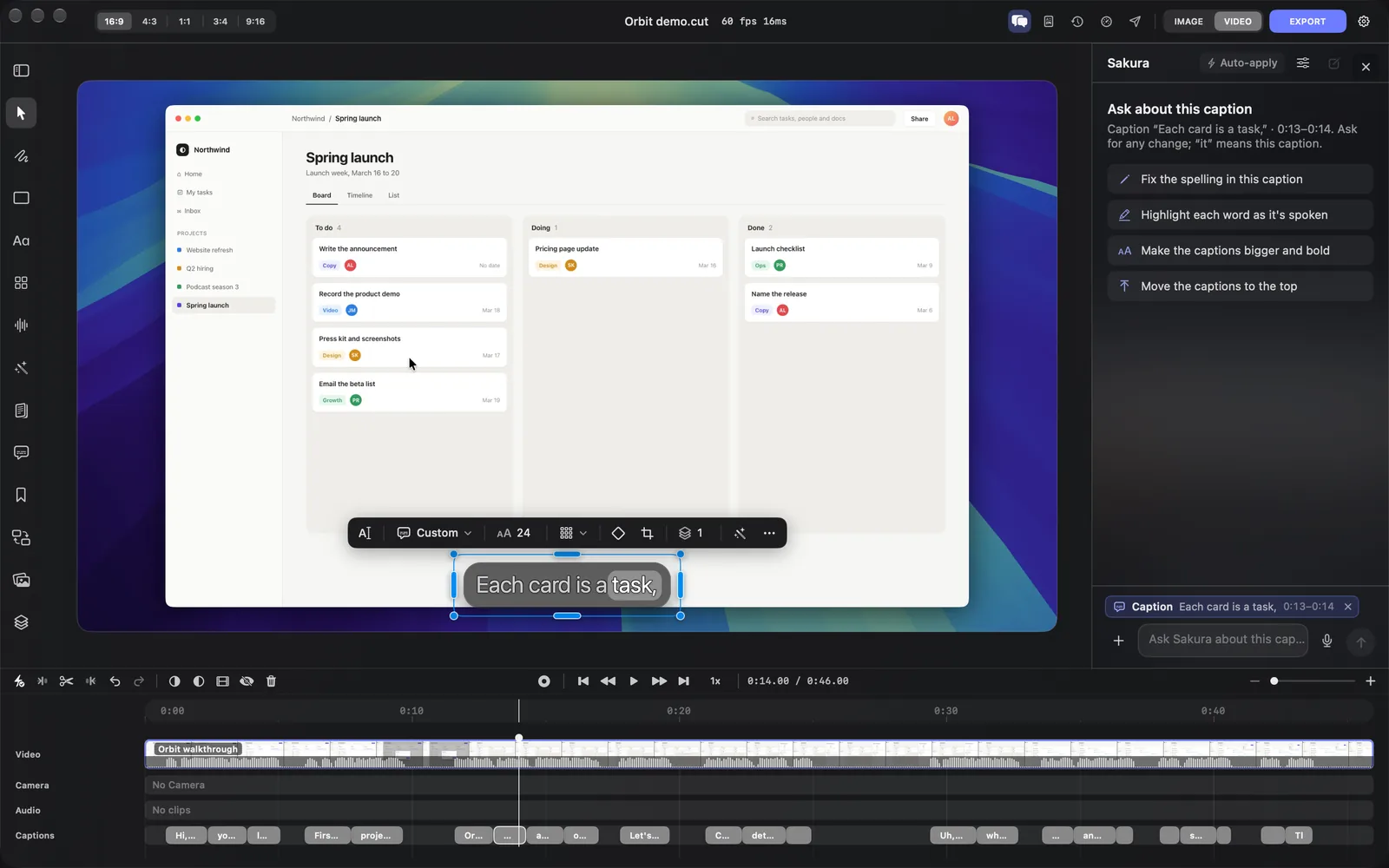
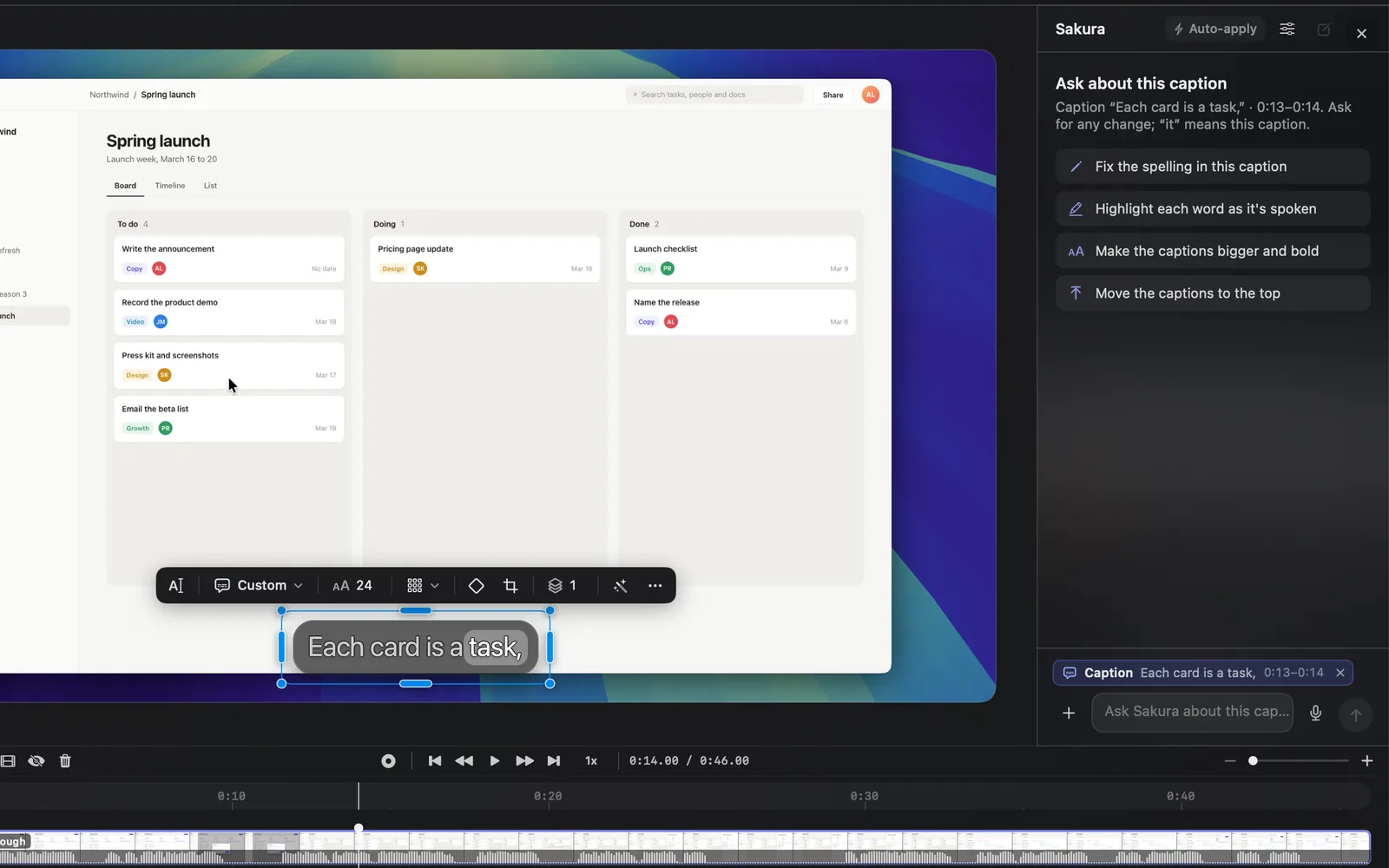
To ask about one layer, select it on the timeline or the canvas before you write. The pane's heading changes to "Ask about this caption" (or text, scene, camera, clip, transition and so on), and the layer sits in a chip above the message box with its time. In your message, "this" and "it" mean that layer. Click × on the chip to send your next message without it.
Start from a suggestion
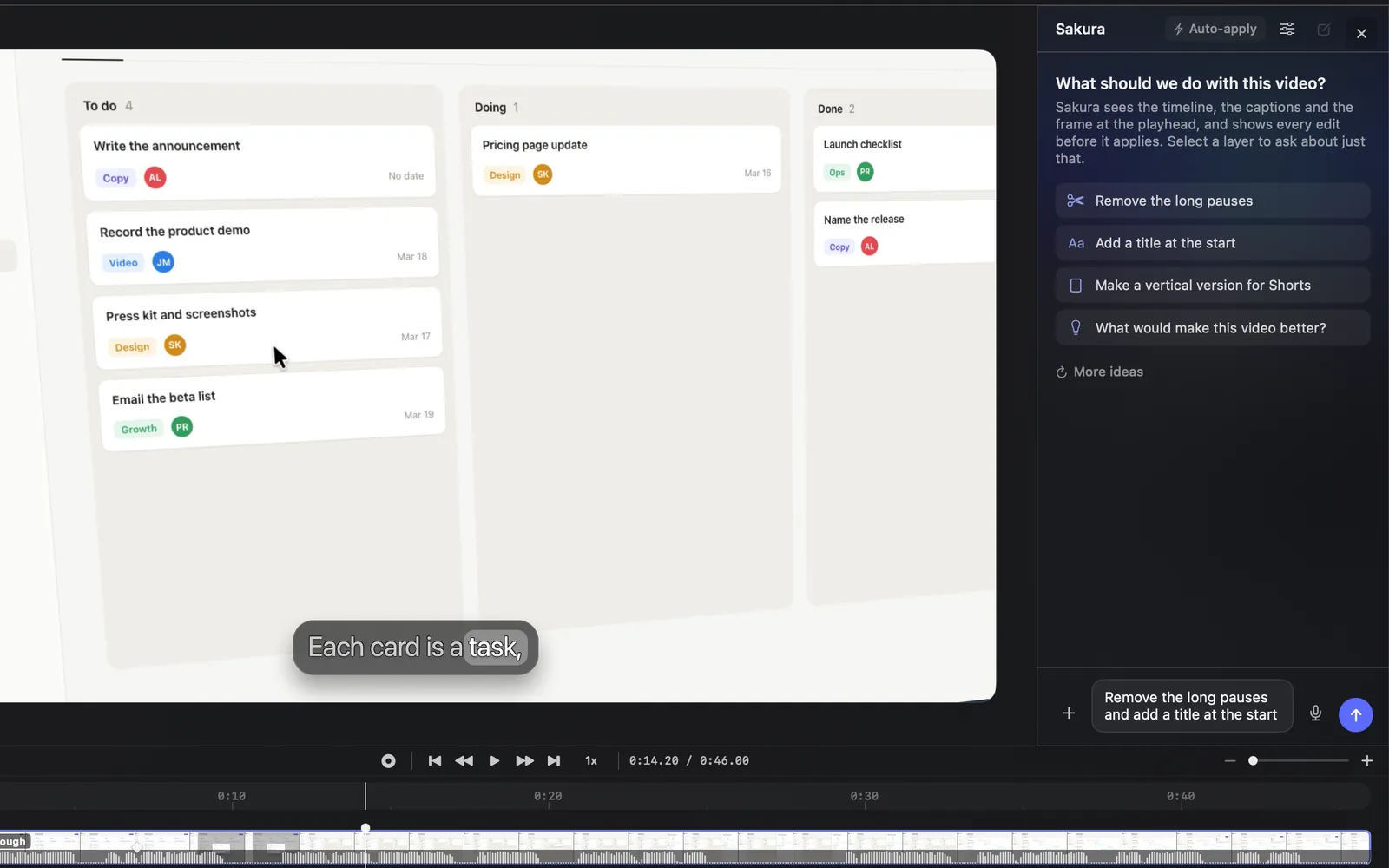
An empty chat shows four ideas picked for your project. Click one to send it as your message, or click More ideas for the next four.
- First, what the project is missing, such as captions, zooms, a title at the start or transitions between scenes, and cutting the long pauses in a video of 20 seconds or longer.
- Then polish, such as a vertical version for Shorts, highlighting each word as it's spoken, YouTube chapters for a video of 2 minutes or longer, a new wallpaper or calm background music.
- "What would make this video better?" is always among the first four.
With a layer selected, the four ideas are about that layer instead, such as "Fix the spelling in this caption" for a caption, "Remove my background" for the camera, "What does this clip say?" for an audio clip and "Make it quicker" for a transition. A layer has only these four, so More ideas doesn't show.
After each reply, Sakura offers up to three next steps you can click.
Write your message
The message box reads "Ask Sakura to edit this video…", or "Ask Sakura about this caption…" (or text, scene and so on) when a layer is selected.
- Return sends. ⇧Return starts a new line. Esc leaves the box.
- The mic button lets you speak instead of typing: your words land in the box, ready to send. Click it again to stop.
- While Sakura works, the send button turns into a stop button.
The + button attaches things for Sakura to look at:
| Menu item | What it adds |
|---|---|
| Attach Files… | Pictures, videos, sound or text for Sakura to use |
| Attach the Frame at 0:14 | The picture at the playhead; the menu names its time |
| Point at Something on the Canvas | Click a spot on the canvas and "here" in your message means that spot. Cancel or Esc stops |
| Paste Image | The picture on your clipboard |
| Reference a Layer (@) | Types @ so you can pick a layer, or words someone says, from a list |
You can also type @ yourself, drag files onto the pane ("Drop to attach"), or paste a picture into the message box.
Review and apply an edit
Sakura's card has a title saying what the edit does, then each change on its own line, most with a time on the right. Click a time to move the playhead there and look.
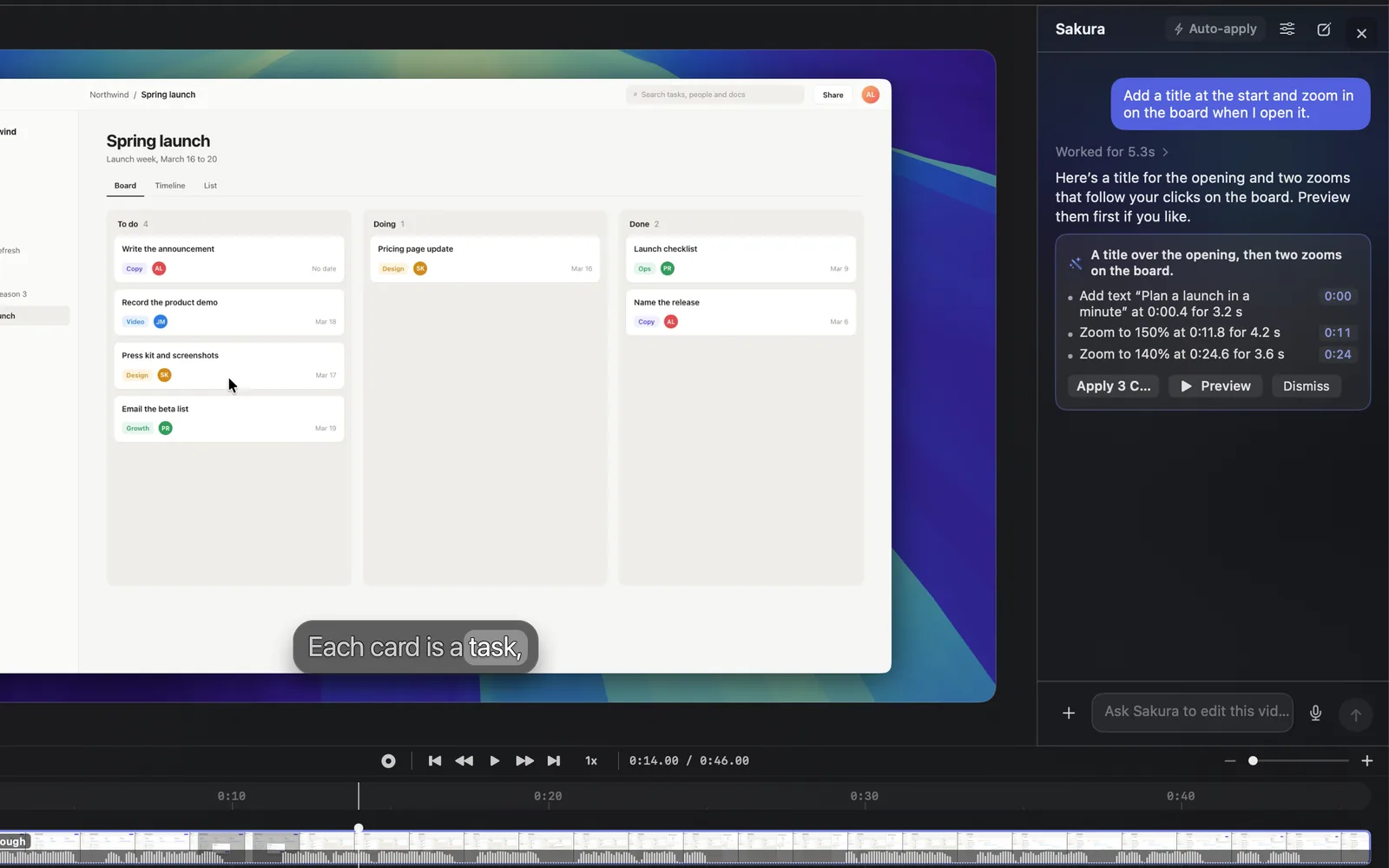
| Button | What it does |
|---|---|
| Apply or Apply 3 Changes (⌘Return) | Makes every change on the card as one step |
| Preview | Applies the edit for a look and plays the part it changes. Then press Keep (⌘Return) or Undo; Play again replays it |
| Dismiss | Leaves the project as it is |
Once applied, the card's title reads "Applied". A line starting "Skipped:" is something Sakura couldn't do, and "Not applied:" is a change that failed; the next step "Fix what didn't apply" asks Sakura to find another way.
Preview isn't offered for edits that spend credits or make something lasting, such as AI media, captions, a voice clone or an export. Those wait for Apply. AI media, such as a voiceover or a picture, then lands on the timeline when it's ready, as an undo step of its own.
When Sakura asks first
When a choice would change the result a lot, Sakura asks one to three questions before it edits. The card reads "Sakura has a question".
- Click an answer. The one Sakura would choose is marked Recommended. "Pick one or more" means you can choose several.
- Type your own answer in the box under the options.
- Press Send Answer (or Send Answers). With one question and one answer to pick, clicking the answer sends it.
- Decide for Me lets Sakura go with the answers it recommended.
When Sakura offers voices for a voiceover, each one has a play button so you can hear it first.
Bigger jobs, one step at a time
For a big request, Sakura may answer with a plan instead of one edit: a card titled "Plan · 3 steps" with a checklist. Press Run 3 Steps and Sakura works through them in order, each as its own request and its own edit. With Auto-apply off, you apply each step's edit as it comes. Stop after this step ends the run when the current step is done.
Auto-apply and Sakura's options
Auto-apply in the pane's header makes Sakura apply its edits as it makes them, without waiting for you, each one a step ⌘Z undoes. It's off until you turn it on. Edits that spend credits or make something lasting still wait for Apply, and so does a card with a "Skipped:" line.
The options button (sliders) next to it has the rest:
| Option | What it does | At first |
|---|---|---|
| Apply Edits Automatically | The same switch as Auto-apply | Off |
| Check Edits After Applying | After an edit that shows on the canvas, Sakura looks at the result and says it looks right, or proposes a fix | On |
| Remember My Style | Sakura learns how you like captions, titles, text motion, transitions, zooms, layout and wallpaper from the edits you apply, and matches it later unless you ask otherwise | On |
| Forget My Style | Clears what Sakura has learned. It shows once there's something to forget |
Start a new chat
The conversation is saved with the project, so it's there when you open the project again. To start over, click New chat (the square-and-pencil button) in the pane's header. The edits Sakura already made stay on the timeline.
Above each reply, "Worked for" says how long Sakura took, such as "Worked for 5.3s", followed by the tokens it used when DreamCut has the count. Click it to see the steps.
Undo anything Sakura did
- ⌘Z undoes an applied card in one step, however many changes were on it.
- Go back on a card undoes it and everything you applied after it.
- After Preview, Undo takes the edit back.
What Sakura can do
Sakura can run every edit command in the editor, the same commands agents use over MCP and the dreamcut command.
| Area | What you can ask for |
|---|---|
| Cuts | Cut a range, split, remove the long pauses (measured from the audio), remove filler words such as "um" and "uh" |
| Zooms | Add, change or remove zooms; zoom in where you clicked, from the recording's mouse track; change zoom options |
| Captions | Make captions, fix a caption's words, replace a word in every caption, restyle and animate them |
| Text and layers | Titles and animated text, layout cards, drawings, rectangles and HTML layers; cover an area of the screen; move, change or delete any layer |
| Layout and canvas | Canvas ratio, layout presets, the camera's shape and position, the recording's look, the wallpaper |
| Transitions and effects | Add or change transitions and effects, on one cut or every cut |
| Audio | Volume and mute, clean up the narration, re-voice narration in another voice, clone a voice you own or may use |
| AI media | Voiceovers, music, sound effects, pictures, video clips and talking avatars, placed on the timeline |
| Camera | Cut the person out of the camera, on this Mac with no credits; make an avatar of yourself from the camera |
| The whole project | Chapters, Shorts from a long video, export with your export settings, undo and redo |
Some edits have no button of their own and are made by asking Sakura: zooms rebuilt from your clicks, covering an area of the screen, and re-voicing narration. In the Chapters panel, Suggest asks Sakura to split the video into chapters.
Credits and sign-in
Sakura needs you signed in to DreamCut, with AI credits left this month. When you can't use it, the pane says why, such as "Out of DreamCut AI credits for this month". AI media (voiceovers, music, sound effects, pictures, clips and talking avatars) also needs a Pro trial or plan.
What's next
- Generate media: make pictures and video clips yourself.
- Video templates: turn a description into new scenes.
- MCP and the dreamcut command: the same edits from an agent in Terminal.
- Plans and credits: how many credits your plan includes.