
AI voiceover
Write a script or pull in your captions, pick a HeyGen or ElevenLabs voice, and add a spoken voiceover at the playhead in DreamCut's editor.
DreamCut turns a script into a spoken voiceover and puts it on the Audio lane at the playhead. You type the words or pull them from your captions, pick a voice from HeyGen or ElevenLabs, and press Generate Voice. Use it to narrate a recording you made without a microphone, or to add a line you forgot to say.
Add a voiceover
- Move the playhead to where the voice should start. It has to be over a scene on the Video lane.
- Click AI Audio (a waveform) in the tool rail on the left of the editor. The panel opens beside the rail; click VOICE at the top if another tab is showing.
- Click in the box that reads "Write what the voice should say" and type the script. To use words already in your video, click Captions or Texts at the bottom left of the box instead (see Write the script).
- Pick a voice in the grid under the box. Rest the pointer on a voice to hear its sample (see Hear a voice before you pick it).
- Check the footer: it shows the voice's name and what the script will cost, such as "~1 credit".
- Press Generate Voice.
While DreamCut speaks the script, the panel dims and the footer reads "Generating voice..." with the time so far. When it's done, "Voice generated" appears, the new clip sits on the Audio lane starting at the playhead, selected, and the script box empties for your next line.
DreamCut then captions the new voiceover from its sound, as Generate does in the clip's Captions section. If you don't want those captions, select the voiceover and press Remove in its Captions section. Captions covers the rest.
Other ways to open the panel
- Right-click an empty part of the Audio lane and choose Generate Voice.
- Hover the Audio lane's name and click the waveform button that appears beside it.
- Select a layer, click the wand on its canvas toolbar (Generate with this layer) and choose Generate Voice.
If a text layer or a caption is selected when the panel opens, its words fill the script box.
Write the script
The script box takes any text you type or paste. Two buttons at its bottom left fill it from your video, and once there's a script, a readout at its bottom right tells you how long the result will be.
| Part | What it does |
|---|---|
| Captions | Puts the captions of the scene under the playhead into the box, joined into one paragraph. It shows only when that scene has captions |
| Texts | Puts the scene's text layers into the box, one paragraph each. It shows only when the scene has text layers |
| The readout | Shows the characters and about how long they take to say, such as "66 chars · 4 sec". DreamCut counts about 15 characters a second; hover the readout for the full wording |
Choose an engine and a voice
The row under the script picks whose voices you see. The grid below it lists them.
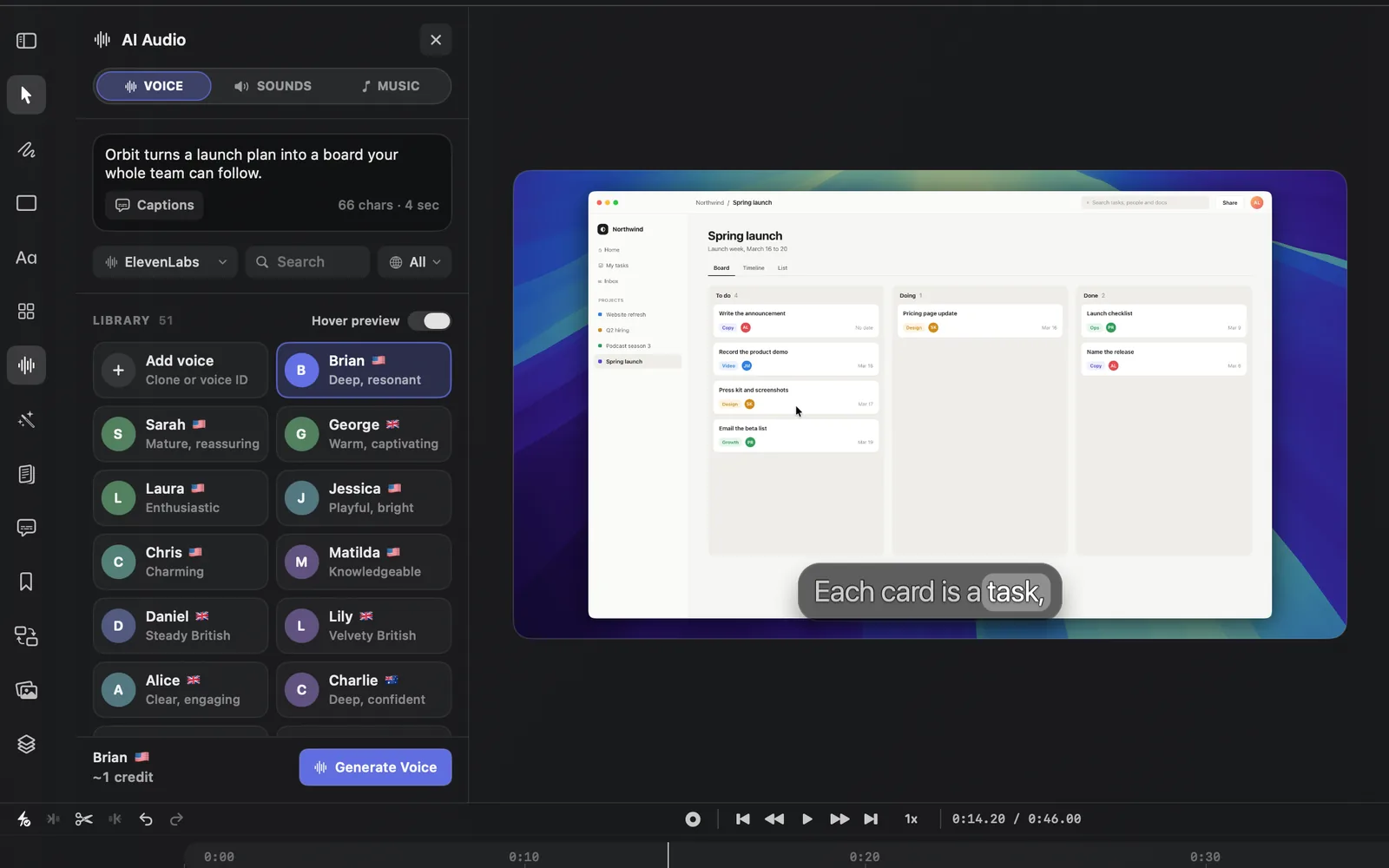
| Control | What it does |
|---|---|
| Engine menu (HeyGen) | Switches between HeyGen and ElevenLabs. Each engine keeps its own voices and remembers the one you picked |
| Search | Finds a voice by its name, description, language or voice ID. Press Return to pick the first match |
| Language menu (All) | Shows only the voices in one language. It lists only the languages the engine has voices in; All languages shows every voice. Once you pick a language, the menu shows its flag |
| HeyGen | ElevenLabs | |
|---|---|---|
| Voices | HeyGen's library, loaded from DreamCut's servers | 51 voices that come with DreamCut, in English, French, Spanish, Chinese and Japanese |
| Hearing a voice | Voices with a sample play on hover; the rest play on a click and use credits | The built-in voices play on hover, at no cost |
| Your own voices | Clone voice: record or upload a sample | Add voice: clone one, or add a voice from ElevenLabs by its ID |
HeyGen is the default engine, and DreamCut remembers the one you used last. The pictures on this page use ElevenLabs.
The voice grid
The grid has up to three sections, each with its count beside the name.
- MY VOICES: voices you cloned or added, in any language. Starring one of them keeps it here.
- FAVORITES: library voices you starred, in the chosen language.
- LIBRARY: the rest of the engine's voices, in the chosen language.
The grid's first tile is Clone voice (Record or upload) on HeyGen, or Add voice (Clone or voice ID) on ElevenLabs, as in the picture above. Voice cloning walks through both.
Click a voice's name to pick it: the tile gets an outline and its name shows in the footer. Under each name is a short description of the voice, and a flag when the language menu is on All.
When the grid has no voices
When the grid has nothing to show, it says why in the middle:
- "Loading HeyGen voices…" (or ElevenLabs): the engine's voices are on their way.
- "No All voices in HeyGen": HeyGen's voices didn't load. They come from DreamCut's servers, so this happens when you're signed out or offline. Sign in and check your connection, or switch the engine to ElevenLabs, whose voices are part of the app.
- "No voices match" followed by your search: nothing matches the words in Search. Click Clear search.
Hear a voice before you pick it
Rest the pointer on a tile and its sample plays after a moment; move away and it stops. Hover preview, at the right of the first section's heading, turns this off, so voices play only when you click them.
The round initial on the left of each tile turns into a play button when you hover it. Click it to play the voice; it keeps playing after the pointer leaves. While Hover preview is off, every voice reads "Click ▶ to hear" when you hover it; with it on, only voices that have no sample do. For a voice with no sample, a click has DreamCut speak a short line in that voice first, which uses credits.
Right-click a voice
| Item | What it does |
|---|---|
| Play Preview | Plays the voice. It reads Stop Preview while it plays |
| Add to Favorites | Marks the voice with a star and moves a library voice to FAVORITES. It reads Remove from Favorites after |
| Copy Voice ID | Copies the voice's ID. Paste it into Search later to find the same voice |
| Delete or Remove, with the voice's name | On voices under MY VOICES only: deletes a voice you cloned, or removes one you added by its ID |
What the footer tells you
The footer's first line names the voice and the second gives the cost. Until Generate Voice can run, they say what's missing.
| Footer reads | What it means |
|---|---|
| "Pick a voice" | The voice you picked last isn't in this engine's list, for example one of your own ElevenLabs voices before your account's voices have loaded. Click a voice in the grid |
| "Loading voices…" | The engine's voices are on their way |
| "Write a script first" | The script box is empty |
| A voice's name over "~1 credit" | Ready: the estimate for this script with this voice |
When something else stops it, a line above the footer says why, such as "Sign in to DreamCut to generate voices.", "Start a DreamCut Pro trial to generate voices." or "Move the playhead over a visible scene to generate AI voice."
Credits, sign-in and limits
- Out of credits: when your credits for the month are used up, the line above the footer reads "Out of DreamCut AI credits for this month" with what you've used, and Generate Voice is greyed out. If a voiceover would take you past what's left, the line also says how many credits it needs. See When credits run out.
- Each press of Generate Voice makes a new clip; it never replaces the last one. To redo a line, delete its clip and generate again.
- To make a voiceover louder or quieter, select it on the Audio lane and set its Volume. There are no audio fades: trim the clip where its sound should start and stop. See Volume and fades.
- You can also ask Sakura for a voiceover in plain words.
What's next
- Voice cloning: make a voice from your own recording.
- AI sound effects: add clicks, whooshes and chimes from the SOUNDS tab.
- Background music: give the video a track from the MUSIC tab.
- Volume and fades: balance the voiceover against the rest.