
Tour the editor
A map of DreamCut's editor window: the top bar, the tool rail, the canvas and its layer toolbar, the inspector and the timeline, and what each is for.
When you stop a recording or open a project, it opens in the editor. The editor has five parts: the top bar, the tool rail down the left, the canvas in the middle, the inspector on the right and the timeline along the bottom. This page shows what each part is for and where to read more about it.
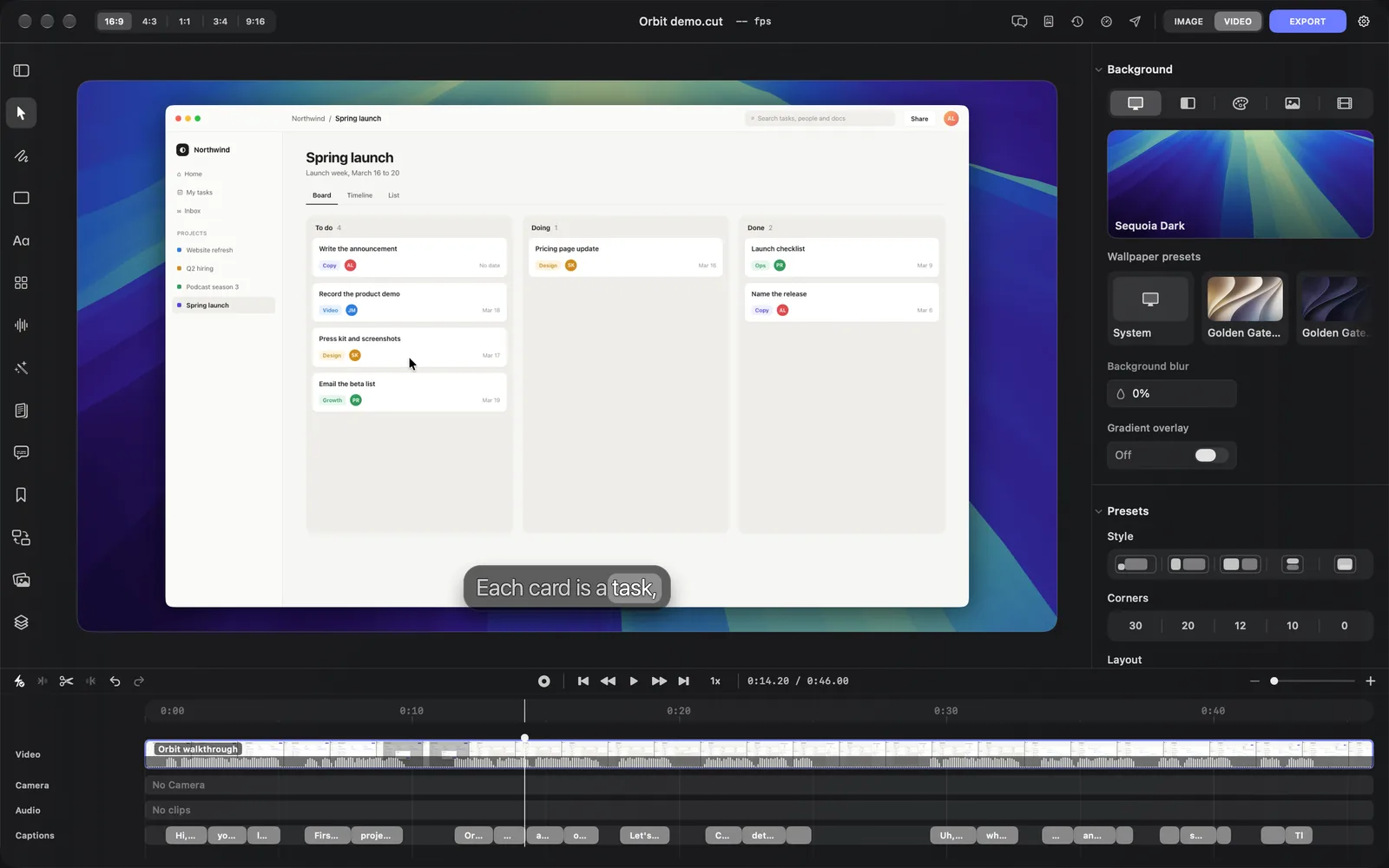
Find your way around
What you click decides what the editor shows. Select a layer and the inspector shows its settings; pick a tool in the rail and its panel opens beside the canvas.
- Click the recording on the canvas. Handles appear around it, the layer toolbar appears over it, and the inspector switches to the recording's tabs: Layout, Zoom, Cursor and Audio.
- Click Text in the tool rail. The Text panel opens between the rail and the canvas, with title styles you can add at the playhead.
- Click Transcript in the rail. It takes the Text panel's place: one panel is open at a time.
- Click Play under the canvas, or press Space, to watch from the playhead. Click it again to pause.
- Press Esc to deselect. The inspector goes back to Background and Presets.
The top bar
From left to right:
| Control | What it does |
|---|---|
| 16:9, 4:3, 1:1, 3:4, 9:16 | The shape of the video. See Background and canvas |
| The project name | Click it to rename the project, then press Return, or Esc to cancel |
| The fps readout | How many frames a second the preview draws while it plays. It shows dashes while paused; hover it for the target |
| Chat (two speech bubbles) | Opens Sakura, the editor's AI, in place of the inspector |
| Article Studio (a page) | Opens Article Studio in its own window, to turn the video into an article |
| Versions (a clock) | Restore points DreamCut keeps as you edit. Save version adds one; Load shows one, and Restore Loaded brings it back |
| Performance (a speedometer) | The Editor performance settings: preview quality and playback frame rate. They change the live preview only; exports stay full quality |
| Publish (a paper plane) | A cover, a YouTube title, description and keywords, then Review & Publish…. See Publish |
| IMAGE and VIDEO | What EXPORT makes: a picture of the frame at the playhead, or the video |
| EXPORT | Opens Export Settings: format, frame rate, resolution and quality, an estimated file size, and Export Now. See Export settings |
| The gear | Opens Settings at Export: your default formats and the folder exports are saved to |
Chat, Versions, Performance and Publish each open over the inspector. Click the same button again, or the × at the top of the pane, to close it.
The tool rail
The rail down the left opens a panel for each kind of thing you can add. Hover an icon to see its name and shortcut, or click the sidebar icon at the top of the rail (Expand sidebar) to show every name. Layers, at the bottom, lists the scenes on the Video lane; click one to select it.
| Tool | Key | What it opens |
|---|---|---|
| Select | Back to selecting and moving layers on the canvas | |
| Draw | D | Drawings that draw themselves on: circles, arrows, lines, flow charts and shapes, or your own line. See Draw |
| Overlay | O | Stickers, emoji, callouts, cut-outs and AI B-roll. See Overlays |
| Text | T | Title styles such as Plain Text, Keynote and Big Type. See Text and titles |
| Layout | L | Cards, quotes, buttons and illustrations, or a card in your own HTML. See Layout cards and HTML |
| AI Audio | AI voiceovers, sound effects and music. See AI voice | |
| Generate media | AI pictures and video. See Generate media | |
| Templates | Ready-made videos (UGC, Slides, Movie, Promo and Long Form), added as scenes after the current one. See Templates | |
| Transcript | What you said, word by word: search it, cut words, and remove fillers and silences. See Edit with the transcript | |
| Chapters | Sections of the video people can jump to. See Chapters | |
| Transitions | Transitions, effects and camera moves. See Transitions | |
| Media gallery | Your pictures, videos and sounds, ready to add. See Media gallery |
The canvas and the layer toolbar
The canvas shows the video at the playhead: the recording over its background, with captions and other layers on top. Click a layer on the canvas, or its clip on the timeline, to select it. Then drag:
- An edge or corner to resize it. Hold ⇧ to flip the aspect lock, or ⌥ to resize from the centre.
- From outside a corner to turn it. Hold ⇧ to snap to 15°.
- From inside a corner to round the corners.
A toolbar appears over the top of the selected layer. Each kind of layer has its own, and every one has the keyframe and crop buttons, the Z-index, the wand and More. The recording's toolbar, from left to right:
| Button | What it does |
|---|---|
| Recording size | Default, 2/3, 1/2 or Full |
| The diamond | Adds a zoom at the playhead. See Zoom and cursor |
| The crop icon | Drag the recording's edges in to crop it. See Crop and rotate |
| Corners, Padding, Inset | Drag the icon or type a number. See Layout and camera |
| Z-index | The layer's place in the stack, from 0 to 10. Higher sits in front |
| The wand | Generate with this layer: a picture, video, voice, sound effect or music, with this layer as the context |
| More | Crop, stacking order, mute (when the recording has sound), hide and delete: the same menu as right-clicking the layer |
The handles and the toolbar hide while the video plays. Pause to edit.
The inspector
The inspector on the right shows the settings of whatever is selected.
| Selected | The inspector shows |
|---|---|
| Nothing | Background (the wallpaper, gradient, colour, image or video behind the recording) and Presets (layout style, corners and default zoom). See Background and canvas |
| The recording | Layout, Zoom, Cursor, and Audio when it has sound. See Layout and camera and Zoom and cursor |
| The camera | Layout, Animation, and Audio when it has sound |
| Text, a caption, an overlay or a drawing | A tab for its own settings (such as Text for a caption), then Animation |
| An audio clip or a transition | Its own settings |
After you change a setting, Apply to Scene and Apply to All appear at the bottom, to copy the change to the matching layers in this scene or in the whole project. Drag the inspector's left edge to make it wider.
The timeline
The timeline runs along the bottom, with its toolbar on top:
- Left: snapping, Trim Left Q, Split C, Trim Right W, Undo and Redo, then buttons for what's selected. For the recording they're Edit this scene, Zoom In, Zoom Out, Generate Video, Mute, Hide and Delete.
- Middle: Record (a camera and microphone take into this project), Back to beginning, Backwards, Play Space, Forwards, Go to end, the playback speed (1x) and the time at the playhead.
- Right: the timeline zoom. ⌘= zooms in and ⌘- zooms out.
Below the toolbar, each lane holds one kind of layer:
| Lane | What's on it |
|---|---|
| Video | Your recording and any other scenes, with their sound wave |
| Camera | Your camera recording. It reads No Camera when there isn't one |
| Audio | Voice and sound clips you record, generate or add |
| Captions | One block per caption, made from what you said. See Captions |
| Transitions, Music, Text and Overlay | These lanes appear once the project has one |
Drag the top edge of the timeline to make it taller. Timeline covers splitting, trimming and moving clips.
Tips
- Transitions and Chapters stay greyed out until there's something on the timeline.
- Only one panel opens beside the rail at a time, and only one pane covers the inspector at a time.
- Esc steps back one thing at a time: it stops typing, leaves crop mode or puts down a pen or box first, then clears the selection.
What's next
- Timeline: split, trim and move the clips on each lane.
- Edit with the transcript: cut the video by deleting words.
- Captions: style the captions and fix their words.
- Sakura: ask for an edit in plain words.