
Introduction
DreamCut records your screen, camera and voice on a Mac, then edits them into a polished video with zooms, captions, titles and AI help.
DreamCut is a screen recorder and video editor for the Mac. You record your screen with your camera and microphone, and the recording opens in an editor where zooms already follow your mouse, captions from what you said are a click away, and Sakura, the editor's AI, makes the changes you ask for.
How DreamCut works
DreamCut lives in the menu bar. It has no home window: the capture bar is where you start a recording, and its Open menu lists your recent projects, captures and dictations.
- Click the DreamCut icon in the menu bar and choose New recording.... The capture bar appears at the bottom of the screen.
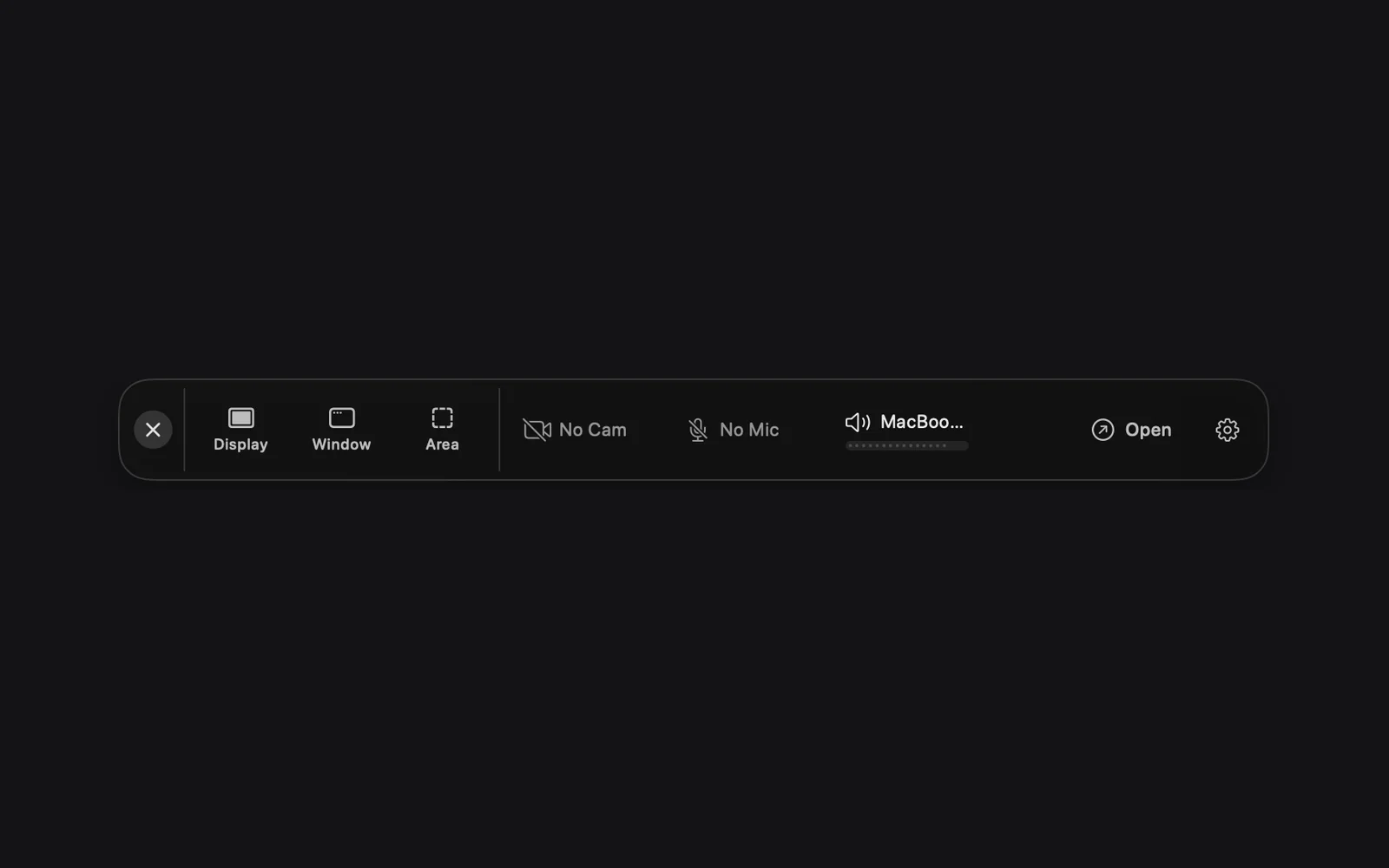
- Turn on what you want to record with the chips: No Cam for your camera, No Mic for your microphone and No Audio for the sound your Mac plays. Each one opens a list: click the device, then Enable. A chip that's on shows the device's name instead; click it again to turn it off.
- Click Display, Window or Area. The capture bar hides and a picker opens over the screen: point at the window you want, or move and resize the area's box, then click RECORD.
- A countdown plays: 2, 1, then START. Start talking at START, show what you're doing, then click STOP.
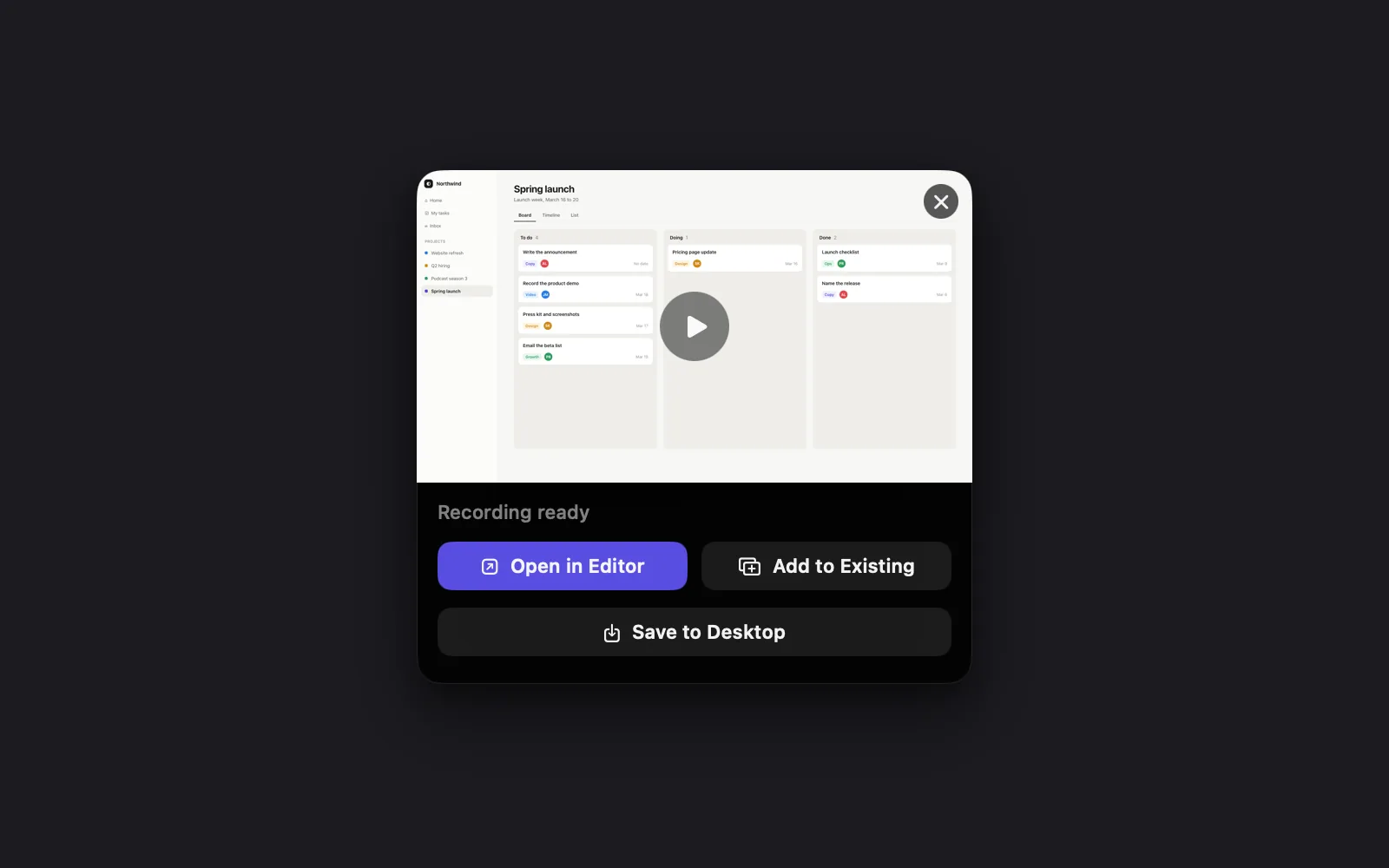
- On the Recording ready card in the bottom-right corner of the screen, click Open in Editor.
- Cut, add captions and titles, then click EXPORT to save the video (see Export settings), or share it as a link.
Quickstart walks through each step with pictures.
What the editor does for you
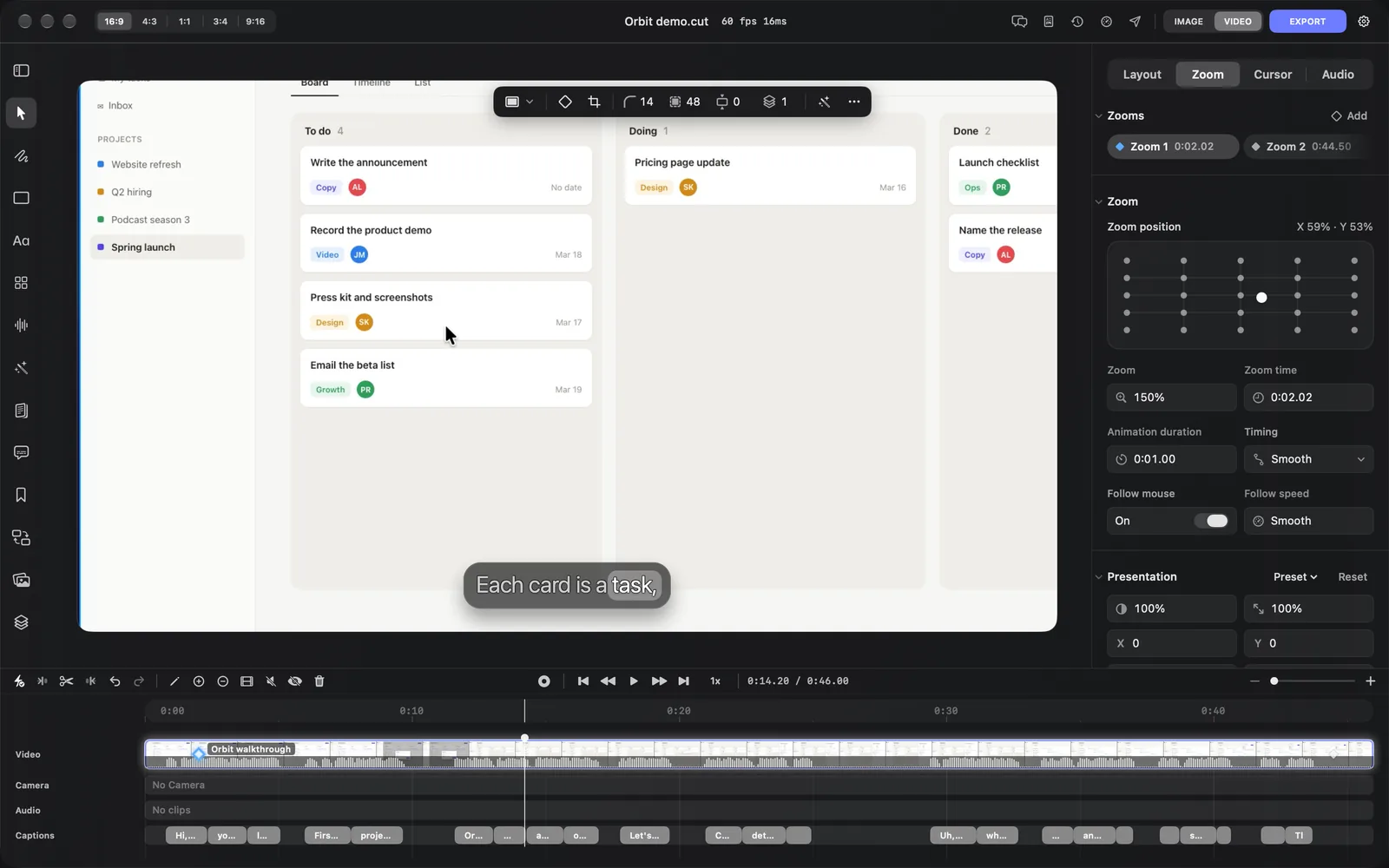
A new recording opens with its zooms and its cursor already done. Captions and the cuts for "um" and long pauses are one click away.
Done for you
- Zooms. DreamCut saves the path of your mouse as you record. When the recording opens, it zooms in where you work and click, follows the cursor, and zooms back out once the mouse rests. Each zoom is a diamond on the recording in the Video lane, and you can move, change or delete any of them. See Zooms and the cursor.
- The cursor. DreamCut draws the cursor from that same path, so you can make it bigger, animate its clicks or change its look after you record.
One click away
- Captions. Click your recording, open its Audio tab on the right and click Generate. DreamCut writes captions from your voice that highlight each word as it's spoken. They aren't made on their own unless you turn on Generate captions automatically in Capture Options (the gear on the capture bar). See Captions.
- Fillers and pauses. The Transcript panel marks every "um", "uh" and long pause, so you can cut all the fillers, or all the long pauses, in one step. See Edit with the transcript.
What you can do
| Part | What it's for |
|---|---|
| Capture bar | Record a display, a window or an area, with camera, microphone and system audio |
| Editor | Cut on the timeline or in the transcript, and add zooms, captions, titles, overlays and transitions |
| Chapters | Name the sections of your video, for YouTube and in the exported file |
| Sakura | Ask for an edit in plain words, such as "remove the long pauses" |
| AI Audio and Generate media | Make voiceovers, music, sound effects, pictures and video with DreamCut credits |
| Shorts | Find short clips in a long video, from a link or a file, with captions. Open it with New Shorts from Video… ⌥⌘N in the Open menu or the File menu |
| Publish | Make a cover, title and description, then upload to YouTube or post to X |
| Article Studio | Turn a video into an article, a thread or a newsletter |
| Dictation | Hold fn in any app to type with your voice |
MCP and the dreamcut command | Let an AI agent record, edit and export for you |
What you need
DreamCut installs on macOS 13 or later, and recording video needs macOS 15 or later. Install and permissions covers the download and the permissions macOS asks for.
Recording, cutting, zooming and exporting don't use credits. Credits pay for the AI features: captions, Sakura, AI voices and music, and generated pictures and video.
What's next
- Install and permissions: download DreamCut and let it record your screen.
- Quickstart: record, edit and export your first video.
- Keyboard shortcuts: start, pause and stop recordings from any app.
- MCP and the dreamcut command: let an agent drive DreamCut for you.