
Captions
Generate captions from what you say, fix their words in the transcript, and style them with presets in DreamCut's editor on the Mac.
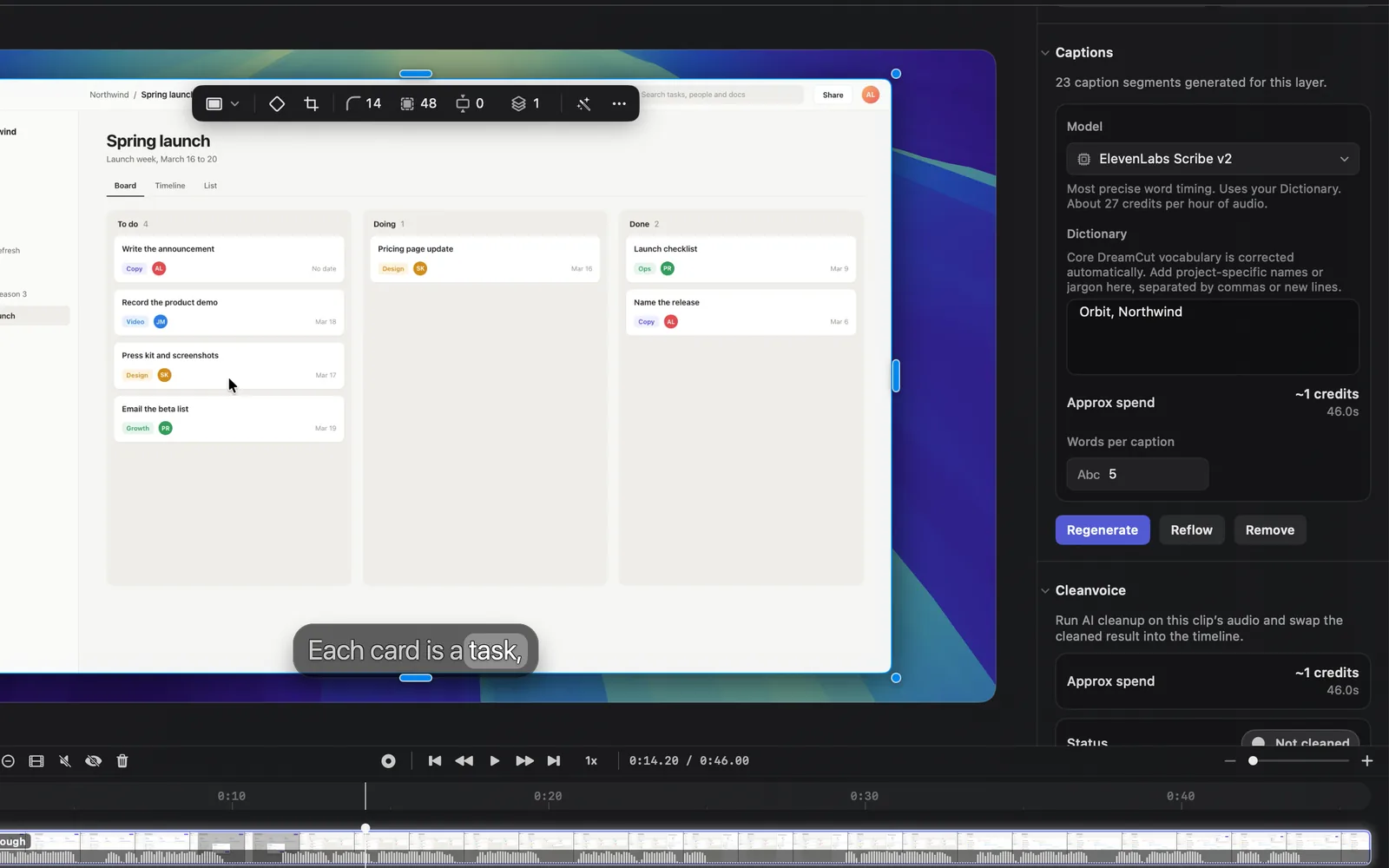
DreamCut writes captions from what you say in a recording, a few words at a time, and picks out each word as it's spoken. You generate them from the recording's Audio tab, fix any word in the transcript, and give them a look from the presets.
Generate captions
- In the editor, click your recording on the Video lane of the timeline. To caption your camera's sound instead, click it on the Camera lane.
- In the inspector on the right, open the Audio tab and scroll down to Captions, under the volume controls.
- Choose a Model. The line under it says what the model is good at and what it costs per hour of audio.
- Type names and jargon the model may not know into Dictionary, separated by commas or new lines.
- Check Approx spend: the credits this layer's audio will cost, rounded up to a whole credit, with its length under it.
- Press Generate. It reads Generating while DreamCut works, then the captions appear on the Captions lane and on the canvas.
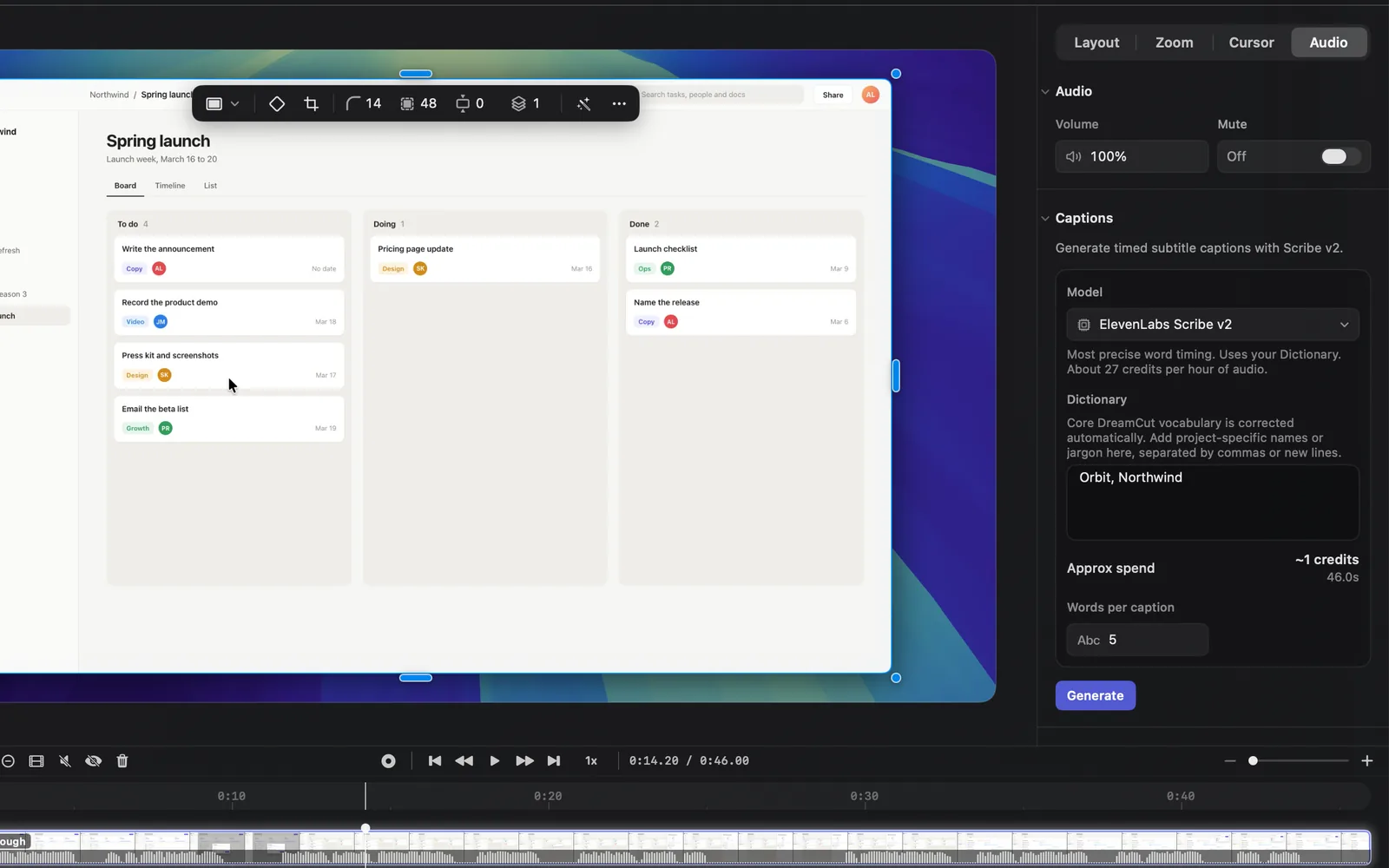
When it's done, the section counts what it made, such as "23 caption segments generated for this layer.", the button becomes Regenerate, and Reflow and Remove appear beside it, as in the picture at the top of this page.
A clip on the Audio lane, such as a voiceover, has the same Captions section in its inspector, without tabs. When you select a camera or audio clip, the timeline toolbar also shows a Generate Captions button.
| Button | What it does |
|---|---|
| Generate | Transcribes the layer's sound and adds captions |
| Regenerate | Transcribes it again and replaces this layer's captions |
| Queue | Shows while another layer is being captioned. Press it to caption this one next; it then reads Queued |
| Reflow | Once the layer has captions: regroups them to the current Words per caption, without AI and without credits |
| Remove | Once the layer has captions: deletes them |
Choose a model
ElevenLabs Scribe v2 is the default. Each model's line in the inspector reads like the table below, followed by its rate, such as "About 27 credits per hour of audio."
| Model | What it's good at | Credits per hour of audio |
|---|---|---|
| ElevenLabs Scribe v2 | Most precise word timing. Uses your Dictionary. | About 27 |
| xAI Grok Voice Transcribe 2.0 | Fast, lowest cost. Uses your Dictionary. | About 10 |
| Google Gemini 3.5 Transcribe | Verbatim text. Can’t use your Dictionary. | About 30 |
| OpenAI GPT-4o Transcribe | Polished text, timed by Whisper. Often falls back to Whisper. | About 72 |
| OpenAI GPT Realtime 2 | Timed by Whisper. | About 138 |
DreamCut remembers your model, your Dictionary and your words per caption for your next projects.
Dictionary
DreamCut's own terms are corrected automatically. Add the names and terms that belong to your video, such as a product, a company or a person, separated by commas or new lines: "Orbit, Northwind". Scribe v2 and Grok use the Dictionary as words to listen for, and the two OpenAI models get it as a prompt, a hint about spellings; Gemini can't use it.
Words per caption
Words per caption in the Captions section sets how many words each caption holds when you press Generate or Reflow: from 1 to 20, 5 by default. To reflow captions you already have, you can also pick from 1 to 5 words in a caption's own Text tab (see Style captions).
Caption new recordings automatically
- Click the DreamCut icon in the menu bar and choose Show settings (⌘,).
- Open Recording and turn on Generate captions automatically.
The same switch is in Capture Options, under the gear on the capture bar. It needs your microphone on; without it the setting reads "Turn on Mic audio to generate captions automatically after recording." When a new recording opens in the editor, DreamCut captions the microphone audio with your model, Dictionary and words per caption, and spends credits as Generate does.
Fix a caption's words
The Transcript panel shows the words of your captions, so a fix there changes the caption.
- On the canvas: double-click a caption, or select it and press Return. The Transcript panel opens with the caption's first word ready to edit. Type the fix and press Return.
- In the Transcript panel: click Transcript in the toolbar on the left of the editor, then double-click any word.
- In the inspector: select the caption and change Text content in its Text tab.
To fix a name everywhere, type it in the Transcript panel's search, enter the right spelling, and press Replace or All. Transcript editing covers the rest of the panel.
Move captions in time
Drag a caption along the Captions lane to show it earlier or later. Captions stay with the words they show: trim, split or cut the recording and the captions of the part you take out go with it, and they come back if you drag a trimmed end out again.
Style captions
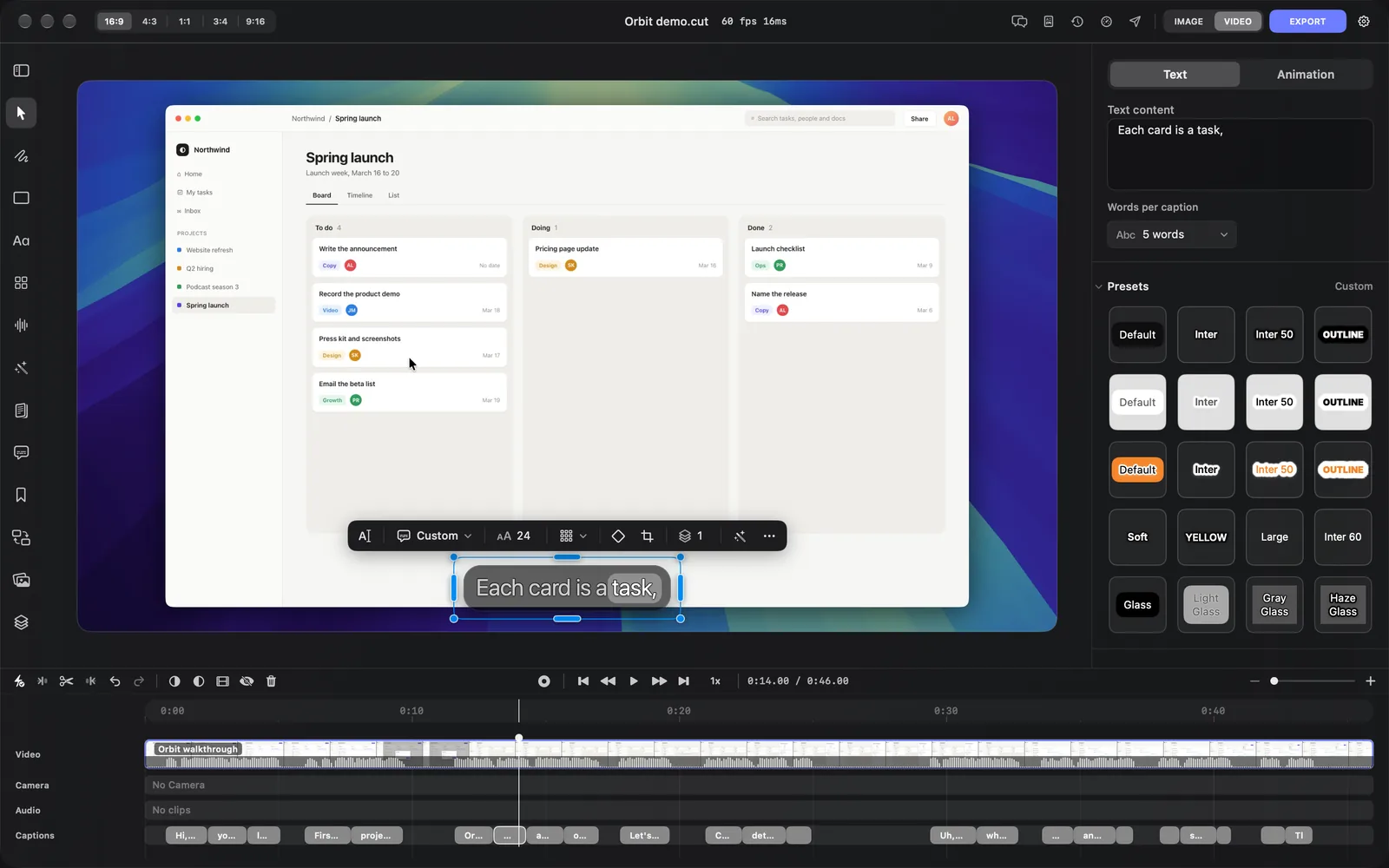
Each caption is a layer of its own. Select one on the Captions lane or on the canvas, and the inspector shows its Text and Animation tabs.
- Click a caption on the Captions lane or on the canvas.
- In the Text tab, under Presets, click a style. The selected caption takes it, and Apply to Scene and Apply to All appear at the bottom of the inspector.
- Press Apply to All to give every caption that look, or Apply to Scene for the captions in this scene only. Each caption keeps its own words.
The Presets heading names the preset the caption matches exactly, such as Glass, and otherwise reads Custom, which can happen right after you click a preset because the caption's size and position count too.
| Row | Presets | The look |
|---|---|---|
| 1 | Default, Inter, Inter 50, Outline | Light text: Default on a dark box, Inter and Inter 50 without one, Outline in capitals with a black outline |
| 2 | The same four, inverted | Dark text instead of light |
| 3 | The same four, orange | An orange box, highlight or text |
| 4 | Soft, Yellow, Large, Inter 60 | Soft highlights the spoken word; Yellow is in capitals with the spoken word in yellow; Large and Inter 60 put big type in the middle of the frame |
| 5 | Glass, Light Glass, Gray Glass, Haze Glass | Frosted glass boxes in dark, light, gray and haze |
Outline and Yellow are in capitals, so their tiles read OUTLINE and YELLOW.
Use one style for every caption
When a caption is selected, a toolbar appears above it on the canvas. Its caption style menu shows the preset's name and lists every preset, with the inverted and orange ones as "Default · Inverted" or "Default · Orange". Choose Use This Style for Every Caption at the bottom of the menu to copy the selected caption's look to all of them.
The same toolbar has a button to edit the words in the transcript, a text size field, and a position menu that moves the caption to the Top, Middle or Bottom of the frame.
Fine-tune the look
Under the presets, the Text tab has a section for each part of the caption. Reset all at the bottom puts the caption back to its defaults, and Delete removes it.
| Section | What it sets |
|---|---|
| Layout | Position, Width and Height, and Anchor to the layer |
| Crop | Crop on canvas lets you drag the caption's edges |
| Hide | Hides this caption layer |
| Typography | Font, Uppercase text, Font size, Font weight, Line height, Letter spacing, Text color, Shadow, Text outline, Outline color, X Offset and Y Offset. With Width not on Auto, also Text alignment and Alignment |
| Background | The box behind the words: Fill, Stroke, Stroke width, Background blur, Corner radius and Container shadow |
| Active word | Only on captions timed Word by word, as generated ones are. The word being spoken: Background color, Horizontal padding, X Offset, Y Offset, Inactive text color, Text color, Font and Font weight |
Words per caption at the top of the tab reflows captions to 1 to 5 words. DreamCut asks whether to Apply to scene or Apply to all.
The Animation tab holds the caption's Keyframes, how it comes in under Animation, and its start time and length under Timing.
Caption buttons on the timeline toolbar
With a caption selected, the toolbar between the canvas and the timeline shows these buttons on its left.
| Button | What it does |
|---|---|
| Fade In | Adds a keyframe at the playhead that brings the caption to full opacity |
| Fade Out | Adds a keyframe at the playhead that fades the caption out |
| Generate Video | Makes an AI video from the selected layer, in Generate media |
| Hide | Hides the selected captions; the button then reads Show |
| Delete | Deletes the selected caption |
Credits and sign-in
What's next
- Transcript editing: cut words, fillers and pauses by editing the text.
- Text and titles: add your own words and animated titles over the video.
- Clean audio: clean up the sound in the same Audio tab.
- Export settings: save the video with its captions.