
Export your video
Export your edit as an MP4 or MOV up to 4K at 60 fps, or the current frame as an image, and see the file size and export time before you start.
Exporting turns your edit into a video file on your Mac, with every layer, caption and zoom drawn in. You choose the size, frame rate and quality in Export Settings, see how big the file will be and how long it will take, then export. You can also save the frame under the playhead as a picture, or only the sound.
Export a video
- In the editor's top bar, check that VIDEO is selected next to EXPORT. With IMAGE selected, you get a still picture instead.
- Click EXPORT. The Export Settings popover opens.
- Pick a Resolution, FPS and Quality. The Bitrate row and the estimate under them update as you go.
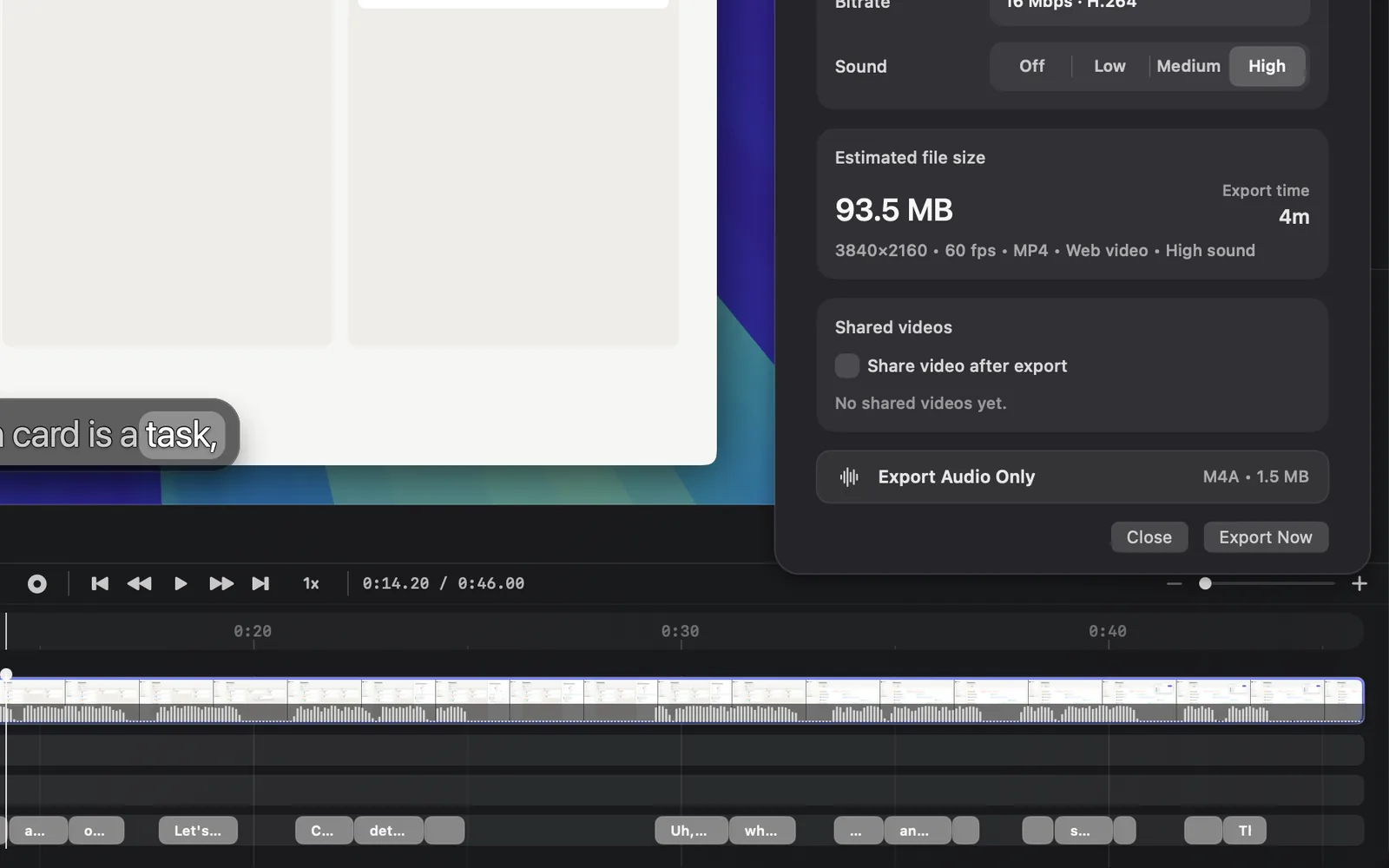
- Scroll down inside the popover to Shared videos. On most screens the popover is too tall to show at once, so its lower part starts out of view.
- Look at Share video after export: while it's ticked, the export also uploads a copy to dreamcut.ai and copies a link to it (see Share links). It's ticked until you untick it. Untick it to keep the video on your Mac only, as in the recording above.
- Click Export Now, at the very bottom under Export Audio Only.
- "Preparing export" shows for a moment, then the Exporting video screen covers the editor window and counts up. Press Esc or click Cancel to stop.
- When the file is written, Finder opens with it selected and a note reads "Export complete" with the file's name. With Share video after export ticked, DreamCut uploads the copy next, and the note shows the shared video instead.
The file takes your project's name. When a file with that name is already in the folder, DreamCut adds "-2", "-3" and so on, so it never replaces an earlier export.
Export Settings
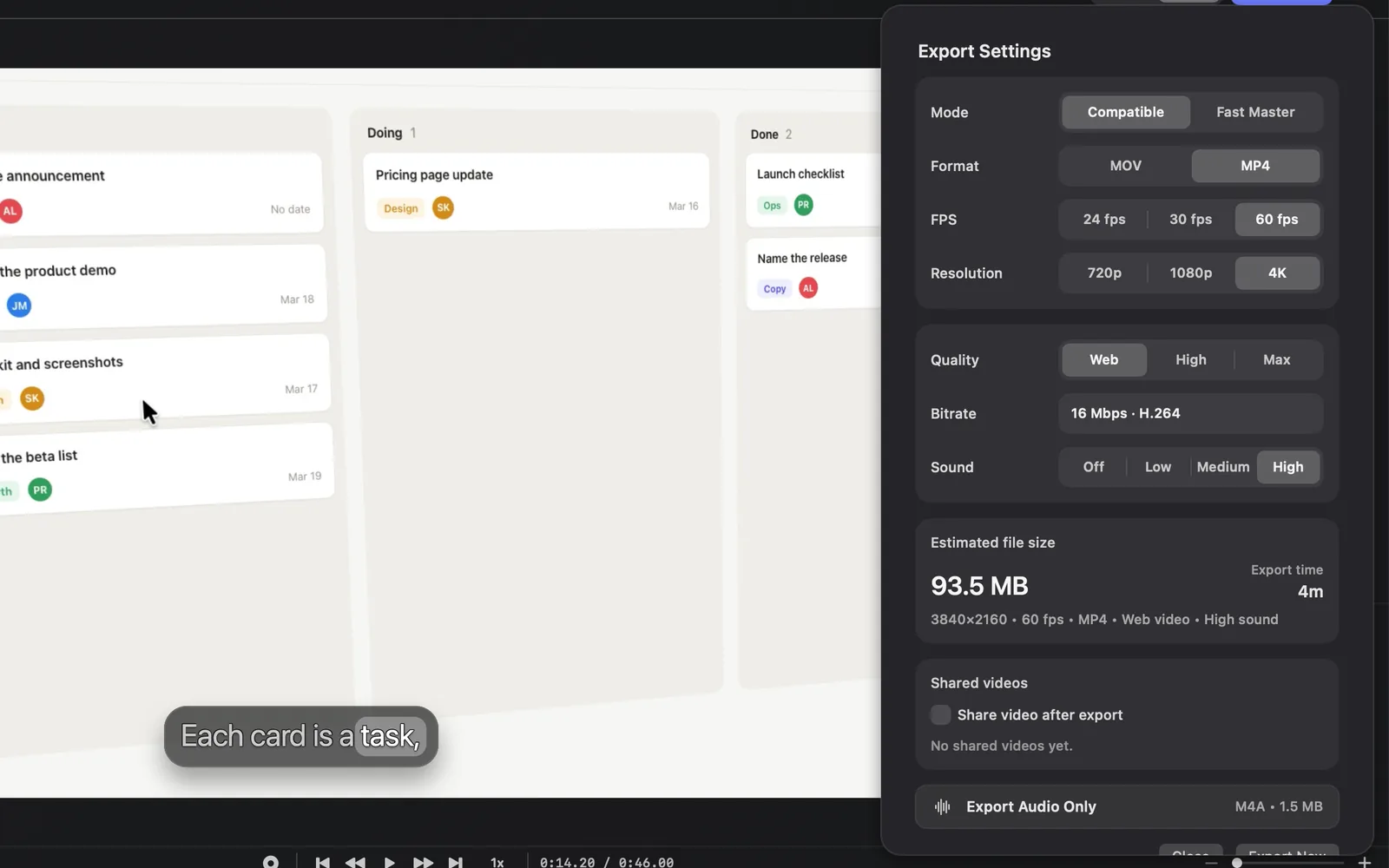
| Setting | Choices | What it does |
|---|---|---|
| Mode | Compatible, Fast Master | Compatible writes H.264 video that plays almost everywhere. Fast Master writes a large ProRes master for other editing apps (see below) |
| Format | MOV, MP4 | The file type. MP4 plays in more places, web browsers included |
| FPS | 24 fps, 30 fps, 60 fps | Frames per second. 60 fps keeps scrolling and cursor movement smooth |
| Resolution | 720p, 1080p, 4K | The size. It follows your canvas: at 1080p a 16:9 video is 1920 × 1080 and a 9:16 video is 1080 × 1920 |
| Quality | Web, High, Max | How much data each second of video gets. Higher keeps more detail in a bigger file |
| Sound | Off, Low, Medium, High | AAC sound at 96, 160 or 256 kbps. Off exports a silent video |
With MP4, a Bitrate row under Quality shows what the quality you picked means at your size and frame rate, such as "16 Mbps · H.264" for Web at 4K and 60 fps. You can't type a bitrate: it comes from the quality, the resolution and the frame rate. With MOV there's no Bitrate row.
| Quality | 1080p, 60 fps | 4K, 60 fps |
|---|---|---|
| Web | 4 Mbps | 16 Mbps |
| High | 8 Mbps | 32 Mbps |
| Max | 21 Mbps | 84 Mbps |
These are for a 16:9 or 9:16 canvas. Web quality has the bitrates for every size, frame rate and canvas shape, the file sizes, and when to pick each.
Close shuts the popover without exporting. Your choices stay.
Fast Master
Fast Master uses the Apple silicon video hardware to write a 10-bit 4:2:2 ProRes 422 LT master. Format is fixed to MOV and Quality is replaced by a Codec row that reads "ProRes 422 LT · 10-bit 4:2:2". The files are much larger than Compatible ones, and they stay on your Mac: the share checkbox reads "Fast Master stays local" and can't be ticked.
Reuse verified unchanged export is on by default. When you export again and nothing has changed (the project, its media and the settings), DreamCut reuses the master it already made and checked, instead of rendering it again.
The estimate
Estimated file size and Export time sit under the settings, with a line that sums them up, such as "3840×2160 • 60 fps • MP4 • Web video • High sound". They're estimates: the progress screen says "Final size may vary". Export time is only a rough guess from the video's length, size, frame rate and quality, not from your Mac's speed: the export in the recording above showed 1m 1s and finished in a few seconds.
Export only the sound
Export Audio Only saves the timeline's sound as an M4A file in the same folder, and starts as soon as you click it. Its row shows the format and the size it will be, such as "M4A • 1.5 MB".
Export a still image
- Move the playhead to the frame you want.
- Click IMAGE next to EXPORT, then click EXPORT.
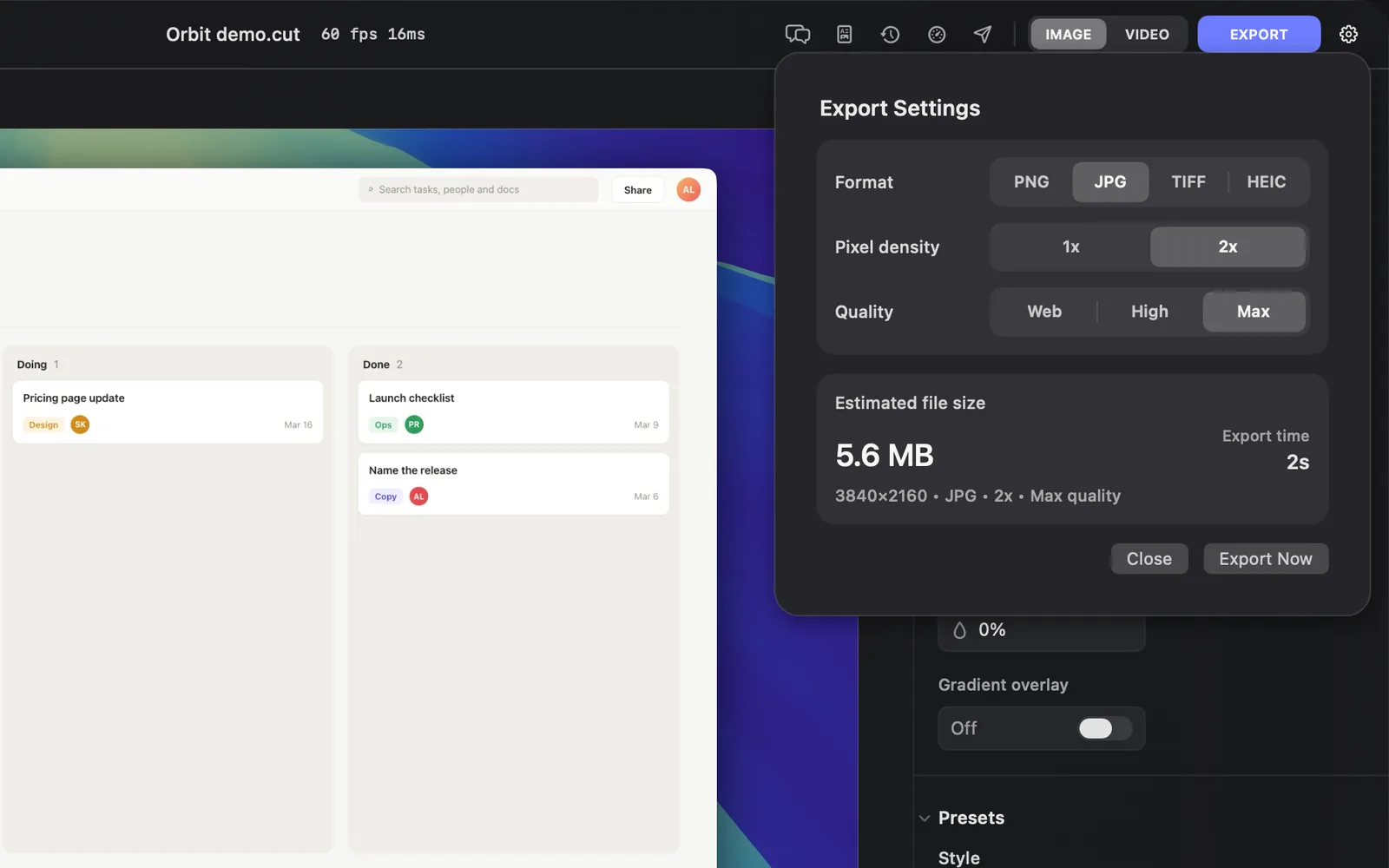
- Pick a Format, a Pixel density and a Quality.
- Click Export Now. The picture includes every layer at that moment: background, camera, captions and titles. Finder opens with it selected.
| Setting | Choices | What it does |
|---|---|---|
| Format | PNG, JPG, TIFF, HEIC | PNG and TIFF keep every pixel; JPG and HEIC make smaller files |
| Pixel density | 1x, 2x | 1x is 1920 pixels on the long side (1920 × 1080 for 16:9). 2x doubles it (3840 × 2160). It starts on 2x |
| Quality | Web, High, Max | How much JPG and HEIC compress. It starts on Max. PNG and TIFF don't change |
An image has no Shared videos card and no Export Audio Only. The first time you export, DreamCut picks VIDEO for a recording and IMAGE for a screenshot. After that it keeps the last one you used, so check it before you click EXPORT.
While it exports
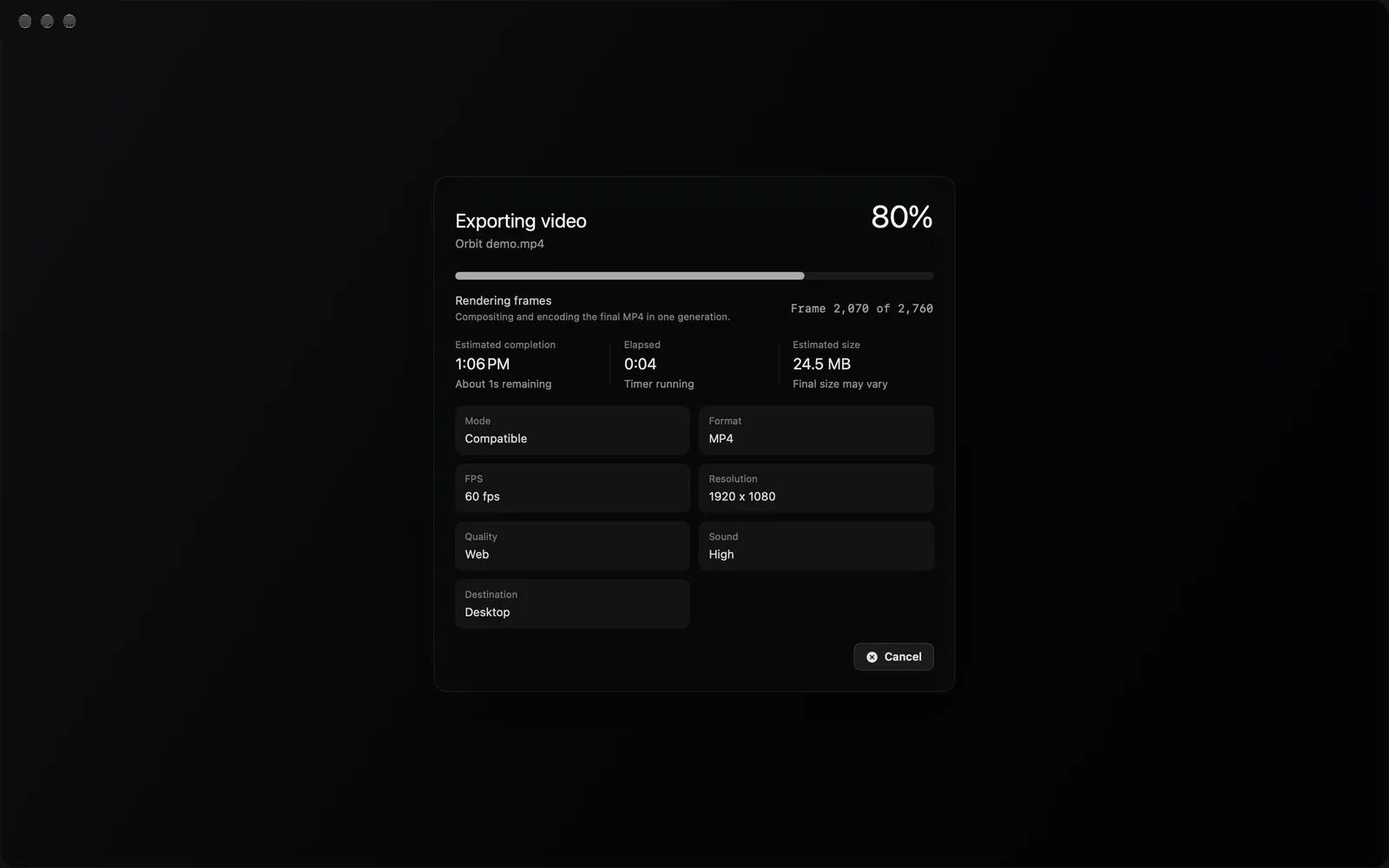
The progress screen shows:
- The title and percentage, such as "Exporting video" with the file's name under it.
- The stage. It starts at "Preparing export", then reads "Rendering frames" with "Frame 2,070 of 2,760". Long videos render in parts ("Rendering segment 3 of 12"), then "Merging segments".
- Estimated completion: the time it should finish, with how long is left under it.
- Elapsed: how long it has been running.
- Estimated size: the size the file should be.
- The settings in use: Mode, Format, FPS, Resolution, Quality and Sound, plus Destination, the name of the folder the file goes to, such as Desktop.
DreamCut keeps your Mac awake while it exports. If the Mac goes to sleep anyway, the screen reads "Pausing for sleep" and the export picks up again after the Mac wakes.
Export more than one project
DreamCut runs one export at a time. When another window is exporting, Export Now reads Add to Queue. That window then shows Export queued, with its place in line ("Next", or "#2" and so on), which project it's waiting for, and when it should start. It starts by itself when the one ahead finishes, and your other projects stay editable meanwhile. Click Remove from Queue to take it out of line.
Where your exports go
Exports go to your Desktop unless you choose another folder:
- Click the gear next to EXPORT (Export settings). DreamCut's Settings open on the Export tab.
- Next to Save to, click Choose Folder and pick a folder. Reveal shows it in Finder.
The same tab has Publishing accounts for Publish. Its other rows set the format of your screenshots and recordings, not of exports. Settings covers them all.
If an export fails
An alert shows the reason, such as "Export failed:" followed by what went wrong, with Send report and OK.
- Send report sends the DreamCut team the error, the export's log, your DreamCut version, the project's name and where the file was going. It doesn't send your video. You need to be signed in. When it's sent, the alert reads "Report sent to the DreamCut team."
- An export can't start while you're recording into the same project ("Finish the recording in this project before exporting it.") or while media is still being processed ("Wait for active media processing to finish before exporting this project.").
What's next
- Web quality: what Web, High and Max write, and how big the files get.
- Share links: the copy Share video after export uploads, and how to protect it with a password.
- Publish: upload to YouTube and post to X with a cover, title and chapters.
- Chapters: mark sections that go into the exported file.