
B-roll from AI images
Pick a photo under B-roll in DreamCut's Overlay panel, say what it should show, and DreamCut AI makes a new image in its style, full-frame at the playhead.
B-roll is a cutaway: a few seconds of another picture over your recording, such as a city at night while you talk about your users. DreamCut makes B-roll with AI. You pick one of 18 photos for its look, say what the picture should show, and a new image in that photo's style covers the frame at the playhead.
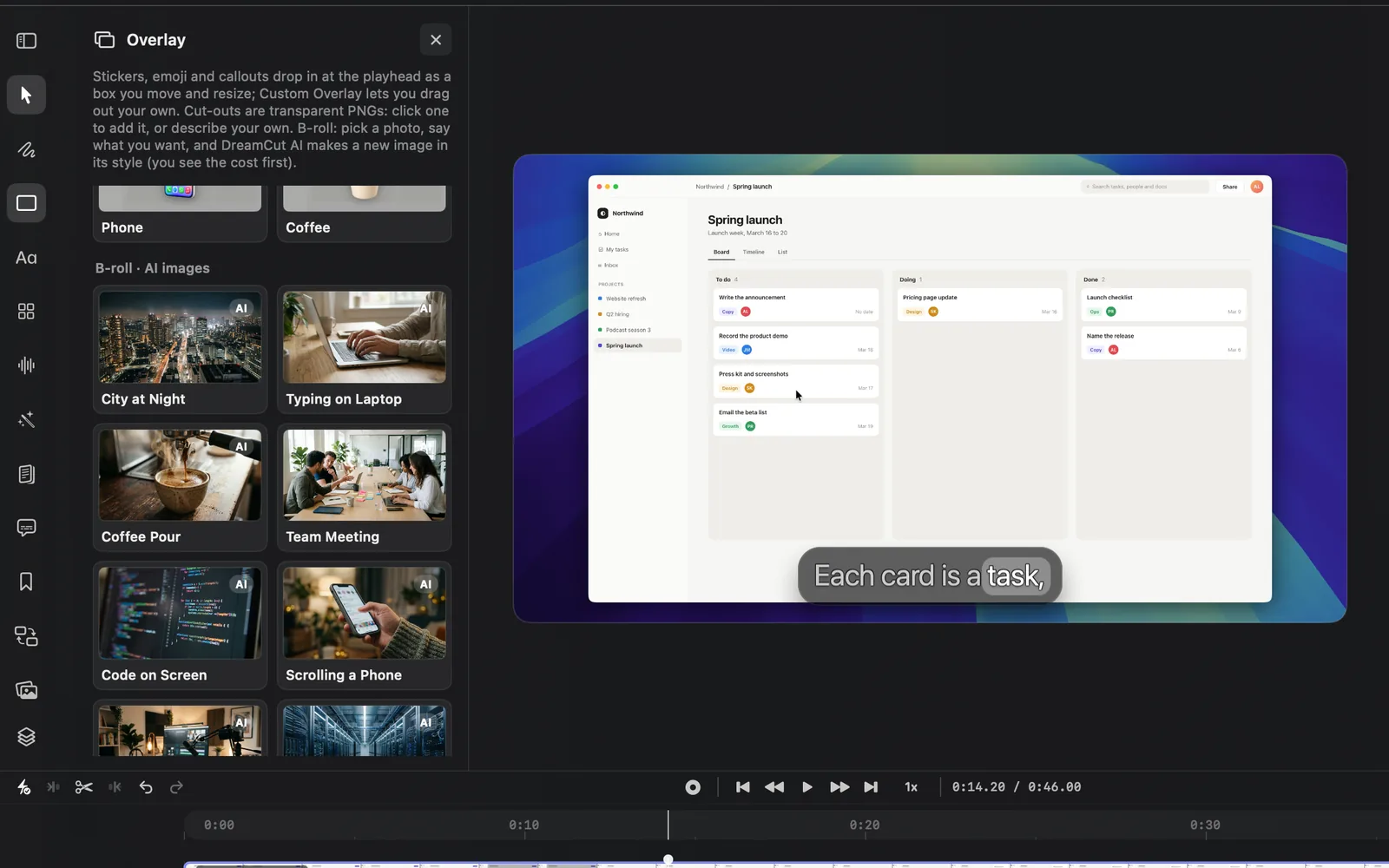
Make a B-roll image
- Move the playhead to where the cutaway should start.
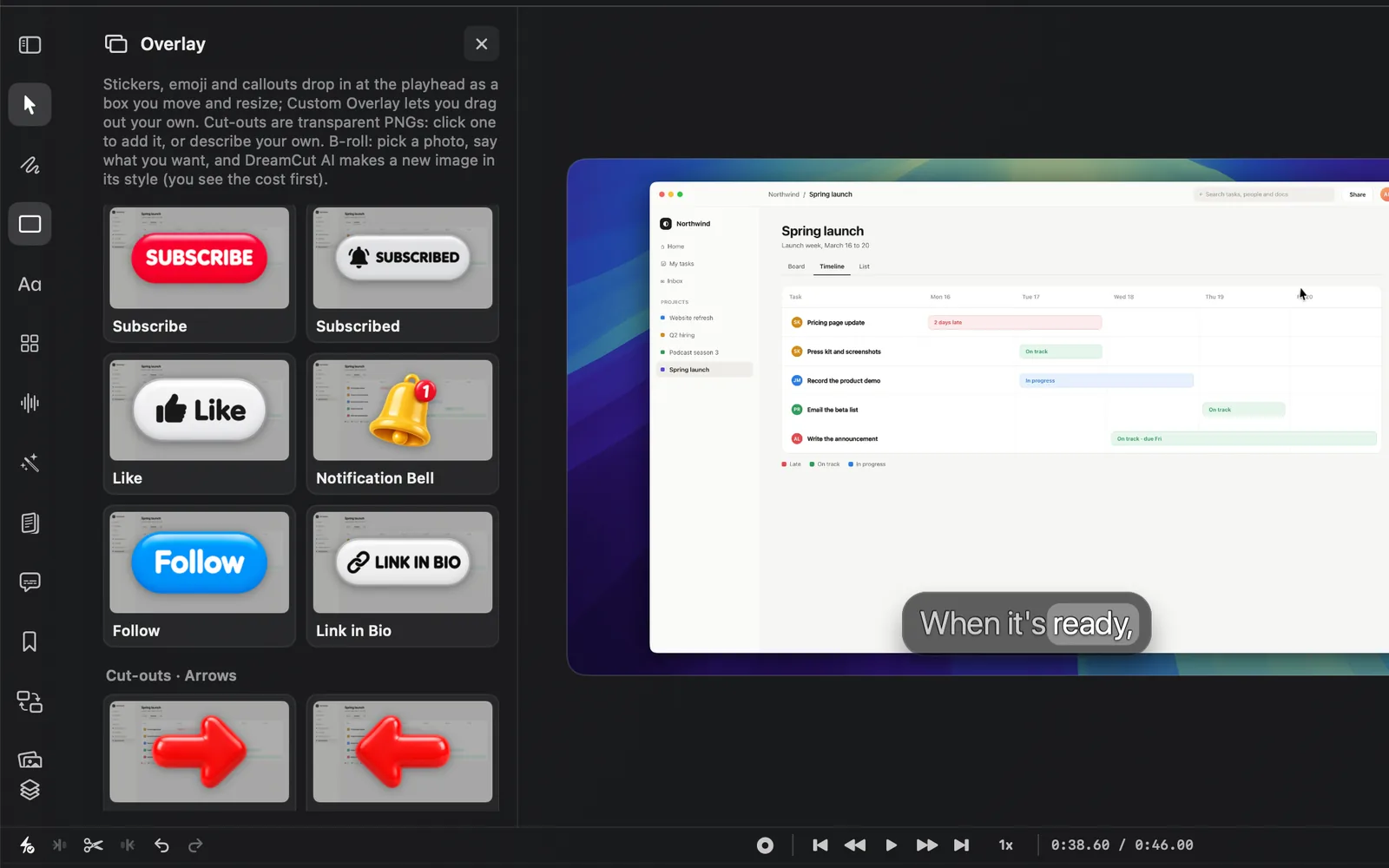
- Click Overlay in the tool rail on the left of the editor. The panel opens on Custom Overlay and the stickers.
- Scroll past the stickers and the seven groups of cut-outs to B-roll · AI images, the last group in the panel. Each photo has an AI badge.
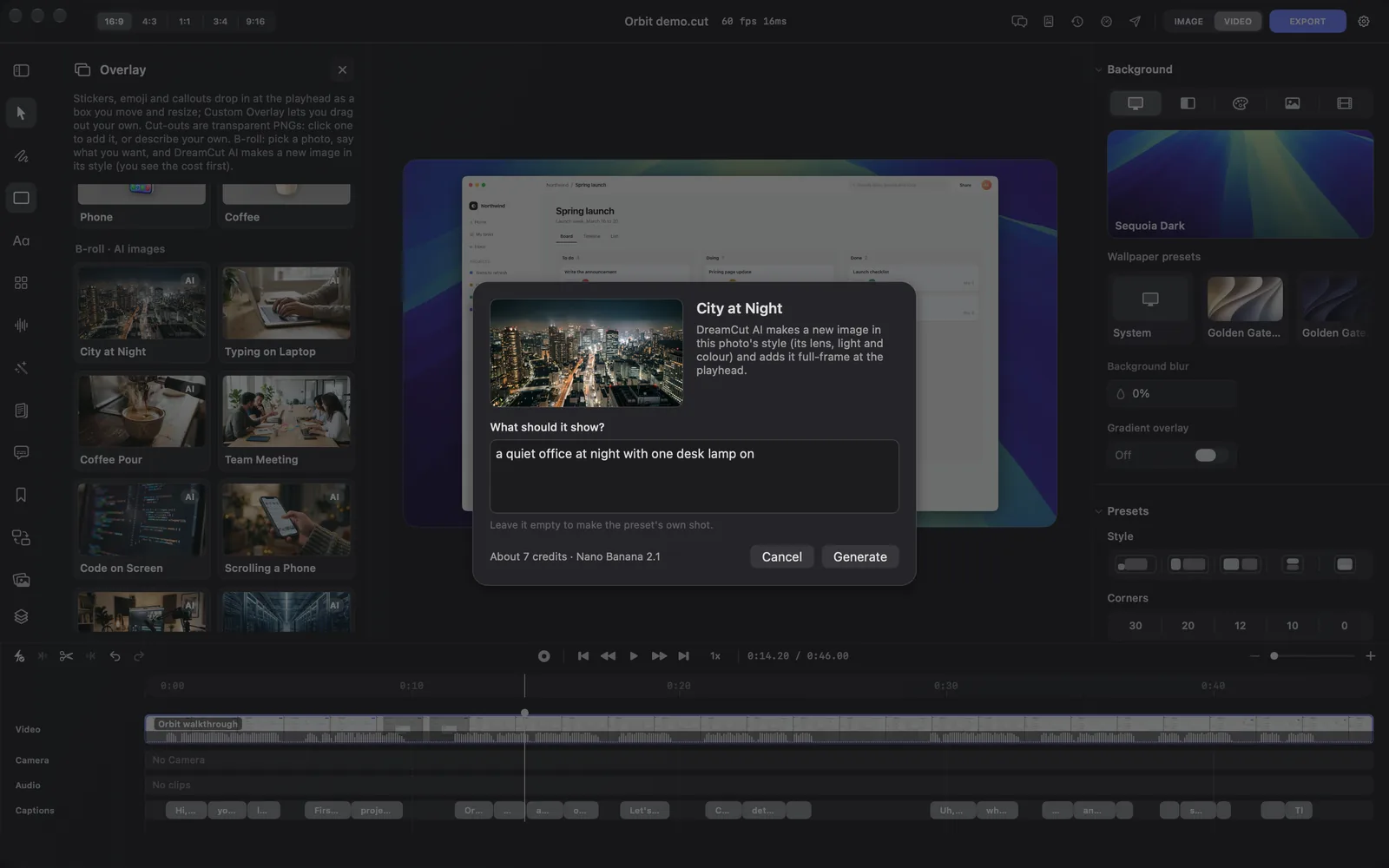
- Click a photo, such as City at Night. A sheet opens with the photo, its name and "DreamCut AI makes a new image in this photo's style (its lens, light and colour) and adds it full-frame at the playhead."
- Under What should it show?, describe the picture, such as "a quiet office at night with one desk lamp on". Leave it empty to get the photo's own shot: the line under the box reads "Leave it empty to make the preset's own shot."
- Read the cost at the bottom left of the sheet, such as "About 7 credits · Nano Banana 2.1".
- Click Generate, or press ⌘Return. Cancel or Esc closes the sheet without spending anything.
DreamCut shows "Generating the image…", and you can keep editing. When the image is ready, it lands on the Overlay lane where the playhead was when you clicked Generate, covering the whole frame for 4 seconds. A message reads "Added the image as B-roll at" and the time, such as 0:14.2.
The photo only sets the look: its lens, light and colour grade. The new image shows what you describe, in the shape of your canvas, so it fills a 9:16 video as well as a 16:9 one.
The photos
Each photo makes this shot when you leave the description empty. The box's grey example text is the start of the same shot, such as "e.g. A modern city skyline at night seen from above" for City at Night.
| Photo | Its own shot |
|---|---|
| City at Night | A city skyline at night from above, with glowing windows and light trails |
| Typing on Laptop | Hands typing on a laptop in a calm, modern workspace |
| Coffee Pour | Espresso pouring into a cup, with steam, in warm morning light |
| Team Meeting | A small team working around a table in a bright office |
| Code on Screen | Colourful code on a dark monitor |
| Scrolling a Phone | A hand scrolling a feed on a phone in evening light |
| Creator Desk | A desk with a camera on a tripod, a microphone and a glowing monitor |
| Data Center | An aisle of servers with blinking blue lights |
| Abstract Tech | A close-up of a circuit board with pulses of light |
| Ocean Waves | Turquoise waves rolling onto a white beach, from above |
| Mountain Sunrise | Misty mountain ridges at sunrise, from the air |
| Forest Light | Sunbeams through a green forest onto a path |
| Busy Street | People crossing a busy crosswalk, seen from above |
| Sketching Ideas | A hand sketching app wireframes in a notebook |
| Celebration | A team celebrating a win with a high five and confetti |
| Blue Sky | White clouds across a deep blue sky |
| Product Turntable | A product on a turntable in a neutral studio |
| Launch | A rocket lifting off at dawn |
What it costs and which model makes it
Each B-roll image costs credits. The sheet shows the cost and the model at its bottom left before anything is spent.
B-roll uses the image model picked in Generate media, and DreamCut remembers that choice. Nano Banana 2.1 is the default.
| Model | Cost line in the sheet |
|---|---|
| Nano Banana 2.1 | About 7 credits |
| Nano Banana Pro | About 16 credits |
| GPT image 2.5 | About 3 credits |
| Seedream 5.0 | About 4 credits |
| Seedream 5.0 Pro | About 9 credits |
| Seedream 5.0 Flash | About 2 credits |
To change it, click Generate media in the tool rail, pick another model from its model menu, then come back to the Overlay panel. The next sheet names the new model.
Change or replace the image
The B-roll image is an overlay: a full-frame box with the picture as its fill. Select it on the canvas or the Overlay lane to change it.
- Length: drag its ends on the timeline, or set Duration in its Animation tab.
- Size and place: drag a corner to make it smaller than the frame, such as a picture beside your recording.
- Motion: add keyframes or a Start animation in the Animation tab, so the image fades or slides in.
- Another take: click the same photo again and generate a new image. It lands as a new layer, so delete the one you don't want. There's no button that remakes the image in place, and each take costs credits.
- Your own picture: under Fill in the Overlay tab, click Set Custom Image and choose From Computer or From Media Library.
- A new image or video from it: click the wand in its toolbar (Generate with this layer) and choose Generate Image or Generate Video. See Generate media.
Every image DreamCut AI makes is saved in your media library, so it also shows in the Media gallery for later. Overlays lists all of a box's settings.
Tips and limits
- The image is still. For a sense of motion, give it a slow zoom with two keyframes, or use Generate media to make a short video instead.
- A generated image lands as one step, so ⌘Z takes it off the video. The credits it used are already spent.
- Full-frame B-roll covers your camera too while it shows. Keep cutaways short, make the image smaller so your face stays on screen, or raise the camera's Z-index above the image's (see Overlays).
- Sakura can make an AI image for you too, full-frame as B-roll or in a box. Agents can do the same, and can also place your own video files as full-frame B-roll in a 16:9 project. See MCP and the dreamcut command.
What's next
- Generate media: make pictures and video with every model and setting.
- Media gallery: find the images you've made and use them again.
- Stickers and cut-outs: animated buttons and pictures with a clear background.
- Overlays: boxes, outlines and blur over your recording.