
Chapters
Mark where each section of your video starts, name the chapters, and copy them for YouTube or export them with the video, in DreamCut's editor.
Chapters split your video into named sections people can jump to, such as "Setup" or "Demo". You mark where each one starts, and DreamCut shows them on the timeline, copies them for a YouTube description, lists them in the Publish pane and saves them in the exported video.
Add a chapter
- In the editor's left rail, click Chapters (the bookmark). The panel opens and reads "No chapters yet".
- Move the playhead to where a section starts.
- Click Add at Playhead, or press M.
- The new chapter is called "Chapter 1" and its name is selected, so you can type a better one. Press Return to keep it.
- A Chapters strip appears at the top of the timeline, with one block per chapter.
- Do the same for each section.
A chapter runs from its start to the next chapter's start, or to the end of the video. Two chapters can't start within half a second of each other: on a chapter's start, Add at Playhead is dimmed and M renames that chapter instead.
The Chapters panel
The panel lists every chapter. Each row shows a frame from where the chapter starts with its number, its name, and its start time and length, such as "0:11 · 34 s". The row of the chapter the playhead is in is lighter, and its number is highlighted.
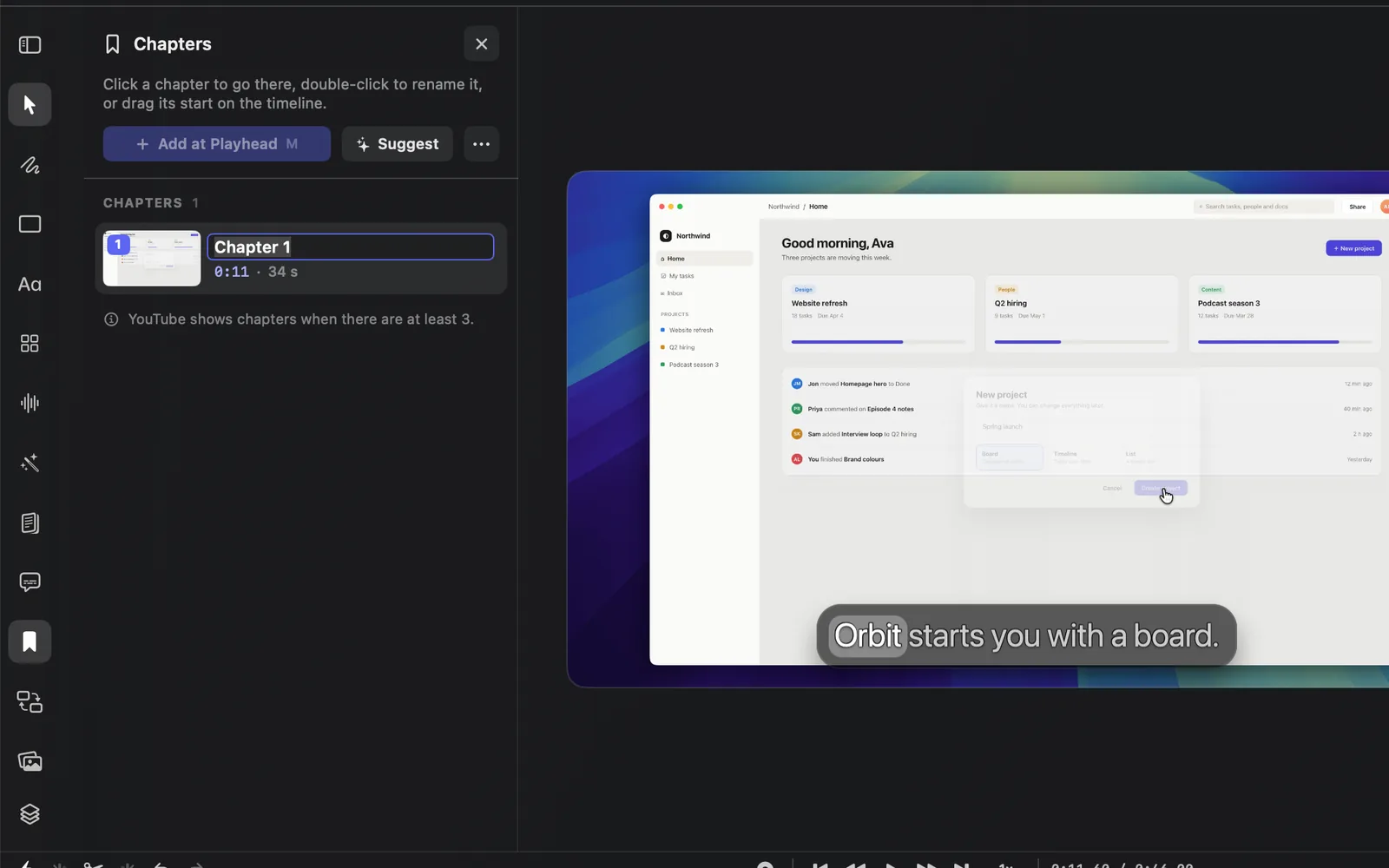
| To | Do this |
|---|---|
| Go to a chapter | Click its row in the panel or its block in the timeline strip |
| Rename it | Double-click it, or hover its row and click the pencil (Rename) |
| Delete it | Hover its row and click the trash (Delete chapter), or right-click it and choose Delete Chapter |
| Move its start | Drag the bar on the left edge of its block in the timeline strip |
| Go to the next or previous chapter | Press ⌥→ or ⌥← |
Right-click a row for Go to Chapter, Rename… and Delete Chapter. A block in the timeline strip has the same, plus Add Chapter at Playhead and Copy Chapters for YouTube.
The More menu (⋯) at the end of the panel's buttons has Copy for YouTube and Remove All Chapters. It shows once the video has a chapter.
Rename a chapter
Double-click the chapter, type its name, then press Return or Esc, or click somewhere else. A name is one line of up to 100 characters. Clear the name and the chapter goes back to its number, such as "Chapter 2".
Move where a chapter starts
In the timeline strip, drag the bar on the left edge of a chapter's block. Its tooltip reads, for example, Drag to move where Chapter 1 starts. The start snaps to the playhead and to the cuts between scenes, and stays at least half a second from the chapters either side.
Hover the strip's Chapters label for a + button that adds a chapter at the playhead. Click the label to open the panel.
Let Sakura suggest chapters
Suggest asks Sakura, the editor's AI, to split the video into chapters from what's said. Sakura opens, finds where each topic starts and gives it a short title. Its chapters replace the ones you have, and you can undo them like any Sakura edit. When the video already has chapters, it suggests better ones.
Where your chapters go
Chapters save with the project, and they follow your edits: when you cut footage, the chapters after the cut move up with it, and a chapter whose opening you cut starts where its footage picks up again.
| Place | What you get |
|---|---|
| YouTube description | Copy for YouTube copies one line per chapter, such as "0:11 Setup". When the first chapter starts 1 second or more in, a "0:00 Intro" line comes first, because YouTube needs a chapter at 0:00 |
| Publish pane | Your chapters are listed under Chapters, and they replace the Timestamps section of the YouTube description when you click Review & Publish… or upload |
| Exported video | The file carries the chapters as a chapter track, starting at 0:00 like the YouTube list, so players such as QuickTime Player and VLC list them |
AI agents such as Claude Code or Codex can set chapters for you too. See MCP and the dreamcut command.
YouTube's rules
YouTube shows chapters only when a video has at least 3, the first starts at 0:00, and each runs 10 seconds or longer. When yours don't qualify, the panel says why under the list:
| Note | What to do |
|---|---|
| "YouTube shows chapters when there are at least 3." | Add more chapters. An Intro added at 0:00 counts as one |
| "YouTube needs 10 s before the first chapter (an Intro is added at 0:00)." | Move the first chapter to 10 seconds or later, or to the very start |
| "YouTube needs chapters of 10 s or longer: …" | The note names the short chapter and its length. Move its start or the next chapter's |
What's next
- Publish: send the video to YouTube with its title, description and chapters.
- Timeline: cut and arrange the footage your chapters follow.
- Transcript editing: read what's said to find where each section starts.