
Draw arrows, circles and lines
Add arrows, circles, lines and boxes that draw themselves on at the playhead, or draw your own line on the canvas, in DreamCut's editor on the Mac.
The Draw panel adds drawings that point things out: a circle round a button, an arrow to the next step, an underline or a box. Each one lands at the playhead in a box you move and resize, and draws itself on when it plays. You can also draw your own line by hand.
Add an arrow or a circle
- In the editor, move the playhead to the moment you want to point at.
- Click Draw, the squiggle under the arrow in the tool rail on the left. The Draw panel opens beside the canvas, with Custom Drawing first and the drawings under their headings: Circles, Arrows, Lines, Flow chart, Dynamic and Shapes.
- Rest the pointer on a card to watch it draw over a frame of your video.
- Click a card, such as Curved Arrow. It lands at the playhead in its own box on the canvas, selected, and its clip appears on the Overlay lane of the timeline.
- Drag the box to where it should point, and drag its edges or corners to resize it.
- Press Space to play it.
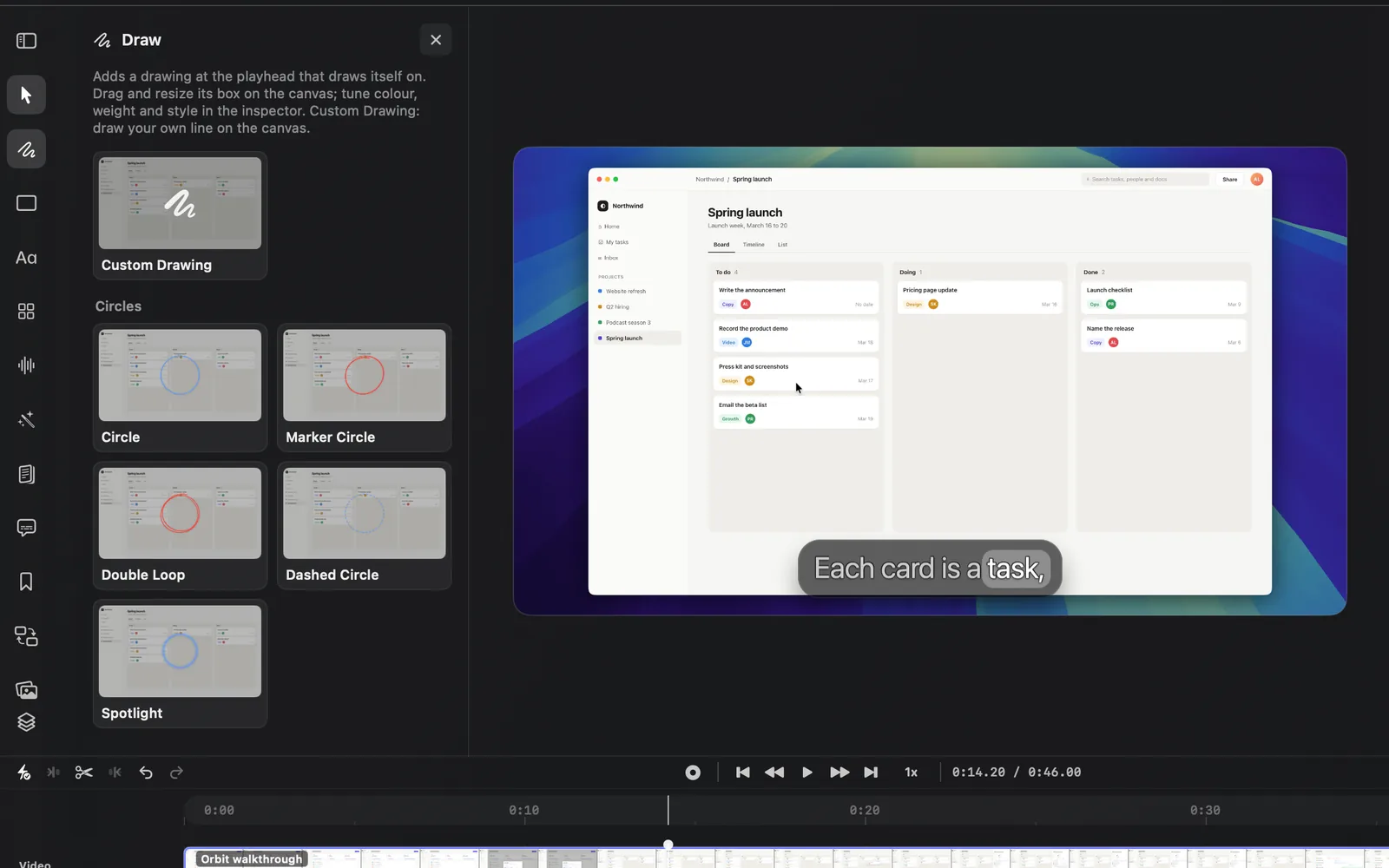
A new drawing lasts 3 seconds, or 4 for Spotlight. Near the end of the video it gets whatever time is left.
The drawings
The descriptions are the ones the app shows when you rest the pointer on a card.
| Group | Drawing | What it does |
|---|---|---|
| Circles | Circle | A perfect ring fitted to the box whips round and glides into its join |
| Marker Circle | The lopsided marker loop an editor draws round something, overshooting and lifting off | |
| Double Loop | Two loose loops in one marker stroke, or two rings drawn in opposite directions | |
| Dashed Circle | Round dashes laid as the pen passes, then marching slowly round | |
| Spotlight | A crisp ring with a soft halo that swells as ripples ring out | |
| Arrows | Arrow | A straight arrow in eight directions, its head riding the pen |
| Curved Arrow | A true arc from one end of the box to the other | |
| Marker Arrow | A swung marker shaft that bows a little, then two quick barbs | |
| Double Arrow | Grows out from its middle to a head at each end | |
| Loop Arrow | A playful arrow that turns a loop-the-loop on its way | |
| Lines | Line | A clean stroke across the box, from one end or out from its centre |
| Dotted Line | Round dots pop in one by one, with a soft ripple running along them | |
| Dashed Line | Dashes laid as the pen passes, then flowing along like a data link | |
| Brush Swoosh | A brush underline that lands heavy, swells and lifts off to a fine point | |
| Squiggle | A wave, zigzag or cursive coil scribbled across the box | |
| Flow chart | Elbow Connector | A flow-chart connector with rounded corners, a start dot and a pulse running along it |
| Curve Connector | An S-curve between two node dots, ending in an arrowhead, with a flow pulse | |
| Dynamic | Speed Lines | Streaks with fading tails whoosh across in a continuous stream |
| Burst | Emphasis rays spring out round the subject, beat while held and fly off | |
| Shapes | Rounded Box | Two pens draw from opposite corners and meet; or a marker box |
| Square | A sharp box, dashed, or four focus-frame corner brackets that snap inward | |
| Highlight Box | A translucent rounded highlight with a crisp border that wipes across |
Most drawings start blue. Marker Circle, Double Loop, Marker Arrow, Brush Swoosh and Squiggle start red. Change the colour with the swatch in the toolbar, or Color in the inspector, which also takes a Linear, Radial or Angular gradient.
Draw your own line
Custom Drawing turns the pointer into a pen, so you can circle or underline something by hand. Your line doesn't draw itself on like the drawings in the panel: it shows as you drew it for the length of its clip.
- Move the playhead to where the line should appear.
- Click Draw in the tool rail, then click Custom Drawing. The card reads "Draw on the canvas" while the pen is ready. Pressing D opens the panel with the pen ready too.
- Drag across your recording on the canvas. Start the stroke on the recording itself, not on the background around it.
- Let go. The line is added at the playhead for 2 seconds, selected, and the pointer goes back to selecting.
To put the pen down without drawing, click Custom Drawing again or press Esc.
Change your own line
Click the line to select it. It has fewer settings than a drawing from the panel: there's no preset, Speed or Exit.
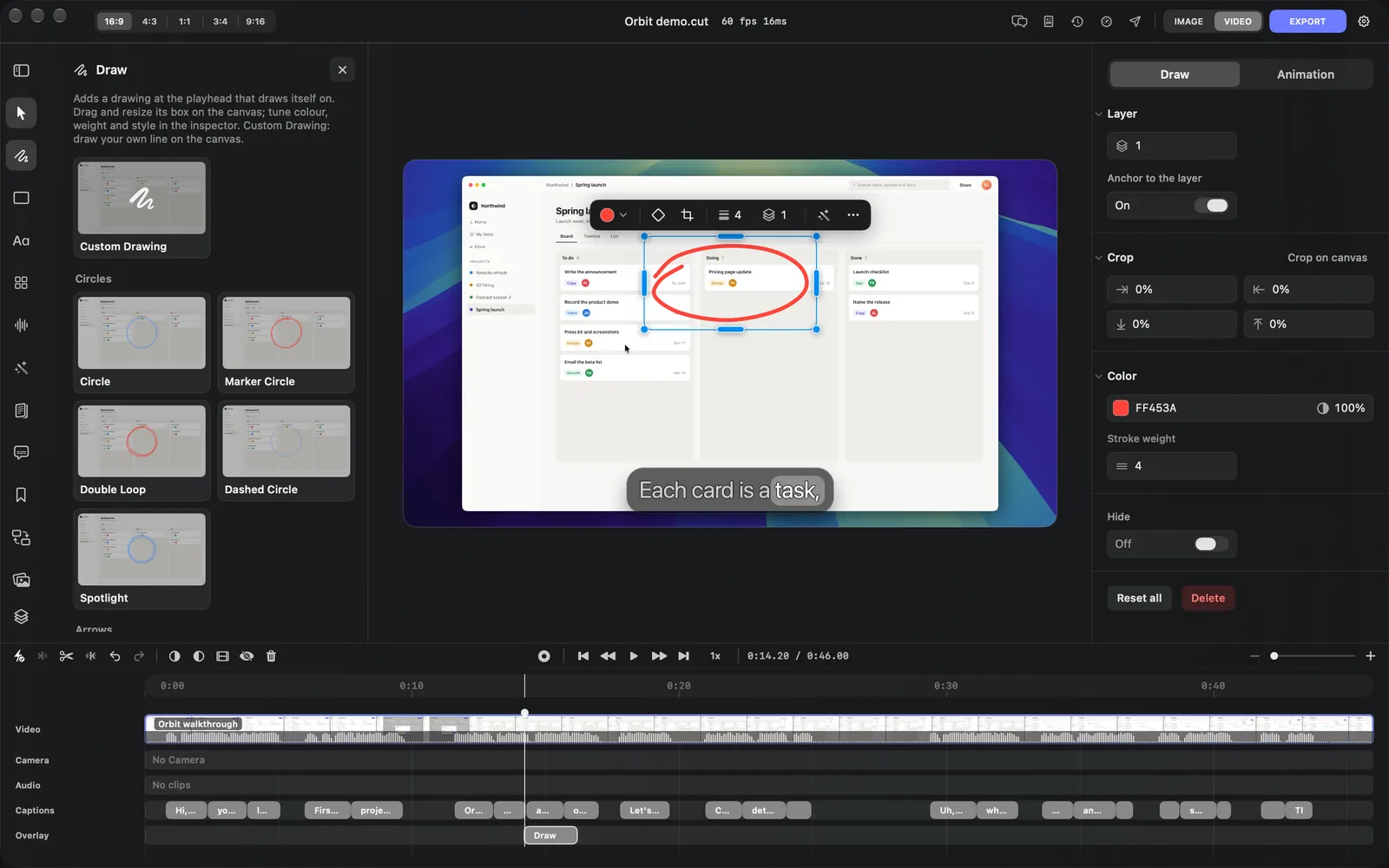
- In the toolbar: the colour swatch, then the stroke width (the lines icon), from 1 to 24.
- In the inspector's Draw tab: Layer with its stack number (Z-index) and Anchor to the layer (on to start, so the line is placed within your recording's frame), Crop, Color with its opacity, Stroke weight from 1 to 24, and Hide.
- Reset all sets the colour to FF3B30 and the stroke weight to 4, puts the stack number back to 1 and removes the line's keyframes. ⌘Z undoes it.
- Delete removes the line.
Drag the line to move it, or drag its corners to resize it, as below.
Move, resize and turn a drawing
Click a drawing on the canvas, or its clip on the Overlay lane, to select it. Then:
- Drag inside its box to move it.
- Drag an edge or a corner to resize it. The box stretches freely, so it can get wider without getting taller.
- Drag from a little outside a corner to turn it. Hold ⇧ while you turn to snap to 15° steps.
To place a drawing from the panel exactly, type X, Y, W and H in the inspector's Transform section, and an angle in the rotation field under them. X and Y are the box's top-left corner in pixels of the exported video, and W and H are percent of the canvas. While the lock beside W and H is on, as it is to start, typing one changes the other to keep the box's shape.
The drawing's toolbar
A selected drawing has a toolbar above it on the canvas. From left to right:
| Button | What it does |
|---|---|
| The preset menu, such as Curved Arrow | Switches to another drawing in the same box. A colour you picked carries over; otherwise it takes the new drawing's own colour |
| The colour swatch | The colour of the line |
| The keyframe diamond | Adds a keyframe at the playhead |
| The crop button | Crops the drawing by dragging its edges |
| The stack icon with a number | The Z-index: the layer's place in the stack, from 0 to 10. Higher sits in front |
| The wand | Generate with this layer: AI media with this layer as the context |
| More | Crop, stack order, Duplicate, Hide and Delete |
A line you drew yourself has no preset menu, and has its stroke width before the stack number.
Style a drawing in the inspector
The inspector on the right has two tabs for a drawing from the panel: Preset and Animation. Click a section's heading to fold it.
The Preset tab, from the top:
| Section | What it sets |
|---|---|
| Transform | X, Y, W, H, the rotation and the Z-index, then Anchor to the layer: on, the box is placed within your recording's frame instead of the whole canvas |
| Crop | How much to cut from each edge, in percent, or Crop on canvas to drag the edges |
| Drawing | Preset, the drawing, with a line on what it does |
| Style | Color and Shadow. The flow-chart connectors also have Accent, a second colour |
| The drawing's name, such as Curved Arrow | Speed, from 0.25× to 3×, then the drawing's own settings |
| Appearance | Corner radius |
| Hide | Takes the drawing out of the picture without deleting it |
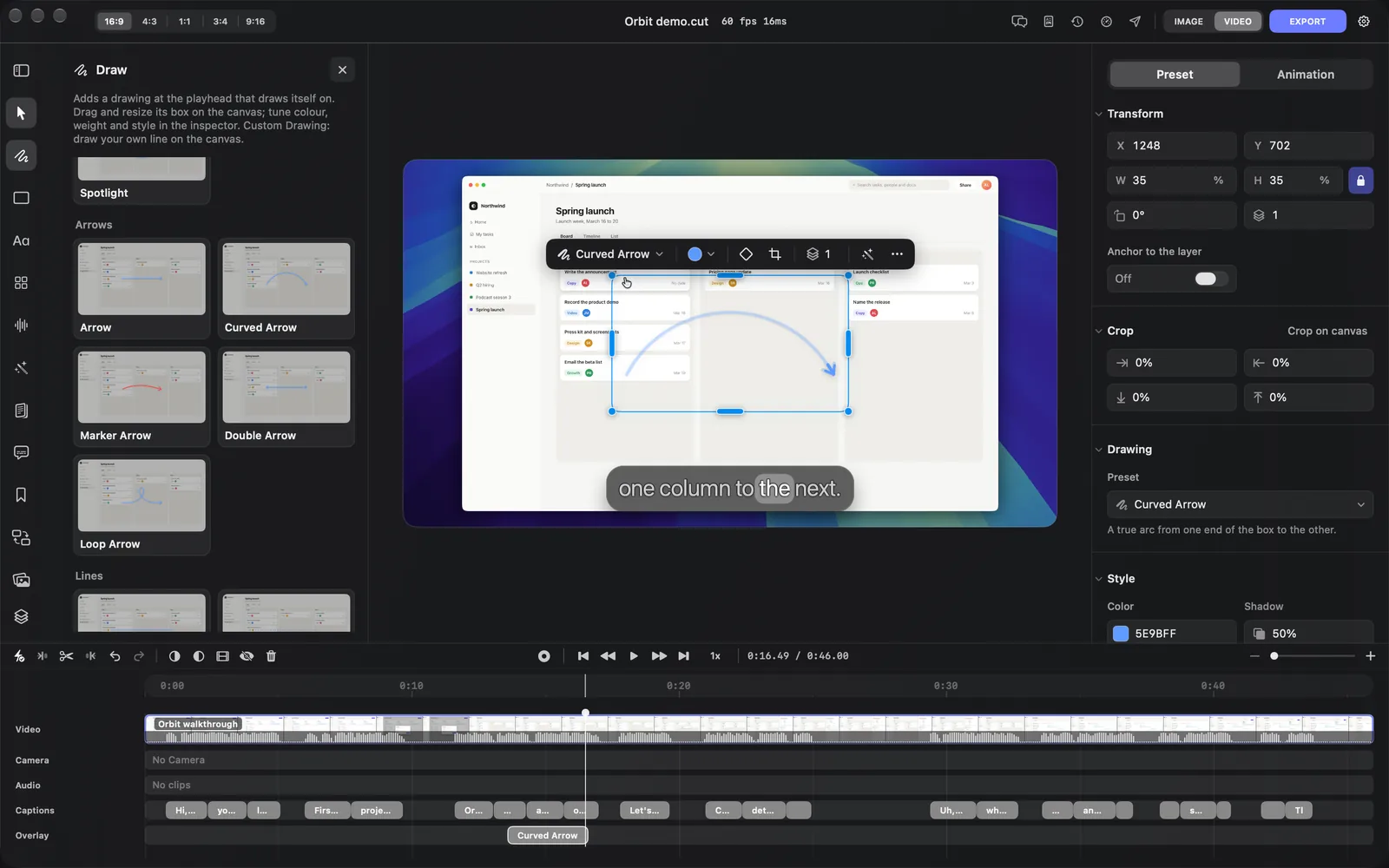
Delete at the bottom removes the drawing.
Each drawing has its own settings. These are the ones you'll see most:
| Setting | What it does | Which drawings have it |
|---|---|---|
| Stroke | How thick the line is, from 1 to 24 | Most of them. Dotted Line has Dot size, Brush Swoosh Brush width, Speed Lines Max thickness and Highlight Box Border instead |
| Direction | Which way it points or draws, such as Right, Down left or Up, or Clockwise for a circle | Arrows, lines, Circle, Marker Circle and Speed Lines |
| Curve or Bend | How far the line bows, and to which side | Curved Arrow has both. Double Arrow, Line, Dotted Line, Dashed Line and Brush Swoosh have Curve, and Marker Arrow has Bow |
| Head and Head size | An Open or Solid arrowhead, and how big it is | Arrow, Curved Arrow, Double Arrow, Loop Arrow and the flow-chart connectors. Marker Arrow has Head size only |
| Style | Clean or Hand-drawn | Arrow, Curved Arrow, Loop Arrow, Line, Rounded Box, Double Loop and Squiggle. Double Loop and Squiggle start Hand-drawn, the rest Clean |
| Style on Square | Solid, Dashed or Corners | Square only |
| Wobble | How shaky a hand-drawn line is | Marker Circle, Double Loop, Arrow, Curved Arrow, Marker Arrow, Loop Arrow, Line and Rounded Box |
| Variation | Another take of the same stroke | The drawings with Wobble, plus Brush Swoosh and Speed Lines |
| Exit | How it leaves at the end of its clip: Erase, Rewind or Fade | All but Speed Lines |
| Glow | A soft glow round the line | All but Spotlight |
The other drawings, such as Marker Circle, Marker Arrow and Brush Swoosh, have no Style choice.
Change when it shows
Drawings sit on the Overlay lane of the timeline, with shapes, stickers and pictures.
- Drag a clip along the lane to move it, or drag either end to make it start later or end sooner.
- Type exact times in the Animation tab, under Timing: Start time, Duration, Shows from and Shows until.
- A drawing draws itself on at the start of its clip and leaves with its Exit at the end. A longer clip holds it on screen longer; a very short one squeezes the draw-on. Speed speeds both up or slows them down.
The Animation tab also has Keyframes, to move or fade the drawing over time, and a Start animation for the whole layer. Edit on the timeline covers trimming, copying and the right-click menu.
Tips and limits
- Add the drawing at the moment you start talking about the thing it points at, so it draws on as you say it.
- While a drawing is selected and the playhead is in its draw-on or its exit, the canvas also shows its finished look faintly, so you can place it before it has drawn on.
- For a second circle at the same moment, such as round the next button, choose Duplicate from More in the toolbar: the copy lands beside the first. ⌘D instead places the copy right after it on the timeline, in the same spot.
- A drawing belongs to the scene under the playhead when you add it, and moves with that scene.
- Drawings use no credits.
What's next
- Overlays: shapes, boxes and pictures that don't draw themselves on.
- Stickers and cut-outs: buttons, badges, emoji and transparent pictures.
- Transitions: move from one scene to the next.
- Edit on the timeline: move and trim the layers you add.