
AI sound effects
Describe a sound or pick a preset such as Mouse click or Soft whoosh, set its length and volume, and add it at the playhead in DreamCut.
The SOUNDS tab of the AI Audio panel makes a short sound effect from a few words, such as a mouse click, a whoosh or a chime, and puts it on the Audio lane at the playhead. Use it to mark a click, a reveal or a change of scene in your recording.
Add a sound effect
- Move the playhead to where the sound should start. It has to be over a scene on the Video lane.
- Click AI Audio in the tool rail on the left of the editor, then click SOUNDS at the top of the panel.
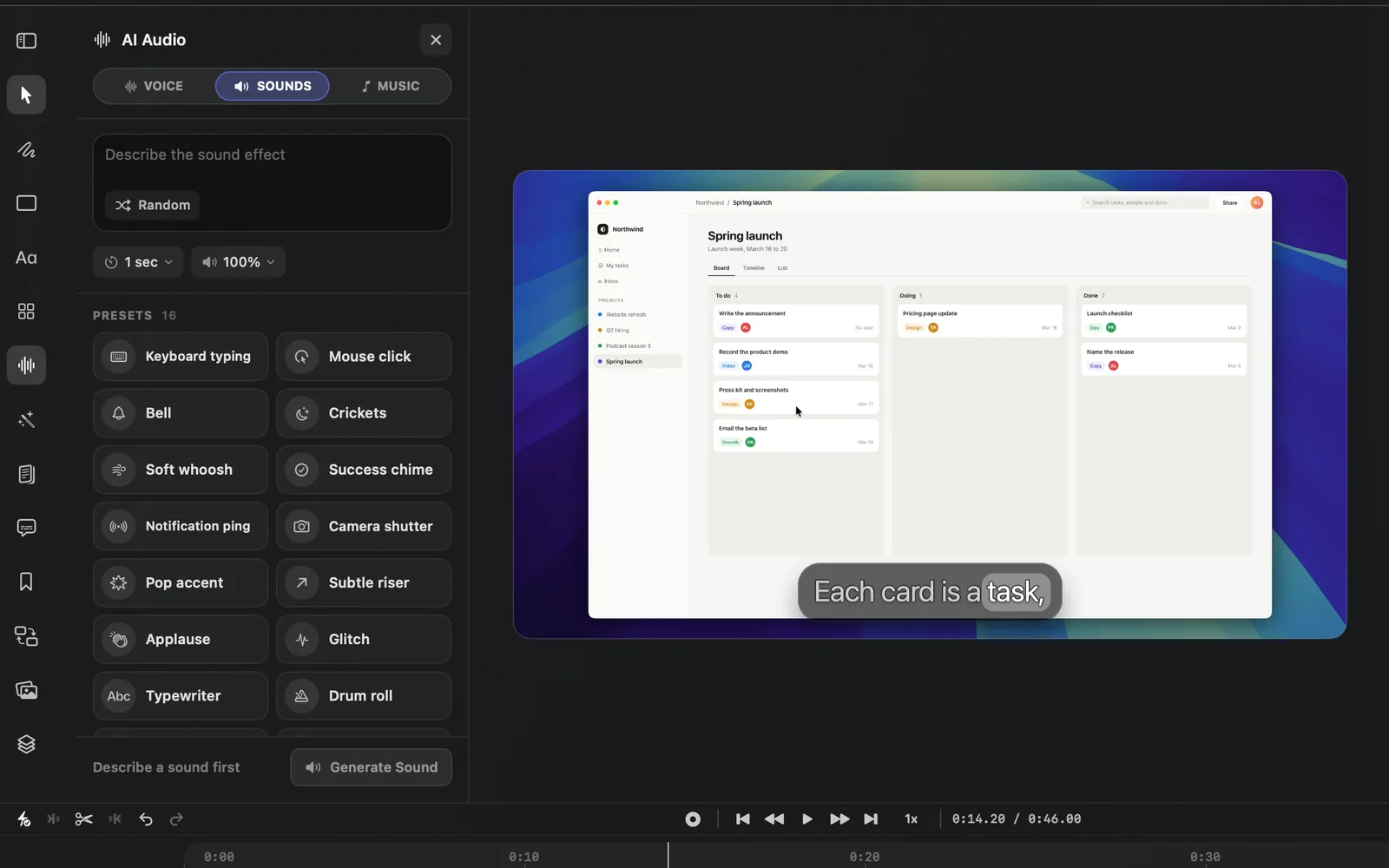
- Describe the sound in the box that reads "Describe the sound effect", such as "A soft mouse click". To start from a ready description, click a tile under PRESETS, or click Random in the box for a preset picked at random. A count of characters shows at the right of the box.
- Set how long the sound runs with the length menu (the timer, which starts at 1 sec) and how loud it plays with the volume menu (the speaker, which starts at 100%).
- Check the cost on the left of the footer, such as "~1 credit". While the box is empty it reads "Describe a sound first" and Generate Sound stays grey.
- Press Generate Sound.
While DreamCut makes the sound, the panel's controls grey out, the button turns into a spinner and the footer reads "Generating sound..." with the time so far. When it's done, "Sound generated" appears, the line above the footer reads "Added" and the new clip's name, and the sound sits on the Audio lane starting at the playhead, selected. The box empties for the next one.
Play the video from a moment before the sound to hear it in place. To move it, drag it along the Audio lane; see Timeline.
Other ways to open the SOUNDS tab
- Right-click an empty part of the Audio lane and choose Generate Sound Effects.
- Select a layer, click the wand on its canvas toolbar (Generate with this layer) and choose Generate Sound FX. It selects that layer and opens the tab; the sound still goes in at the playhead.
- Hover the Audio lane's name and click the waveform button that appears ("Generate voice, sound, or music"), then click SOUNDS.
Presets
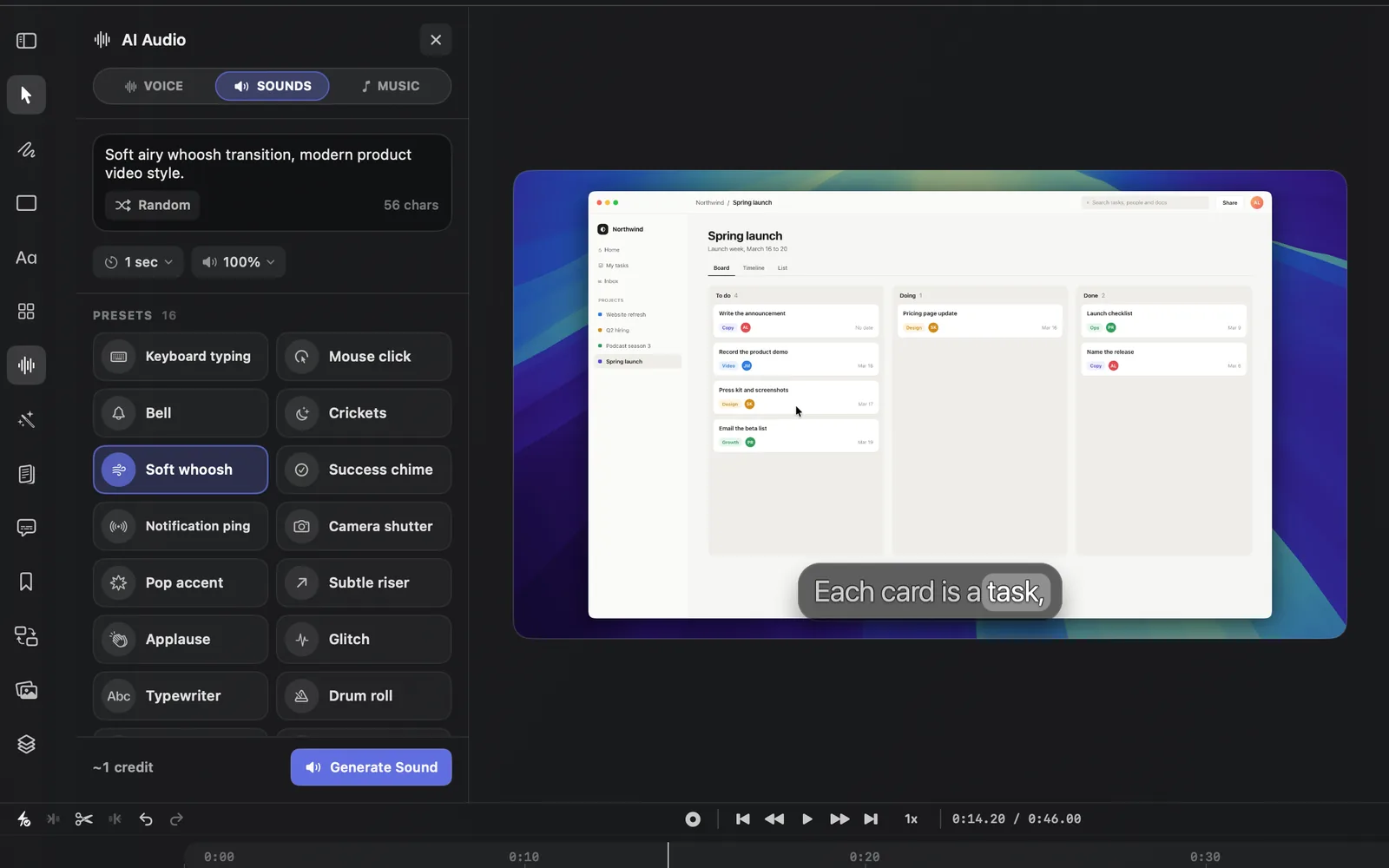
Each preset fills the box with a fuller description, which you can edit before you generate. Hover a tile to read its description. The tile whose description is in the box is highlighted in indigo.
| Preset | What it asks for |
|---|---|
| Keyboard typing | Close, crisp keyboard typing on a modern laptop, subtle room tone |
| Mouse click | Single clean computer mouse click, tactile and close |
| Bell | Bright notification bell chime, clean and minimal |
| Crickets | Soft nighttime cricket ambience, quiet and natural |
| Soft whoosh | Soft airy whoosh transition, modern product video style |
| Success chime | Short pleasant success chime for a completed action |
| Notification ping | Clean mobile notification ping, polished and subtle |
| Camera shutter | Crisp camera shutter click for a social video cutaway |
| Pop accent | Short soft pop accent for UI reveal or product callout |
| Subtle riser | Short subtle riser swell for a product reveal |
| Applause | Warm audience applause, medium room, natural and short |
| Glitch | Quick digital glitch stutter for a tech transition |
| Typewriter | Vintage typewriter keys with a bell ding at the end |
| Drum roll | Short snare drum roll building to a cymbal hit |
| Cash register | Classic cash register cha-ching, bright and clear |
| Heartbeat | Slow, deep heartbeat thump for a tense moment |
The presets scroll: Cash register and Heartbeat are at the bottom of the list.
Length and volume
| Menu | Choices | At first |
|---|---|---|
| Length (tooltip "Sound length") | 0.5, 1, 2, 3, 5, 8, 10, 15, 20 and 30 sec | 1 sec |
| Volume (tooltip "Clip volume") | 5% to 100%: every 5% up to 30%, then every 10% | 100% |
DreamCut remembers both for your next sound, even after you quit.
The volume is the new clip's own volume. To change it later, select the clip on the Audio lane and set Volume in the inspector; see Volume and fades. DreamCut has no audio fades: a sound starts and stops at the edges of its clip, so trim the clip where it should begin and end.
Write a good description
- Name the sound and its feel in one line, as the presets do: "Short soft pop accent for UI reveal".
- Keep the length close to the sound itself. A click needs well under a second; a riser or applause needs a few.
- Each press of Generate Sound makes a new clip; it never replaces the last one. If you don't like a take, delete it and press Generate Sound again, or change a word first.
Credits, sign-in and limits
- Out of credits: when your credits for the month are used up, the line above the footer reads "Out of DreamCut AI credits for this month" with what you've used, and Generate Sound is greyed out. If a sound would take you past what's left, the line also says how many credits it needs. Buy a pack or wait for the reset; see When credits run out.
- If the playhead isn't over a scene, the line reads "Move the playhead over a visible scene to generate AI sound."
- A sound is at most 30 seconds long. For a track under the whole video, use Background music instead.
- You can also ask Sakura to add a sound effect in plain words.
What's next
- Background music: put a track under the whole video from the MUSIC tab.
- AI voiceover: turn a script into speech from the VOICE tab.
- Volume and fades: set how loud each sound plays.
- Sakura: ask for sounds, music and other edits in plain words.