
Install DreamCut and grant permissions
Install DreamCut on your Mac, allow Screen Recording and Accessibility, sign in, start your Pro trial, and fix a permission that doesn't take.
DreamCut is a Mac app you download from dreamcut.ai. Before it can record, macOS needs you to allow Screen Recording and Accessibility, and you sign in with a DreamCut account on a Pro trial or plan. This page takes you from the download to the capture bar, and covers what to do when a permission doesn't take.
What you need
| To | You need |
|---|---|
| Install DreamCut, take screenshots and edit | A Mac with macOS 13 Ventura or later |
| Record video | macOS 15 Sequoia or later |
| Use DreamCut at all | A DreamCut account with a Pro trial or plan. The trial lasts 3 days, comes with 100 AI credits, and starts from inside the app |
On macOS 13 or 14, DreamCut can't record video: starting a recording shows "This Mac needs macOS 15 or newer for video recording. Update macOS, then try recording again."
Download and install
- Go to the DreamCut for Mac page and click Download for Mac.
- Open the disk image you downloaded. Drag DreamCut onto the Applications folder beside it.
- Eject the disk image, then open DreamCut from your Applications folder or with Spotlight.
- macOS asks whether you want to open an app downloaded from the internet. Click Open.
DreamCut's icon appears in the menu bar at the top of your screen. DreamCut has no home window: once you're set up, the capture bar is where you start a recording and open your projects. See Capture bar and projects.
Allow Screen Recording and Accessibility
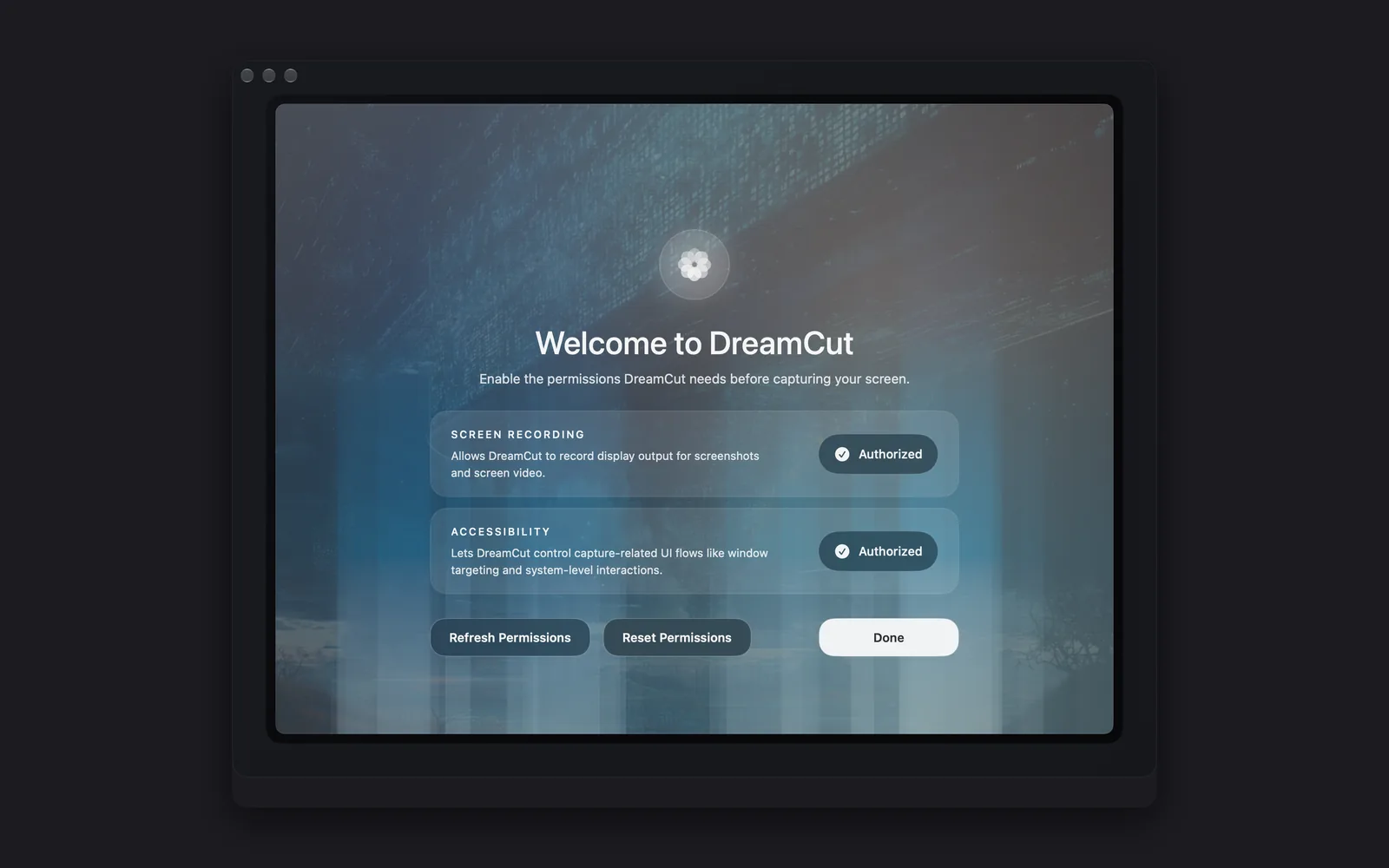
The first time you open DreamCut, it shows Welcome to DreamCut: "Enable the permissions DreamCut needs before capturing your screen." Each row has an Authorize button until macOS has given DreamCut access.
DreamCut needs both permissions before it goes any further. Until both rows read Authorized, recording, taking a screenshot, showing the capture bar or opening a project brings this window back.
What DreamCut uses them for:
- Screen Recording: recording what's on your display, for screenshots and screen video.
- Accessibility:
- Bringing the window you pick to the front for a capture.
- The quick capture double taps (⌃⌃, ⌥⌥, ⌘⌘) while you're in another app.
- Holding fn to dictate in other apps and paste where you're typing.
- Next to Screen Recording, click Authorize. System Settings opens at the Screen Recording list in Privacy & Security. On macOS 15 and later it's called Screen & System Audio Recording. The first time, macOS may also show its own prompt; its Open System Settings button goes to the same list.
- Turn on DreamCut in the list. If DreamCut isn't there, click Authorize again, since asking macOS is what adds it.
- If an alert asks you to quit and reopen DreamCut, click Quit & Reopen: macOS shows one when you turn DreamCut on, and DreamCut shows Relaunch DreamCut if the window can't see the new setting yet.
- Back in DreamCut, the row reads Authorized. DreamCut checks again each time you switch back to it.
- Next to Accessibility, click Authorize, and turn on DreamCut in the Accessibility list the same way.
- When both rows read Authorized, click Done.
The other buttons:
| Button | What it does |
|---|---|
| Refresh Permissions | Checks both permissions again, for when a row hasn't caught up with System Settings |
| Reset Permissions | Clears DreamCut's Screen Recording, Accessibility, Camera and Microphone permissions so you can grant them again from scratch. DreamCut then asks you to quit and reopen it |
| Done | Closes the window and moves on: to signing in if you're signed out, to the Start your DreamCut Pro trial window if you're signed in without a trial or plan, or straight to the capture bar if you have one |
If you click Done before both rows read Authorized, the window comes back straight away, as soon as DreamCut checks the permissions again, and each time you open DreamCut.
Sign in
After the permissions, DreamCut shows Sign In to DreamCut.
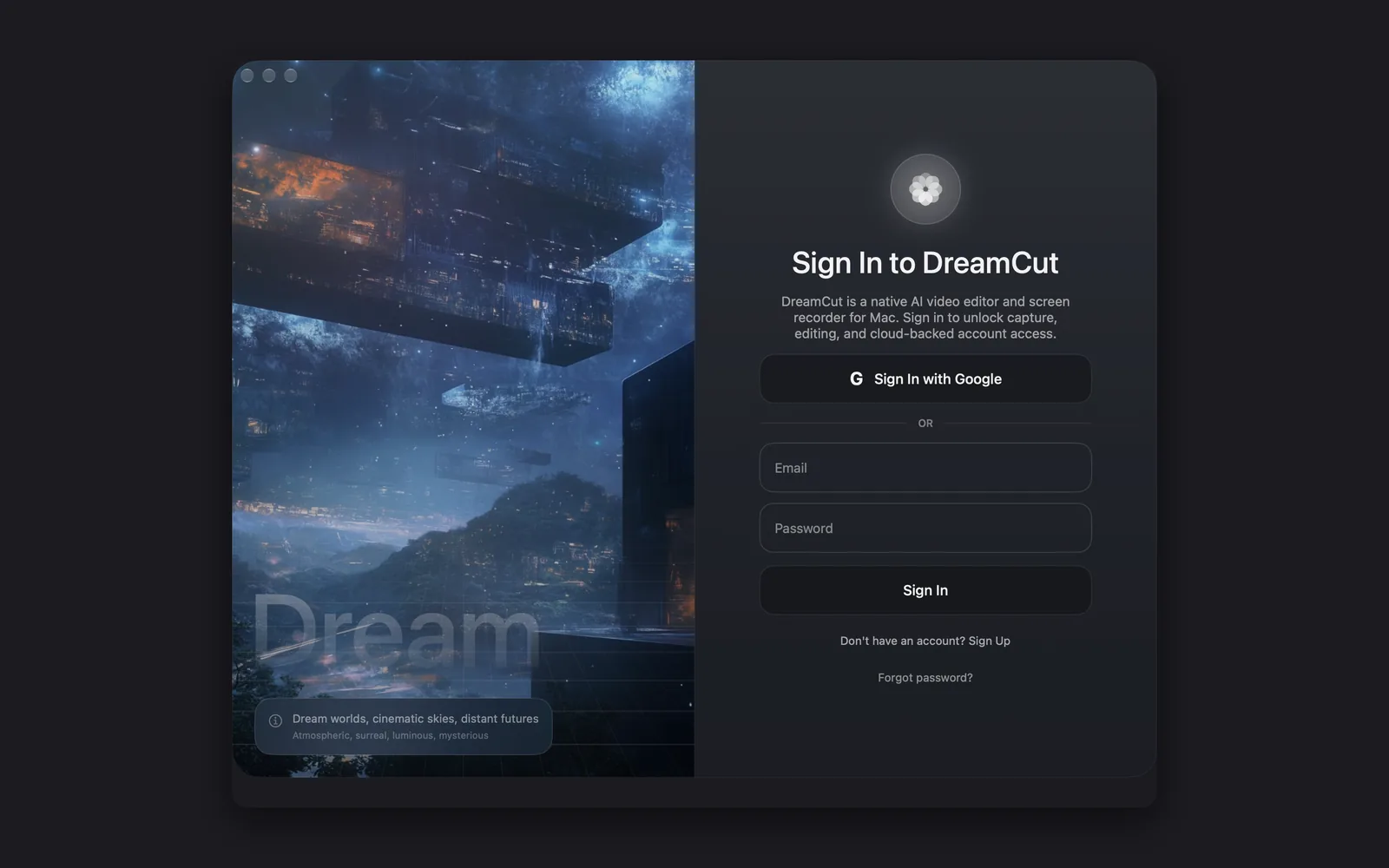
- Click Sign In with Google and choose your Google account, or type your Email and Password and click Sign In.
- New to DreamCut? Click Don't have an account? Sign Up. The window turns into Create your DreamCut account: click Sign Up with Google, or type an email and a password and click Create Account. Already have an account? Sign In switches back.
Forgot your password? Click Forgot password?, type your email, and click Send Password Reset. DreamCut confirms with "Password reset email sent. Please check your inbox." Back to Sign In returns to the form.
Start your Pro trial
DreamCut needs a Pro trial or plan for everything: recording, editing, AI features and dictation. If your account doesn't have one yet, Start your DreamCut Pro trial opens after you sign in.
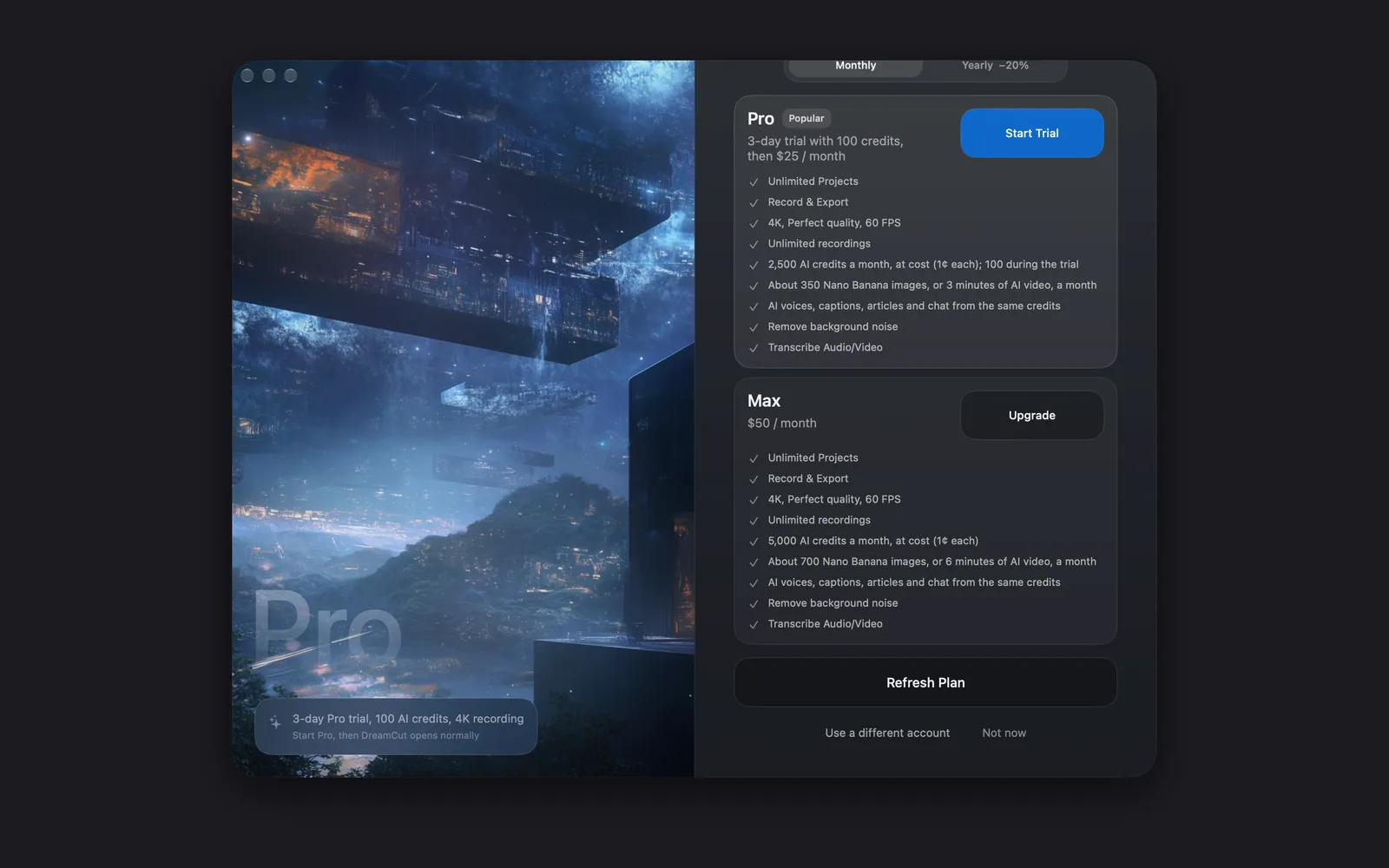
- On the Pro card, click Start Trial. Stripe checkout opens in your browser.
- Finish checkout, then come back to DreamCut. Checkout asks for a card and charges it when the 3 days are up. The trial is only for accounts that have never subscribed before.
- Click Refresh Plan. Once DreamCut sees your trial, the window closes and the capture bar appears. If it says "Your plan has not changed yet", wait a moment and click Refresh Plan again.
Use a different account signs you out and goes back to sign-in; Not now closes the window. To pay yearly or start on Max instead, see Plans and credits.
Camera and microphone
DreamCut doesn't ask for your camera and microphone up front. macOS asks the first time DreamCut uses them:
- Camera: when you turn on a camera on the capture bar and its live preview starts, or start a recording with the camera on. The prompt says "DreamCut uses the camera to record facecam overlays and capture avatar photos."
- Microphone: when you click No Mic on the capture bar and pick a microphone, since its level meter starts listening straight away. Otherwise, when you start a recording with the microphone on, or hold fn to dictate. The prompt says "DreamCut uses the microphone to capture narration and generate AI captions."
Allow each one when macOS asks. If you turn the camera down, its preview reads "Camera permission denied". A recording with a refused camera or microphone won't start, and DreamCut says why: "Camera permission is required to include the camera in this recording." or "Microphone permission is required to include microphone audio in this recording." To fix it, open System Settings, go to Privacy & Security, then Camera or Microphone, and turn on DreamCut.
Find DreamCut in the menu bar
Click the DreamCut icon in the menu bar for its menu. The items you'll use first:
| Item | What it does |
|---|---|
| New recording... ⌃⌘Return | Shows the capture bar, ready to record. The shortcut works only while this menu is open |
| Show Recording Bar | Brings back the capture bar after you've hidden it |
| Show settings ⌘, | Opens DreamCut's Settings. See Settings |
| Show Permissions Setup | Opens Welcome to DreamCut again, to check or redo the permissions. The capture bar hides until you click Done |
| Show DreamCut in Dock ⌘D | DreamCut shows in the Dock to start with. Turn this off to keep it to the menu bar |
| Check for updates... | Opens the Updates window and looks for a newer version |
| Quit app | Quits DreamCut |
Keep DreamCut up to date
When a new version is out, the capture bar shows Update available with the version number and what changed.
- Update asks first, with "Install DreamCut" and the version number. Save your work in any open editor, then click Install Update: DreamCut quits, installs the new version and reopens. Cancel keeps the version you have.
- Skip hides the banner for that version. It comes back when a newer version is out.
To check yourself, choose Check for updates... in the menu bar menu. The Updates window opens and checks; when a newer version is out, click Update now there, even for a version you skipped.
When a permission doesn't work
macOS applies Screen Recording to an app only after the app restarts, so most problems end with quitting and reopening DreamCut. When DreamCut needs that, it shows an alert titled Relaunch DreamCut, Permissions Reset or Quit & Reopen DreamCut. Each has two buttons: Quit & Reopen does it for you; Later leaves DreamCut open, and the change takes effect the next time you open it.
| What you see | What to do |
|---|---|
| DreamCut is on in System Settings, but its row still says Authorize | Click Refresh Permissions. If the row doesn't change, quit and reopen DreamCut |
| DreamCut isn't in the Screen Recording or Accessibility list | Make sure you opened DreamCut from Applications, not from the disk image. Click Authorize again, or click + under the list and add DreamCut from Applications |
| The Relaunch DreamCut alert, after you authorize Screen Recording | Click Quit & Reopen, so the window can show the latest setting |
| A permission is on, but recording still fails after reopening | Open Show Permissions Setup, click Reset Permissions, then Quit & Reopen in the Permissions Reset alert. Authorize each permission again after DreamCut reopens |
| The Quit & Reopen DreamCut alert when you click Authorize | You reset the permissions and haven't reopened DreamCut yet. Click Quit & Reopen, then authorize again |
| The Reset Failed alert | DreamCut couldn't reset the permissions itself. The alert lists the Terminal commands that reset each one |
| "This Mac needs macOS 15 or newer for video recording." | Update macOS to record video. Screenshots work on macOS 13 and later |
| Double taps work only while DreamCut is in front, or dictation says "Copied. Allow Accessibility to paste" | Authorize Accessibility, then try again |
| The camera or microphone doesn't record | Turn on DreamCut in System Settings, under Privacy & Security, then Camera or Microphone |
What's next
- Quickstart: record, edit and export your first video.
- Capture bar and projects: what each part of the capture bar does, and where your projects are saved.
- Record your screen: pick a display, a window or an area and start recording.
- Plans and credits: what Pro and Max include, and how credits work.