
AI avatars and presenters
Turn a script into a talking presenter with HeyGen in DreamCut: pick or make an avatar from a photo, your camera or a digital twin, then choose a voice.
An AI avatar is a presenter who says what you write. You choose a face, a voice and a script in the Generate media panel, HeyGen makes the video, and DreamCut adds it to your project as a scene or on the Camera lane.
Make a talking avatar
- Click Generate media on the tool rail, then click VIDEO.
- Open the model menu (it shows the current model, such as Grok Imagine Video) and choose HeyGen Photo Avatar. The prompt now reads "Write what the avatar should say".
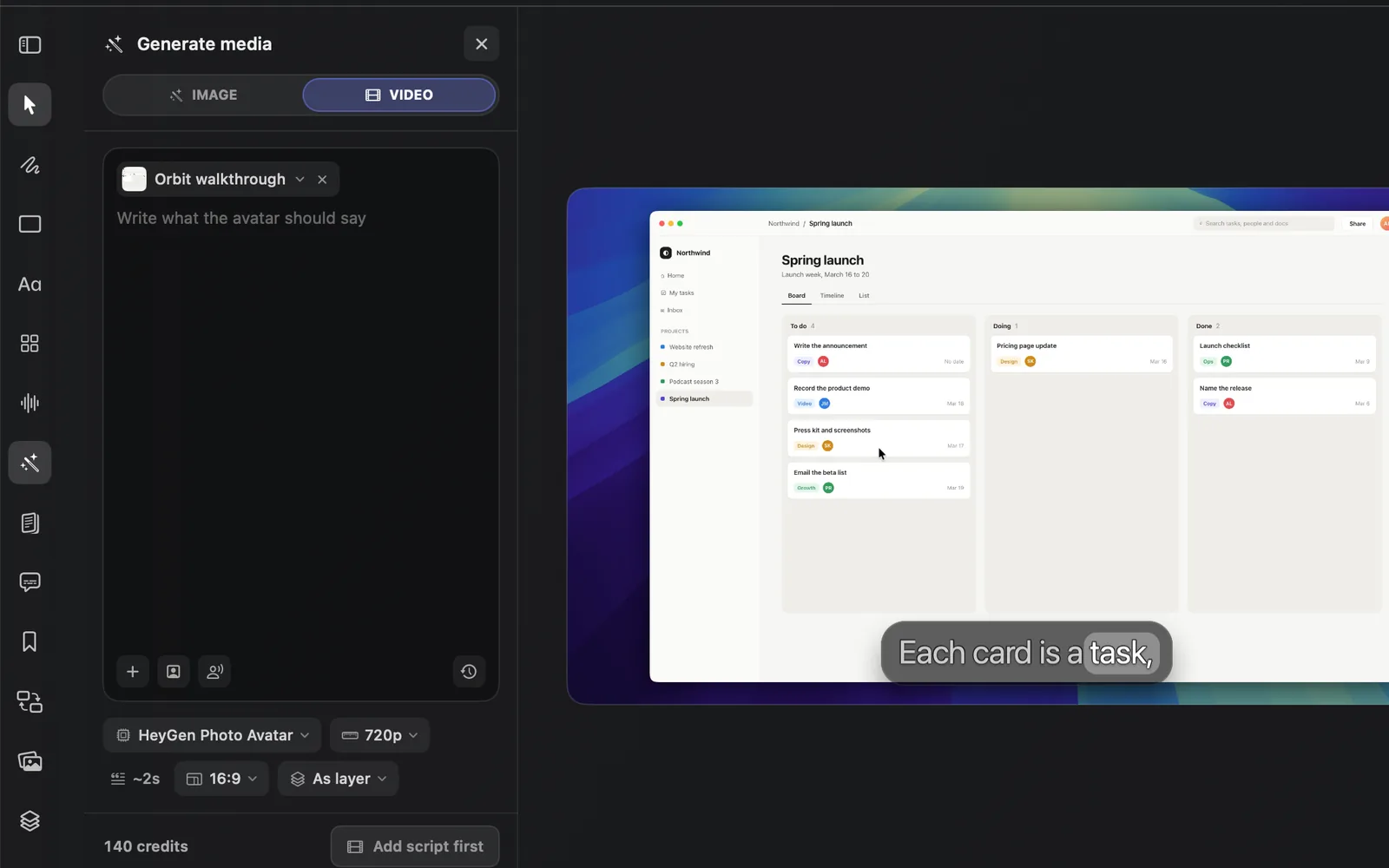
- Click the person button at the bottom left of the prompt (Choose a HeyGen avatar) and pick an avatar. See Choose or add an avatar.
- Check the voice. Once HeyGen's voices have loaded, DreamCut picks one for you and shows it as a chip on the prompt, such as Meng 2026 Pro in the pictures, a cloned voice. To pick another, click the chip, or the voice button (Choose a HeyGen voice, a person with sound waves) if no chip shows.
- Type the script in the prompt.
- The length chip estimates how long the video runs from your script: ~2s with no script yet, and ~7s for the 13-word sentence in the pictures. HeyGen sets the final length.
- Choose the quality (720p or 1080p), the shape (16:9 or 9:16) and where it goes: As layer for a new scene at the end of the Video lane, or As camera for the Camera lane at the playhead. With a scene or camera clip selected, the menu also offers Replace selected layer or Replace selected camera; see Where the result goes.
- Read the cost to the left of the button, such as "27 credits", and click Generate Video. Until you type a script, the button reads Add script first.
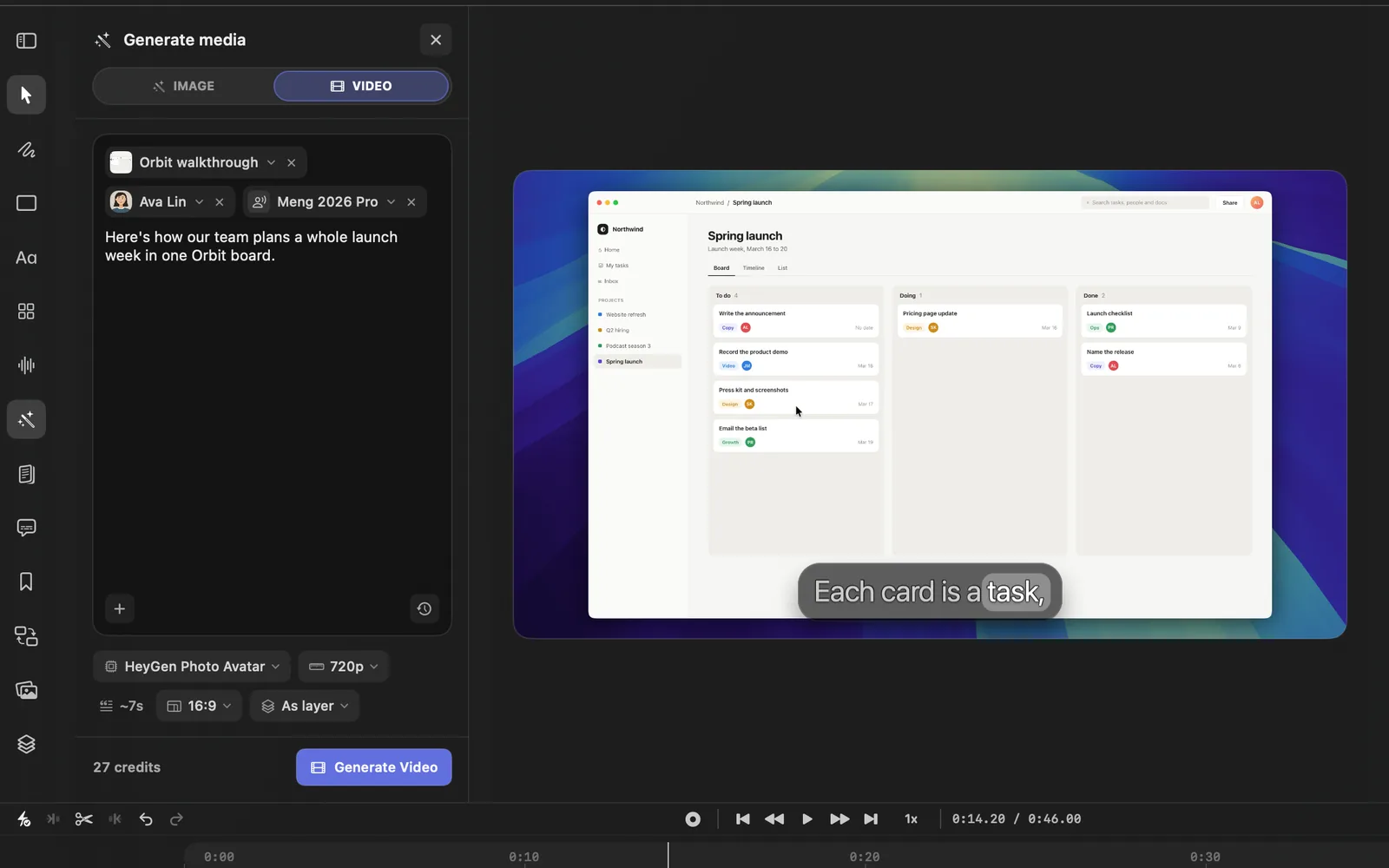
The avatar and voice you pick show as chips on top of the prompt, with their names, and their buttons under the prompt go away. Click a chip to change it, or its × to remove it.
Choose or add an avatar
The person button opens Avatars in the panel, with two tabs: CHOOSE and CREATE. CHOOSE lists the avatars you've made and up to 16 of HeyGen's ready-made photo avatars. Type in Search avatars to find one, and click it to use it. Your own avatars can be renamed, previewed or deleted from their tiles.
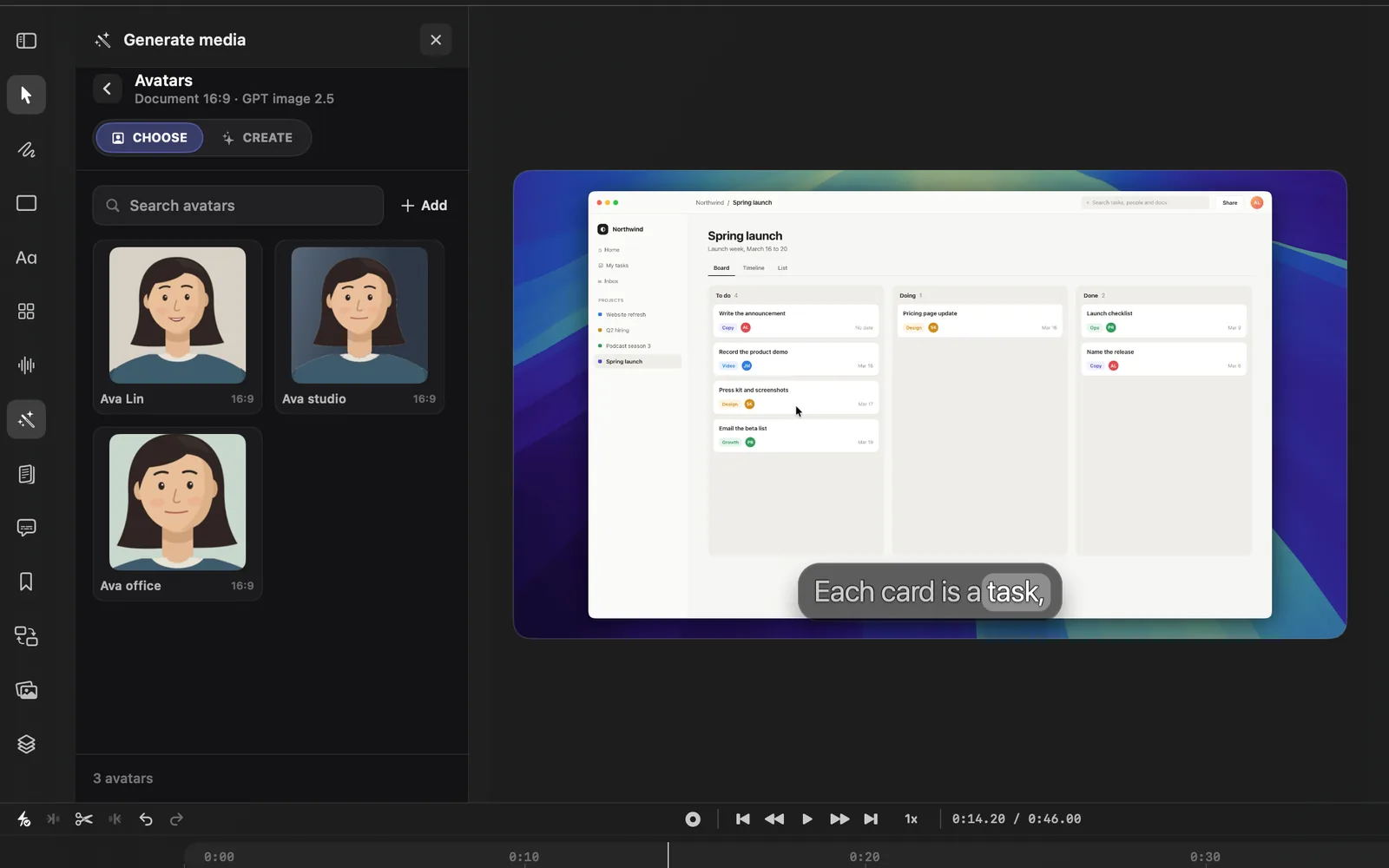
Click Add to make a new avatar:
| Option | What it does |
|---|---|
| Upload Photo from Computer | Pick a portrait (an image of 10 MB or less), name it, and click Create Avatar. DreamCut uploads it to HeyGen |
| Upload Photo from Media Library | The same, with a picture from DreamCut's media |
| Capture Photo with Camera | Take a photo of yourself with your camera (below) |
| Create Digital Twin | Record 15–30 seconds of yourself talking, and HeyGen trains an avatar that moves like you (below) |
A new avatar shows in the grid while HeyGen makes it, and DreamCut checks on it for you. When it's done, the panel reads, for example, "Ava is ready to use."
Take a photo with your camera
- Click Add, then Capture Photo with Camera. The Capture Avatar Photo window opens.
- Pick your camera under Camera Source and follow the Capture Guide: face the camera with your eyes visible, keep your head and shoulders in the frame, and use soft front light and a simple background.
- Click Take Photo. Click Retake if you want another.
- Type an Avatar Name and click Generate Avatar.
Record a digital twin
A digital twin is made from video of you, so it moves and speaks more like you than a photo avatar does.
- Click Add, then Create Digital Twin.
- Pick your camera and microphone under Camera Source and Microphone Source, and type an Avatar Name.
- Click Start Recording and read the Read Aloud text naturally for at least 15 seconds. The recording stops at 30 seconds, or click Stop Recording.
- Follow the Recording Guide: keep your face, mouth and shoulders visible, use steady front light in a quiet room, and avoid cuts, filters, fast movement and other people.
- Click Create Digital Twin. DreamCut uploads the footage, and HeyGen opens a consent page in your browser. Complete it to finish: the twin trains in HeyGen, and DreamCut tells you when it's ready.
Make an avatar from a prompt
The CREATE tab makes a new face from a description. When you open it, DreamCut has AI draft a name, options and a prompt for you to change, which uses a little of your credits.
- In Avatars, click CREATE.
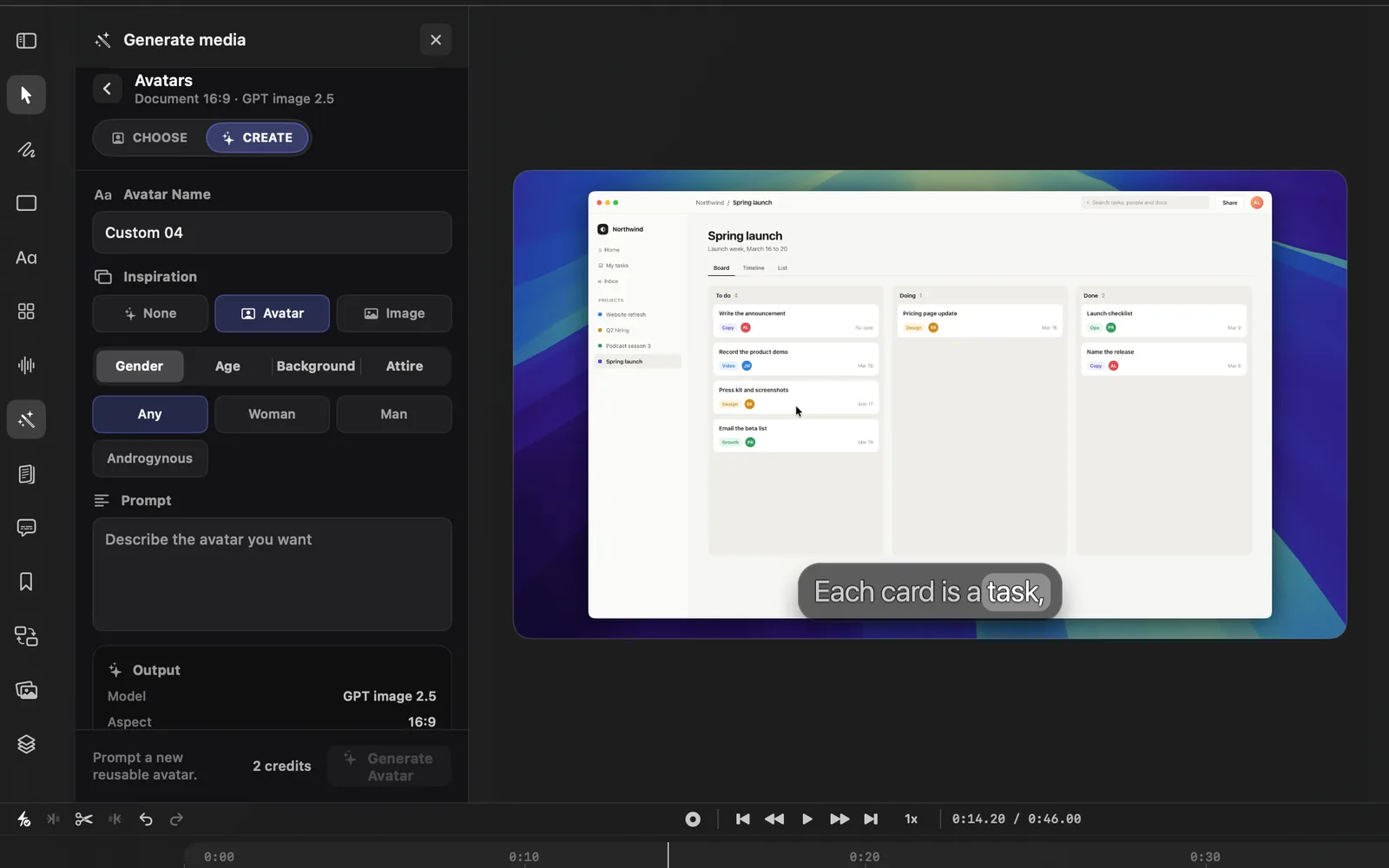
- Check the Avatar Name.
- Under Inspiration, choose None for a fresh face, Avatar to borrow the framing, lighting and pose of one of your avatars, or Image to take inspiration from a picture on your Mac.
- Pick from the four tabs:
- Gender: Any, Woman, Man, Androgynous.
- Age: Young Adult, Adult, Middle-aged, Senior.
- Background: Studio, iPhone, Office, Home, Neutral.
- Attire: Casual, Professional, Business Casual, Creator, Editorial.
- Describe the person under Prompt ("Describe the avatar you want").
- Click Generate Avatar, or press ⌘Return.
DreamCut makes a portrait with GPT image 2.5 at 2K, in your project's shape, then creates a HeyGen avatar from it. The Output summary shows the cost of the portrait before you start, a couple of credits.
Pick a voice
The voice button opens Voices, with HeyGen's voices. Search them, filter by language, keep favourites, or clone your own voice to make an avatar sound like you. AI voiceover and Voice cloning cover the voice list and cloning.
Other ways to make a presenter
The VIDEO tab has four more models for talking people:
| Model | What it does | What it needs |
|---|---|---|
| HeyGen Video Agent | Makes a video from your prompt | A prompt, with any pictures, videos, text files, sound or HeyGen voice you add |
| HeyGen Lip Sync Speed | Makes the person in a video say new words | A video (Camera video or a video file), and sound or a HeyGen voice with a script |
| HeyGen Lip Sync Precision | The same, on HeyGen's higher-precision tier | The same as Speed |
| OmniHuman 1.5 | Makes a picture of a person talk | A picture, and sound: Timeline audio, Audio file…, or your camera clip's sound |
For lip sync, the prompt reads "Write what the selected voice should say, or attach audio". The button tells you what's missing: Add video first, Add audio or voice or Add script first.
Avatars in templates and Sakura
- Templates: the UGC and Long Form templates plan shots of the avatar you choose under Avatar in the draft. They make pictures and voiceovers, not avatar video. See Templates.
- Sakura: ask "Add a talking avatar at 0:05 that says: here's what we'll build today." Sakura uses one of your avatars and a voice, and its card shows the estimated cost and waits for Apply. When the video is ready, it goes on the Camera lane, or over the video or full frame if you ask. Sakura can also make a photo avatar from your camera at the playhead when you ask, and you name it first. See Sakura.
- Agents: an agent can add a talking avatar the same way over MCP and the dreamcut command.
Credits and limits
| Avatar | Credits a second |
|---|---|
| Any avatar HeyGen renders with its Avatar V engine | 12 |
| A digital twin or HeyGen studio avatar | About 8 |
| A photo avatar | About 3.85 |
DreamCut estimates the length from your script at about 140 words a minute, plus a quarter of a second for each sentence and a little under a second more, from 2 to 180 seconds. A 20-second script with a saved photo avatar is about 77 credits.
Without an avatar from CHOOSE, making the photo avatar adds 132 credits to every video: the 140 credits with nothing picked are 132 plus 2 seconds at 3.85. With Ava Lin picked from CHOOSE, the 27 credits are only the 7 seconds at 3.85. To use the same face again, save it once with Add in Avatars and pick it each time, so later videos skip the 132.
Lip sync costs 1.4 credits a second on Speed and 2.9 on Precision. HeyGen Video Agent costs 9.7 a second, and OmniHuman 1.5 costs 12. Generate images and videos lists every model.
What's next
- Templates: plan a UGC or Long Form video around your avatar.
- AI voiceover: pick and preview voices, or add a voiceover on its own.
- Sakura: ask for an avatar, captions and edits in plain words.
- B-roll: cut away from your presenter to clips that show what they're saying.