
Background music
Generate background music from a description or a mood, or upload your own track, then choose where it plays, whether it loops and how loud.
The MUSIC tab of the AI Audio panel gives your project one background track. Describe the music or pick a mood and DreamCut composes an instrumental track as long as your video, or upload a song you already have. It plays on the Music lane, at 20% volume at first so it sits under your voice.
Generate music
- Click AI Audio in the tool rail on the left of the editor, then click MUSIC at the top of the panel (the panel opens on VOICE at first, then on the tab you used last). There are other ways to open the tab from the timeline and the canvas.
- Describe the music in the box that reads "Describe the background music", or click a tile under MOODS to fill the box with that mood's description. You can edit it before you generate.
- Choose where it plays, whether it repeats and how loud it is with the three menus under the box (see Where it plays, looping and volume).
- Check the footer. It reads "Describe the music first" while the box is empty, then the estimate and the track's length, such as "~23 credits · 46 sec track" for a 46-second video.
- Press Generate Music.
While DreamCut composes, a spinner shows under TRACK and the footer reads "Generating music..." with the time so far. Music keeps composing in the background, so you can switch tabs and keep editing in the meantime. When it's done, "Music generated" appears, the track shows under TRACK in the tab, and a green Music lane appears on the timeline.
Other ways to open the MUSIC tab
- Right-click an empty part of the Audio lane and choose Generate Music.
- Select a layer, click the wand on its canvas toolbar (Generate with this layer) and choose Generate Music.
- Hover the Audio lane's name and click the waveform button that appears ("Generate voice, sound, or music"), then click MUSIC. This button needs the playhead over a scene; past the last scene it's greyed out and reads "Requires a scene."
Moods
Each mood fills the box with a fuller description. Hover a tile to read it before you click.
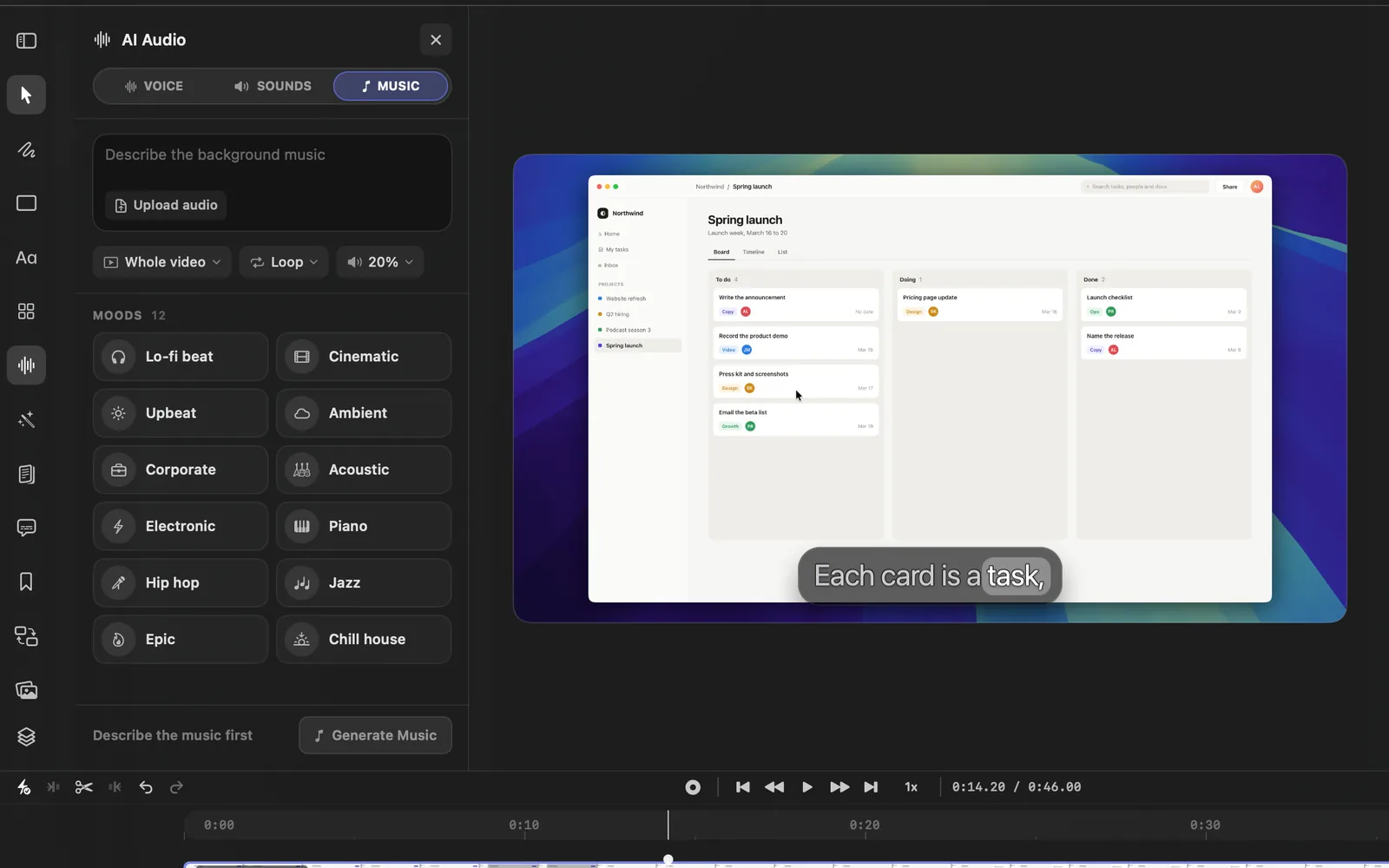
| Mood | What it asks for |
|---|---|
| Lo-fi beat | Warm lo-fi hip hop beat with soft keys, mellow drums and light vinyl crackle |
| Cinematic | Cinematic orchestral underscore that slowly builds, with strings and soft piano |
| Upbeat | Bright upbeat pop track with claps and a catchy synth, positive and energetic |
| Ambient | Calm ambient pads with gentle textures, spacious and unobtrusive |
| Corporate | Clean modern corporate background music with light percussion and plucky guitar |
| Acoustic | Light acoustic guitar with soft percussion, warm and friendly |
| Electronic | Modern electronic groove with punchy bass and crisp hi-hats, product launch energy |
| Piano | Soft solo piano, reflective and minimal, to sit under a voiceover |
| Hip hop | Laid-back hip hop beat with a deep kick, crisp snare and a jazzy sample |
| Jazz | Light jazz trio with brushed drums, upright bass and warm piano |
| Epic | Epic trailer music with big drums, brass and rising strings |
| Chill house | Chill deep house groove with soft chords and a steady four-on-the-floor beat |
Where it plays, looping and volume
The three menus under the box set how the track plays. They change the track you have straight away, so you don't need to generate again.
| Menu | Choices | At first |
|---|---|---|
| Where the music plays | Whole video: from the start of the video to its end. Per scene: during one scene only | Whole video |
| Repeat | Loop: the track repeats until the video or scene ends. Play once: it plays one time and stops | Loop |
| Background music volume | 5% to 100%: every 5% up to 30%, then every 10% | 20% |
With Per scene, a scene menu appears right after it, such as Scene 1. It lists each scene on the Video lane with its length. A new track is composed to the length of that scene instead of the whole video.
Use your own music
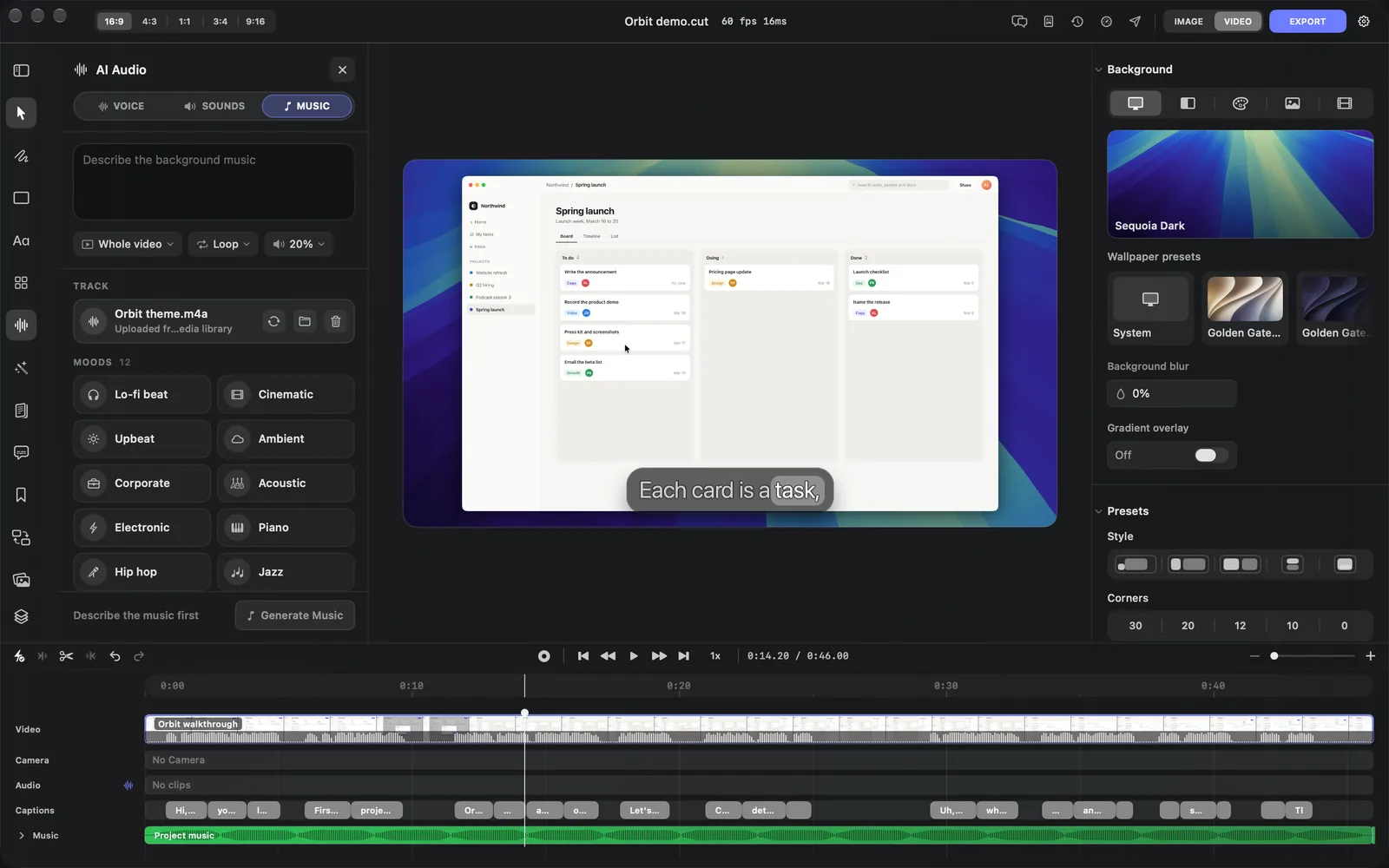
- In the MUSIC tab, click Upload audio in the box. It shows while the project has no track.
- In the window that opens, choose a music or audio file and click Use Music.
The file is added to your media library and plays on the Music lane with the same menus as a generated track. Uploading uses no credits.
Replace or remove the track
Once there's a track, TRACK shows its file name and where it came from: "Generated with ElevenLabs - " followed by the song's ID for a generated track, or "Uploaded from your media library" for your own. Three buttons sit on its right.
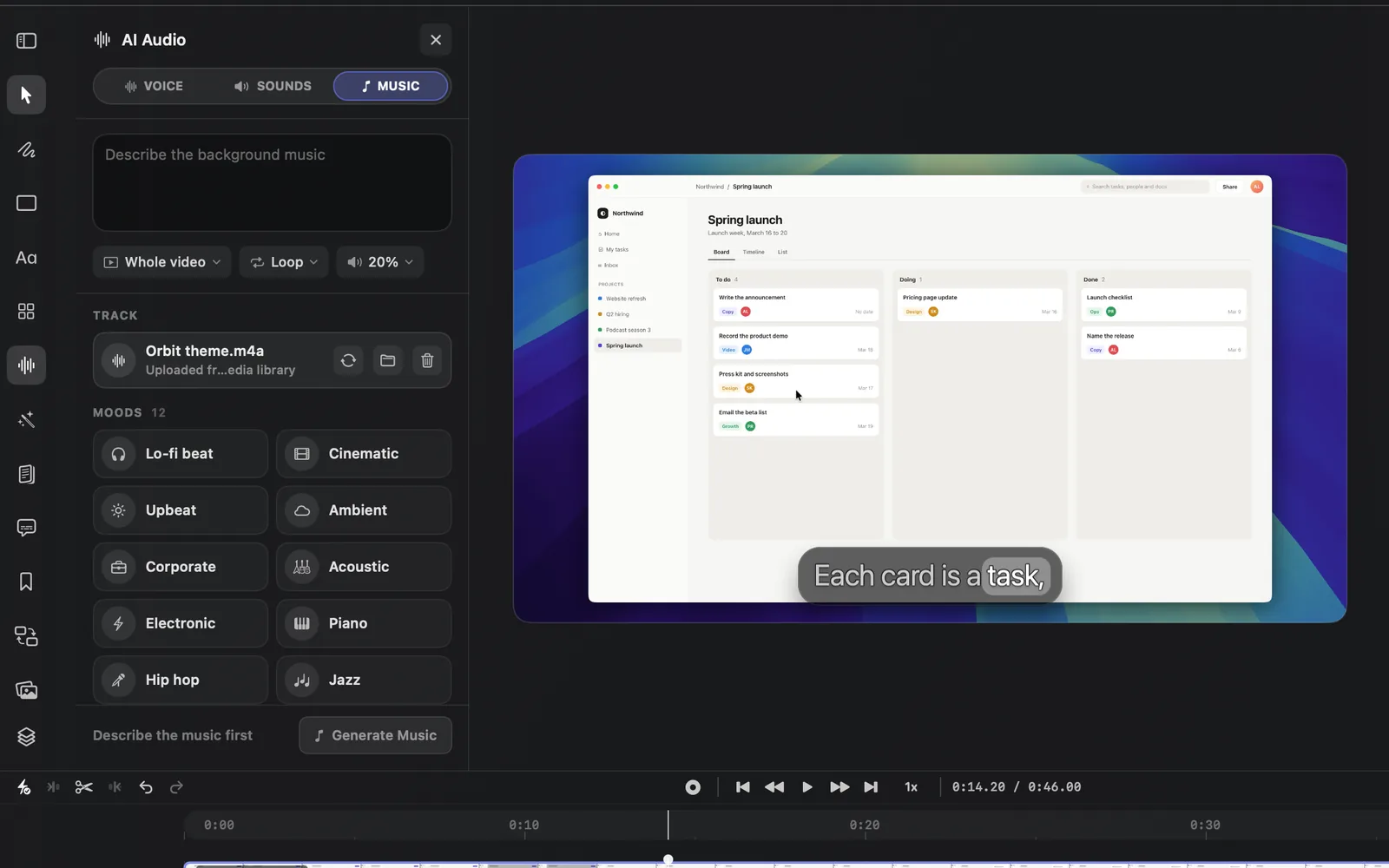
| Button (tooltip) | What it does |
|---|---|
| Replace with an audio file | Picks a different audio file to use instead |
| Show in Finder | Shows the track's file in Finder |
| Remove music | Takes the music out of the project. The Music lane goes away |
A project has one background track at a time, so pressing Generate Music again replaces the current one. Upload audio is hidden while there's a track; use the replace button instead.
The Music lane
The track shows on the Music lane as pieces named Project music. With Loop, each repeat is a piece of its own, so a short track under a long video shows several pieces in a row. To change how the music plays, use the menus in the MUSIC tab: they apply to every piece at once.
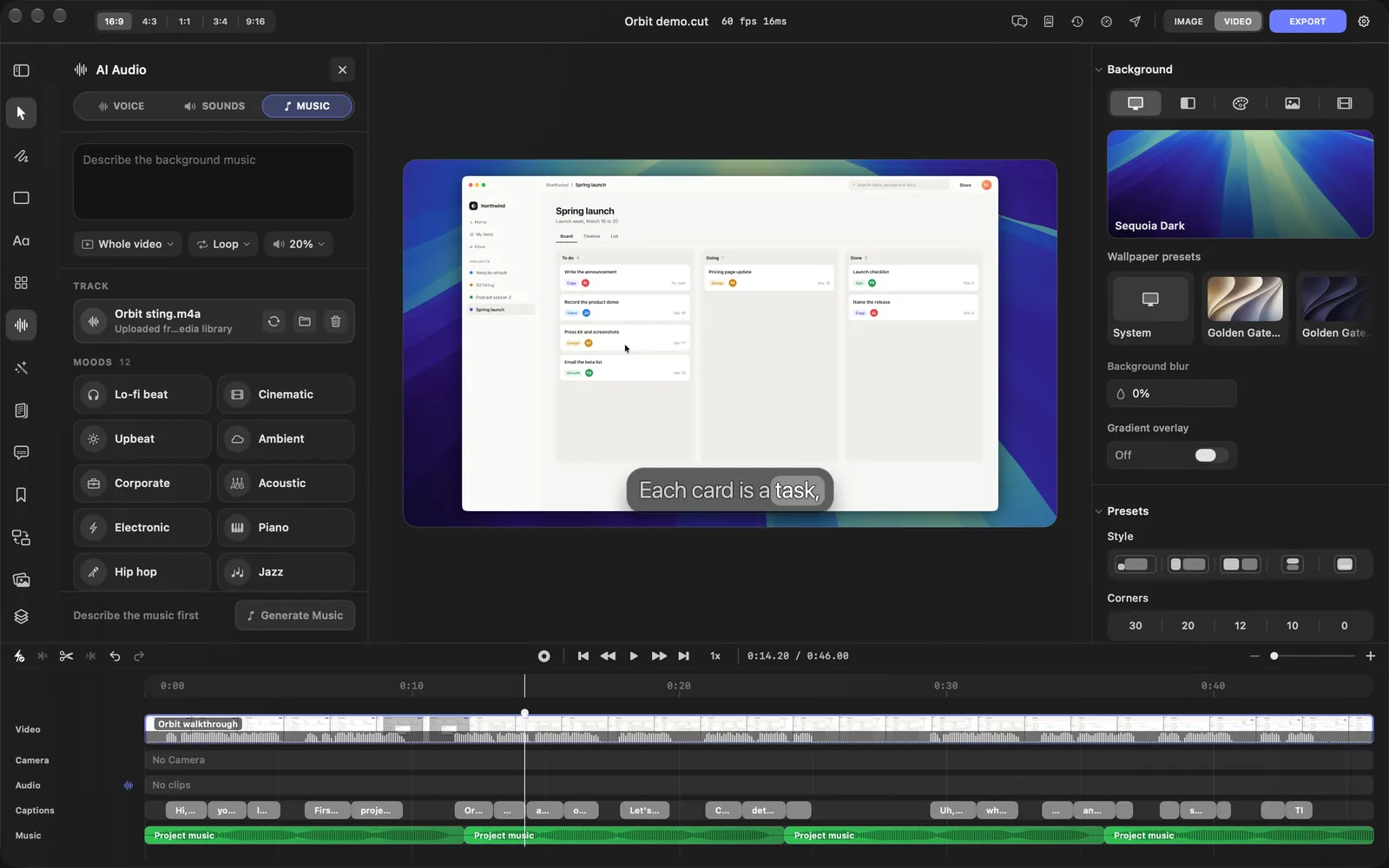
You can click a piece to select it and trim it in the inspector like an audio clip, but the change only lasts until DreamCut lays the pieces out again (see the Heads up below).
To silence the music for a while, hover the Music lane's name and click the speaker button that appears (Mute music). It mutes every piece at once, and reads Unmute music while they're muted.
The rest of your sound, such as voiceovers and sound effects, stays on the Audio lane. Timeline explains the lanes.
Credits, sign-in and limits
- Out of credits: when your credits for the month are used up, the line above the footer reads "Out of DreamCut AI credits for this month" with what you've used, and Generate Music is greyed out. If a track would take you past what's left, the line also says how many credits it needs. See When credits run out.
- A generated track is between 3 seconds and 10 minutes long. For a video longer than 10 minutes, keep Loop on so the track repeats to the end.
- Per scene needs a scene on the Video lane; without one the panel reads "Add a video scene to generate per-scene music."
- You can also ask Sakura for background music in plain words.
What's next
- AI voiceover: add narration that the music sits under.
- AI sound effects: add clicks, whooshes and chimes at the playhead.
- Volume and fades: balance the music against your voice.
- Sakura: ask for music, sounds and other edits in plain words.