
Stickers and cut-outs
Add animated Subscribe buttons, badges, callouts and emoji to your video, drop in pictures with a clear background, or have DreamCut AI make a new one.
Stickers are small animated graphics, such as a Subscribe button a pointer clicks, a LIVE badge or a burst of emoji. Cut-outs are still pictures with a clear background, such as a red arrow, a thumbs up or an app logo. Both are in the Overlay panel, and a click adds one at the playhead in a box you move and resize.
Add a sticker
- Move the playhead to where the sticker should appear.
- Click Overlay in the tool rail on the left of the editor. Below the Custom Overlay card, the stickers come in four groups: Buttons, Badges, Callouts and Emoji & effects.
- Rest the pointer on a card to see the sticker play over a frame of your video.
- Click a sticker, such as Subscribe. It lands on the Overlay lane at the playhead and stays selected.
- Drag it into place on the canvas, and drag a corner to resize it.
Each sticker lasts its own length, from 2.5 to 5 seconds (Subscribe lasts 4), or until the video ends. Drag its end on the timeline to change that.
The sticker plays its animation every time the video reaches it. Subscribe's pointer swoops in and clicks the button, which fills to "Subscribed" with a check. While a sticker is selected and the playhead is in its animation, the canvas also shows its finished look faintly, so you can place it where it ends up.
The stickers
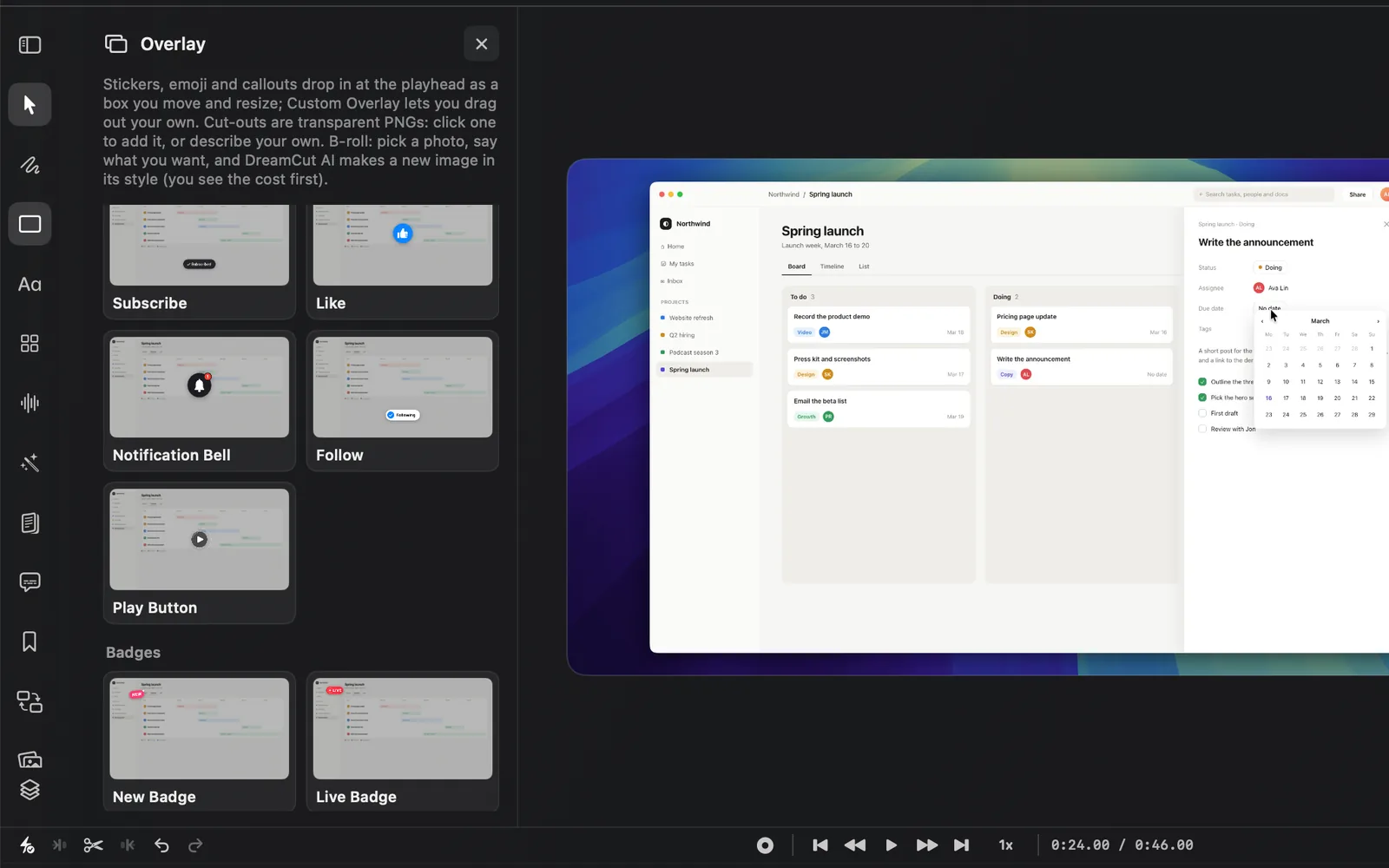
Buttons
| Sticker | What it does |
|---|---|
| Subscribe | A pill button a pointer swoops in to click; it floods to "Subscribed" with a check |
| Like | A thumbs-up flicks up, gets pressed and pops with a ring and burst |
| Notification Bell | A bell swings and rings with a "1" badge, ringing again every few seconds |
| Follow | A "+ Follow" pill that gets tapped and rolls over to "Following" |
| Play Button | A glassy play button springs in and breathes while rings pulse out |
Badges
| Sticker | What it does |
|---|---|
| New Badge | A tilted pill or seal springs in with a glint and a twinkling sparkle |
| Live Badge | A red dot pops and opens into a LIVE pill, pulsing with a radar ring |
| Check | A ring draws round, fills, and a check strokes on with a burst |
| Cross | An X strokes on in a ring, then shakes its head |
| Star Rating | Five stars pop up, then fill with gold to the rating |
| Price Tag | A swing tag on a cord swings in and settles like a pendulum |
| Sale Ribbon | A stitched corner ribbon slides across its corner, or a folded banner unfurls |
Callouts
| Sticker | What it does |
|---|---|
| Speech Bubble | Typing dots, then a chat bubble opens and your words rise in |
| Thought Bubble | Small bubbles rise, then a cloud blooms puff by puff around your words |
| Callout | A target dot pops, a line draws out and a label opens at its end |
| Cursor Click | A Mac pointer glides to the middle and clicks with a ripple |
| Location Pin | A pin drops and bounces, rings ripple and a place label pops up |
| Swipe Up | Stacked chevrons light up in a cascade with a label |
| Progress Bar | A bar fills over the layer with a label, a ticking percent and a glowing edge |
Emoji & effects
| Sticker | What it does |
|---|---|
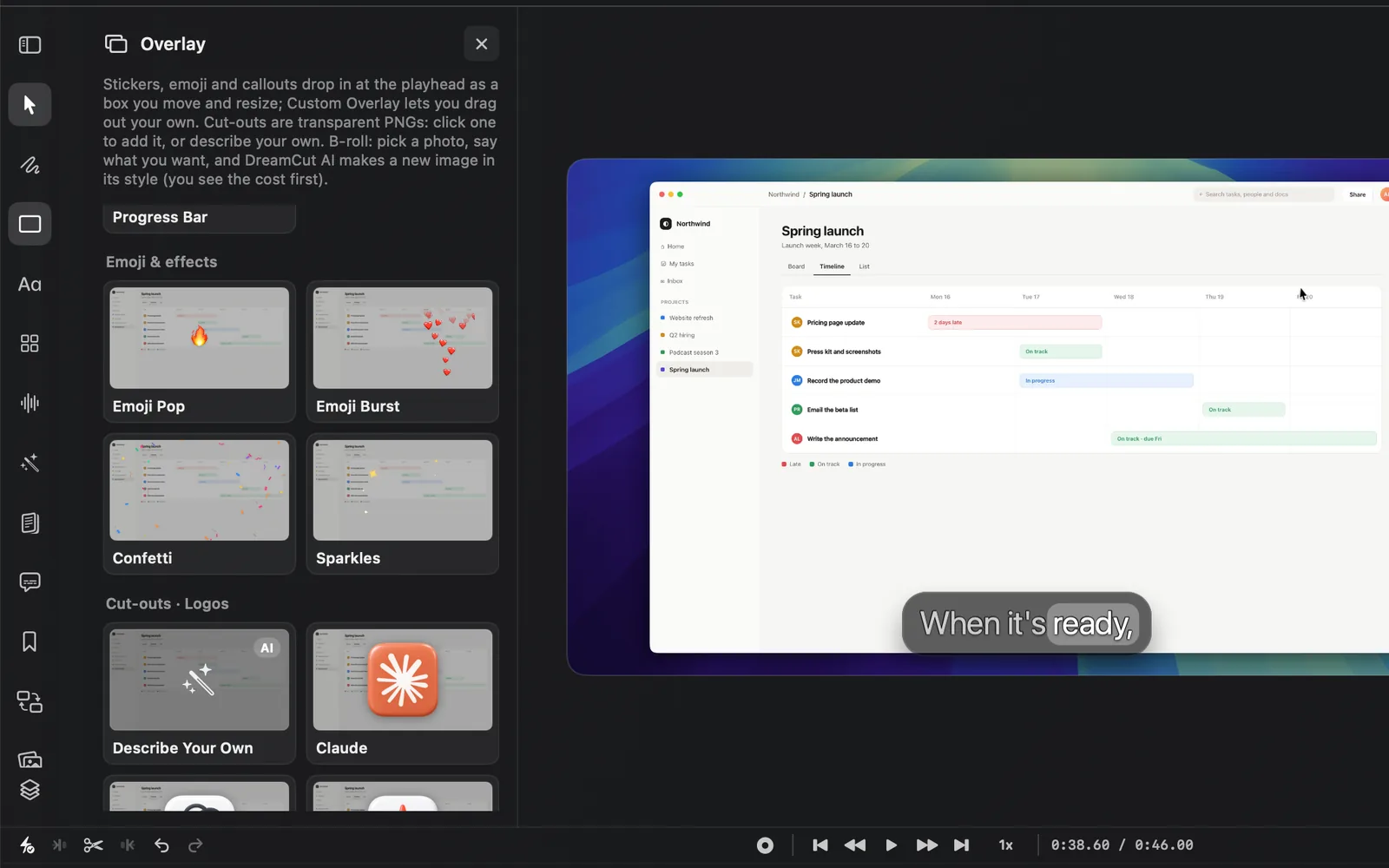
| Emoji Pop | One big emoji springs up with squash and stretch, bobs, then jumps away |
| Emoji Burst | Emoji burst out and float up like live reactions |
| Confetti | A confetti burst, two cannons or a rain of tumbling papers |
| Sparkles | Four-point stars flare and fade with an accent glow |
Change a sticker's words
Subscribe, Follow, the New and Live badges, Price Tag, Sale Ribbon and all the callouts except Cursor Click have words you can change.
- On the canvas: double-click the sticker, or select it and press Return, then type. Click outside it when you're done. The I-beam button at the left of its toolbar (Edit text (double-click or Return)) does the same.
- In the inspector: type in the Label box of the Sticker section. The line under it reads "The words on the sticker."
On the Subscribe and Follow buttons, the label changes when the button is clicked. If it contains Subscribe, Follow, Join, Like, Save, Sign up, Add, Download or Book, the whole label becomes Subscribed, Following, Joined, Liked, Saved, Signed up, Added, Downloaded or Booked, so "Subscribe now" ends as "Subscribed". A label without one of those words stays as it is.
Change a sticker's look
Select a sticker and its toolbar has a menu with the sticker's name, to switch it for another sticker in place, and Color. The inspector shows two tabs, Preset and Animation. Preset starts with Transform and Crop, as for any overlay, then:
| Section | Settings |
|---|---|
| Sticker | Preset (switch to another sticker), a line on what it does, and Label for stickers with words |
| Style | Font for stickers with words, Color, Accent (the second colour) and Shadow |
| The sticker's name, such as Subscribe | Speed, from 0.25 to 3 times, then the sticker's own settings |
| Appearance | Corner radius |
| Hide | Takes the sticker out of the video without deleting it |
Every sticker's own settings start with Size. Some examples of the rest:
| Sticker | Its own settings |
|---|---|
| Subscribe | Show pointer, Flip to done, Done look (Dark, Light or Outline) |
| Notification Bell | Style (Dark, Disc or Plain), Badge, Ring again |
| Star Rating | Rating, Show score |
| Cursor Click | Comes from, Clicks, Pointer (Arrow or Touch), Highlight |
| Progress Bar | Style (Labeled, Minimal or Segmented), Show percent, Fill to, Pace, Segments |
| Emoji Pop | Emoji (16 to pick from, such as 🔥 Fire and 🚀 Rocket), Rays, Bob |
| Confetti | Style (Burst, Cannons or Rain), Pieces, Colours, Piece size |
The Animation tab adds keyframes and a way in on top of the sticker's own animation. Overlays explains it.
Reset all and Delete sit at the bottom of the Preset tab.
Add a cut-out
Cut-outs come after the stickers, in seven groups. They're still pictures, so they don't animate on their own. The last group in the panel, B-roll · AI images, makes a full-frame picture instead: see B-roll from AI images.
- Move the playhead to where the cut-out should appear.
- In the Overlay panel, scroll past the stickers to the Cut-outs groups, such as Cut-outs · Arrows.
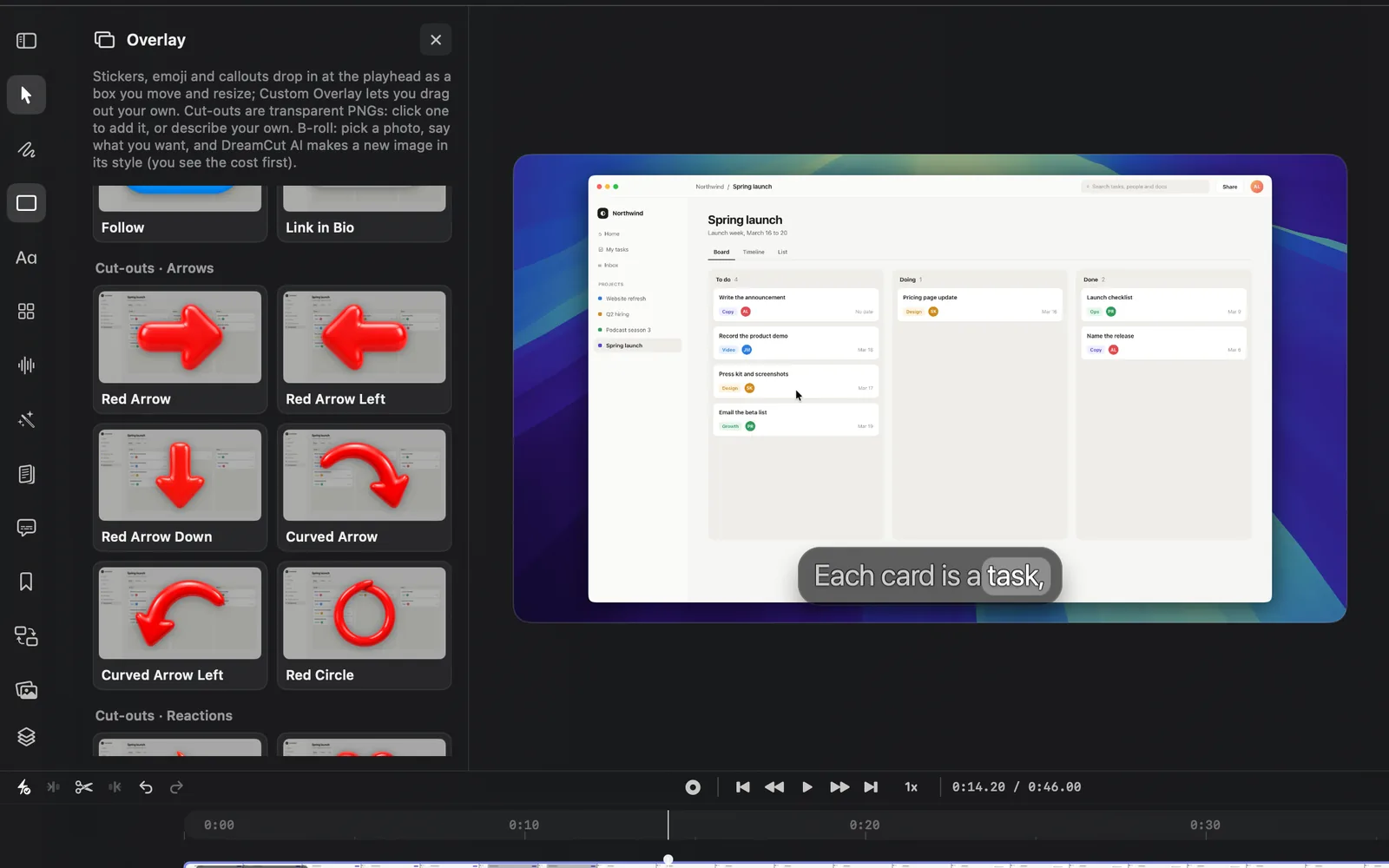
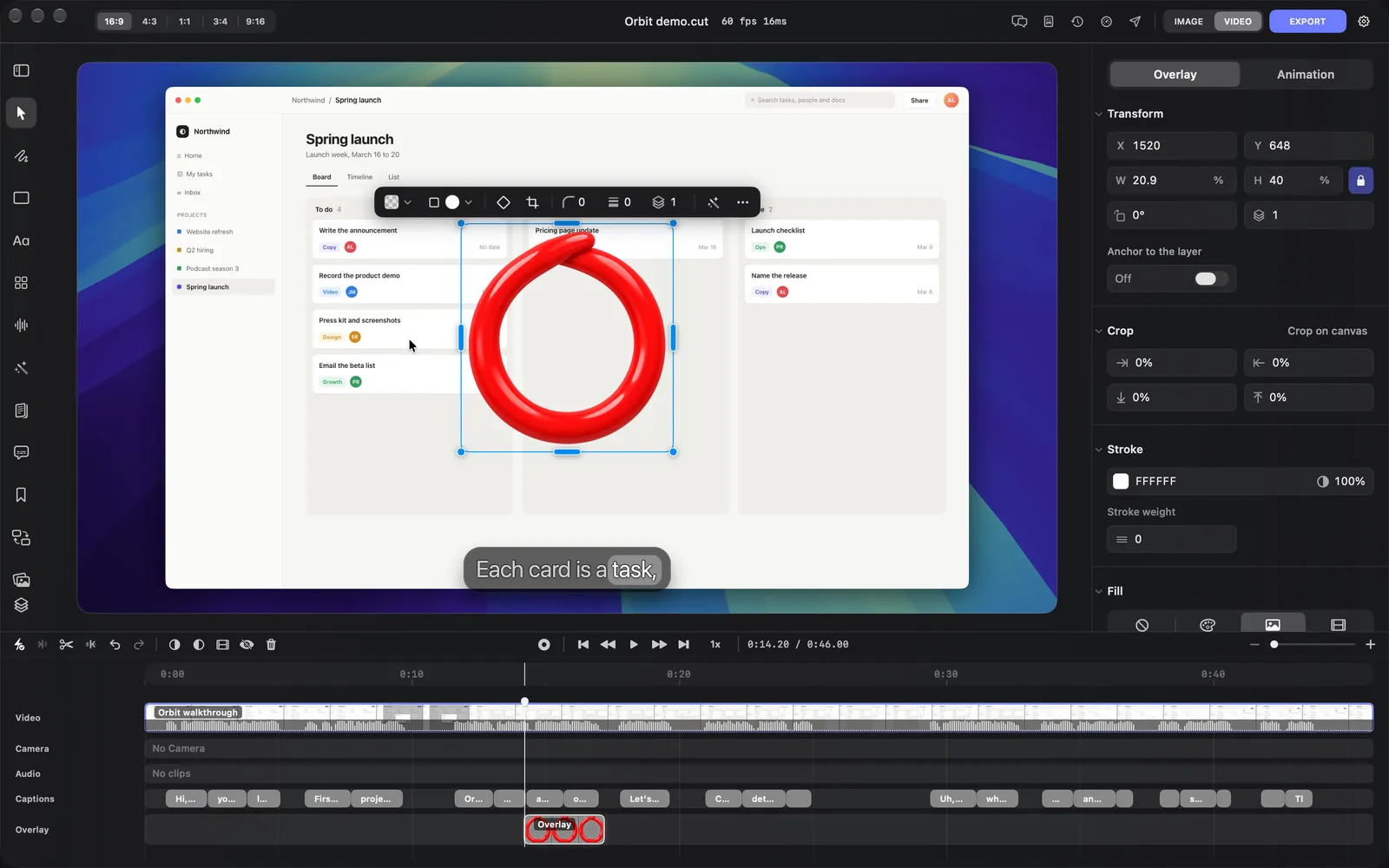
- Click a cut-out, such as Red Circle. It lands in the middle of the canvas at the playhead, in a box of its own shape, for 3 seconds, and stays selected.
- Drag it into place, and drag a corner to resize it. It keeps its shape.
Right-click a cut-out card for Add at Playhead or Make One Like This… (see Make one like another).
| Group | Cut-outs |
|---|---|
| Cut-outs · Logos | Describe Your Own, Claude, ChatGPT, Gemini, Codex, Cursor, YouTube, Instagram, TikTok, X, GitHub, Figma, Apple |
| Cut-outs · Hands | Pointing Right, Pointing Left, Pointing Up, Pointing Down, Thumbs Up, Waving Hand, Hand Cursor |
| Cut-outs · Buttons | Subscribe, Subscribed, Like, Notification Bell, Follow, Link in Bio |
| Cut-outs · Arrows | Red Arrow, Red Arrow Left, Red Arrow Down, Curved Arrow, Curved Arrow Left, Red Circle |
| Cut-outs · Reactions | Fire, Heart, 100, Mind Blown, Shocked, Laughing, Eyes, Sparkles, Star, Rocket |
| Cut-outs · Symbols | Check Mark, Cross Mark, Warning, Question Mark, Idea, Money, Trophy, Crown |
| Cut-outs · Objects | Microphone, Headphones, Camera, Laptop, Phone, Coffee |
The first time you add a cut-out, DreamCut copies it into your media library, where the Media gallery lists it.
A cut-out's settings
A cut-out is an overlay box filled with a picture, so a selected one has the inspector tabs Overlay and Animation. The Overlay tab has:
| Section | Settings |
|---|---|
| Transform | Position, size, rotation, layer order and Anchor to the layer |
| Crop | Trim the picture's edges |
| Stroke | An outline's colour and Stroke weight, which starts at 0 (no outline) |
| Fill | The picture, and Set Custom Image to swap it for another from your Mac or your media library |
| Appearance | Corner radius and Shadow |
Overlays covers these settings in full.
Make your own cut-out
Describe Your Own, the first card under Cut-outs · Logos, has DreamCut AI draw a new cut-out from your words.
- Move the playhead to where the cut-out should appear.
- Click Describe Your Own. The New Cut-out sheet opens: "GPT image 2.5 makes it on a transparent background and adds it at the playhead as a layer you move and resize."
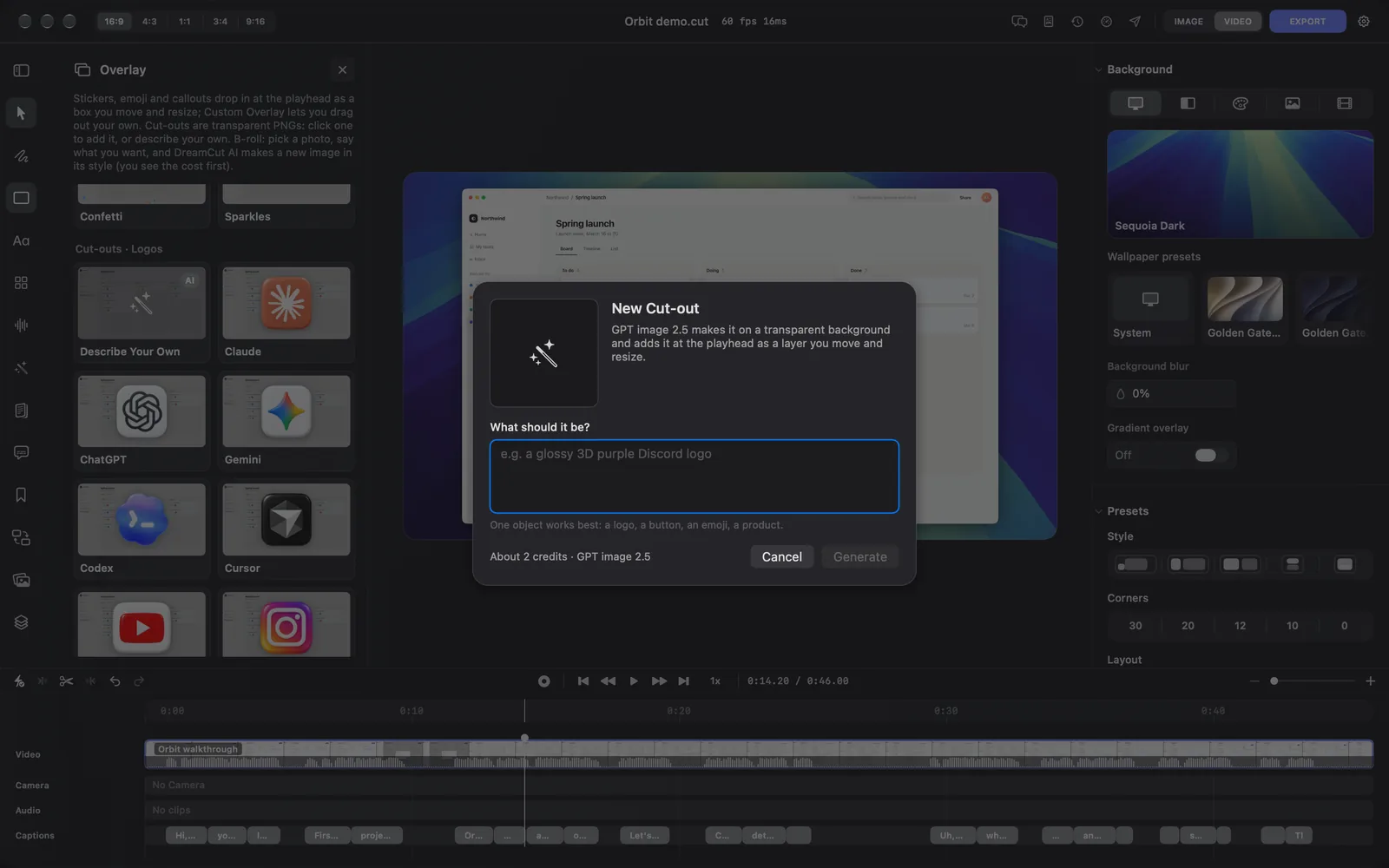
- Under What should it be?, describe one object, such as "a glossy 3D purple Discord logo". The line under the box reads "One object works best: a logo, a button, an emoji, a product."
- Check the cost at the bottom left: "About 2 credits · GPT image 2.5".
- Click Generate, or press ⌘Return. It stays grey until you've typed something. Cancel or Esc closes the sheet without spending anything.
DreamCut shows "Generating the image…", and you can keep editing. When the picture is ready, it lands in the middle of the canvas where the playhead was when you clicked Generate, for 3 seconds, and a message reads "Added the cut-out image as an overlay at" and the time. If the model drew a background anyway, DreamCut cuts the object out on your Mac and the message ends "(background removed on this Mac)".
Make one like another
- Right-click a cut-out card, such as Claude, and choose Make One Like This….
- The sheet reads Make One Like Claude: "GPT image 2.5 makes a new cut-out in this one's style (its rendering, light and colours) and adds it at the playhead."
- Describe what to make, such as "the Notion logo", or leave the box empty. The line under it reads "Leave it empty for a fresh take on Claude."
- Click Generate.
Tips and limits
- A cut-out you make is 1024 × 1024 pixels. It stays sharp at the size of a sticker, less so stretched across a 4K frame.
- To make a cut-out move, give it keyframes or a Start animation in its Animation tab.
- A cut-out DreamCut AI makes lands as one step, so ⌘Z takes it off the video. The credits it used are already spent.
- Sakura, the AI in the editor, adds a sticker or makes a cut-out when you ask for one in its chat. So do agents you connect through MCP and the dreamcut command.
What's next
- Overlays: boxes, outlines and blur over your recording.
- B-roll from AI images: a new full-frame picture for a cutaway.
- Text and titles: animated titles and plain text.
- Generate media: make pictures and video with AI, with more models and settings.