
Media gallery
Keep your pictures, videos and sounds in DreamCut's media gallery, find them with filters and search, and add them as a scene, camera, overlay or audio.
The media gallery is your library of files to use in videos: the pictures, videos, sounds and JSON files in your DreamCut media folder, and, when you're signed in, the media stored online with your DreamCut account. Every project shares it, so a logo or a sound you add once is there for the next video too.
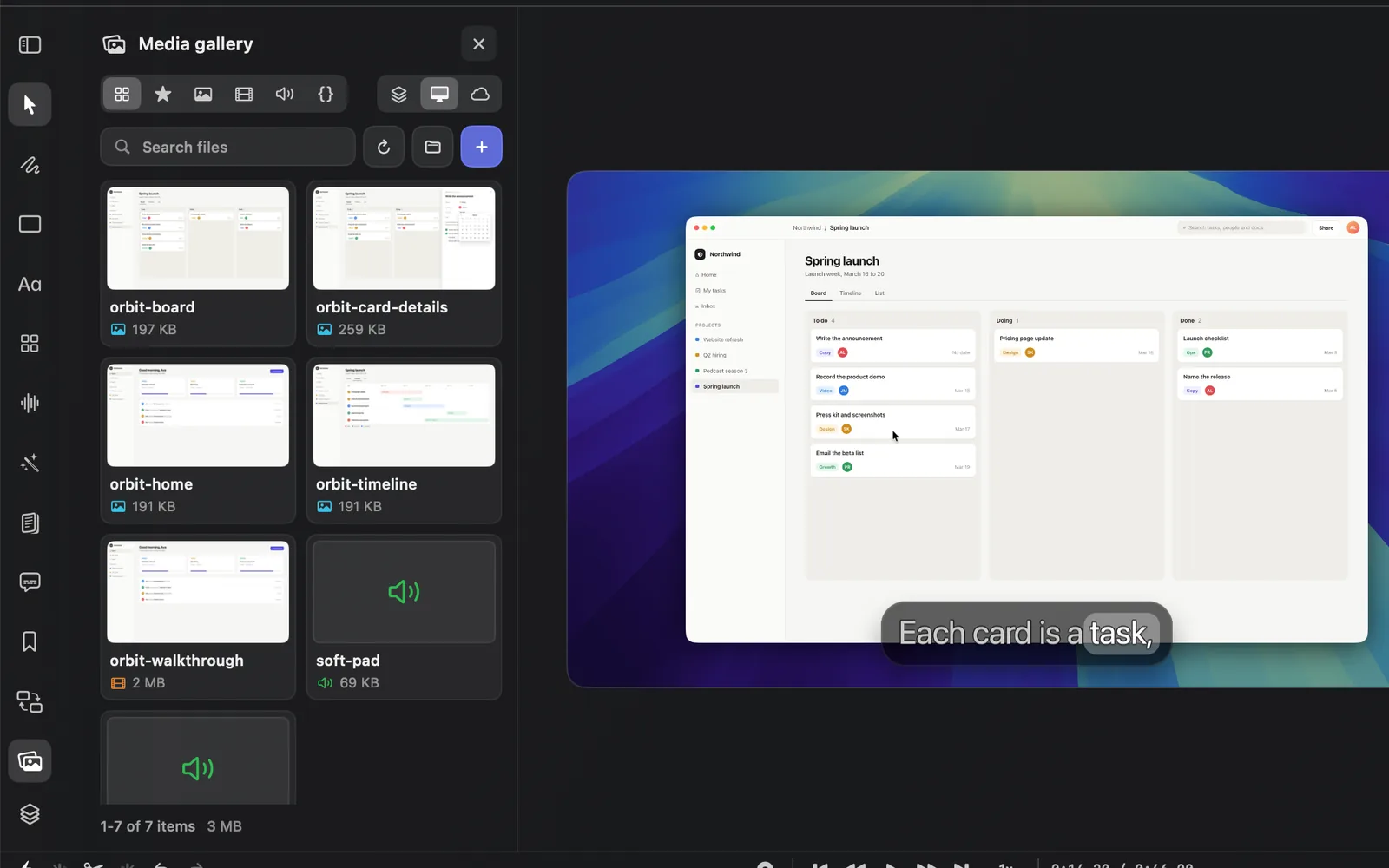
Open the gallery
- Click Media gallery in the tool rail, the last icon above Layers. The panel opens between the rail and the canvas.
- The gallery opens on All kinds of file and on Local Only: the files on this Mac that aren't online. If you're signed in, click All Sources (the stacked-layers icon, left of the computer) to see your online files and the ones in both places too.
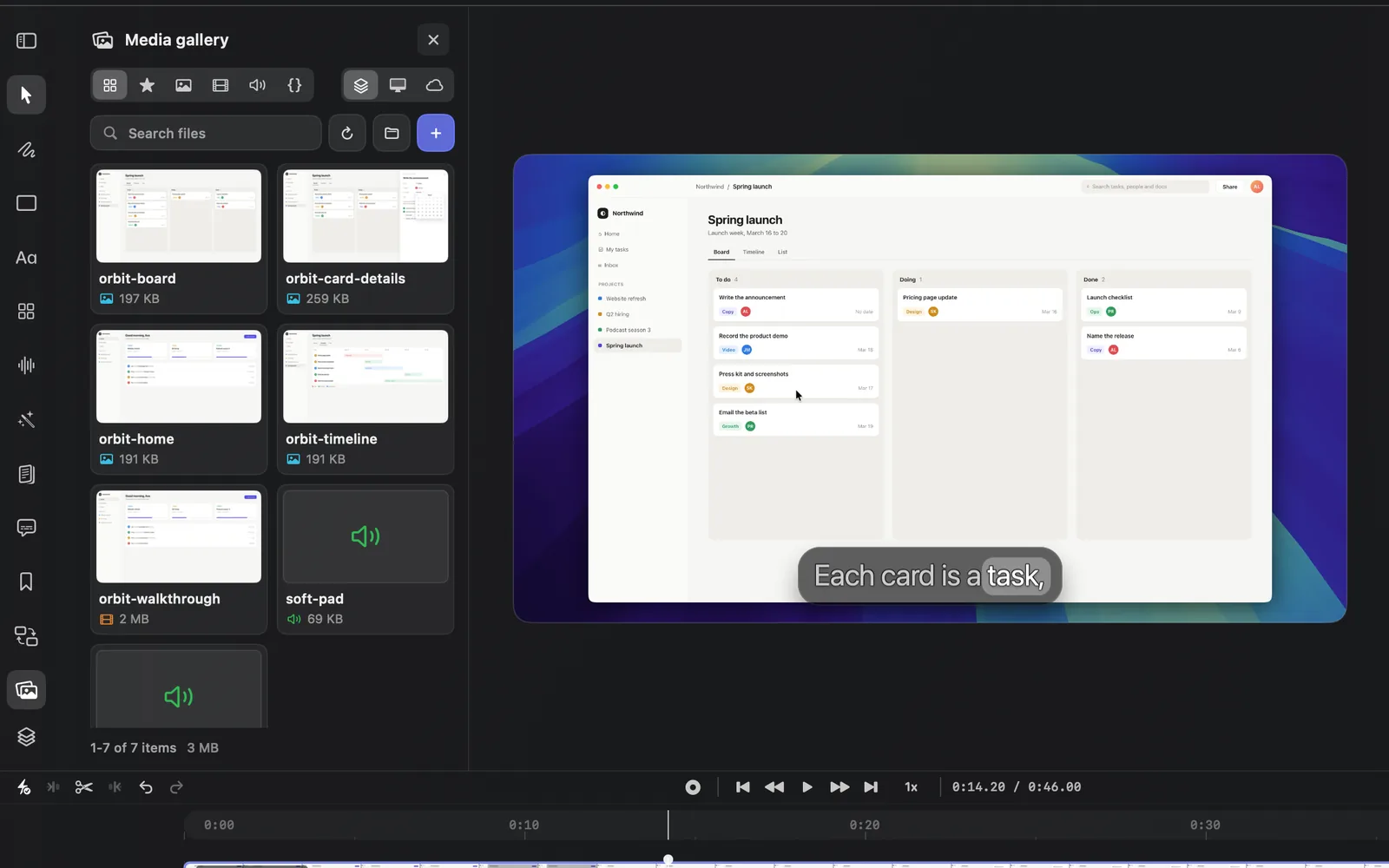
- Hover a card to see its buttons. A video plays on its card while you hover.
- Click a card's picture to open it in a large preview.
Click Media gallery again, or the × at the top of the panel, to close it.
Add your own files
- Click Add Files (+) at the right of the search field and choose one or more files. Or drag files from Finder onto the panel: it shows "Import to Shared Media" while you drag.
- The files appear as cards in the panel, and the line under the search field reads, for example, "Imported 2 files".
DreamCut copies what you import into its media library, DreamCut/Media, with a folder each for Images, Videos, Sounds and JSON. Click Open Media Folder (the folder icon) to see it in Finder. A file that's already in the library isn't copied again: the panel reads "Already in Media library".
| Kind | Files it takes | What you can do with it |
|---|---|---|
| Image | PNG, JPEG, HEIC, TIFF, WebP, GIF, BMP | Add it as a scene, on the Camera lane, or as a box on the canvas |
| Video | MOV, MP4, M4V | Add it as a scene, on the Camera lane, or as a box on the canvas |
| Sound | MP3, M4A, AAC, WAV, AIFF, CAF, FLAC, OGG | Add it to the Audio lane at the playhead |
| JSON | JSON | Open it in the preview to read it |
Other files aren't taken, SVG pictures among them: the panel reads "No supported files". Export an SVG as a PNG first.
Add a file to your video
- Move the playhead to where the file should go.
- Hover the file's card in the gallery.
- For a picture or video, click Add… at the bottom right of the card and choose where it goes:
| Option | Where it goes |
|---|---|
| Next Scene | A new scene right after the one under the playhead |
| End of Video | A new scene after the last one |
| Camera | On the Camera lane, at the playhead |
| Overlay | A box in the middle of the canvas, at the playhead, that you can move and resize. See Overlays |
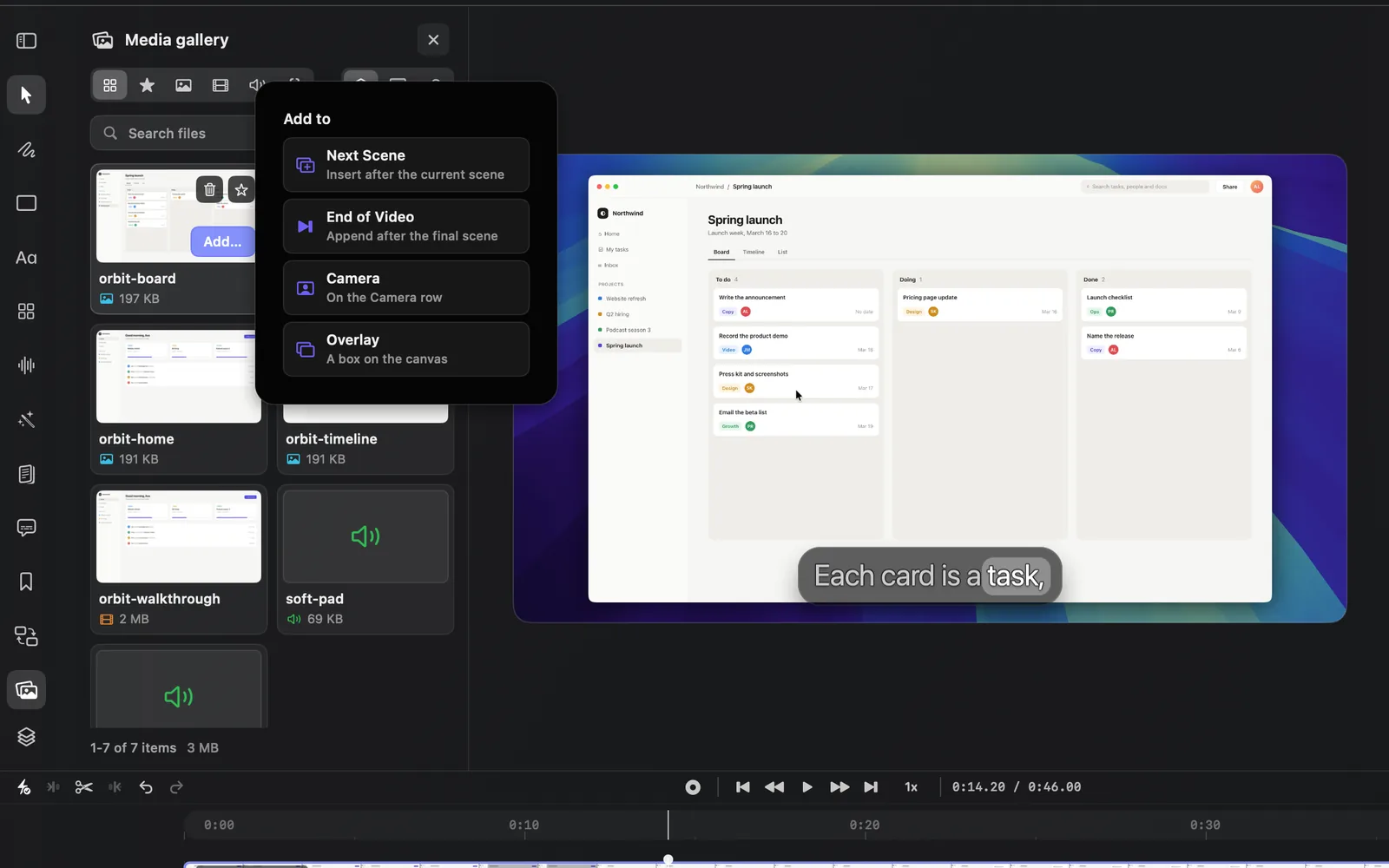
- For a sound, click Add. It goes on the Audio lane at the playhead.
You can also drag a picture or video card onto the canvas (files on this Mac only): it lands as a box where you drop it, at the playhead.
A picture added as a scene lasts 2 seconds; drag its end on the timeline to change that. See Edit on the timeline.
Preview a file
Click a card's picture to open it large. The top of the preview shows what kind of file it is (such as IMAGE), where it is (LOCAL, ONLINE or SYNCED, which means both), its name and file name, and buttons:
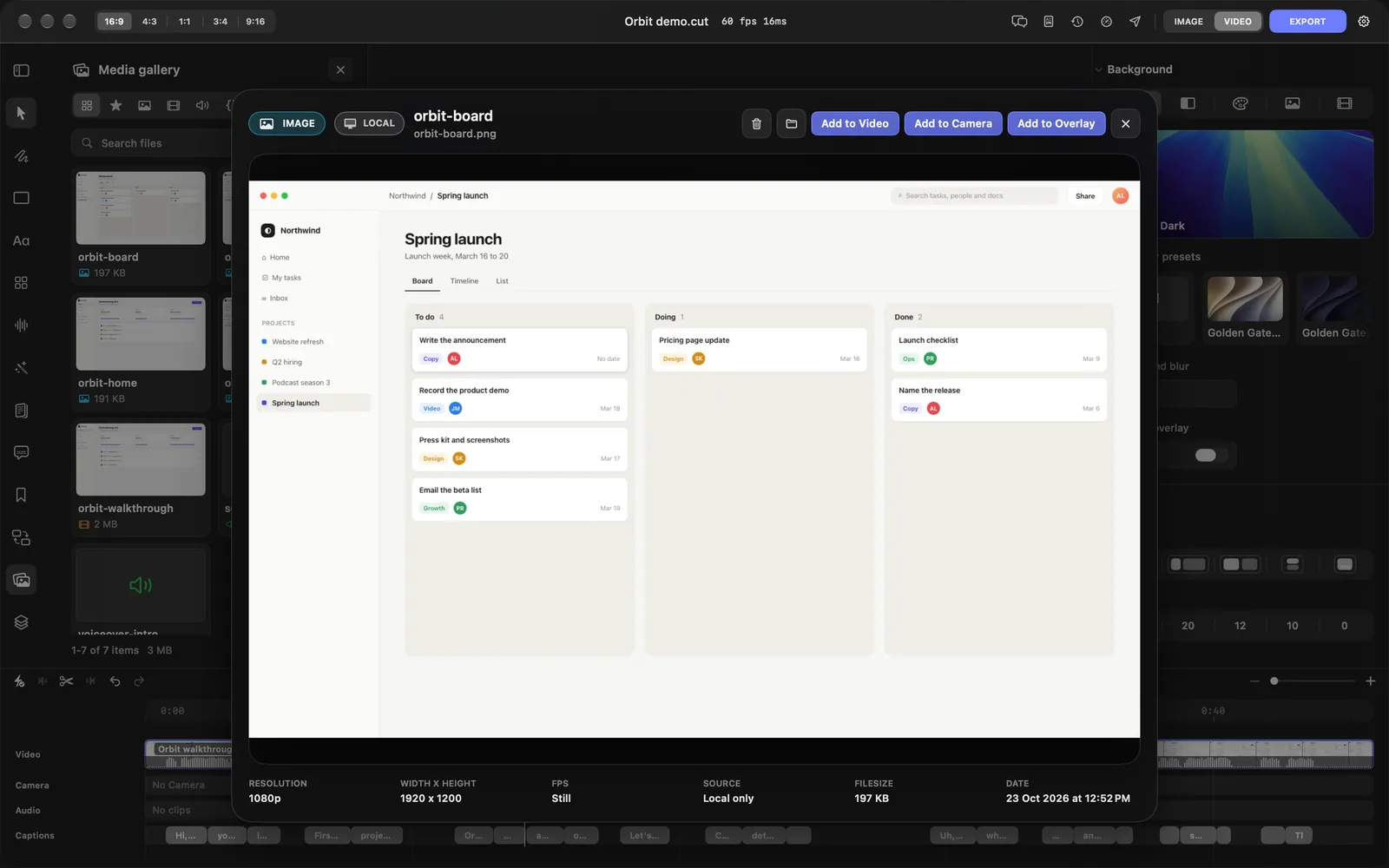
| Button | What it does |
|---|---|
| Add to Video | Pictures and videos: choose Next Scene or End of Video |
| Add to Camera | Pictures and videos: on the Camera lane at the playhead |
| Add to Overlay | Pictures and videos: a box on the canvas at the playhead |
| Add Audio | Sounds: on the Audio lane at the playhead |
| Folder icon | Reveal in Finder. For an online-only file it's Download to Mac instead, with a Download button |
| Trash icon | Delete from Media Folder. It shows, left of the folder, for files in your media folder |
| × | Close. Esc closes it too |
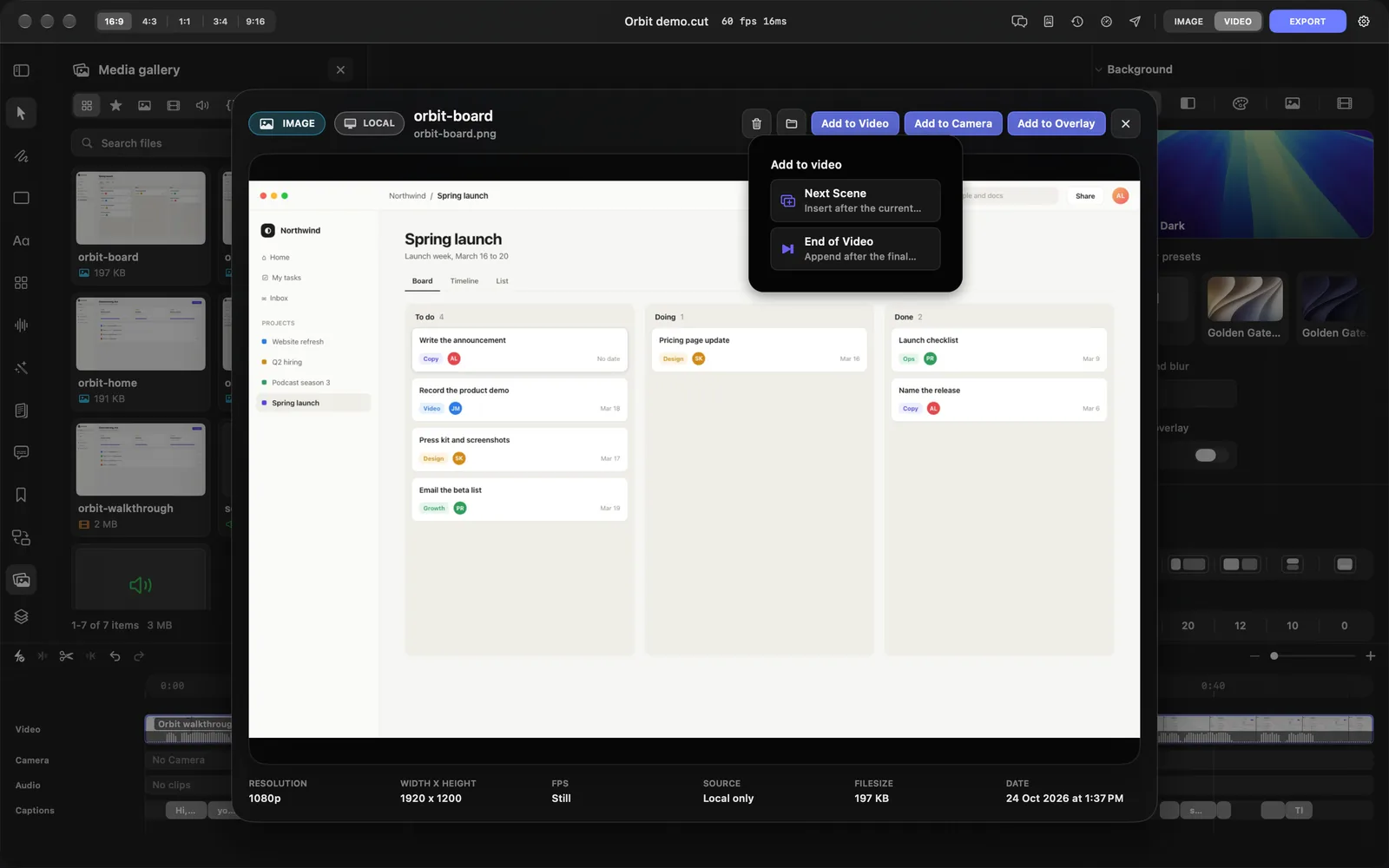
Hover the picture for the arrows, or press ← and →, to step to the previous or next file. Videos and sounds show a play bar when you hover them, and a JSON file shows its text.
Under the picture, the preview lists the file's resolution, width and height, frame rate (Still for a picture), source, file size and date.
Find a file
The top of the panel has two rows of icon filters, then a search field and three buttons. Hover an icon to see its name.
| Icon | Filter | Shows |
|---|---|---|
| Four squares | All | Pictures, videos and sounds. JSON files are left out |
| Star | Favorites | The files you starred, without JSON files |
| Picture | Image | Pictures only |
| Film strip | Video | Videos only |
| Speaker | Sound | Sounds only |
| Curly braces | JSON | JSON files only |
| Stacked layers | All Sources | Every file, wherever it is |
| Computer | Local Only | Files on this Mac that aren't online. The gallery opens on this one |
| Cloud | Online Only | Files online that aren't on this Mac yet |
| Control | What it does |
|---|---|
| Search files | Finds files by name |
| Refresh | Loads the list again, online media included |
| Open Media Folder | Opens the media folder in Finder |
| Add Files | Imports files from your Mac |
The line at the bottom counts what's showing and adds up its size, such as "1-7 of 7 items" and "3 MB". The gallery shows 20 files a page; with more, Page 1 of 2 and its arrows appear under it.
When a filter leaves nothing to show, the panel says so: "No local-only files" under Local Only, for example, or "No files match your search".
Favorites
Hover a card and click the star (Add to Favorites). Pick Favorites in the filters to see only starred files, in any project. Click the star again (Remove from Favorites) to take it off.
Online media
When you're signed in, the gallery also lists the media stored online with your DreamCut account, the most recent 20 at a time. Signed out, the panel reads "Sign in to load online media".
Online files show under All Sources and Online Only, not under Local Only, which the gallery opens on.
- A cloud on a card means the file is online only. Its card shows Download instead of Add: click it to bring the file into your media folder, then add it.
- A cloud with a tick means the file is both on this Mac and online. It shows under All Sources only.
- A card with neither is on this Mac only.
Delete a file
- Hover the card and click the trash (Delete), or click Delete from Media Folder in the preview.
- DreamCut asks whether to delete the file by name, and warns that deleting it "might affect other projects that use this file". Click Delete.
The file moves to the Trash, so you can put it back from there. A file that's also online keeps its online copy: only the one on this Mac goes. Online-only files have no delete button, and you can't delete files while a project is exporting: the panel asks you to wait until the export finishes.
Use the gallery from the inspector
Where the inspector takes a file, you can pick it from the gallery instead of from Finder:
- To swap the file behind a scene, the camera or an audio clip, open the File field's menu and choose Replace from Media Library….
- For a picture or video inside an overlay box, Set Custom Image and Set Custom Video offer From Media Library.
Tips and limits
- The gallery belongs to every project. A file you delete there may leave a gap in another project that uses it.
- Can't find a file you know is online? Check the source filter: the gallery opens on Local Only, which hides online files and files that are in both places.
- JSON files can't go on the timeline; open them in the preview to read them.
- For pictures and video made by AI, use Generate media. For cards, quotes and buttons, use the Layout panel.
What's next
- Overlays: put a picture or video in a box on the canvas.
- Layout cards and custom HTML: pricing cards, quotes and buttons over your video.
- Generate media: make pictures and video with DreamCut AI.
- Edit on the timeline: move and trim what you add.