
Edit by transcript: fillers and silences
Cut ums, uhs and long pauses by editing the transcript in DreamCut, delete single words, search and replace, and fix typos in your captions.
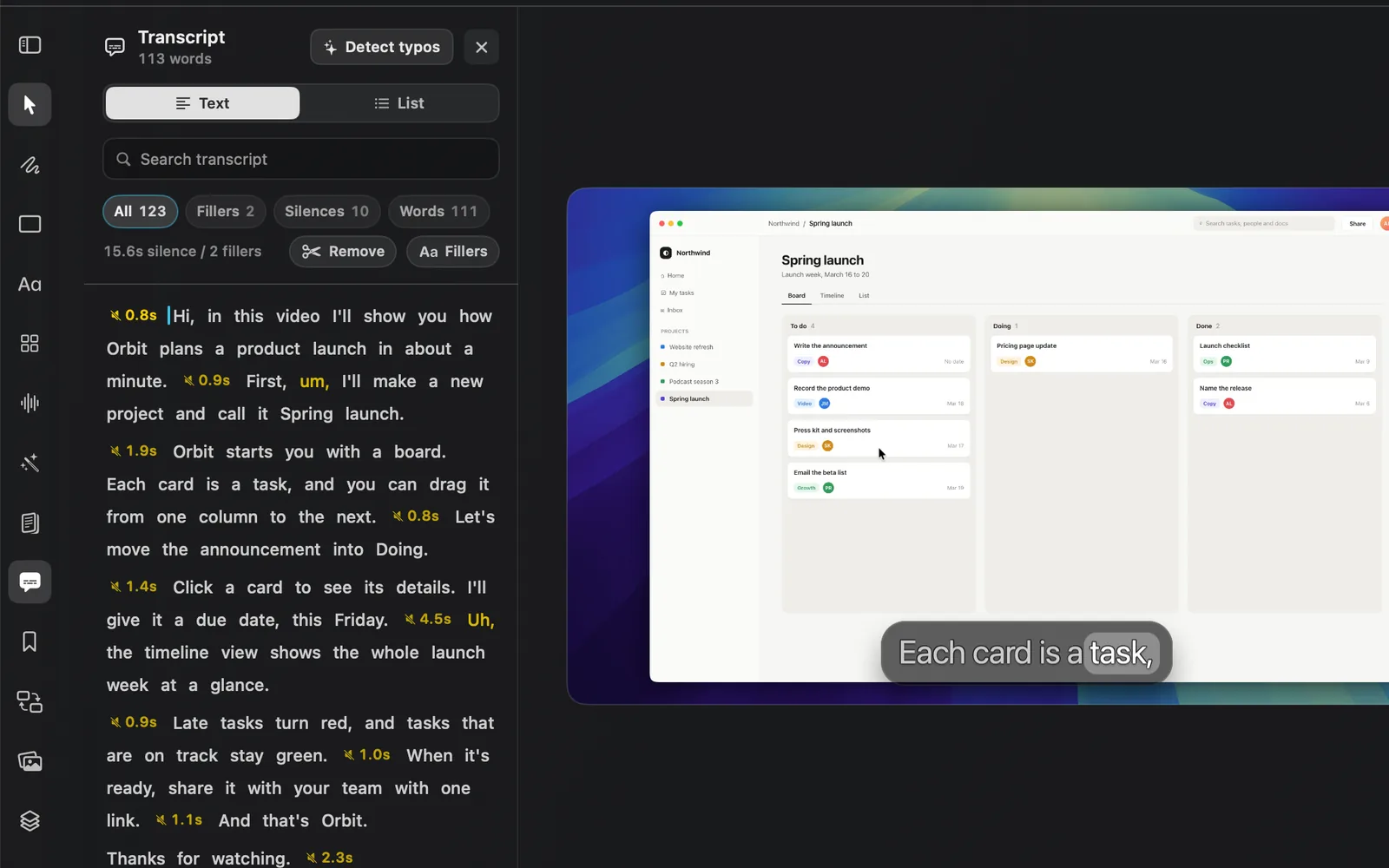
The Transcript panel shows what you said as text, with every filler and pause marked. Cut all the ums and long pauses in one go, or delete words one at a time, and DreamCut makes the cuts on the timeline for you. Every cut can be undone.
Open the Transcript panel
- In the editor, click Transcript in the left rail: the speech-bubble icon with lines in it.
- The panel opens beside the canvas in the Text view.
- If the project has no transcript yet, DreamCut starts making one. See When there's no transcript yet.
The top of the panel shows how many words were said (fillers included), Detect typos, and × to close the panel. Under it are the Text and List views and the Search transcript field.
Read the transcript
The Text view shows your words as running text. Fillers are in yellow, and each pause of 0.4 seconds or more shows its length, such as "4.5s". Click any word or pause and the playhead jumps there. While the video plays, a marker follows along word by word. When the video has more than one scene, each scene's words start under a heading with its number and start time, such as Scene 2 0:06.46. Each cut you make starts a new scene.
The chips above the text filter what you see:
| Chip | Shows |
|---|---|
| All | Words, fillers and pauses |
| Fillers | Only the fillers: um, uh, erm, hmm and ah |
| Silences | Only the pauses of 0.4 seconds or more |
| Words | Only the words, without the fillers |
The line under the chips adds it up, for example "15.6s silence / 2 fillers": the total length of the pauses and how many fillers there are.
Remove filler words
- Click Fillers, the button marked Aa to the right of the summary line.
- The Remove fillers popover lists each filler it found, with how many times you said it and how long they last in total. Every filler is ticked when it opens.
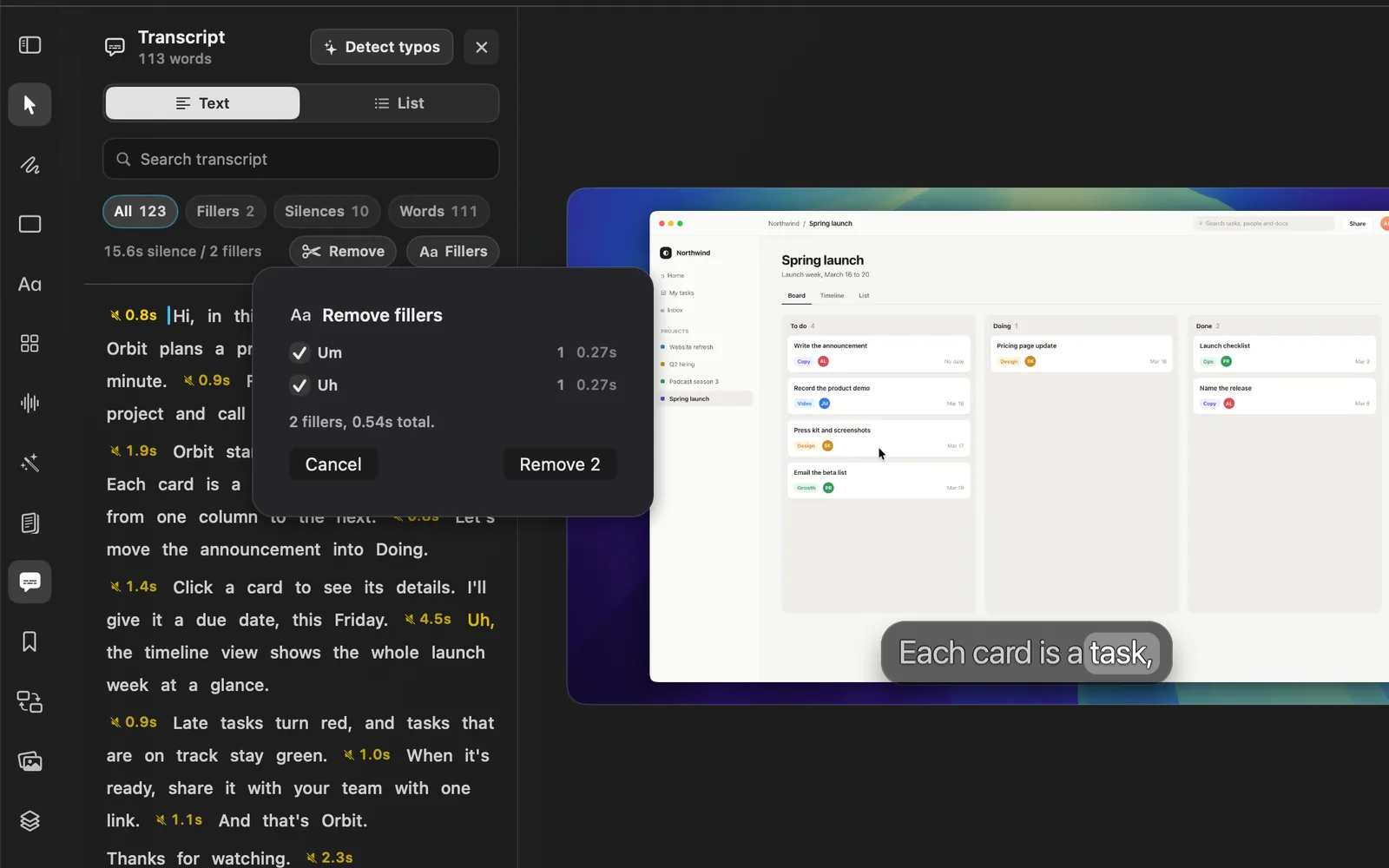
- Untick any you want to keep, then click Remove 2. The number is how many fillers will be cut.
- A green line such as "Deleted 2 fillers (0.55s)" says what was cut, and the word count at the top goes down.
The fillers DreamCut looks for are Um, Uh, Erm, Hmm and Ah, including longer spellings such as "umm". Words like "like" or "you know" aren't treated as fillers: delete those one at a time.
Remove silences
- Click Remove, the scissors button beside the summary line.
- In Remove silences, pick a Threshold: 0.4s, 0.5s or 1s. Only pauses at least that long are cut.
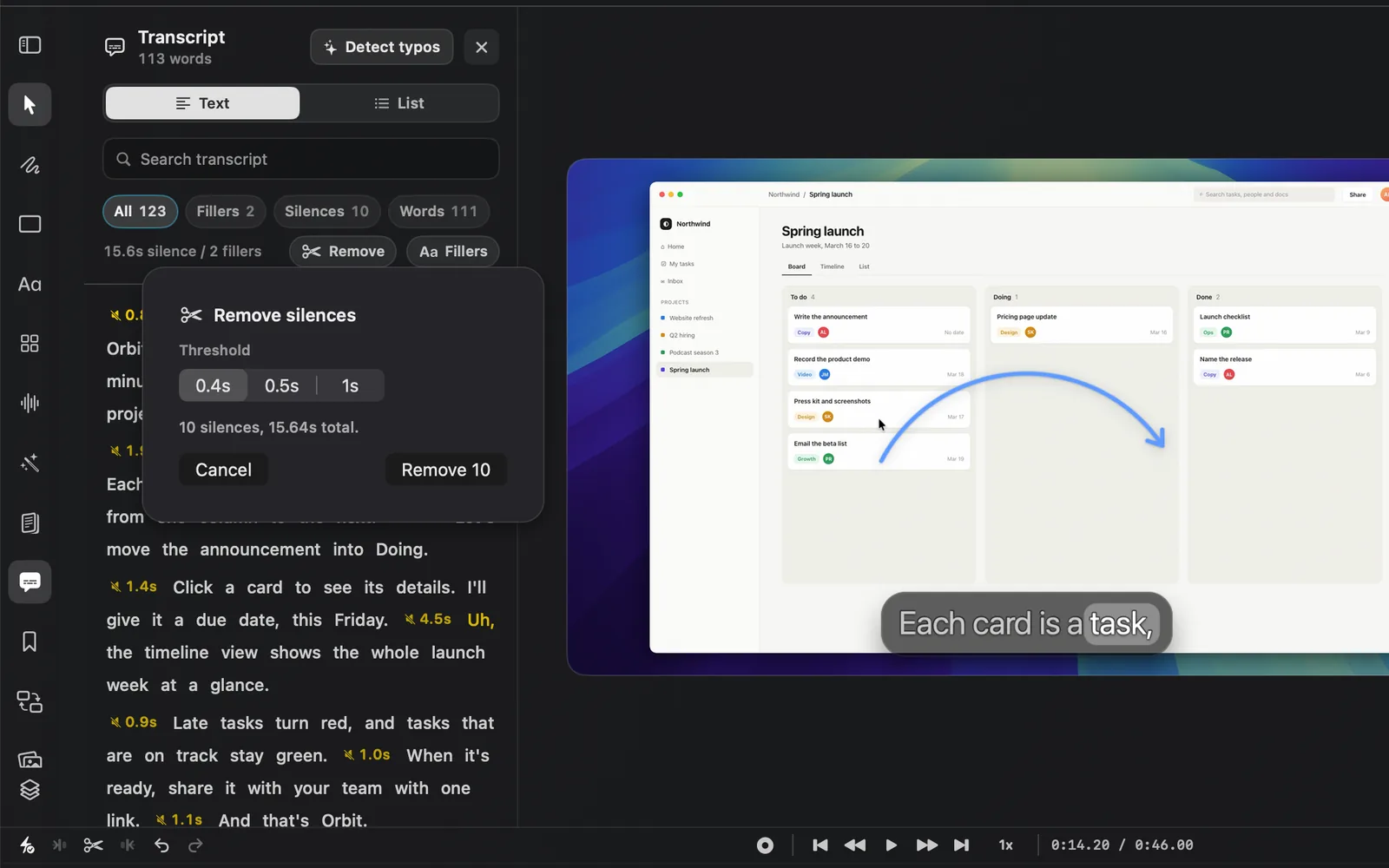
- Check the line under it, such as "10 silences, 15.64s total.", then click Remove 10.
DreamCut checks each pause against the audio before it cuts. It leaves 0.1 seconds of the pause on each side so your words don't run into each other, and it skips a pause that has sound in it, such as speech the transcript missed. So the time you save is a little less than the total in the popover. A green line in the panel says how many it cut and how much time that removed, then ", checked against the audio", or "; kept 1 with sound in it" when it skipped a pause.
Delete single words
In the Text view, you can cut any word, filler or pause on its own:
- Click it to select it. A bar marks it and the playhead moves there.
- Press ⌫ to delete the selected item, or ⌦ to delete the one after it.
- Use ← and → to move one item at a time, and ↑ and ↓ to move to the paragraph above or below.
- Or right-click it and choose Delete Word, Delete Filler or Delete Silence.
- Double-click a pause to delete it.
To fix a misheard word instead, double-click it, type the right word and press Return. That changes the caption only, not what plays. If you clear the word and press Return, DreamCut cuts it.
Undo a cut
Every removal is a cut on the timeline: the recording, camera and audio are cut together, and the rest of the video moves up to close the gap. Each Remove is one step, however many fillers or pauses it cut.
- Click Undo on the timeline toolbar or press ⌘Z to bring the cut back.
- Or drag the edge of the clip before or after the cut back over it on the timeline. The speech and its words come back.
Search and replace
- Type in Search transcript. In the Text view the matches are marked and the field shows where you are, such as "1/3". In the List view only the captions that contain it show.
- Press Return for the next match or ⇧Return for the one before.
- To change it, type the new text in Replace, then click Replace for the next match or All for every match.
- Press Esc in the field to clear the search, and again to leave the field.
Replacing changes the words in your captions. It doesn't cut anything.
Edit captions line by line
Click List to see your captions one at a time. The top says how many there are, such as "23 captions", or shows a menu of segments when the transcript comes from more than one clip.
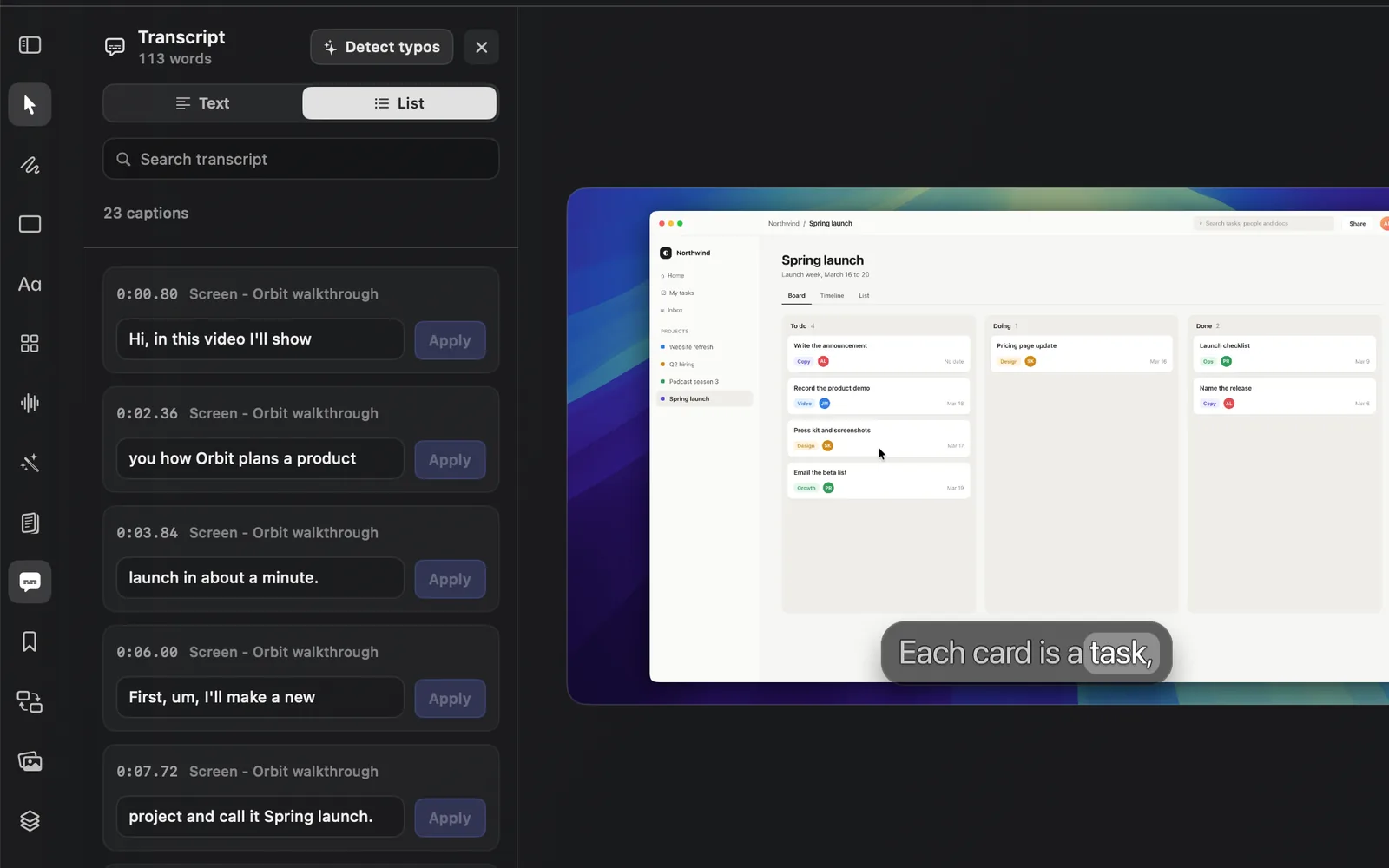
- Click a caption to move the playhead to it.
- Edit its text, then click Apply.
- Hover over a caption and click × (Delete Caption) to remove it. This deletes the caption only; the video stays.
- If some captions overlap in time, a chip such as 2 overlaps shows only those.
Fix typos with Detect typos
Detect typos uses DreamCut AI to find words your captions likely got wrong.
- Click Detect typos at the top of the panel. The panel switches to the List view and checks your captions. Click Cancel to stop.
- When it's done, each caption with a likely mistake shows a card with the wrong words struck through, the suggestion, and a short reason.
- Click Fix to use the suggestion, or Ignore to keep the caption as it is.
- Click Done to see every caption again. Typos you haven't fixed or ignored wait behind a chip such as Review 2 typos.
It looks for misspellings, misheard names and keywords, numbers that don't make sense, and grammar slips from the transcription. It leaves casual speech, fillers and missing punctuation alone.
When there's no transcript yet
The transcript is the words of your captions. If captions were made when you recorded, the transcript is already there. If not, opening the panel starts transcribing on its own: your camera if it has sound, otherwise your separate audio clips, otherwise the recording itself. Words appear as each clip finishes, and transcribing also adds the captions to the timeline.
| The panel says | What it means | Button |
|---|---|---|
| Transcribing audio | Words appear as each clip finishes | None |
| No transcript | Nothing has been transcribed | Transcribe audio |
| No audio to transcribe | No camera, audio or video clip on the timeline has sound | Check again |
| Can't transcribe yet | You need to sign in, be on a Pro or Max plan, top up credits, or update DreamCut | Try again |
| Couldn't transcribe | Transcription failed; the reason shows in red | Try again |
| No speech found | The clips with sound have no words in them | Transcribe again |
Tips and limits
- Pauses shorter than 0.4 seconds don't show in the transcript. Trim those on the timeline.
- The Text view always shows every clip in the project, so Remove never skips a part you can't see.
- Fillers is greyed out when there are no fillers, and Remove when there are no pauses.
- Retyping a word or replacing text changes your captions, not the audio.