
Publish to YouTube and X
Make a cover, title, description, keywords and an X post with DreamCut AI, then upload your export to YouTube or post it to X from the Publish pane.
The Publish pane gets a video ready for YouTube and X in one place: a cover, a hook for it, a title, a description with your chapters, keywords and an X post. DreamCut AI can write the words and make the cover from your video, and Review & Publish… uploads your export to the accounts you connect.
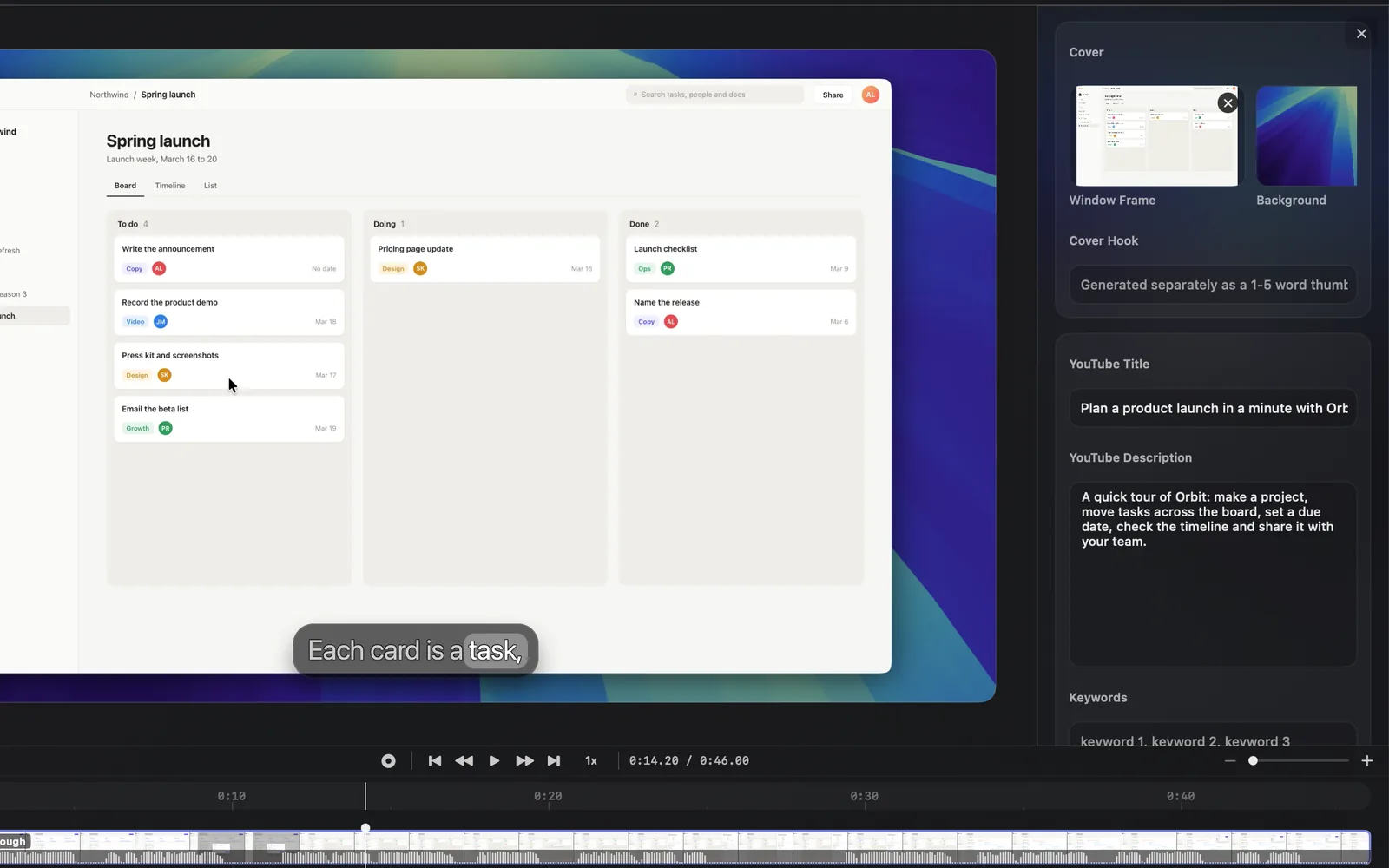
Open the Publish pane
- Export the video first. Publish uses the last video you exported from this project. See Export your video.
- In the editor's top bar, click the paper plane (Publish). The pane opens on the right, in place of the inspector.
- If the YouTube Title, YouTube Description or X Post is empty and you're signed in with credits left, DreamCut AI fills in every empty field at once: the title, description, keywords, cover hook and X post. Text you've written stays as it is.
Click the X at the top of the pane to close it. What you type is saved with the project.
Connect YouTube and X
- Click the gear next to EXPORT. DreamCut's Settings open on the Export tab.
- Under Publishing accounts, click Connect next to YouTube or X.
- Sign in and allow DreamCut in the window that opens.
The row then shows the account you connected, and Disconnect removes it. The same Connect and Disconnect buttons are in Review & Publish…. When an account needs connecting again, its row says so, such as "Reconnect to continue publishing."
The fields
| Field | What it's for |
|---|---|
| Cover | The YouTube thumbnail. Hover the section for Choose Cover and Generate Cover |
| Cover Hook | One to five words for the thumbnail, written apart from the title |
| YouTube Title | The video's title. Hover it for Generate |
| YouTube Description | The description, with your chapters as its timestamps |
| Keywords | Words separated by commas, such as "keyword 1, keyword 2". They go to YouTube as tags |
| X Post | The text that goes with the video on X |
| Chapters | Listed under Review & Publish… at the bottom of the pane: the project's chapters, or the chapters DreamCut AI wrote with the copy when the project has none |
DreamCut AI writes the description in sections: Short Description, Detailed Walkthrough, Resources / Tools + URLs, YouTube Tags and Timestamps. When the project has chapters, they replace the Timestamps lines as soon as DreamCut AI finishes writing, and again when you open Review & Publish… and when you upload. Without chapters, the Timestamps lines stay as DreamCut AI wrote them. The X post is a hook line, one to three lines of detail and a call to action, without emojis, hashtags or @mentions. Edit any of it by typing in the field.
The cover
Until you choose or generate a cover, the Cover section shows the pictures DreamCut makes one from: Window Frame, the frame of your recording under the playhead, and Background, your canvas background, plus Camera Frame when the video has a camera. Click the x on a picture to leave it out, or hover it and click Select Media to use a picture from your media gallery instead.
If you don't choose or generate one, DreamCut still sends YouTube a thumbnail, the automatic cover:
- What it shows: the frame under the playhead, the whole picture as it looks in the editor, with its background, layers and captions. When the playhead isn't over your recording, it uses the recording's first frame.
- When DreamCut makes it: when a video export finishes, when you open the pane and there isn't one yet, and each time you open Generate Cover. To pick the frame, move the playhead there before you export.
- Where you see it: not in the Cover section. Review & Publish says "Custom thumbnail attached".
Use your own picture
Hover Cover, click Choose Cover (the screen icon) and pick an image. DreamCut keeps a copy for the project, and it replaces the automatic cover.
Generate a cover
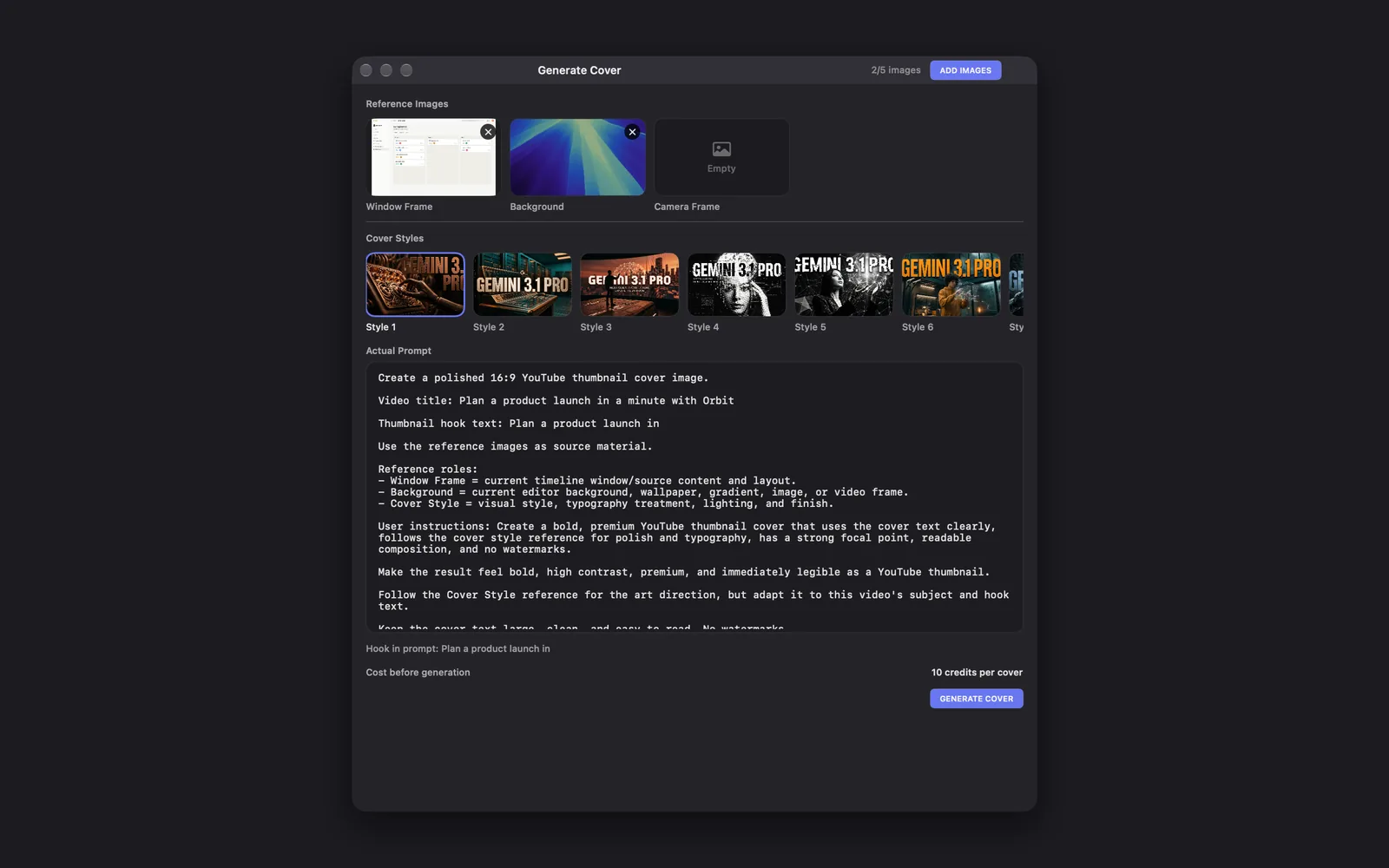
- Move the playhead to the frame you want the cover built from. Hover Cover and click Generate Cover. As the Generate Cover window opens, DreamCut takes Window Frame and Background again from the frame under the playhead.
- Under Reference Images, check the pictures DreamCut works from. Click the x on one to leave it out.
- To add pictures of your own, click ADD IMAGES in the window's title bar. The count beside it reads "2/5 images" in the picture: it counts every reference picture, Window Frame and Background included, up to 5 in all.
- Under Cover Styles, click a style, such as Style 1. The row scrolls sideways to more styles.
- Edit the Actual Prompt if you like. "Hook in prompt" shows the words the cover will carry: your Cover Hook.
- Check Cost before generation, then click GENERATE COVER.
A Cover Progress bar shows in the pane, "Expected about 2:00". The new cover replaces the pictures in the Cover section and goes to YouTube as the thumbnail. Click it to see it full size.
When the Cover Hook is empty, opening Generate Cover fills it with the first five words of the YouTube Title (or of the project's name, without a title). That's why the picture reads "Hook in prompt: Plan a product launch in", though the Cover Hook in the first picture is empty. For other words, type your own hook in the pane: DreamCut keeps it as you wrote it.
Write the copy with AI
- Generate: hover YouTube Title and click Generate. Generate Post opens in the pane with instructions you can change, such as the tone or what to mention. Click GENERATE POST to write the title, description, keywords, cover hook and X post again.
- Generate Copy or Regenerate Copy: the same, from the top of Review & Publish.
Both replace what's in the fields. DreamCut writes from the frame under the playhead, the first 18 captions of the scene you have open, and the project's name and length. Move the playhead to a frame that shows what the video is about, and add captions first: without them, it has only the picture to go on.
Review and publish
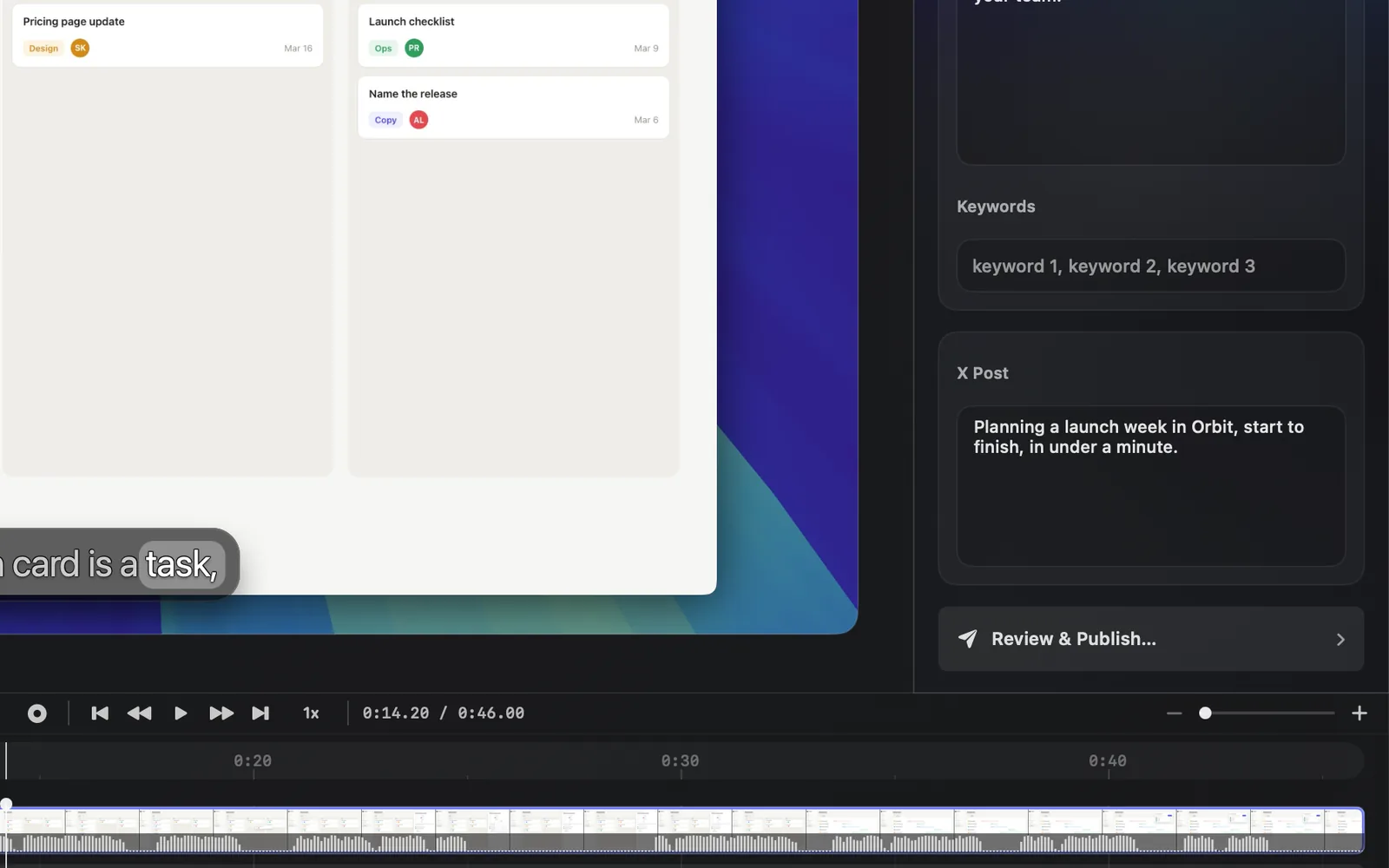
- Scroll to the bottom of the Publish pane and click Review & Publish…. The Review & Publish window reads "Nothing is sent until you choose a destination below."
- Check the video at the top. It shows the exported file with "This file will be uploaded only after confirmation.", or "Export a video first" when there isn't one: DreamCut attaches your next video export by itself.
- In the YouTube card, check the title and Description, then set:
- Visibility: Private, Unlisted or Public. It starts on Private.
- Schedule publication: pick a date and time in Publish at. It starts an hour from now, and Visibility switches to Private and locks: a scheduled video is private until then.
- Made for kids and Contains realistic synthetic media: YouTube's own questions. Both start off.
- Notify subscribers: on by default.
- Click Upload as Private (the button names your visibility), or Schedule on YouTube. The card counts up, "Uploading video to YouTube… 42%", then reads "Uploaded to YouTube as Private." with an Open link. A scheduled video reads "Uploaded and scheduled on YouTube for" followed by the date and time.
- In the X card, check the Post text and click Post Video to X. The card shows each stage, such as "Uploading video to X… 42%", and reads "Posted video to X." with an Open link when it's done.
- Click Done.
The buttons stay greyed out until they have what they need, and while an upload is running:
- Upload as Private or Schedule on YouTube: an exported video, a connected YouTube account and a title. It's red when it's ready. In the recording it stays grey because the project has no export yet: the card at the top reads "Export a video first".
- Post Video to X: an exported video and a connected X account.
"Custom thumbnail attached" means a cover goes up with it: yours, a generated one or the automatic one. If YouTube doesn't take the thumbnail, the video still uploads and the card says so.
Videos X accepts
DreamCut checks the video before it uploads. X takes videos from 0.5 to 140 seconds long, up to 512 MB, up to 60 fps, and from 1:3 to 3:1 in shape. A Max export at 4K and 60 fps passes 512 MB in under a minute, so Web or High is the safer quality for a video you post to X.
Costs
What's next
- Chapters: mark sections that become YouTube chapters.
- Article Studio: turn the same video into an article or a thread.
- Share links: send a private dreamcut.ai link instead.
- Settings: connect accounts and choose where exports go.