
Background and canvas size
Put a wallpaper, gradient, color, image or video behind your recording, and switch the canvas between 16:9, 4:3, 1:1, 3:4 and 9:16.
The canvas is the frame your video is made in. Its size sets the video's shape, and the background is what shows around your recording. Change the size when you want a tall or square version, and the background to give the video its look.
Change the wallpaper and canvas size
- Press Esc so nothing is selected. The inspector on the right shows Background at the top.
- Click the first of the five buttons under Background, the monitor icon named Wallpaper, if it isn't already selected. Wallpaper presets shows below the preview only in this mode.
- Under Wallpaper presets, click a wallpaper, such as Golden Gate Dark (the second Golden Gate tile; hover a tile to see its full name). Scroll the row sideways to see them all.
- On the top bar, at the left, click a canvas size: 9:16 for a tall video or 1:1 for a square one.
- Your recording keeps its own shape and fits inside the new frame. The background fills the space around it.
- Click 16:9 to go back to a wide video.
Canvas sizes
A project has one canvas size, and every scene uses it. When you change it, DreamCut moves and resizes your recording, your camera, and the text and overlays placed on the canvas to fit the new frame.
| Size | Shape | Video size at 1080p |
|---|---|---|
| 16:9 | Wide, for YouTube and most screens | 1920 × 1080 |
| 4:3 | A little wider than tall | 1440 × 1080 |
| 1:1 | Square | 1080 × 1080 |
| 3:4 | A little taller than wide | 1080 × 1440 |
| 9:16 | Tall, for Shorts, Reels and TikTok | 1080 × 1920 |
At 720p and 4K the sizes scale the same way. You pick the resolution when you export.
Change the background
- Press Esc so nothing is selected, and move the playhead into the scene you want to change.
- Under Background, click one of the five icon buttons. Hover over one to see its name.
- Pick a preset or a file below the large preview, which shows the background you have now.
| Button | What goes behind your recording |
|---|---|
| Wallpaper | One of DreamCut's wallpapers, or your Mac's desktop picture |
| Gradient | A blend between two colors |
| Color | One solid color |
| Image | A picture from your Mac or your media library: PNG, JPEG, HEIC, TIFF, WebP, GIF or BMP |
| Video | A video from your Mac or your media library, looping without sound: MOV, MP4 or M4V |
Each clip on the timeline's Video lane is a scene, and each scene keeps its own background. The Background section changes the scene under the playhead. To give every scene the same one, see Use one background in every scene.
Wallpaper
System uses your Mac's desktop picture. The others are Golden Gate, Tahoe, Sequoia, Sonoma, Ventura, Monterey and Big Sur, each in a Light and a Dark version, and five gradient wallpapers: Azure Mist, Forest Night, Violet Glow, Sunrise Fog and Graphite Blue.
Gradient
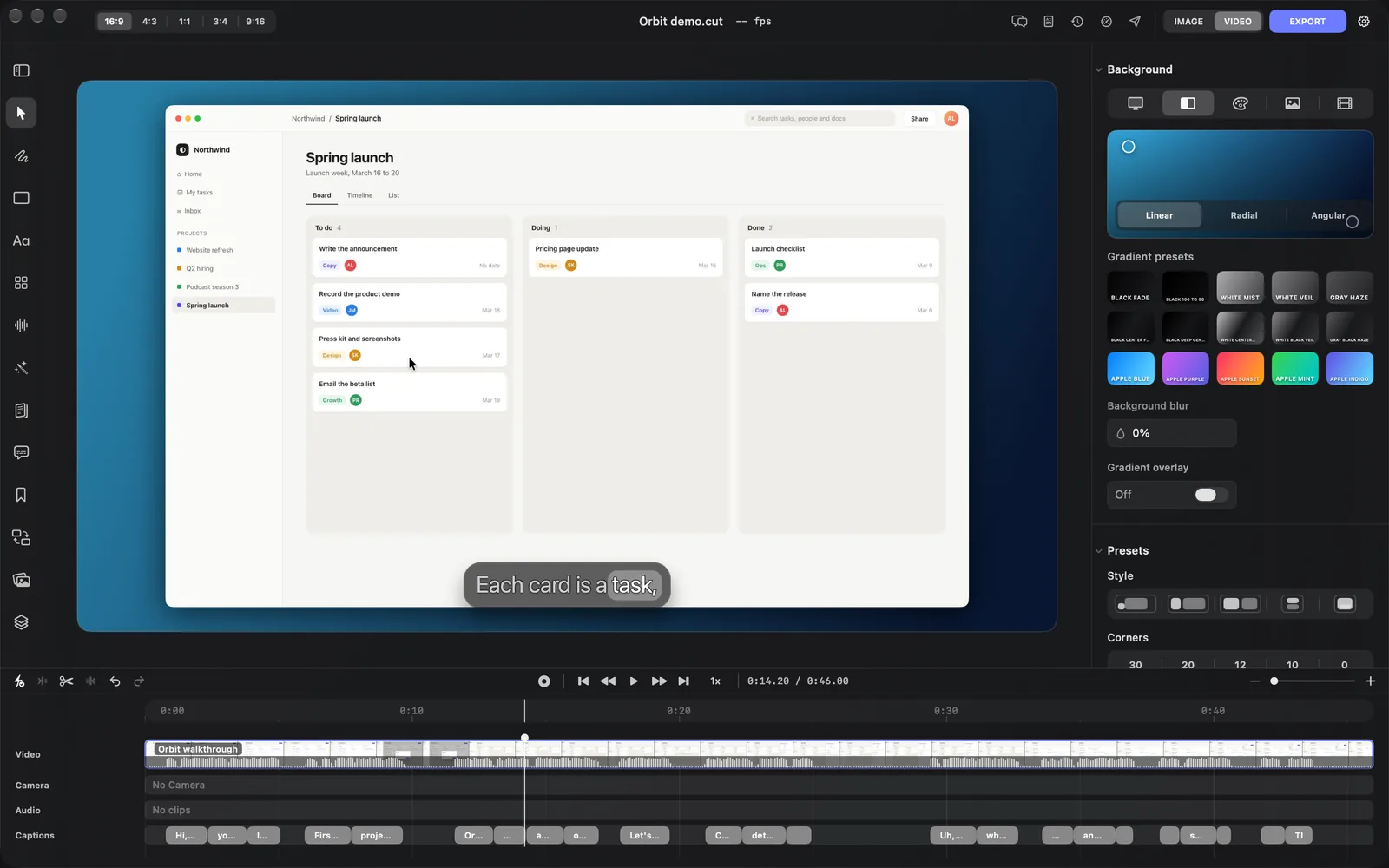
- Click a tile under Gradient presets. There are 15, from Black Fade and White Mist to Apple Blue and Apple Sunset.
- Choose Linear, Radial or Angular at the bottom of the preview.
- Drag the two round handles on the preview: start and end for Linear, center and radius for Radial, center and rotation for Angular.
- To change a color, click its handle and use the color well that appears at the top right of the preview.
Color
Click one of the ten swatches under Color presets: black, four grays, white, and a dark blue, purple, green and brown. For any other color, use Custom color. Choosing Linear, Radial or Angular in its picker switches the background to a gradient that starts from your color.
Image and Video
- Click the Image or Video button.
- Click Set Custom Wallpaper (for an image) or Set Custom Video, then From Computer or From Media Library. Clicking the preview opens the same menu.
You can also drag a picture or video file onto the preview, and DreamCut switches to Image or Video for you. A picture or video fills the whole canvas, so edges that don't match the canvas shape are cropped. A background video loops for as long as the scene lasts and plays without sound.
Make a moving background with AI
Generate Video turns a still background into a short looping video. It works from a photo wallpaper (System included) or an Image background. It isn't offered for the five gradient wallpapers (Azure Mist to Graphite Blue), a gradient, a color or a video: the button doesn't show on the preview, and it's greyed out in the canvas menu.
- Hover over the background preview and click Generate Video at its top right.
- The Generate media panel opens in video mode with your background attached, and Output reads "Replace background". Describe the movement you want, and pick a Model and a Duration.
- Click Generate Video. When it's ready, the video replaces the background and the Background section switches to Video.
You can also right-click an empty part of the canvas: Generate Image makes a new background picture from a prompt, and Generate Video works as above.
Blur the background
Background blur softens the background so your recording stands out, from 0% (sharp) to 100%. It sits under the background presets and works with every kind of background.
Add a gradient overlay
Turn on Gradient overlay to fade a color in at the top and bottom edges of the frame. It sits over your recording and camera but under text and captions, so it can make captions at the bottom easier to read.
| Setting | What it does | Starts at |
|---|---|---|
| Fade top | How far down from the top edge the color reaches | 0%, no fade at the top |
| Fade bottom | Where the fade toward the bottom edge begins | 80% |
| Color | The overlay's color and opacity | Black at 70% |
Use one background in every scene
Two buttons copy settings from the scene under the playhead to the others:
| Button | Where it is | What it copies |
|---|---|---|
| Apply to all backgrounds | Bottom right of the background preview | The background, its blur and the gradient overlay, to every scene |
| Apply to all layers | Bottom of the inspector, under Presets | To every scene: the recording's size, position, crop, rotation, opacity, corners, padding, inset, border and stacking order, the background blur, the gradient overlay, and Default zoom, Scale camera on zoom and Blur on zoom. To every camera clip: the camera's position, size, shape, crop, rotation, opacity, corners, padding, inset, border and stacking order |
Apply to all backgrounds shows only when your project has two or more scenes and their backgrounds differ. Apply to all layers doesn't copy the background itself, and it stays grayed out until the project has two scenes or two camera clips.
You can also ask Sakura, for example "use the Tahoe Dark wallpaper". It changes every scene, or only one scene if you name a time.
Tips and limits
- One project has one canvas size. You can't mix 16:9 and 9:16 scenes in the same video.
- When your video isn't already tall and runs 3 minutes or less, Sakura suggests "Make a vertical version for Shorts", so you can ask it to make the switch for you.
- For a tall video with your camera, try the 1/2 Vertical style under Presets, which puts your camera above the recording. Layout and camera explains each style.
- If the preview stutters with a blurred background, open Editor performance settings (the speedometer on the top bar) and turn off Background blur. It changes the live preview only; your export keeps the blur.
What's next
- Layout and camera: place your recording and camera with the presets under Background.
- Zoom and cursor: zoom in where you click and style the pointer.
- Export settings: choose the resolution your canvas size is exported at.