
Quick captures with double-tap keys
Press Control twice to copy part of the screen, Option twice to copy the front window, or Command twice to record it, from any app on your Mac.
Quick captures skip the capture bar. Tap a modifier key twice in any app, and DreamCut copies part of the screen or the window in front, or records that window, and puts the result on your clipboard, ready to paste.
Before you start, allow DreamCut Screen Recording and Accessibility (Accessibility is what lets it hear a double tap in other apps), and sign in with a Pro trial or plan. Install and permissions covers both.
The three double taps
| Keys | Setting | What it does |
|---|---|---|
| ⌃⌃ | Capture area | You drag over part of the screen, and DreamCut copies that picture |
| ⌥⌥ | Copy active window | Copies a picture of the window in front |
| ⌘⌘ | Record active window | Records the window in front with the pointer and its clicks; tap again to stop, and the video is copied |
A double tap is two quick taps of the same key, left or right, with no other key or click in between, so shortcuts such as ⌘C and ⌘V never set one off. The key still reaches the app you're in.
Copy part of the screen
- Tap ⌃ twice. The pointer becomes a crosshair, as it does for ⇧⌘4 in macOS.
- Drag over what you want. While you drag, hold Space to move the box, ⇧ to lock an edge, or ⌥ to grow it from the centre.
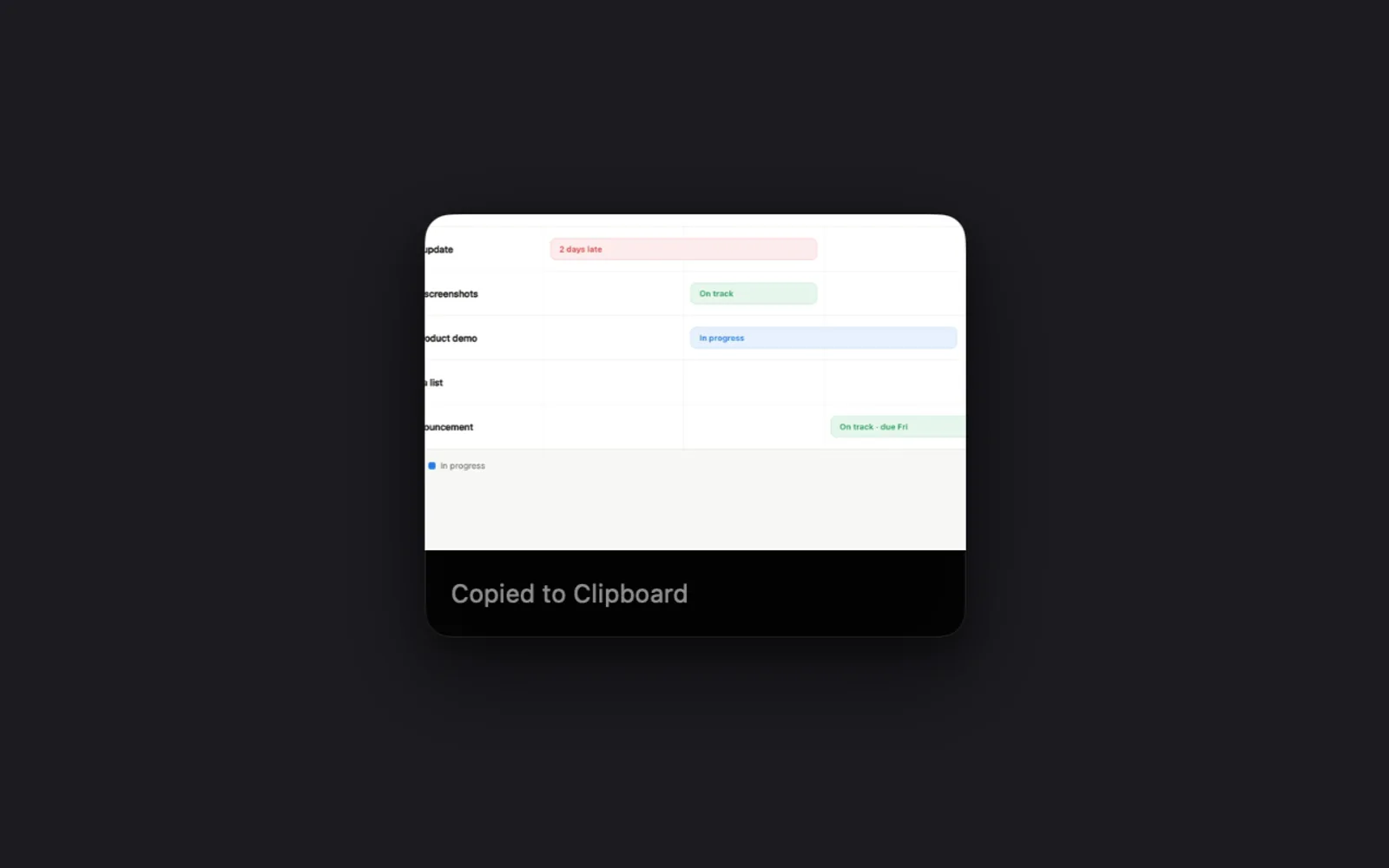
- Let go. DreamCut copies the picture and shows the corner card.
Press Esc before you let go to cancel. A click without a drag cancels too, and nothing is copied.
Copy the window in front
- Click the window you want, so it's in front.
- Tap ⌥ twice.
There's no picker: DreamCut takes the front app's top window, puts its picture on the clipboard and shows the corner card. When the front app has no window open, such as Finder showing only the desktop, it takes the top window on the screen.
Record the window in front
- Bring the window you want to the front.
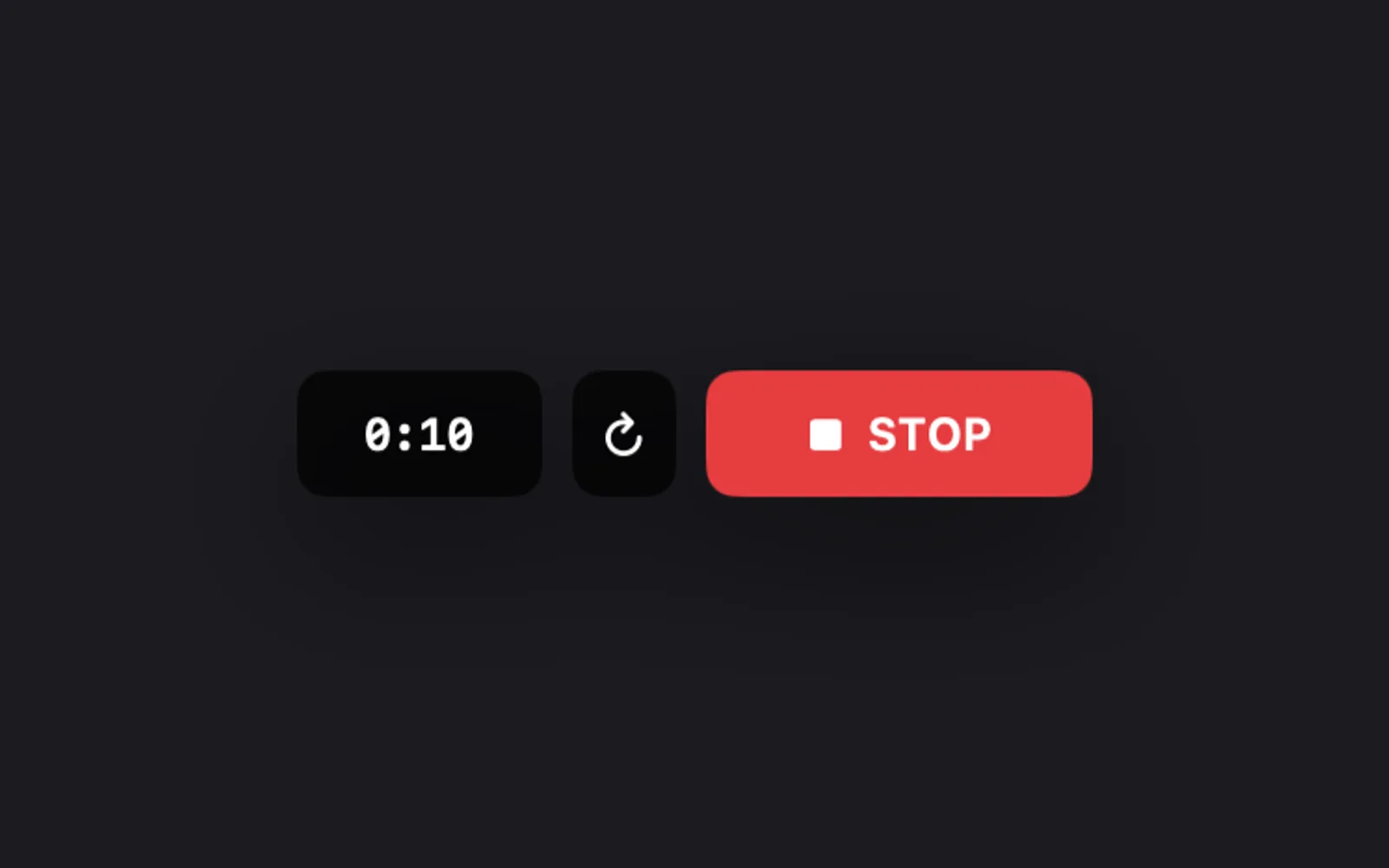
- Tap ⌘ twice. Recording starts at once, with no countdown, and the recording controls appear under the window.
- Do what you want to show.
- Tap ⌘ twice again, or click STOP.
The video goes on the clipboard with the macOS pointer and its click rings drawn in, and the corner card shows it with its length. It's copied as a file, unlike the pictures: paste it where files go, such as a message, an email or a Finder folder. An app that only takes pictures or text can't paste it.
Restart recording, the circular arrow, asks first: Restart Recording? "This will discard the current recording and start again from the beginning." Click Restart Recording to throw the take away without copying it and record the same window again from 0:00, with a fresh 5 minutes, or Cancel to keep going.
- 5-minute limit: a window recording stops on its own after 5 minutes, and the card reads "5 min limit · Copied to Clipboard".
- No pause: window recordings can't pause, so their controls have no PAUSE button.
- Sound, no camera: your camera isn't recorded. Your microphone and system audio are, when they're on in the capture bar.
- One recording at a time: if a recording you started from the capture bar is under way, ⌘⌘ leaves it alone and says "Already recording".
The corner card
After each quick capture, a card appears in the bottom-right corner of the screen. It fades after 5 seconds, but stays while the pointer is on it, and for a moment after the pointer leaves.
| What you do | What happens |
|---|---|
| Click the picture ("Open in Editor" shows when you point at it) | Opens the capture in a new editor window |
| Click Add to Existing | Adds it to the editor window that's open. The button only shows when one is |
| Drag the picture | Drops the file into another app or a Finder folder, and the card closes |
| Leave it | It fades away. The capture stays in Captures |
The card's status reads "Copied to Clipboard", or "Copied" when Add to Existing leaves less room. "Saved to Captures" (or "Saved") means DreamCut couldn't put it on the clipboard: the capture is still saved, and you can drag it from the card.
A window recording opened from the card arrives in the editor without the drawn-in pointer. DreamCut uses the mouse movements it recorded instead, so it can add zooms, mouse follow and its own cursor, as it does for any recording. Zooms and the cursor has the details.
Where captures are saved
Every quick capture is also saved on your Mac, in DreamCut's Captures folder (in your Library, under Application Support > DreamCut). Pictures use the image format from Capture Options (the gear on the capture bar). A window recording is saved there clean, without the drawn-in pointer; the copy you paste, with the pointer, goes in a Clipboard Clips folder beside it, which keeps only your newest 10.
To find a quick capture later, open the Open menu on the capture bar and look under Recent Image Captures or Recent Video Captures.
Change the keys
- Click the DreamCut icon in the menu bar and choose Show settings (⌘,).
- Open Shortcuts.
- Next to Capture area, Copy active window or Record active window, pick a key: ⌥ Option twice, ⌃ Control twice, ⇧ Shift twice, ⌘ Command twice or Off.
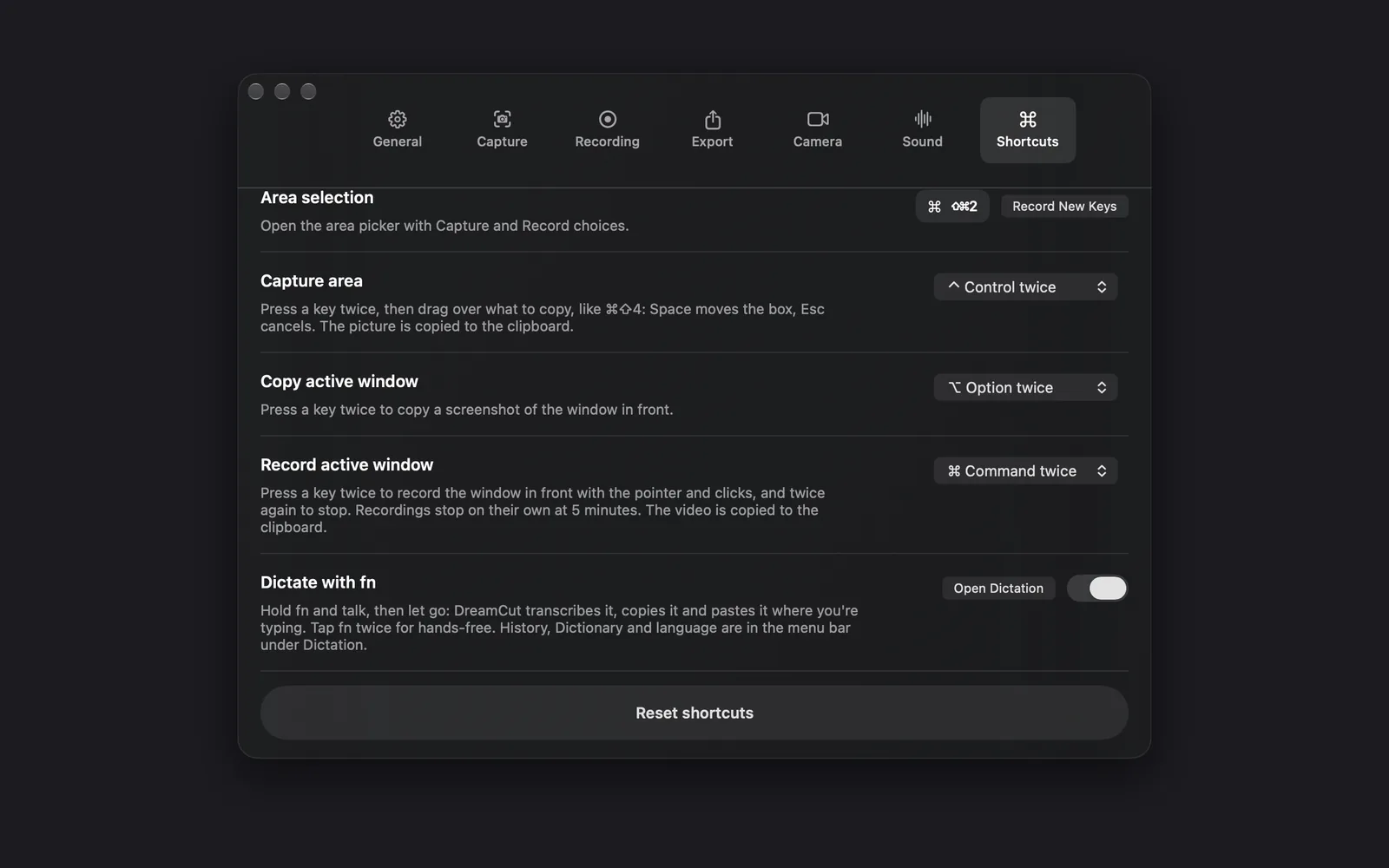
If two actions share a key, the tab warns "Two or more shortcuts currently conflict. Change one of them." and the one higher in the list wins. Reset shortcuts at the bottom puts back ⌃⌃, ⌥⌥ and ⌘⌘, along with the selection shortcuts above them.
Tips and limits
- Double tap not caught? Each tap can last at most 0.3 seconds, and the second tap has to start within 0.35 seconds of the first one ending. A longer press, or a longer pause between taps, doesn't count.
- Another app's double tap: DreamCut doesn't take the key away from other apps, so if another app also answers a double tap of the same key, both respond. Pick another key, or Off, for the one you use less.
- Nothing in front: with no window on screen, ⌥⌥ says "No window to copy" and ⌘⌘ says "No window to record".
- Moved files: if you move or delete a capture and then click its card, it doesn't open: DreamCut shows "That capture was moved or deleted" instead.
- Works only inside DreamCut? The double taps need Accessibility access to work in other apps. Until DreamCut has it, Settings > Shortcuts adds "Works in other apps once DreamCut has Accessibility access." under Capture area and Copy active window. Install and permissions shows how to allow it.
What's next
- Record your screen: record a display, a window or an area from the capture bar, with your camera.
- Speaker notes: keep a script on screen that stays out of your recordings.
- Dictation: hold fn in any app to type with your voice.
- Keyboard shortcuts: every shortcut in DreamCut.