
Web, High or Max: pick an export quality
Pick Web, High or Max when you export a video in DreamCut, with the bitrate each one writes at every size and frame rate and how big the file gets.
Quality in Export Settings sets how much data each second of your video gets. All three choices write H.264, the video format nearly every browser, player and upload form takes. Web makes the smallest files, Max keeps the most detail, and High, where DreamCut starts, sits between them.
Pick a quality
- In the editor's top bar, select VIDEO and click EXPORT.
- Keep Mode on Compatible. Fast Master writes ProRes instead and has no Quality row.
- Under Quality, click Web, High or Max.
- Check the Bitrate row (it shows with MP4) and Estimated file size. Both change with the quality, the Resolution and the FPS.
- Scroll down to the bottom of the popover and click Export Now.
DreamCut keeps the quality you pick for your next exports, in every project.
What each quality writes
| Quality | At 1080p and 30 fps | Compared with Max | Good for |
|---|---|---|---|
| Web | 2 Mbps | About a fifth of the data | Sites, chats, social posts and drafts |
| High | 4 Mbps | About two fifths | Most uploads. It's where DreamCut starts |
| Max | 11 Mbps | All of it | Small text and fast motion that must stay crisp, and copies you keep |
Web is half of High, and High about two fifths of Max, apart from the 2 Mbps floor below. You can't type a bitrate of your own: it comes from the quality, the Resolution and the FPS.
Bitrates at each size and frame rate
The bitrate grows with the number of pixels and frames. These are the numbers the Bitrate row shows for a 16:9 or 9:16 canvas:
| Resolution and FPS | Web | High | Max |
|---|---|---|---|
| 720p, 24 fps | 2 Mbps | 2 Mbps | 3.5 Mbps |
| 720p, 30 fps | 2 Mbps | 2 Mbps | 4.5 Mbps |
| 720p, 60 fps | 2 Mbps | 3.5 Mbps | 9.5 Mbps |
| 1080p, 24 fps | 2 Mbps | 3 Mbps | 8.5 Mbps |
| 1080p, 30 fps | 2 Mbps | 4 Mbps | 11 Mbps |
| 1080p, 60 fps | 4 Mbps | 8 Mbps | 21 Mbps |
| 4K, 24 fps | 6.5 Mbps | 13 Mbps | 34 Mbps |
| 4K, 30 fps | 8 Mbps | 16 Mbps | 42 Mbps |
| 4K, 60 fps | 16 Mbps | 32 Mbps | 84 Mbps |
No export goes below 2 Mbps, so at 720p Web and High can come out the same.
Other canvas shapes
A 4:3, 3:4 or 1:1 canvas has fewer pixels at the same Resolution, so its bitrates are lower. At 60 fps:
| Canvas and resolution | Size | Web | High | Max |
|---|---|---|---|---|
| 4:3 or 3:4, 1080p | 1440 × 1080 or 1080 × 1440 | 3 Mbps | 6 Mbps | 16 Mbps |
| 4:3 or 3:4, 4K | 2880 × 2160 or 2160 × 2880 | 12 Mbps | 24 Mbps | 63 Mbps |
| 1:1, 1080p | 1080 × 1080 | 2.5 Mbps | 4.5 Mbps | 12 Mbps |
| 1:1, 4K | 2160 × 2160 | 9 Mbps | 18 Mbps | 47 Mbps |
At 30 fps they're about half, and never below 2 Mbps.
How big the files get
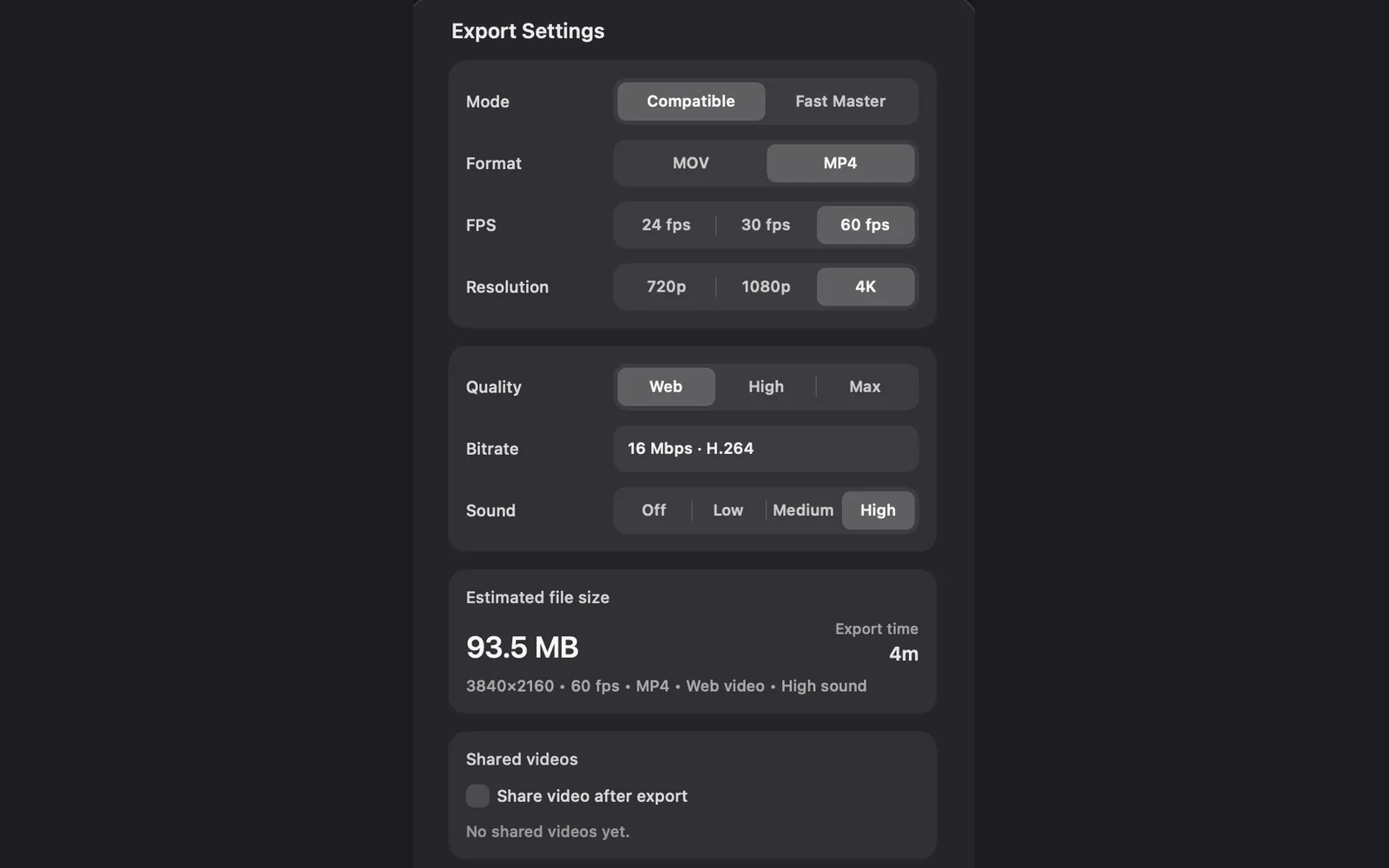
Estimated file size is the bitrate times the video's length, plus the sound. The summary line under it names the quality, such as "3840×2160 • 60 fps • MP4 • Web video • High sound".
About how much one minute of video takes as an MP4 on a 16:9 canvas, with Sound on High:
| Quality | 1080p, 60 fps | 4K, 60 fps |
|---|---|---|
| Web | 32 MB | 122 MB |
| High | 62 MB | 242 MB |
| Max | 159 MB | 632 MB |
The pictures on this page are at 4K and 60 fps, where the 46-second recording is estimated at 93.5 MB with Web, 185.5 MB with High and 484.5 MB with Max. At 1080p and 60 fps, Web comes to 24.5 MB. DreamCut estimates a MOV about 15% larger than the same MP4.
When to pick each
- Web: for a site, a chat, a social post or a draft someone will review. The files are small and quick to upload.
- High: for most uploads, when you want a clean picture without a big file.
- Max: when small text, code or fast scrolling must stay sharp, or for a copy you keep. If a Web export looks soft, export again with High or Max.
- Fast Master: for editing the video further in another app. See Export your video.
A share link makes its own web copy of your export, at most 1080p and under 30 MB, so you don't need Max for it. For X, which takes videos up to 512 MB, Web or High is the safer pick: see Publish.
What's next
- Export your video: every export setting, the progress screen and where files go.
- Share links: send a private dreamcut.ai link to an export.
- Publish: upload to YouTube and post to X.
- Settings: choose the folder your exports go to.