
Layout cards and custom HTML
Add ready-made pricing cards, quotes, stats, buttons and illustrations to your video, type your own words in them, or write a card in HTML and CSS.
Layout cards are pieces of a designed web page, such as a pricing card, a customer quote, a row of stats, a button or an illustration, set on a transparent background over your recording. Use one to show a price, a quote or a next step while you talk about it. Pick a card from the Layout panel and type your own words, or write your own card in HTML and CSS.
Add a card
- Move the playhead to where the card should appear.
- Click Layout in the tool rail, or press L. The Layout panel opens with its cards in groups, from Showcase to Illustrations, and Custom last.
- Rest the pointer on a card to watch it play.
- If Layout is greyed out with the tooltip "Requires a scene.", there's no visible scene under the playhead: move the playhead onto your recording on the Video lane.
- Click a card. It lands on the canvas at the playhead, selected, and its clip appears on the Overlay lane.
- Most cards last 6 seconds; a few last 5 or 7. Drag the clip's ends on the timeline to change that.
- Drag the card to move it, and drag its corners or edges to resize it.
The card plays its own animation in, holds, and goes out at the end of its clip, so right at its start it looks faint until you play on. Click Layout in the rail again, or the × at the top of the panel, to close it.
The cards
The note at the top of the panel calls them ThreeUI elements: each card is one piece, such as a pricing card or a footer, taken from a ThreeUI web page design.
| Group | Cards | What they are |
|---|---|---|
| Showcase | Arca Pass, Arca Directory, Umbra Swatches, Volta Services, Arca Show Us, Japan Map | A profile and wallet pass, an app in a browser window, colour swatches, words rolling on a drum, a collage and a night map of Japan |
| Pricing | Echo Vale, Umbra, Corvane Vault, Astral Atlas, Volta Atelier, Morrow | A plan's name, its price, what's included and a button or link |
| Testimonials | Kairo, RenderLab, Echo Vale, Halvorsen, Umbra, Agent AI | A quote with the person's name and role, some with a portrait |
| Data | Halvorsen Stats, Sunseto Chart | Stats whose figures count up, and a week-long energy chart |
| Sections | Workshop Steps, Drift Feature, Drift FAQ, Oblo Logos, Drift Footer | Numbered steps, a feature, questions and answers, client logos and a site footer |
| Buttons | Aureon Crystal, Liquid Metal, Umbra Chrome, Get Started, Rondel Record, Brand Orb | Animated buttons, most acting out a hover or a press |
| Text | Copy Prompt, Intro Text, Gallery Heading | Animated headlines and a wordmark |
| Illustrations | Keyboard, Lighting, Design Tools, Globe, Code Tools, Codex, Claude Code, AirPods, 3D Model | Animated drawings. Some take a caption; others type your words into the scene, such as a prompt or a line of code |
| Custom | Custom HTML | A card you write yourself. See Write your own card in HTML |
Adding a card, or writing your own, uses no credits.
Change a card's words
Every card has words you can replace, from a quote to the rows of a price list. Each line you type is one row of the card.
- Click the card to select it. The inspector opens on the tab you used last, Preset at first.
- In the Layout element section, type in the Text box.
- The line under the box says how this card reads its lines. For Echo Vale: two small labels on the first line, then the plan name, the price, one included item per line, and the button.
- The card on the canvas updates as you type.
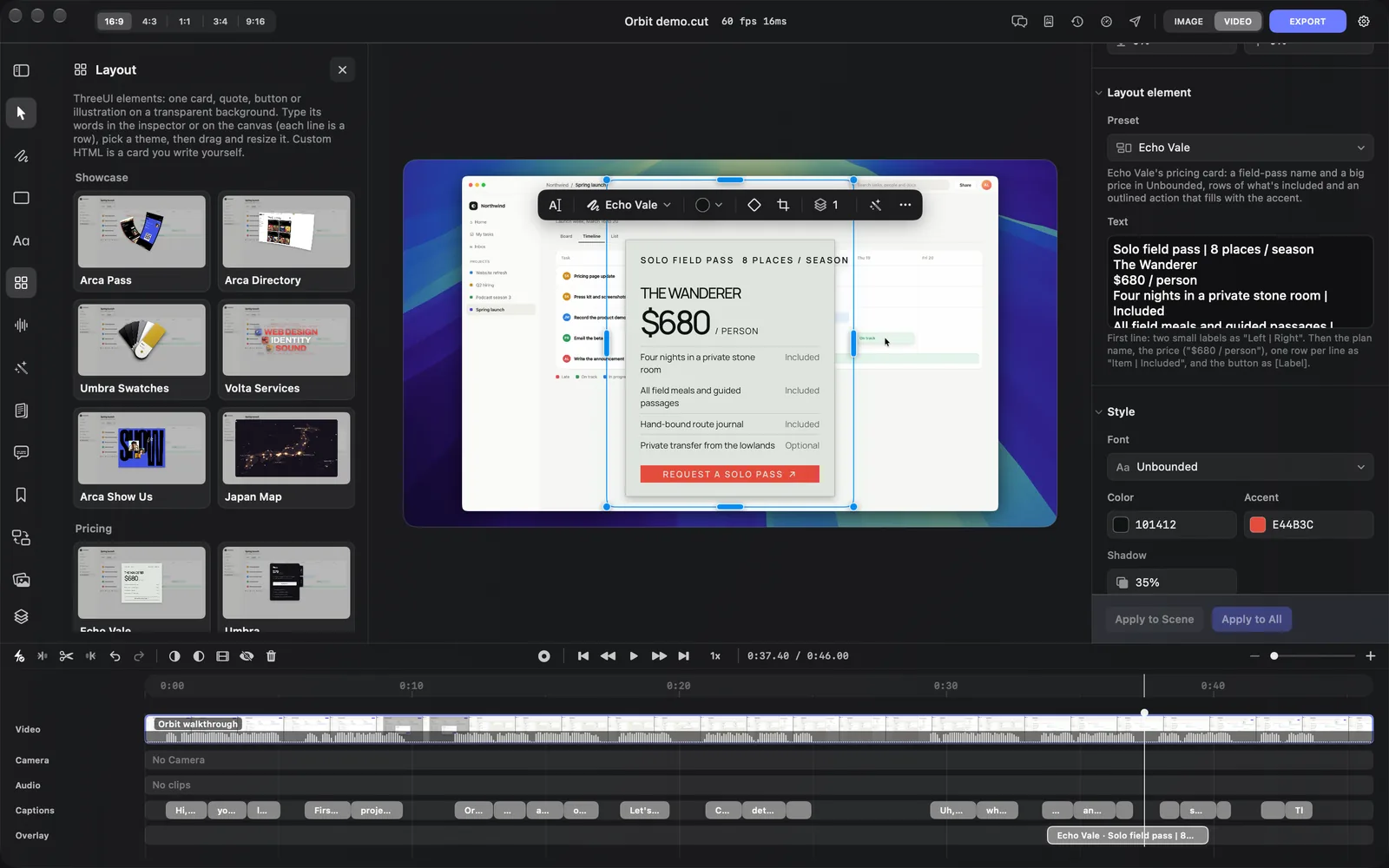
To type on the canvas instead, double-click the card, or select it and press Return or click the I-beam in its toolbar.
Most cards share a few habits:
- A
|splits a line into parts, such asHand-bound route journal | Included. - Square brackets make the button:
[Request a solo pass]. - On some cards an ALL-CAPS first line becomes a small tag or flag.
- On the illustrations, clearing the text shows the drawing on its own, or plain bars where the words were.
Change a card's look
The Preset tab holds everything for the selected card, top to bottom:
| Section | What's in it |
|---|---|
| Transform | Position, size, rotation and Z-index (higher sits in front), and Anchor to the layer: on, the card is placed within your recording's frame instead of the whole canvas |
| Crop | Trim the card's edges. See Crop and rotate |
| Layout element | The Preset menu, which swaps this card for another, a line on what the card is, and the Text box |
| Style | Font, Color, Accent on cards with a second colour, and Shadow |
| The card's name, such as Echo Vale | Speed of the animation, from 0.25× to 3×, then the card's own options. Most have a Theme, such as Sage, Ink (featured) or Bone on Echo Vale, and some have more, such as the Button switch on Echo Vale |
| Appearance | Corner radius |
| Hide | Takes the card out of the video without deleting it |
Reset all and Delete sit at the bottom. The Animation tab has the card's keyframes, a way in and its timing; Overlays explains it.
Once you change something, Apply to Scene and Apply to All appear at the foot of the inspector. On a ready-made card they copy very little:
- On the Preset tab they copy only Corner radius, not the font, colours, theme or shadow: set those on each card. (On the Animation tab they copy the way in and out, its timing and the keyframes.)
- They reach every HTML-type layer in the scene or the video, not just layout cards: animated titles and HTML Element boxes too.
- The words, and which card each one is, stay as they were.
On a Custom HTML card they copy its whole style (Typography, Background and Corner radius) to your other Custom HTML cards, and leave each card's code alone.
When you pick another card in the Preset menu, your words come along, with any colour or font you changed. Check the new line under Text, since each card reads its lines its own way.
The card's toolbar
A selected card has a toolbar over it on the canvas:
| Button | What it does |
|---|---|
| I-beam | Edit text (double-click or Return): type the card's words on the canvas |
| The card's name | Preset, followed by the card's name, such as Preset: Echo Vale: swap it for another card |
| Colour circle | Color: the card's main colour |
| Diamond | Add keyframe at the playhead |
| Crop | Crop: drag its edges |
| Stack and number | Z-index: type a number from 0 to 10, or drag the icon |
| The wand | Generate with this layer |
| ⋯ | More: the right-click actions |
Write your own card in HTML
Custom HTML is a card you write yourself, for anything the other cards don't do.
- Open the Layout panel and scroll to Custom, the last group.
- Click Custom HTML. A sample card lands at the playhead for 4 seconds: a small "Introducing" label, the headline "A calmer way to edit", a line under it and a footer.
- In the inspector's Style tab, find the HTML code box and replace the sample with your own HTML and CSS. Put your CSS in a
<style>tag in the same box, as the sample does.- The canvas updates a moment after you stop typing.
- For more room, click the arrows in the box's corner (Edit the code in a large editor). Click Done, or press Esc, to close it.
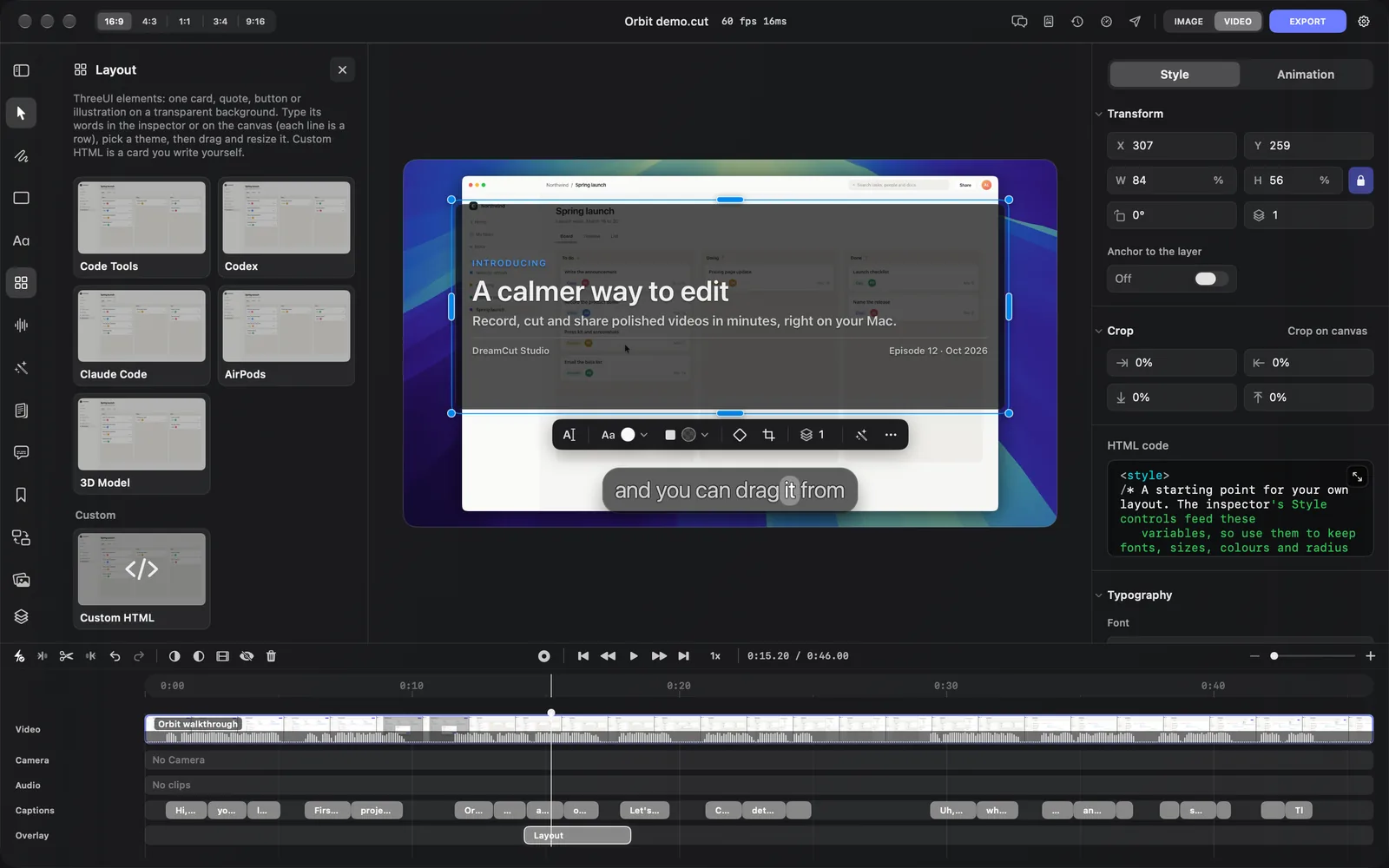
To change only the words, double-click the card on the canvas and type, or use Edit its words (double-click) in its toolbar. The toolbar also has Text color and Background color.
The sample code starts with a <style> tag, and inside it a comment that lists the variables the inspector's style controls set. Use them in your CSS and those controls keep working on your card:
| Variable | Set by |
|---|---|
--dreamcut-layout-text | Text color |
--dreamcut-layout-body-text | Text color, slightly faded, for paragraphs |
--dreamcut-layout-muted-text | Text color, more faded, for small print |
--dreamcut-layout-background | Background color |
--dreamcut-layout-border | Border color |
--dreamcut-layout-radius | Corner radius |
--dreamcut-layout-heading-size | Heading size |
--dreamcut-layout-body-size | Body size |
Headings (h1 to h3) take the Heading font and paragraphs the Body font. Your own CSS wins over DreamCut's defaults.
Style a Custom HTML card
The top of the Style tab has the same Transform, Anchor to the layer and Crop as the other cards. Below the code box it has:
| Section | Settings |
|---|---|
| Typography | Font, Heading font (headings), Body font (paragraphs), Heading size, Body size, Font weight, Line height, Letter spacing, Text shadow, Text color and Text shadow color |
| Background | Background color, Border color and Border width |
| Appearance | Corner radius |
| Hide | Takes the card out of the video without deleting it |
Font sets the type for the whole card, and Heading font and Body font change headings or paragraphs on their own. If you paste a whole web page, with its own head and body, Typography hides and your page's CSS sets the type.
For a bare web page without Typography and Background, press H and drag a box on the canvas. That adds an HTML Element layer, whose code goes in the HTML section of the inspector. Overlays covers it.
Cards from older projects
The first set of layout cards, such as Title + Description, Stats and Pricing Card, are no longer in the panel. Projects that use them still open, play and export, and you can still edit them.
A card written in SwiftUI shows a SwiftUI code box and a Convert to HTML button at the top of its style settings. Click it to turn the card into HTML, so you can edit it like any other card.
Tips and limits
- The ready-made cards don't show their code. To go beyond their Style and Theme options, write the card yourself with Custom HTML.
- If a card is hard to read over a busy part of the recording, raise Shadow, try another Theme, or move it over a calmer area.
- Sakura can add a layout card or an HTML layer for you when you ask in the chat.
What's next
- Stickers and cut-outs: animated buttons, badges and callouts, and pictures with a clear background.
- Text and titles: animated titles over the whole frame.
- Overlays: boxes, blur and highlights, and the Animation tab.
- Media gallery: add your own pictures, videos and sounds.