
Record your screen, a window or an area
Record a whole display, one window or an area from DreamCut's capture bar, with a countdown, pause and restart, then open it in the editor.
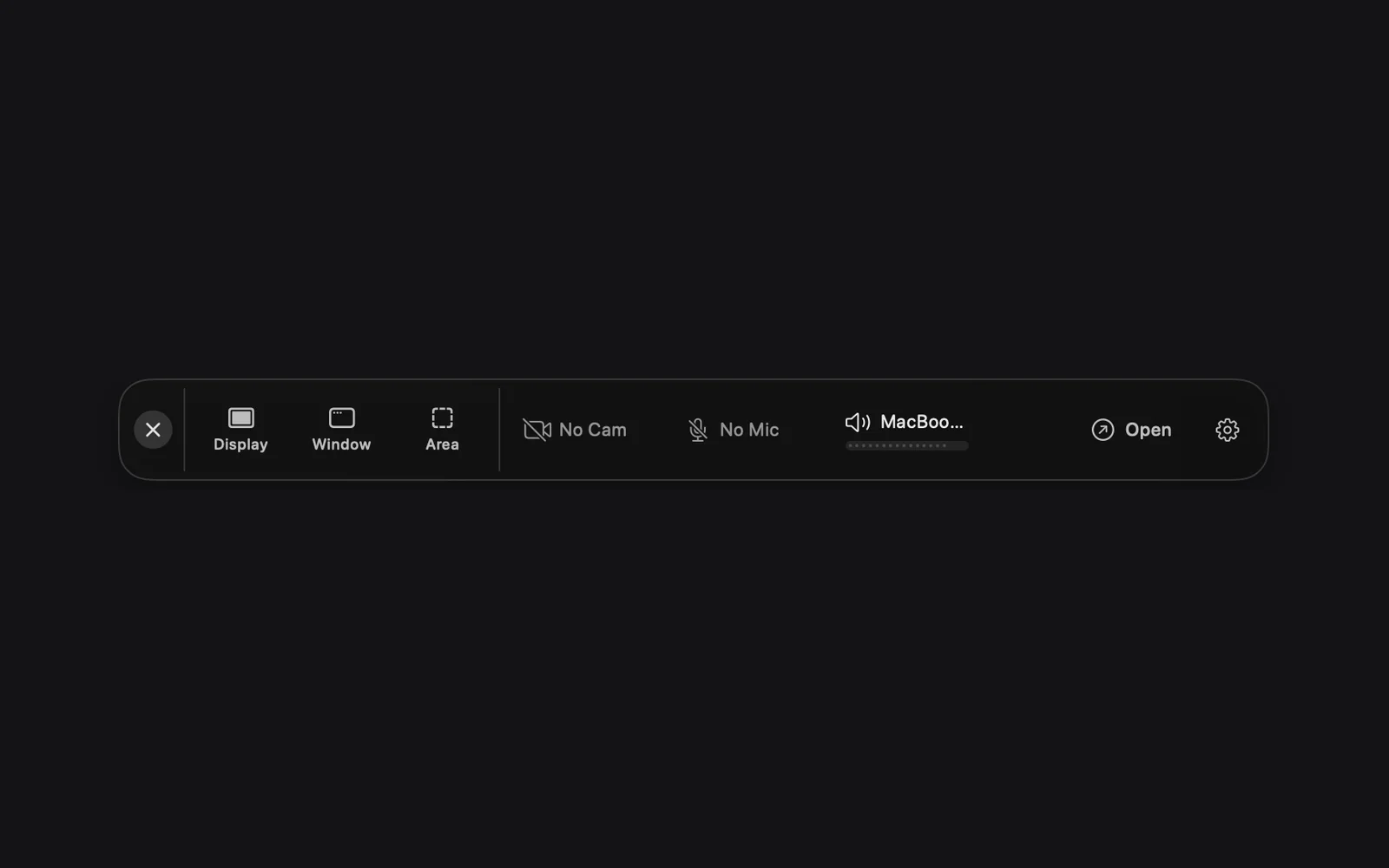
Every recording starts on the capture bar. Turn on your camera, microphone and sound, pick Display, Window or Area, and DreamCut counts down and starts. When you stop, a card in the corner opens the take in the editor, where zooms already follow your mouse.
Start a recording
- If the capture bar isn't on screen, click the DreamCut icon in the menu bar and choose Show Recording Bar or New recording... (its shortcut, ⌃⌘Return, works only while that menu is open).
- Turn on your sources with the chips in the middle of the bar: the camera (No Cam while it's off), the microphone (No Mic) and your Mac's sound (No Audio). Click a chip, pick a device and click Enable. Camera and microphone and Record your Mac's sound explain each one.
- Click Display, Window or Area. The capture bar hides and a picker covers the screen.
- Point at what you want to record (see Pick what to record), then click the red RECORD button or press ⇧Return.
- Watch the countdown: "2", "1", then "START". Start talking when "START" flashes.
- Show what you want to show. When you're done, click STOP in the recording controls.
CAPTURE, next to RECORD in every picker, takes a screenshot instead, in the format set on the Image tab of Capture Options.
Keyboard shortcuts
These work from any app. While you record, the same keys control the recording.
| Keys | Before you record | While you record |
|---|---|---|
| ⇧⌘` | Opens the Display picker | Restarts the recording, after asking |
| ⇧⌘1 | Opens the Window picker | Pauses or resumes |
| ⇧⌘2 | Opens the Area picker | Stops |
Hover a mode on the capture bar to see its keys under its name. To change them, see Keyboard shortcuts.
Pick what to record
The pickers draw over the whole screen, and the top of the screen tells you what to do.
| Mode | What you see | How you pick |
|---|---|---|
| Display | The screen under your pointer dims a little, a dashed white line runs around its edge, a badge shows its size, and the top reads "Display • Choose Capture or Record • Esc to cancel" | With more than one display, move the pointer to the one you want before you click Display |
| Window | The rest of the screen dims a little, and the window under your pointer stays bright with a white outline, with CAPTURE and RECORD beside it | Move the pointer over the window. A single click on it only beeps: use the buttons or the keys |
| Area | A box with a ratio badge and a size badge, where your last area was (in the middle the first time). The top reads "Drag to move/resize • 4:3 locked • Choose Capture or Record • Esc to cancel" | Drag outside the box to draw a new one, inside it to move it, or an edge or corner to resize it |
In every picker, ⇧Return or a double-click with ⇧ held records, and Return or a plain double-click takes a screenshot. The × button or Esc cancels.
For an area:
- Hold ⇧ while you resize to move in steps of 10 points, or ⌥ to resize from the middle. Space takes a screenshot.
- To lock the box to a shape, click the ratio badge (it reads, for example, 4:3 ▾) and pick Free, 16:9, 4:3, 1:1, 3:4 or 9:16. DreamCut starts at 4:3 and remembers your choice; it's also in Show settings > Capture > Aspect ratio.
The countdown
After RECORD, what you're recording dims and a dark circle in the middle shows a big "2", then "1", a second each, with a short tick on each number. Then "START" flashes in a bright ring for about a quarter of a second, and the recording begins.
The countdown isn't part of your video: the recording in the editor starts at "START". Press Esc during the countdown to cancel. Once you're recording, Esc goes to the app you're recording, so it never stops a take by accident.
If DreamCut warns you about sound
If your microphone is on but silent, the capture bar shows "Your microphone isn't picking up any sound" before the countdown. With the microphone and system audio both off, it shows "This recording won't have any audio", once each time DreamCut opens. Click Cancel to fix it, Record Anyway, or, for a silent microphone, Without Mic to record with it off. Camera and microphone explains the causes.
While you record
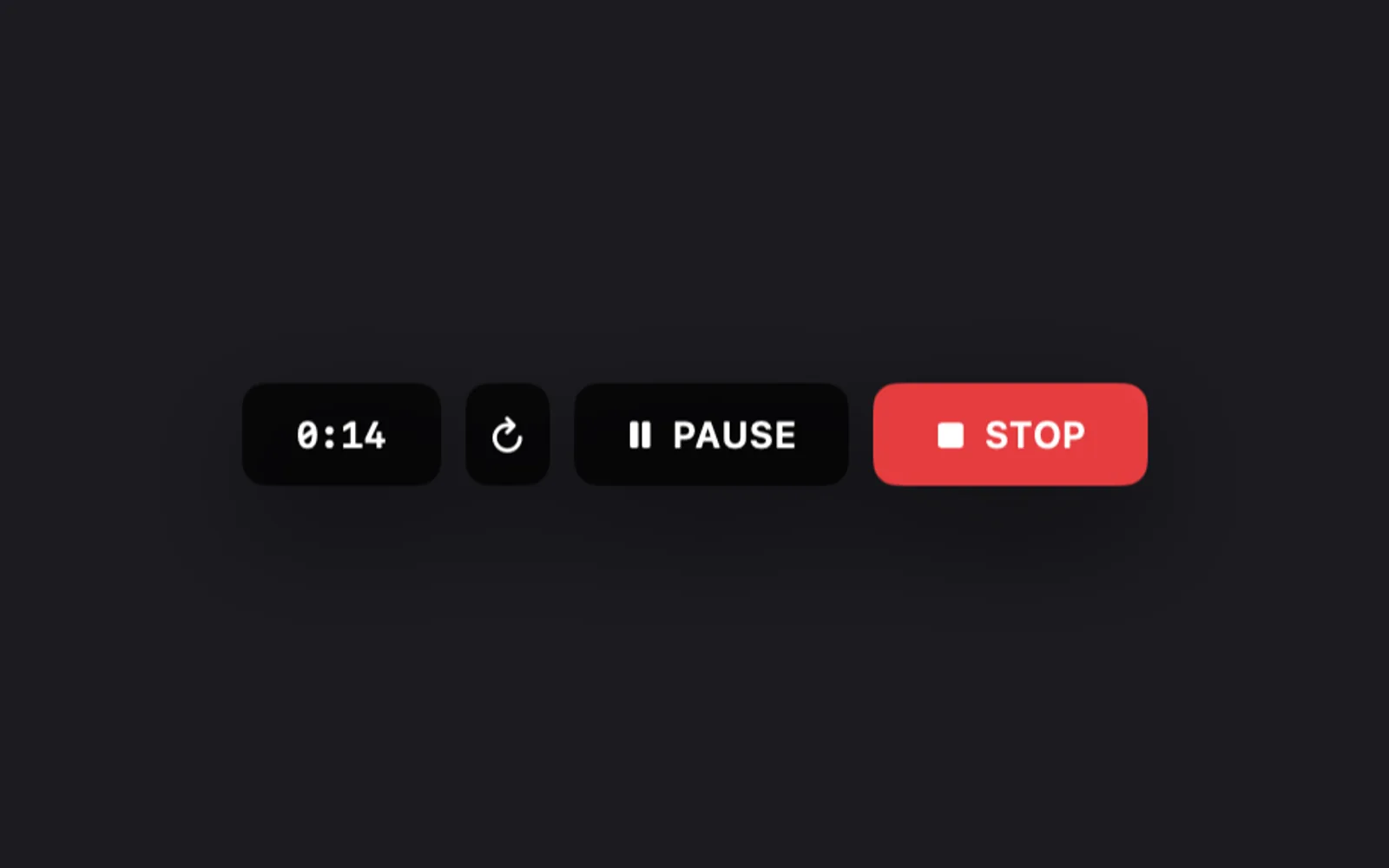
A small row of controls sits at the top of the screen for a display, or just under the window or area you're recording, next to badges with its size.
| Control | What it does |
|---|---|
| Timer | How long you've been recording. It stops while you're paused |
| Restart recording (circular arrow) | Asks "Restart Recording?", then throws the take away and starts again from the countdown |
| PAUSE / RESUME | Pauses and carries on in the same recording. Each pause leaves a marker on the timeline in the editor |
| STOP | Ends the recording |
If the capture bar is on screen while you record, its × turns red and stops the recording too.
When you stop
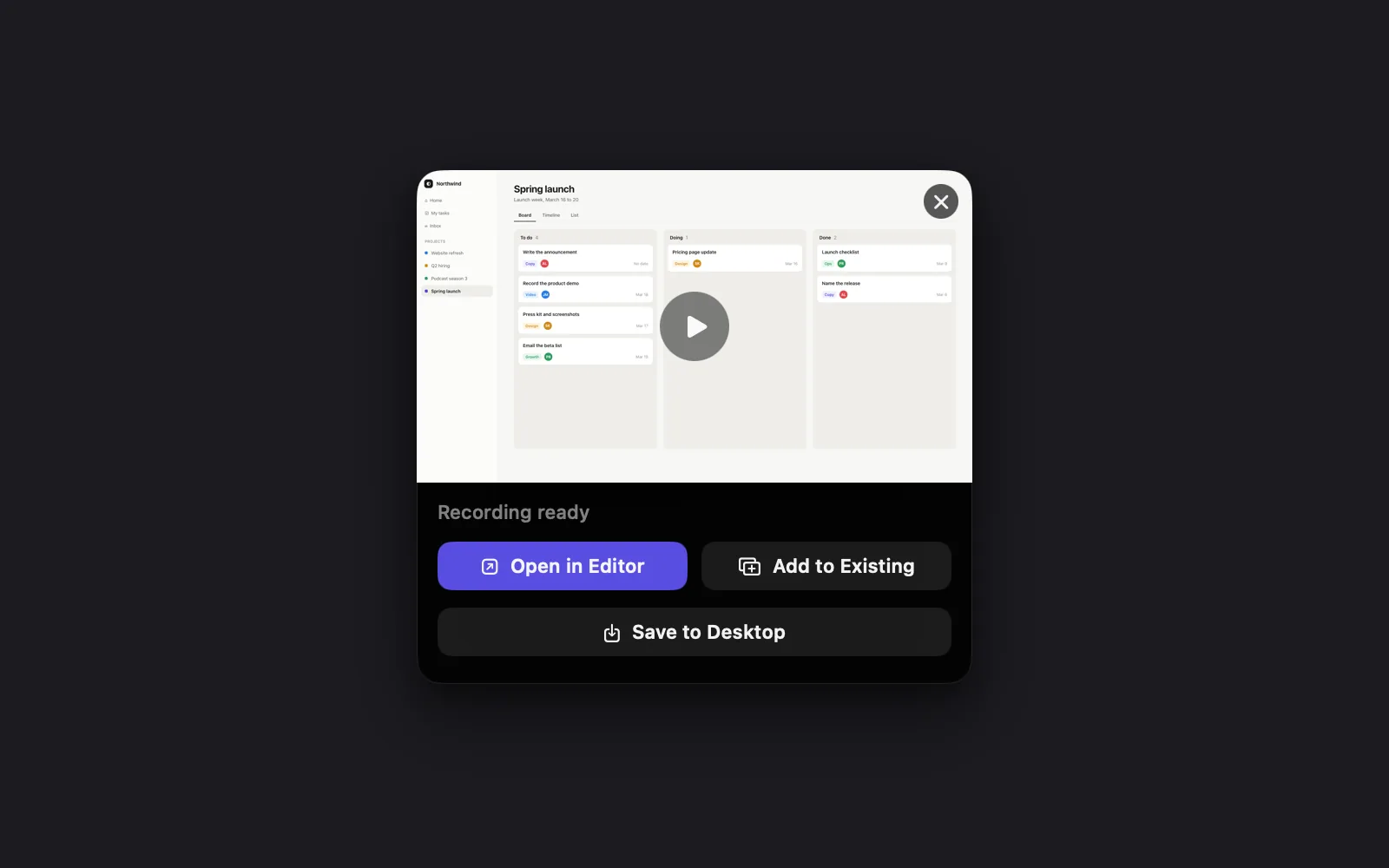
The capture bar comes back, and a card in the bottom-right corner of the screen reads "Processing recording…" while DreamCut finishes the file, then Recording ready.
| On the card | What it does |
|---|---|
| Open in Editor, or a click anywhere on the picture | Opens the recording as a new project in the editor |
| Add to Existing | Adds the recording to the end of the project open in the editor, as a new scene. It only shows while an editor window is open; without one, Open in Editor and Save to Desktop share one row |
| Save to Desktop | Saves the recording to your Desktop without opening it |
| × (top right of the picture) | Deletes the recording |
With Show floating capture preview turned off (in Capture Options), no card appears and each recording goes straight to your Desktop. Settings calls it "a 5-second bottom-right preview", but after a recording the card doesn't close on its own.
Capture Options for recordings
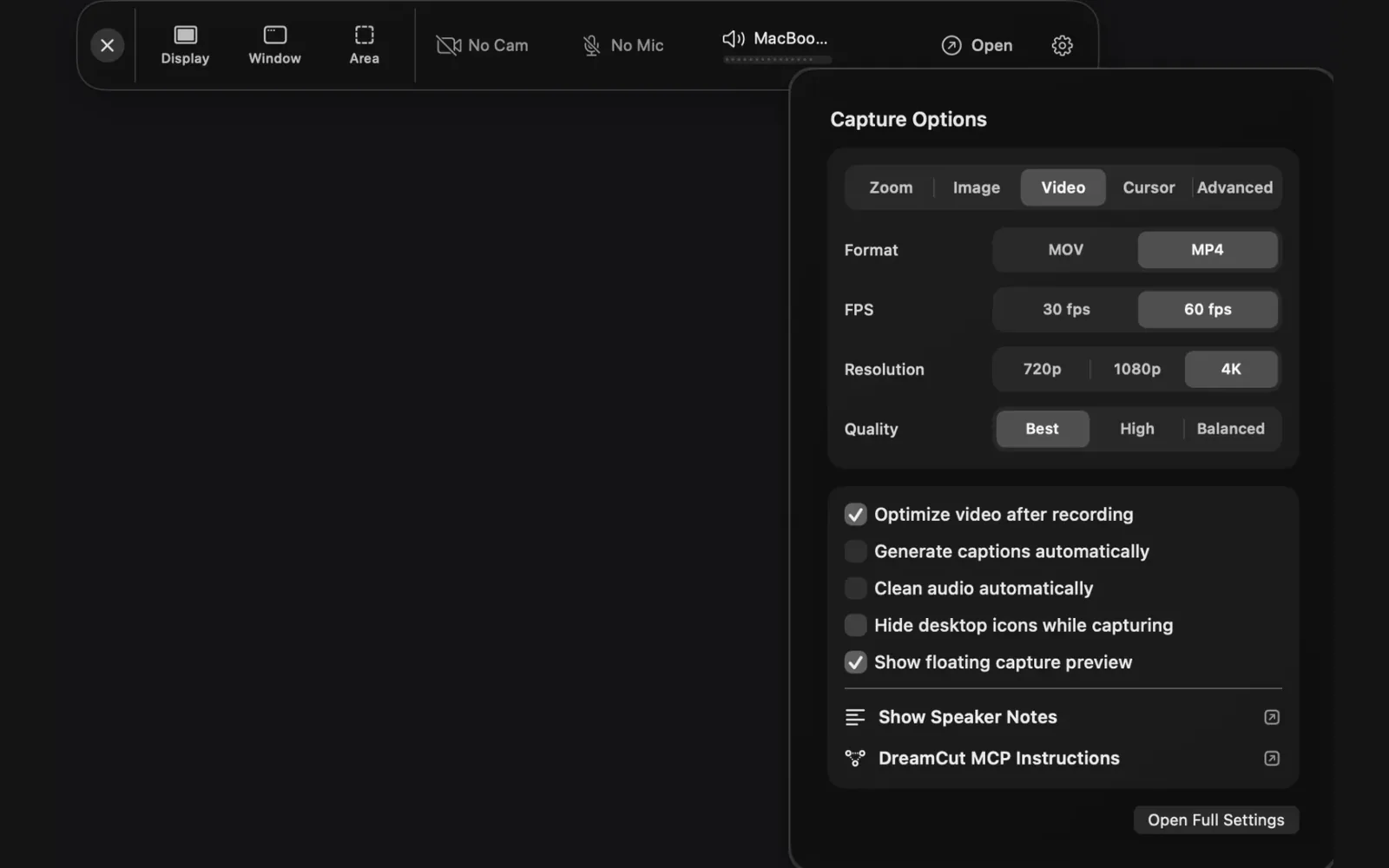
Click the gear at the right end of the capture bar to open Capture Options. Four of its tabs shape your recordings. They apply to the next recording you make, and most are also in Show settings, on the Recording and Export tabs. The Image tab and the switches under the tabs are covered in The capture bar and your projects.
Video quality
| Setting | Choices | Default |
|---|---|---|
| Format | MOV or MP4 | MP4 |
| FPS | 30 fps or 60 fps | 60 fps |
| Resolution | 720p, 1080p or 4K | 4K |
| Quality | Best and High record in HEVC, Balanced in H.264 | Best |
Zooms
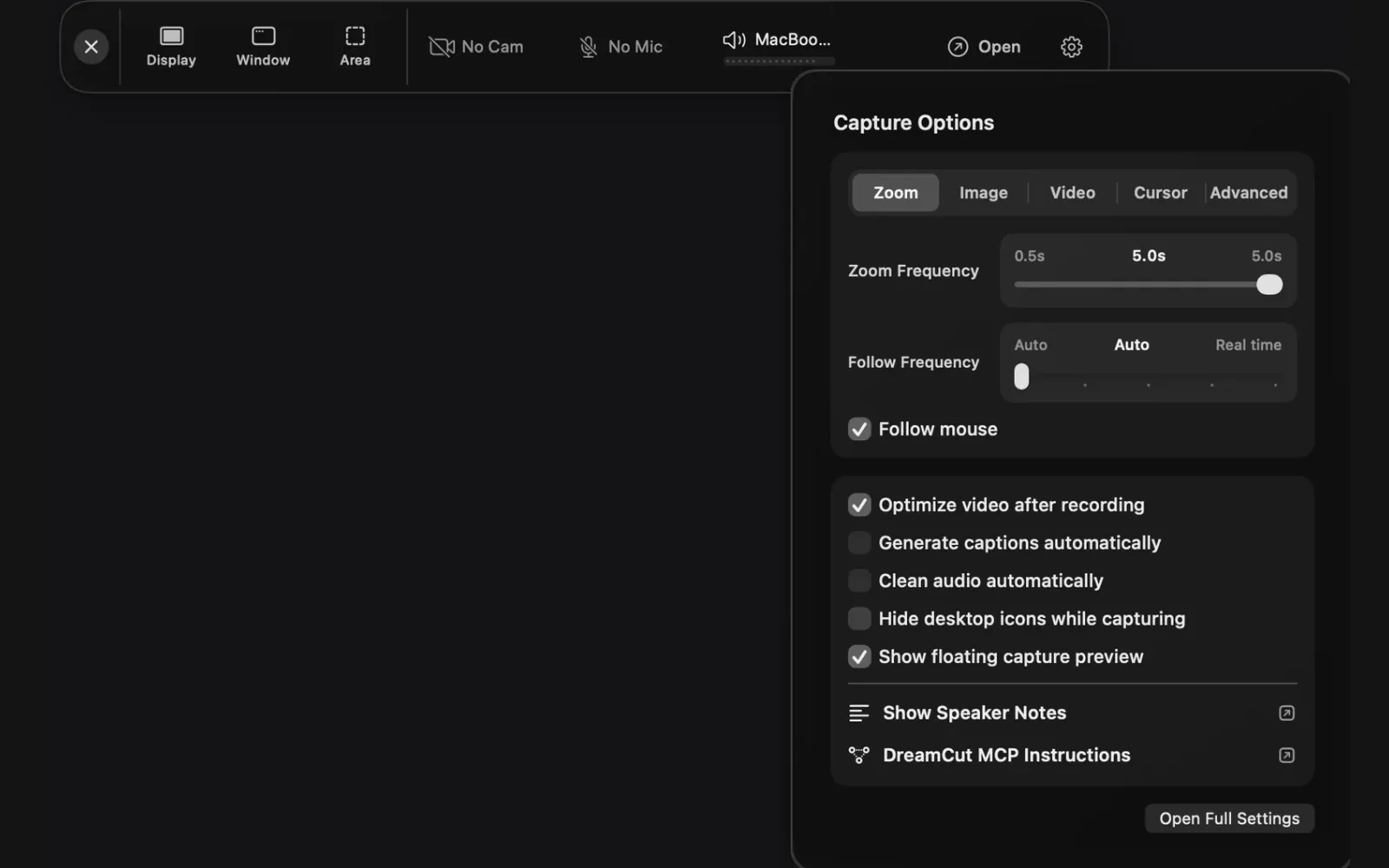
DreamCut records where your mouse goes and builds zooms from it when the recording opens. Zoom Frequency sets how often a zoom point is added, from 0.5s to 5.0s (default 5.0s). Follow Frequency sets how closely the view follows the mouse between them, in five steps from Auto to Real time. Follow mouse is on by default; with it off, Follow Frequency is greyed out. Zooms and the cursor explains the rest.
Cursor
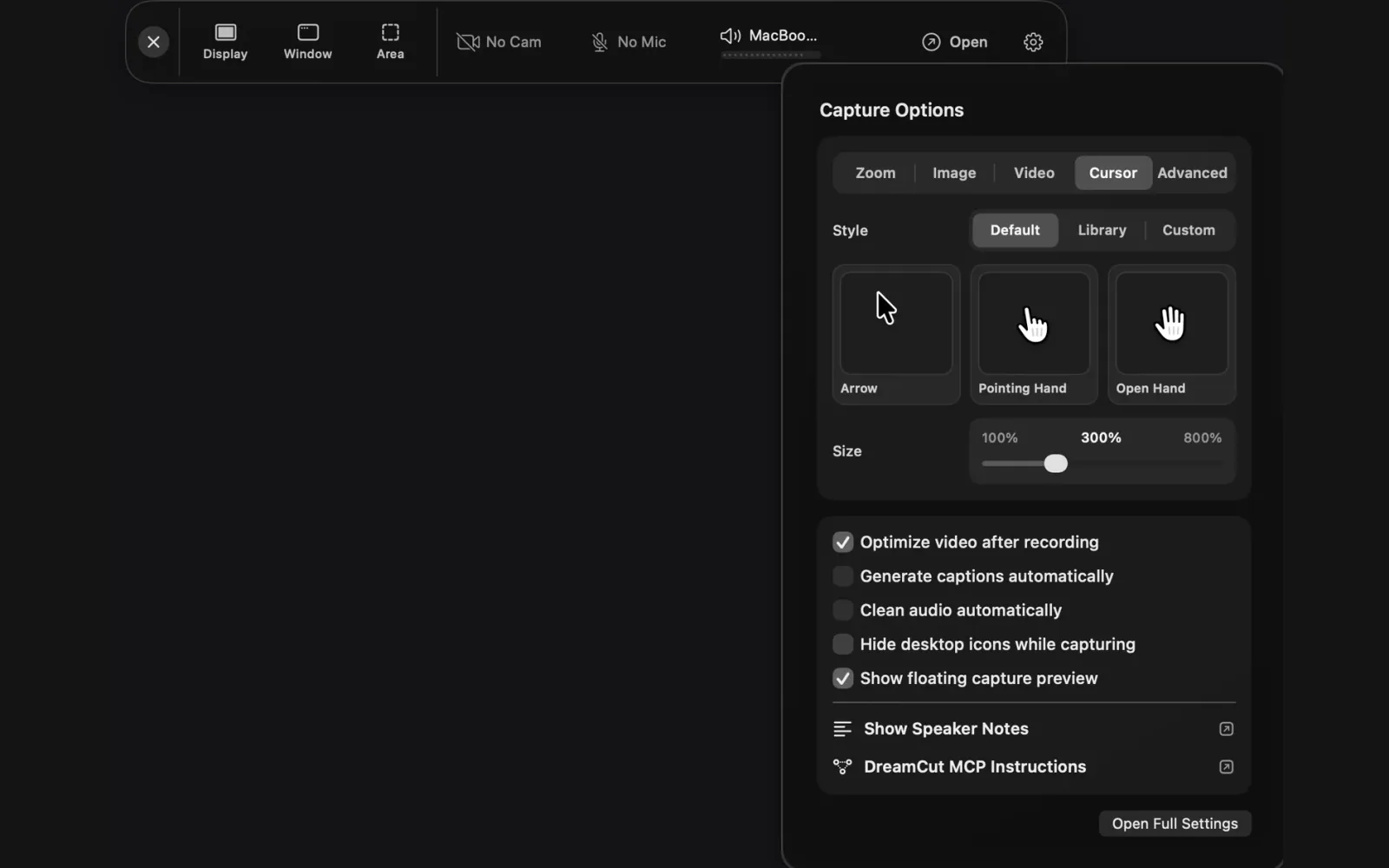
Style is Default (DreamCut's own pointers), Library (search the Cursor Sets) or Custom (your own PNG sprite sheet: a 3×3 grid, up to 10 MB, 2304×2304 px recommended). Size runs from 100% to 800% and starts at 300%. DreamCut doesn't burn the pointer into the video, so you can change both later. See Zooms and the cursor.
Keep DreamCut out of your recording
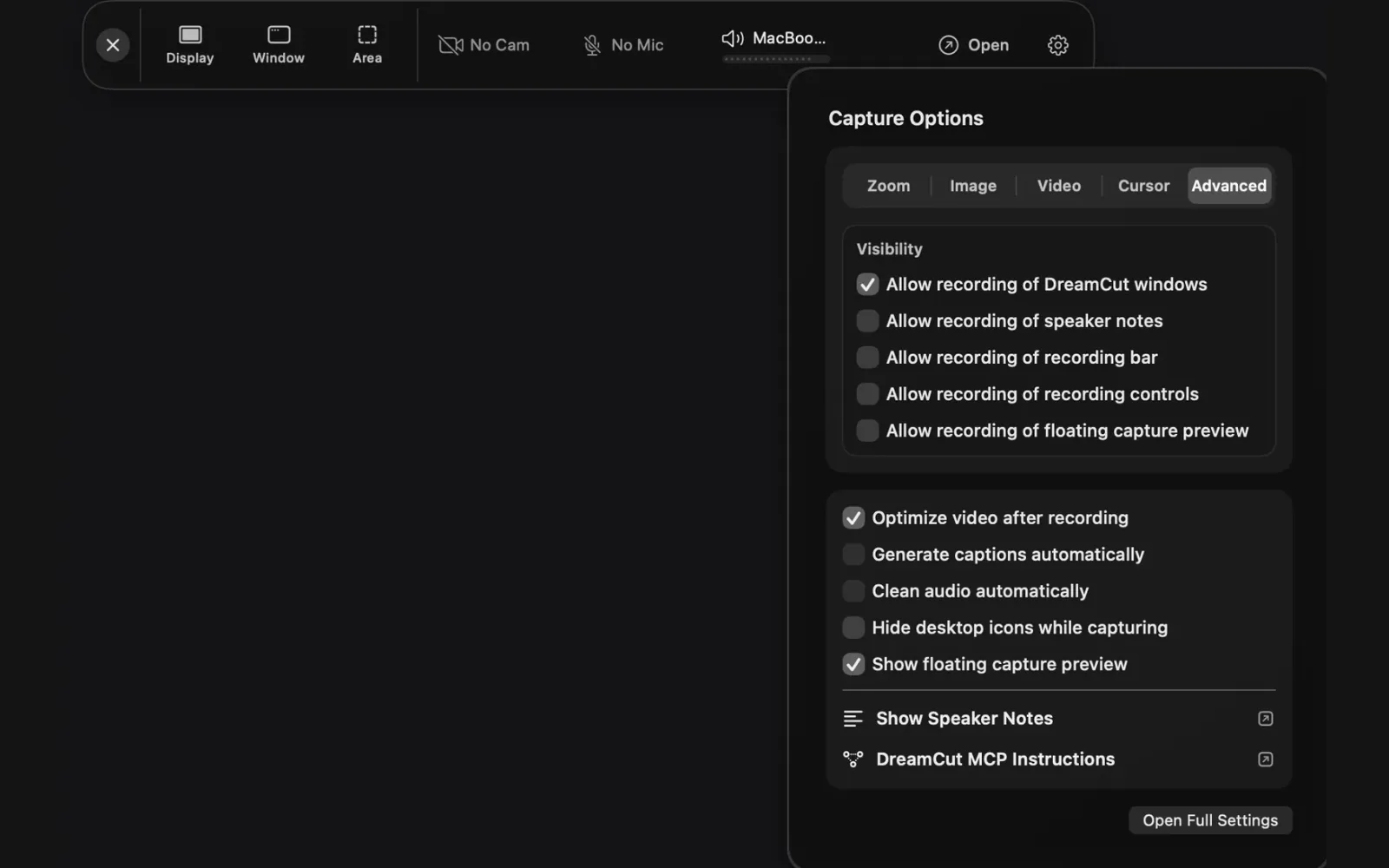
Under Visibility on the Advanced tab, each switch decides whether part of DreamCut can show up in your recordings and screenshots.
| Switch | Default | When it's on |
|---|---|---|
| Allow recording of DreamCut windows | On | DreamCut's windows, such as the editor, show in display and area recordings |
| Allow recording of speaker notes | Off | Your speaker notes show |
| Allow recording of recording bar | Off | The capture bar shows |
| Allow recording of recording controls | Off | The timer, PAUSE and STOP show |
| Allow recording of floating capture preview | Off | The Recording ready card shows |
Record from the editor
You can also record straight into a project that's open, without the capture bar.
- Camera or voice: click Record on the timeline toolbar ("Record camera and microphone"). Pick Audio, Camera or Camera + Mic, choose your devices, and click Record. The take goes in at the playhead: the camera on the Camera lane and your voice on the Audio lane. While it runs, the toolbar button reads Show Recorder.
- Screen: right-click the Video lane and choose Record Video. Pick Display, Window or Region, then click Record; for a region, drag a box and click START. The recording is added as a new scene at the end or, if a scene with a video is selected, replaces that scene's video and stops at its length.
The editor's screen recorder records the picture only. For your voice, right-click the Audio lane and choose Record Voice.
Tips and limits
- Screen recording needs macOS 15 or later and the Screen Recording permission. See Install and permissions.
- The capture bar's × hides it when you aren't recording. Bring it back with Show Recording Bar in the menu bar.
- Drag the capture bar anywhere on the screen; DreamCut remembers where.
- Optimize video after recording, on by default, re-encodes each finished file in the background so it takes less space.
- For a clean desktop in display recordings, turn on Hide desktop icons while capturing in Capture Options.
What's next
- Camera and microphone: pick your camera and mic, and check your level.
- Speaker notes: read a script while you record.
- Quick captures: copy or record a window with a double tap.
- Tour the editor: find your way around once the recording opens.