
Layout and camera
Place your recording and camera with one-click presets for split screens, corners and size, then fine-tune each layer's frame, crop and effects.
The layout decides where your recording and your camera sit on the canvas and how they look: a camera bubble in a corner or a split screen, rounded or square corners, a little or a lot of room around the edges. Start with the presets, which set the whole look in one click, then fine-tune the recording or the camera in its own Layout tab.
Pick a layout with the presets
- In the editor, press Esc so nothing is selected. The inspector on the right shows Background at the top and Presets below it.
- Move the playhead into the scene you want to change. The presets change the scene under the playhead and its camera.
- Pick a Style first, then a Layout, then Corners and Position. If Layout and Position are below the bottom of the window, scroll the inspector down to reach them. The canvas changes as you click, and each click is one step you can undo with ⌘Z.
- To give every scene the same look, click Apply to all layers, the button below the Presets section, past a dividing line.
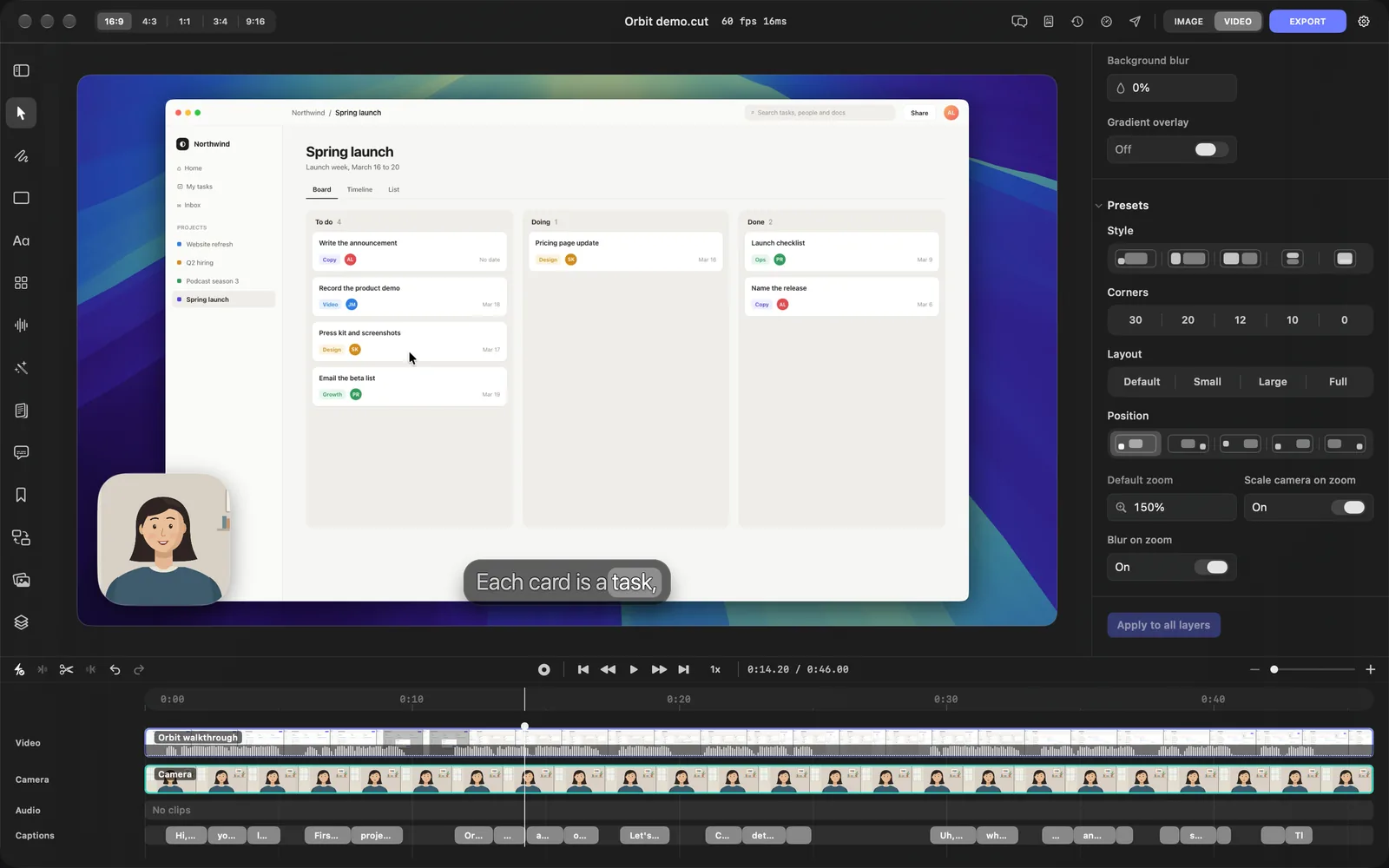
A highlighted button shows the preset the scene matches now. After you change a value yourself, such as dragging a corner, none is highlighted.
Style: where the camera goes
The five Style icons, from left to right, place both layers at once and set the camera's shape. The recording at the top of this page clicks through all five.
| Style | Your recording | Your camera |
|---|---|---|
| Default | In the middle, at its usual size | A small square bubble in the bottom-left corner |
| 1/3 2/3 | The right two-thirds of the canvas | A tall portrait frame in the left third |
| 1/2 Split | The right side, about half the canvas | A tall frame on the left |
| 1/2 Vertical | Below the camera | A wide landscape frame on top |
| Screen Above | In front, low in the middle | Fills the whole canvas behind the recording |
Corners
Corners rounds the recording and the camera together: 30, 20, 12, 10 or 0 for square corners. 12 is the recording's usual rounding.
Layout: how much room
Layout sets the room between each layer and the edge of the canvas, which makes the recording smaller or larger.
| Layout | Your recording | Your camera |
|---|---|---|
| Default | Padding 40, Inset 50, corners 12 | Padding 40, corners 30 |
| Small | Inset 60, so it's a little smaller | Padding 60, further from the edge |
| Large | Padding 20 and Inset 20, so it's larger | Padding 20, closer to the edge |
| Full | No padding or inset, so it reaches the canvas edges, square corners | Against the edge, square corners |
Position
The five Position icons swap where the two layers sit without changing their size. Hover an icon to see its name.
| Position | Your recording | Your camera |
|---|---|---|
| Default | In the middle | Bottom left |
| Default/BotR | In the middle | Bottom right |
| LeftC/RightC | On the right | On the left, halfway down |
| BottomL/RightC | On the right | Bottom left |
| BotR/LeftC | On the left | Bottom right |
On a 3:4 or 9:16 canvas the last three change: LeftC/RightC keeps the recording in the middle with the camera at the top left, BottomL/RightC puts the recording at the bottom with the camera above it, and BotR/LeftC puts the recording at the top with the camera at the bottom.
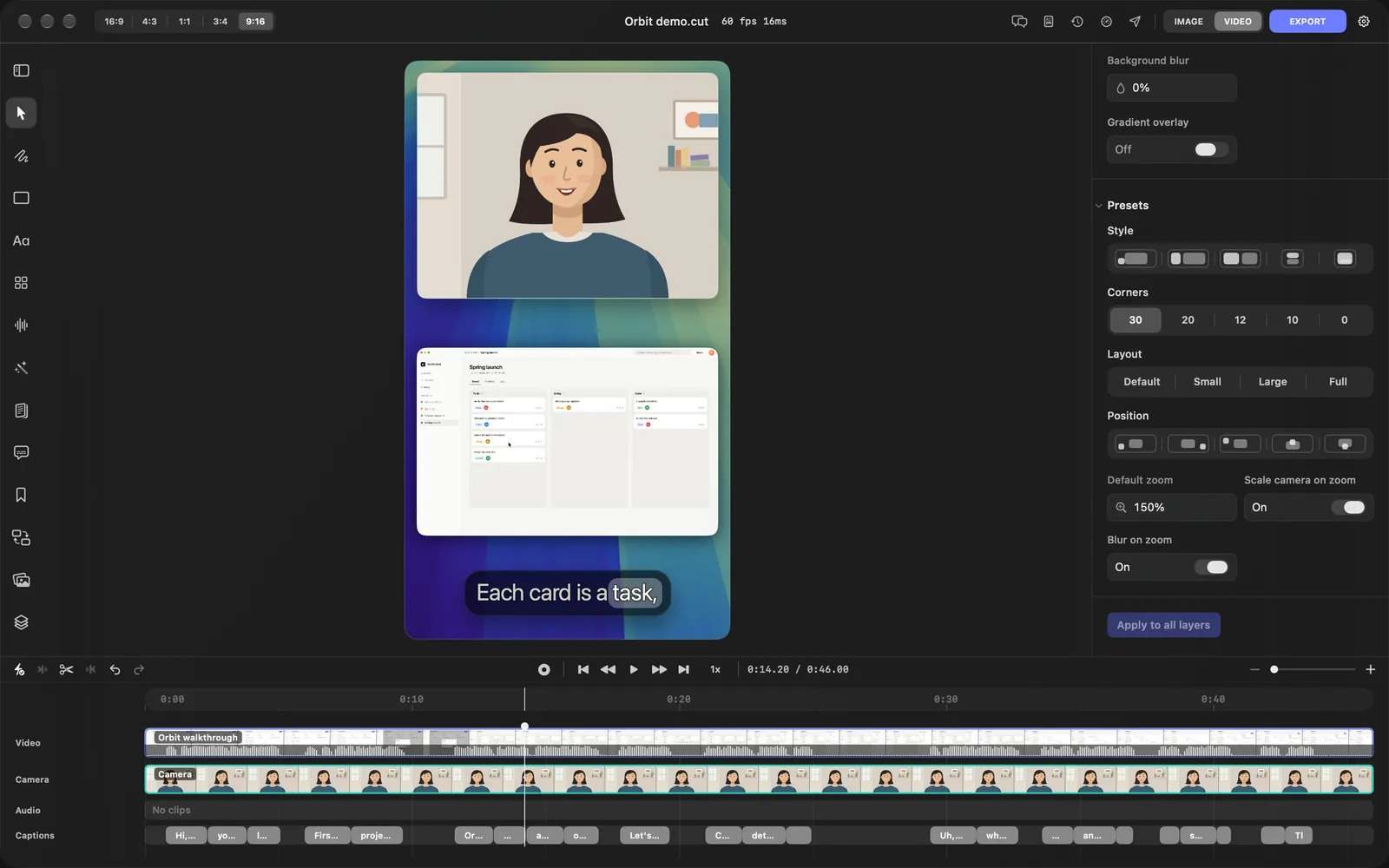
The last rows of Presets, Default zoom, Scale camera on zoom and Blur on zoom, set how zooms look. Zooms and the cursor explains them.
One scene or every scene
Each clip on the Video lane of the timeline is a scene with its own layout. That lets an intro use a big camera and the demo a small bubble, but it also means a change stays in one scene until you copy it.
- Apply to all layers, the button below Presets, copies the current presets, background blur and gradient overlay to every scene and camera clip. It's greyed out until the project has at least two scenes or two camera clips.
- When you change a selected recording or camera, a bar appears at the bottom of the inspector with Apply to Scene and Apply to All. It copies what the open tab covers: on Layout, the layout and effects.
| You changed | Apply to Scene | Apply to All |
|---|---|---|
| The recording | Greyed out: the recording is the scene | Every video layer |
| The camera | The matching camera layers in this scene | Every camera layer |
Fine-tune the recording
Click the recording on the canvas, or its clip on the Video lane. The inspector shows the tabs Layout, Zoom and Cursor, plus Audio when the clip has sound. A toolbar also floats above the recording on the canvas.
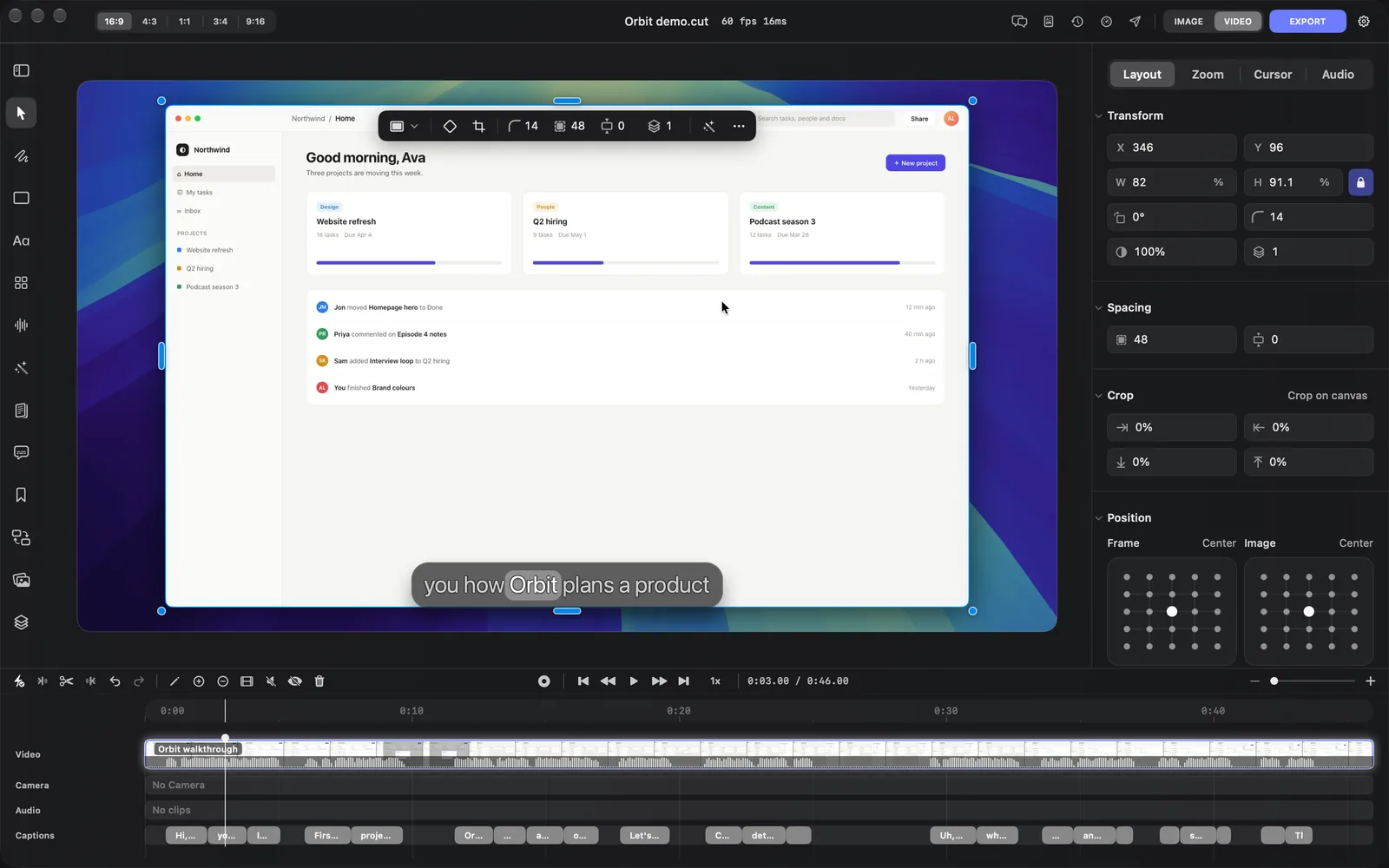
The Layout tab has these sections, from the top:
| Section | What it sets |
|---|---|
| Transform | The frame's place, size, angle, corners, opacity and stacking (below) |
| Spacing | Padding and Inset, the room between the frame and the canvas edge |
| Crop | How much to cut from each edge, or Crop on canvas to drag the edges. See Crop and rotate a layer |
| Position | Frame places the frame on a 5 × 5 grid, Image picks which part of the picture stays in view, and Preset sizes it: Default, 2/3, 1/2 or Full |
| Stroke | An outline: colour or gradient, opacity and Stroke weight |
| Effects | Shadow, Layer blur, and the picture's Brightness, Contrast, Saturation, Hue, Noise reduction, Sharpen and Image blur. Below them, the Background field reads Original, or Removed once you remove it. See Remove the background |
| Animation | Transition in, Transition out, Start animation, Animation duration and the ease curve |
| Timing | Speed, Duration, Trim in and Trim out |
| Source | The file's details and Replace file |
In Transform:
- X and Y place the frame's top-left corner, in export pixels.
- W and H size it in percent of the canvas; click % to switch to pixels. The lock keeps the recording's shape.
- Rotation, Corner radius, Opacity, and Z-index from 0 to 10, where higher sits in front.
- Snap to grid appears in the header once you've moved the frame, and puts it back on its Position cell. Reset appears once you've moved, turned or faded it, and puts it back on its grid cell, upright and fully opaque.
At the bottom, Hide hides the layer, Reset all puts its layout and effects back to the project's starting look, and Delete removes it.
The toolbar on the canvas
The toolbar above a selected recording repeats the settings you change most:
- The first menu, Recording size when you hover it: Default, 2/3, 1/2 or Full, as in Preset.
- Add keyframe at the playhead (the diamond) and Crop: drag its edges.
- Corners, Padding, Inset and Z-index. Drag the icon or type a number; ↑ and ↓ step it, with ⇧ for steps of 10.
- Generate with this layer (the wand) and More.
You can also work on the canvas itself. Drag the recording to move it, drag an edge or corner handle to resize it (⇧ flips the aspect lock, ⌥ resizes from the centre), drag from close outside a corner to turn it (⇧ snaps to 15°), or drag the small handle inside a corner to round it. The bands around the frame set the spacing: padding in blue right around it, inset in orange outside that.
Fine-tune the camera
Click the camera on the canvas, or its clip on the Camera lane. Handles appear around it, a toolbar floats above it, and the inspector shows Layout and Animation, plus Audio when the camera clip has sound.
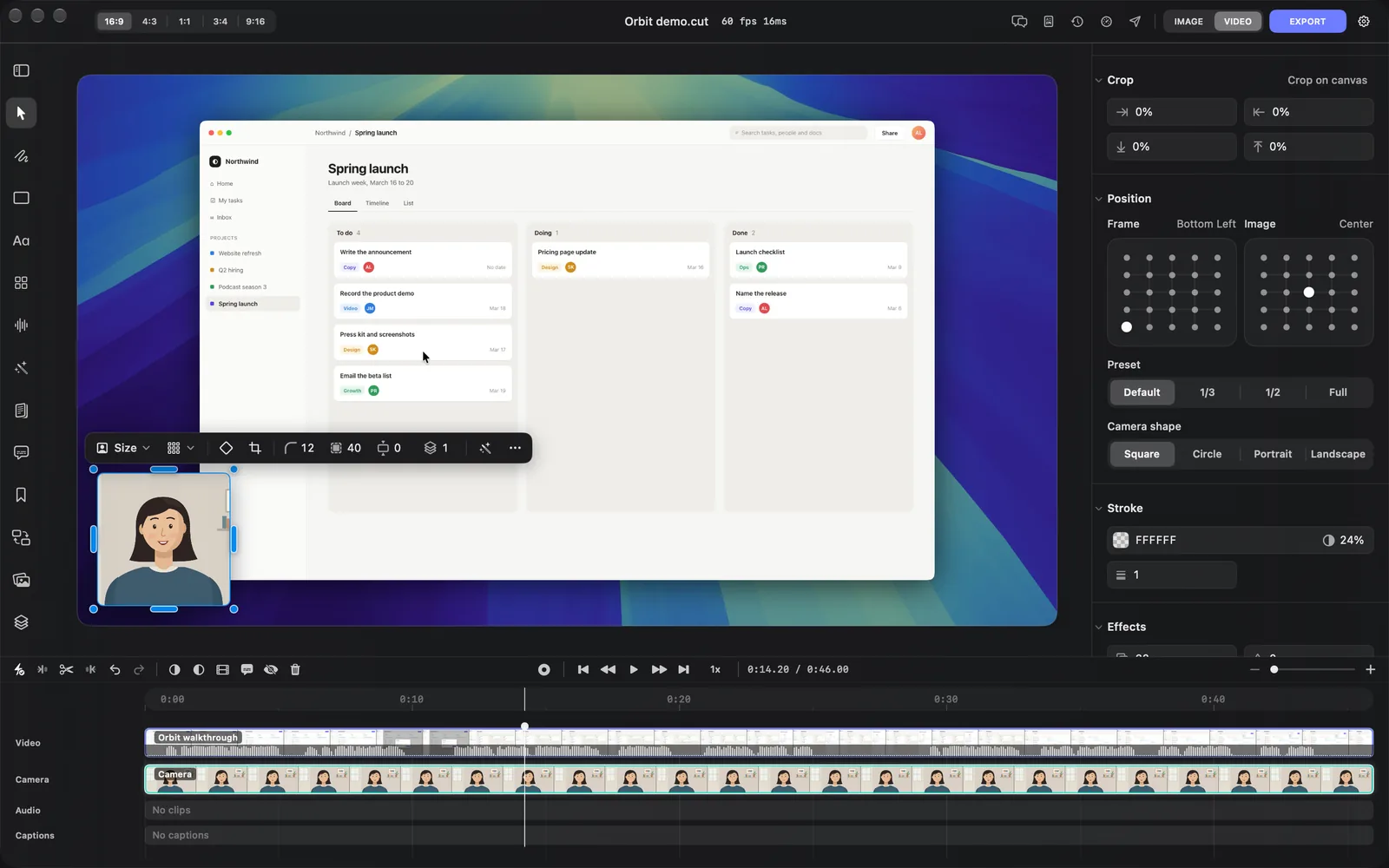
The camera's Layout tab has the same Transform, Spacing, Crop, Stroke, Effects (with the Background field), Timing and Source sections as the recording. Its Timing also has Start time. Its Position section adds two rows under the Frame and Image grids:
| Row | Choices |
|---|---|
| Preset | Default (the usual bubble), 1/3 or 1/2 (a full-height column, 30% or 39% of the canvas wide, with corners 30) and Full (the whole canvas, square corners) |
| Camera shape | Square, Circle, Portrait (3:4) or Landscape (4:3) |
A Circle camera has no rotation or corner radius to set, so those fields leave the inspector and the toolbar.
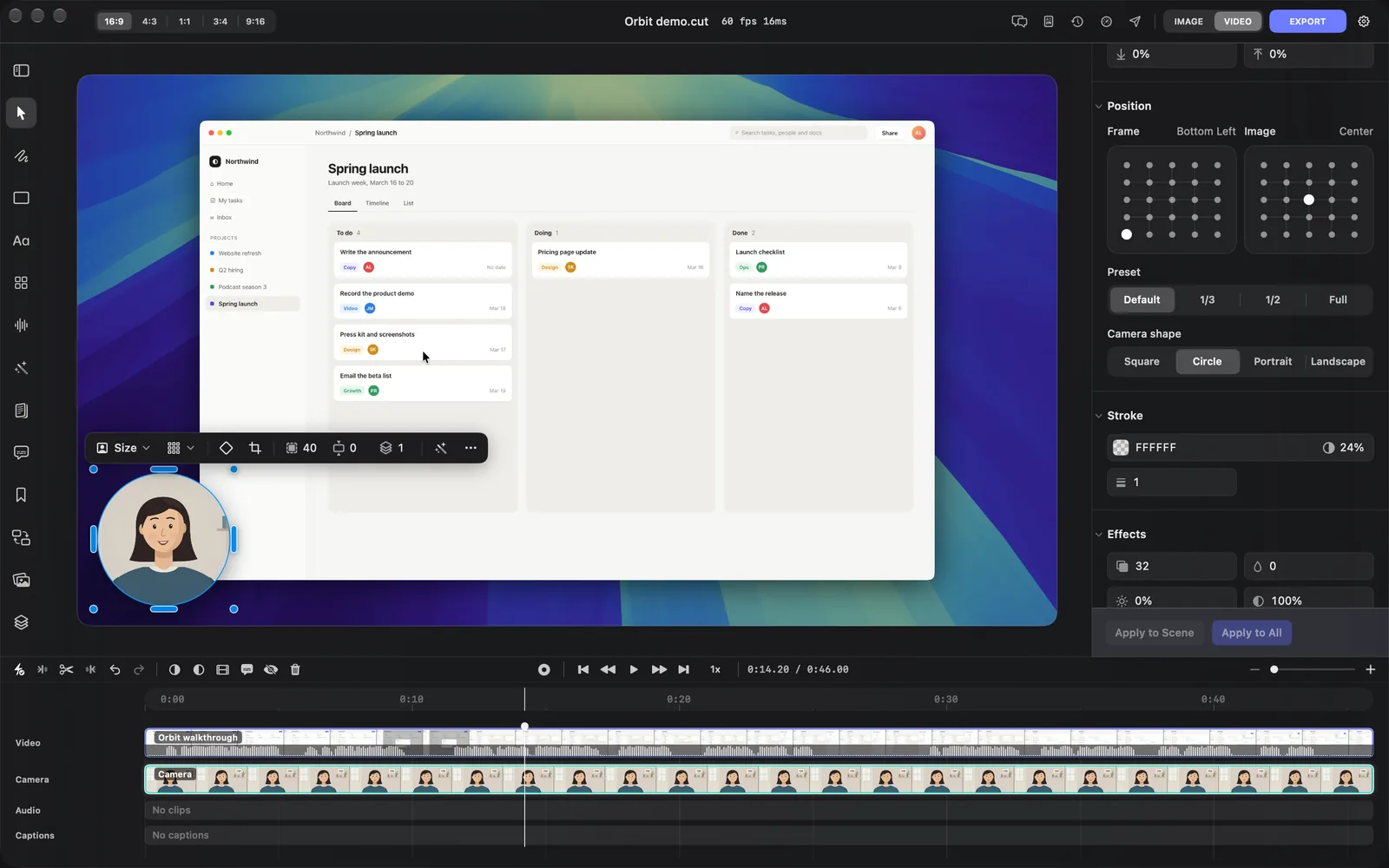
The camera's toolbar on the canvas starts with the Size menu (Default, 1/3, 1/2, Full) and a grid menu that moves the camera to Top left, Top right, Bottom left, Bottom right or Center. Then come the keyframe, crop, Corners, Padding, Inset and Z-index controls, the wand and More, as on the recording.
Animate the camera with keyframes
The Animation tab moves or zooms the camera over time.
- Move the playhead to where the change should happen.
- Under Keyframes, click Add. A chip such as Key 1 appears with its time. Until you add one, the list says "No keyframes yet. Add one at the playhead."
- With the keyframe selected, set Zoom (100% to 300%) and Zoom position to push in on part of the picture. Under Animation, the fields are now Keyframe state: the camera's opacity, scale, position and blur at that moment.
- Add more keyframes. The camera moves smoothly from one to the next.
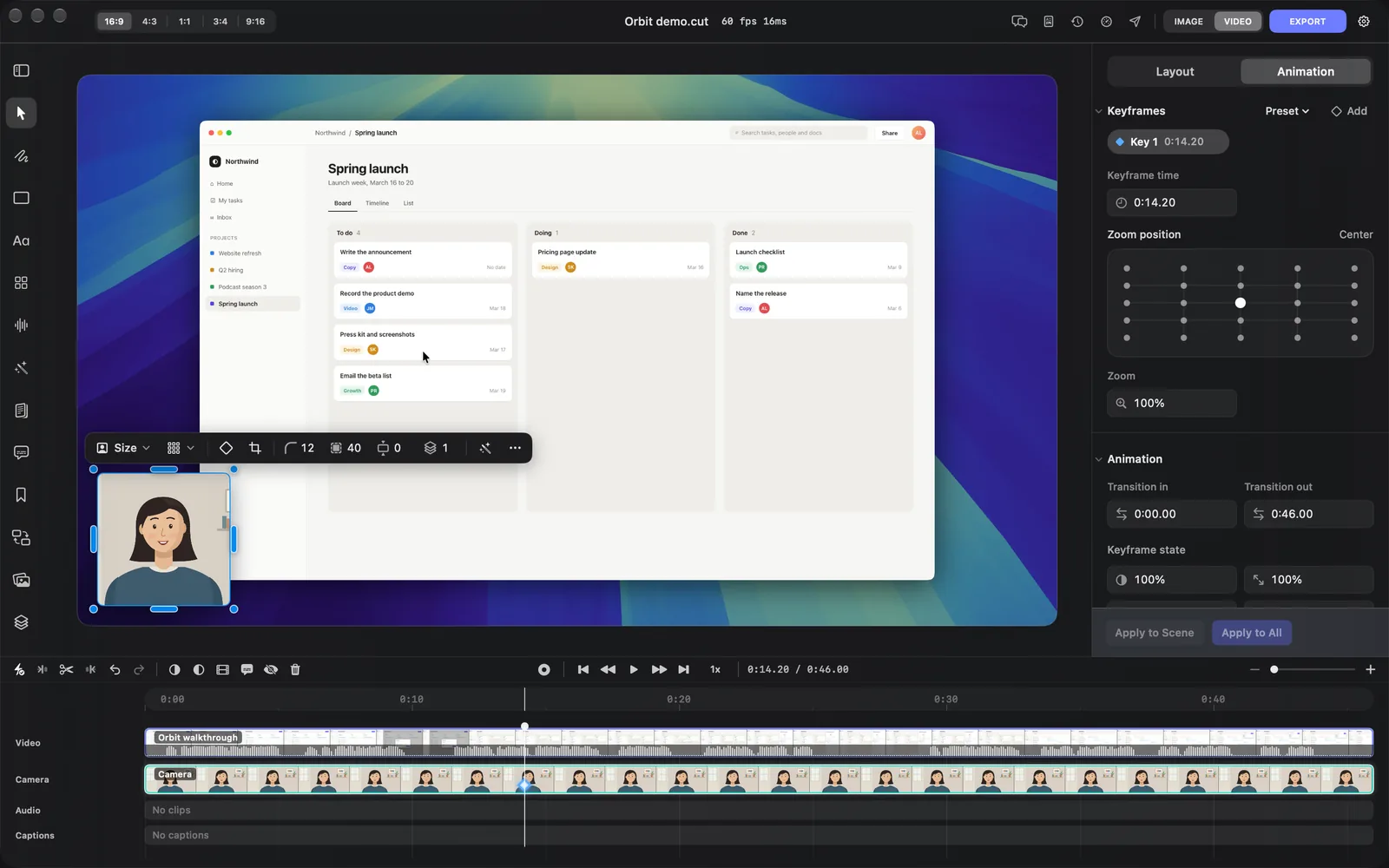
- The Preset menu beside Add adds keyframes for you, from Animation In (such as Fade In, Slide In and Blur In), Visibility (Hide, Show) and Animation Out.
- Change Keyframe time to move a keyframe, or right-click its chip for Edit, Delete and Delete All.
Remove the background
The camera can drop the room behind you, so the canvas background shows through. The recording has the same option.
- Select the camera (or the recording) and open its Layout tab.
- Click the Background field at the bottom of Effects, which reads Original, and choose Behind Person or Behind Foreground.
- In Remove Background, click Create Person Video (or Create Foreground Video).
- A bar shows the progress. When it's done, the field reads Removed and a green line says the background-removed video was applied.
DreamCut makes a new copy of the video without its background, saves it with your media so it also shows in the Media gallery, and switches the layer to that copy. It runs on your Mac, so it uses no credits, but longer videos take a while. Behind Person keeps people; Behind Foreground keeps the main subject and needs macOS 14 or later.
Tips and limits
- The presets only touch the scene under the playhead. If your project has several scenes, finish with Apply to all layers.
- The Layout button in the left rail adds layout cards, not this layout. See Layout cards and custom HTML.
- The Background at the top of the inspector is the canvas behind everything: a wallpaper, gradient, colour, picture or video, and its blur. See Background and canvas size.
- Apply to Scene, Apply to All and Apply to all layers need something to copy to: with one scene and one camera clip they stay greyed out.
What's next
- Crop and rotate a layer: cut the edges off a layer or turn it.
- Background and canvas size: change the wallpaper and the canvas shape.
- Zooms and the cursor: zoom in on what you click and style the pointer.
- Camera and microphone: record your camera and voice with the screen.