
Record your Mac's sound
Record the sound your Mac plays, such as a video, a call or an app's alerts, along with your screen, then turn it down or mute it in the editor.
System audio is the sound your Mac plays through its speakers or headphones: a video you're showing, the other side of a call, an app's alerts and clicks. DreamCut can record it with your screen, on its own or along with your microphone. It's off until you turn it on.
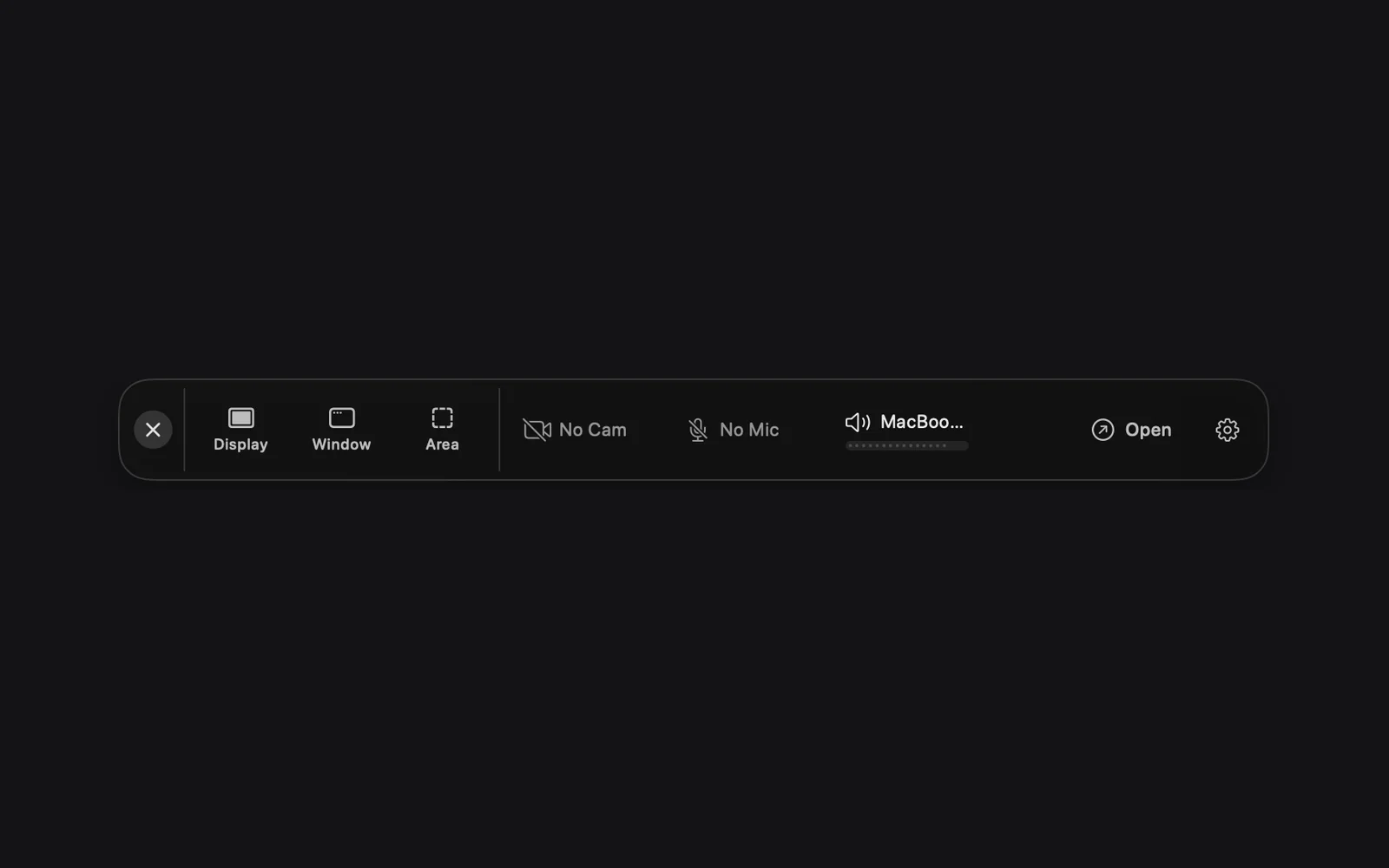
Turn system audio on
- On the capture bar, click the speaker chip, the third chip after the camera and the microphone. It reads No Audio while system audio is off.
- Select System Audio Output opens. Click your speakers or headphones, then Enable.
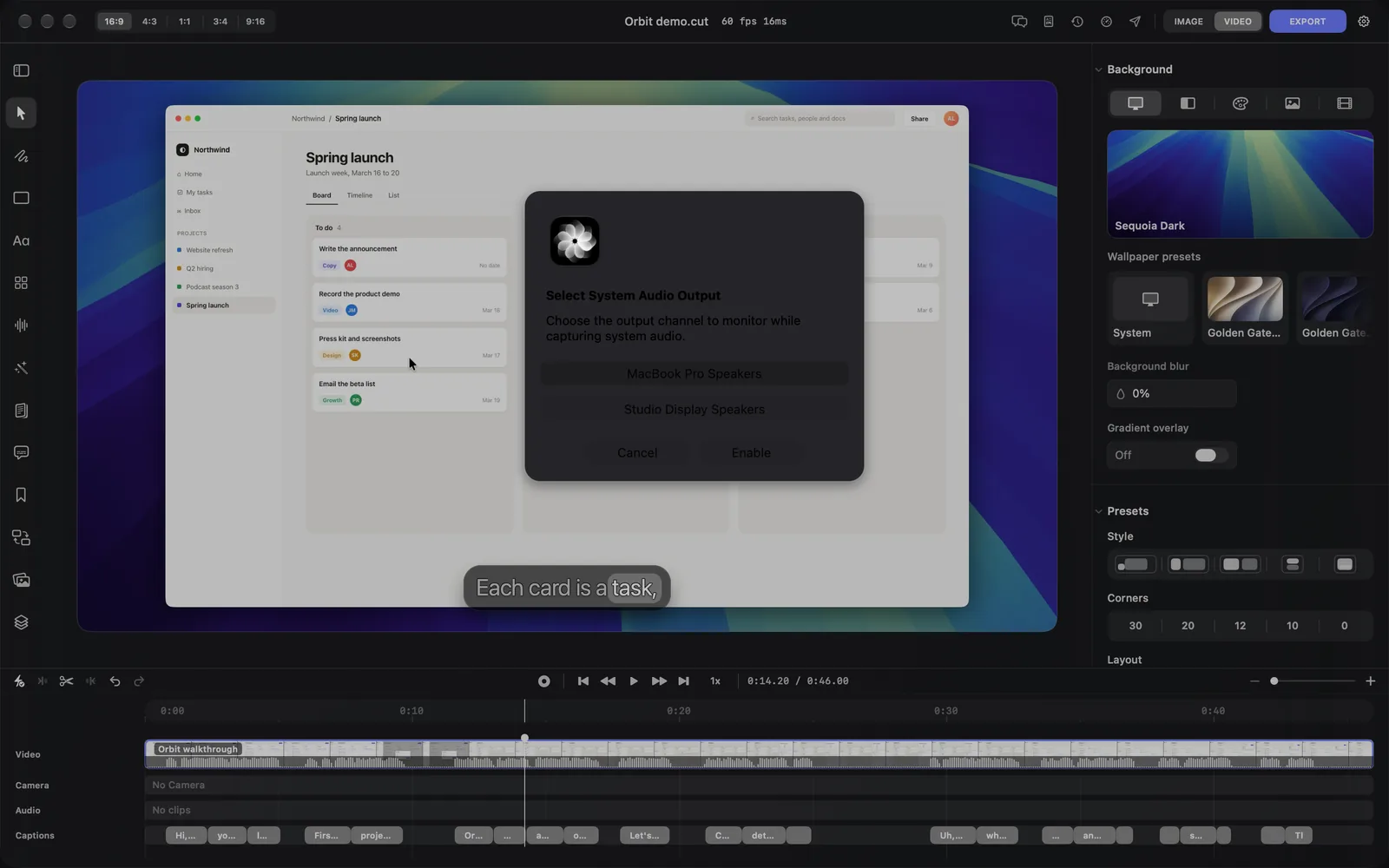
- The chip now shows the output's name, such as MacBook Pro Speakers, with a level bar that moves when your Mac plays a sound.
Click the chip again to turn system audio off.
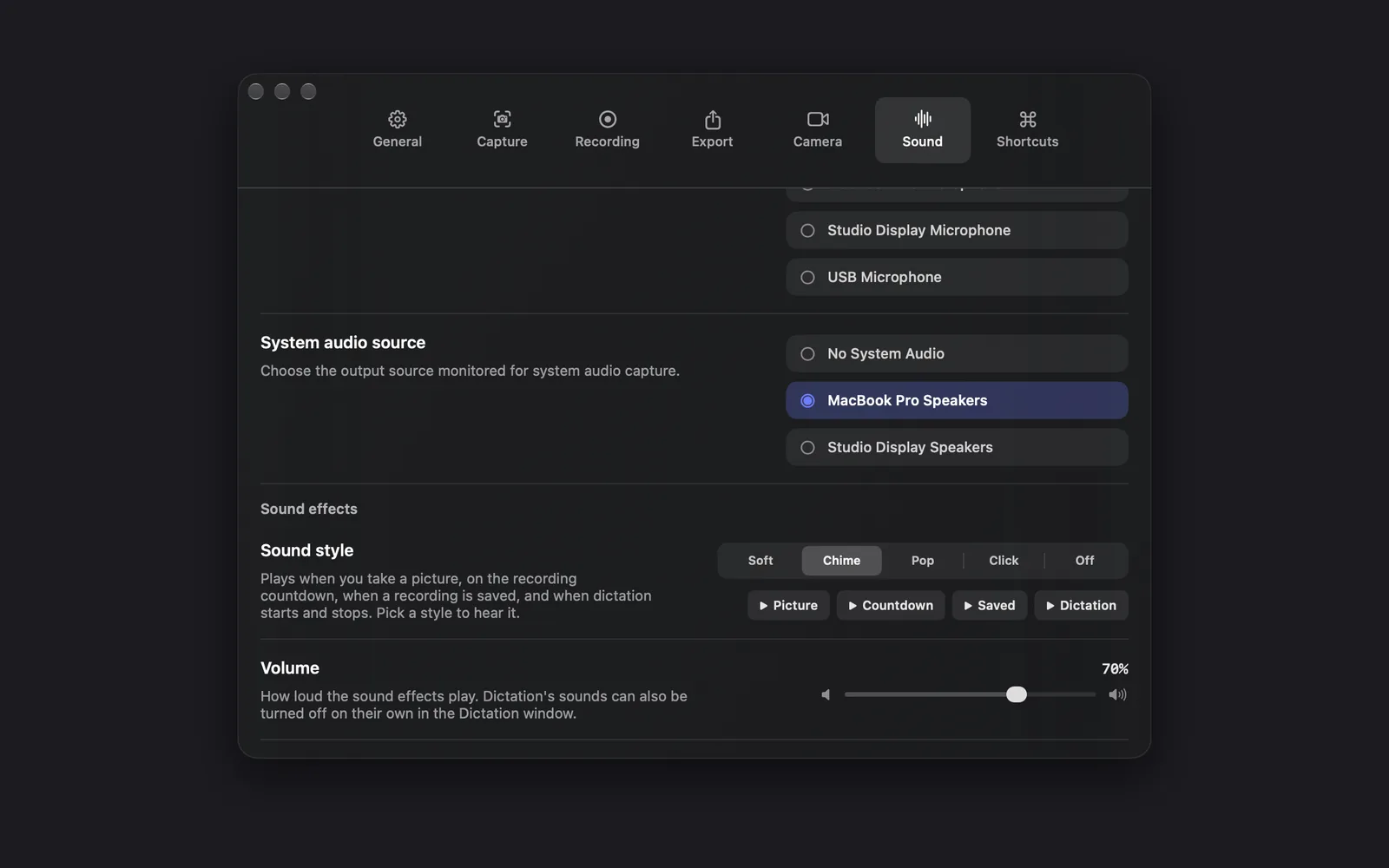
You can also set it in Settings: click the DreamCut icon in the menu bar, choose Show settings (⌘,) and open Sound. Under System audio source ("Choose the output source monitored for system audio capture."), click an output to turn system audio on, or No System Audio to turn it off. The chip changes with it.
What gets recorded
- Everything your Mac plays while you record. DreamCut takes it from macOS directly, whichever output you picked, and you hear the sound as usual while you record.
- Not one app on its own. You can't choose which apps are heard. A Display or Area recording takes all of your Mac's sound; a Window recording is the one case where macOS can limit it to that window's app.
- Not your voice. System audio is only the Mac's sound. Turn the microphone on as well to record your voice, as Camera and microphone explains.
- DreamCut's own sound, too. Sound DreamCut plays during a take, such as a video playing in one of its editor windows, is recorded like any other. Only the countdown beats and the "saved" sound stay out, because of when they play: the beats come before the point where your video starts in the editor, and the "saved" sound plays after the recording has been closed.
System audio needs no permission of its own. It comes with the one that lets DreamCut record your screen, which macOS lists as Screen & System Audio Recording.
Where it goes in the editor
Your Mac's sound is saved inside your screen recording, not as a clip of its own. It plays from the recording on the Video lane and follows that clip's Volume and Mute. Where your voice goes depends on the camera:
| You record with | Your Mac's sound | Your voice |
|---|---|---|
| System audio, camera and microphone | In the screen recording on the Video lane | In the camera clip on the Camera lane, with its own Volume and Mute |
| System audio and microphone, no camera | In the screen recording on the Video lane | Also in the screen recording, sharing its Volume and Mute |
| System audio, no microphone (camera on or off) | In the screen recording on the Video lane | None |
A recording from the capture bar adds nothing to the Audio lane: in a new recording it reads "No clips". To set your voice and the Mac's sound apart, record with the camera on.
Turn it down or mute it
- In the editor, click your recording on the canvas or on the Video lane.
- Open the Audio tab in the inspector. It's there only when the recording has sound.
- Lower Volume, or turn on Mute to silence the recording's sound.
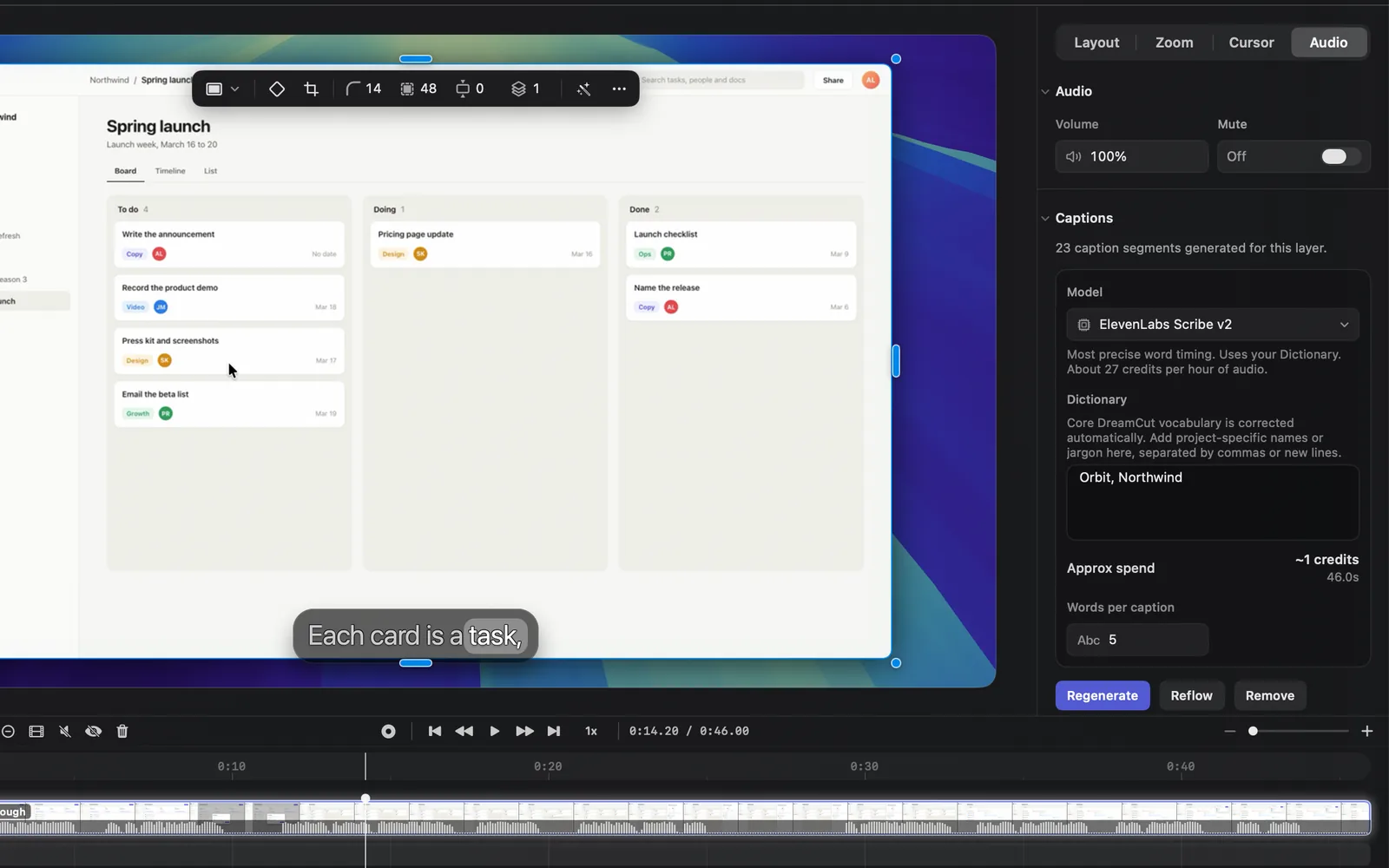
You can also click Mute on the timeline toolbar while the recording is selected; once muted, its tooltip reads Unmute. If you recorded with the camera on, this leaves your voice alone: select the camera clip and mute it the same way, or use its own Audio tab.
To silence only part of the recording, split it there first and mute that piece. Volume, mute and fades covers each control, and Edit on the timeline covers splitting.
No sound in the recording?
- Watch the level bar. Before you record, play a sound on your Mac: the bar under the system audio chip should move. If the chip reads No Audio, system audio is off.
- Turn the chip off and on. After DreamCut reopens with system audio already on, the bar stays flat, though the sound is still recorded. Click the chip to turn system audio off, then click it again, pick your output and click Enable, and the bar moves again.
- Check the permission. If the bar is still flat, open System Settings > Privacy & Security > Screen & System Audio Recording and make sure DreamCut is switched on. Install and permissions shows how.
- Record the display or an area. A Window recording can leave out other apps' sound, as above.
If both the microphone and system audio are off, the capture bar warns "This recording won't have any audio" before the countdown, once each time DreamCut opens. Click Record Anyway for a silent recording, or Cancel and turn one on.
Tips and limits
- The editor's own screen recorder (Record Video when you right-click an empty part of the Video lane) records the picture only. Record from the capture bar when you need the Mac's sound.
- Agent recordings: an AI agent's recording through the
dreamcutcommand or MCP is quiet by default and leaves system audio off unless the agent asks for it (--include-system-audio true). A recording that isn't quiet follows your system audio chip. A GIF never has sound. See MCP and the dreamcut command.
What's next
- Camera and microphone: add your camera and your voice.
- Record your screen: pick a display, a window or an area and record.
- Volume, mute and fades: balance the recording's sound with the rest.
- Speaker notes: keep a script on screen while you record.