
Crop and rotate a layer
Crop the recording, the camera or any overlay by dragging its edges, turn it to any angle, and resize it from its corners in DreamCut's editor.
Cropping cuts the edges off a layer so only the part you want shows, such as one window of a full-screen recording. You can crop the recording, the camera and every overlay, turn any of them to an angle, and resize them from their corners, all on the canvas.
Crop a layer
- Click the layer on the canvas to select it. Its toolbar appears on the canvas.
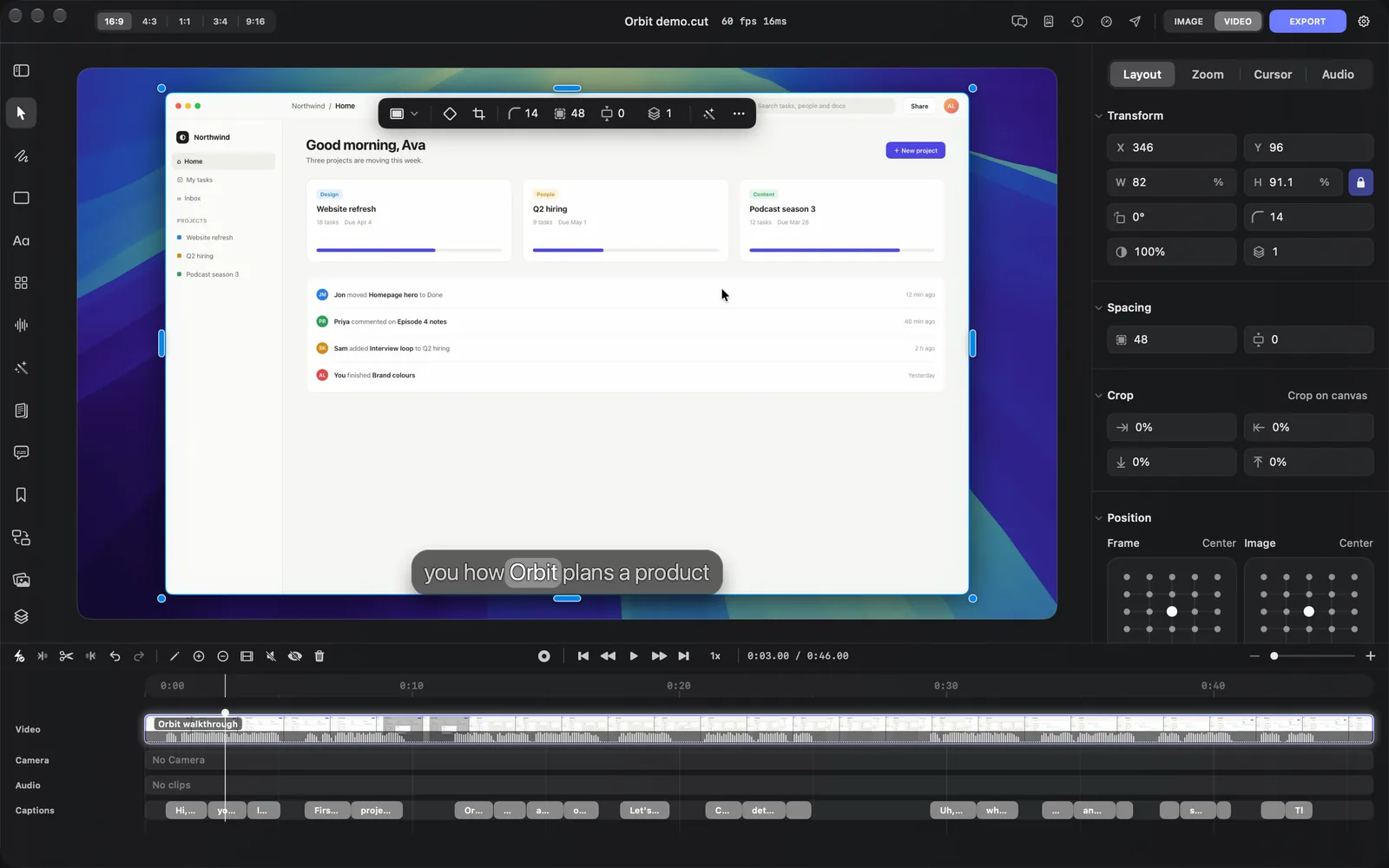
- Click the crop button in the toolbar. Its tooltip reads Crop: drag its edges.
- Playback pauses, the whole layer shows, and the part you cut is dimmed.
- Drag the marks on the corners and edges of the box to trim the layer. Drag inside the box to slide it over the layer.
- While you drag, thirds lines and the kept size, such as "80% × 100%", show on the canvas.
- With the shape set to Free, hold ⇧ while you drag a corner to keep the box's proportions.
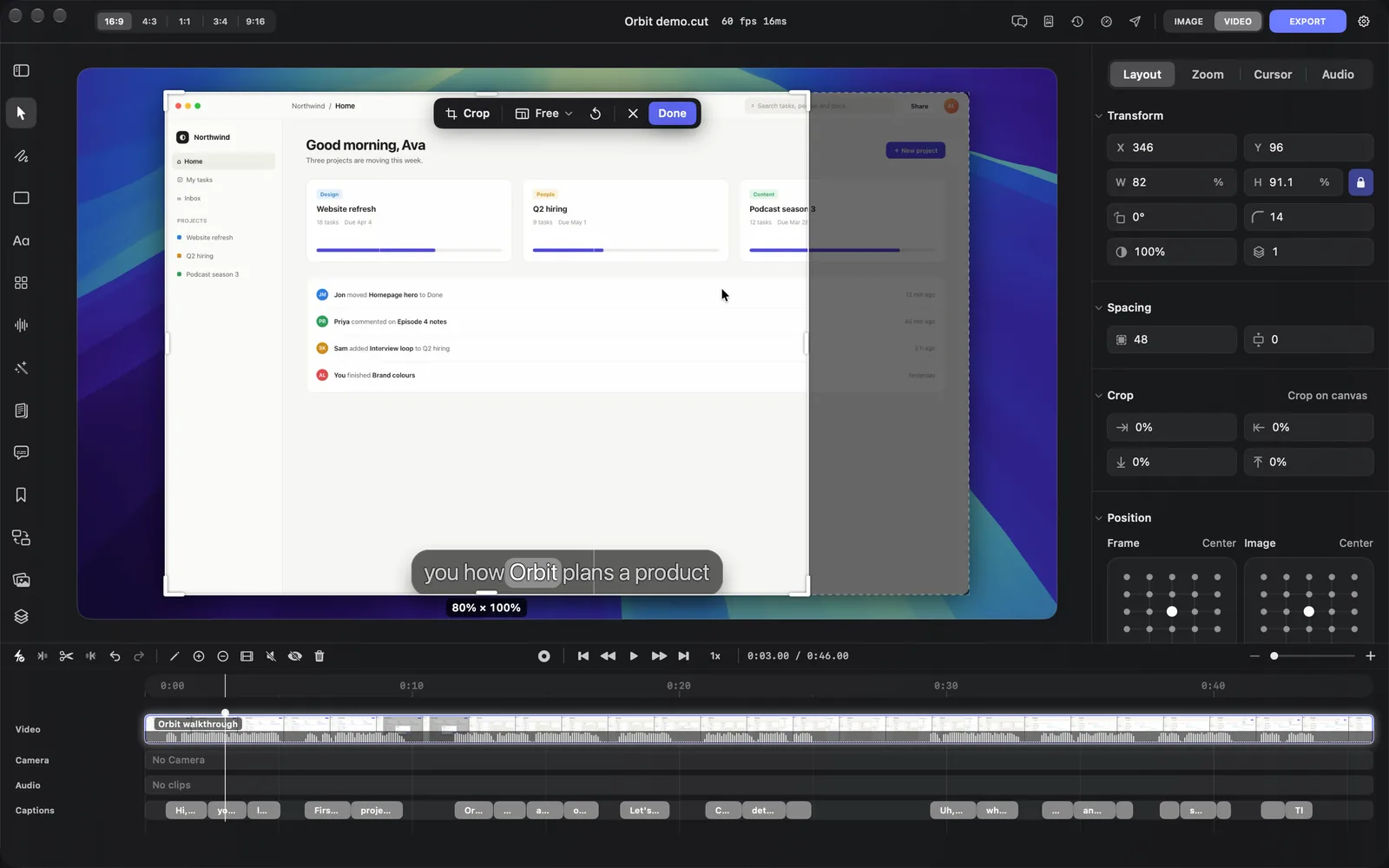
- Click Done or press Return. The Crop fields in the inspector take the new values.
The crop lands as one step you can undo with ⌘Z. Clicking outside the layer, pressing Space to play or an arrow key to move the playhead also applies it first.
There are two other ways into crop mode:
- Right-click the layer on the canvas or the timeline, or click More (⋯) in its toolbar, and choose Crop. If the layer isn't on the canvas at the playhead, the playhead moves onto it.
- In the inspector's Layout tab, click Crop on canvas in the Crop section.
The crop bar
While you crop, the layer's toolbar becomes the crop bar.
| Control | What it does |
|---|---|
| Free (the shape menu) | Locks the box to a shape: Free, Original (the layer's own proportions), Square, 16:9, 4:3, 9:16 or 3:4. Picking one fits the largest box of that shape, centred where your crop is now |
| Reset (↺) | Shows the whole layer again and sets the shape back to Free. ⌫ also shows the whole layer |
| ✕ | Leaves crop mode and keeps the layer as it was. Same as Esc |
| Done | Applies the crop. Same as Return |
Crop with exact numbers
The Crop section of the inspector's Layout tab has four fields, one for each edge: left, right, top and bottom, in that order. They show an arrow pointing in from their edge instead of a name; hover one to read which edge it cuts, such as "Cut from the left edge, in percent of its width". Each is how much is cut from that edge, as a percent of the layer's width (left and right) or height (top and bottom). One edge can cut up to 98%, less whatever the opposite edge cuts, so at least 2% of the width and height always stays. Type a value to crop without entering crop mode.
Remove a crop
- Right-click the layer, or open More in its toolbar, and choose Reset Crop. It shows only on a cropped layer.
- Or click Reset in the header of the inspector's Crop section.
Which layers you can crop
Every layer on the canvas: the recording, the camera, and overlays such as text, titles, shapes, drawings, pictures, blur boxes and layout cards. Audio clips and transitions have no crop.
The recording's crop belongs to its scene, so each scene can be cropped differently. See Timeline for how scenes work.
Rotate a layer
- Select the layer on the canvas.
- Move the pointer a little outside one of its corners. The pointer turns into a rotate cursor, and on the recording and camera the tooltip reads Drag to rotate (Shift snaps to 15°).
- Drag around the layer. It turns about its centre, and a badge under it shows the angle.
- Hold ⇧ to turn in 15° steps.
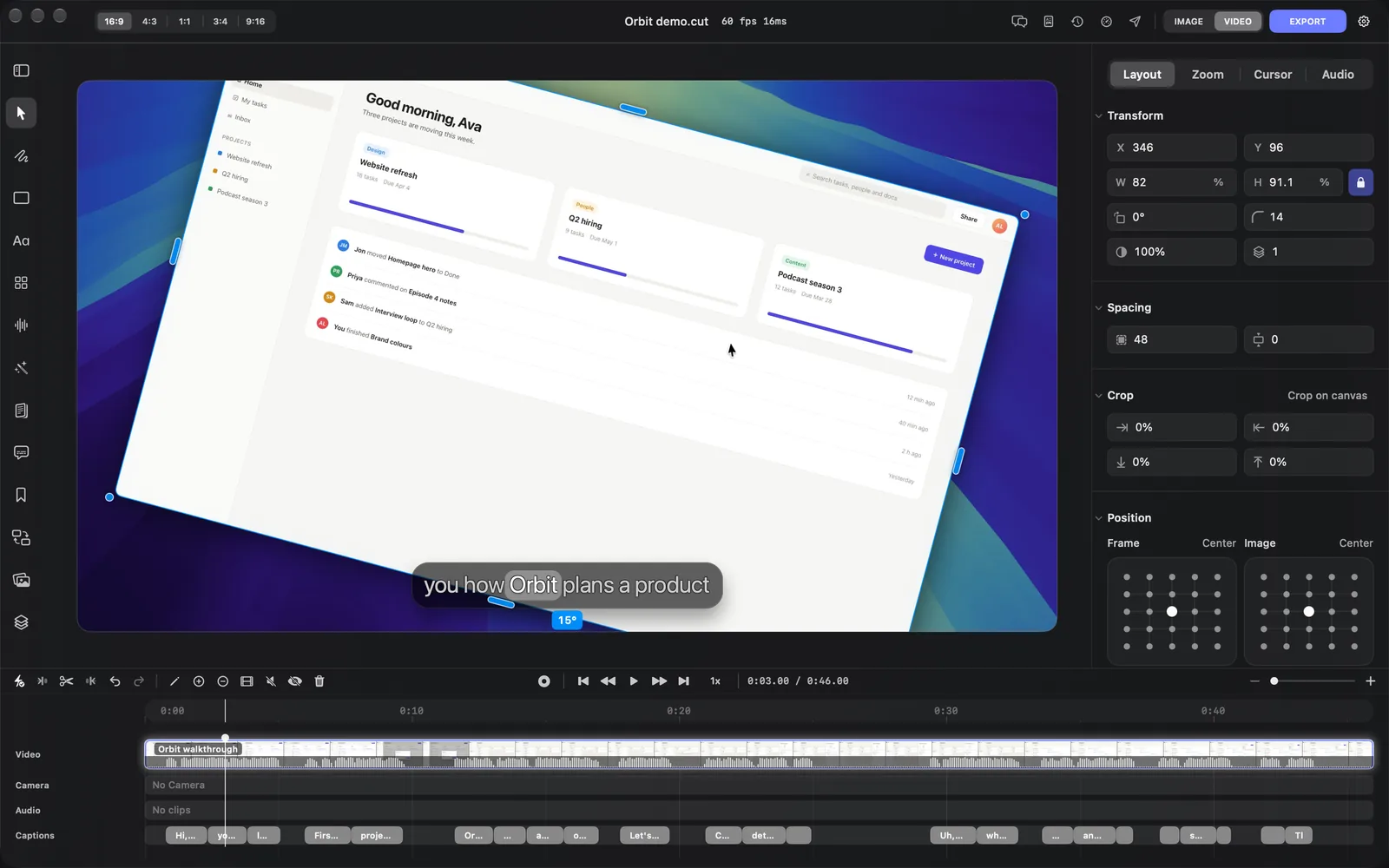
For an exact angle, type it in the rotation field, in the Transform section of the inspector's Layout tab. It shows a turning-arrow icon instead of a name, and hovering it names it Rotation. The recording, the camera and box-shaped overlays such as shapes and pictures have it, and it counts degrees clockwise. The layer's toolbar has no rotation field.
To straighten a layer, right-click it or open More and choose Reset Rotation, which shows once the layer is turned. On the recording and the camera, Reset in the Transform header also straightens it, and puts it back on its grid position at full opacity.
Animated titles from the Text panel don't turn, and a camera with the Circle shape has no rotation because it looks the same at every angle.
Resize and round the corners
- Resize: drag a corner or an edge of the selected layer. On the recording and the camera, the tooltip reads Resize layer (Shift flips the aspect lock, Option resizes from the centre) and a badge shows the new size in export pixels.
- Hold ⇧ to flip the aspect lock for that drag, or ⌥ to resize from the centre.
- The lock itself is the button beside W and H in the Transform section.
- Corner radius: on the recording, the camera, shapes, pictures, video overlays and blur boxes, hover the selected layer and small dots appear inside its corners. Drag one (Adjust corner radius) to round the corners, or type a value in the toolbar's Corners field. Text, titles, drawings, layout cards and a Circle camera have no corner dots.
- Padding and inset: around the recording and the camera, the thin bands outside the frame set its Padding and Inset. Hover one to see "Drag to resize padding" or "Drag to resize inset", then drag. Layout and camera explains both.
Tips and limits
- The recording's and camera's resize and rotate handles, and their corner dots, hide while the playhead is inside a zoom. Move the playhead to a spot with no zoom to drag them.
- A cropped layer shows no corner dots. Use the Corners field in its toolbar instead; on the recording and the camera, the radius rounds the corners of the part you kept.
- A crop never deletes anything. Remove it at any time and the whole layer comes back.
What's next
- Layout and camera: place the recording and camera with presets, padding and inset.
- Overlays: add shapes, pictures and video on top of the recording.
- Timeline: trim, split and arrange your scenes and layers.