
Text and animated titles
Add plain text or one of 27 animated titles at the playhead, type your words right on the canvas, and style them in DreamCut's editor on the Mac.
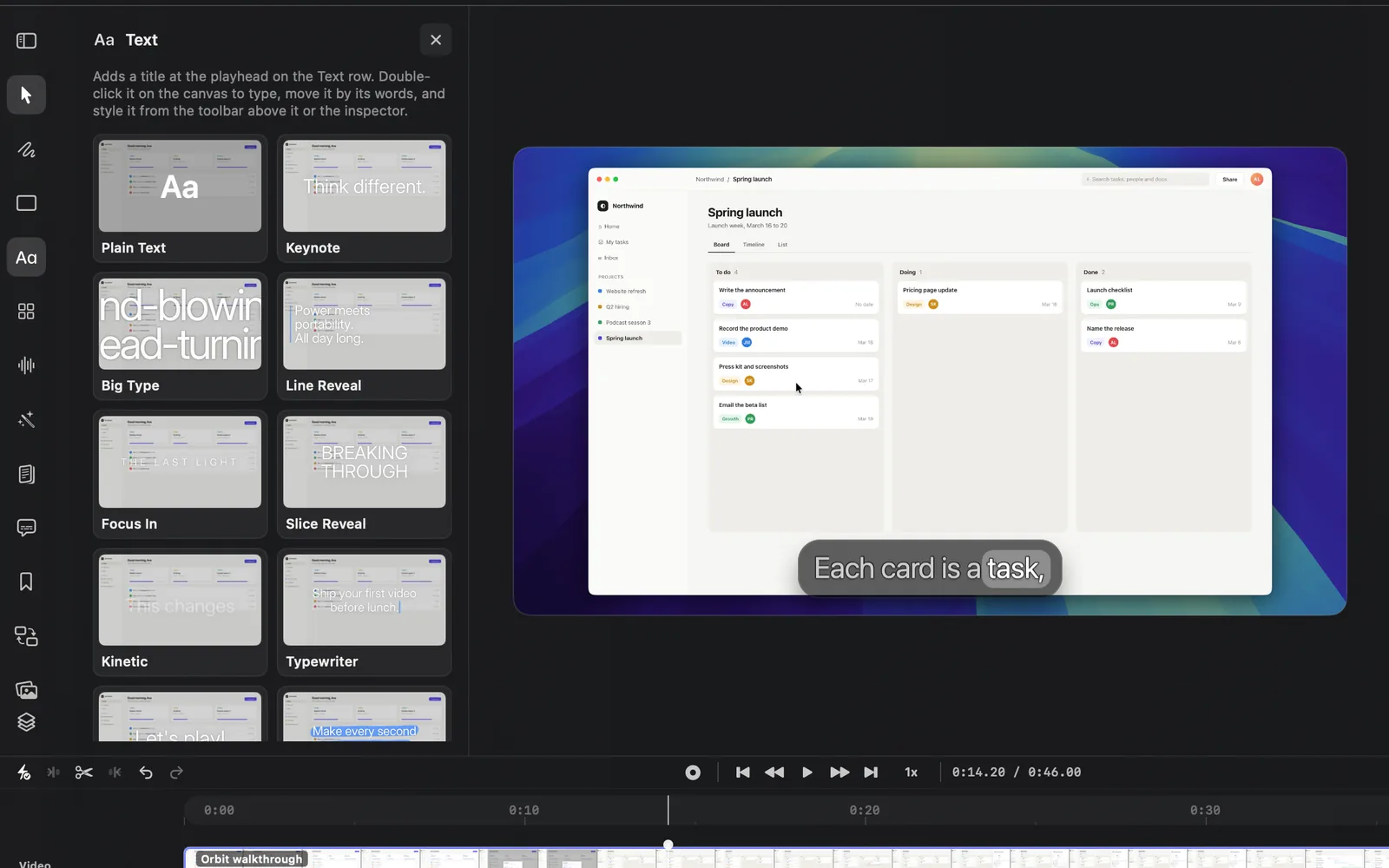
The Text panel puts words over your video. Pick Plain Text to style the words yourself, or one of 27 animated titles that come in, hold and go out on their own. Each lands at the playhead on the Text lane of the timeline, and you type your own words on the canvas.
Add a title
- In the editor, move the playhead to where the title should start.
- Click Text in the tool rail on the left, or press T. The Text panel opens beside the canvas.
- Rest the pointer on a card to watch it play over a frame of your video.
- Click a card, such as Keynote. The title lands at the playhead with the card's sample words, "Think different.", and is selected: it shows on the canvas, and its clip on the Text lane reads "Keynote · Think different.".
- Double-click the title on the canvas, or press Return. Its words are selected, so type to replace them. Press Esc or ⌘↩, or click elsewhere on the canvas, when you're done.
- Press Space to play it.
A new title lasts 3 seconds, or 4 for Big Type, Kinetic, 3D Roll and the word collages. Near the end of the video it gets whatever time is left.
The title styles
The panel lists Plain Text first, then the animated titles. Rest the pointer on a title card for its tooltip: a fuller version of the line below, ending "Click to add it at the playhead." The same description shows under Preset in the inspector once the title is on the canvas.
| Title | What it does |
|---|---|
| Plain Text | A plain text layer you style yourself. See Plain text |
| Keynote | Giant type lands from far too big and out of focus, and settles slowly |
| Big Type | Huge words wider than the frame sweep across it, alternate lines in opposite directions |
| Line Reveal | Lines rise one by one from behind a hard baseline, with an accent rule drawing beside them |
| Focus In | A film title that pulls out of deep blur and wide tracking into sharp, tight type |
| Slice Reveal | Horizontal slices sweep in from alternating sides and lock together |
| Kinetic | One big word at a time, each punching in a different way |
| Typewriter | Letters type in with a human rhythm and a blinking accent caret, then delete themselves |
| Bounce | Letters drop in, squash and bounce to a stop, then hop out |
| Highlighter | A marker swipes behind the words as they rise in just ahead of it |
| Count Up | Numbers roll up from zero on odometer digits; the words fade in around them |
| 3D Flip | Letters flip up on a hinge, catching the light, like a split-flap board |
| 3D Roll | Lines spin past on a drum like a slot reel and land on the last one |
| 3D Extrude | Chunky extruded letters swing in on a spring, settle facing you and tilt gently |
| Glitch | Scrambled glyphs decode into your title, glitch in bursts, then corrupt away |
| Neon Sign | Glass tubes flicker on letter by letter, hum while held, then power off |
| Wave | Letters ride a travelling wave in, then settle into a calm ripple |
| Letter Rise | Letters spring up one after another from below a hidden baseline |
| Fade Up | Words rise a little out of a soft blur |
Word collages
Under the Word collages heading at the bottom of the panel are titles that lay your words out as a collage, with a few big "hero" words and the rest smaller around them.
| Title | What it does |
|---|---|
| Word Scatter | Big hero words with small italic words tucked around them, popping in one by one |
| Editorial | A magazine spread: hero words in a huge display serif, the rest on a staircase under a numeral and a hairline rule |
| Labels | Every word on its own tilted, overlapping sticker, slapped down one by one; the hero gets the big accent sticker |
| Swiss Grid | One typeface on a column grid: the hero across the columns, small words as spaced capitals under an accent square |
| Depth Cloud | Words float in from the distance at different depths, drift with parallax, and the camera flies through them at the end |
| Orbit | The hero holds the centre while the other words fly in on a tilted ring around it, sway, then spin away |
| Stack | A poster tower: each line pushes up out of a floor and lifts the ones above, until a kick at the base knocks them away |
| Highlight | A tilted collage where a marker swipes behind the key words as they land, turning their letters dark |
| Cutouts | Every word on its own paper scrap in its own typeface, slapped down in stop-motion steps |
Type and change the words
- On the canvas: double-click the title, press Return with it selected, or click Edit text (the first button in its toolbar). Each line you type is a line on screen, so Return starts a new one. Finish with Esc, ⌘↩ or a click elsewhere.
- In the inspector: type in Text, under Text Animation.
If you clear every word, the title keeps its old words rather than disappearing.
Place and size a title
A title covers the whole frame and places its words on a 3 × 3 grid.
- Drag the words on the canvas to move the title.
- Drag a corner handle to make it bigger or smaller. The new Size shows under it as you drag.
- Pick one of nine spots, from Top left to Bottom right, in Position in the inspector or in the toolbar's grid menu.
The title's toolbar
A selected title has a toolbar above it on the canvas. From left to right:
| Button | What it does |
|---|---|
| Edit text | Types the words in place on the canvas |
| The preset menu, such as Keynote | Switches to another title. Your words, colours, font, effect and position carry over; size, weight and the other settings start from the new style's defaults |
| Size | The size of the words, in percent. Drag the icon or type a number |
| Bold | Switches the words between regular and bold |
| The font menu, such as Inter | SF Pro, New York and the other system fonts, then DreamCut's own. The inspector's Font also lists every font installed on your Mac |
| Position (the grid) | One of nine spots in the frame |
| Color | The colour of the words |
| The keyframe diamond | Adds a keyframe at the playhead |
| The crop button | Crops the title by dragging its edges |
| Z-index | The layer's place in the stack, from 0 to 10. Higher sits in front |
| The wand | Generate with this layer: AI media with this layer as the context |
| More | Crop, stack order, Duplicate, Hide and Delete |
Style a title in the inspector
The inspector on the right has two tabs for a title: Preset and Animation. Click a section's heading to fold it.
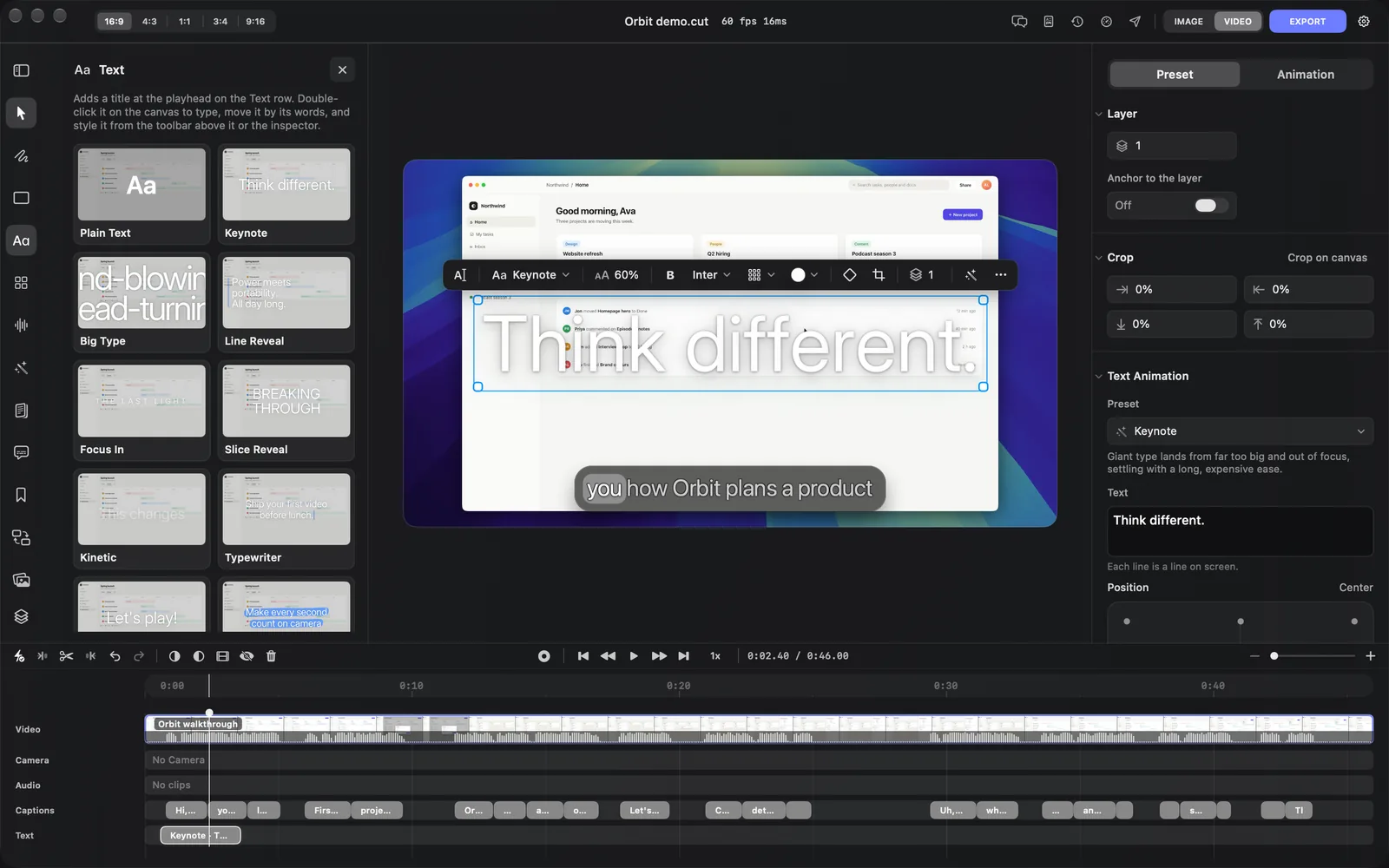
The Preset tab, from the top:
| Section | What it sets |
|---|---|
| Layer | Z-index, and Anchor to the layer: on, the title is placed within your recording's frame instead of the whole canvas |
| Crop | How much to cut from each edge, in percent, or Crop on canvas to drag the edges |
| Text Animation | Preset, the title style, with a line on what it does; Text, the words, one line per line on screen; and Position, the 3 × 3 grid |
| Typography | Font, Size, Weight, Color, Accent, Effect, Effect amount, Letter spacing, Line spacing, Max width, Margin, Shadow and Uppercase |
| The title's name, such as Keynote | Speed, from 0.25× to 3×, then the style's own settings: Keynote has Push, Focus and Drift |
| Appearance | Corner radius |
| Hide | Takes the title out of the picture without deleting it |
Delete at the bottom removes the title.
A few of the Typography settings need a word:
- Accent is the second colour some titles use, such as Typewriter's caret and Line Reveal's rule.
- Effect lays a look on the letters: None, Glow, Neon, Gradient, Chrome, Outline, Long shadow, Glitch or Liquid. Effect amount sets how strong it is.
- Max width is how wide a line can get before it wraps, and Margin is the space kept from the edges of the frame.
The Animation tab holds the title's Keyframes, a Start animation for the whole layer under Animation, and Timing: Start time, Duration, Shows from and Shows until.
Plain text
Plain text is styled like a caption: it has the caption looks and their controls, and no animation style of its own.
- Move the playhead to where the text should start.
- Add the text in one of three ways:
- In the Text panel, click Plain Text. It lands in the middle of the canvas.
- Right-click an empty part of the Text lane and choose Add Text. It lands in the middle of the canvas.
- Right-click an empty part of the canvas, such as the background around your recording, and choose Add Text. It lands where you right-clicked. The canvas menu doesn't open while the video plays.
- The text layer lasts 2 seconds and is selected, with the inspector's Text content box ready to type in. It starts with the words of the last text or caption you selected, or with "Text".
- Type your words in Text content, or double-click the text on the canvas.
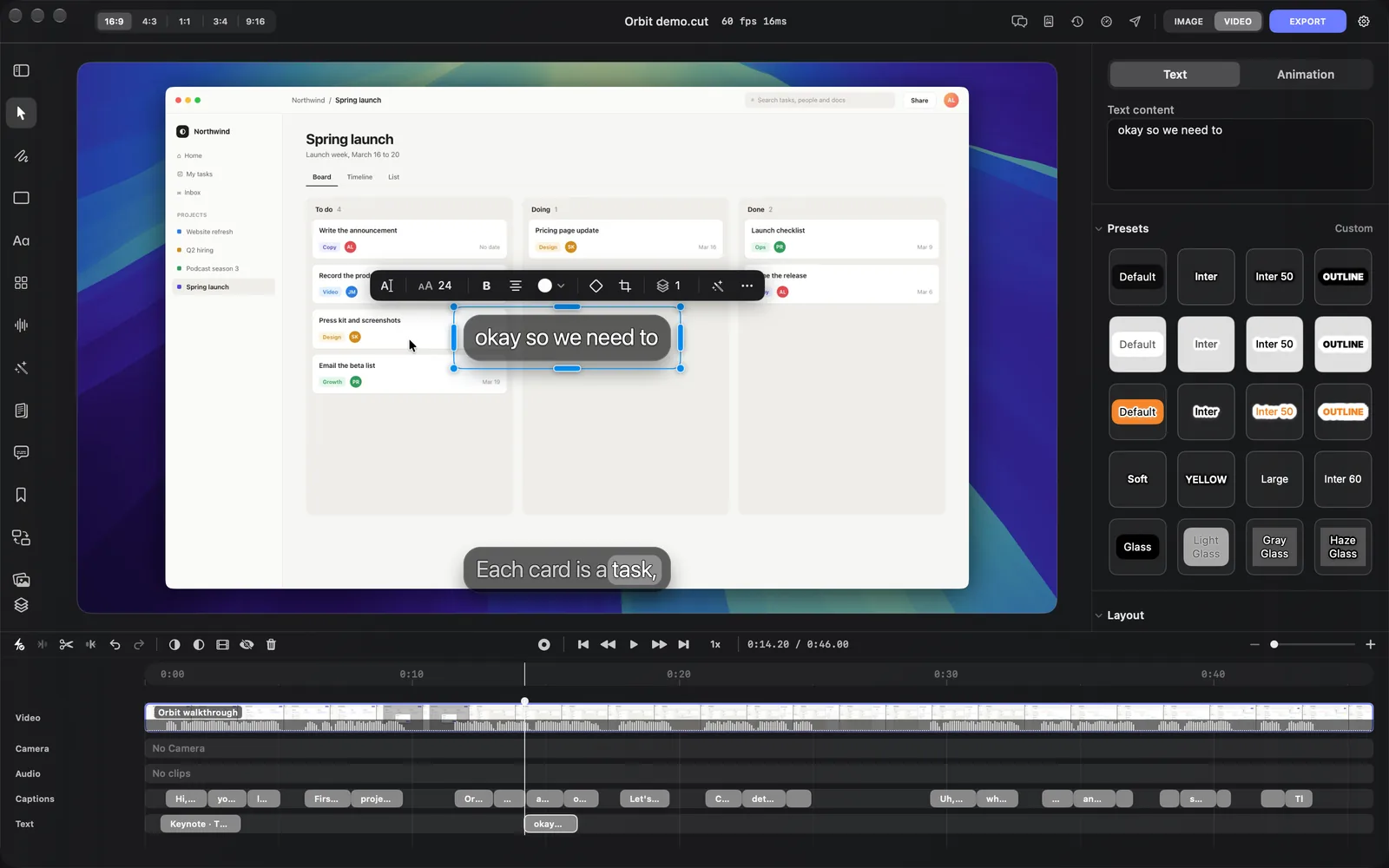
The inspector's Text tab has these sections:
| Section | What it sets |
|---|---|
| Text content | The words |
| Presets | The caption looks, such as Default, Outline and Glass. See Captions |
| Layout | Position, Width and Height (each with Auto), Padding, Margin, Z-index and Anchor to the layer |
| Crop | How much to cut from each edge, or Crop on canvas |
| Typography | Font, Text alignment (when Width isn't Auto), Uppercase text, Font size, Font weight, Line height, Letter spacing, Text color, Shadow, Text outline, Outline color, X Offset and Y Offset |
| Background | The box behind the words: Fill, Stroke, Stroke width, Background blur, Corner radius and Container shadow |
Its toolbar on the canvas has Edit text, Size (8 to 300), Bold, an alignment button that steps through left, centre and right, and Text color, then the keyframe, crop, Z-index, wand and More buttons a title has.
Change when it shows
Titles and text sit on the Text lane of the timeline, under the captions.
- Drag a clip along the lane to move it, or drag either end to make it start later or end sooner.
- Type exact times in the Animation tab, under Timing.
- An animated title plays its intro at the start of its clip and its exit at the end. A longer clip holds the words on screen longer; a very short one squeezes the intro. Speed in the title's own section speeds both up or slows them down.
When titles overlap in time, a small arrow appears beside the lane's name. Click it to open the lane into rows. Edit on the timeline covers trimming, copying and the right-click menu.
Tips and limits
- Press ⌘D to duplicate a selected title right after itself, then change its words.
- To switch a title to another style, use its preset menu instead of adding a new one: the words come with it.
- While a title is selected and the playhead is in its intro or exit, the canvas also shows its finished look faintly, so you can place it before it has come in.
- A title belongs to the scene under the playhead when you add it, and moves with that scene.
- Adding and styling text and titles uses no credits.
What's next
- Draw: arrows, circles and lines that draw themselves on.
- Overlays: shapes, pictures and boxes on the canvas.
- Stickers and cut-outs: buttons, badges, emoji and transparent pictures.
- Transitions: move from one scene to the next.
- Edit on the timeline: move and trim the layers you add.