
Settings
Change DreamCut's recording quality, zoom and cursor defaults, export folder, camera, microphone, sound effects and keyboard shortcuts on your Mac.
DreamCut's Settings window holds the defaults for capturing, recording and exporting, your camera and microphone, its sound effects and its keyboard shortcuts, plus a link to your subscription. DreamCut saves each change as soon as you make it; there's nothing to confirm.
Open Settings
There are three ways in:
- From the menu bar: click the DreamCut icon and choose Show settings (⌘,). Settings opens on General.
- From the capture bar: click the gear to open Capture Options, then click Open Full Settings.
- From the editor: click the gear next to EXPORT in the top bar. Settings opens on Export.
Then click a tab along the top: General, Capture, Recording, Export, Camera, Sound or Shortcuts.
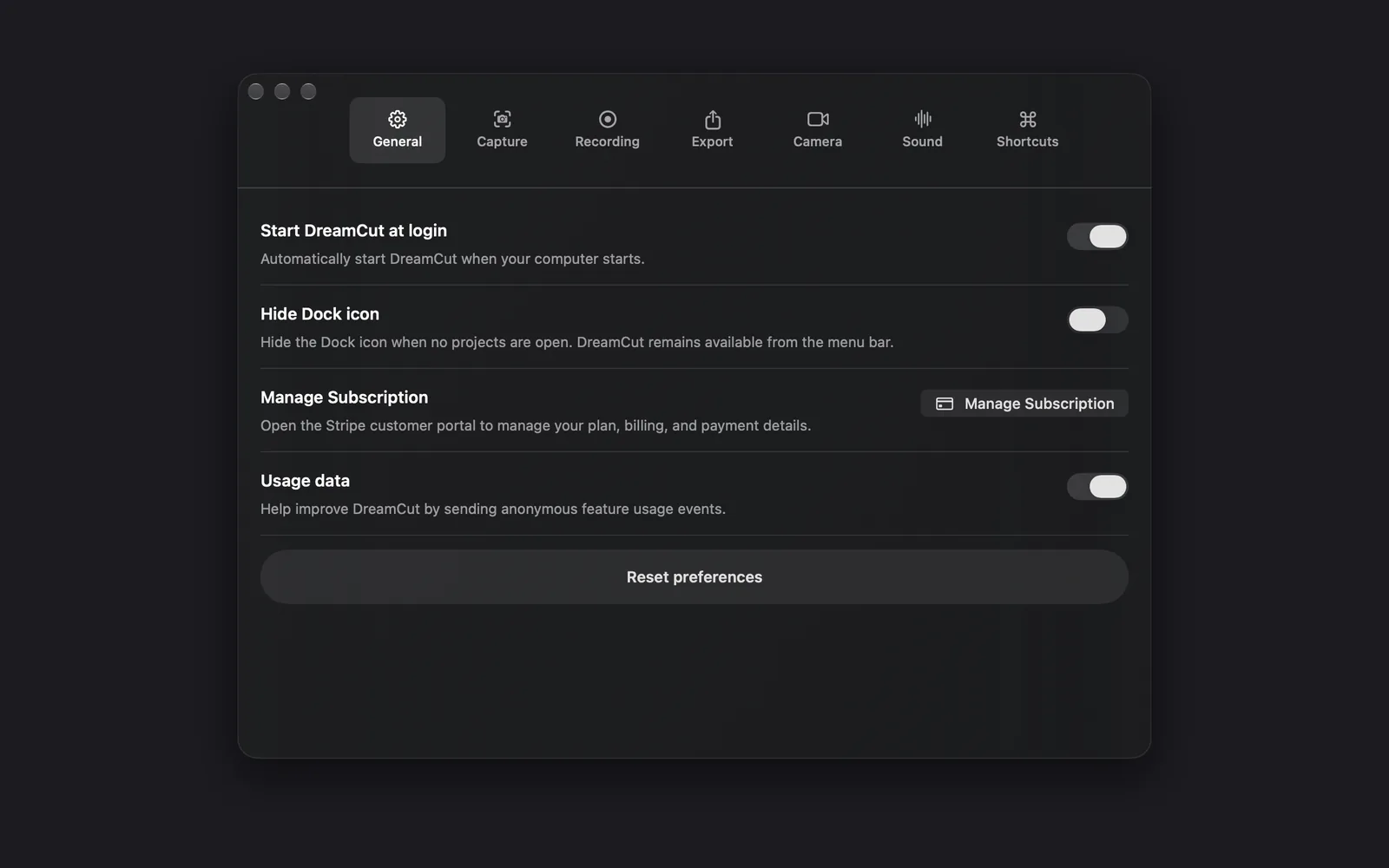
General
| Setting | What it does |
|---|---|
| Start DreamCut at login | Meant to open DreamCut when you log in to your Mac. In this version it only saves your choice: see the note below |
| Hide Dock icon | Hides DreamCut's Dock icon, also while a project is open, although the line under the switch says "when no projects are open". DreamCut stays in the menu bar. Show DreamCut in Dock (⌘D) in the menu bar menu is the same switch the other way round |
| Manage Subscription | Opens Stripe's customer portal in your browser, to manage your plan, billing and payment details |
| Usage data | Meant to let DreamCut send anonymous feature usage events. In this version it only saves your choice: see the note below |
| Reset preferences | Turns the switches on this tab back to their defaults, sets the sound effects back to Chime at 70%, and puts the picker and quick-capture shortcuts back. Your capture, recording and export settings stay as they are |
With an active DesignCode Product Pass, a DesignCode Product Pass row shows "Active" and the date your free Pro access ends, and Manage Subscription is hidden unless you also pay through Stripe. Plans and credits covers plans, credits and the pass.
Capture
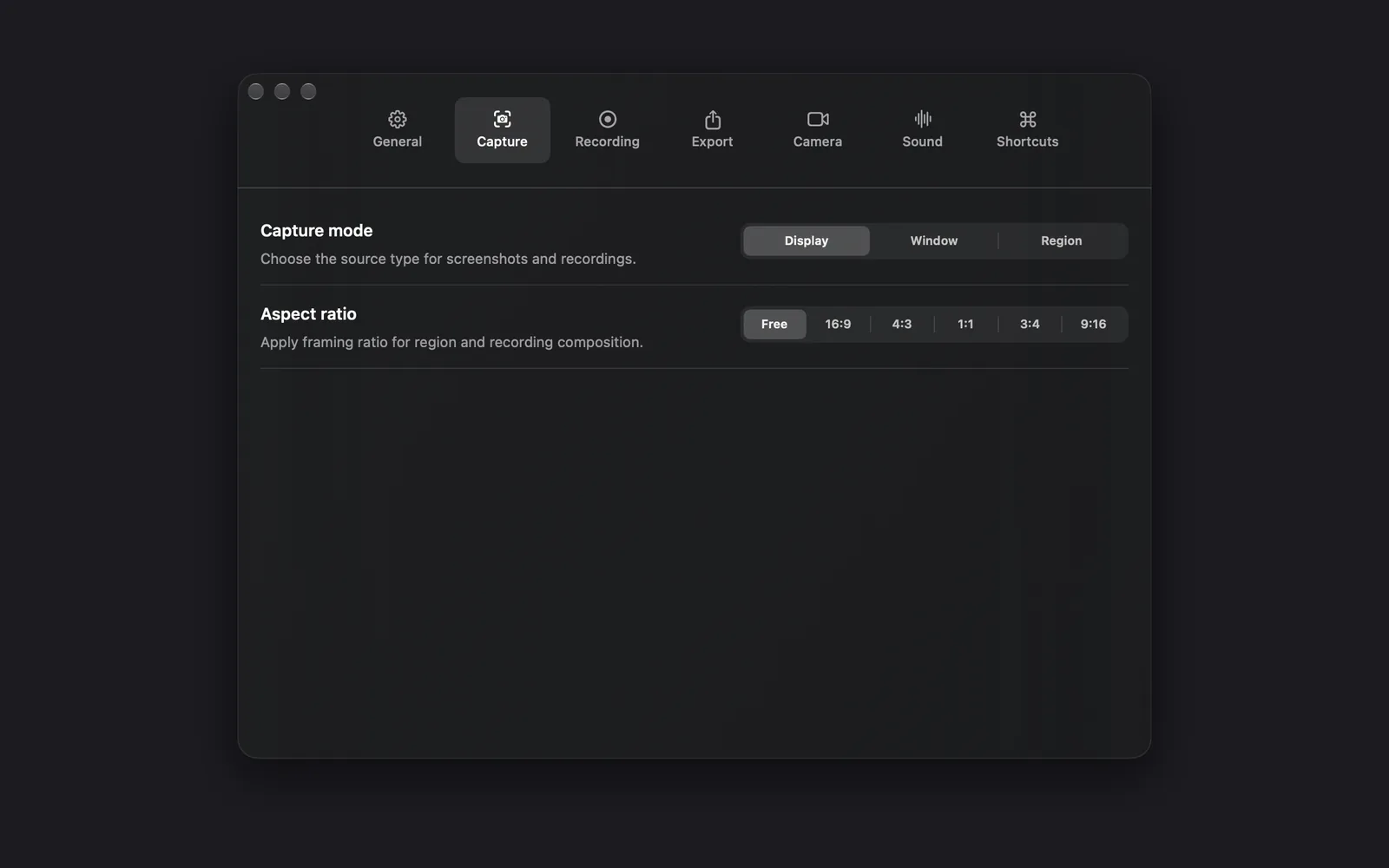
| Setting | Choices | What it does |
|---|---|---|
| Capture mode | Display, Window, Region | What screenshots and recordings take in. Region is the one the capture bar calls Area |
| Aspect ratio | Free, 16:9, 4:3, 1:1, 3:4, 9:16 | Locks the shape of an area you drag and of the recording's framing. Free lets you drag any shape |
| Window target | Pick on Screen, Select Window, Refresh List | Shows only when Capture mode is Window, and sets the window to capture or record. Pick on Screen lets you click the window itself; Select Window lists open windows by app and title; Refresh List updates that list after you open a new window |
Recording
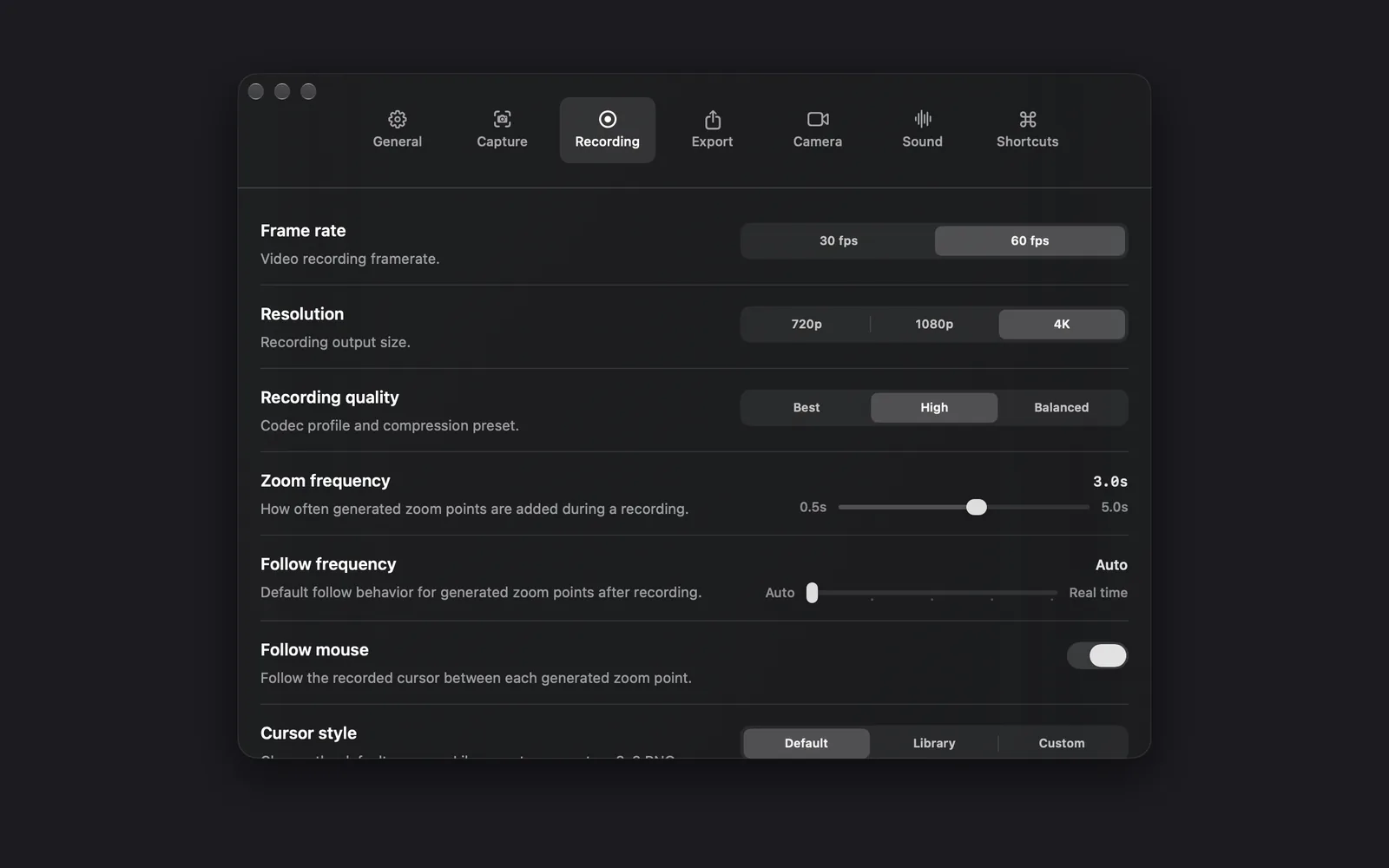
| Setting | Choices | Default | What it does |
|---|---|---|---|
| Frame rate | 30 fps, 60 fps | 60 fps | Frames per second of new recordings |
| Resolution | 720p, 1080p, 4K | 4K | The size new recordings are saved at |
| Recording quality | Best, High, Balanced | Best | How recordings are compressed. Best and High save HEVC video, Balanced H.264 |
| Zoom frequency | 0.5s to 5.0s | 5.0s | How often zoom points are added while you record |
| Follow frequency | Auto, Significant, Balanced, Smooth, Real time | Auto | How closely the view follows the mouse between zoom points. Greyed out while Follow mouse is off |
| Follow mouse | On or off | On | Follows the recorded cursor between zoom points |
| Cursor style | Default, Library, Custom | Default | The standard cursor, a cursor set from your Library (Library opens Cursor Sets to pick one), or your own 3x3 PNG sprite sheet (Custom) |
Scroll down for the cursor size and what happens after each recording.
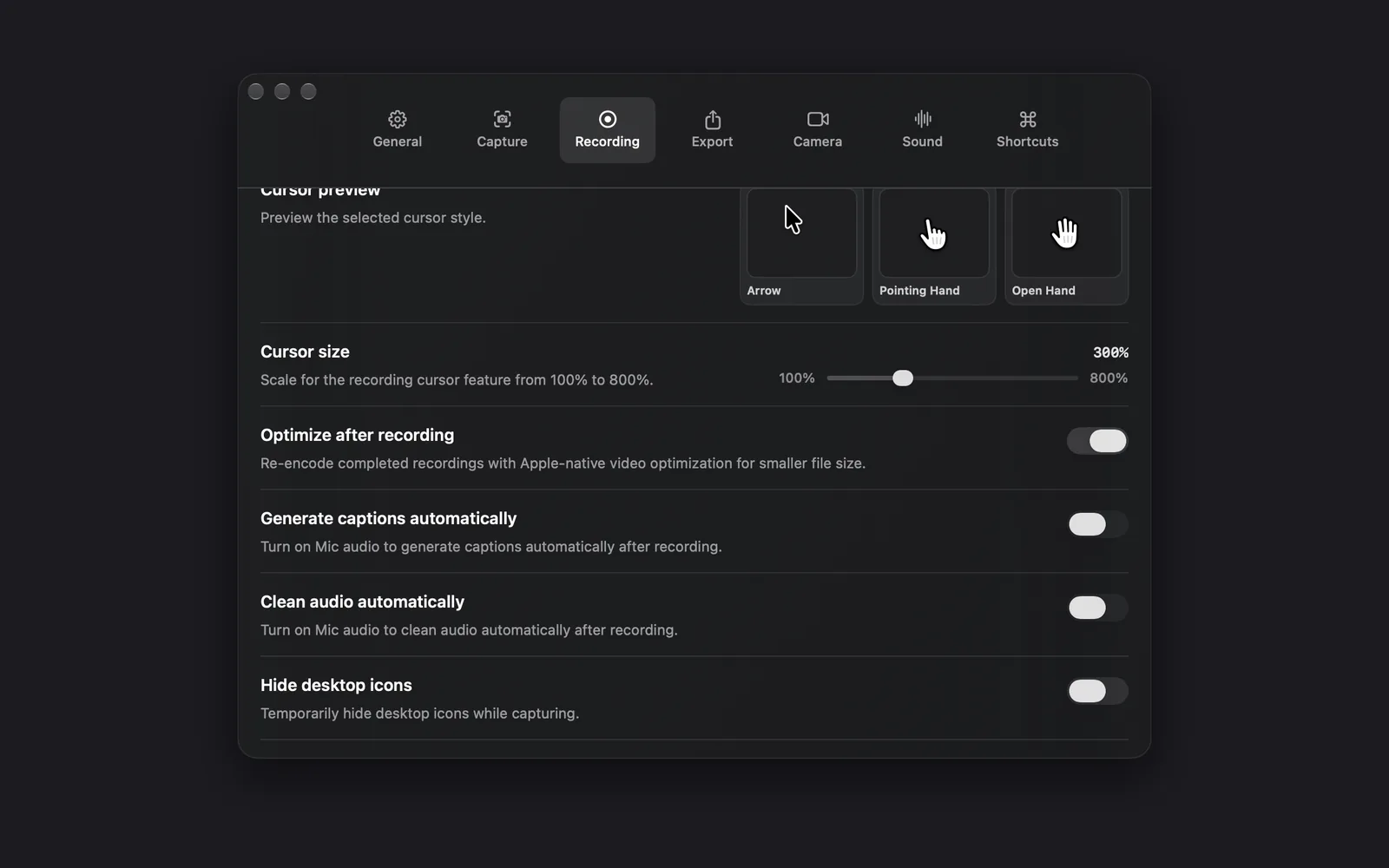
| Setting | Choices | Default | What it does |
|---|---|---|---|
| Cursor preview | Nothing to set | None | Shows the chosen style as Arrow, Pointing Hand and Open Hand |
| Cursor size | 100% to 800% | 300% | How big the cursor is drawn in recordings |
| Optimize after recording | On or off | On | Re-encodes each finished recording with Apple's video tools, for a smaller file |
| Generate captions automatically | On or off | Off | Makes captions from your microphone when a new recording opens in the editor |
| Clean audio automatically | On or off | Off | Cleans your microphone audio when a new recording opens in the editor |
| Hide desktop icons | On or off | Off | Hides the icons on your desktop while you capture |
Zooms and the cursor explains how the zoom and cursor settings shape a recording, and how to change them afterwards in the editor.
Export
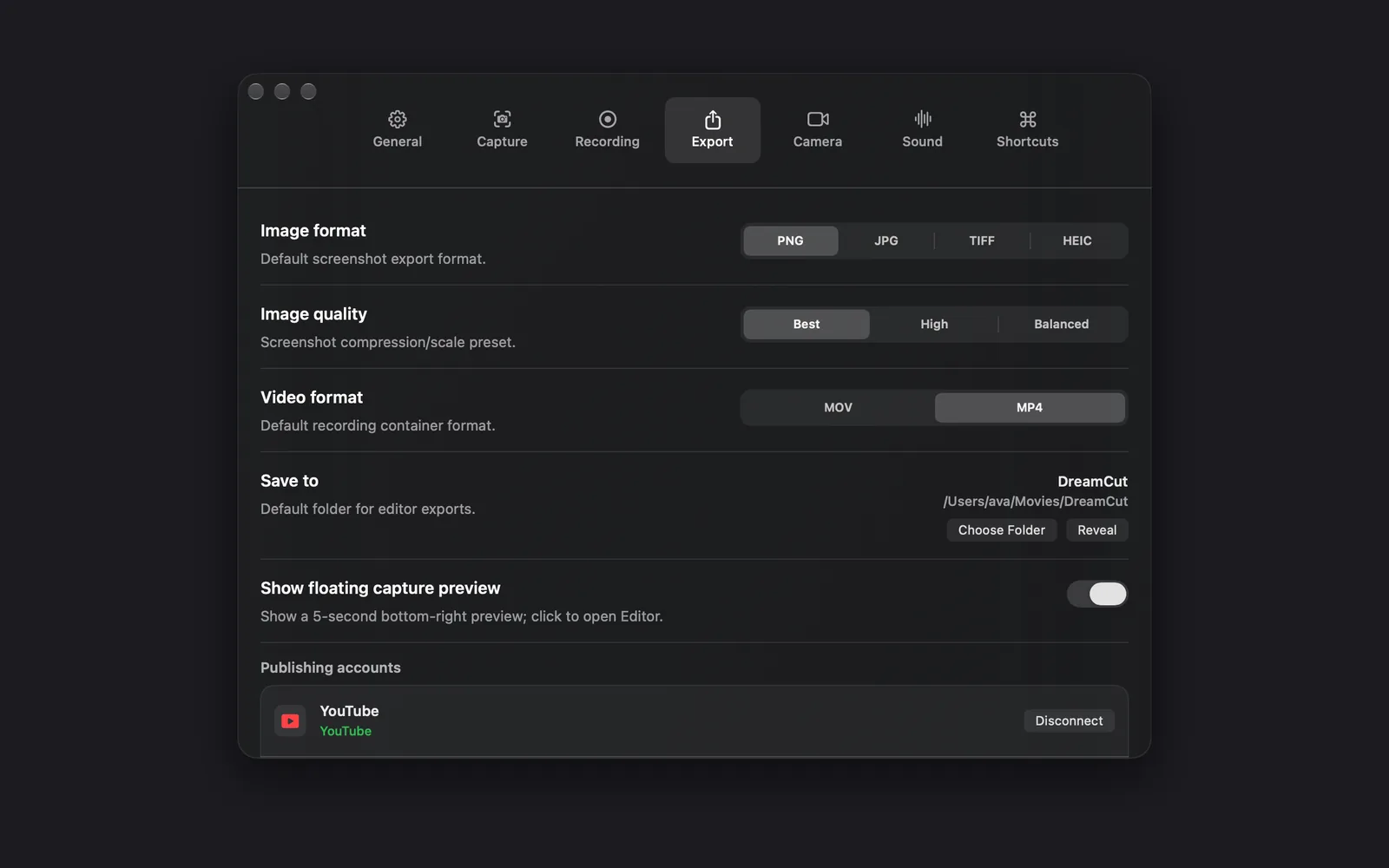
| Setting | Choices | What it does |
|---|---|---|
| Image format | PNG, JPG, TIFF, HEIC | The file type for screenshots |
| Image quality | Best, High, Balanced | How much screenshots are compressed and scaled down |
| Video format | MOV, MP4 | The file type recordings are saved as |
| Save to | Choose Folder, Reveal | The folder the editor saves exports to: the Desktop until you choose another. Reveal shows it in Finder |
| Show floating capture preview | On or off | After each recording or screenshot from the capture bar, shows a card in the bottom-right corner to open it in the editor, add it to the open project, save it to your Desktop or delete it. When it's off, each capture goes straight to your Desktop |
| Publishing accounts | Connect, Disconnect | Links your YouTube and X accounts, so you can publish to them from the editor |
The format, frame rate and quality of a finished video are chosen when you export. Export settings covers them.
Camera
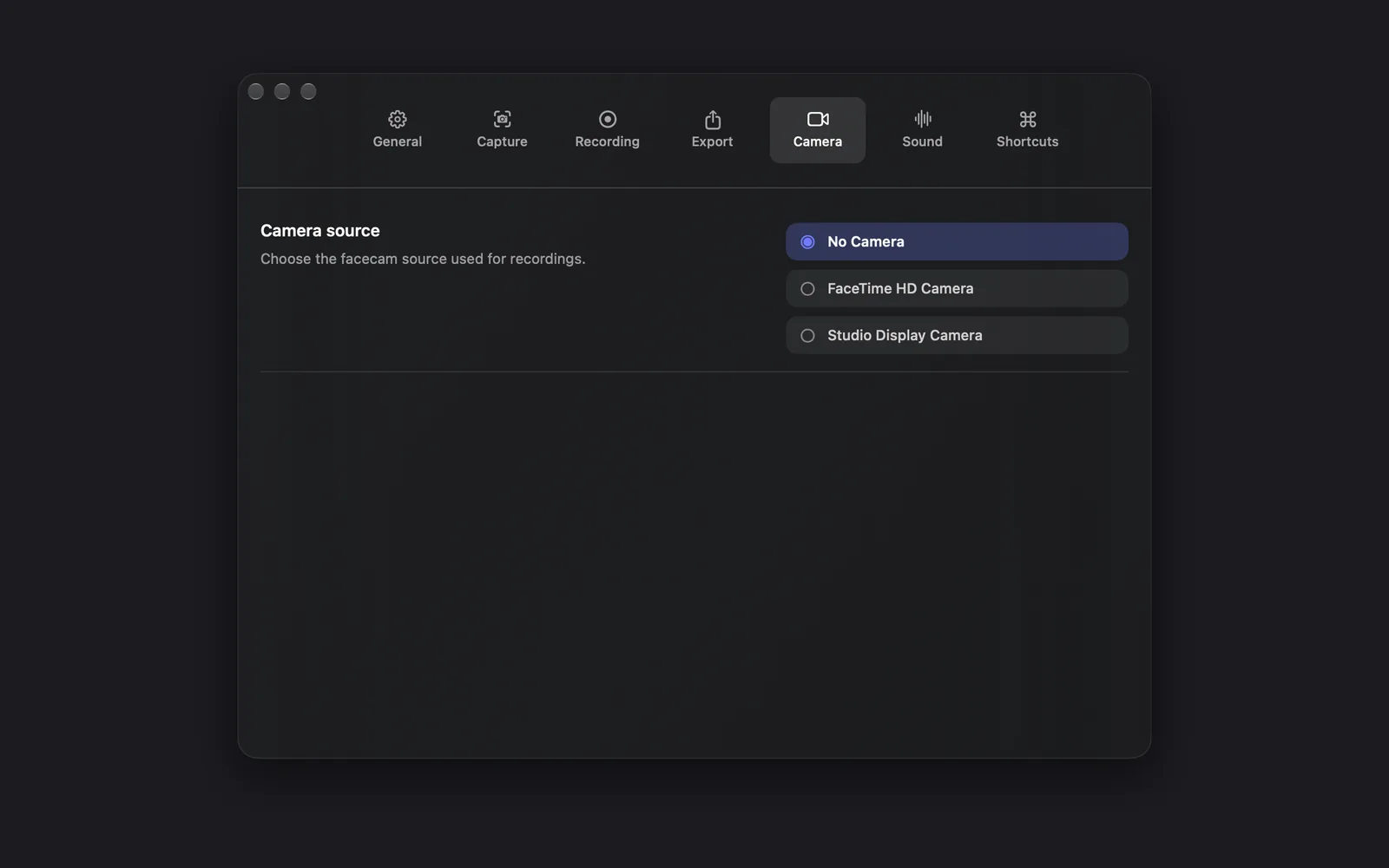
| Setting | Choices | What it does |
|---|---|---|
| Camera source | No Camera, or any camera your Mac can see | The camera recorded alongside your screen. The list can include your Mac's camera, a display's camera, an iPhone through Continuity Camera, and their Desk View cameras |
The camera you pick here is the one the capture bar uses, and the other way round. Camera and microphone covers framing and testing it.
Sound
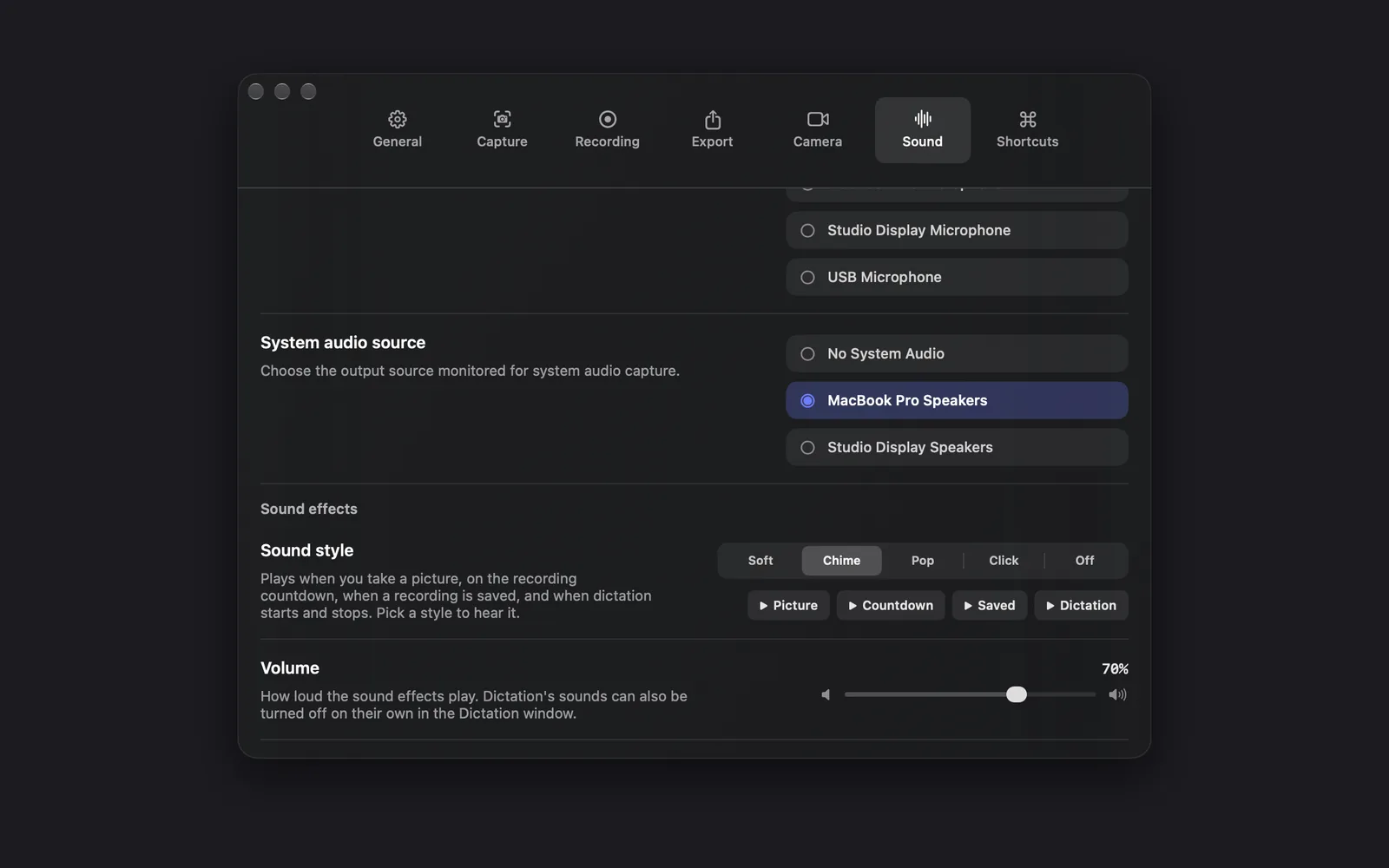
| Setting | Choices | What it does |
|---|---|---|
| Microphone source | No Microphone, or any input on your Mac | The microphone recorded with your screen, such as your Mac's own, a USB audio interface or a wireless mic receiver |
| System audio source | No System Audio, or an output on your Mac | Turns your Mac's own sound on or off for recordings. The output you pick names the capture bar's chip; DreamCut records the Mac's sound either way, not just that output |
Under Sound effects:
| Setting | Choices | What it does |
|---|---|---|
| Sound style | Soft, Chime, Pop, Click, Off | The sounds DreamCut plays when you take a picture, on the recording countdown, when a recording is saved, and when dictation starts and stops. Picking a style plays it. Chime is the default |
| Previews | Picture, Countdown, Saved, Dictation | Each button plays that sound in the chosen style |
| Volume | 0% to 100% | How loud the sound effects play; 70% to start with |
Off silences all four sounds and greys out the previews and Volume. Dictation's sounds can also be turned off on their own in the Dictation window. System audio covers recording your Mac's sound.
Shortcuts
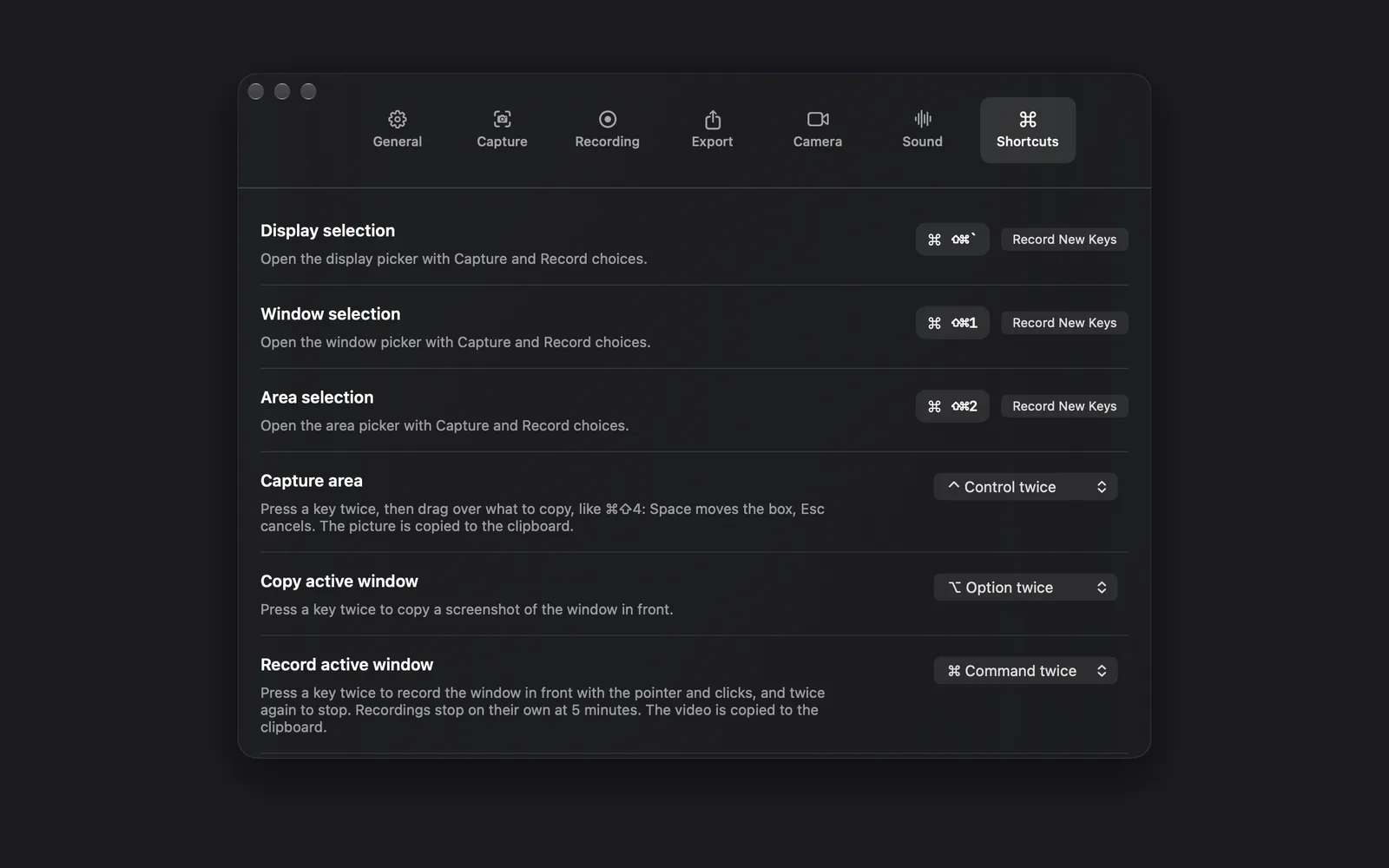
| Setting | Default | What it does |
|---|---|---|
| Display selection | ⇧⌘` | Opens the display picker, with Capture and Record choices |
| Window selection | ⇧⌘1 | Opens the window picker |
| Area selection | ⇧⌘2 | Opens the area picker |
| Capture area | ⌃ twice | Drag over part of the screen to copy it to the clipboard, as with ⇧⌘4 in macOS. Space moves the box and Esc cancels |
| Copy active window | ⌥ twice | Copies a screenshot of the window in front |
| Record active window | ⌘ twice | Records the window in front with the pointer and clicks, until you press it again or for up to 5 minutes, then copies the video |
| Dictate with fn | Hold fn | Transcribes what you say and pastes it where you're typing; tap fn twice for hands-free. Its switch turns dictation on or off; Open Dictation opens the Dictation window. See Dictation |
While you're recording, the same keys control the recording instead: Display selection restarts it, Window selection pauses or resumes it, and Area selection stops it.
To change a selection shortcut:
- Click Record New Keys next to it. The button changes to Press Shortcut.
- Press a letter, number or backtick together with Command, Shift, Option or Control.
- To stop without changing it, press Esc or click Cancel.
For the three quick captures, pick a key from the menu next to each: ⌥ Option twice, ⌃ Control twice, ⇧ Shift twice, ⌘ Command twice or Off. They work in other apps once DreamCut has Accessibility access. Quick captures shows what each one does.
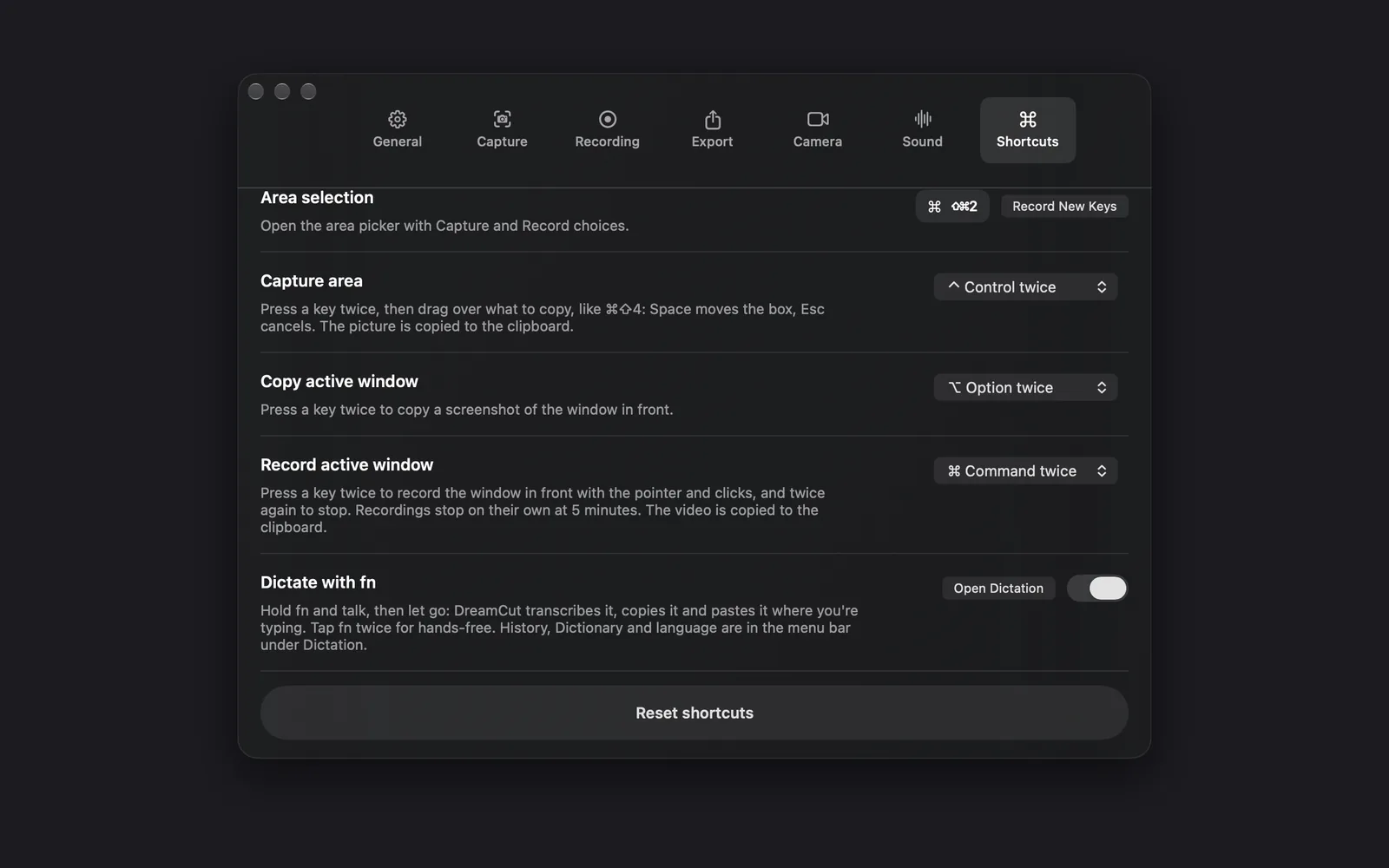
If two shortcuts clash, the tab says "Two or more shortcuts currently conflict. Change one of them." Reset shortcuts, at the bottom, puts the picker and quick-capture shortcuts back to their defaults. It leaves the Dictate with fn switch as it is.
What's next
- Plans and credits: your plan, AI credits and subscription.
- Keyboard shortcuts: every shortcut in DreamCut, in one place.
- Record your screen: put these settings to work on your first recording.