
Transitions
Add a transition at a cut or anywhere in your video, pick one of 28 looks such as Fade, Zoom Blur or Page Curl, and set its In, Out, color and direction.
A transition takes the picture out and brings it back, across a cut between two scenes or anywhere you want a beat. In DreamCut each transition is a layer on the Transitions row of the timeline, so you move it, resize it and restyle it like any other layer.
How a transition works
A transition layer starts and ends on the untouched picture. Over its In, at the start of the layer, the picture goes out. Over its Out, at the end, it comes back. Center a layer on a cut and the old scene goes out before the cut while the new one comes in after it.
- The In and the Out are 0.5 seconds each to start, so a new transition is 1 second long.
- When the layer is longer than its In and Out together, the full transition holds in between. The inspector then reads, for example, "The full transition holds for 1.00s between the In and the Out."
- On the timeline, the layer's slopes show the In and the Out, and a flat top shows the hold.
Add a transition
- Move the playhead to the cut, or to the moment where the transition should happen.
- Click Transitions in the tool rail on the left (two rectangles swapping places). It's greyed out, with the tooltip "Requires a timeline.", until the project has something on its timeline.
- Click Transitions at the top of the panel if it isn't selected: the panel opens on the tab you used last. On this tab it reads: "Adds a transition centred on the playhead (or the cut next to it): the picture goes out and comes back. Move it, or resize it to make it slower."
- Hover a card to watch it play on a frame of your own recording.
- Click the card you want.
- The new layer is centered on the playhead. If a cut between two scenes is within 0.75 seconds of the playhead, it's centered on that cut instead, so the transition crosses it.
- It lands on the Transitions row, selected, with its settings in the inspector on the right.
- Press Space to play it.
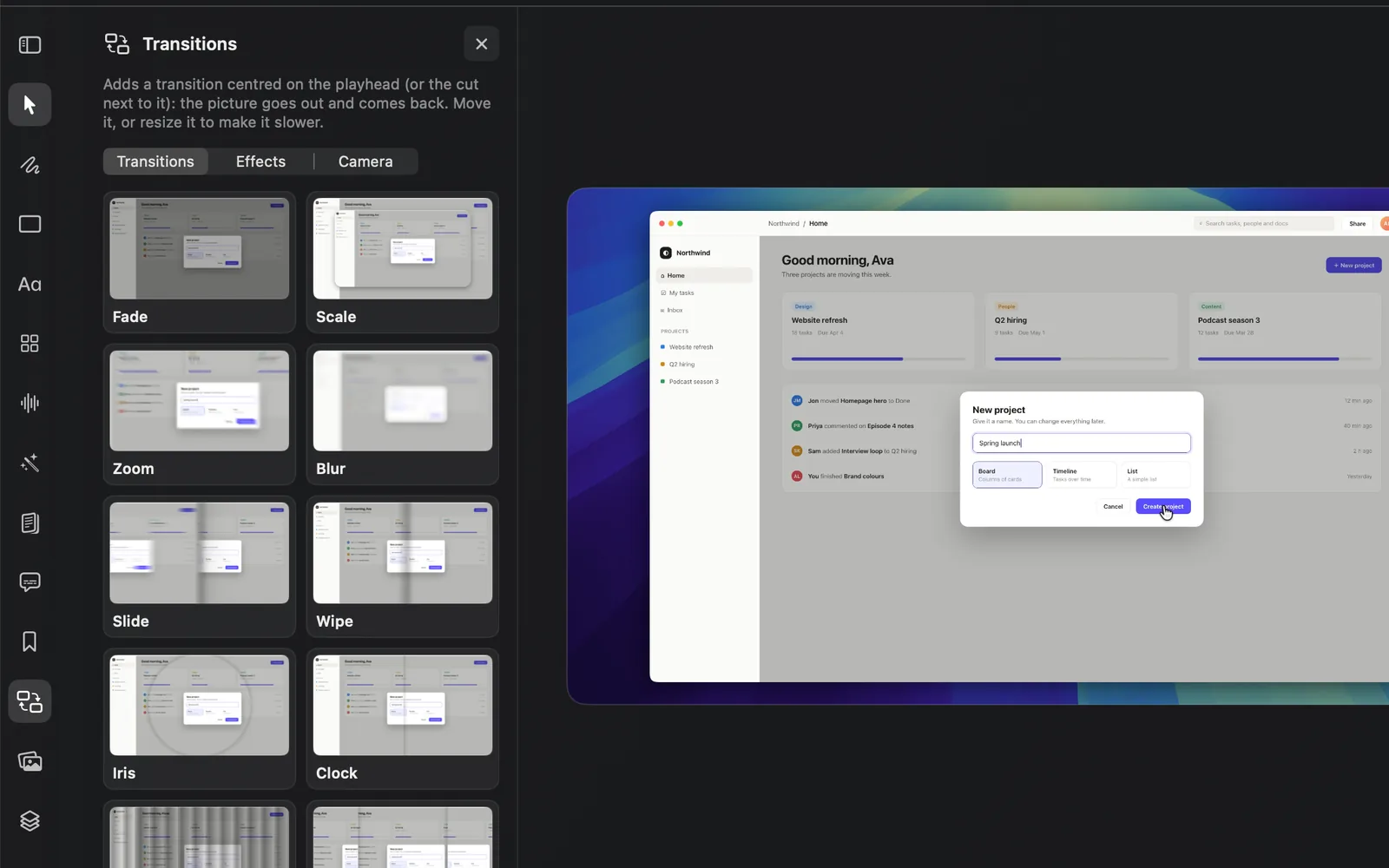
The same panel holds Effects and Camera, the looks and virtual cameras covered in Effects and camera moves. Click the × at the top to close it.
Add one from the timeline
The Transitions row appears on the timeline once the project has a transition, effect or camera move. Then:
- Right-click an empty part of the row, point to Add Transition, Add Effect or Add Camera, and choose a name. The layer lands at the playhead, placed the same way as a card.
- Or hover the row's name, Transitions, and click the + beside it. It adds a Fade at the playhead.
Move, resize and copy a transition
| To | Do this |
|---|---|
| Move it | Drag the layer along the Transitions row |
| Make it longer or shorter | Drag either end of the layer, or type a time in Duration under Timing in the inspector |
| Copy or cut it | Press ⌘C to copy or ⌘X to cut, then ⌘V to paste. A pasted transition is centered on the playhead, or on a cut within 0.75 seconds of it |
| Duplicate it | Press ⌘D to place a copy right after it |
| Delete it | Press ⌫, or click Delete at the bottom of the inspector |
When you resize a layer, the In and the Out keep their seconds, so a longer layer holds the full transition for longer. To make the picture go out or come back more slowly, raise that side's Duration. If the layer gets shorter than the In and Out together, both shrink to fit and the inspector says so, for example "Shortened to 0.40s to fit the layer."
Splitting at the playhead with C also splits a transition layer under it. The left piece keeps the In and the right piece keeps the Out, so the cut itself doesn't transition.
Change a transition's settings
Click the layer on the Transitions row. Its settings open in the inspector, in four sections: Transition, In & Out, Look and Timing.
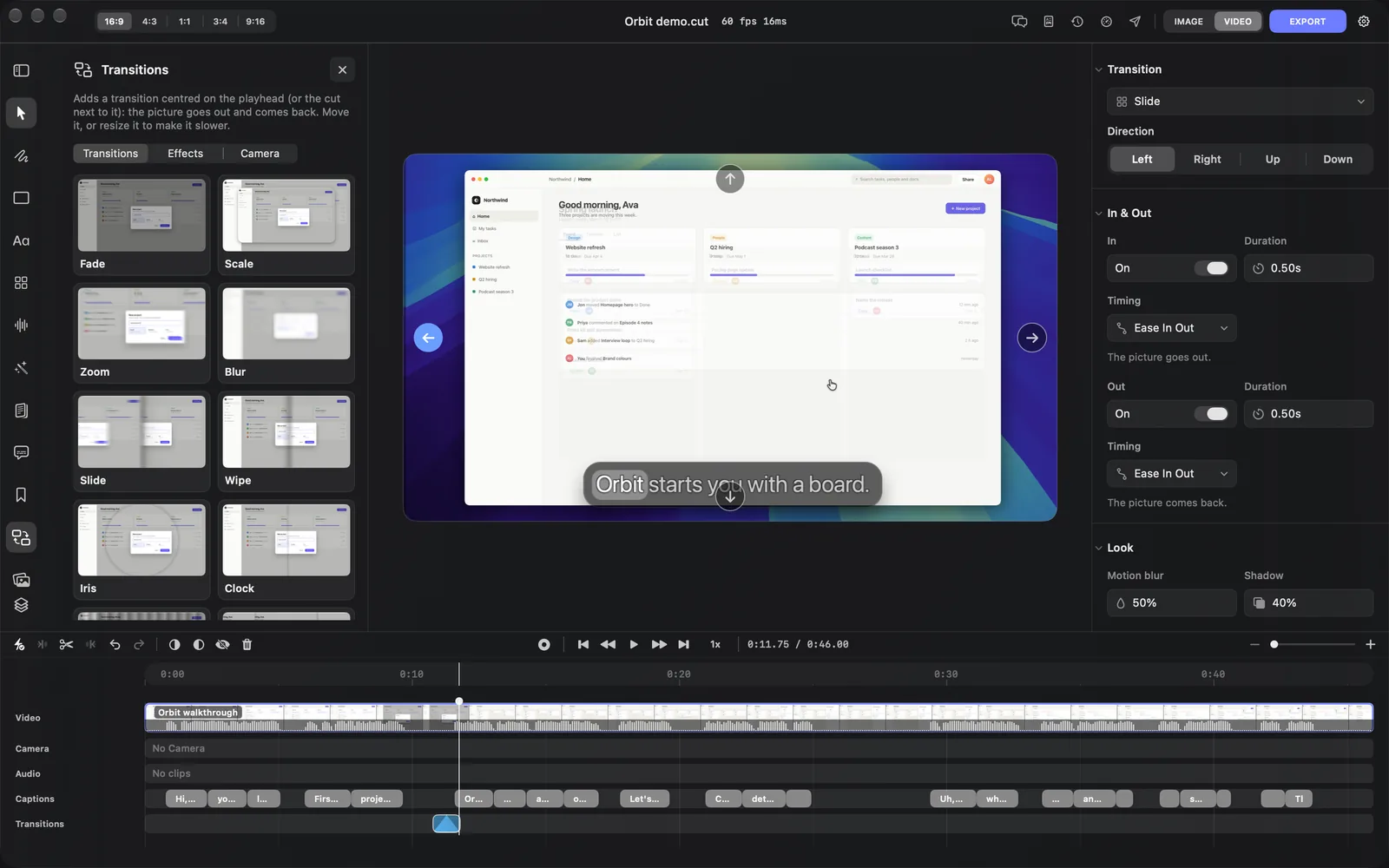
Transition
The menu under Transition shows which transition the layer is. Click it and choose another to switch the layer. The menu also lists every effect and camera move, under Effects and Camera. Switching puts the Look back to the new transition's defaults and clears its keyframes, so pick the transition before you tune it. The In and the Out keep their settings.
Direction shows for the transitions that move one way, such as Slide in the picture, where Left is selected. The first choice in each row below is the one a new layer starts with.
| Transitions | Direction choices |
|---|---|
| Slide, Wipe, Flip, Whip, Cube, Page Curl, Disintegrate, Light Leak | Left, Right, Up, Down |
| Spin, Swirl, Clock | Clockwise, Anticlockwise |
| Split | Horizontal, Vertical |
| Blinds | Vertical, Horizontal |
| Doorway | Left, Up |
In & Out
The In and the Out each have their own switch, length and easing.
| Field | What it does |
|---|---|
| In | Turns on the picture going out at the start of the layer. The inspector notes "The picture goes out." |
| Out | Turns on the picture coming back at the end of the layer. The inspector notes "The picture comes back." |
| Duration | How long that side takes, from 0.05 to 5 seconds and never longer than the layer. 0.50s to start |
| Timing | How that side speeds up and slows down: Ease In Out (the default), Ease In, Ease Out, Linear, Bounce or Spring. Spring overshoots, so a Scale pops past full size and settles |
Turn a side off and the layer jumps straight to, or from, the full transition at that end. A Fade at the very start of your video with its In off opens on black and brings the picture in over its Out. Right-click the layer for the same switches: In at the Start and Out at the End.
Look
| Field | What it does |
|---|---|
| Strength | How far the transition goes, such as how small Scale shrinks the frame or how wide Blur spreads. Fade, Slide and Split have none: they always go all the way |
| The transition's own settings | Such as Shadow, Motion blur or Center X and Center Y. The table of transitions below lists them |
| Color | The color laid over the scene where the picture has gone. It can be Solid, Linear, Radial or Angular |
| Opacity | How strong that color is. Most transitions start at 0%, so they're clear |
| Background blur | How blurred the copy of the scene behind the picture is. 0% to start |
Where the picture has moved away, a copy of the scene shows behind it, under the color at its opacity. Some transitions start differently:
- Fade starts on black at 100%, so it dips to black. Lower its Opacity and raise Background blur to fade through a blurred copy of the scene instead.
- Flash, Burn, Light Leak and TV Power are made of light. Their color field is the light itself (Flash color, Glow color, Light color or Line color), and Opacity is how bright it is.
- Burn, TV Power, Page Curl and Shatter start with Background blur at 50%, because a sharp copy would look like the picture itself. Flash and Light Leak have no Background blur.
Drag it on the canvas
While the playhead is inside the selected layer, some transitions put handles on the canvas that change the same settings as the inspector:
- Iris, Clock, Zoom Blur and Swirl show a Center point to drag, and Shatter an Impact point.
- Wipe shows an Angle dial.
- Transitions with a Direction show round arrows at the edges of the canvas, one for each choice, as in the picture above. The highlighted arrow is the current direction. Click another to pick it.
Timing, Hide, reset and delete
| Field | What it does |
|---|---|
| Duration (under Timing) | The layer's whole length. Drag the label or type a time such as 0:01.50 |
| Hide | Turns the layer off without deleting it, so you can compare with and without |
| Reset all | Puts the Look, In, Out and Direction back to a new layer's |
| Delete | Removes the layer |
Every transition
The What it does text is the card's tooltip in the app. Look settings lists each transition's own settings, on top of Strength, Color, Opacity and Background blur.
| Transition | What it does | Look settings |
|---|---|---|
| Fade | The picture dissolves into the blurred scene and back | None. No Strength; dips to black to start |
| Scale | The frame lifts off as a rounded card with a soft shadow, shrinks away and grows back | Shadow, Corners |
| Zoom | The frame flies past the camera with radial motion blur, and arrives from close up | Motion blur |
| Blur | The picture drifts out of focus like a lens, highlights opening into bokeh | None |
| Slide | The whole frame pushes off with motion blur and a soft edge shadow | Motion blur, Shadow. No Strength |
| Wipe | A soft edge sweeps across, hiding and then revealing the picture | Angle |
| Iris | A circle closes on a point and opens from it | Center X, Center Y |
| Clock | A hand sweeps round from twelve, like a clock | Center X, Center Y |
| Blinds | Slats turn edge-on like venetian blinds, in perspective | Stagger |
| Split | The frame parts at the middle and each half slides off its side | Shadow. No Strength |
| Cube | The picture turns away on the face of a 3D cube, Apple-style, and the next scene follows round | Shadow |
| Doorway | The picture splits into two doors that swing open toward you, and shut on the next scene | Shadow |
| Page Curl | The picture peels away from a corner like a sheet of paper, rolling over a glossy curl that casts a soft shadow, its paper back faintly printed through | Curl size, Shadow, Print-through, Gloss |
| Flip | The frame swings on a hinge in perspective, catching the light | None |
| Spin | The frame turns and shrinks away as a card, with rotational motion blur | Motion blur |
| Flash | The picture over-exposes like a camera flash and comes back down | Flash color. No Background blur |
| Glitch | Digital bursts tear slices, knock blocks loose and split the colours | Speed, Color split |
| Pixelate | The picture coarsens into blocks and melts away, or sharpens back in | None |
| Zoom Blur | The picture punches in toward a point as light streaks out from it | Center X, Center Y |
| Whip | A fast whip pan smears the picture into streaks | None |
| Dissolve | The picture breaks away at random in soft organic flecks | None |
| Shatter | The picture cracks like struck glass, then bursts into chunky, glinting shards that tumble past the camera; on the way back they fly home and the cracks heal | Pieces, Spin, Impact X, Impact Y |
| Disintegrate | The picture blows away as dust on the wind, and gathers back | Particle size, Turbulence |
| Burn | The picture burns away like paper held to a flame, with a white-hot edge and sparks | Edge glow, Embers, Glow color |
| TV Power | Like an old set switching off: the picture squashes to a glowing line, then a dot | Line color |
| Swirl | The picture winds into a vortex and unwinds into place | Center X, Center Y |
| Liquid | The picture ripples like water, light catching the rings | Speed |
| Light Leak | Warm film light sweeps across, peaking in a bright wash the picture still shows through | Light color. No Background blur |
Tips and limits
- A transition covers the whole frame, not one layer. Several layers on the Transitions row that overlap apply in timeline order.
- If a card is greyed out with an orange warning, or a menu item ends in "(Unsupported)", DreamCut couldn't load the library that draws transitions. The inspector shows the reason in red.
- Agents you connect through MCP and the dreamcut command can add and change transitions too, as Sakura can.
What's next
- Effects and camera moves: looks such as film grain or VHS, and a virtual camera that pushes in or orbits.
- Timeline: split, trim and arrange the scenes your transitions sit between.
- Zooms and the cursor: zoom in where your mouse works.
- Export settings: export the video with its transitions.