
Keyboard shortcuts
DreamCut's keyboard shortcuts: capture keys that work in any app, quick captures, dictation, the editor, transcript, Sakura, Shorts and Article Studio.
DreamCut's capture keys work in any app, so you can start, pause and stop a recording without coming back to DreamCut. The other keys work in the window you're in: the editor, the transcript, Sakura, Shorts or Article Studio. You can change the capture keys and the quick-capture keys in Settings.
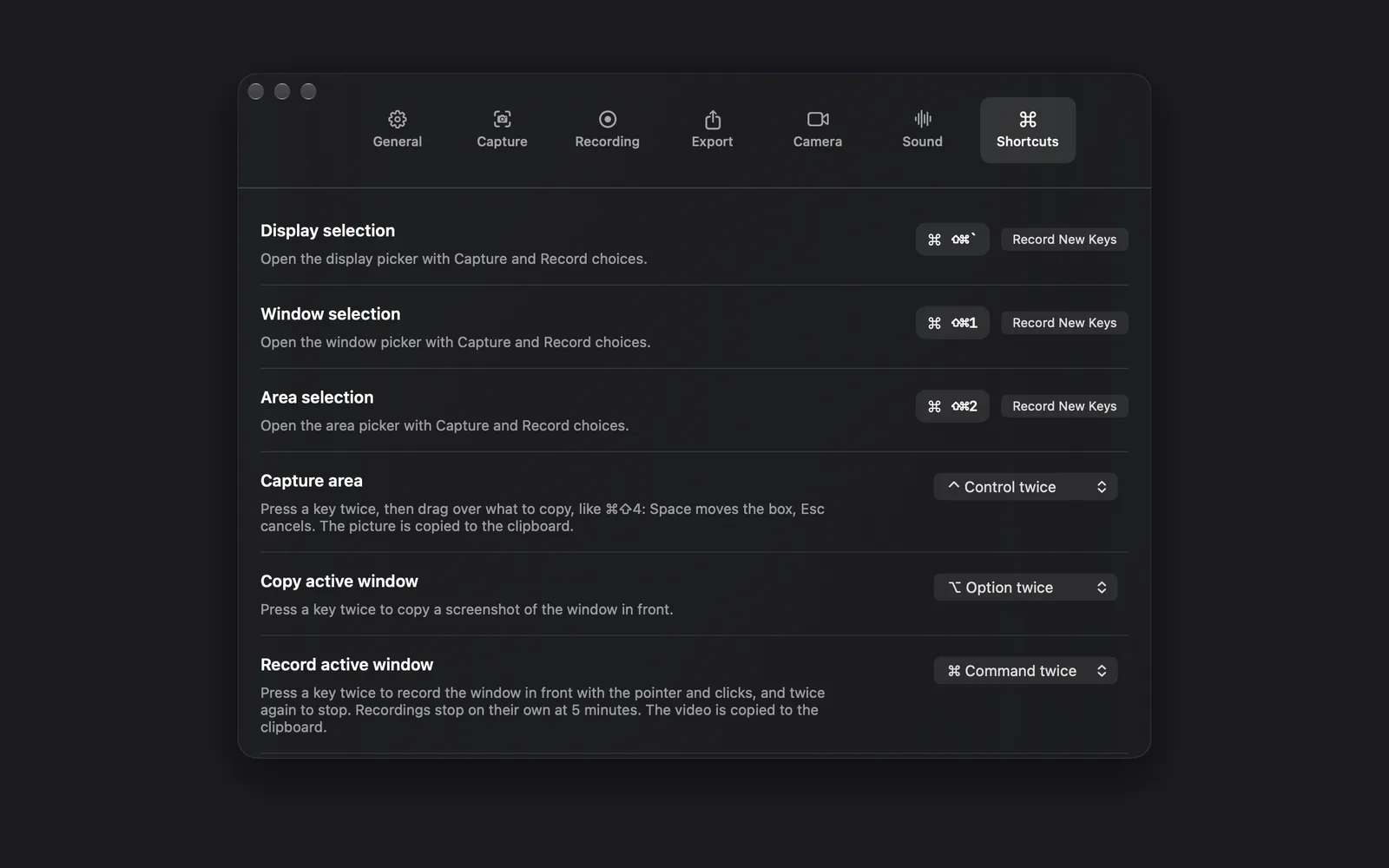
Capture keys
These work in any app. What they do depends on whether you're recording.
| Key | When you're not recording | While you're recording |
|---|---|---|
| ⇧⌘` | Opens the display picker (Display selection) | Restarts the recording. DreamCut asks first, because it throws the take away |
| ⇧⌘1 | Opens the window picker (Window selection) | Pauses the recording, or resumes it |
| ⇧⌘2 | Opens the area picker (Area selection) | Stops the recording |
The DreamCut menu in the menu bar has the same commands: Select display, Select window and Select area, which become Restart recording, Pause recording (or Resume recording) and Stop recording while you record. So does the Capture menu while a DreamCut window is in front. Hover Display, Window or Area on the capture bar to see its key.
Change a capture key
- Click the DreamCut icon in the menu bar, choose Show settings, and click Shortcuts.
- Click Record New Keys next to Display selection, Window selection or Area selection. It reads Press Shortcut.
- Press a letter, a number or the backtick key together with ⌘, ⇧, ⌥ or ⌃. Press Esc or click Cancel to keep the old keys.
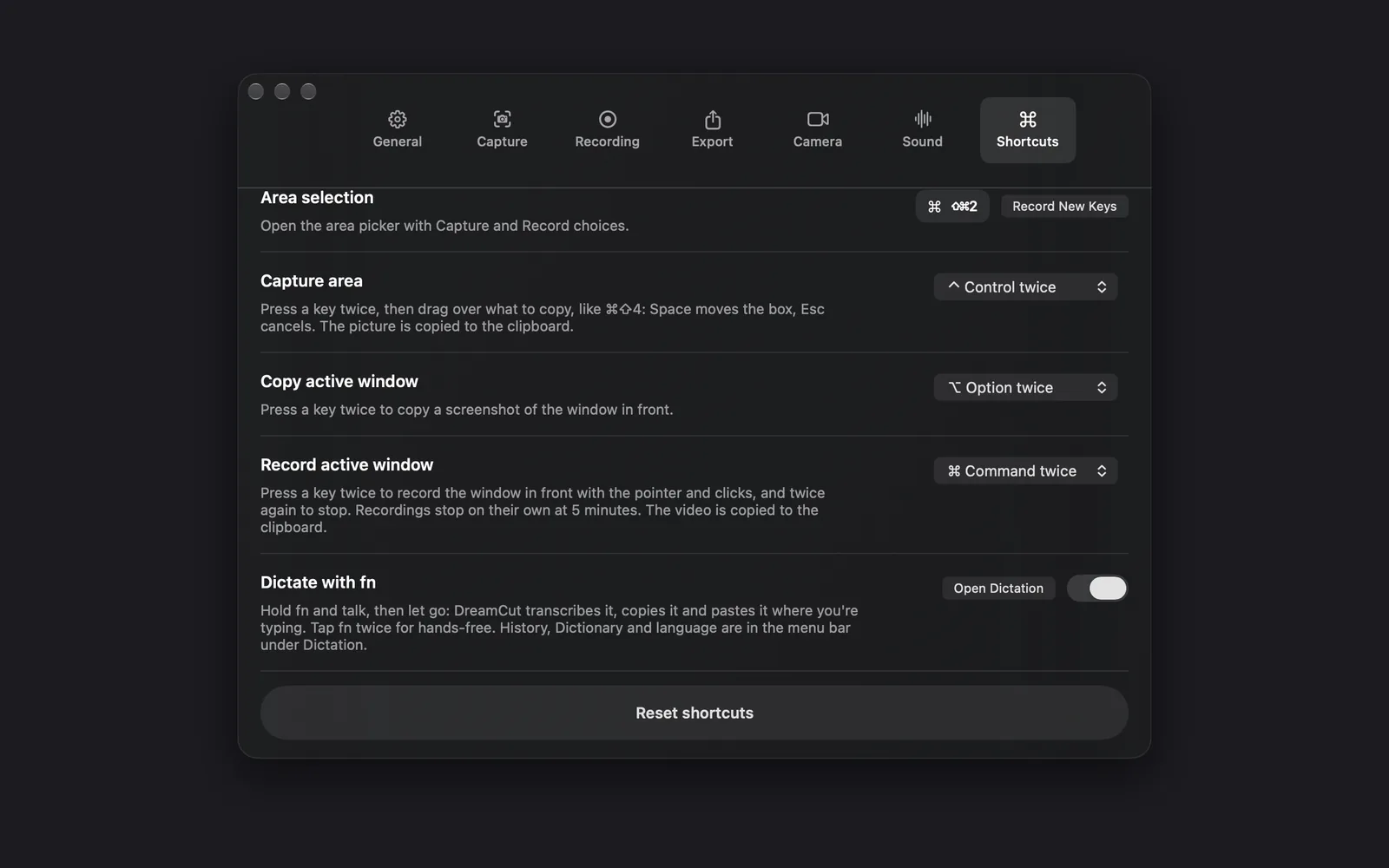
If two shortcuts clash, the tab says "Two or more shortcuts currently conflict. Change one of them." Scroll to the bottom of the tab for the dictation switch and Reset shortcuts, which puts the capture keys and the quick-capture keys back to their defaults.
In the pickers
After you click Display, Window or Area, these keys act on what's selected.
| Key | What it does |
|---|---|
| Return | Takes a screenshot, the same as CAPTURE. In the window picker, it takes the window under the pointer |
| ⇧Return | Starts recording, the same as RECORD |
| Space | Takes a screenshot, in the area picker |
| Esc | Cancels. It also cancels during the countdown, until the recording starts |
You can also double-click to take a screenshot, or hold ⇧ and double-click to record: anywhere on the display, on the window, or inside the area's box. While you drag a handle to resize the area's box, hold ⇧ to resize in steps of 10 points or ⌥ to resize from the middle. Moving the box ignores both. See Record your screen.
Quick captures
Press a modifier key twice, quickly, in any app.
| Default | Setting | What it does |
|---|---|---|
| ⌃⌃ | Capture area | Drag over what to copy, like the Mac's own ⇧⌘4: Space moves the box and Esc cancels. The picture is copied to the clipboard |
| ⌥⌥ | Copy active window | Copies a screenshot of the window in front |
| ⌘⌘ | Record active window | Records the window in front with the pointer and clicks. Press it twice again to stop; recordings stop on their own at 5 minutes. The video is copied to the clipboard |
To change one, open Shortcuts in Settings and pick ⌥ Option twice, ⌃ Control twice, ⇧ Shift twice, ⌘ Command twice or Off from its menu. Give each a different key.
Dictation
| Key | What it does |
|---|---|
| Hold fn | Talk while you hold it. Let go, and DreamCut transcribes your words, copies them and pastes them where you're typing |
| Press fn twice | Hands-free: DreamCut keeps listening after you let go |
| fn | Finishes a hands-free dictation |
| Esc | Throws the dictation away |
Every dictation, held or hands-free, stops on its own after 10 minutes. On some keyboards the key is the Globe key. Turn dictation off with the Dictate with fn switch at the bottom of Shortcuts; Open Dictation beside it opens the dictation window. See Dictation.
The DreamCut menu in the menu bar
These keys are shown next to their items. Open the menu, then press the key.
| Key | Menu item | What it does |
|---|---|---|
| ⌃⌘↩ | New recording... | Shows the capture bar |
| ⌘, | Show settings | Opens Settings |
| ⌘N | New Project | Opens an empty project in the editor |
| ⌘O | Open project... | Opens a project you choose |
| ⌥⌘Z | Open last project | Opens the project you worked on last |
| ⌘D | Show DreamCut in Dock | Shows or hides DreamCut's Dock icon |
While a DreamCut window is in front, the File menu also has ⌘N for New Project, ⌥⌘N for New Shorts from Video… and ⌘O for Open Project.... In Capture Options, under the gear on the capture bar, ⌘, clicks Open Full Settings.
Editor
The editor's keys work while you aren't typing in a field. If a key does nothing, press Esc or click the canvas first.
Play and move around
| Key | What it does |
|---|---|
| Space | Plays or pauses |
| ← / → | Moves the playhead 1 second back or forward |
| ⌘← / ⌘→ | Goes to the start or the end, of the video or of the scene you're editing |
| ⌥← / ⌥→ | Goes to the previous or next chapter |
| ⌘= / ⌘- | Zooms the timeline in or out |
Edit
| Key | What it does |
|---|---|
| C | Splits every lane at the playhead |
| Q / W | Trims the selected piece on the left or right, up to the playhead |
| ⌫ or ⌦ | Deletes the selection |
| ⌘Z / ⇧⌘Z | Undo and redo |
| ⌘C / ⌘X / ⌘V | Copy, cut and paste |
| ⌘D | Duplicates the selected layer (a text, overlay or drawing, for example), transition or effect right after itself, or a zoom 1 second later |
| ⌘S | Saves the project |
| ⌘↩ | Edits the selected scene on its own |
| Return | Edits the words of the selected text, title or caption |
| M | Adds a chapter at the playhead |
Edit on the timeline shows these in use.
Tools
| Key | What it does |
|---|---|
| T | Opens the Text panel |
| D | Opens Draw and picks up the pen, so you can draw your own line on the canvas |
| O | Opens Overlay and picks up the box, so you can drag an overlay onto the canvas |
| L | Opens the Layout panel |
| H | HTML Element: drag a box on the recording to add an HTML layer |
| B | Blur Box: drag over the recording to cover part of it with a solid box, such as a password |
Esc puts the pen or box down again.
What Esc does
Esc steps back one thing at a time. Each press does the first of these that applies:
- Cancels an export that's running.
- Stops renaming the project.
- Stops typing in a field, including Sakura's.
- Leaves crop mode and keeps the layer as it was.
- Puts down the pen, box or other drawing tool.
- Clears the selection.
Crop mode
| Key | What it does |
|---|---|
| Return | Applies the crop, the same as Done |
| ⌫ | Shows the whole layer again |
| Esc | Leaves crop mode and keeps the layer as it was |
Space and the arrow keys apply the crop first, then play or move the playhead. See Crop and rotate.
On the canvas and in number fields
| Hold or press | While you | What it does |
|---|---|---|
| ⇧ | Drag the recording or camera | Keeps the move straight across or straight up and down |
| ⌘ | Drag the recording or camera | Stops it snapping to the edges, quarters and centre |
| ⇧ | Resize the recording or camera | Flips the aspect lock for that drag |
| ⌥ | Resize the recording or camera | Resizes from the centre |
| ⇧ | Turn a layer | Turns it in 15° steps |
| ↑ / ↓ | Type in a number field, such as Corners | Steps the value by 1, or by 10 with ⇧. Return keeps it and Esc puts the old value back |
Transcript
These work in the Text view of the Transcript panel once you've clicked a word, while you aren't typing. The arrows and delete keys then act on the transcript, not the timeline.
| Key | What it does |
|---|---|
| ← / → | Moves to the word, filler or pause before or after |
| ↑ / ↓ | Moves to the paragraph above or below |
| ⌫ | Cuts the selected item |
| ⌦ | Cuts the item after it |
To fix a misheard word, double-click it, type the fix and press Return. In Search transcript, Return goes to the next match and ⇧Return to the one before. Esc clears the search. See Edit with the transcript.
Sakura
| Key | What it does |
|---|---|
| Return | Sends your message |
| ⇧Return | Starts a new line |
| ⌘↩ | Clicks Apply on an edit Sakura suggests (Apply 3 Changes when there are three, for example), or Keep on a preview |
| Esc | Stops typing, so the editor's keys work again |
When the @ list is open, ↑ and ↓ move through it, Return or Tab picks one, and Esc closes it. See Sakura.
Shorts
In the window that New Shorts from Video… ⌥⌘N opens, which finds short clips in a long video:
| Key | What it does |
|---|---|
| Return | Clicks Find shorts once you've pasted a video link |
| ⌘← / ⌘→ | Shows the previous or next short |
| Esc | Goes back to All shorts from a short's page |
Article Studio
Writing
| Key | What it does |
|---|---|
| ⌘B / ⌘I / ⌘U | Bold, italic, underline |
| ⇧⌘X | Strikethrough |
| ⌘E | Inline code |
| ⌘K | Adds a link |
| / | Opens the insert menu: headings, lists, pictures, a table and more |
| ⌥⌘0 to ⌥⌘8 | Turns the block into text (0), a heading (1 to 3), a checklist (4), a bulleted list (5), a numbered list (6), a quote (7) or code (8) |
| ⌘D | Duplicates the block |
| ⇧⌘↑ / ⇧⌘↓ | Moves the block up or down |
Selected blocks
Press Esc while you type in a block to select it, or drag a box across several blocks, starting outside the text. Then:
| Key | What it does |
|---|---|
| ↑ / ↓ | Selects the block above or below |
| Return | Goes back to typing in the block |
| ⌫ or ⌦ | Deletes the selected blocks |
| ⌘C / ⌘D | Copies or duplicates them |
| ⇧⌘↑ / ⇧⌘↓ | Moves them up or down |
| Esc | Clears the selection |
The article
| Key | What it does |
|---|---|
| ⌘Z / ⇧⌘Z | Undo and redo an article edit |
| ⇧⌘M | Switches to the Markdown source and back |
| ⌥⌘S | Saves a version |
| ⌘1 to ⌘9 | Switches between the tabs of what you've created |
| ⌘F | Finds in the article. Return or ⌘G goes to the next match, ⇧Return to the one before, and Esc closes it |
The media viewer
When a picture or video from the article is open in the viewer:
| Key | What it does |
|---|---|
| ← / → | Shows the previous or next one |
| Space or K | Plays or pauses a video |
| + / - / 0 | Zooms a picture in or out, or resets the zoom |
| F | Switches Film on or off, the same as the button |
| O | Open: opens the file in its own app |
| Esc | Turns Film off if it's on; otherwise closes the viewer |
See Article Studio.
AI sheets
In the sheets that make B-roll and cut-outs, ⌘↩ clicks Generate and Esc clicks Cancel. In the avatar picker, ⌘↩ clicks Generate Avatar.
What's next
- Capture bar and projects: the controls the capture keys stand in for.
- Record your screen: the pickers, the countdown and the recording controls.
- Tour the editor: where each tool and panel lives.
- Edit on the timeline: split, trim and move clips with the keys above.