
Video templates
Add a UGC, Slides, Movie, Promo or Long Form template as draft scenes, describe your video, and Generate writes the scenes, pictures and voiceovers.
Templates turn a description into new scenes. Pick a template and DreamCut adds its empty scenes after the current one as a draft; describe the video and press Generate, and DreamCut writes each scene, makes its picture and, for templates with a voice, its voiceover and captions.
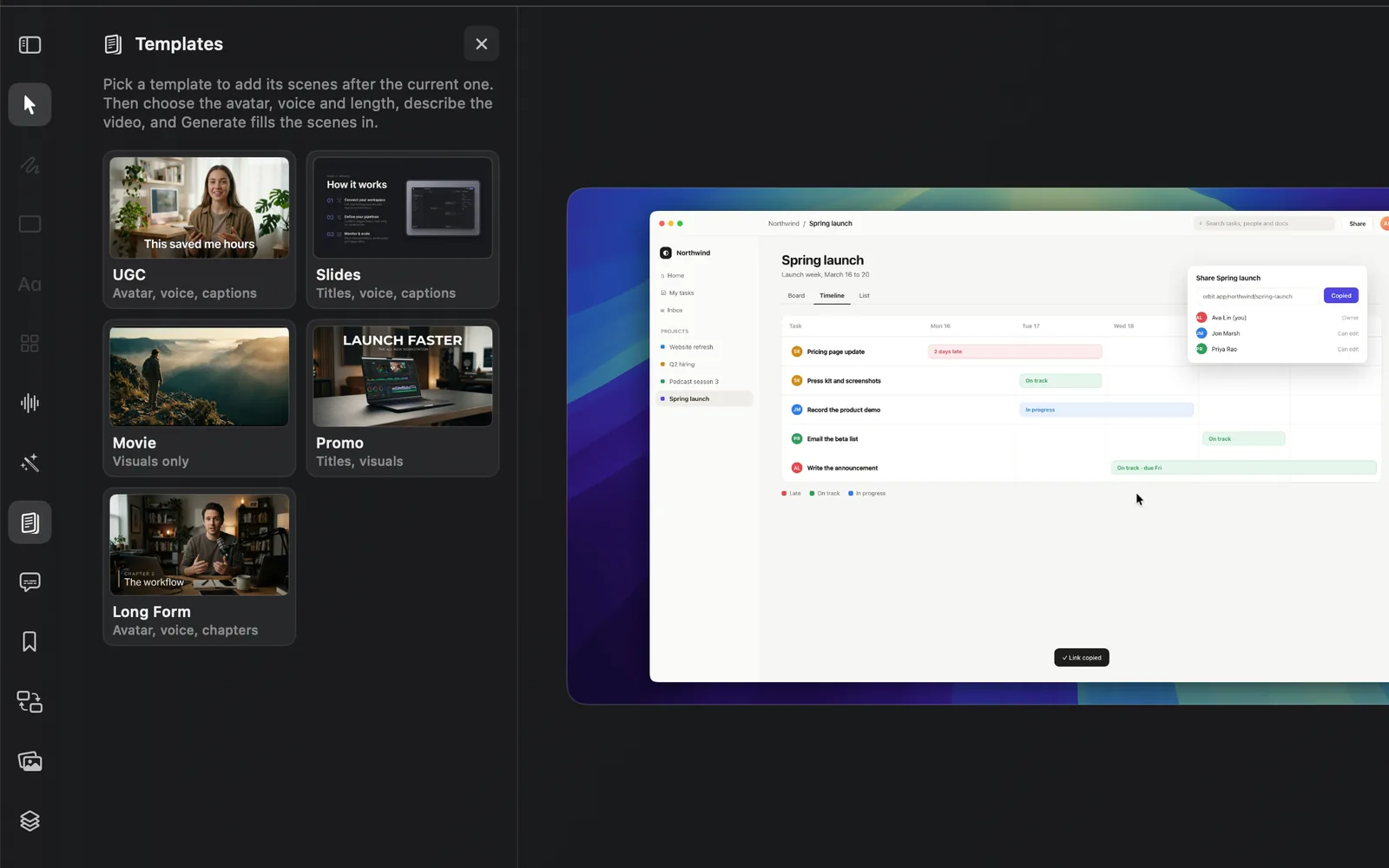
Open the Templates panel
In the editor, click Templates in the tool rail on the left (the page icon right below Generate media). Hover a card to read what it makes. Click × at the panel's top right to close it.
Pick a template
| Template | The card says | What it makes |
|---|---|---|
| UGC | Avatar, voice, captions | A creator-led social ad: a hook, a spoken script with voiceover and captions, and a call to action, with shots planned around your avatar |
| Slides | Titles, voice, captions | A presentation: one slide-style picture per scene with a title, voiceover and captions |
| Movie | Visuals only | A cinematic run of generated pictures, with no words or voice |
| Promo | Titles, visuals | A product promo: short titles over strong pictures and a call to action, with no voice |
| Long Form | Avatar, voice, chapters | A longer creator video in deeper sections, with voiceover and captions and shots planned around your avatar |
UGC and Long Form open on a hook; Slides, Movie and Promo open on an intro. Every template ends on a call to action.
"Avatar" on a card means the plan includes shots of your avatar, but no template makes avatar video, even though the UGC card's tooltip says "your avatar on camera": Generate makes pictures and voiceovers only, and the pictures leave the avatar out. "Chapters" on the Long Form card means sections: it adds no chapter markers.
Add a draft
- Move the playhead to the scene the new scenes should follow.
- Click a card. DreamCut adds the template's empty scenes after the current scene, as one step you can undo, and moves the playhead to the first one. The canvas reads, for example, "UGC draft · Hook · Scene 1 of 7 · empty until you Generate".
- The panel now shows the draft's settings, with the template cards in a row at the top.
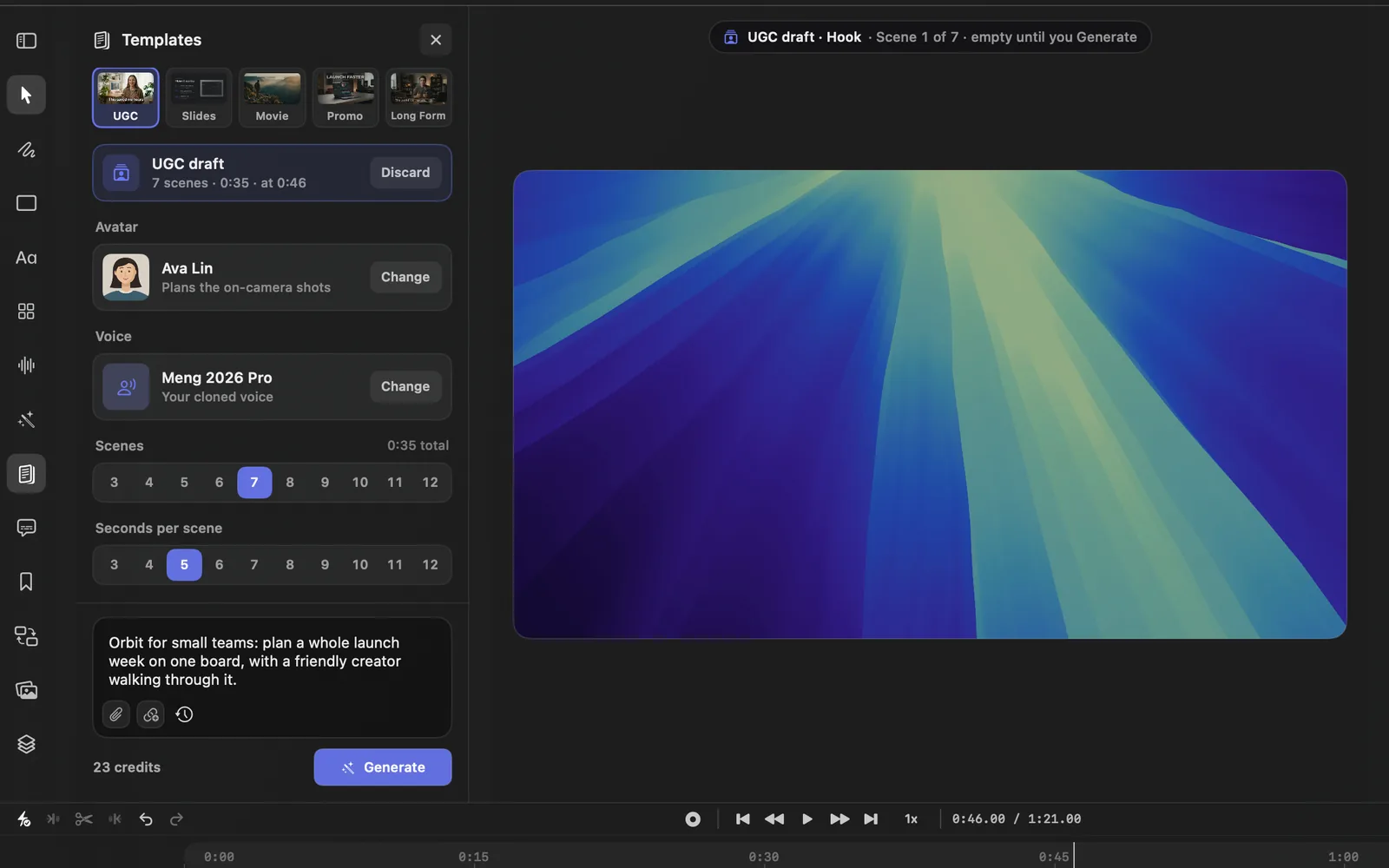
| Part | What it sets |
|---|---|
| The cards | Click another card to switch the draft to that template, in the same place |
| UGC draft (or the template you picked) | How many scenes, how long, and where they start, such as "7 scenes · 0:35 · at 0:46". Discard takes the draft scenes off the timeline |
| Avatar (UGC and Long Form) | Who the on-camera shots are planned around. Change opens the avatar picker |
| Voice (UGC, Slides and Long Form) | Who reads the script. Change opens the voice picker, where you can hear voices or use your own cloned voice |
| Scenes | From 3 to 12 scenes, 7 at first. The total length shows on the right |
| Seconds per scene | From 3 to 12 seconds, 5 at first. Long Form has Length of each scene instead: 30s at first, then 1m up to 10m |
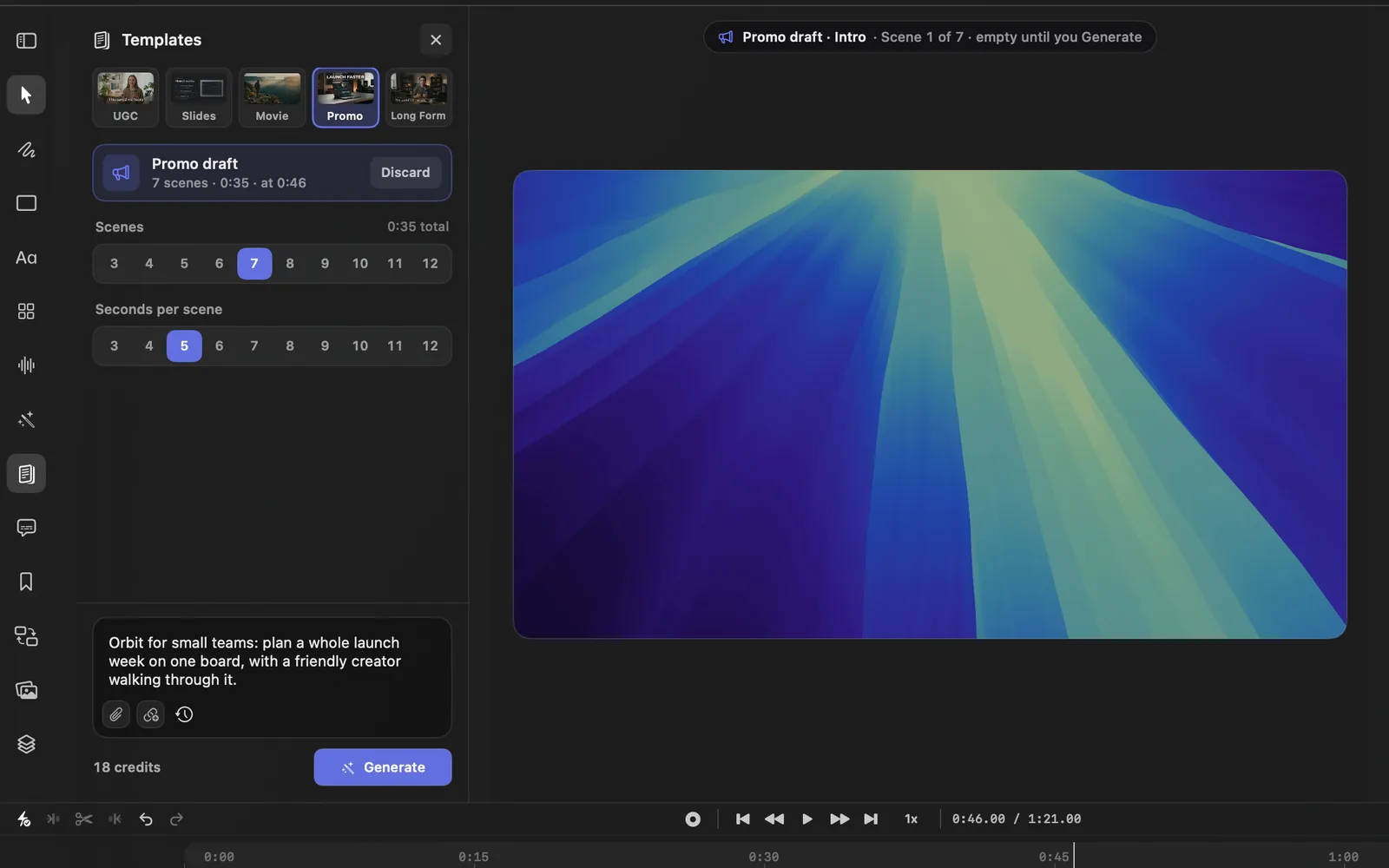
Slides, Movie and Promo have no Avatar row, and Movie and Promo no Voice row either:
Long Form counts its scenes in minutes:
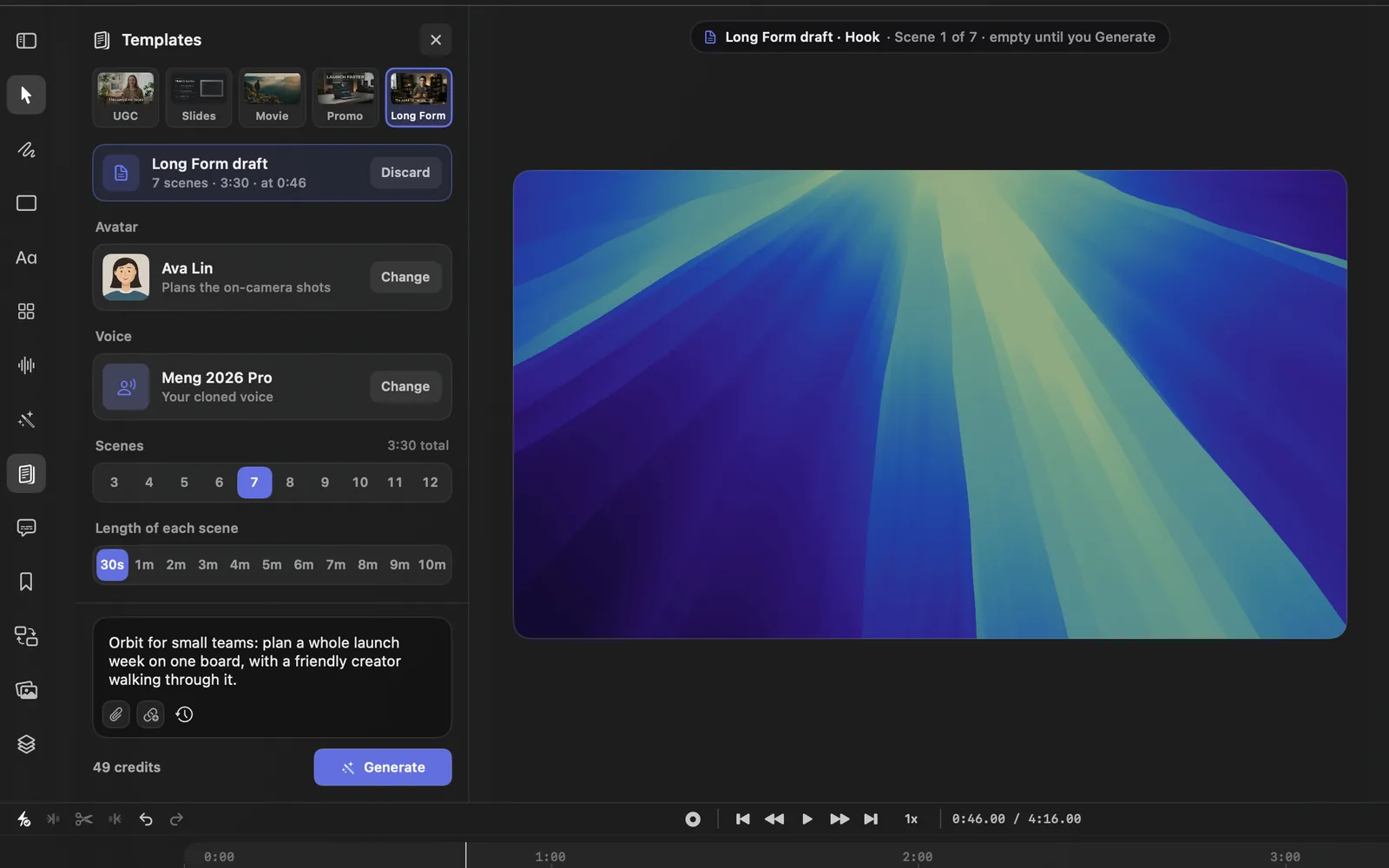
The draft starts with the first avatar and voice that are ready, so often you only need to describe the video. If none is ready yet, the row reads Choose avatar or Choose voice instead. Generate waits for a voice, but not for an avatar.
Describe the video and generate
- In the box at the bottom of the panel, describe the video. Its hint changes with the template:
| Template | The hint |
|---|---|
| UGC, Long Form | What's the video about? e.g. Why our app saves creators an hour a day |
| Slides | What should the slides explain? e.g. How our onboarding works in 5 steps |
| Movie | Describe the film. e.g. A lone astronaut finds a garden on Mars |
| Promo | What are you promoting? e.g. Launching our new AI video editor |
- If you like, add files or a link for DreamCut to draw on (see below).
- Check the credits estimate beside Generate. Hover it to see what it covers.
- Press Generate. The panel shows "Writing 7 scenes" (Step 1 of 2), then "Making images and voiceovers" ("Making images" for Movie and Promo) with how many scenes are ready (Step 2 of 2), about how long is left, and how long it has taken so far.
- When it's done, the new scenes take the draft's place, and the panel says where they went and the credits they used, such as "Added 7 UGC scenes at 0:46", and goes back to the cards.
Each scene gets its picture and, except in Movie, its title. UGC, Slides and Long Form scenes also get a voiceover in the voice you chose, and captions. ⌘Z takes the generated scenes off again in one step.
You can't press Generate until the video is described and, for a template with a voice, a voice is picked. Hover it to see what's missing, such as "Describe the video first".
Stop and start again
While it runs, Generate becomes Stop. Stopping keeps the draft and your description, and the panel reads "Stopped. The draft is still here; Generate starts again." Press Generate to carry on: scenes that are already written aren't written again, and only the missing pictures and voiceovers are made. If you change the description, the template, the number of scenes or their length, the avatar, or the files and links you added, Generate writes the scenes again.
Give DreamCut more to work with
Three buttons sit under the description box.
| Button | What it does |
|---|---|
| Attach files (paper clip) | Adds pictures or text files. Text files are used as the main source for the scenes' words. You can also drag files onto the box |
| Import URL (link) | Adds a page or post as inspiration for the hook, pacing and topic |
| Plan history (clock) | Loads a plan Generate wrote before |
Import a link
- Click Import URL.
- Paste a link to a YouTube, TikTok, Instagram, X, Threads or Facebook post, or any web page.
- Press Preview. DreamCut pulls out the title, description, captions or transcript and pictures where it can, and shows them. You have to preview before you can import.
- Press Import. The source shows under the description box; Remove takes it off.
A YouTube link without public captions may be downloaded and its sound transcribed, which needs you signed in and uses credits.
Reuse a plan
Every plan Generate writes is saved to your account. Plan history lists the last 10, and Refresh History checks for new ones. Pick one to load its description and scenes; Generate then goes straight to the pictures and voiceovers. Plan history needs you signed in.
Limits and costs
- Every template needs you signed in on a Pro trial or plan, Movie and Promo too. Without one, Generate stops and the panel reads "Start a DreamCut Pro trial to generate images and videos." Signed out, it reads "Sign in to DreamCut to generate images and videos." You also need enough credits left this month; otherwise it reads "Out of DreamCut AI credits for this month".
- For a talking avatar on the Camera lane, make one in AI avatars.
- The cards can't be used while a video exports: the panel says "Templates can be added when the export finishes."
- The scenes are ordinary scenes once they're added: trim them, restyle their titles and captions, or ask Sakura to change them.
What's next
- Sakura: edit the new scenes by asking.
- Generate media: make a picture or a video clip for one scene.
- AI avatars: create the avatar your templates plan around.
- AI voiceover: choose, hear and clone voices for voiceovers.