
Camera and microphone
Turn on your camera and microphone from the capture bar, pick the devices, check your mic level, and find your camera on a layer of its own in the editor.
Turn your camera and microphone on from the capture bar before you record. The camera is saved as a clip of its own, so in the editor you can move, resize, reshape or hide it without touching your screen recording. Both are off until you turn them on, and you can record with either, both or neither.
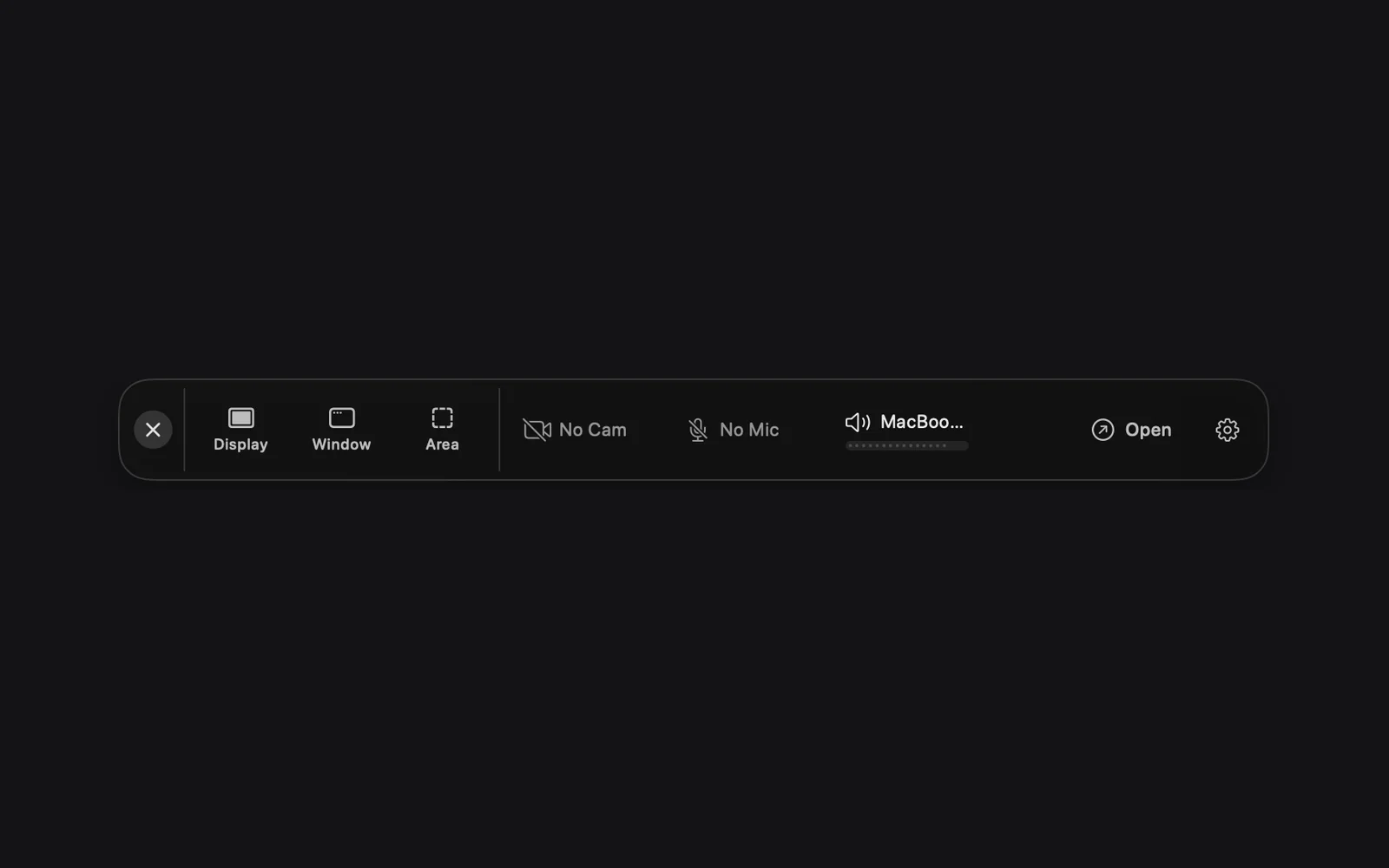
Turn them on from the capture bar
The capture bar has a chip for each source, between the mode buttons and Open. A chip that's off shows a crossed-out icon.
- Click the camera chip. It reads No Cam while the camera is off.
- In Select Camera, click your camera, then Enable.
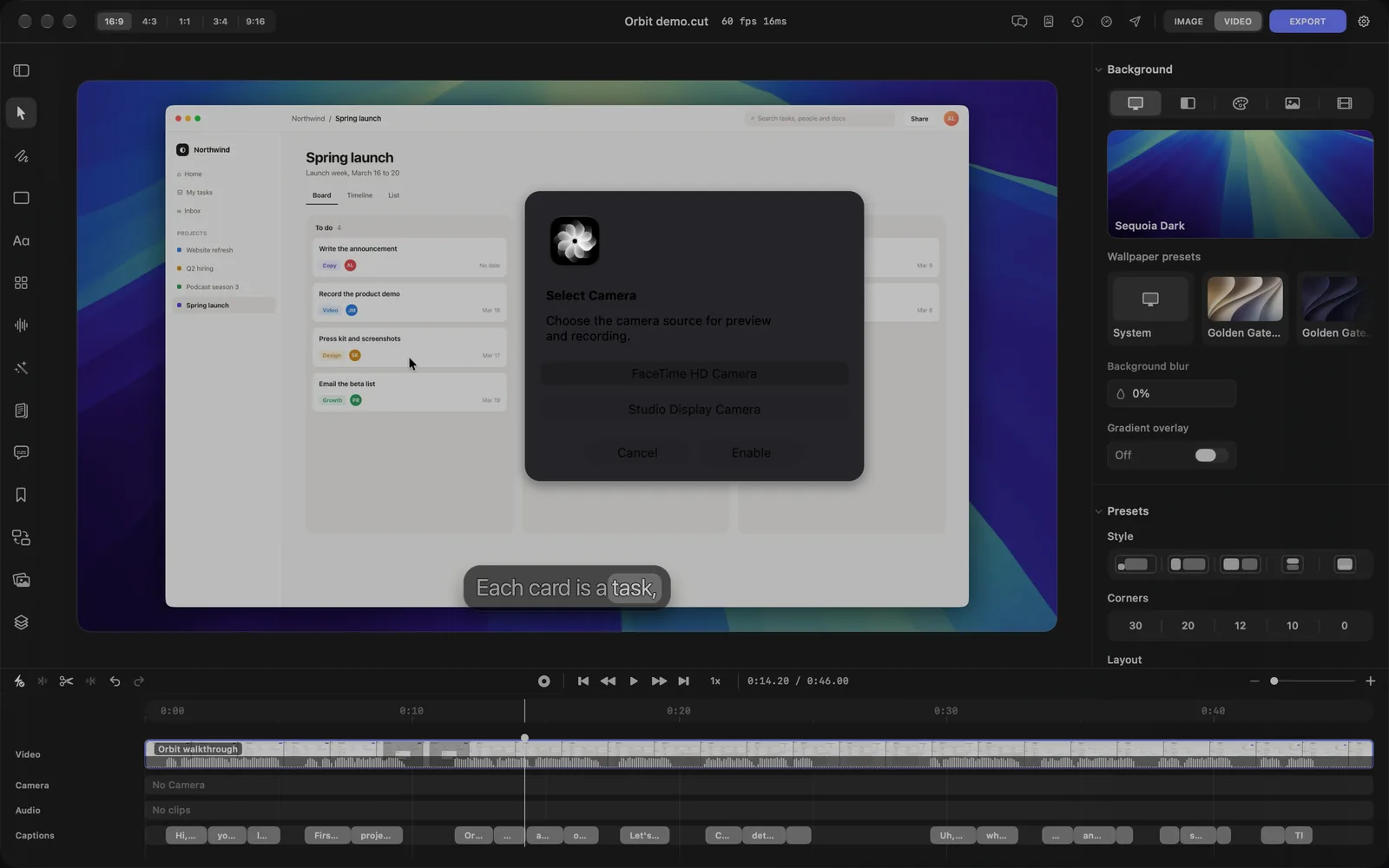
- Click the microphone chip, which reads No Mic while it's off.
- In Select Microphone, click your microphone, then Enable.
Each chip now shows the device's name with a bar under it, and the microphone's bar moves as you talk. To turn a source off, click its chip again: a chip that's on turns off at once, without opening the list.
The first time you use them, macOS asks whether DreamCut may use your camera and microphone. Allow both. If you don't, the recording won't start, and DreamCut says "Camera permission is required to include the camera in this recording." or "Microphone permission is required to include microphone audio in this recording."
Pick devices in Settings
The same choices are in Settings, as a list you can see at a glance.
- Click the DreamCut icon in the menu bar and choose Show settings (⌘,).
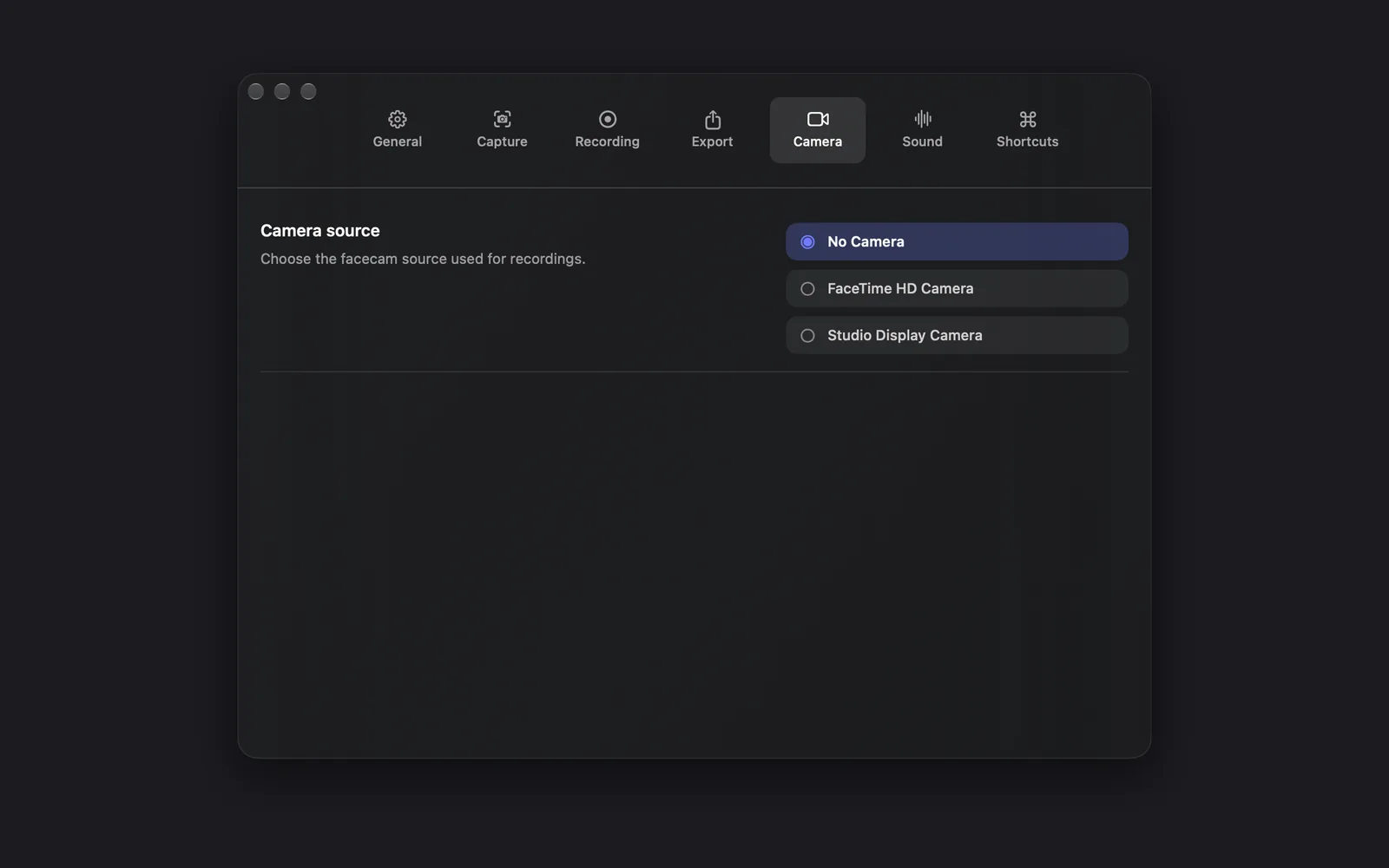
- Open Camera. Under Camera source ("Choose the facecam source used for recordings."), click a camera, or No Camera to turn it off. An iPhone near your Mac can show up in this list too.
- Open Sound. Under Microphone source ("Choose the microphone input used for recordings."), click your microphone, or No Microphone.
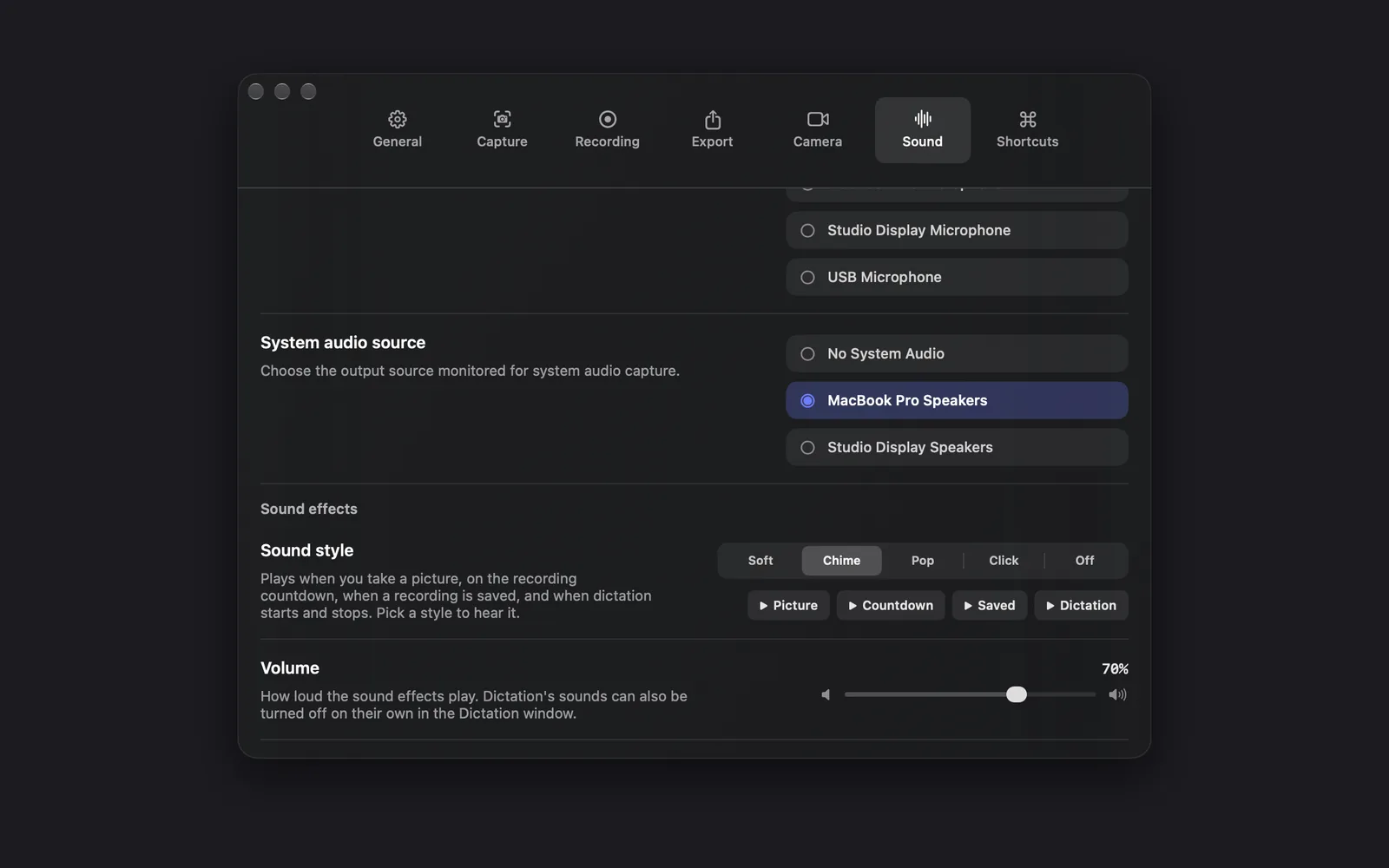
Picking a device turns that source on; the capture bar's chips change with it. The rest of the Sound tab sets your Mac's sound and the sounds DreamCut plays itself, covered in Settings.
The camera bubble
While the camera is on, a square live preview of it sits in the bottom-right of the screen, with the camera's name in its corner. Use it to frame yourself before you record.
- It shows only while the capture bar is open. Close or hide the bar and the bubble goes with it, and the camera stops.
- Drag the bubble anywhere on the screen. DreamCut remembers where you put it.
- It's only a preview. It hides once you start picking what to record and stays hidden while you record, so it never shows up in your screen recording. It comes back with the capture bar when you stop.
- If it reads "Camera permission denied" or "Camera unavailable", DreamCut can't use the camera. Allow DreamCut in System Settings > Privacy & Security > Camera, and check that the camera is connected.
Where the camera goes in your video is set in the editor, not by the bubble.
How they're recorded
| You record with | What you get in the editor |
|---|---|
| Camera and microphone | The camera on the Camera lane, with your voice recorded into it |
| Camera only | The camera on the Camera lane, without sound |
| Microphone only | Your voice inside the screen recording, playing from it on the Video lane |
| Neither | The screen recording alone, plus your Mac's sound if system audio is on |
A recording from the capture bar never puts your voice on the Audio lane. With the camera on, it plays from the camera clip, so your voice and your Mac's sound (in the screen recording) each have their own Volume and Mute. With the camera off, both are in the screen recording and share one.
The camera clip starts and ends with your screen recording, lined up with it.
Mic level and the silent-mic warning
Keep an eye on the microphone chip before you record. These are the signs that something's wrong, and what to do:
| You see | What to do |
|---|---|
| The level bar under the microphone's name stays flat while you talk | Check the microphone's own volume or mute switch |
| No Signal in orange, and hovering it says DreamCut isn't receiving any audio from the microphone | It may be unplugged, or another app may have taken it over. Reconnect it, quit the other app, or pick another microphone |
| No Signal, and hovering it says the microphone is completely silent | It's muted, often by a hardware mute switch. Unmute it |
| "Your microphone isn't picking up any sound" on the capture bar, before the countdown | Click Cancel to fix it, Without Mic to record with the microphone off, or Record Anyway |
| "This recording won't have any audio" before the countdown | The microphone and system audio are both off. Click Cancel and turn one on, or Record Anyway. It shows once each time DreamCut opens |
| "Camera is not sending video" or "Camera appears frozen" while you record with the camera | Stop, check the camera's connection, and record again |
| "Camera microphone is not active" or "Microphone is dropping out" while you record with the camera | Stop and check the microphone, then record again |
When the capture bar is minimized, a warning before the countdown comes up as a dialog instead, where Without Mic reads Record Without Mic. The messages while you record are short notes on the screen; the recording keeps going until you stop it.
Captions and clean audio, automatically
Two checkboxes in Capture Options (the gear on the capture bar) work on your microphone's sound when a new recording opens in the editor, in the camera clip or the screen recording, wherever your voice is:
- Generate captions automatically turns what you said into captions. See Captions.
- Clean audio automatically cleans up your voice, for example taking out background noise. See Clean up your audio.
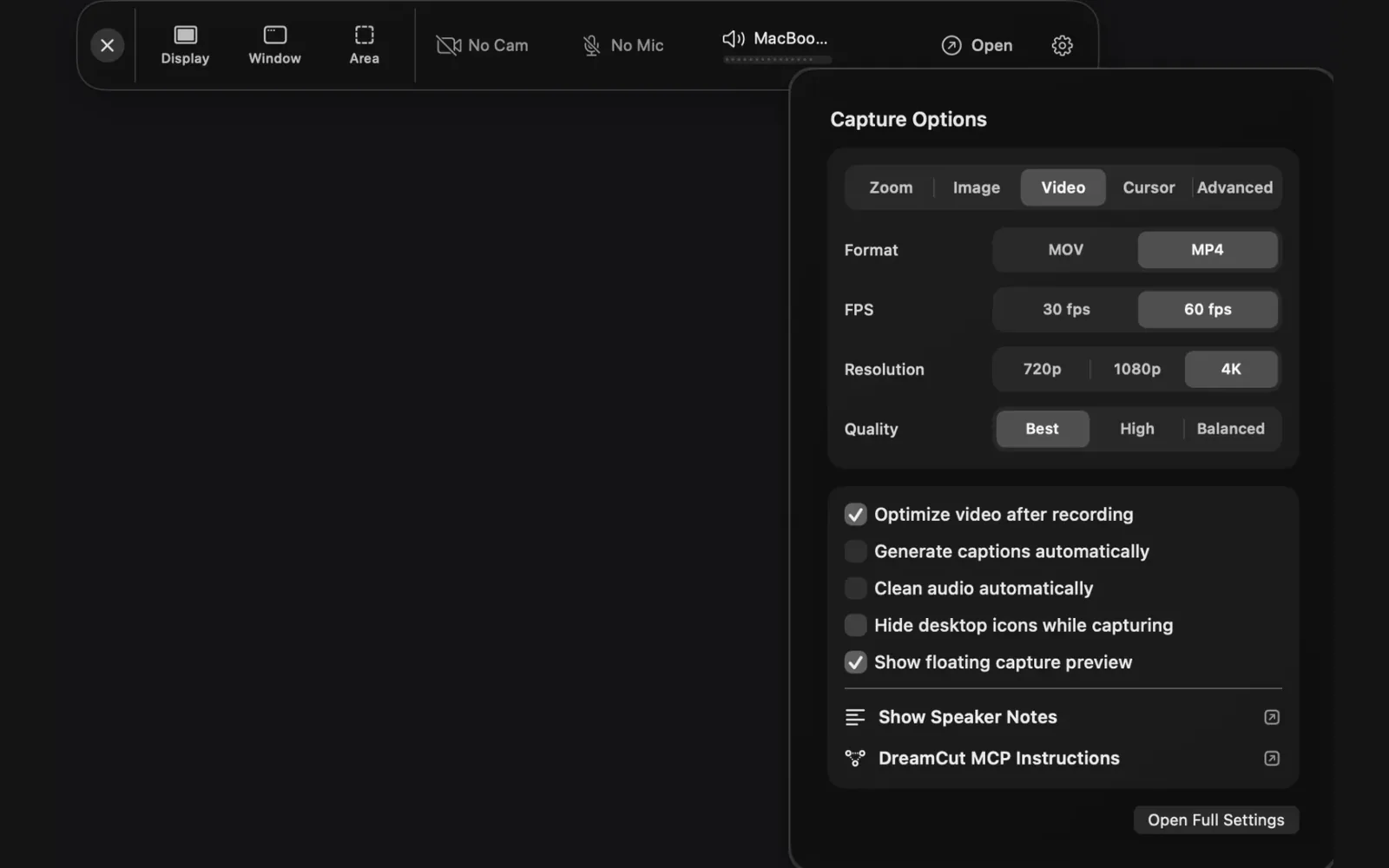
Both are off to start with and both spend credits. They need the microphone on: with it off, clicking them does nothing, and hovering one reads "Turn on Mic audio to use automatic captions." or "Turn on Mic audio to use automatic audio cleanup."
Adjust the camera in the editor
- Open your recording in the editor and click the camera on the canvas, or its clip on the Camera lane. Its settings open in the inspector on the right.
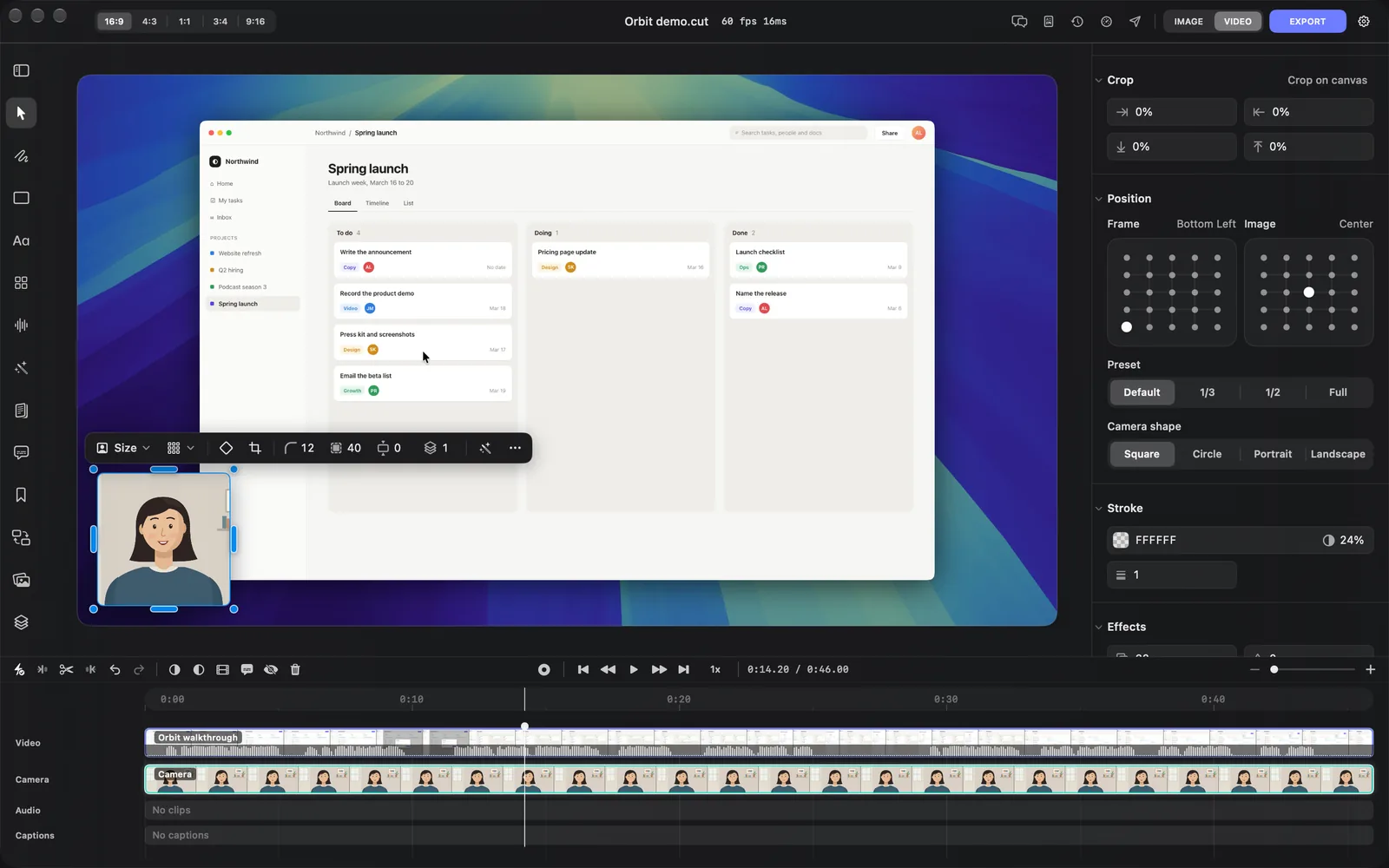
- On the Layout tab, change its size and corners (Transform), crop, position, shape (Square, Circle, Portrait or Landscape), stroke and effects, or remove the background behind you (Background).
- To set your voice, open the Audio tab, there when the camera has sound. Lower Volume, or turn on Mute. Mute on the timeline toolbar does the same; its tooltip reads "Mute selected camera audio".
- To change the whole layout of screen and camera at once, press Esc and pick a preset under Presets.
Layout and camera covers every setting, and Volume, mute and fades covers sound.
To add a camera or voice clip to a project that's already open, click Record on the timeline toolbar. See Record from the editor.
Tips and limits
- If no camera or microphone is connected, clicking the chip shows "No Camera Found" or "No Microphone Found".
- Your camera and microphone choices stay set for the next recording, and the next time you open DreamCut.
- A window recording made with ⌘⌘ never includes the camera; your voice goes into the screen recording. See Quick captures.
- An AI agent's recording through the
dreamcutcommand or MCP is quiet by default, and a quiet recording leaves the camera and microphone off unless the agent asks for them. A recording that isn't quiet uses the chips you've set on the capture bar. See MCP and the dreamcut command.
What's next
- Record your screen: start a recording and learn the pickers.
- Record your Mac's sound: add the sound your Mac plays.
- Speaker notes: read a script while you look at the camera.
- Tour the editor: find your camera and voice once the recording opens.