
Share a link on dreamcut.ai
Upload an export to dreamcut.ai and copy a private link that plays for 24 hours and 20 views, with an optional password, from DreamCut's Export Settings.
A share link lets someone watch your video in their browser without an account or a file to download first. With Share video after export ticked in Export Settings, DreamCut uploads a copy to dreamcut.ai when the export finishes and copies the link for you to paste. The box is ticked until you untick it. Links are private: each one plays for 24 hours and up to 20 views.
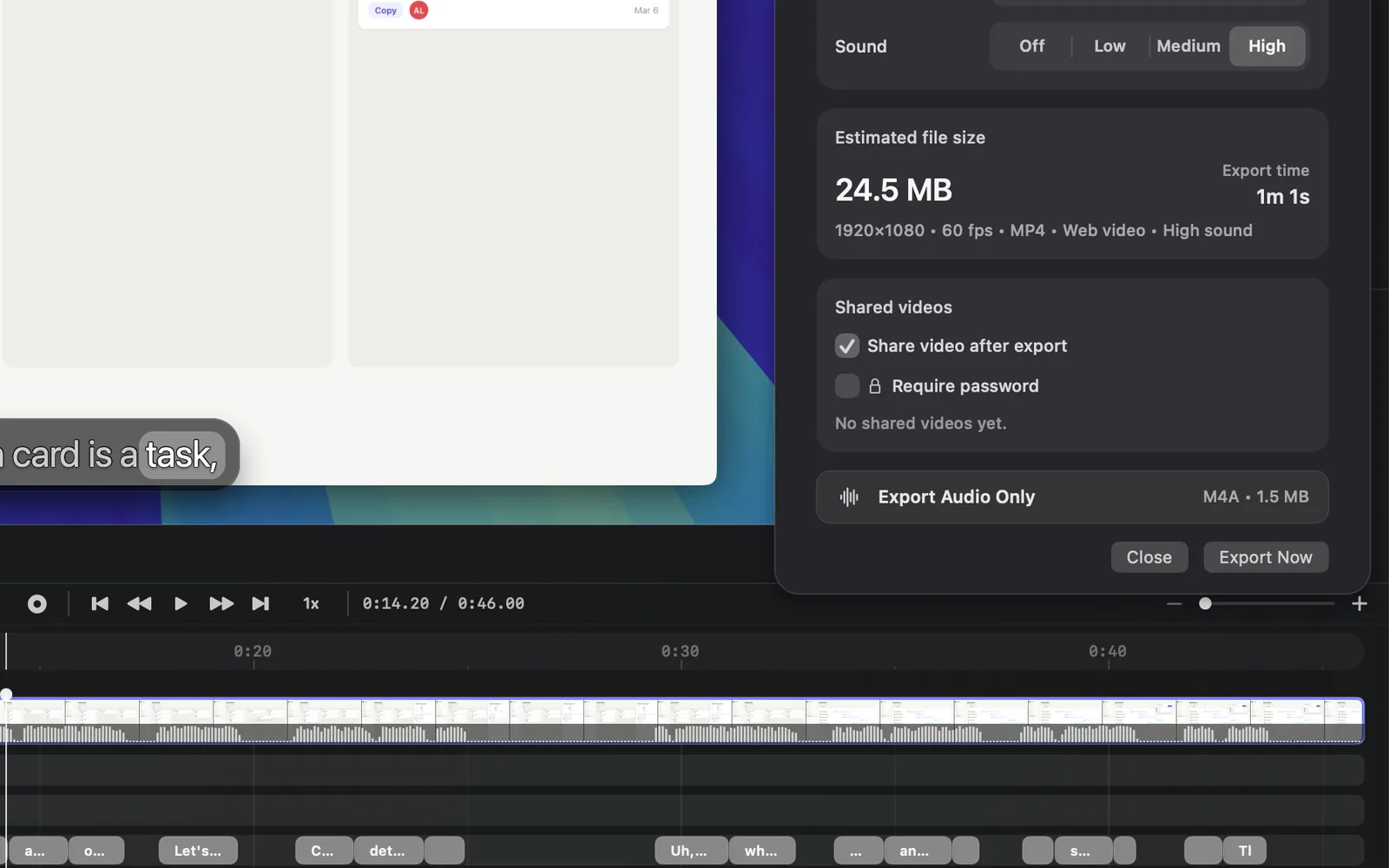
Share a video as a link
- Make sure you're signed in to DreamCut.
- In the editor's top bar, select VIDEO and click EXPORT.
- Keep Mode on Compatible. With Fast Master, the checkbox reads "Fast Master stays local" and is dimmed.
- Scroll down to Shared videos and check that Share video after export is ticked. It's ticked the first time you export, then keeps your last choice, in every project.
- Click Export Now, at the bottom of the popover.
- When the file is saved, Finder opens with it selected, as with any export. The progress screen stays up a little longer while DreamCut makes a copy for the web and uploads it.
- A note appears with the video's title, "Uploaded" and its length, and the link is on your clipboard. Paste it wherever you want to send it. Clicking the link in the note opens the page and starts the video, which uses one of its 20 views.
Back in Export Settings, the card reads "Video uploaded and link copied to clipboard." and the new share is at the top of its list.
The exported file stays on your Mac as usual. The link shows the video's title: the YouTube Title from the Publish pane when it has one, or the file's name.
Keep an export on your Mac only
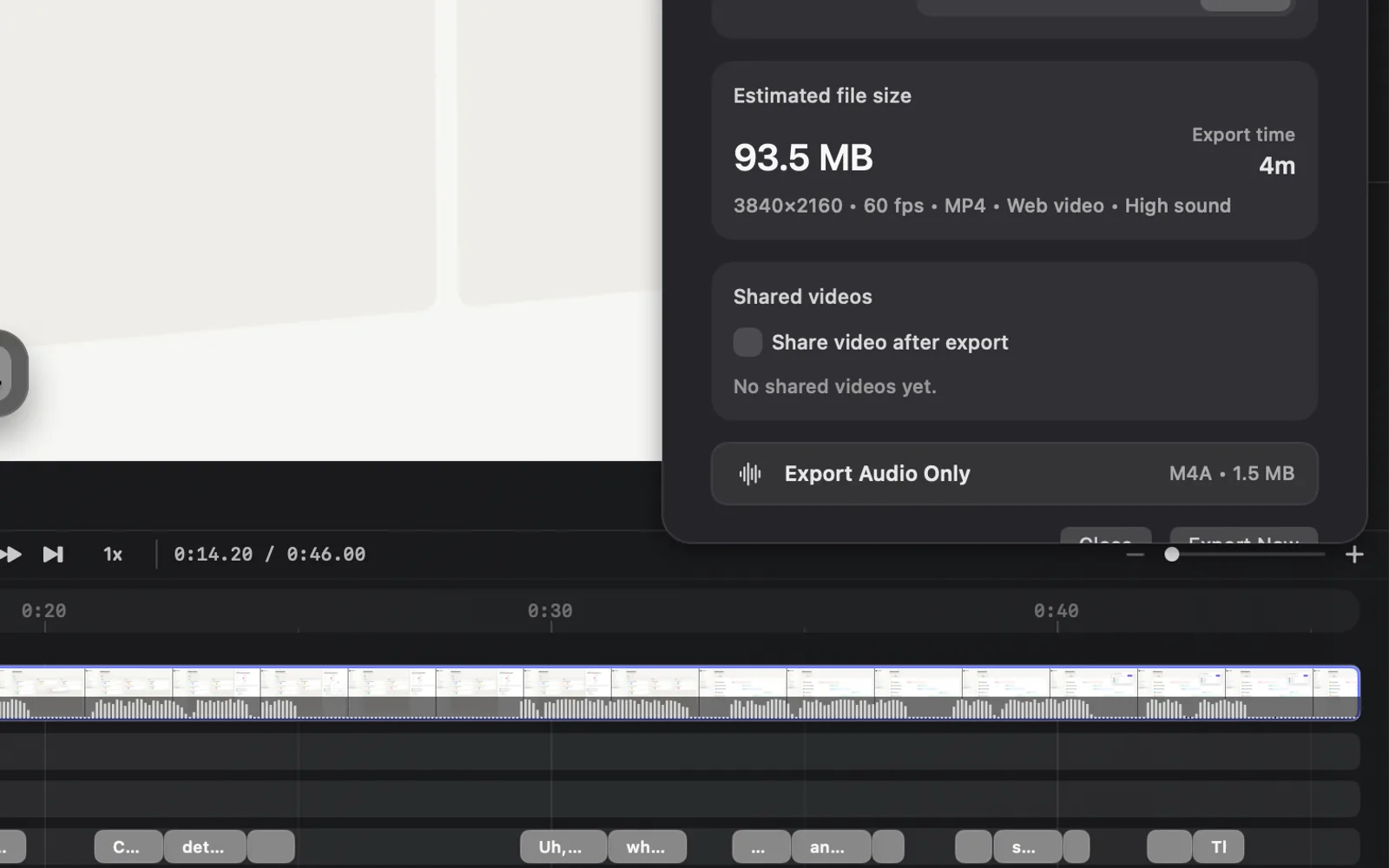
Untick Share video after export before you click Export Now. Nothing is uploaded, and DreamCut keeps it unticked for your next exports until you tick it again.
Protect a link with a password
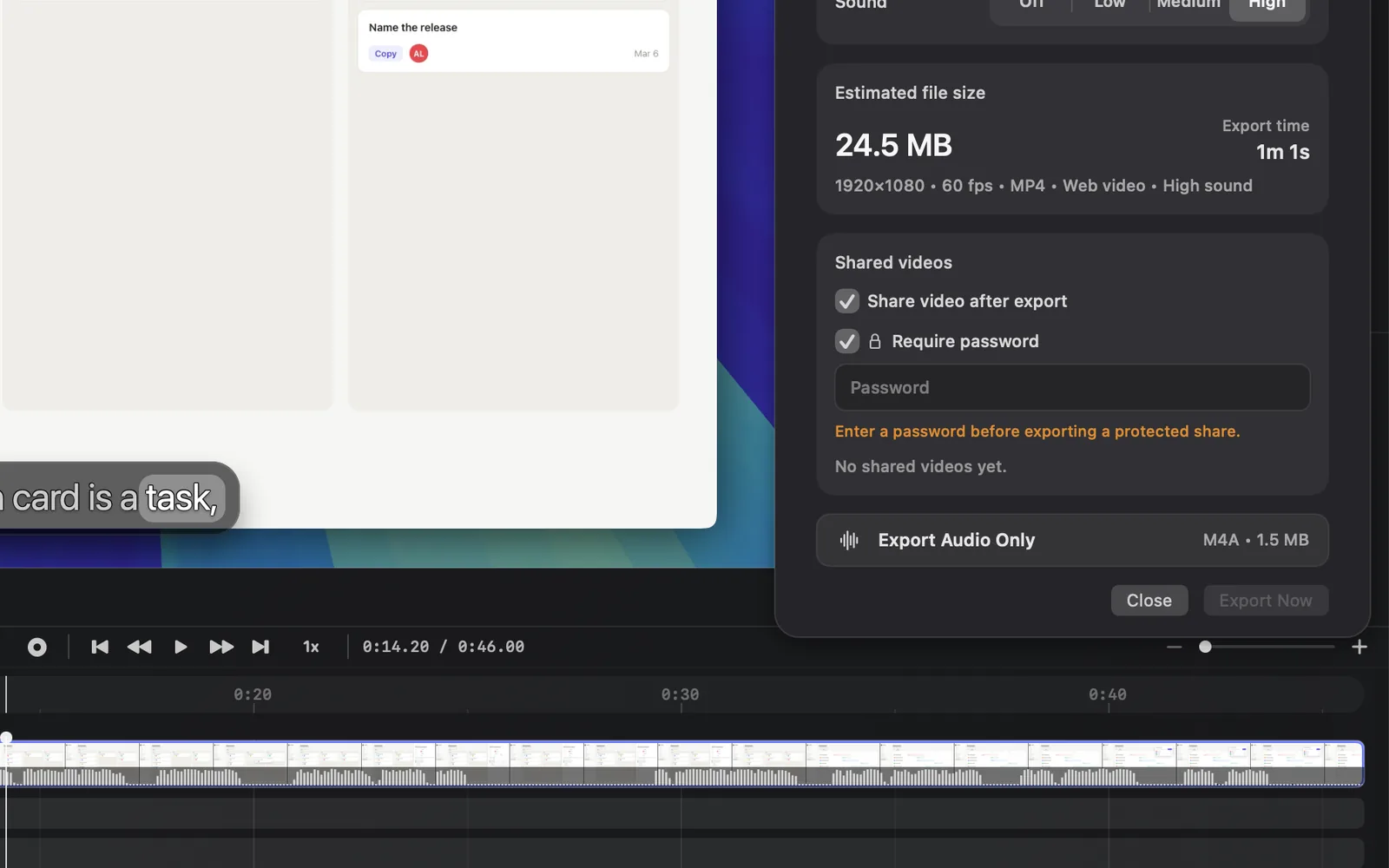
- In Shared videos, tick Require password (the lock). It shows only while Share video after export is ticked.
- Type a password in the Password field.
- Click Export Now.
Export Now stays greyed out until there's a password, and the card says "Enter a password before exporting a protected share." Viewers type the password before the video plays. In Export Settings, the card reads "Protected video uploaded and link copied to clipboard." and the row for that share shows a lock.
Require password stays ticked for your next exports, in every project, and so does the password while the project's window stays open: the next export uses it again. DreamCut sends the password once to make the link and doesn't save it, so after you close and reopen the project, Export Now stays greyed out until you type a password again. Untick Require password for a link anyone with it can open.
What viewers see
The link opens a page on dreamcut.ai with:
- The video's title and who shared it: your name, or your email.
- The video, which starts playing as soon as the page opens, or once the password is in. If the browser blocks sound on pages that play by themselves, it starts muted.
- Views remaining, such as "19/20", when the link Expires, and the File size.
- Download Video and Copy URL.
- A Transcript of what's said, with times. Clicking a line jumps the video there. It reads "From captions" when the video had captions, or "Generated from audio".
Each time the page starts the video counts as a view, yours included. When a link runs out, the page says why: "This private video expired after 24 hours.", "This private video has reached its view limit." or "This private video was turned off by its owner."
Your shared videos
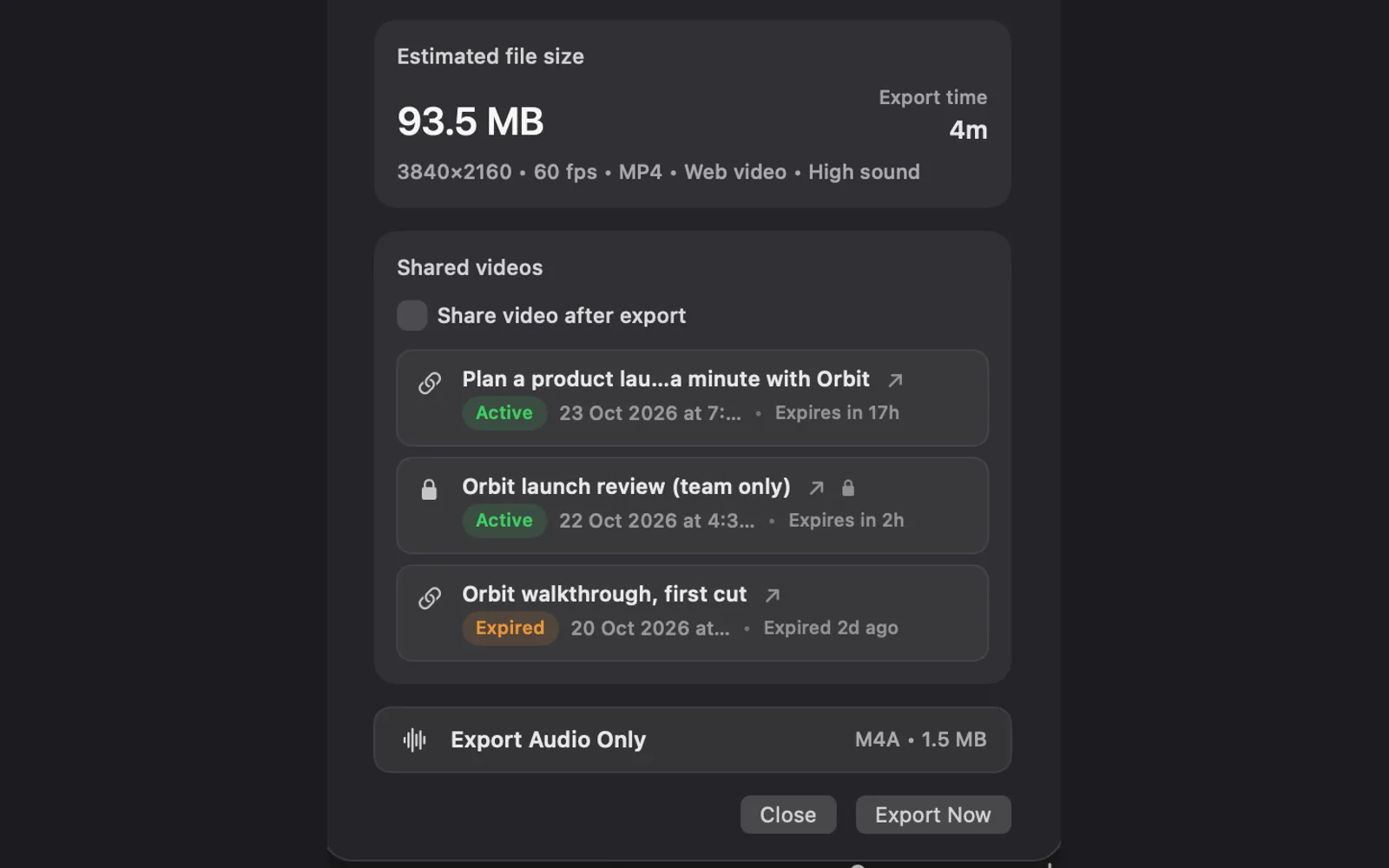
The Shared videos card lists the three latest shares of this project. Each row shows the title, Active or Expired, the day it was shared and when it expires. A lock marks a protected share. Active goes by the time only: a link that has used its 20 views still reads Active here.
- Open a share: click its row. The page opens in your browser.
- Copy a link again: the card has no copy button. Click the row, then click Copy URL on the page, or copy the address from the browser. Opening a link without a password starts the video, so it uses one of the 20 views.
- Delete a share: hover its row, click the trash (Delete shared video), then Delete in "Delete shared video?". It turns off the link and removes the uploaded video, and it can't be undone. Your exported file stays on your Mac.
The web copy
DreamCut doesn't upload your export as it is. It makes a copy for the web: at most 1920 × 1080 (1080 × 1920 for a vertical video), as an MP4 under 30 MB.
- When FFmpeg is installed on your Mac (for example with Homebrew), the copy is 30 fps and squeezed to fit under 30 MB, so its picture gets softer the longer the video is. Past about 17 minutes it can't fit.
- Without FFmpeg, DreamCut uses macOS's own 1080p export, which keeps the frame rate and doesn't aim for a size, so a longer video can come out over 30 MB.
When the copy is too big, the export is still saved, the usual "Export complete" note appears, and the Shared videos card reads, for example: "Exported locally. Share upload failed: The optimized share video is 41.2 MB. Shared videos must be under 30 MB." Export a shorter video, or send the file another way.
Limits
| Limit | What it means |
|---|---|
| 24 hours and 20 views | After either, the link stops playing. There's no setting to change this |
| Under 30 MB | The web copy must come in under 30 MB, or only the file on your Mac is made. See The web copy |
| Signed in | Signed out, the export is saved and the card reads "Exported locally. Sign in to DreamCut to create a share link." |
| Compatible only | Fast Master exports stay on your Mac |
| Videos only | Still images and Export Audio Only can't be shared |
| At export time | To share a video you exported before, export it again with Share video after export ticked |
What's next
- Export your video: the other export settings, and where files go.
- Captions: captions also give the shared page its transcript, at no extra cost.
- Publish: upload to YouTube and post to X instead of sending a link.