
Quickstart: your first video
Go from the menu bar to a finished video in a few minutes. Record your screen and voice, cut a pause, check the zooms, add captions and export.
This page takes you from the menu bar to a finished video in a few minutes. You record your screen while you talk, make three quick edits, and export a video file. By the end you'll have something like the clip below.
Before you start
- DreamCut is installed, you're signed in with a Pro trial or plan, and DreamCut is allowed to record your screen. Install and permissions covers all three.
- Have the app or page you want to show open and ready.
Record your screen
- Click the DreamCut icon in the menu bar and choose New recording... (or Show Recording Bar). The capture bar appears at the bottom of the screen.
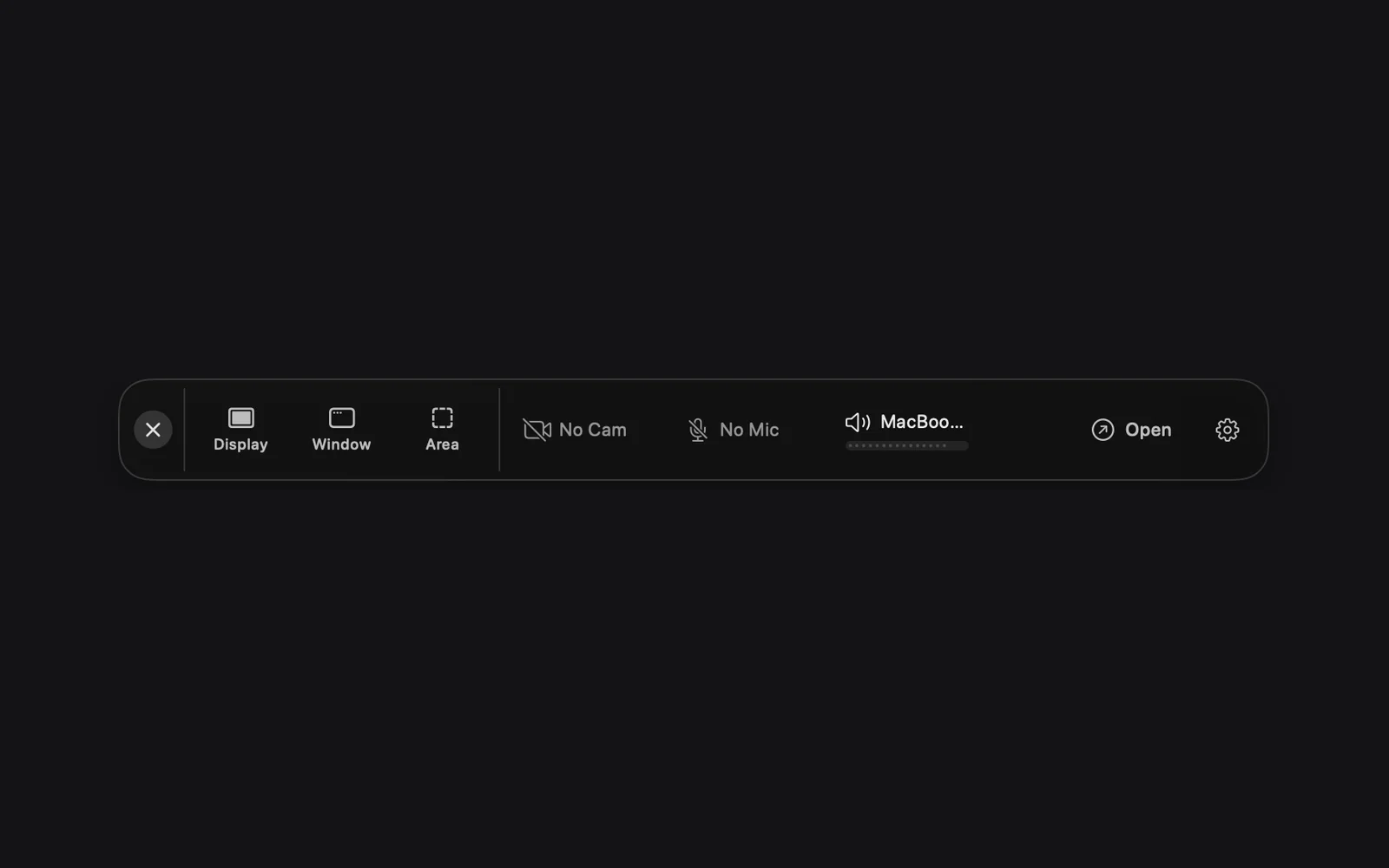
- Turn on your microphone: click No Mic, click your microphone in Select Microphone, and click Enable. The chip now shows the microphone's name and a level bar that moves when you talk.
- Do the same with No Cam to add your camera, or No Audio to record the sound your Mac plays.
- Click a chip that's on to turn it off again.
- Choose what to record. The capture bar hides while you pick:
- Display: the whole screen dims inside a dashed border. Click RECORD in the middle of it.
- Window: move the pointer over the window you want. It lights up; click RECORD beside it.
- Area: a box appears. Drag inside it to move it, or drag its edges to resize it, over what you want to record. Then click RECORD.
- A countdown plays over what you're recording: 2, 1, then START. Start talking at START. The editor leaves the countdown out of your video.
- Show and say what you planned. The recording controls sit at the top of the screen when you record a display, or right under the window or area: the time so far, Restart recording (the circular arrow), PAUSE and STOP.
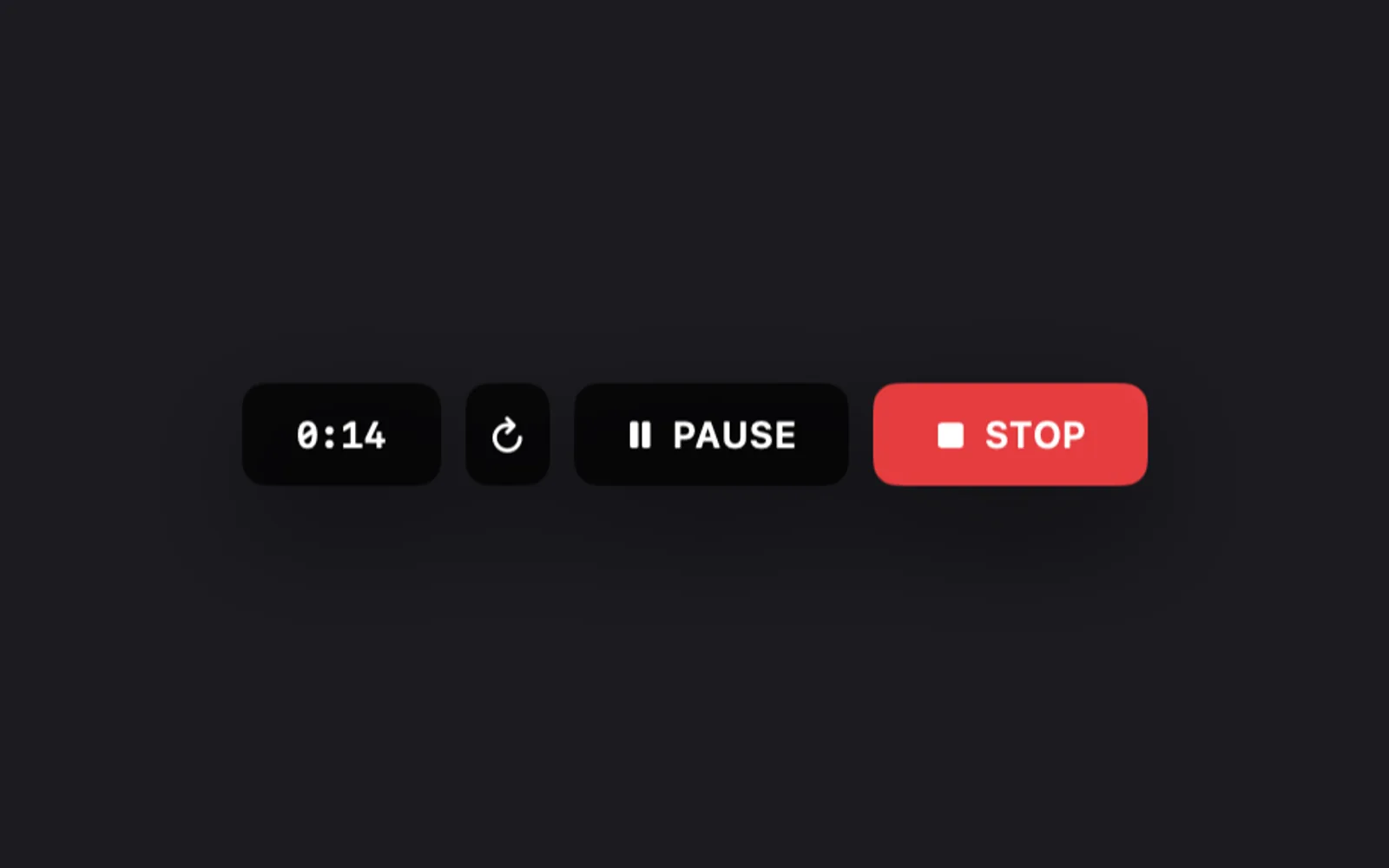
- Click STOP.
Open it in the editor
- A Recording ready card with a picture of your recording appears in the bottom-right corner of the screen.
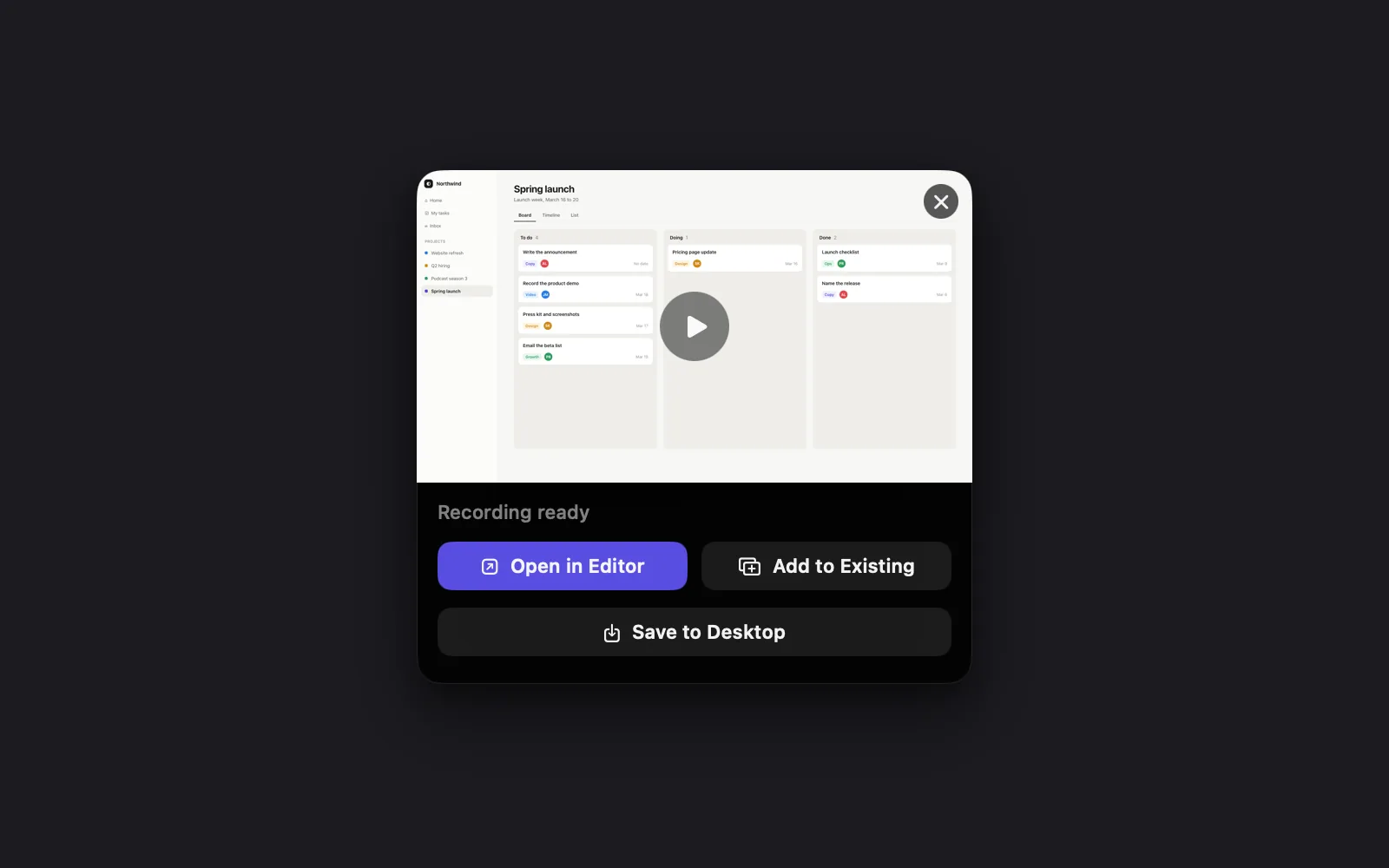
- Click Open in Editor, or click the picture on the card.
The editor opens with your recording on the Video lane of the timeline and your camera, if you turned it on, on the Camera lane. DreamCut saves the project as you work.
The card's other buttons:
| Button | What it does |
|---|---|
| Save to Desktop | Saves the video file to your Desktop without opening the editor |
| Add to Existing | Shows when an editor is open, and adds the recording to that project |
| × | Deletes the recording |
New to the editor? Tour the editor shows what each part is for.
Make three quick edits
Cut out a pause
Remove a stretch you don't want, such as a long pause or a false start: split the recording where it starts and where it ends, then delete the piece in between.
- Click the ruler above the timeline's lanes to move the playhead to where the pause starts, then press C or click Split (the scissors).
- Move the playhead to where the pause ends and press C again.
- Click the piece between the two cuts, then click Delete (the trash icon) on the timeline toolbar, or press ⌫.
- In the dialog, click Delete Layer (it reads Delete All Layers when camera or captions go with the piece). Everything after the cut moves up to close the gap.
- Not Delete Video Only: it swaps the piece for a blank scene of the same length, so the video doesn't get shorter.
Check the zooms
DreamCut adds zooms to a new recording where you worked with the mouse. Each one is a diamond on the recording in the Video lane. Press Space to play from the playhead and watch them.
- To change a zoom, click its diamond. Its level, position and timing show in the Zoom tab on the right.
- To delete one, click its diamond and press ⌫.
- To add one, move the playhead, click the recording, open the Zoom tab and click Add next to Zooms.
A recording shorter than about 5 seconds, or one where the mouse barely moves, gets no zooms. Zooms and the cursor covers the rest.
Add captions
- Click your recording on the Video lane.
- On the right, open the Audio tab. It's there when the recording has sound.
- Under Captions, click Generate. The captions appear on the Captions lane and over the video.
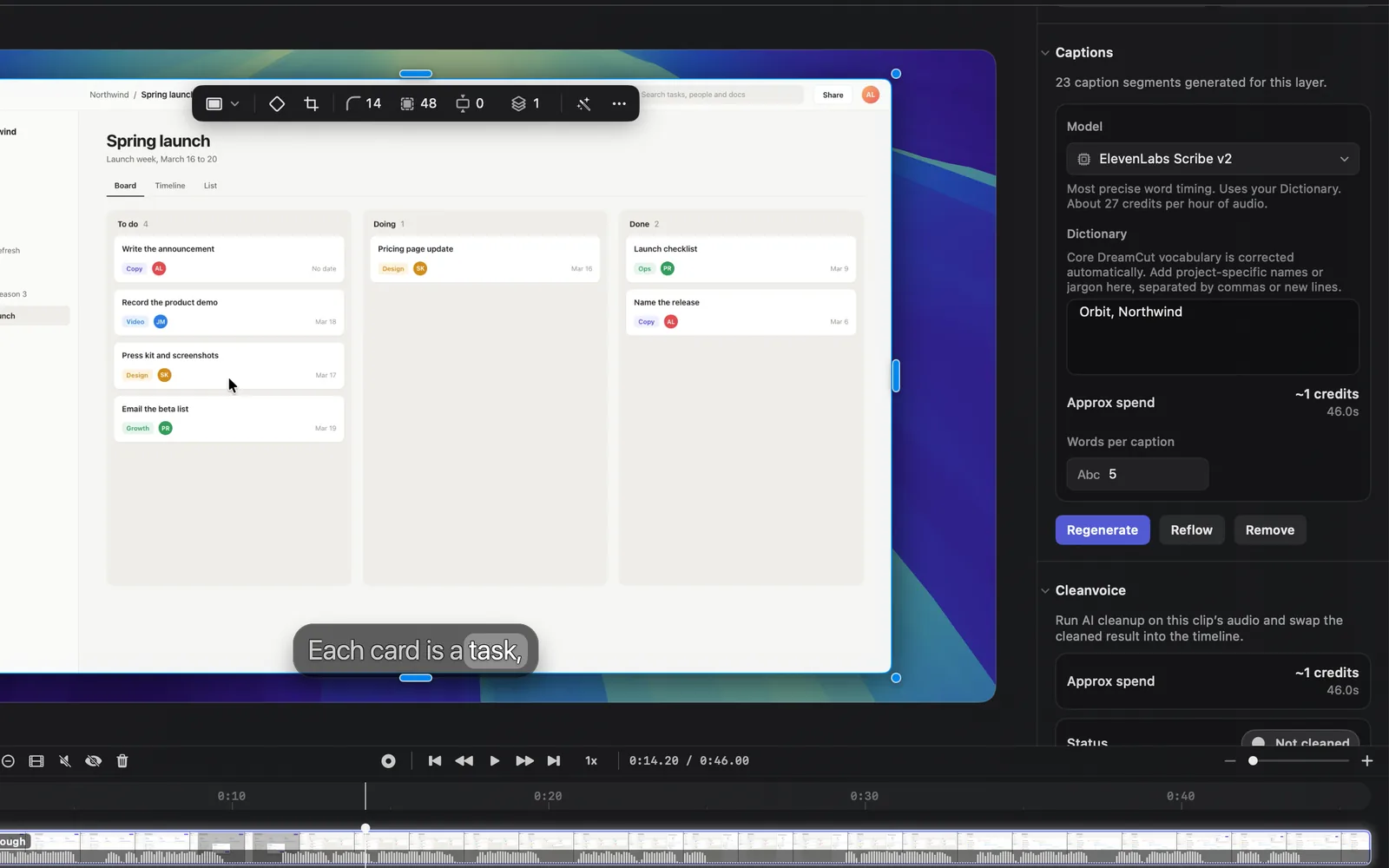
To change their look, click a caption, pick a style under Presets in its Text tab, then click Apply to All. Captions covers styles and fixing words.
Export the video
- At the top right of the editor, check that VIDEO is selected, not IMAGE, and click EXPORT.
- Export Settings shows the mode, format, frame rate, resolution, quality and sound, with an estimated file size and export time. The defaults suit most videos. The recording below picks 1080p instead of 4K, which takes the estimate from 93.5 MB to 24.5 MB.
- Under Shared videos, Share video after export uploads a copy to dreamcut.ai when the export finishes and copies a link to it. On a new Mac it starts ticked; untick it if you only want the file on your Mac. In the recording below it's already unticked, so nothing is uploaded. Share links explains the links.
- Scroll to the bottom of the popover and click Export Now. Exporting video shows the progress, the time left, the estimated size and where the file goes. Click Cancel, or press Esc, to stop it.
- When it's done, Finder opens with your video selected.
The video is named after the project, with a number added if that name is taken. It's saved to your Desktop, as Destination reads in the recording, unless you pick another folder. To change the folder, open Settings from the menu bar (Show settings), click Export and choose a folder under Save to. Export settings explains every option.
Tips
- If both the microphone and system audio are off, DreamCut warns that "This recording won't have any audio" before it starts, once each time DreamCut opens. Click Record Anyway, or Cancel and turn on No Mic.
- If the card doesn't appear after STOP, Show floating capture preview is off in Capture Options (the gear on the capture bar): DreamCut saves the recording to your Desktop instead.
- Restart recording asks first, then throws the take away and starts again.
- In the pickers, CAPTURE (or Return) takes a screenshot instead of a recording.
- Your projects are in the capture bar's Open menu under Recent Projects.
What's next
- Capture bar and projects: every control on the capture bar and the Open menu.
- Record your screen: pickers, aspect ratios, pausing and recording settings.
- Tour the editor: what each part of the editor is for.
- Keyboard shortcuts: record and edit without the mouse.