
Volume, mute and fades
Set the volume of a recording, camera or audio clip, mute it, fade layers in and out, and choose how much sound your export keeps in DreamCut.
Every recording, camera clip and audio clip has its own Volume and Mute in the inspector. Use them to turn down a loud clip, silence a recording you'll narrate over, or balance a voiceover against music. DreamCut has no audio fades: Fade In and Fade Out fade how a layer looks, not its sound. This page also covers the volume of background music and the sound your export keeps.
Change a clip's volume
- Click the clip whose sound you want to change: your recording on the canvas or on the Video lane, your camera on the Camera lane, or a clip on the Audio lane.
- For a recording or camera clip, open the Audio tab in the inspector on the right. It's there only when the clip has sound. A clip on the Audio lane has no tabs: its Audio section is at the top.
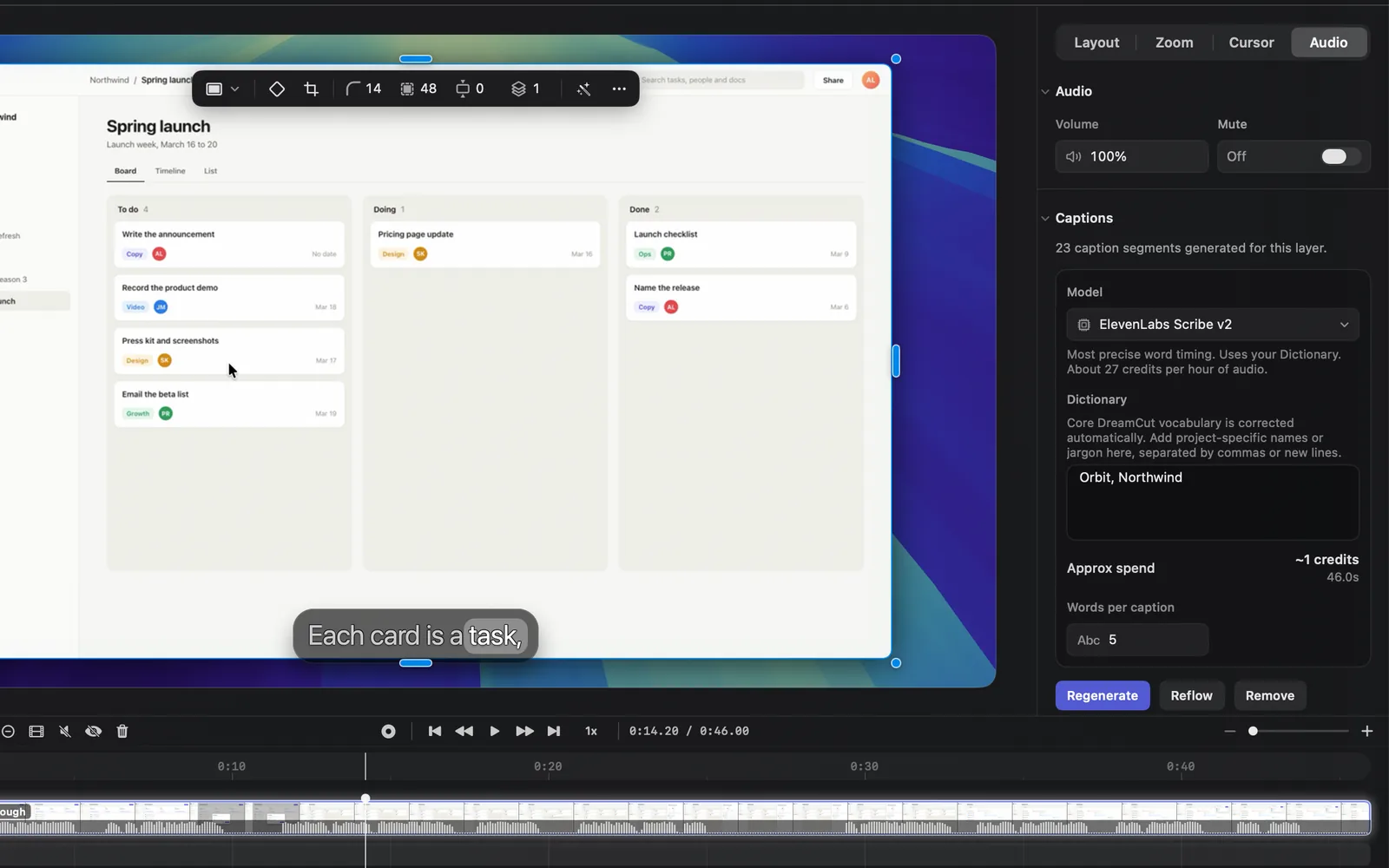
- Set Volume:
- Drag the word Volume left or right, or click the number, type a percentage and press Return.
- While you type, ↑ and ↓ change it by 1%. Hold ⇧ to change it by 10%.
- Once the value isn't 100%, hovering the field shows a reset arrow at its end. Click it to go back to 100%.
Volume runs from 0% to 100%. 100% is the sound as it was recorded, so DreamCut can't make a clip louder than that. If your voice is too quiet, Normalize audio levels in Clean up your audio evens it out.
To set several clips at once, Shift-click them on the same lane, then change Volume for one of them.
Mute a clip
A muted clip stays on the timeline but makes no sound in the preview or in the export. There are three ways to mute one clip, and each flips the same Mute switch you see in the inspector.
- In the inspector: turn on Mute beside Volume. It reads On while the clip is muted and Off while it has sound.
- On the timeline toolbar: select the clip and click Mute (a speaker with a line through it). Once the clip is muted, the button reads Unmute. It shows for your recording or a camera clip only when that clip has sound, and for every clip on the Audio and Music lanes.
- From a menu: right-click the clip, or open More on its canvas toolbar, and choose Mute or Unmute.
With several clips of the same kind selected, Mute mutes them all.
Mute a whole lane
Hover a lane's name on the left of the timeline and click the speaker that appears beside it. It mutes every clip on that lane at once: "Mute all image/video layers" on Video, "Mute all camera layers" on Camera, "Mute all audio clips" on Audio and "Mute music" on Music. Click it again to unmute them. When you open the Camera, Audio or Music lane up into rows, a row with one clip on it gets its own speaker ("Mute this clip", or "Mute this camera layer" on the Camera lane), and it stays in view, crossed out, while that clip is muted.
Fade a layer in or out
Fade In and Fade Out are on the timeline toolbar when you select a camera clip, a caption, a text or overlay layer, or a transition or effect.
- Select the layer and move the playhead to where the fade should end.
- Click Fade Out (a circle filled on the right) or Fade In (a circle filled on the left).
Each click adds a keyframe at the playhead, and the layer fades out, or back in, over the half second before it. A layer starts fully shown, so Fade In changes nothing you can see until the layer has faded out: click Fade Out first, then Fade In further along to bring it back.
The audio clip inspector
Click a clip on the Audio lane, such as a voiceover, a sound effect or your own voice recording, and the inspector shows its settings in one column.
| Section | What's in it |
|---|---|
| Audio | Volume and Mute |
| Timing | Start time: where the clip starts in the video. Duration: how long it plays. Trim in and Trim out: which part of the sound file it uses. Speed: from 0.5x to 32x |
| Source | File: the sound file it plays. Open it for Replace from Computer… or Replace from Media Library…. Background music clips don't have this section |
| Captions | Captions made from the clip's speech. See Captions |
| Cleanvoice | AI cleanup of the clip's sound. See Clean up your audio |
| Hide | Leaves the clip on the timeline but out of the video, so it isn't heard |
| Reset all | Puts volume, speed and mute back to the defaults: 100%, 1x and not muted |
| Delete | Deletes the audio layer |
The fields work like Volume: drag the label or type a value. Times read like 0:01.50.
Set the volume of background music
Background music has its own volume in the AI Audio panel.
- Click AI Audio (a waveform) in the left rail and open the MUSIC tab.
- Under the prompt, click the chip with a speaker icon. It shows the music's volume.
- Pick a level from 5% to 100%. New music starts at 20%.
The chip sets every background music clip. A Volume you change on one music clip in the inspector goes back to the chip's level the next time the music updates, so set music volume here.
The same row of chips sets where the music plays (Whole video or Per scene) and whether it repeats (Loop or Play once). Music covers making and choosing the track.
Turn sound waves off
The timeline draws the sound of each clip as a wave. On a long project, drawing them can slow the editor down.
- Click Performance (the speedometer) in the top bar. Editor performance opens over the inspector.
- Turn off Sound waves: "Turn off timeline waveform drawing and loading."
It changes the timeline only: your audio and your exports stay the same. The Fast editor preview mode at the top of the pane turns sound waves off too.
Export with or without sound
- In the top bar, make sure VIDEO is selected, then click EXPORT. Export Settings opens.
- Under Sound, choose how the sound is saved.
- Click Export Now.
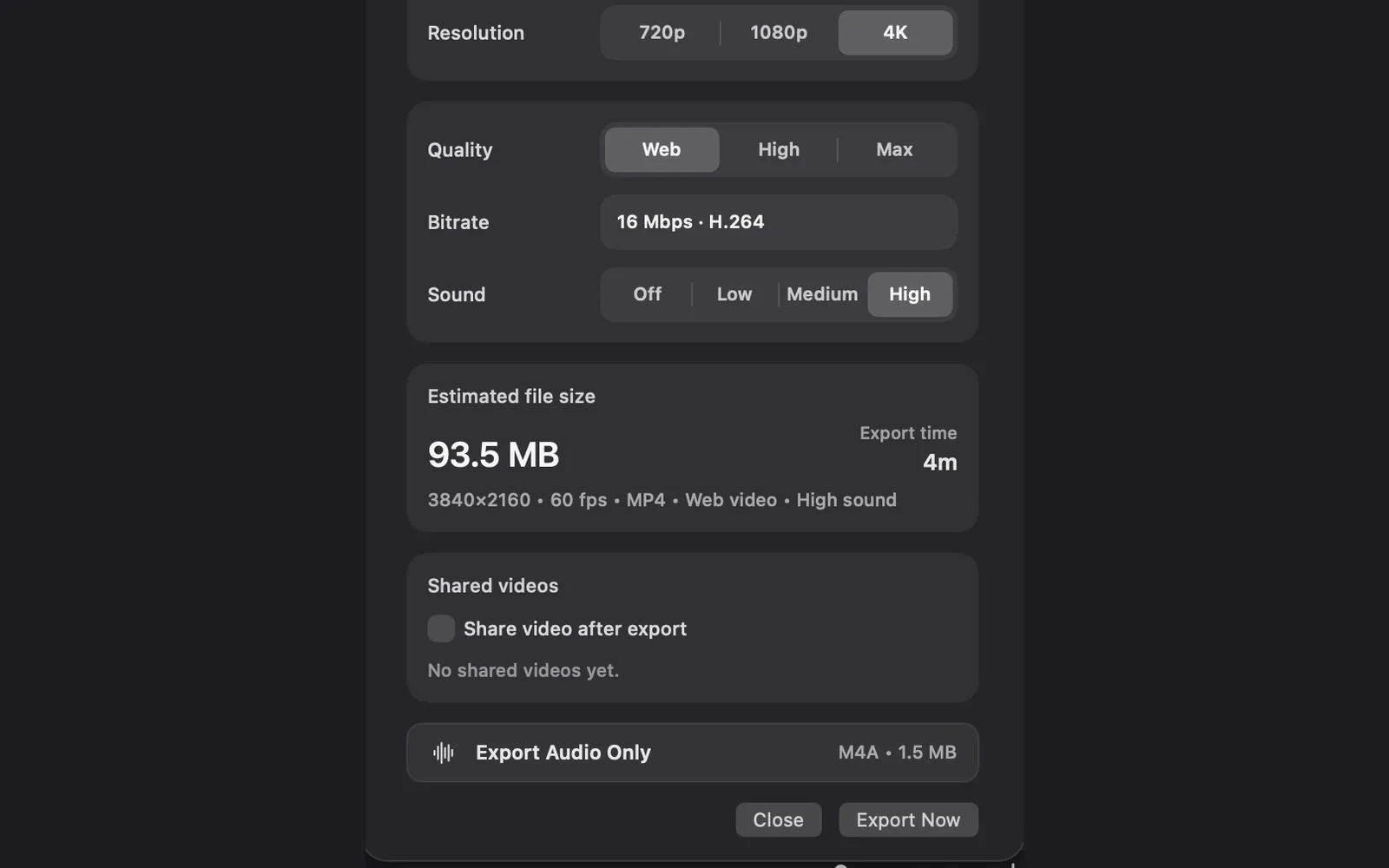
| Sound | What you get |
|---|---|
| Off | A video with no sound |
| Low | Stereo sound at 96 kbps |
| Medium | Stereo sound at 160 kbps |
| High | Stereo sound at 256 kbps. The default |
To save only the sound, click Export Audio Only near the bottom of Export Settings. It shows the format, M4A, and an estimated file size, and saves everything you hear in the video as one M4A file, without the picture. The export starts as soon as you click it. Export settings covers the rest of the popover.
Tips and limits
- Muted and hidden clips on the Audio lane are left out of the export as well as the preview.
- Reset all on an audio clip keeps its start time and trim, but putting Speed back to 1x changes its length. Press ⌘Z to undo any change.
- Sound waves and the other Editor performance settings change only the live preview.
What's next
- Clean up your audio: remove background noise and even out your voice.
- AI voiceover: make a voiceover from a script.
- Captions: turn what you said into captions.
- Transcript editing: cut filler words and long pauses.