
Speaker notes teleprompter
Keep your script on screen while you record: write speaker notes in DreamCut, scroll them like a teleprompter, and keep them out of the video.
Speaker notes is a small floating window for your script. It stays above your other windows while you record, scrolls on its own like a teleprompter, and doesn't show up in your recording, so you can keep it right next to what you're showing.
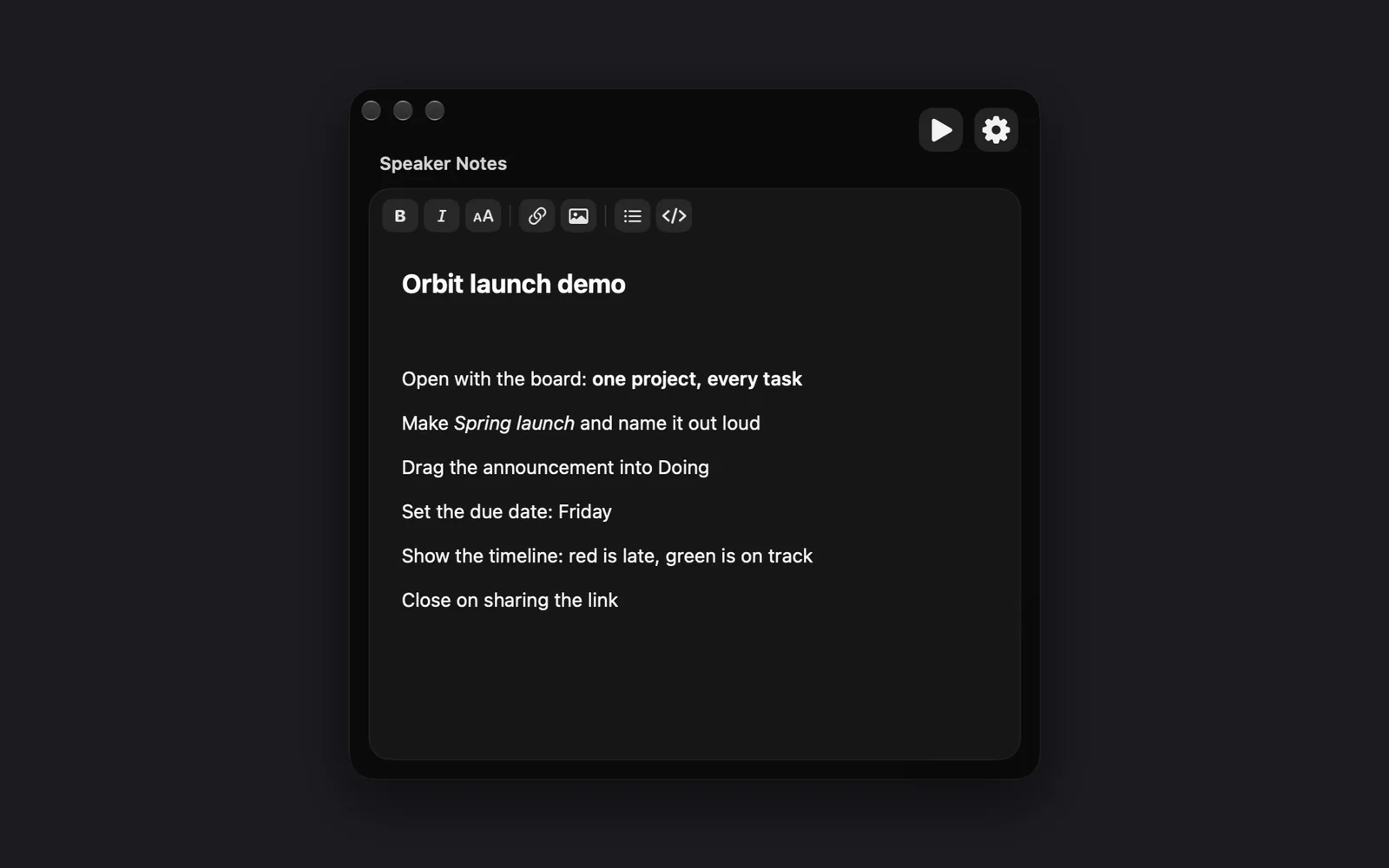
Open speaker notes
- Click the gear on the capture bar to open Capture Options. If the capture bar is hidden, click the DreamCut icon in the menu bar and choose Show Recording Bar first.
- Click Show Speaker Notes near the bottom of Capture Options.
The first time, the Speaker Notes window opens in the middle of the screen. After that it comes back where you left it, until you quit DreamCut. Drag its background to move it, and drag an edge to resize it. It floats above every app, including full-screen ones, and follows you to every desktop. Its close button hides it; your notes stay.
Write your notes
Click in the box, where it says "Write speaker notes...", and type. The bar above your notes formats them, from left to right:
| Button (icon) | What it does | Or type |
|---|---|---|
| Bold (B) | Makes text bold | **text** |
| Italic (I) | Makes text italic | *text* |
| Heading (AA) | Turns the line into a heading | ## at the start of a line |
| Link (a chain) | Adds a link, shown in blue and underlined | [text](url) |
| Image (a picture) | Adds an image link. The notes show its description, not the picture |  |
| Bullet list (lines) | Turns the line into a list item | - at the start of a line |
| Inline code (</>) | Sets text in a code font | A backtick before and after the text |
Hover a button to see its name and the marks it adds. Your notes are written in Markdown, and the window hides the marks as you type, so you read clean text: list items show without their dashes, and bold words without their asterisks.
What a button does depends on what's selected:
- Heading and Bullet list work on whole lines: the selected ones, or the line your cursor is in. Press them again on the same lines to take the heading or the list off.
- Bold, Italic and Inline code wrap the words you selected in hidden marks. Pressing the button again doesn't take the style off: it adds a second set of marks, and some of them show. Bold twice leaves
**in view, Italic twice turns the words bold, and Inline code twice leaves backticks. Delete the marks you can see, or retype the words. - Link and Image always add a new link. The words you selected become its text (or the image's description), and the address is selected, ready to type.
- With nothing selected, Bold, Italic, Inline code, Link and Image add placeholder words ("text", "link text" or "description"), selected so you can type over them.
Play them as a teleprompter
- Scroll your notes to where you want to start.
- Click the play button at the top right of the window. Your notes scroll up at a steady speed. While they play, the formatting bar dims and you can't edit them.
- Click the pause button to stop. Playback also stops on its own at the end of your notes.
Playback starts from wherever the notes are scrolled, and when it stops the notes can jump back up the page, so scroll to your place before you play again. The play button is dimmed until you've written something. If all your notes fit in the window, or you're already at the end, play stops the moment you press it because there's nothing to scroll. Make the window smaller or the text bigger, or scroll back up.
Speed and size
Click the gear next to the play button.
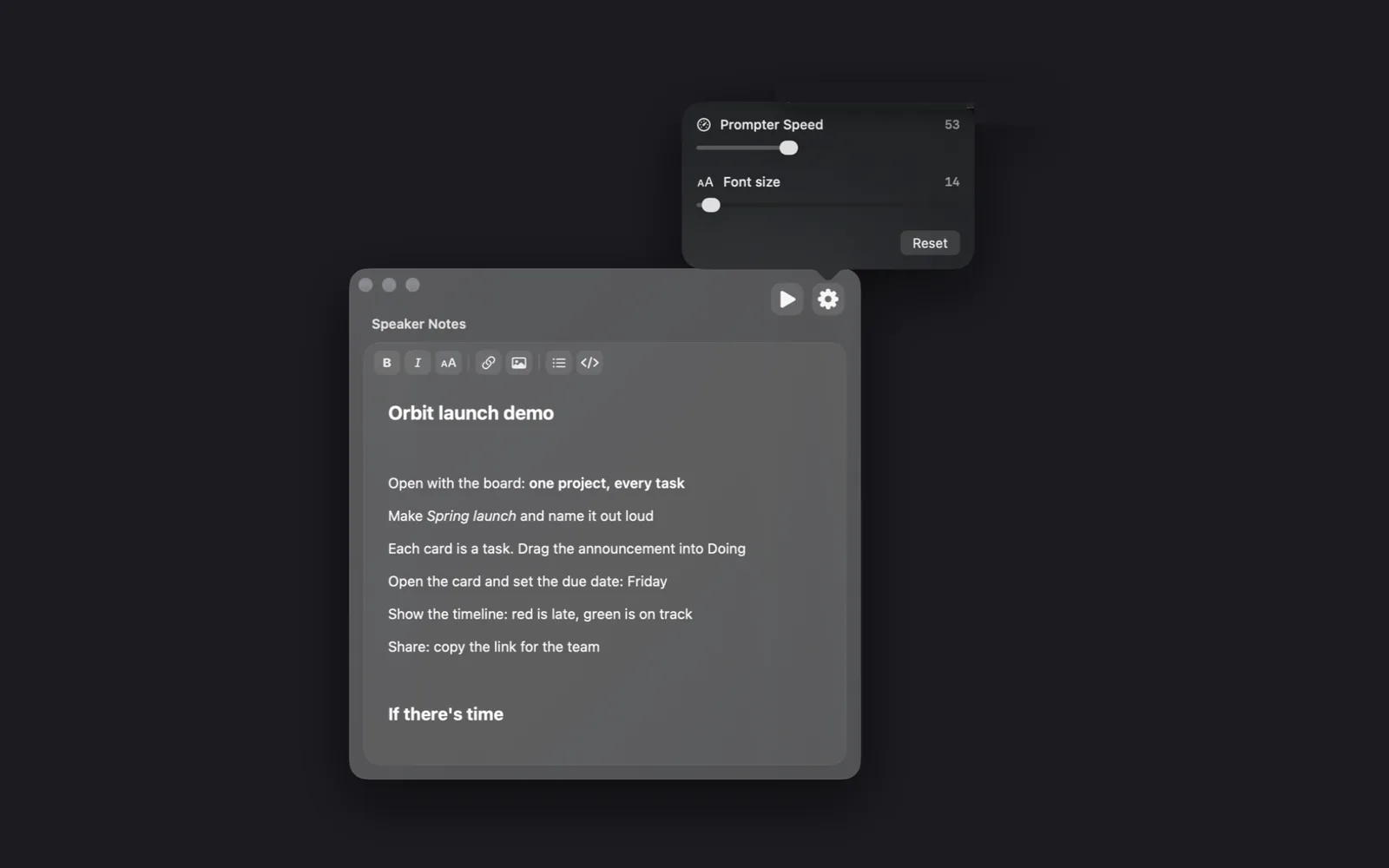
| Setting | Range | Default |
|---|---|---|
| Prompter Speed | 8 to 140, higher is faster | 42 |
| Font size | 12 to 88 | 24 |
The number beside each slider is its current value, and Reset puts both back to their defaults. With bigger text, the same speed moves fewer words past you each second, so raise the speed when you raise the font size.
Keep your notes out of the recording
Speaker notes don't appear in your recordings or screenshots, so you can keep them over the part of the screen you record. To show them on purpose:
- Click the gear on the capture bar to open Capture Options.
- Open the Advanced tab.
- Under Visibility, turn on Allow recording of speaker notes.
Turn it off again when you go back to recording with a script.
Your notes are kept
DreamCut saves your notes, speed and font size as you go. Close the window or quit DreamCut, and they're there the next time you open speaker notes. There's one set of notes: to start a new script, replace the text.
Tips
- Put the window close to your camera, so you look near the lens while you read.
- Start each part of your script with a heading. Headings show larger than the rest, so you can find your place at a glance.
- Make the words you must say exactly bold, so they stand out as the notes scroll.
What's next
- Record your screen: start a recording from the capture bar.
- Camera and microphone: set up the camera and mic you'll be reading to.
- Quick captures: copy or record a window with a double tap.
- Dictation: talk instead of typing, in any app.