
Article Studio: turn a video into writing
Turn a recording into an article, YouTube and X companions, covers and short videos with Article Studio, then edit the writing and export it.
Article Studio reads a recording once and writes from it: a full article with a frame from the video for every section, companions for YouTube and X, and formats such as a tutorial or a newsletter. In the same run it can make covers and short videos. Each piece opens in its own tab, where you edit it like a document and export it.
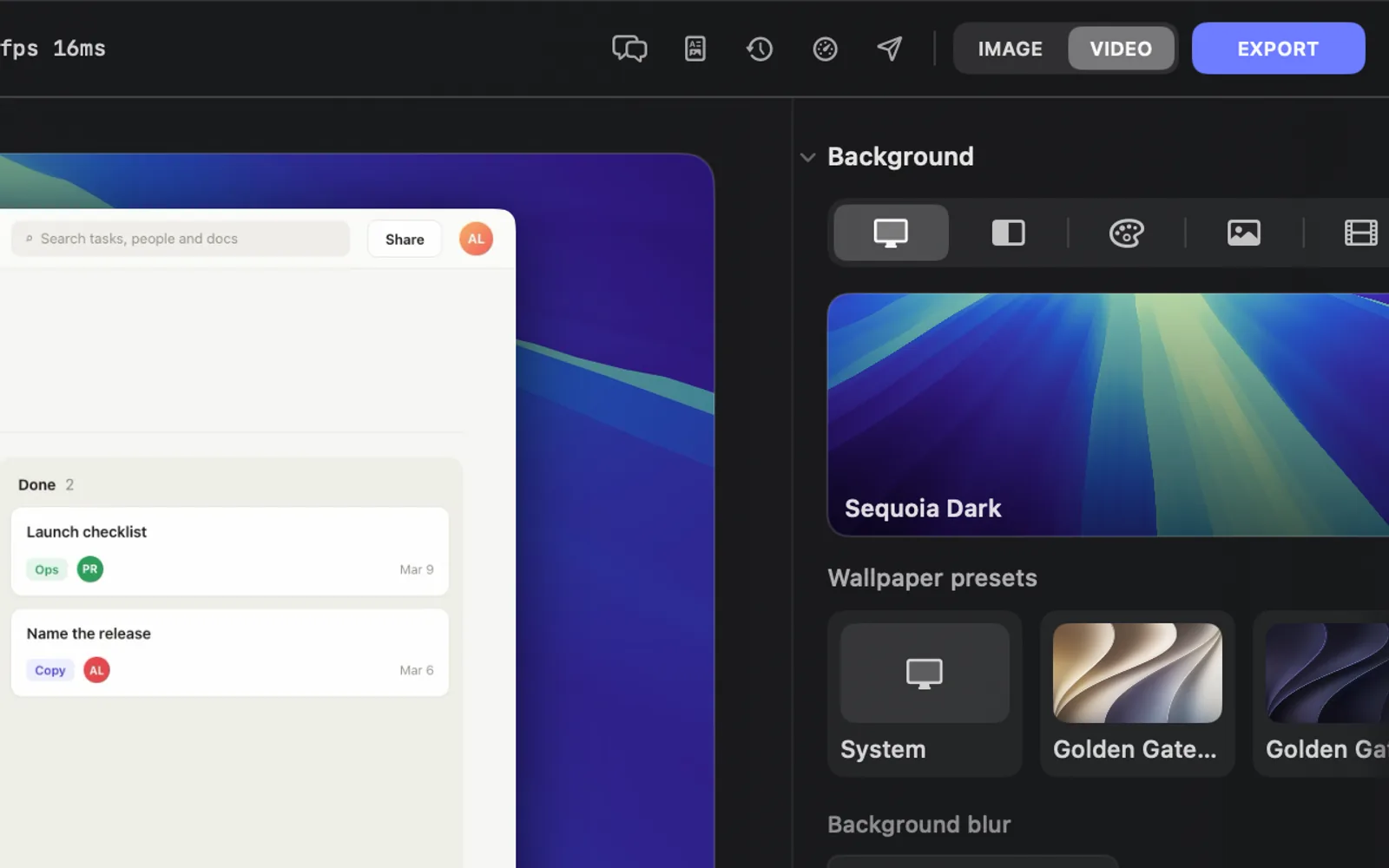
Open Article Studio
- Open your project in the editor.
- In the top bar, click the page icon right of the speech bubbles (hover it to read Article Studio).
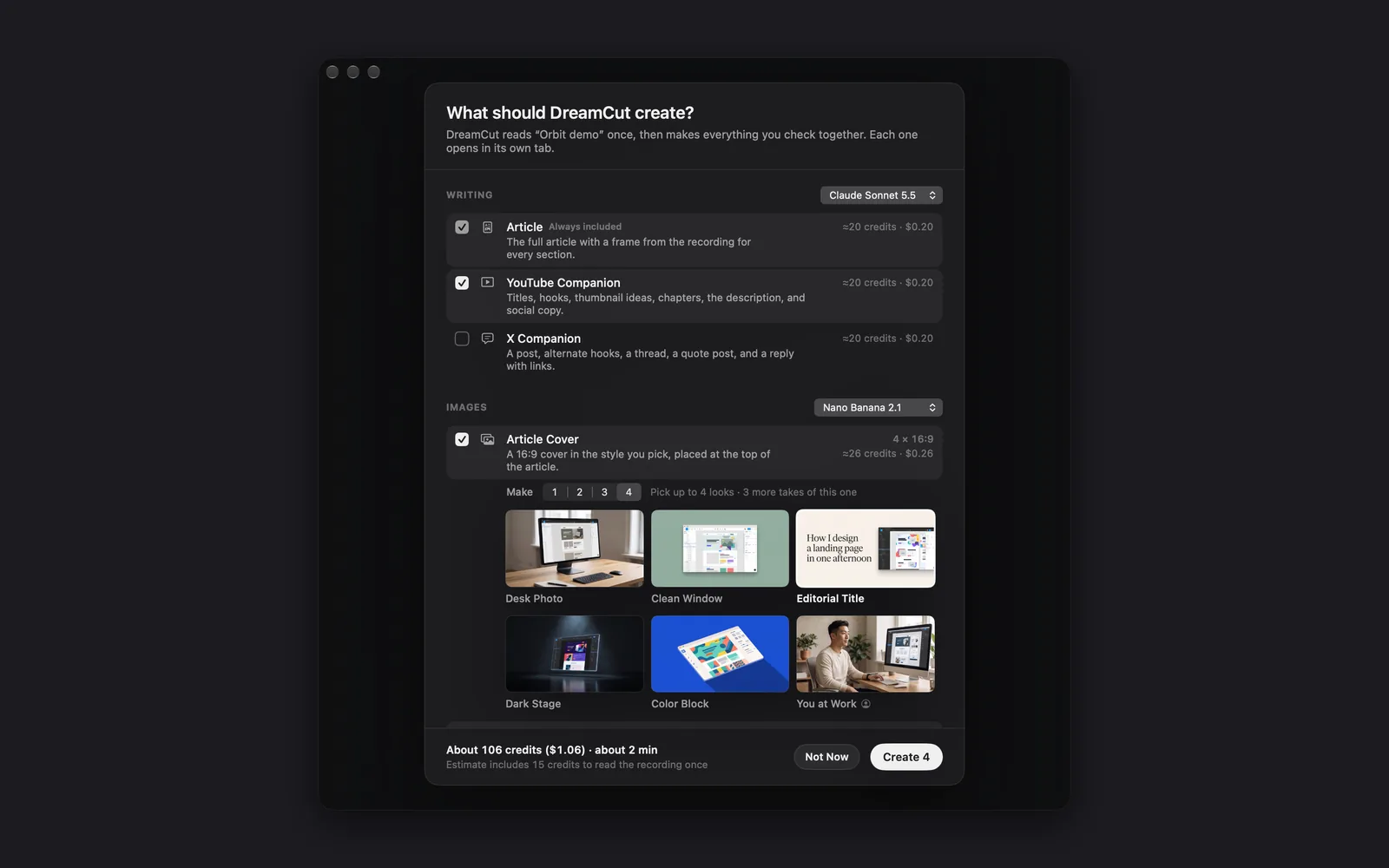
- Article Studio opens in a window of its own. The first time, the What should DreamCut create? sheet opens with it.
If you press Not Now, the window reads "Nothing created yet". Press Create… to bring the sheet back.
Create an article and more
- Under WRITING, tick what to write. Article is always included the first time.
- Under IMAGES, tick the covers you want, then pick their looks and how many to Make (see Choose cover looks).
- Under VIDEO, tick Promo Video or 1-Minute Short if you want one.
- Under STYLE, tick the voice and style skills to apply to all the writing.
- For other writing formats, open MORE WRITING FORMATS, the last section on the sheet, after STYLE. They use the writing model too.
- To change a model, pick it from the menu at the right of the group's heading.
- Check the total at the bottom, then press Create. The button counts what's ticked, such as Create 4 (in the picture, the fourth is YouTube Cover, below the rows in view).
DreamCut reads the recording once, with its transcript, the text on screen and the links it shows, then makes everything you ticked. While it writes, you see each step, such as "Read text on screen" and "Write the article", with the time left.
Stop (or Esc) ends the run. The window then reads "Stopped" and "Nothing was saved from the stopped run", with Start Again. Credits for the steps that had already finished, such as reading the recording, are still used.
Images and video carry on after the writing is done, so you can read and edit while they're made. A bar at the bottom of the window says what's still being made and the time left, with its own Stop. That Stop keeps the pieces that are finished.
The article is the first tab, ready to edit.
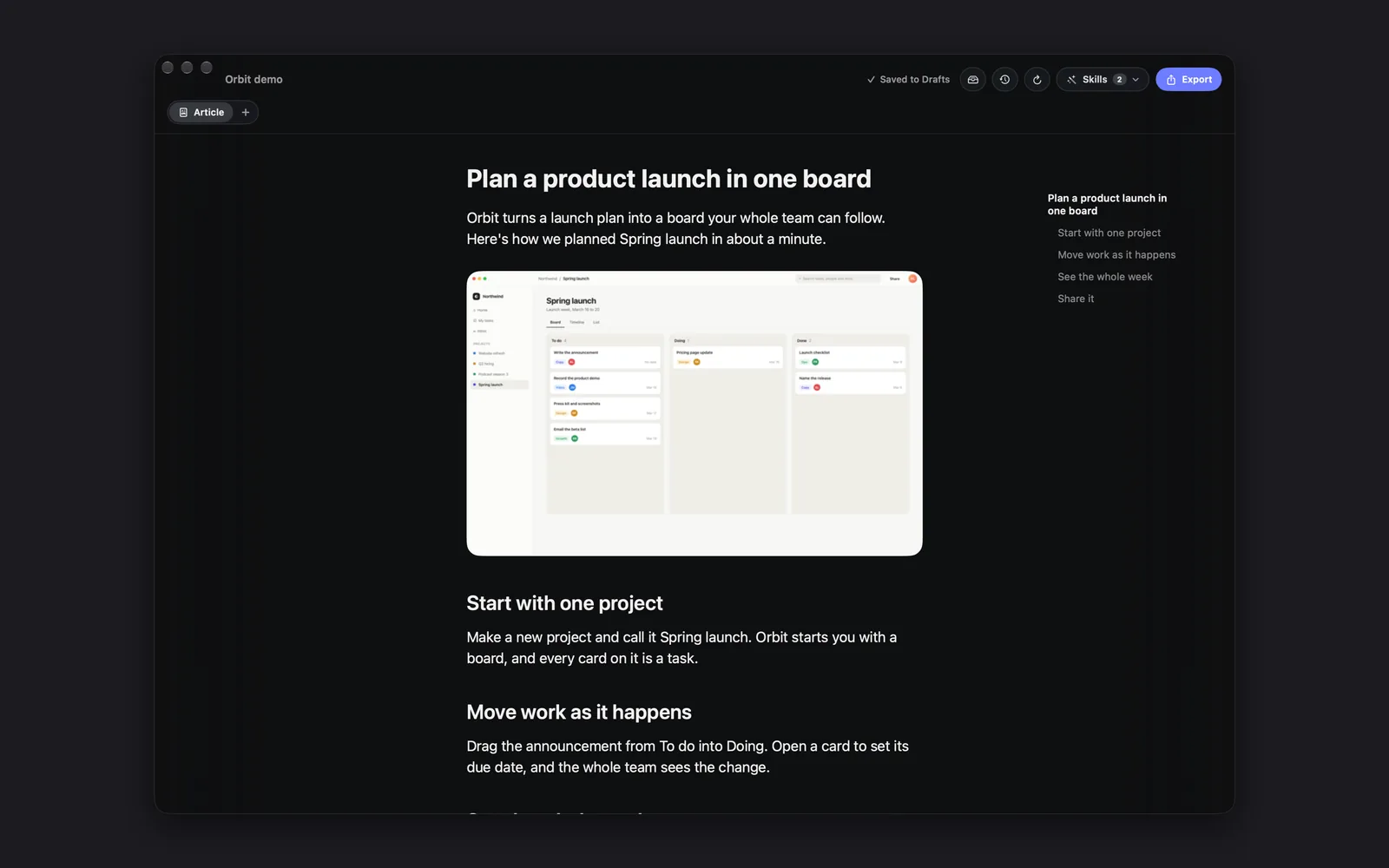
DreamCut remembers your models, looks and ticks for your next project.
Writing formats
The first three are always in view. The rest are under MORE WRITING FORMATS.
| Format | What you get |
|---|---|
| Article | The full article with a frame from the recording for every section |
| YouTube Companion | Titles, hooks, thumbnail ideas, chapters, the description and social copy |
| X Companion | A post, alternate hooks, a thread, a quote post and a reply with links |
| Blog Post | A search-friendly post with a meta description and scannable sections |
| Tutorial | Numbered steps a reader can follow from start to finish |
| Documentation | Reference docs: overview, tasks, settings and troubleshooting |
| Course Lesson | Learning goals, lesson sections, a recap and an exercise |
| Case Study | Challenge, approach and results, backed only by what the recording shows |
| Newsletter | An email issue with a subject line and preview text |
| Release Notes | What's new, improved and fixed, in plain bullets |
| X Article | The article as one long-form X post with a punchy hook |
| X Thread | A numbered thread on its own. The X Companion already has one |
| YouTube Description | The description on its own. The YouTube Companion already has one |
| Instagram Post | A caption with hashtags, plus carousel slides from the video |
| LinkedIn Post | A single post with a strong opening and a clear lesson |
Images and video
| Output | Size | What it is |
|---|---|---|
| Article Cover | 16:9 | A cover in the look you pick, placed at the top of the article. Ticked to start with |
| YouTube Cover | 16:9 | A thumbnail with you, the hook and the result |
| Square Post Image | 1:1 | An image for Instagram, LinkedIn or X |
| Promo Video | 15 s, 16:9 | A promo built from the recording's best moment |
| 1-Minute Short | 60 s, 9:16 | A vertical short in four scenes, stitched together |
Choose cover looks
When you tick a cover, its looks appear under it as example pictures.
- Next to Make, pick how many images to make: 1 to 4. Four is the default.
- Click up to four looks. If you pick fewer looks than images, the rest are more takes of the looks you picked; the line beside Make says so, such as "Pick up to 4 looks · 3 more takes of this one".
| Cover | Looks |
|---|---|
| Article Cover | Desk Photo, Clean Window, Editorial Title, Dark Stage, Color Block, You at Work |
| YouTube Cover | Clean Studio, Bold Pop, Neon Glow, Cinematic, Editorial, Big Reaction |
You at Work and every YouTube Cover look put you on the cover. For those, a Your portrait row appears: DreamCut uses your best moment on camera in the recording, or a photo you pick with Choose Photo…. A recording without a camera reads "This recording has no camera. Choose a photo of yourself, or those covers leave you out."
Models
| Group | Models | Default |
|---|---|---|
| Writing | Claude Sonnet 5.5, Claude Opus 5.5, Claude Haiku 5.5, GPT-6.1 Sol, GPT-6 Astra | Claude Sonnet 5.5 |
| Images | Nano Banana 2.1, Nano Banana Pro, GPT image 2.5, Seedream 5.0, Seedream 5.0 Pro, Seedream 5.0 Flash | Nano Banana 2.1 |
| Video | Grok Imagine Video 1.5, Grok Imagine Video, Seedance 2.0, Google Veo 3.1 Fast | Grok Imagine Video 1.5 |
Style skills
STYLE applies to all the writing in the run. Write Like Meng (a casual first-person voice) and No AI Slop (cuts phrases that read as AI) start on. SEO Optimized, Beginner Friendly and Concise (half the length) start off. The same choices are in the Skills menu in Article Studio's toolbar, where they also apply to rewrites.
Switch between tabs
Each thing you made opens in its own tab at the top of the window, with the article first. Press ⌘1 to ⌘9 to switch tabs. In a narrow window, the tabs you aren't on shrink to icons.
Click + at the end of the tabs to make more. The sheet opens as Create more, with what you haven't made yet ticked.
Writing tabs are documents you edit (see Edit the writing). Image and video tabs have their own buttons at the top right:
| Button | Shows on | What it does |
|---|---|---|
| Stop Creating | A tab still being made | Stops everything still being made. Finished pieces stay |
| Try Again | A tab that failed | Makes that piece again |
| Make More | Image tabs | Opens the sheet as Make more Article Covers (or that tab's name) to make more in the looks you pick. They join the ones you have |
| Regenerate | Video tabs | Opens the sheet to make the video again. The new one replaces it |
| Copy | Image tabs | Copies the image |
| Show in Finder | Image and video tabs | Shows the file in Finder |
| Save As… | Image and video tabs | Saves a copy where you choose |
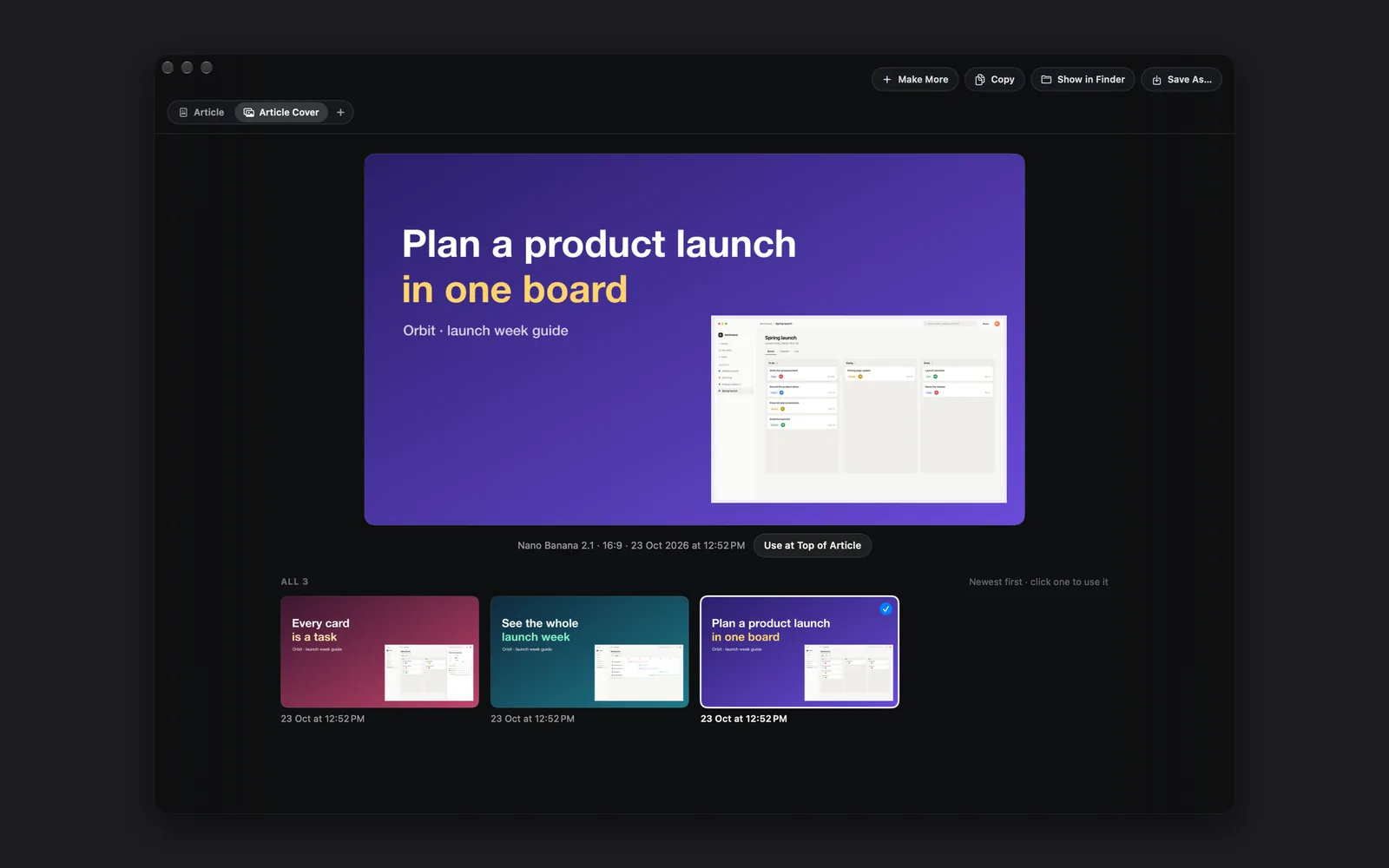
An image tab shows the image in use at the top, with its model, shape and date under it, and every image made for it below, newest first, with a tick on the one in use. Click one to use it. Right-click an image for Use This One, Copy Image, Save As…, Show in Finder and Move to Trash. On the Article Cover tab, Use at Top of Article (a button beside the image in use, and in each image's right-click menu) puts that image at the top of the article.
Edit the writing
The article and every other writing tab are made of blocks: paragraphs, headings, lists, images and so on. Click into any block and type. Every edit is saved as you go, and the toolbar reads "Saved to Drafts".
- Insert a block: type "/" at the start of an empty line, or after a space, and pick from the menu. Keep typing to filter it. The choices are Text, Heading 1, Heading 2, Heading 3, Quote, Bulleted List, Numbered List, Checklist, Code, Image, Blank Image, Recent Image, Shader Image, URL Preview, Divider, Table and Video.
- Block options: hover a block and use the controls in the left margin. + opens the same menu to insert a block below it. The handle beside it moves the block when you drag it, and opens a menu when you click it, with Rewrite with AI…, Turn Into, Insert Below, Duplicate, Copy Markdown and Delete. On an image, the handle's menu also has Generate Image or Video… and Width (Column Width or Wide).
- Format words: select them and a small toolbar appears with bold, italic, underline, strikethrough, inline code and link.
- Find: press ⌘F to open Find in article. Return goes to the next match, ⇧Return to the previous one, and Esc closes it.
- Outline: the headings show as short lines on the right edge. Hover them to read the titles, and click one to jump there. A wide window shows the titles all the time.
- Images: hover an image for a small toolbar to view it, replace it, make a new one or see its media history. Right-click it for the rest, such as Generate Image or Video…, Copy Image, Save Image As…, Replace Image…, Choose Recent Image… and Reveal Image in Finder.
Rewrite a paragraph or heading
- Hover a paragraph or heading, click the handle in the left margin, and choose Rewrite with AI….
- In Rewrite block, pick a direction: Punchier, Improve, Deepen, Simplify, Concise, Storyteller, Controversial or Hook. Or write your own in Direction.
- Press Iterate. DreamCut writes several options, each from a different angle, such as Thesis, Reader pain or Contrarian.
- Click the one you like and press Apply selected. To try again, press Remix.
Rewrites follow the style skills that are on, and keep the format of the tab you're in.
The toolbar
The toolbar at the top right of a writing tab has, from left to right, the save status ("Saved to Drafts"), three icons, then Skills and Export. The icons have no names on screen; hover one to read what it does.
| Button | What it does |
|---|---|
| The tray | Opens Article Drafts, the drafts DreamCut keeps as you edit. The newest is marked Latest |
| The clock | Opens Version History (see below) |
| The circular arrow | Opens the sheet as What should DreamCut make again?. Writing and video you tick are replaced; new images join the ones you have |
| Skills | The voice and style skills, with how many are on, such as Skills 2 |
| Export | Saves or copies the writing (see Export the writing) |
In a narrow window, "Saved to Drafts" shortens to "Saved".
Export the writing
Click Export at the top right of a writing tab and pick a format. DreamCut saves a copy where you choose.
| Export | What you get |
|---|---|
| A paginated document with every image, ready to share or print | |
| HTML | One web page with the images built in |
| Markdown | A folder with the article as Markdown and the images it shows |
| Plain Text | The words without formatting |
Copy as Markdown and Copy as Plain Text in the same menu put the writing on your clipboard instead.
To post a long-form article to X, open it in Article Drafts (the tray) and press Publish to X Article. It uses the X account you connected for publishing, and asks first with Publish Live to X. X takes up to 25,000 characters.
Version history
DreamCut saves a version after 5 seconds without changes. To save one yourself, press ⌥⌘S or Save Now.
- Click the clock in the toolbar to open Version History.
- Each version shows whether it was auto-saved or saved by you, when, and its word count. Click one to preview it.
- Press Restore Version to go back to it, or Back to Current to leave it.
Shortcuts, Markdown and other apps
Keyboard shortcuts
| Keys | What they do |
|---|---|
| ⌘Z / ⇧⌘Z | Undo or redo an article edit |
| ⌘B, ⌘I, ⌘U, ⇧⌘X | Bold, italic, underline, strikethrough |
| ⌘E / ⌘K | Inline code / link |
| ⌘D | Duplicate the block |
| ⇧⌘↑ / ⇧⌘↓ | Move the block up or down |
| ⌥⌘0 to ⌥⌘8 | Turn the block into text, heading 1, 2 or 3, checklist, bulleted list, numbered list, quote or code |
| ⇧⌘M | Show the Markdown source, or the article again |
| ⌥⌘S | Save a version |
Undo, redo, the Markdown source and versions are also in the Article menu in the menu bar while Article Studio is in front.
Markdown source
Press ⇧⌘M, or choose Article > Toggle Markdown Source, to edit the article as Markdown. Press it again to go back.
Edits from other apps
The article is saved as a Markdown file, so you can also edit it in another app. Article Studio picks up the change, and merges it with yours when you changed different parts. If both apps changed the same part, it asks which to keep: Keep This Version or Use External Version. Nothing is overwritten until you choose. To answer later, use the orange button at the bottom of the window, or right-click an empty part of the window and choose Resolve External Change….
Where your work is saved
Article Studio has no Save button. It keeps each project's work in a folder of its own, in your Documents folder under DreamCut › Articles. It holds the article as Markdown with its images, the drafts that Article Drafts lists, and every image, video and piece of writing in your tabs. Version History keeps its versions in the same DreamCut folder.
To find a file, use Show in Finder on an image or video tab, or Reveal Image in Finder on an image in the article. Export and Save As… save copies wherever you choose.
Credits
Each piece of writing costs about this much with each model:
| Writing model | Credits per piece |
|---|---|
| Claude Sonnet 5.5 | About 20 |
| Claude Opus 5.5 | About 40 |
| Claude Haiku 5.5 | About 2 |
| GPT-6.1 Sol | About 20 |
| GPT-6 Astra | About 100 |
Images and video depend on the model and how many you make. With Nano Banana 2.1, four Article Covers come to about 26 credits.
What's next
- Sakura: ask for edits to the video itself in plain words.
- Dictation: hold fn to type with your voice in any app.
- Export settings: save the video that goes with your article.