
Overlays: boxes, blur and highlights
Draw a box over your recording in DreamCut to frame or highlight an area, blur or cover private details, or show a picture or video on the canvas.
An overlay is a box on top of your recording. It can be a dark panel behind a point you're making, an outline that highlights part of the screen, a frosted blur over an email address, or a picture or video of its own. You draw boxes from the Overlay panel, which also holds stickers, cut-outs and AI B-roll.
Draw a box
- Move the playhead to where the box should appear.
- Click Overlay in the tool rail on the left of the editor. The Overlay panel opens beside the rail.
- Click Custom Overlay at the top of the panel. The card lights up and reads "Drag on the canvas".
- Pressing O does steps 2 and 3 in one go.
- Drag across the canvas over the area you want to cover or frame.
- Let go. The box appears on the Overlay lane of the timeline, starting at the playhead and lasting 2 seconds, and it's selected so you can adjust it.
A new box is black at 50% opacity, with no outline and corners rounded to 8. After one box the canvas goes back to selecting; press O or click Custom Overlay again for the next. To put the box tool down without drawing, press Esc or click Custom Overlay again.
To make the box last longer, drag its end on the Overlay lane, or set its timing in the Animation tab (see The Animation tab). Edit on the timeline covers moving and trimming layers.
Add a box from the timeline
When layers on the Overlay lane overlap in time, a small arrow appears beside the lane's name. Click it to open the lane into as many rows as keep the overlapping layers apart. Right-click the empty part of a row that holds a single box and choose Add Overlay: a new box lands in the middle of the canvas at the playhead, with the same defaults as one you draw. The same menu has Generate Image and Generate Video; see Generate media.
What's in the Overlay panel
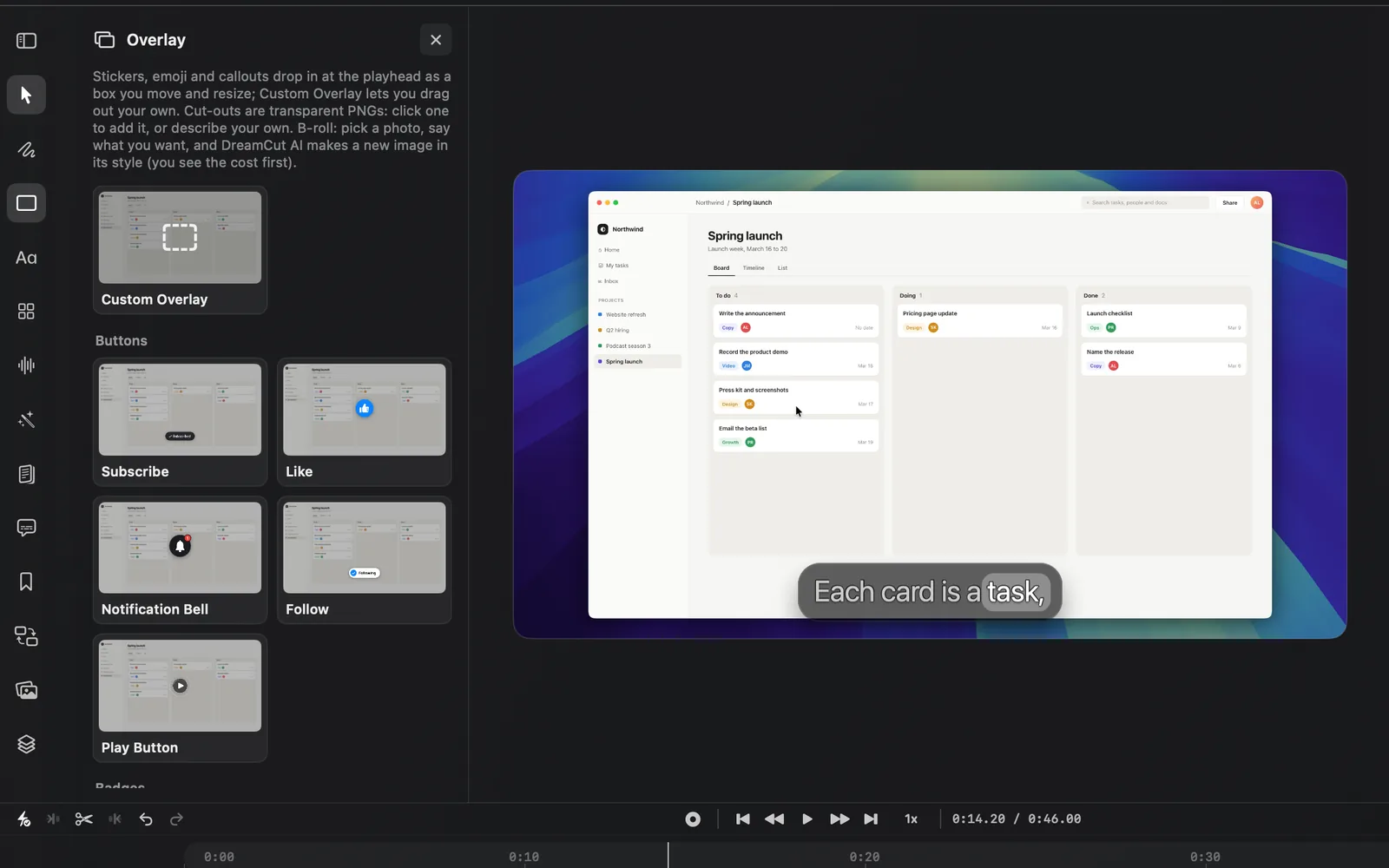
Click Overlay again, or the × at the top of the panel, to close it. The panel starts with a line on what it holds, then lists, from top to bottom:
| Group | What it adds | Read more |
|---|---|---|
| Custom Overlay | A box you drag out on the canvas | Draw a box |
| Buttons, Badges, Callouts, Emoji & effects | Animated stickers, such as a Subscribe button | Stickers and cut-outs |
| Cut-outs · Logos to Cut-outs · Objects | Pictures with a clear background, such as an arrow or a logo | Stickers and cut-outs |
| B-roll · AI images | A new full-frame picture made by DreamCut AI | B-roll from AI images |
Move and resize a box
- Move: drag the box on the canvas.
- Resize: drag a corner or an edge.
- Round the corners: hover the selected box and drag one of the small dots inside its corners (Adjust corner radius), or type a value in the toolbar's Corners field.
- Turn it: drag a little outside a corner. Crop and rotate a layer has the details, and how to crop a box.
A selected box has a toolbar above it on the canvas. From left to right:
| Control | What it does |
|---|---|
| Fill (the square swatch) | The fill's colour or gradient. No fill under the colours leaves only the outline |
| Border color | The outline's colour. The toolbar calls the outline a border; the inspector calls it a stroke |
| The diamond | Add keyframe at the playhead |
| The crop button | Crop: drag its edges |
| Corners | How round the corners are, from 0 to 80 |
| Border | The outline's width, from 0 to 24. 0 means no outline |
| Z-index | The box's place in the stack, from 0 to 10. See Layer order |
| The wand | Generate with this layer: AI media with this box as the context |
| More | The box's right-click menu: crop, stack order, Duplicate, Hide and Delete |
In Corners, Border and Z-index, drag the icon or type a number; ↑ and ↓ step the value.
The box's settings
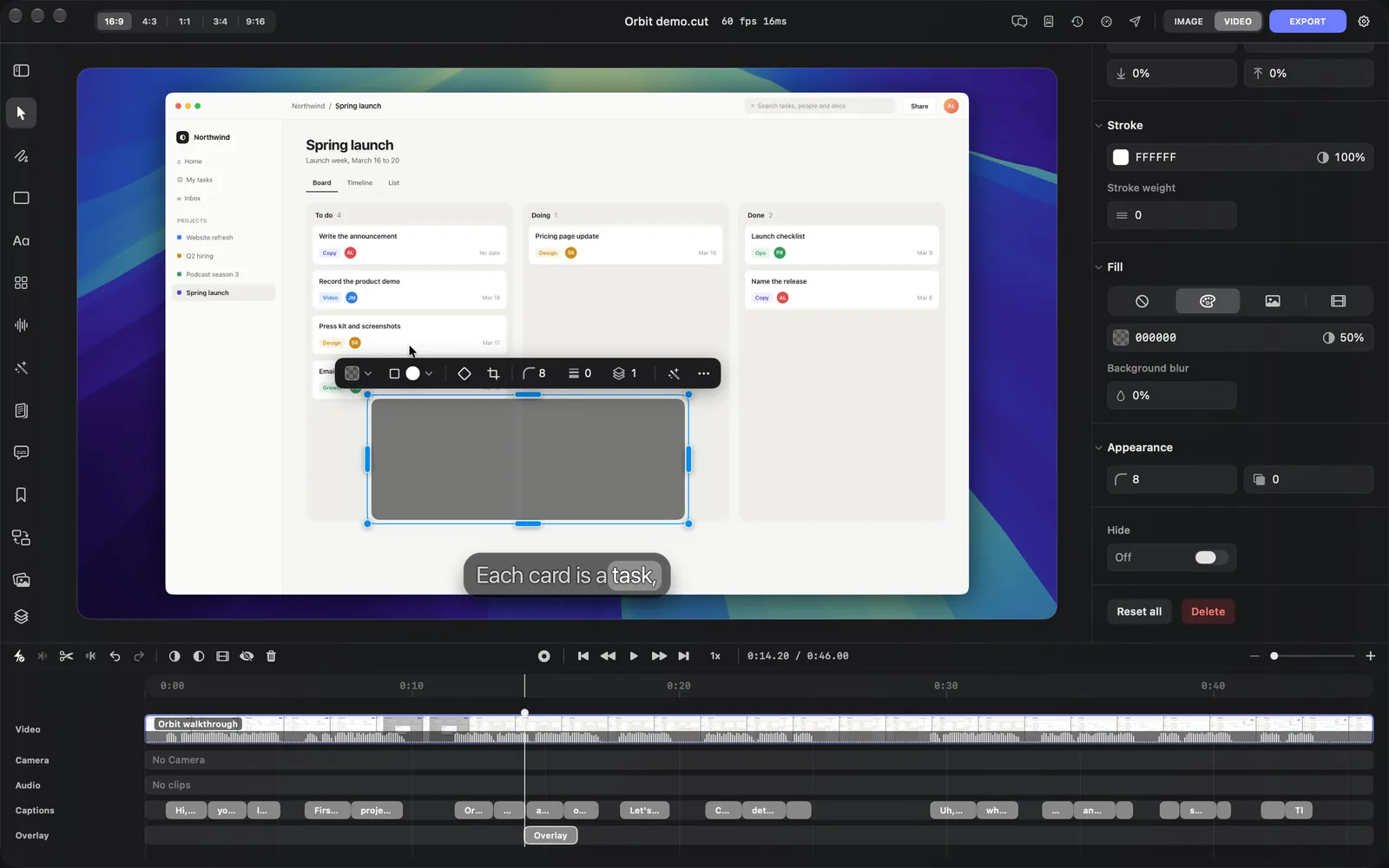
Select a box and the inspector on the right shows two tabs, Overlay and Animation. Overlay holds everything about the box itself.
| Section | Settings |
|---|---|
| Transform | X and Y (the left and top edges, in export pixels), W and H (in percent of the canvas; click the % to switch to pixels), a lock that keeps the shape, Rotation and Z-index. Anchor to the layer places the box on the recording instead of the canvas, so it moves and zooms with it |
| Crop | Left, Right, Top and Bottom, and Crop on canvas |
| Stroke | The outline's colour and opacity, and Stroke weight from 0 to 24. 0 means no outline |
| Fill | Four icons; hover one for its name: None (the slashed circle), Color (the palette), Image and Video. With Color: the fill's colour and opacity, and Background blur. With Image or Video: Set Custom Image or Set Custom Video |
| Appearance | Corner radius from 0 to 80, and Shadow from 0 to 100 |
Under the sections, Hide hides the box without deleting it, Reset all puts its settings back to the defaults, and Delete removes it.
After you change a box, Apply to Scene and Apply to All appear at the foot of the inspector. They copy the box's outline, fill, blur, corners and shadow to the other boxes in this scene or in the whole project, and stay dimmed (Apply to All keeps a faint indigo) when there's no other box. Cut-outs and picture boxes count as boxes, so Apply to All from a colour box replaces their pictures with its colour.
Click a colour field to pick a colour, or a Linear, Radial or Angular gradient, for the stroke or the fill.
Highlight an area
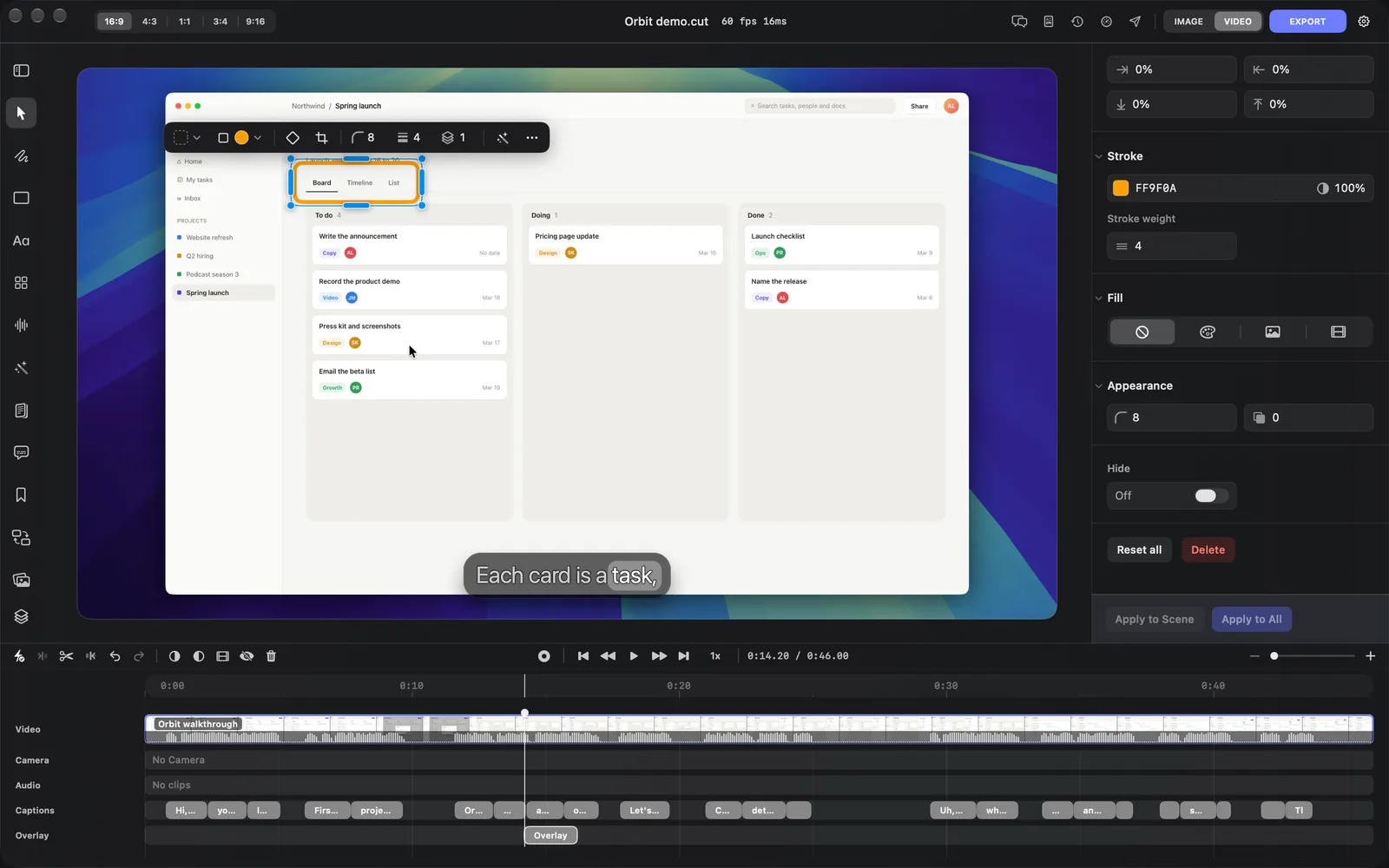
An outline draws the eye to one part of the screen without covering it.
- Draw a box around the area.
- In Fill, click None (the slashed circle), or choose No fill from the toolbar's Fill. Only the outline is left.
- In Stroke, pick a colour and set Stroke weight, such as 4. The toolbar's Border color and Border do the same.
- Round the corners with Corner radius if you like.
Blur or cover private details
To hide an email address, a name or a token in your recording:
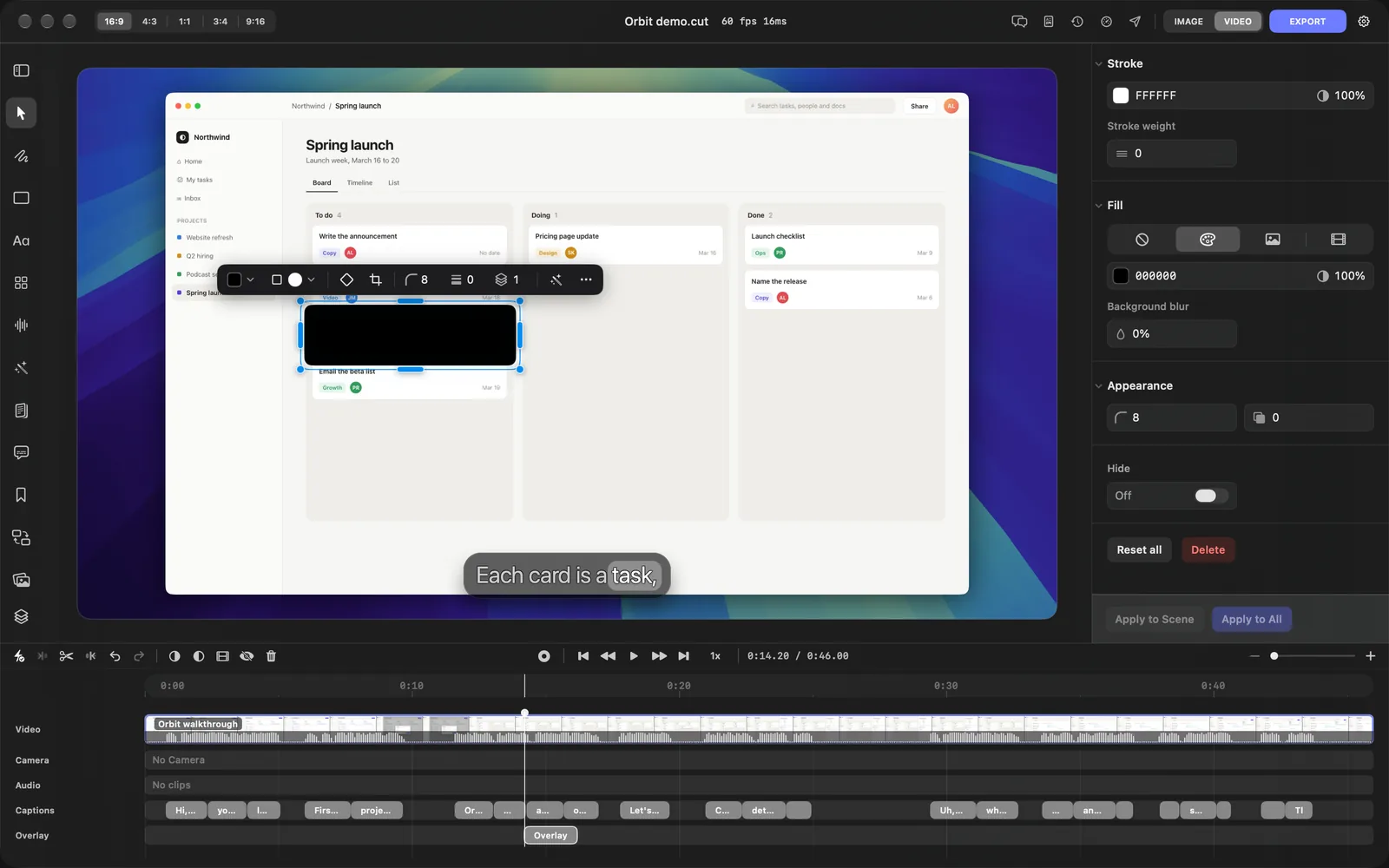
- Draw a box over it with Custom Overlay.
- In Fill, keep Color (the palette) and set the fill's opacity to 100%. The box now covers the detail with one solid colour, the safest cover for a password or a token.
- For a frosted look instead, lower the fill's opacity and raise Background blur. Its five steps, 20% to 100%, are macOS's frosted-glass materials from Ultra Thin to Ultra Thick: the higher, the more it blurs and clouds what's behind the box. A blur softens text, but large text can still be guessed.
- In Transform, turn on Anchor to the layer, so the box stays over the same spot when the recording zooms.
- Check the whole time the detail is on screen, and stretch the box on the timeline to match.
Show a picture or video in a box
A box can show a picture or a video instead of a colour. There are several ways to make one:
- From the canvas: right-click an empty part of the canvas, such as the background around your recording, and choose Add Overlay Image or Add Overlay Video. Pick a file, and it lands where you right-clicked, at the playhead, in its own shape.
- From Finder: drag a picture or a video onto the canvas. It lands where you drop it.
- From the Media gallery: click Add… on a picture or video and choose Overlay ("A box on the canvas"), or open it and click Add to Overlay. It lands in the middle of the canvas at the playhead. See Media gallery.
- In a box you drew: select it, click Image or Video under Fill, then Set Custom Image or Set Custom Video and choose From Computer or From Media Library.
Files you add from your Mac are copied into your media library, so they show in the Media gallery too. A picture or video box has the same settings as any box, and lasts 2 seconds until you stretch it.
With a picture or video fill, the Background menu under it removes the background on your Mac: choose Behind Person or Behind Foreground, and DreamCut makes a copy without the background and shows its progress as a percent. To clear the fill, click the trash button beside its file name.
The Animation tab
The Animation tab of a box has three sections:
- Keyframes: Add puts a keyframe at the playhead, and Preset adds the keyframes of a ready-made animation, grouped as Animation In, Visibility and Animation Out. The diamond in the box's toolbar adds a keyframe too.
- Animation: Start animation sets how the box comes in (its opacity, position, blur, scale and tilt), with Animation duration and Timing.
- Timing: Start time, Duration, Shows from and Shows until.
Layer order
The recording, the camera and every overlay share one stack, numbered 0 to 10. A new box is 1. A higher number sits on top; on equal numbers the recording is at the bottom, then the camera, then overlays.
- Type a number in Z-index in the box's toolbar or in Transform.
- Or right-click the box on the canvas or the timeline, or click More in its toolbar, and choose Bring to Front, Bring Forward, Send Backward or Send to Back.
The same menu has Crop, Duplicate, Hide and Delete.
Blur Box, HTML Element and Highlight
Three more kinds of box have no card in the Overlay panel:
| Key | Layer | What it draws |
|---|---|---|
| B | Blur Box | A box filled with one solid colour. It covers the area, or tints it if you lower the colour's opacity in its toolbar's Tint or the inspector's Color |
| H | HTML Element | A box that shows a small web page, starting with the words "HTML Element". Edit its code in the HTML section of the inspector. Layout cards and HTML covers writing HTML |
| None | Highlight | A box tinted with one colour at about a quarter strength. Its inspector tab, Highlight, has Transform, Crop, Color and Hide, and its toolbar has Highlight color |
For Blur Box and HTML Element, press the key, then drag over your recording: the drag has to start on the recording itself, not on the background around it. Esc puts the tool down.
You can select and edit a Highlight layer that's already in a project, but this version of DreamCut has no button or key that draws a new one. To highlight an area, use an outline, as in Highlight an area.
Tips and limits
- Right-click menus on the canvas don't open while the video plays. Pause first.
- Press ⌘D to duplicate a selected box, and ⌫ to delete it. ⌘Z undoes either.
- Sakura, and agents connected over MCP or the dreamcut command, can add boxes too, and solid blocks that cover part of the recording.
- Drawing and styling boxes uses no credits. Generating a picture or video into a box does; see Generate media.
What's next
- Stickers and cut-outs: animated buttons, badges and emoji, and pictures with a clear background.
- B-roll from AI images: a new full-frame picture in the style of a photo.
- Media gallery: the pictures and videos you can put in a box.
- Text and titles: words on the canvas.